

Virtual Avatar Feature: System Requirements、Detailed Guide and Virtual Sound
Computer Configuration Requirements
Recommended computer configuration
| OS | Windows 11 (or Windows 10) |
| System Version | 64-bit version 1909 revision .1350 or later, or version 2004 and 20H2 revision .789 or later |
| CPU | Intel Core I7 12700K(or i5-13600) |
| Memory | 32GB |
| GPU | Nvidia RTX 4070Super 12GB |
| Storage Space | Requires 20GB or more of available space |
| Remark | High-quality 60fps rendering frame rate |
Mid-range computer configuration
| OS | Windows 11 (or Windows 10) |
| System Version | 64-bit version 1909 revision .1350 or later, or version 2004 and 20H2 revision .789 or later |
| CPU | Intel Core I5 12400 |
| Memory | 32GB |
| GPU | Nvidia RTX 3050 8GB |
| Storage Space | Requires 20GB or more of available space |
| Remark | Medium settings, 45fps rendering frame rate |
Minimum computer configuration
| OS | Windows 11 (or Windows 10) |
| System Version | 64-bit version 1909 revision .1350 or later, or version 2004 and 20H2 revision .789 or later |
| CPU | Intel Core I5 12400 |
| Memory | 16GB |
| GPU | Nvidia GTX 1060 6GB |
| Storage Space | Requires 20GB or more of available space |
| Remark | Low quality 30fps rendering frame rate |
Note:
- Currently, this feature only supports NVIDIA and AMD graphics cards.
- Please update your graphics card driver to the latest version before use.
GPU support list
Please use the following GPUs and ensure that the GPU driver version is the latest..
| NVIDIA | RTX 5090 |
| RTX 5080 | |
| RTX 5070 | |
| RTX 5060 | |
| RTX 5050 | |
| RTX 4090 | |
| RTX 4080 | |
| RTX 4070 | |
| RTX 4060 | |
| RTX 4050 | |
| RTX 3090 | |
| RTX 3080 | |
| RTX 3070 | |
| RTX 3060 | |
| RTX 3050 | |
| RTX 2080 | |
| RTX 2070 | |
| RTX 2060 | |
| RTX 2050 | |
| GTX 1660 | |
| GTX 1650 | |
| GTX 1080 | |
| GTX 1070 | |
| GTX 1060 | |
| AMD | RX 9070 |
| RX 9060 | |
| RX 7900 | |
| RX 7800 | |
| RX 7700 | |
| RX 7600 |
User Guide for the Virtual Avatar Feature
Highlight Features
★ Real-time, precise character motion capture paired with a virtual camera system that simulates realistic camera movements.
★ One-click switching between virtual avatars and scenes.
★ Intelligent AI tracking for rapid output of high-quality virtual content.
Setup and Usage Requirements
This section mainly includes Tiny 3 installation and venue attire.
Tiny 3 Placement Requirements
- During use, please place the Tiny 3 on a horizontal table or tripod. Keep the Tiny 3 base as level as possible to ensure the virtual character remains in the correct position during AI tracking or gimbal rotation.
- The Tiny 3 needs to be mounted at a suitable height to ensure that the subject's face and all parts of the body can be captured in the shot.
- After placing the Tiny 3, measure the vertical distance between the Tiny 3 and the ground, accurate to the centimeter.

Note: Currently, this feature is only supported by OBSBOT Tiny 3 and Tiny 3 Lite products.
Clothing requirements
- Avoid wearing masks or other items that obscure your face or any part of your body.
- To avoid wearing overly loose clothing that could affect the accuracy of 3D motion capture.

Note: Currently, this function only supports one person to perform 3D motion capture at the same time.
Function Introduction
Download resource package
1. Download the OBSBOT Center software and ensure that Tiny 3 or Tiny 3 Lite products are correctly connected.

2. Click and open the virtual avatar function window on the main interface or video preview window of the OBSBOT Center software.

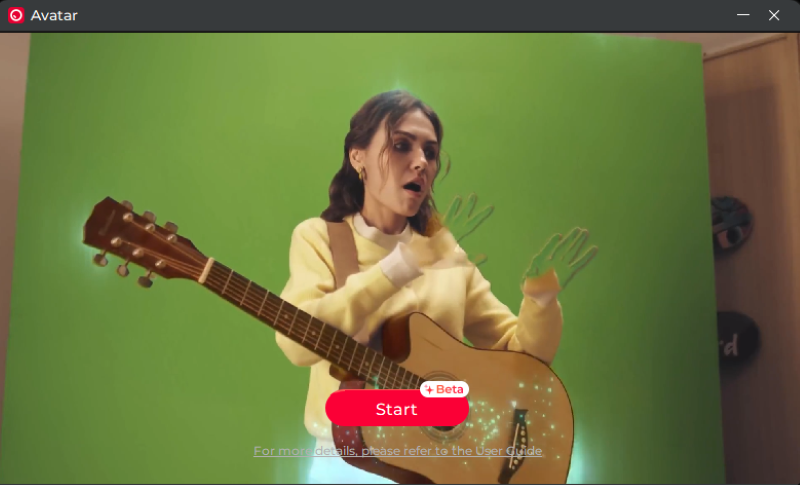
3. Upon first use of this feature, clicking the "Start" button will automatically download the necessary resource package. Please wait patiently for the download to complete. To ensure a successful download, please run the OBSBOT Center software with administrator privileges.
Create a character
After entering the [Virtual Avatar] function for the first time, please follow the prompts to complete the virtual character selection, virtual scene selection, and motion capture-related settings.
1. Virtual Character Selection: This version offers several different styles of virtual characters. Enter a custom character name and click "Next".

2. Virtual Scene Selection: This version offers several virtual scenes. In addition, you can choose whether to display dynamic effects within the scene.

3. Virtual Props Selection: In the props tab, you can select a virtual character holding a prop.

Motion capture settings
After selecting the virtual character, virtual scene, and virtual props, you will enter the motion capture settings interface.
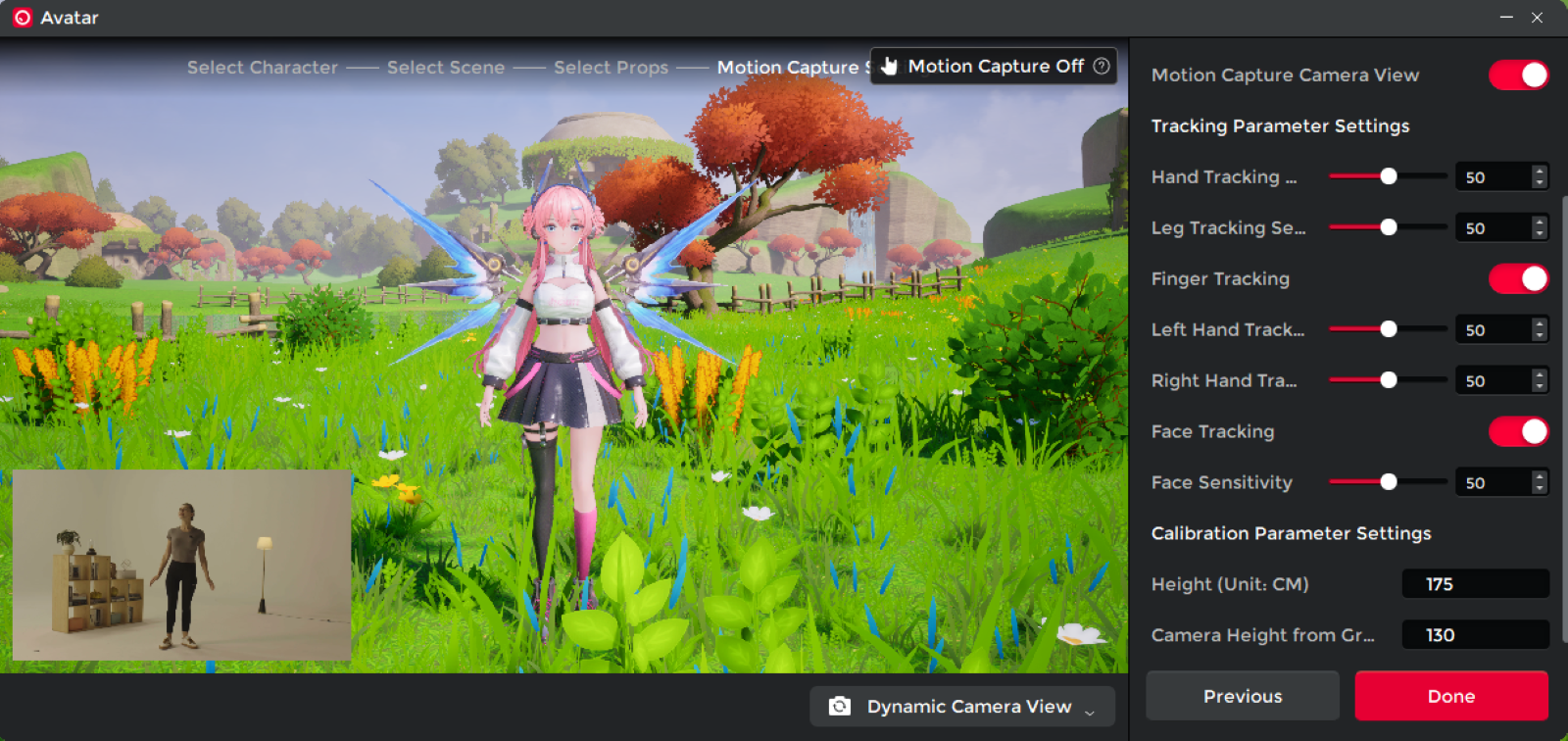
1. Motion capture camera selection: Choose the Tiny 3 or Tiny 3 Lite device for 3D motion capture.
2. Virtual timbre: Select the audio voice changer
Note: For first-time use of the [Virtual Voice] function, you need to download and install the third-party audio driver VB-CABLE, and add VB-CABLE to output the virtual voice in the third-party software.
3. Motion Capture Camera View: After opening, you can simultaneously monitor the virtual rendered screen and the original screen from the motion capture camera.
4. Tracking Parameter Settings: You can adjust the tracking sensitivity of the body skeleton (hands and legs) separately.
- Lowering the tracking sensitivity will reduce the range and sensitivity of the virtual character's movements compared to a real person, but the overall movement will be smoother and more stable. Please customize the values according to the actual situation during testing.
5. Finger Tracking: You can adjust the tracking sensitivity parameters for the left and right hands separately.
6. Facial Tracking: You can turn virtual character facial tracking on or off as needed.
7. Calibration Parameter Settings: Includes real person height information and camera height parameters.
- Height: To increase the accuracy of 3D motion capture, please fill in the height information of the real person being motion captured.
- Camera Height Above Ground: Please enter the Tiny 3 camera height above ground measured in the steps above.
Note: After creating the virtual character, to ensure motion capture quality, please avoid moving the camera position during use.

Role Management
To manage one or more created roles, the management interface is generally divided into the following functional areas:

1. Status Indicator Area: Displays the current motion capture camera occupancy status and 3D motion capture status in real time.
2. Motion Capture Status: The current motion capture status is displayed in real time in the upper-right corner of the page. Make the "🤘" gesture to start or pause motion capture.
3. Quick Function Operations:
- Motion Capture Camera View: When enabled, it allows simultaneous monitoring of the original camera view and the virtual rendered view.
- Virtual Character Output: When enabled, allows direct monitoring, recording, and output control of the view in the Center preview window.
- Dynamic Camera View: Supports activating virtual camera movement with a single gesture. Click the drop-down button to switch between full-body and half-body dynamic views, adjust the camera movement speed, or enable gesture control.
4.Character Management Area:
- Supports custom modification of created virtual character names.
- Allows one-click switching between the current virtual avatar and virtual scene content via the character management card.
Virtual screen preview monitoring

- After enabling virtual character output, you can monitor the virtual avatar content in real-time through the video preview window of the Center software.
- You can enable virtual camera output in the preview output window to capture the virtual image after 3D motion capture using third-party software.
- You can also enable video recording in the preview output window to record and save the real-time 3D motion capture footage.
- Clicking the "AI Settings" button will temporarily switch the video preview window to the original video feed from the current motion capture camera, allowing you to configure AI tracking, image settings, etc. However, the virtual camera output will still be the virtual image stream after 3D motion capture.
Frequently Asked Questions (FAQ)
Q1: Why is the virtual character moving erratically or not moving at all?
- Please check if your Tiny 3 or Tiny 3 Lite device is properly connected and ensure the Center software can monitor the camera feed.
- Please ensure that the camera can clearly capture the person's face and that there are no obvious obstacles between the person and the camera.
Q2: The virtual character's motion capture effect is poor. How can I improve the 3D motion capture effect?
- When starting and using this function for the first time, please ensure the entire character is in the frame to help the system complete the initialization, allowing for more accurate motion capture later.
- Please ensure the camera gimbal base is level and parallel to the ground.
- Please ensure the character's face is captured.
- Avoid wearing masks or other items that obstruct the face and body.
- Avoid wearing overly loose clothing, as this can affect the accuracy of 3D motion capture.
- Ensure clean and bright lighting; do not use the device in dark or complex lighting environments.
- Keep the background clean and tidy, avoiding images of people, posters, or other unwanted items.
Q3: Why do virtual characters occasionally float in the air or sink into the ground?
- Please note that when using the Avatar feature, keep a distance of more than 1 meter from the Tiny 3 camera.
- Please check if the Tiny 3 tripod base is level with the ground during the installation process. Additionally, you can reset the Tiny 3 tripod to its initial state before enabling the function. Of course, after the function is enabled, you can freely rotate the tripod and activate features such as person tracking.
Q4: How to resolve issues such as software lag, frame drops, crashes, freezes, and unresponsiveness?
- If the virtual avatar function experiences black screens, lag, frame drops, crashes, freezes, or unresponsiveness, please restart the virtual avatar module. If the problem persists, try closing other resource-intensive computer applications.
- This version only supports NVIDIA and AMD graphics cards. Please update your graphics card driver to the latest version before use.
Q5: Why do I have two or more motion capture cameras with virtual avatars set up, but only one avatar can be displayed correctly at a time, while the others display the message "Virtual resources are being preempted"?
- A virtual avatar can only process the effects of one camera and one character at a time.
- When a virtual avatar motion capture camera is outputting or recording via virtual camera, processing of other virtual avatars is paused.
- When a motion capture camera without a virtual avatar outputs and records virtual video, the camera video stream corresponding to the highlighted window occupies virtual resources, and processing of other virtual avatars is paused.
Virtual Sounds
Sounds 1: Charlie
Sounds 2: Yves
Sounds 3: Violet
Sounds 4: Tori
Sounds 5: Talia
Sounds 6: Lane
Sounds 7: Lyra
Sounds 8: Herb
Sounds 9: Chloe
Sounds 10: Junes












