

OBSBOT Talent 2 Firmware Update Guide
Introduction
Welcome to the OBSBOT Talent 2 Firmware Update Guide. This tutorial will walk you through updating your OBSBOT Talent 2 device, focusing on the Auto Update (OTA), Manual Update, and WEB UI Update. Regular firmware updates provide the latest features, performance improvements, and bug fixes, enhancing your overall OBSBOT Talent 2 experience.
Requirements
Before you start, make sure you have:
- OBSBOT Talent 2 device
- Stable Wi-Fi connection (for Auto Update and WEB UI Updates)
- Ethernet cable (to ensure an Internet connection for Auto and WEB UI Updates)
- Computer with internet access (for manual update methods)
- Latest firmware file (available on the OBSBOT official website, for manual updates and WEB UI Updates )
- SD card or U disk (for Manual Update)
Step-by-Step Guide
Method 1: Auto Update Method (OTA)
- Ensure your OBSBOT Talent 2 is connected to the Internet via Wi-Fi or Ethernet.
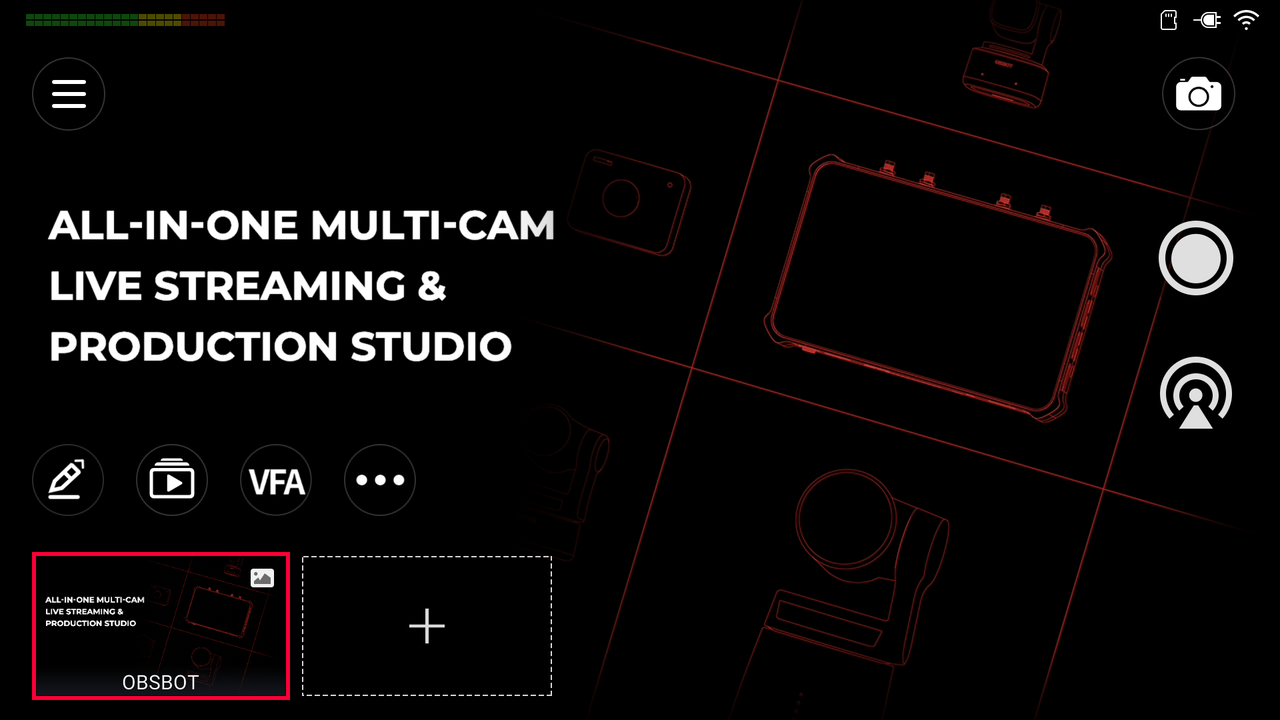
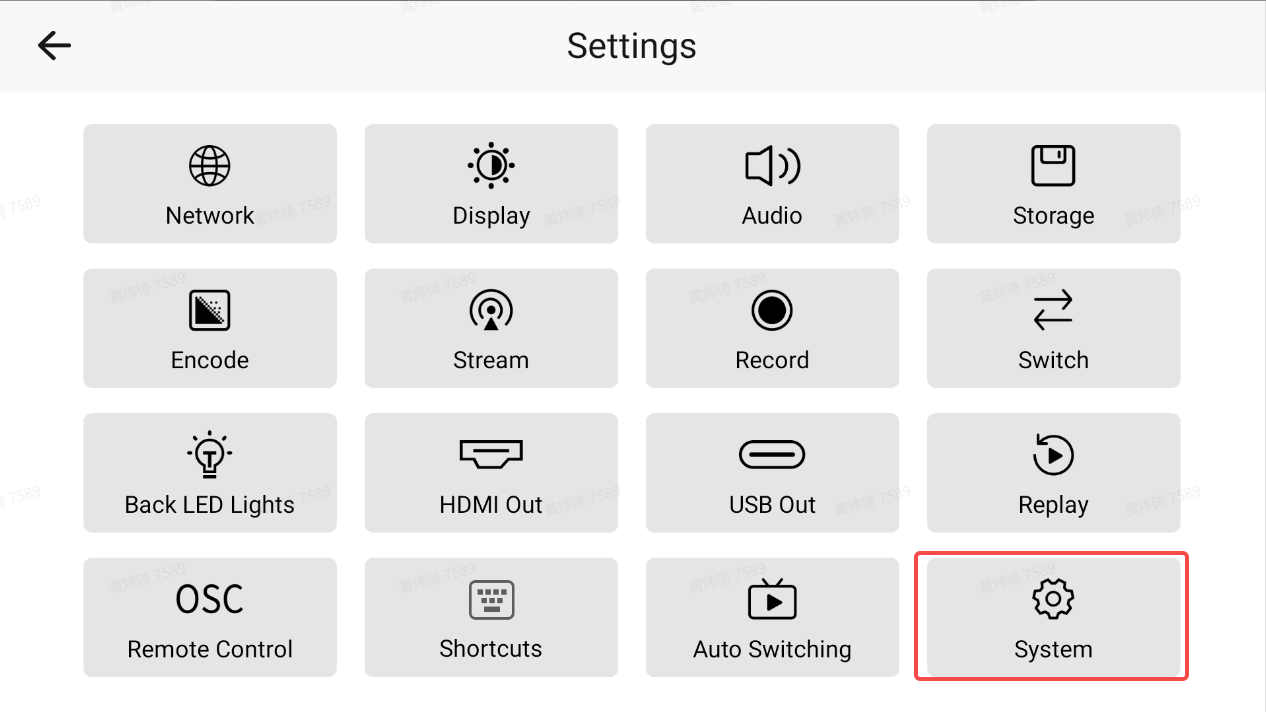
- Access the device Settings menu and find System on your OBSBOT Talent.
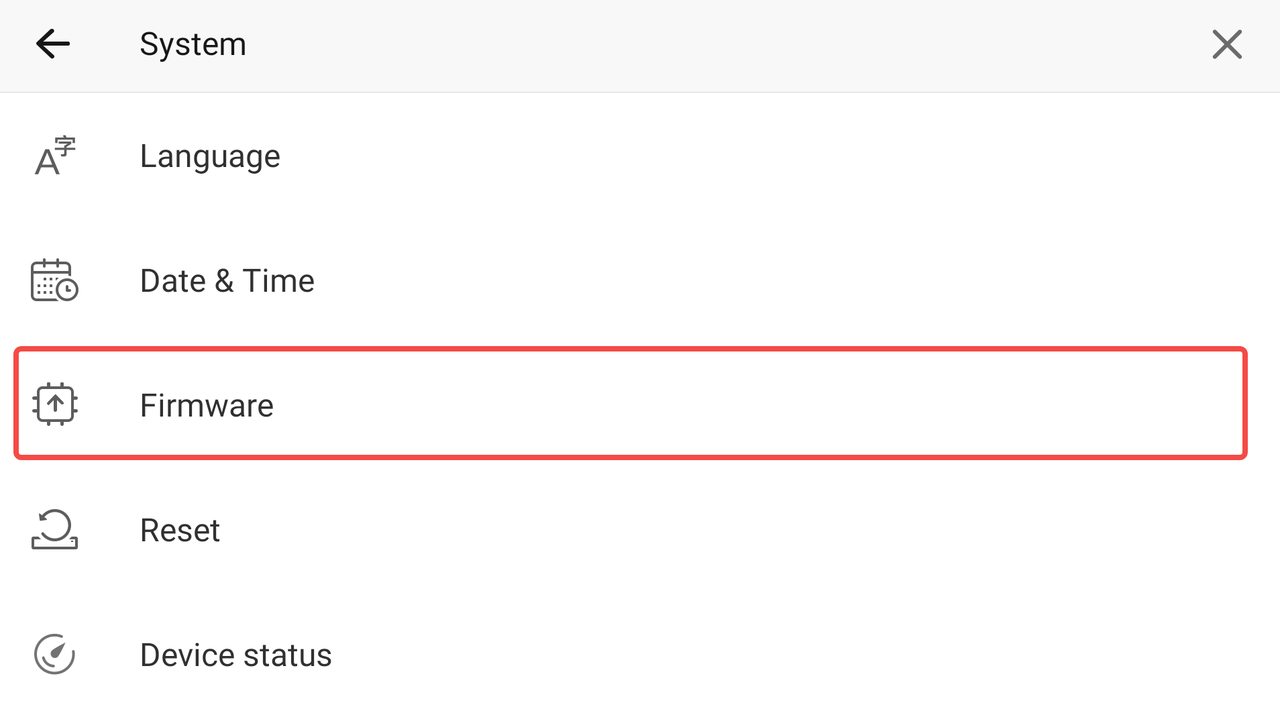
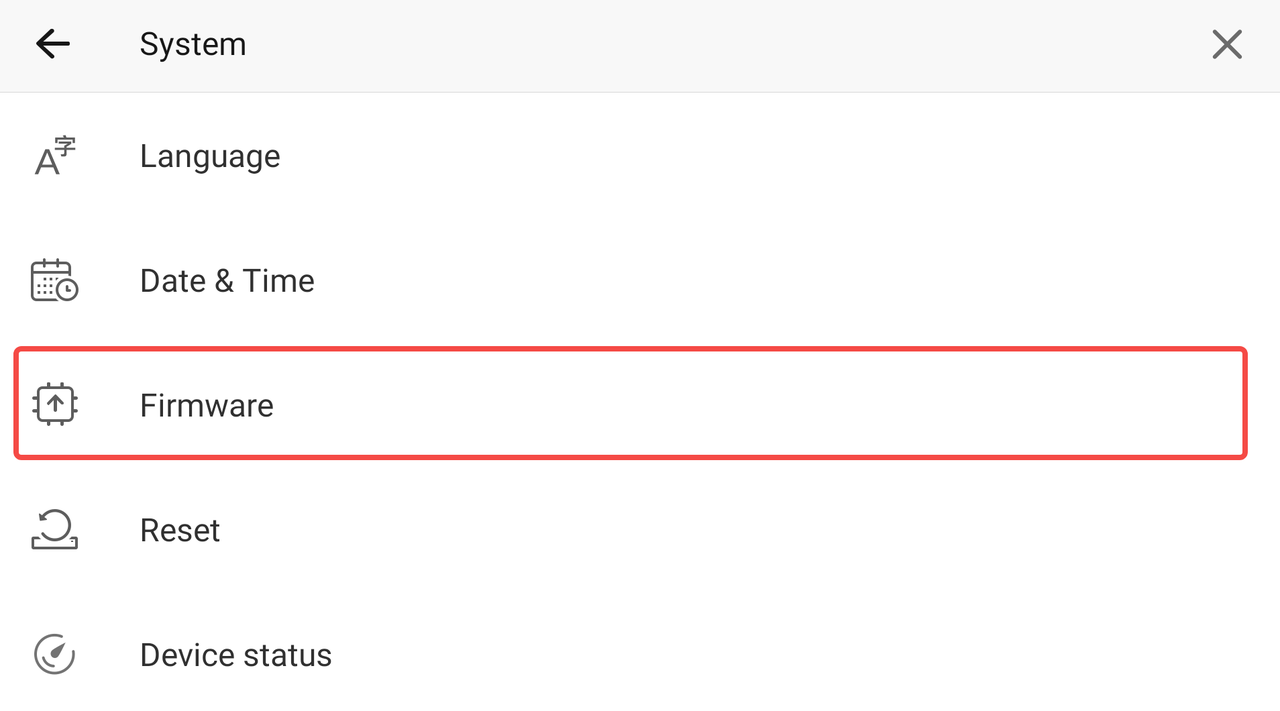
- Locate and select the Firmware update section.
- Enter the interface to view the current firmware info of your Talent.
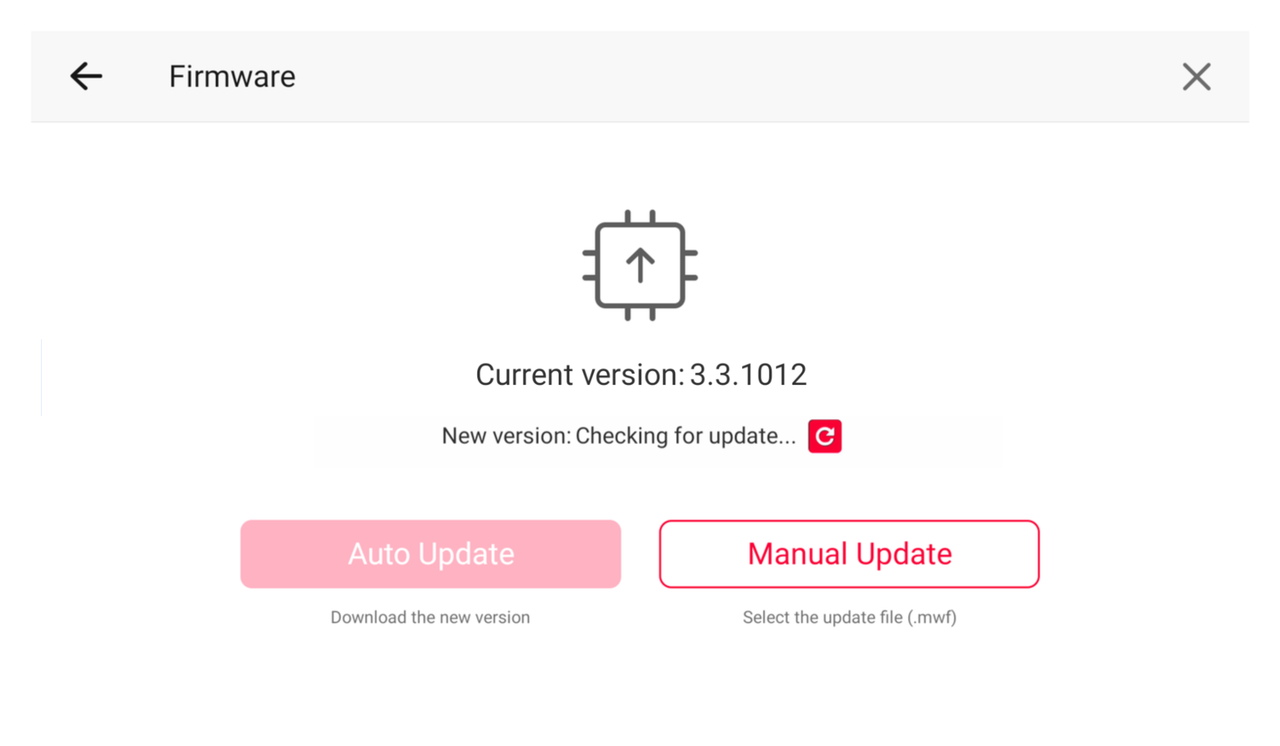
- The device will automatically check for new updates.
- The Auto Update button will appear if a new update is detected.
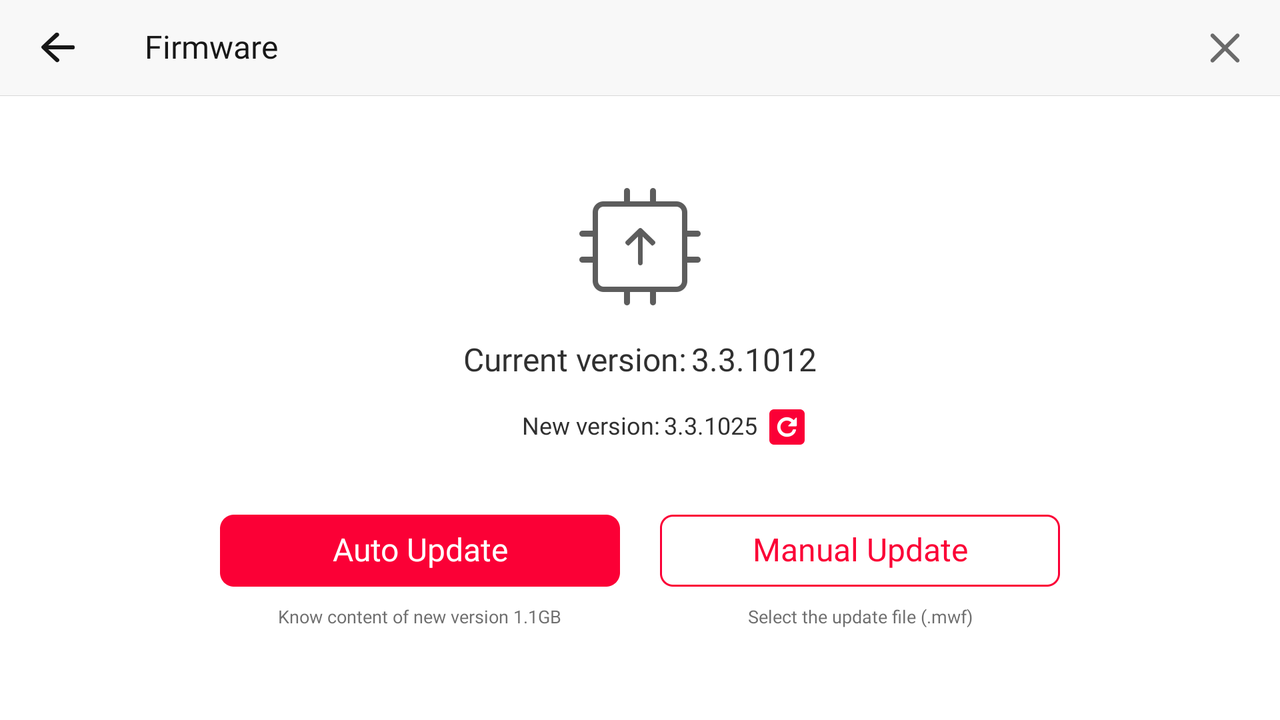
- Click Auto Update to start the update.
- The installation process may take 5-10 minutes, after which, click the Reboot to complete the update.
Method 2: Manual Update Methods (SD Card Update)
Step 1: Obtain the Latest Firmware
- Navigate to the OBSBOT download website.
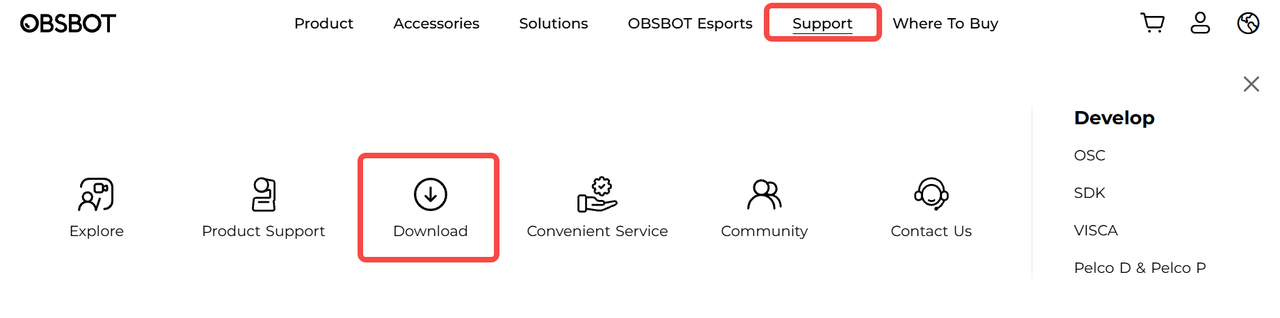
2. Find and enter the OBSBOT Talent 2 section.
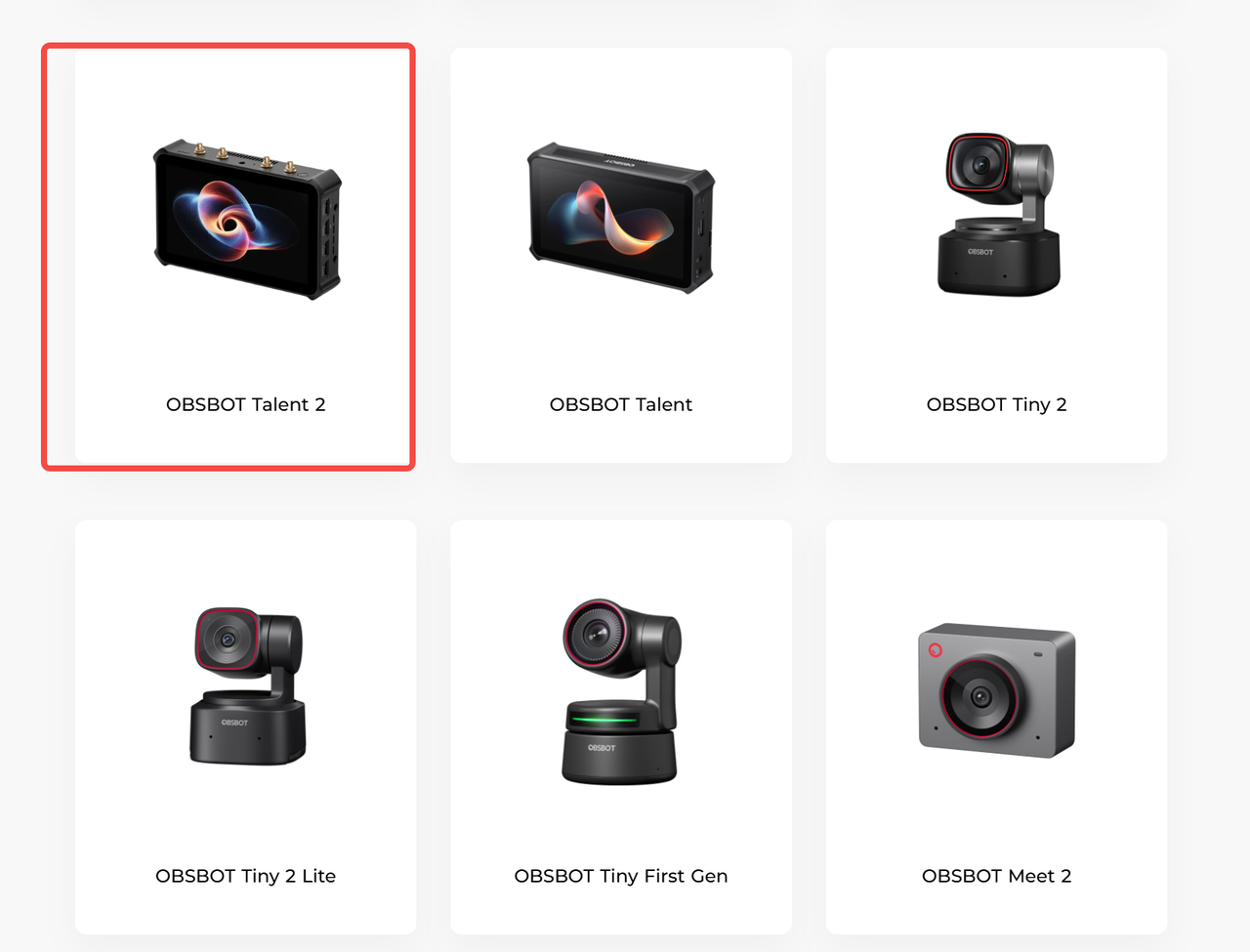
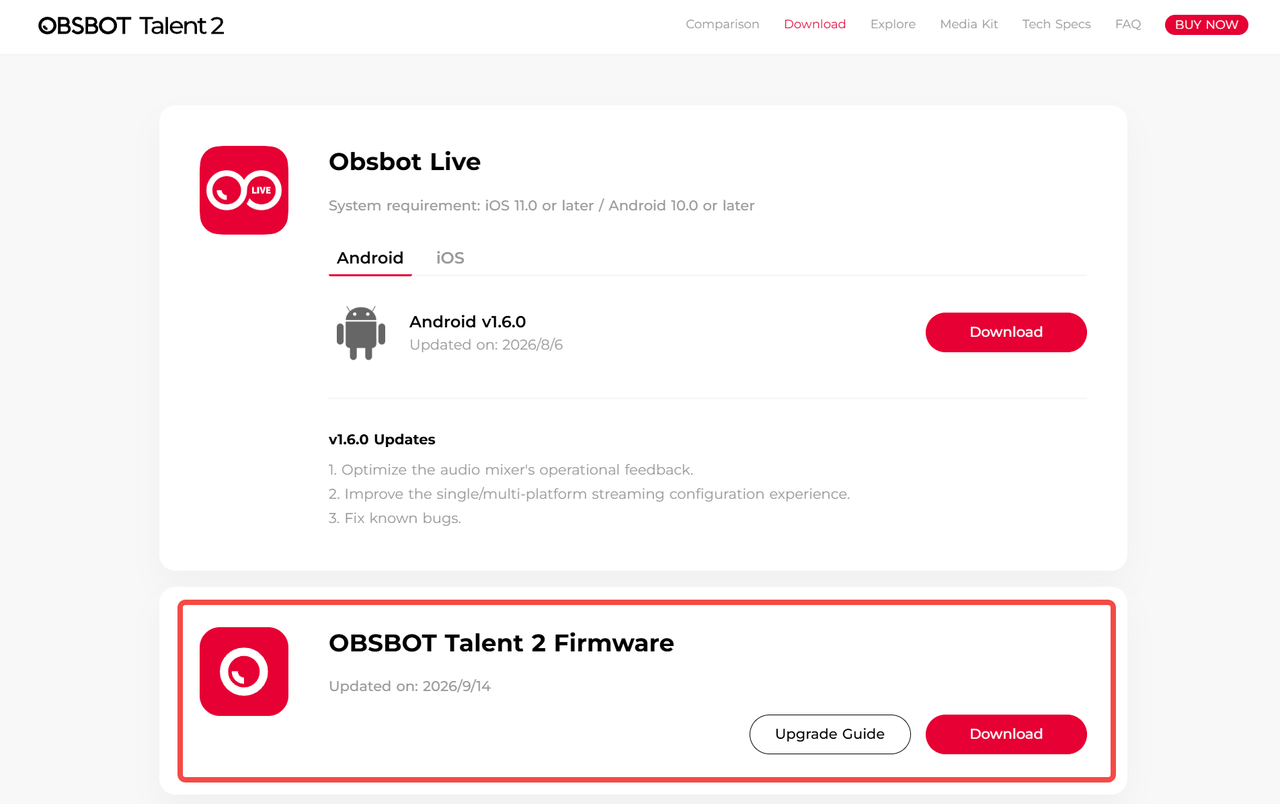
3. Locate and download the latest firmware file.
4. Copy the file to the SD card properly.
Step 2: Firmware Installation
- Insert the prepared SD card into your OBSBOT Talent.
- Power on the device and open the Setting interface.
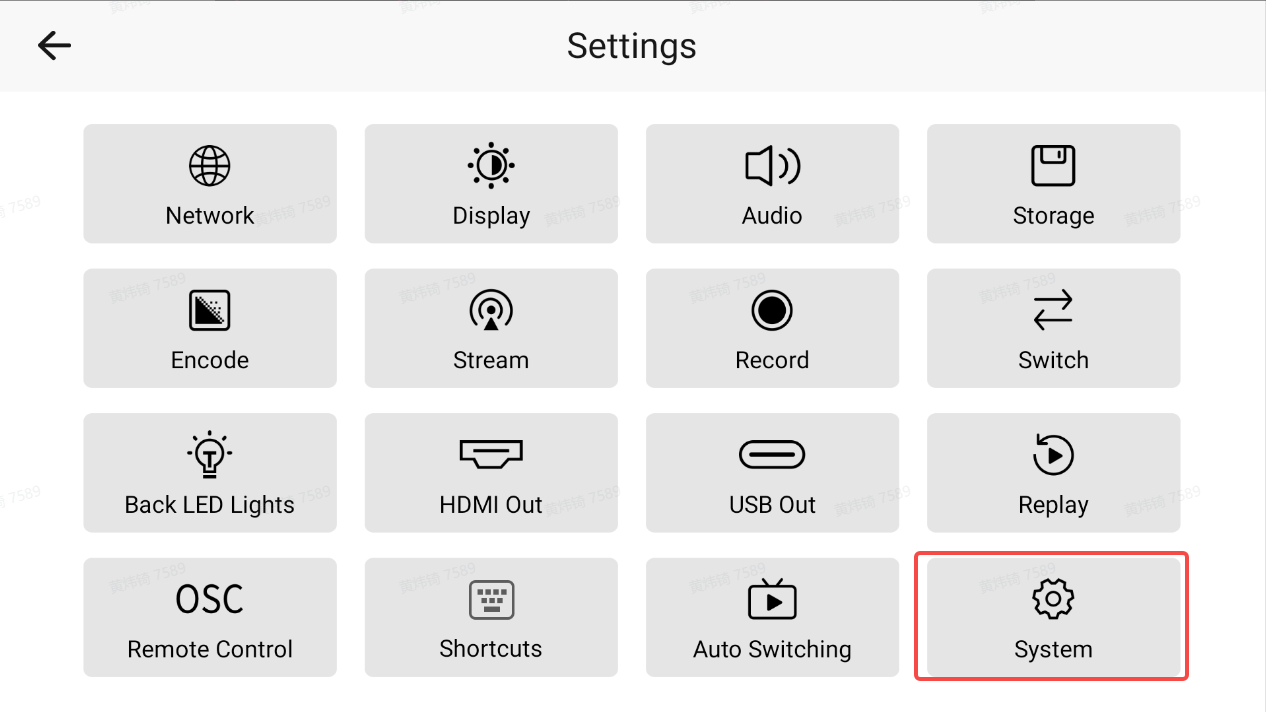
- Enter the System section and find the Firmware option.
- Select Manual Update and locate the firmware file in the browser.
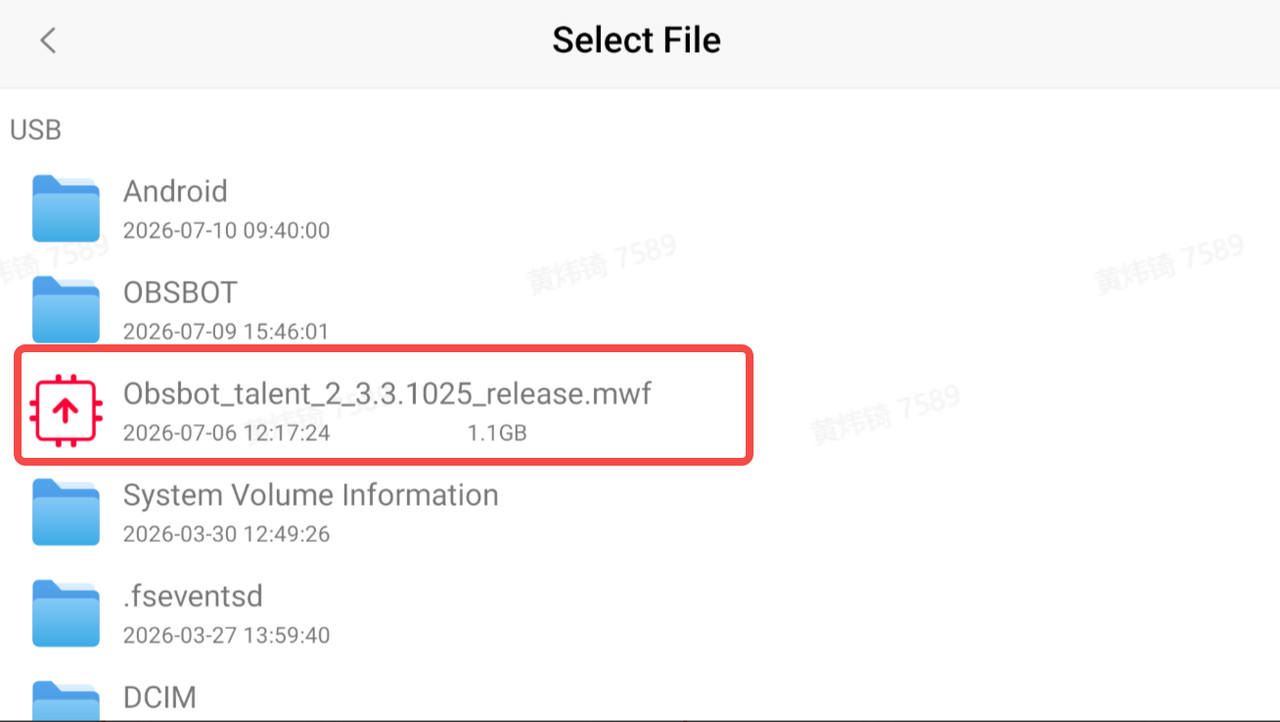
- The update process will start and usually takes 5-10 minutes.
- After installation, click the Reboot button on OBSBOT Talent 2 to complete the update.
Method 3: WEB UI Update
The WEB UI can be updated automatically or manually, but both methods require a stable internet connection.
Automatical Update
- Connect your OBSBOT Talent 2 to the same network as your computer via Wi-Fi or Ethernet.
- Drag OBSBOT's status bar and find the IP address of the device.
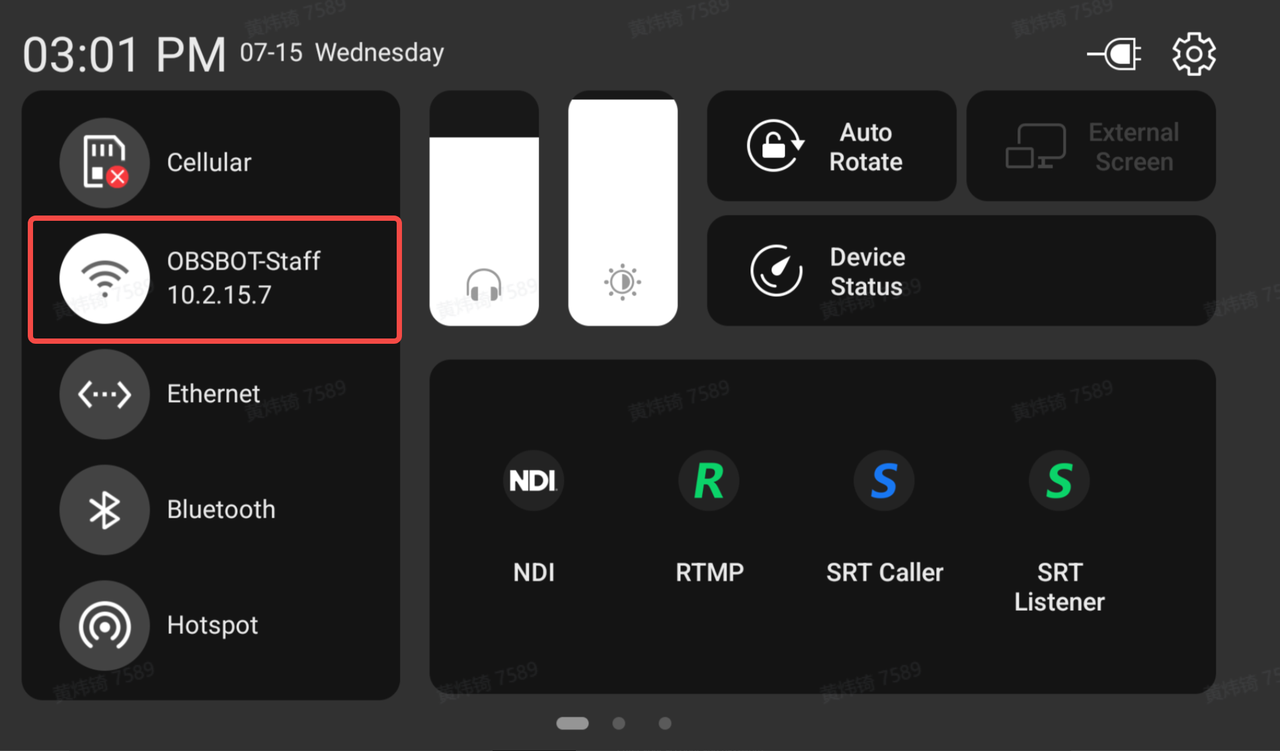
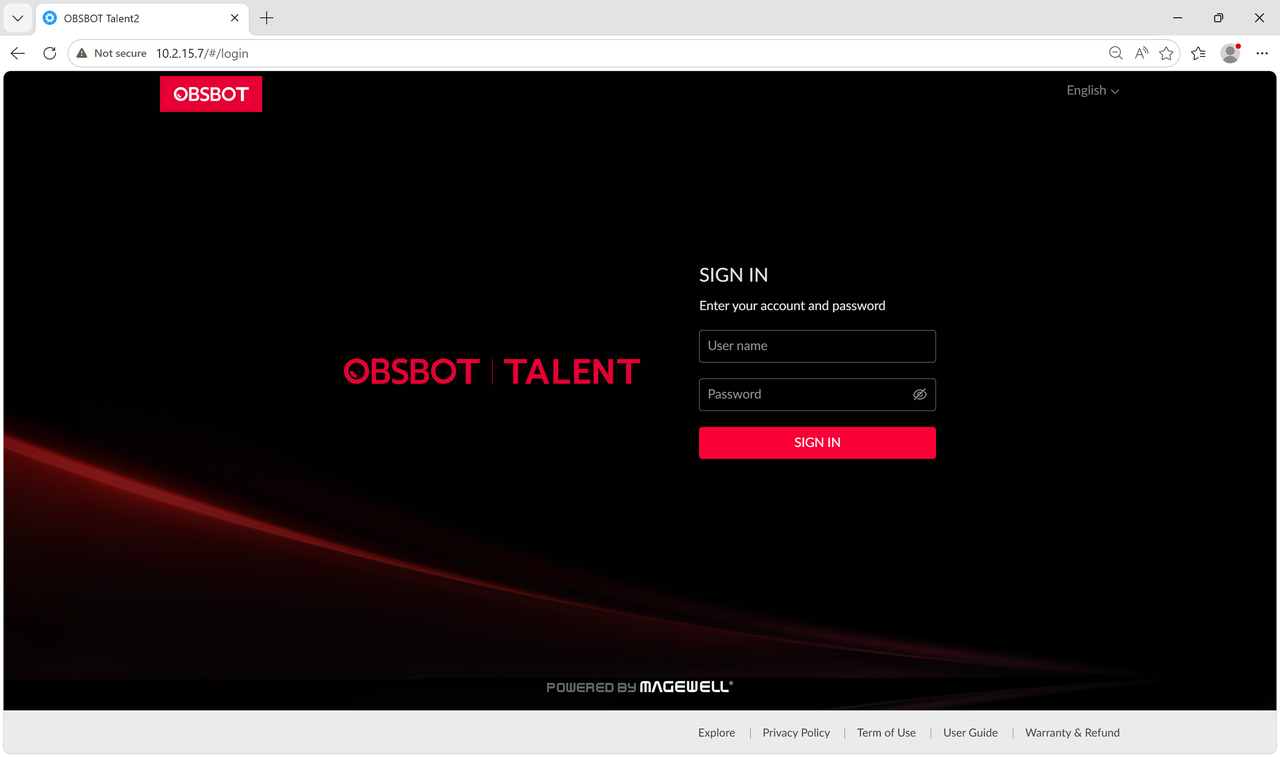
- Launch a web browser on your computer.
- Enter your OBSBOT Talent's IP address in the address bar (consult the user manual for IP address location).
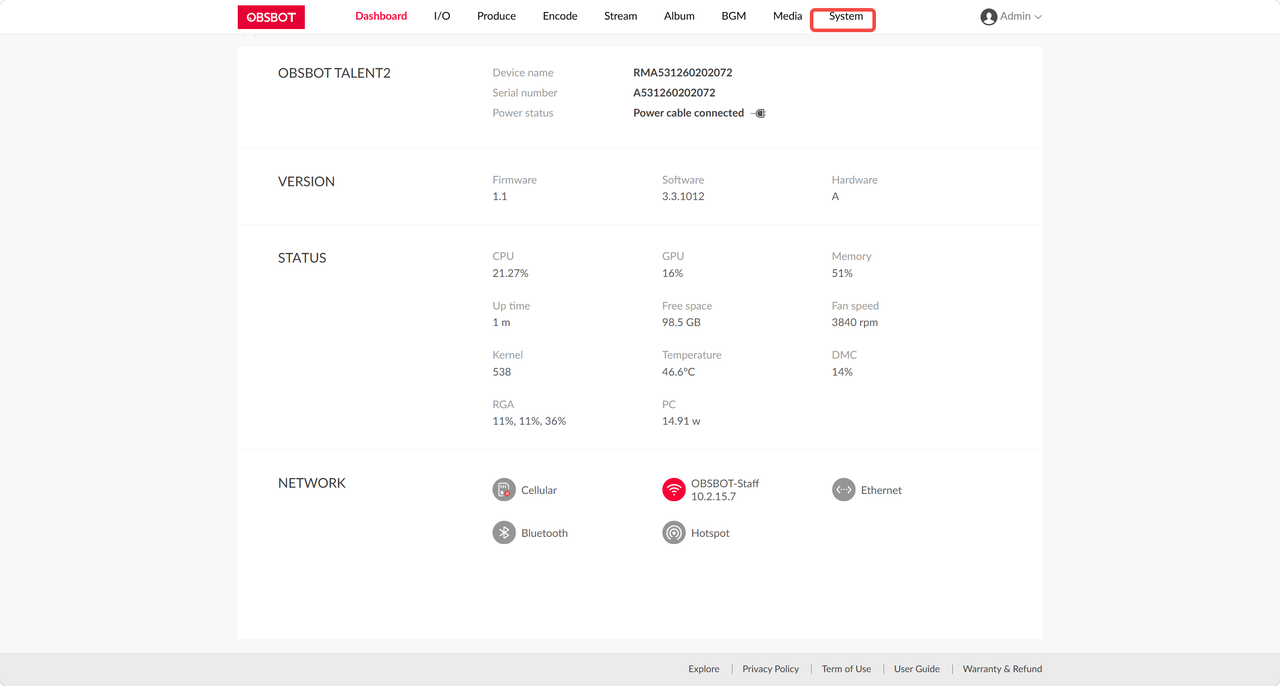
- Within the WEB UI, navigate to the System section.
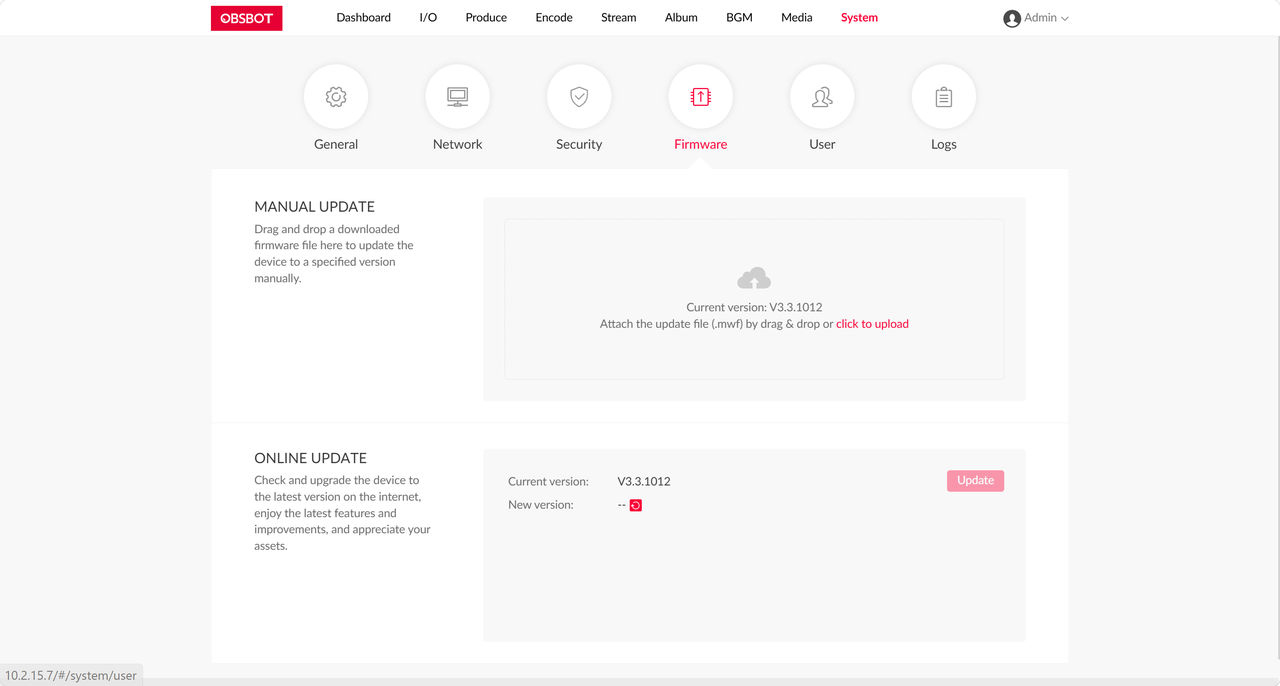
- Find and click the Firmware button on Talent's WEB UI to check your devices firmware info.
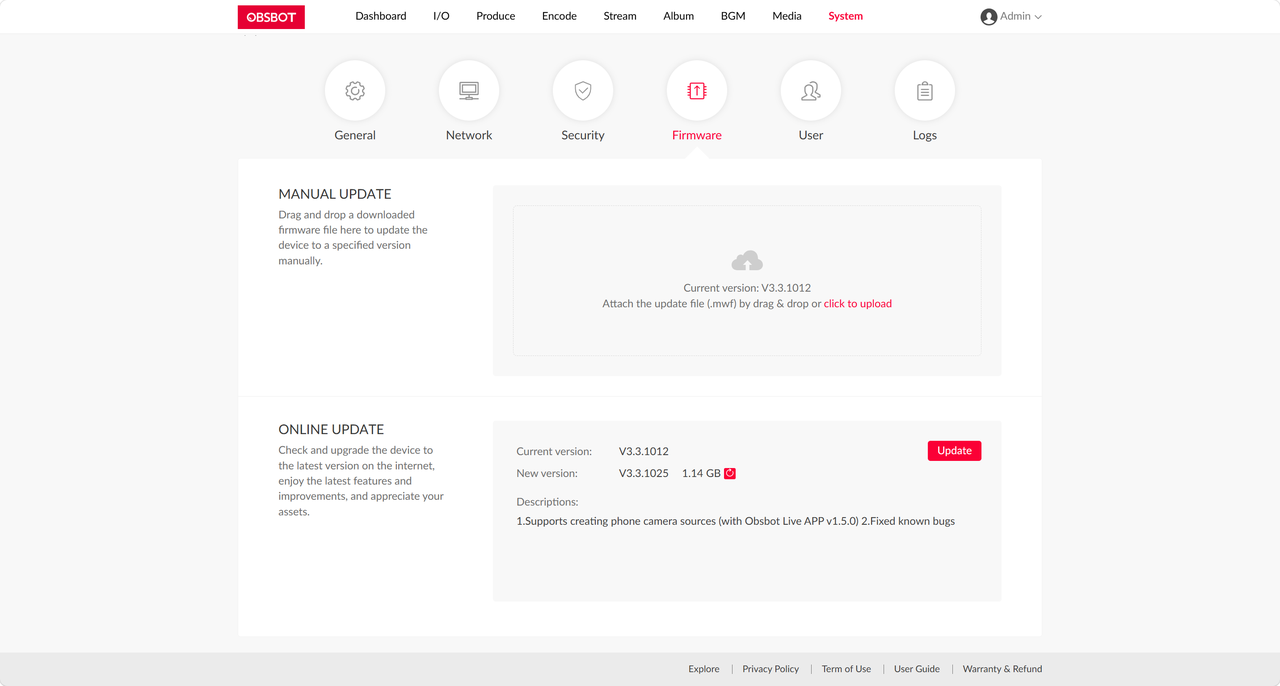
- If the latest firmware is detected, the prompt at ONLINE UPDATE will be on. Click the Update button to start the update process.
Manual Update
If you prefer MANUAL UPDATE, upload the firmware file downloaded from OBSBOT Download Center.
- Drag or upload the downloaded firmware file to the window
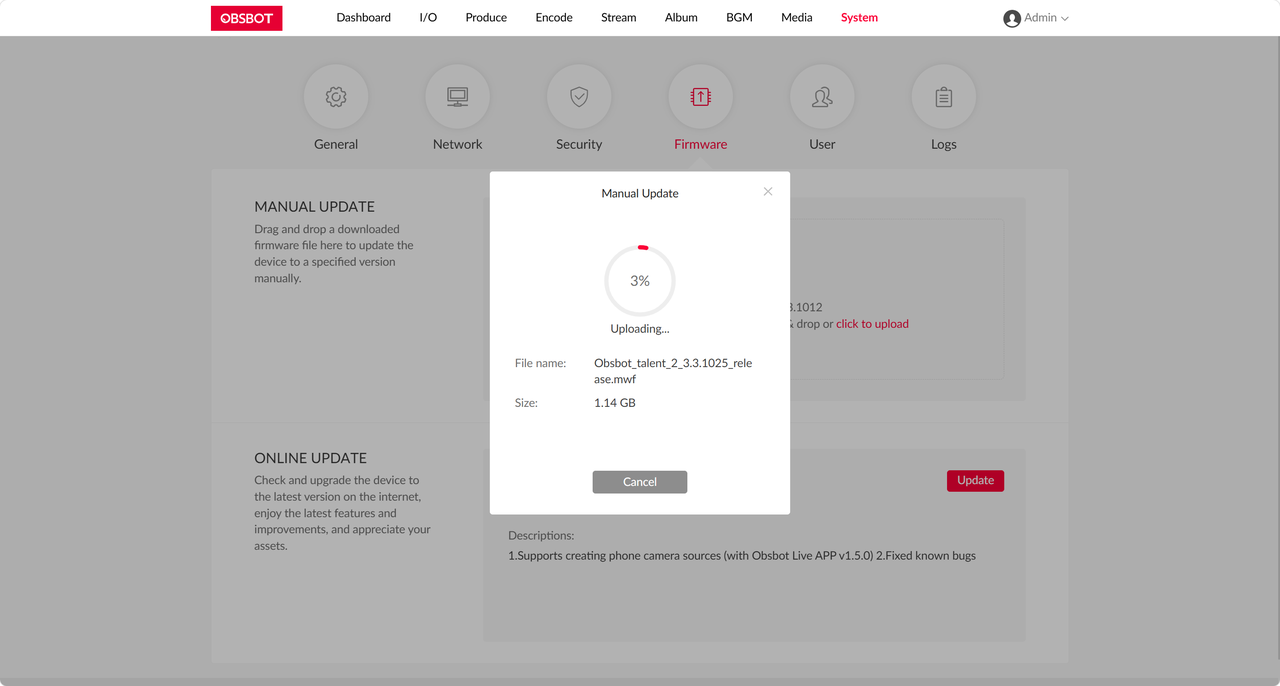
- Follow the on-screen instructions to complete the update.
Congratulations on successfully updating your OBSBOT Talent's firmware. By keeping your device up-to-date, you ensure optimal performance and access to the latest features. Should you encounter any issues or require additional assistance, please contact the OBSBOT support team.












