How to Use RTC Remote Interaction in OBSBOT Center
RTC Remote Interaction in OBSBOT Center lets you view remote camera feeds and communicate through audio and video. With Remote Control enabled, other users can also operate the device's PTZ and AI tracking features for remote collaboration and demonstrations.
Follow the steps below to get started.
Step 1: Open RTC Remote Interaction
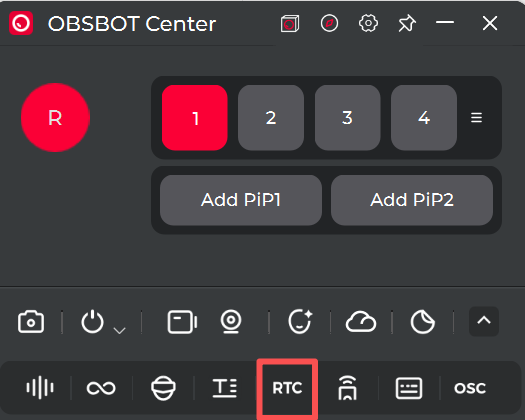
Click the RTC icon in the toolbar on the OBSBOT Center main interface to open the RTC Remote Interaction window.
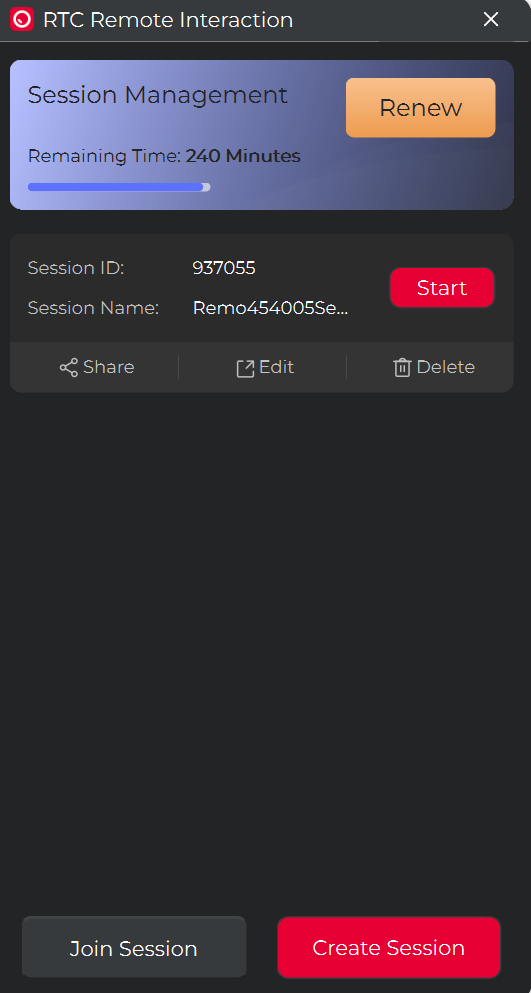
Here, you can create or join a session, view existing persistent sessions, and check your remaining session time.
Step 2: Choose a Session Type
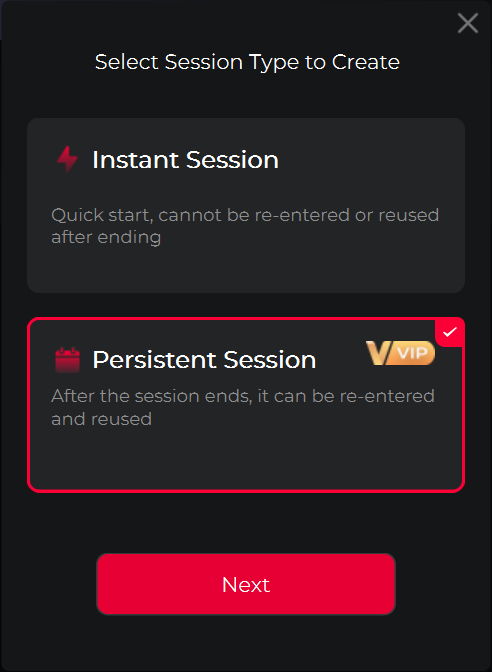
Click Create Session, select the session type that suits your needs, and then click Next.
- Instant Session: Ideal for one-time remote interaction. Once the session ends, it cannot be re-entered or reused.
- Persistent Session: Ideal for recurring remote interaction. You can re-enter and reuse the session after it ends.
Step 3: Configure the Session
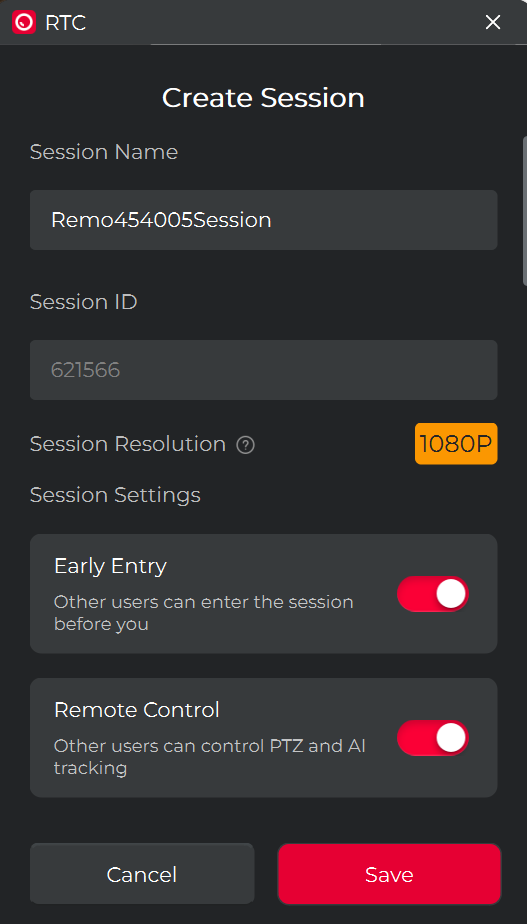
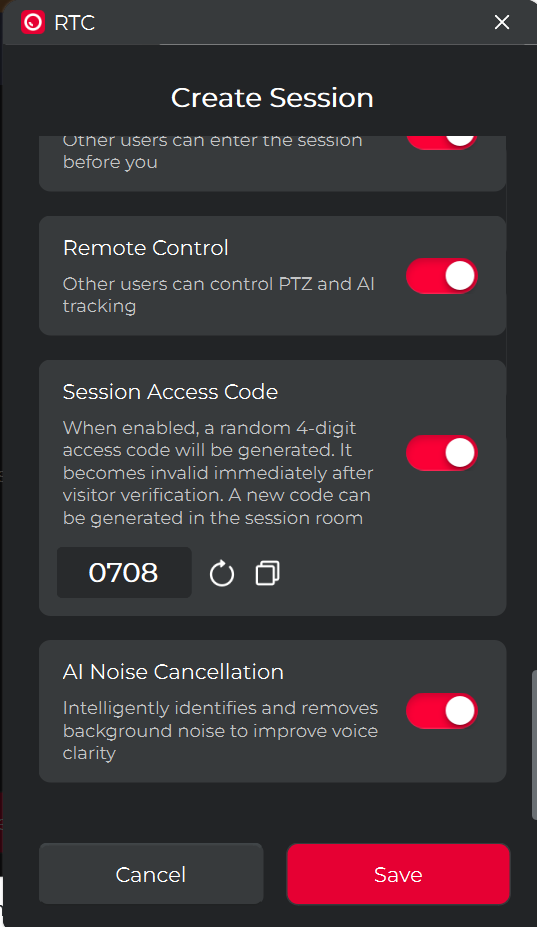
On the Create Session page, set the session name and check the session ID and resolution.
Adjust the following options as needed:
- Early Entry: Allow other users to join the session before you enter.
- Remote Control: Allow other users to operate the device's PTZ (pan, tilt, and zoom) and AI tracking features.
- Session Access Code: Generate a random four-digit code that guests must verify before entering the session. The code expires immediately after successful verification. You can generate a new code in the session room.
- AI Noise Cancellation: Intelligently identify and remove background noise to improve voice clarity.
Once you have confirmed the settings, click Save.
Step 4: Start and Share the Session
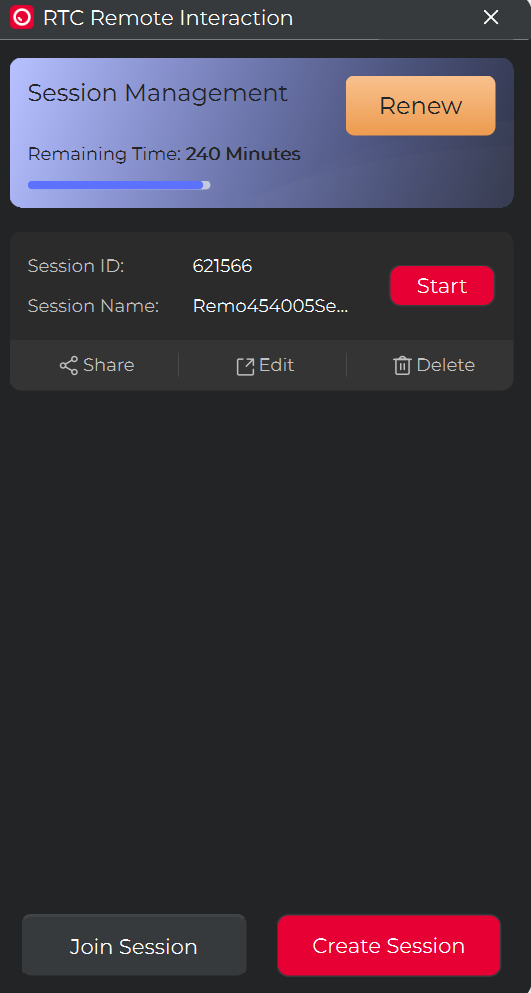
After saving a persistent session, you can find its name and session ID in the Session Management list.
The list provides the following options:
- Share: Share session information to invite other users to join.
- Edit: Modify the settings of an existing session.
- Delete: Delete a persistent session you no longer need.
Your remaining session time appears at the top of the page. To renew, click Renew and follow the on-screen instructions.
Click Start to enter the session room. Click Share Session to share session information with the users you want to invite.
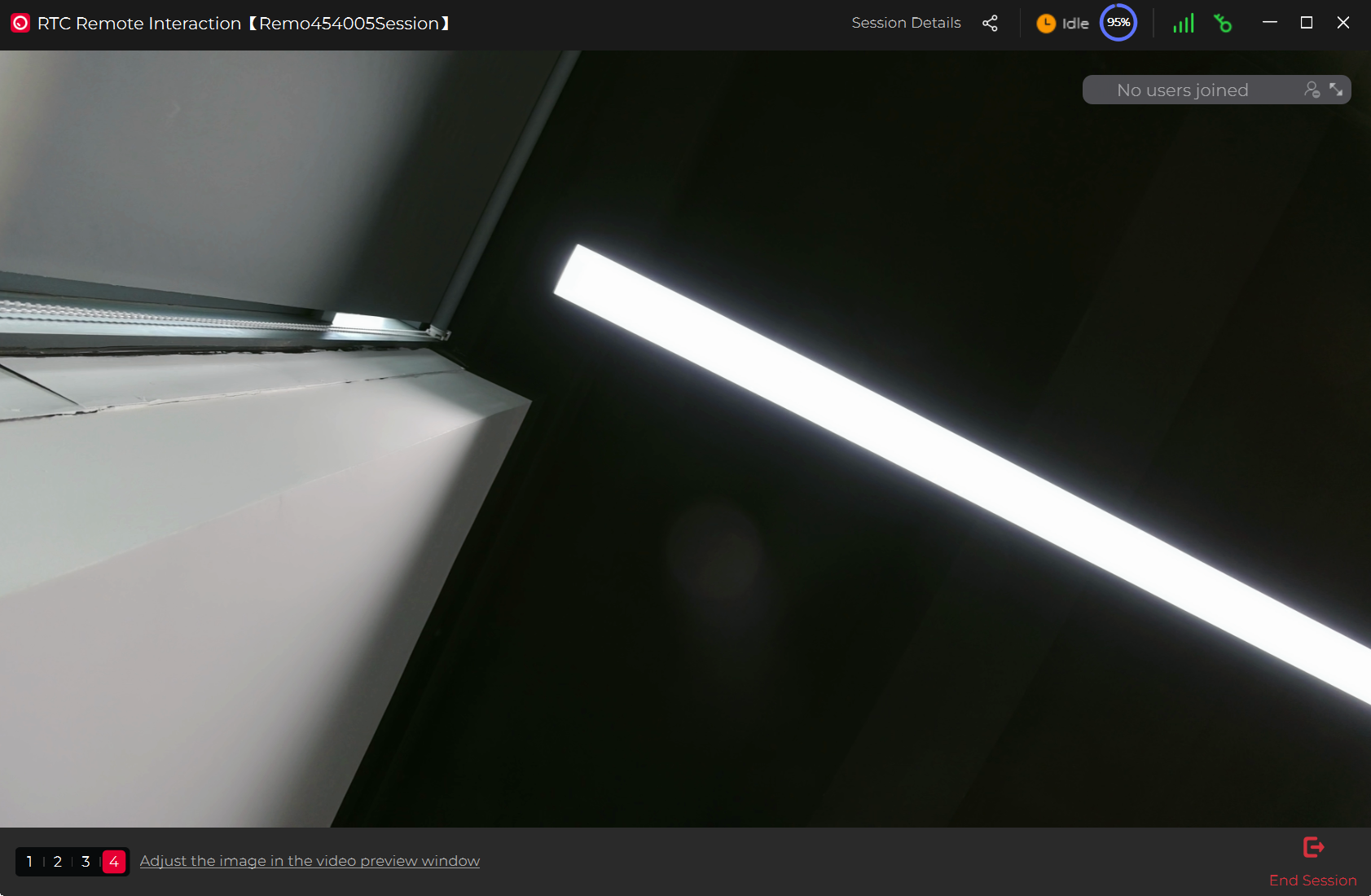
Once inside the room, you can also share the session using the share icon at the top of the window. If no one else has joined, the interface displays No Users Joined.
Step 5: Participants Join a Session
On the session join page, enter the session ID. Read and agree to the Privacy Policy and Terms of Service, then click Join.
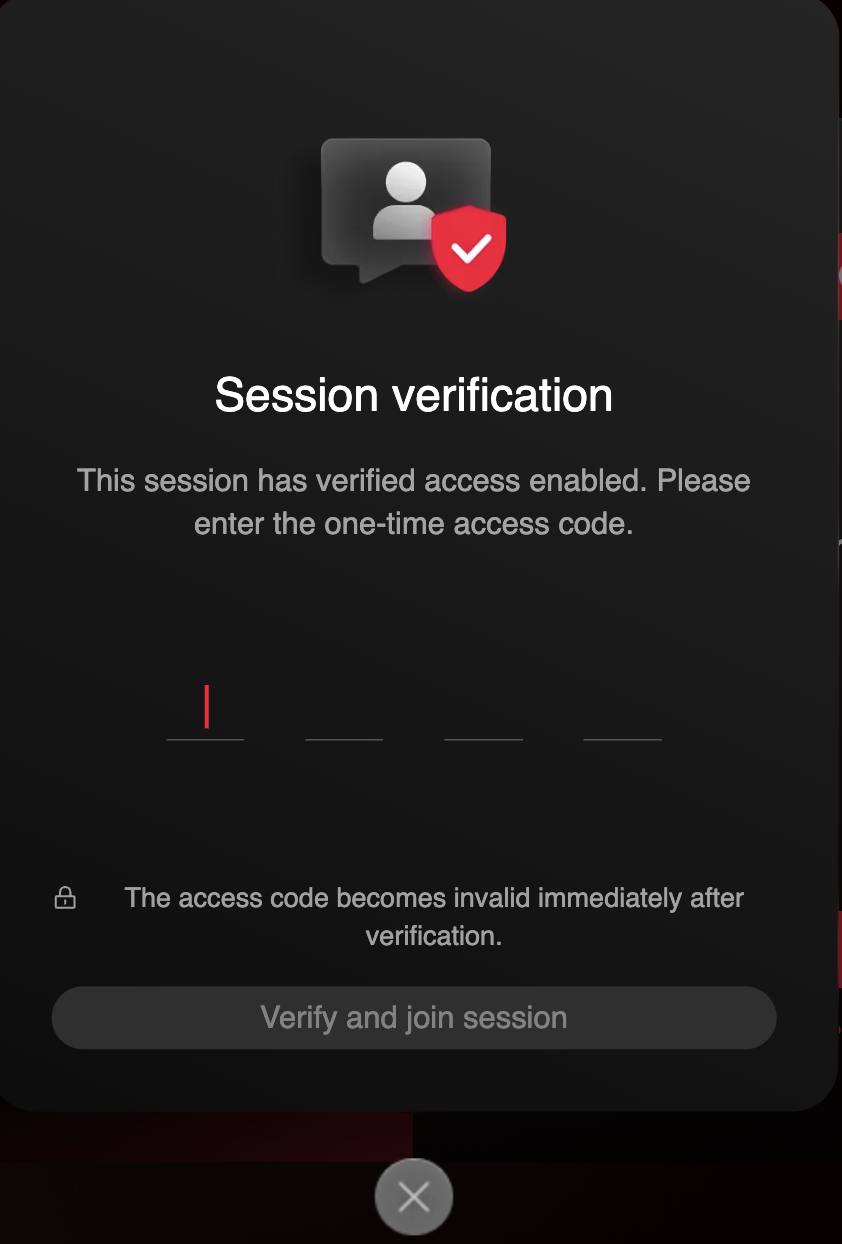
If access verification is enabled, enter the four-digit, one-time access code provided by the session creator, then click Verify and Join Session.
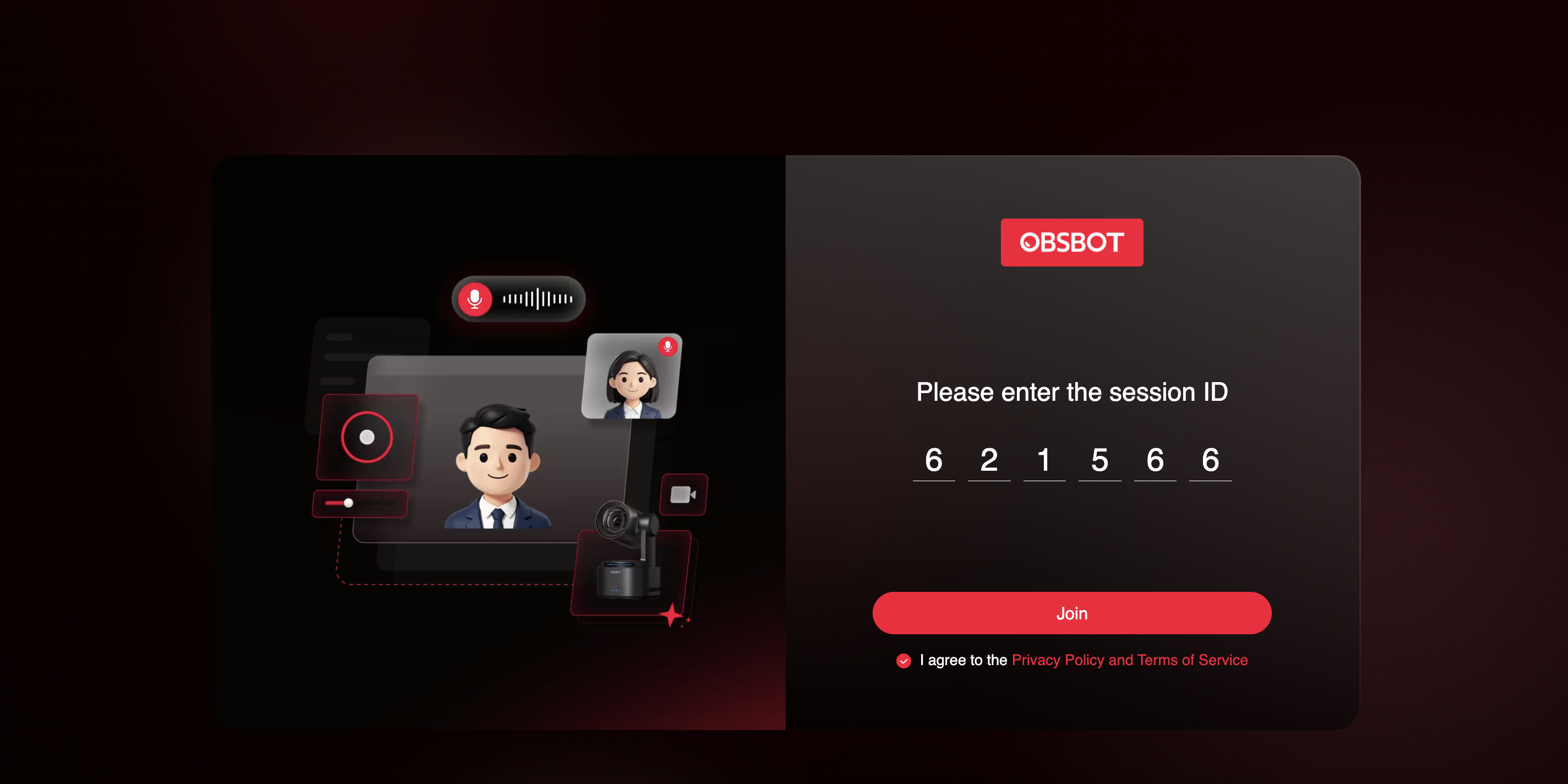
The access code expires immediately after successful verification. If you need to verify again, ask the session creator for a new code.
Step 6: Interact and Control the Camera Remotely
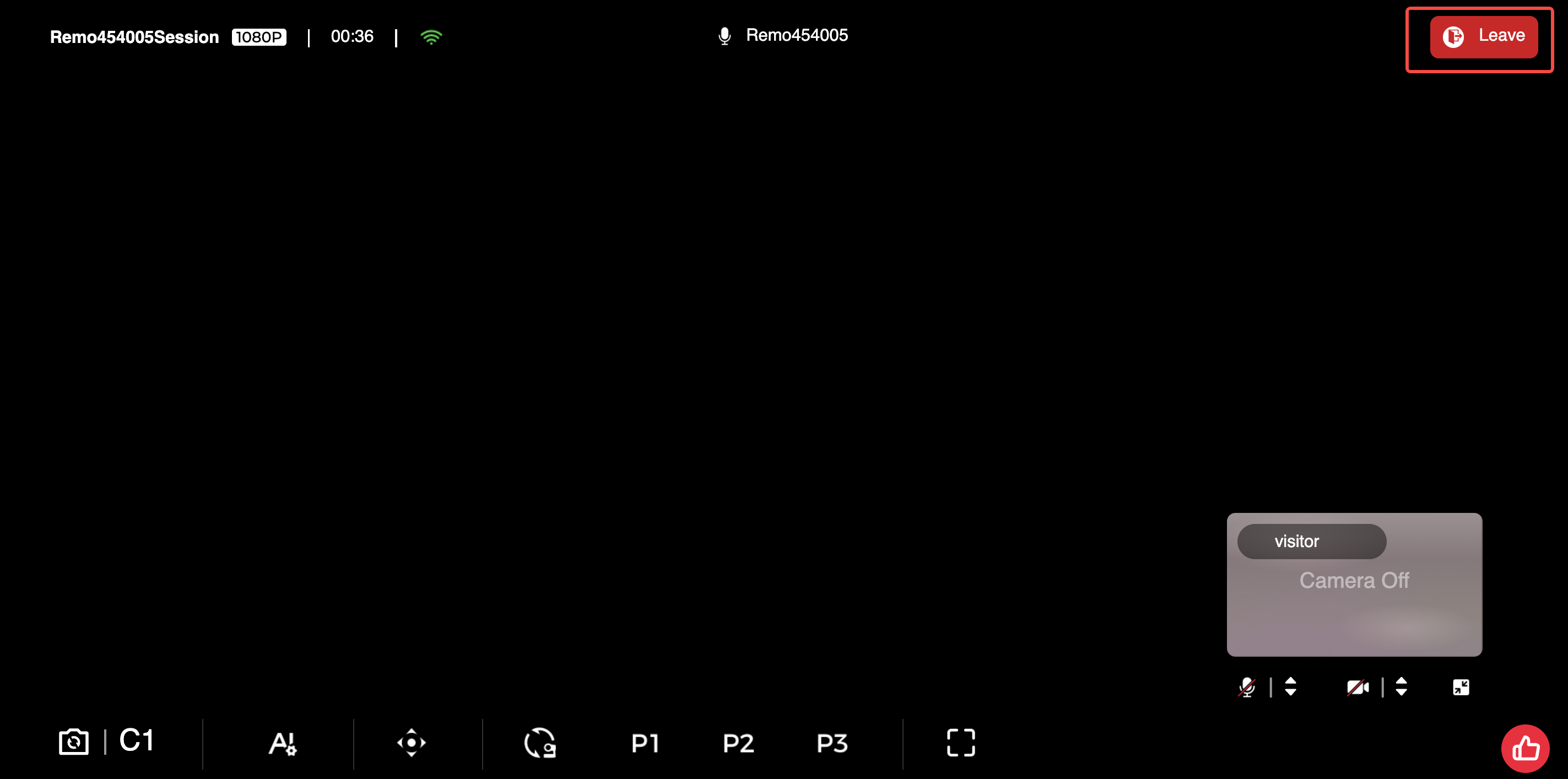
After joining, you can view the remote camera feed. The session name, resolution, session duration, and network status appear in the upper-left corner.
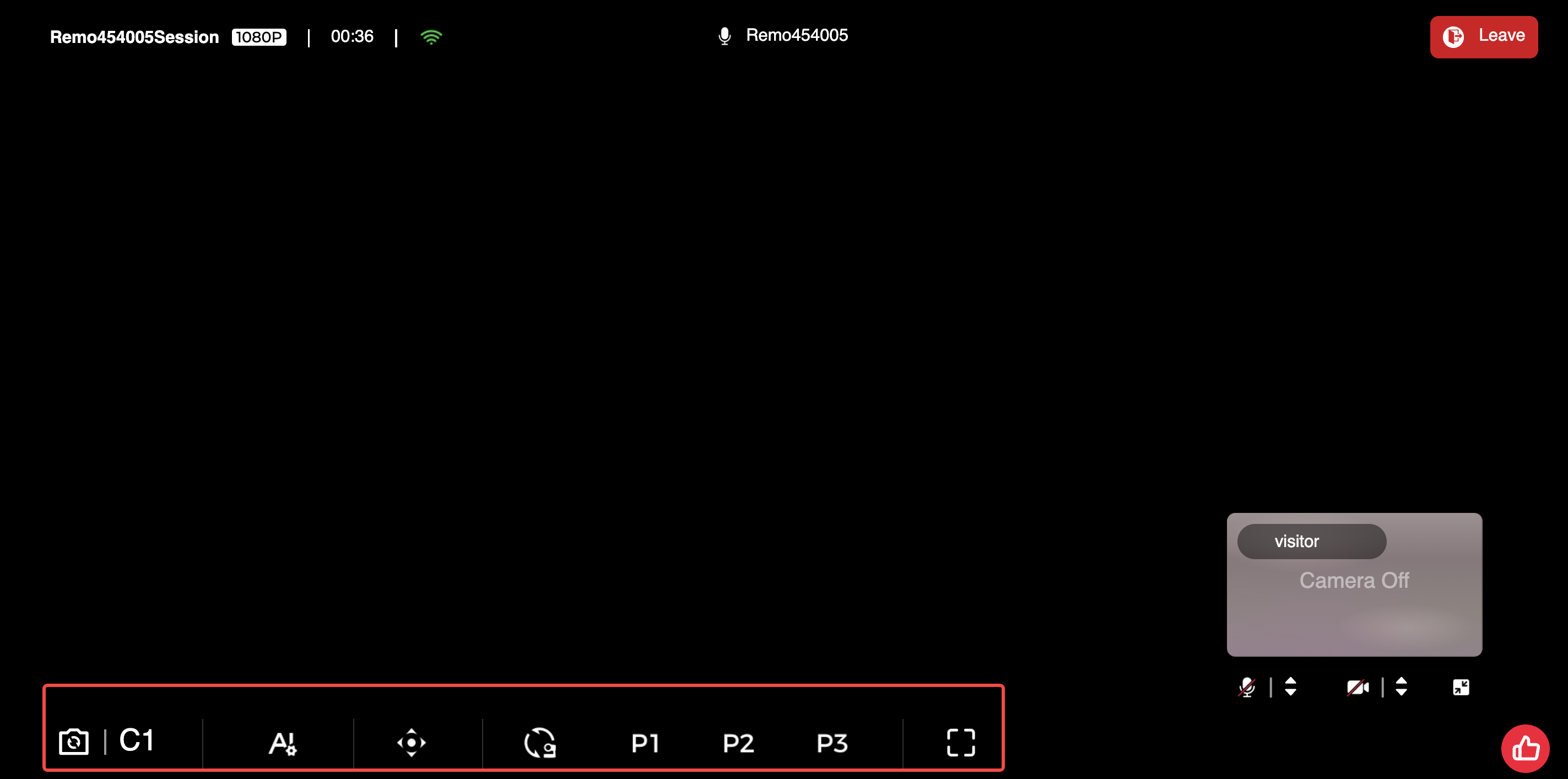
When the session creator enables Remote Control, participants can use the toolbar at the bottom of the screen to select a camera and adjust the view:
- Select Camera: Switch to the device you want to view and control.
- AI Tracking: Enable tracking to let the camera automatically follow the subject as they move.
- Directional Control: Move the camera up, down, left, or right to frame the area you want to show.
- Reset: Return the camera to its default position when you need to reset its orientation.
- Full Screen: Click the full-screen icon to enlarge the remote view.
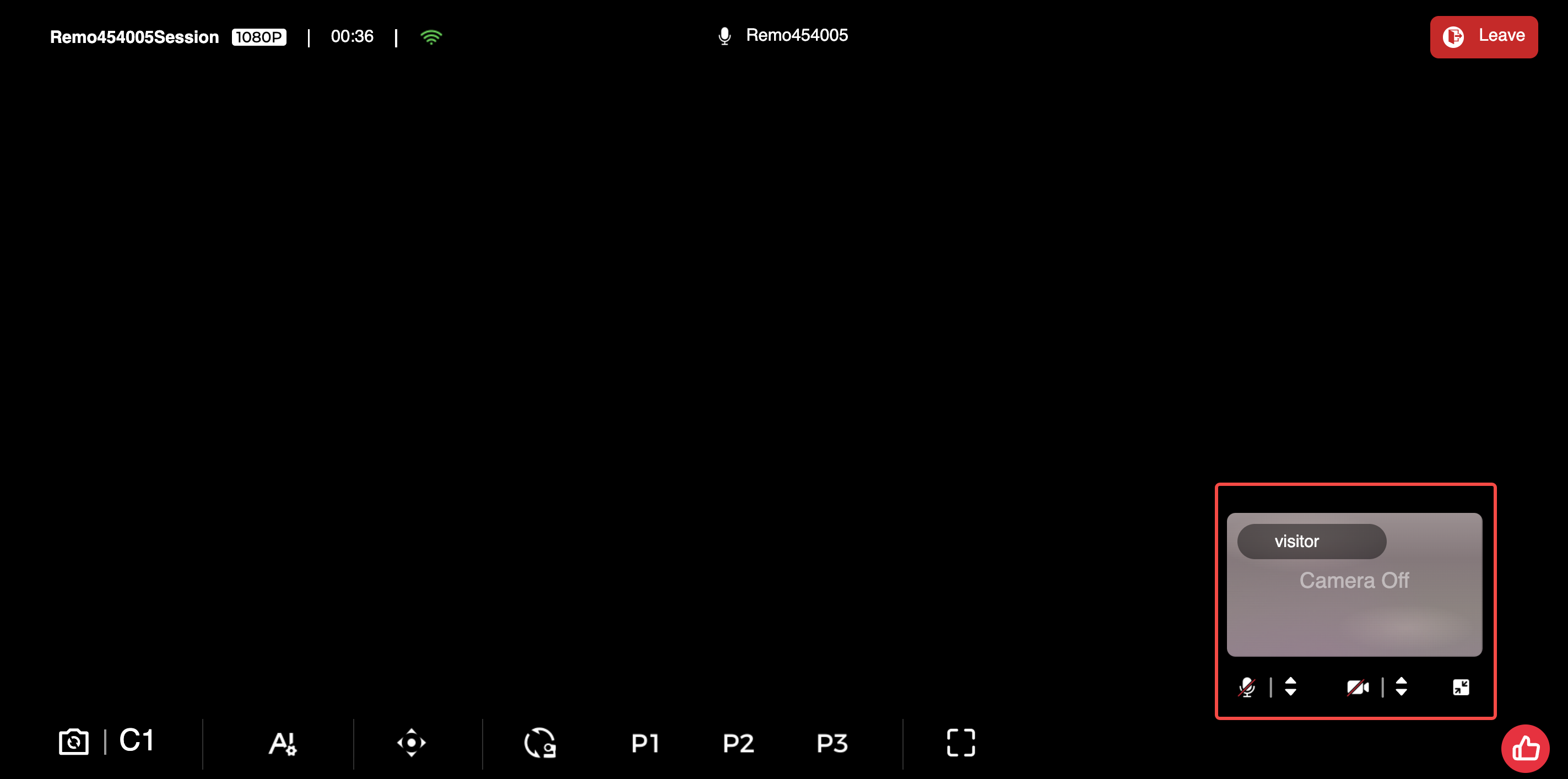
In your personal preview area in the lower-right corner, you can control your microphone and camera:
- Microphone: Click the microphone icon to unmute or mute your microphone.
- Camera: Click the camera icon to turn your camera on or off.
- Device Selection: Use the arrows next to the corresponding icons to choose your audio and video input devices.
Step 7: Leave or End the Session
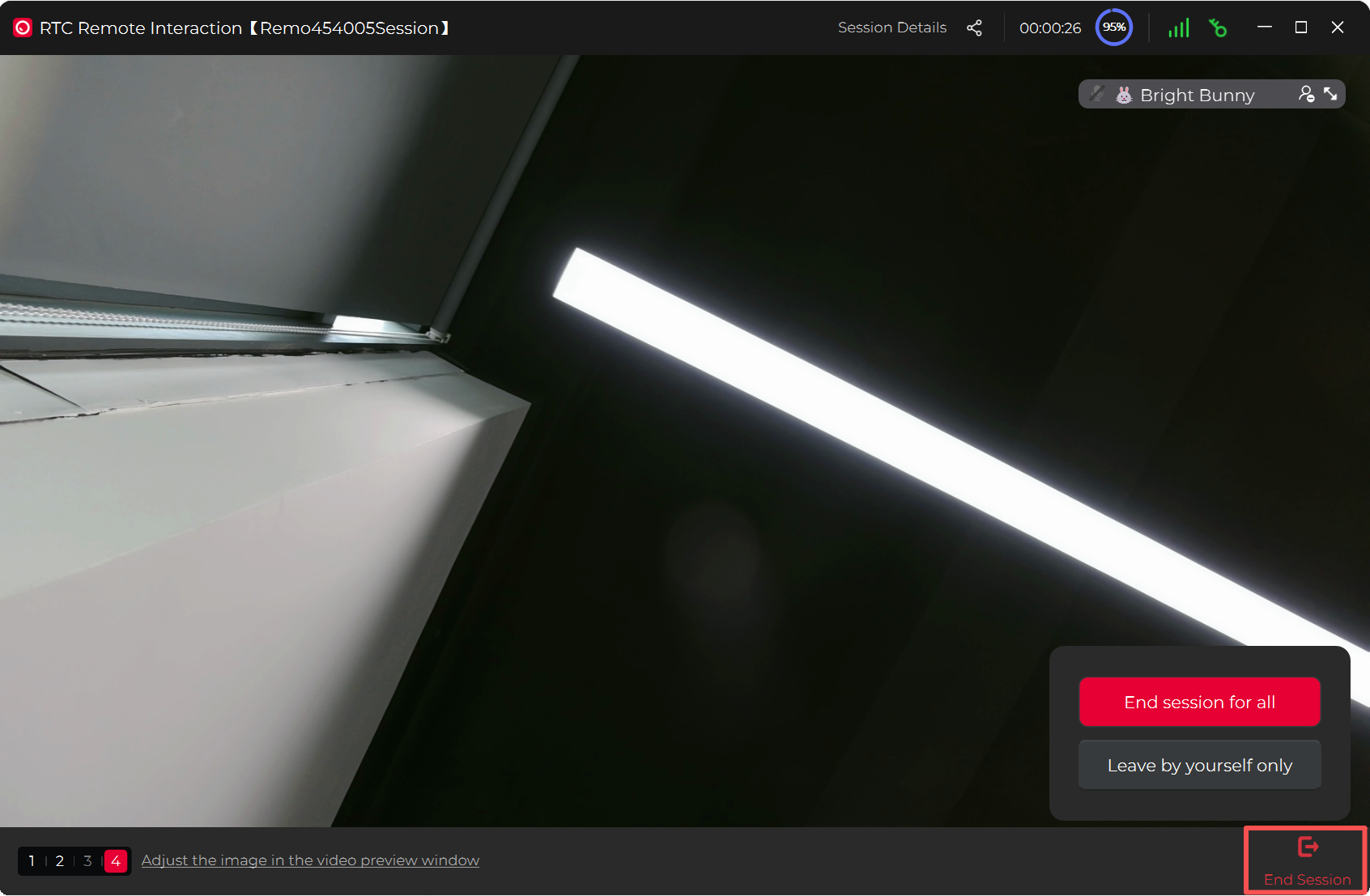
To end the session for everyone, click End Session in the lower-right corner, then select End session for all.
Participants can click Leave in the upper-right corner of the page to exit the current session.
Notes
- Choose the right session type: Use an Instant Session for one-time interaction or a Persistent Session for repeated use.
- Check Remote Control settings: Enable Remote Control if you want other users to operate the device's PTZ and AI tracking features.
- Enable Early Entry when needed: Turn on Early Entry to allow other users to join before the session creator.
- Access codes are for one-time use: Each code expires immediately after successful verification. Use a newly generated code for subsequent verification.
- Check your remaining time: View your remaining session time in the RTC Remote Interaction window.