

How to Connect OBSBOT Devices with Talent 2
OBSBOT Talent 2 supports a wide range of wired and wireless video sources, giving you the flexibility to build multi-camera workflows for different production scenarios. This guide walks you through different ways to connect video sources to Talent 2.
Wired Connections
Connect via HDMI
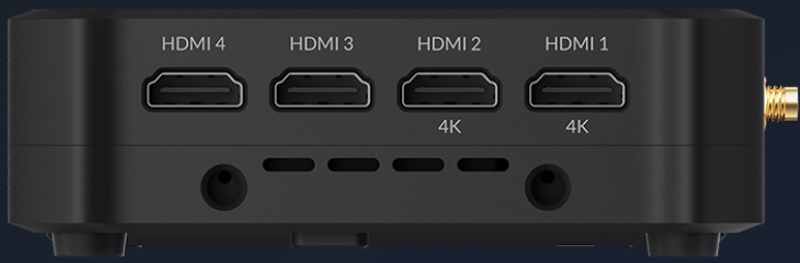
Talent 2 features four HDMI 2.0 input ports. HDMI 1 and HDMI 2 support video input up to 4K, while HDMI 3 and HDMI 4 support up to 1080p.
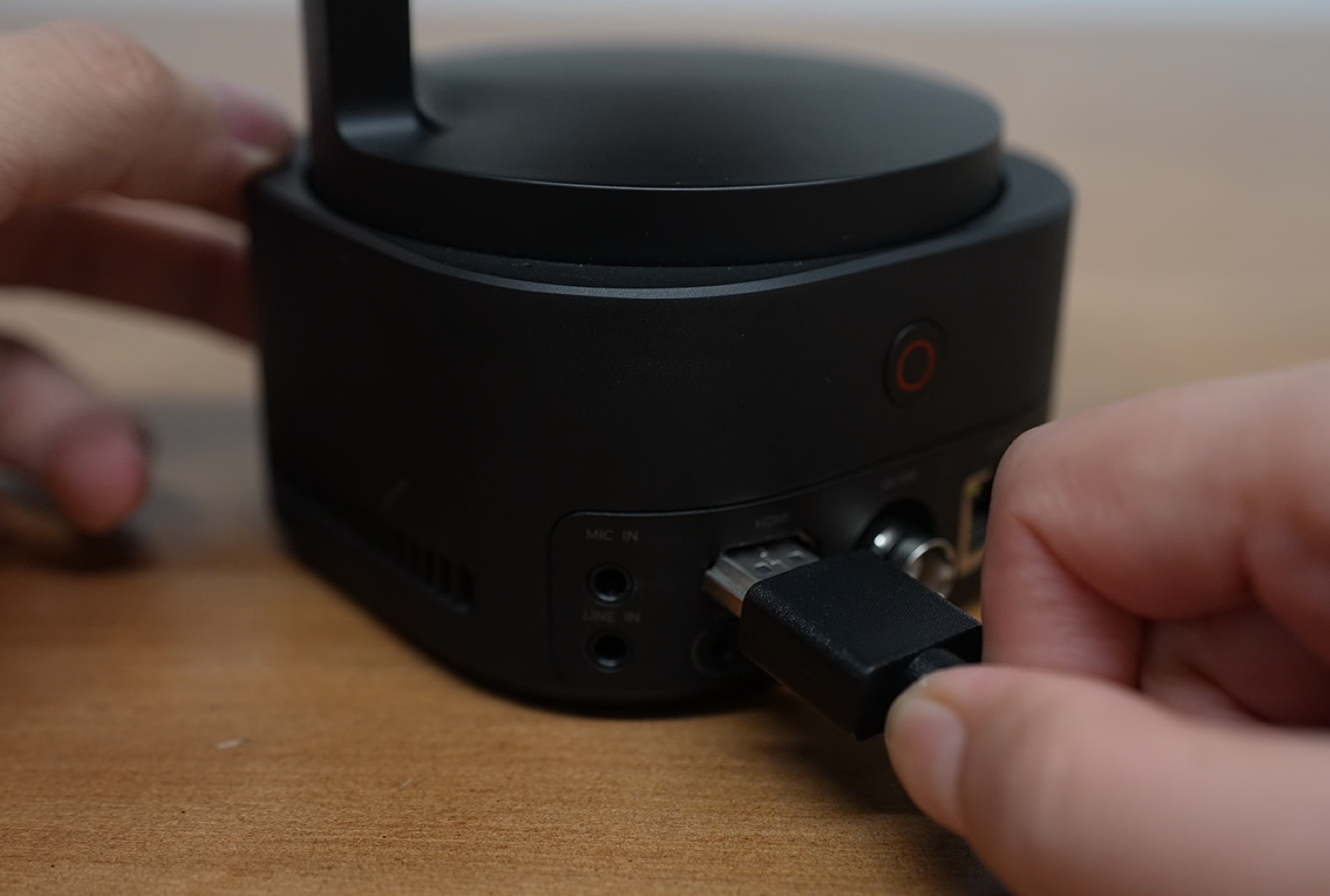
Using OBSBOT Tail 2 as an example:
- Connect the Tail 2 to one of the HDMI input ports on Talent 2 using an HDMI cable.
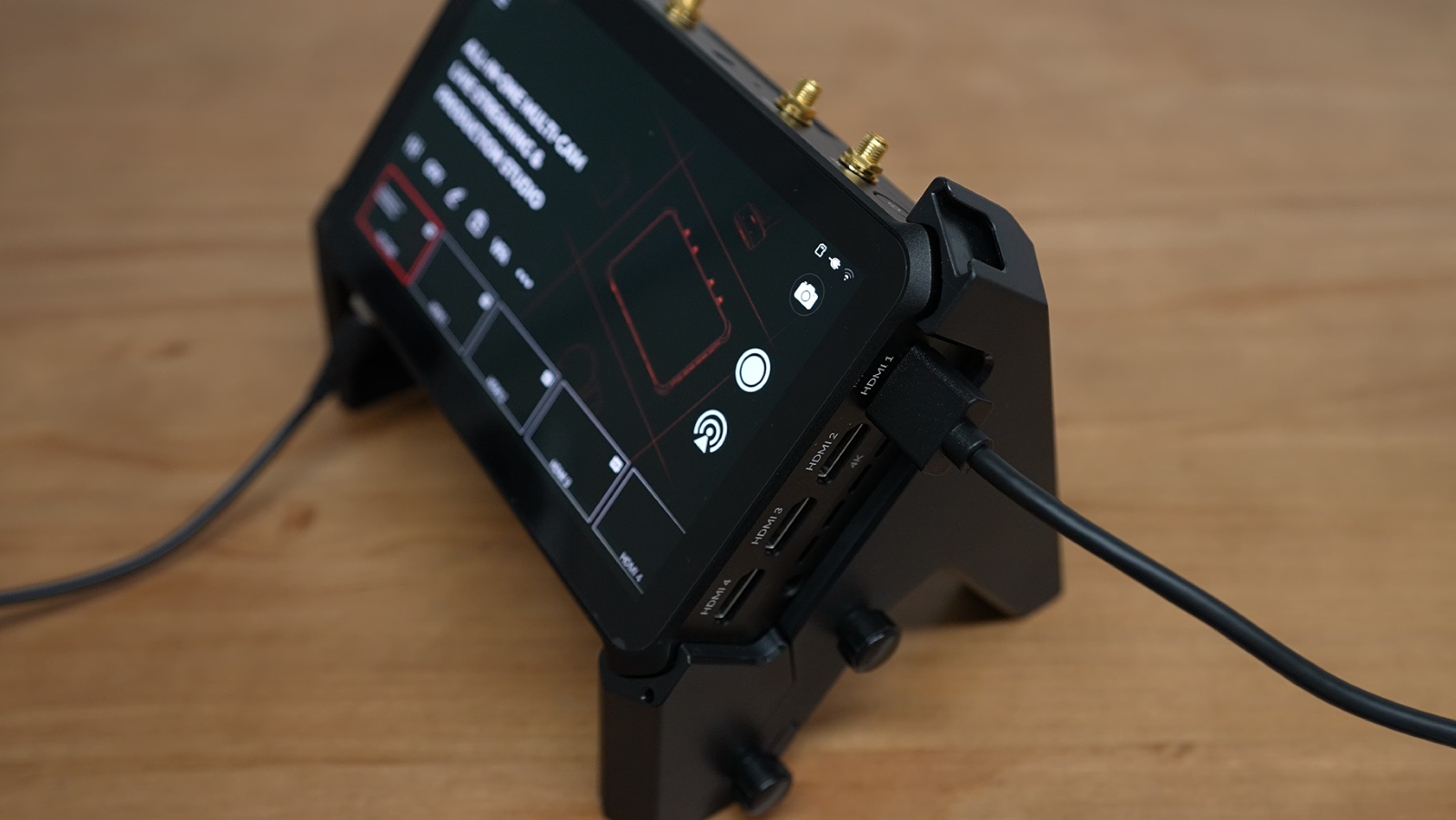
- On the Talent 2 Home screen, tap + to create a new scene and select the corresponding HDMI input source.
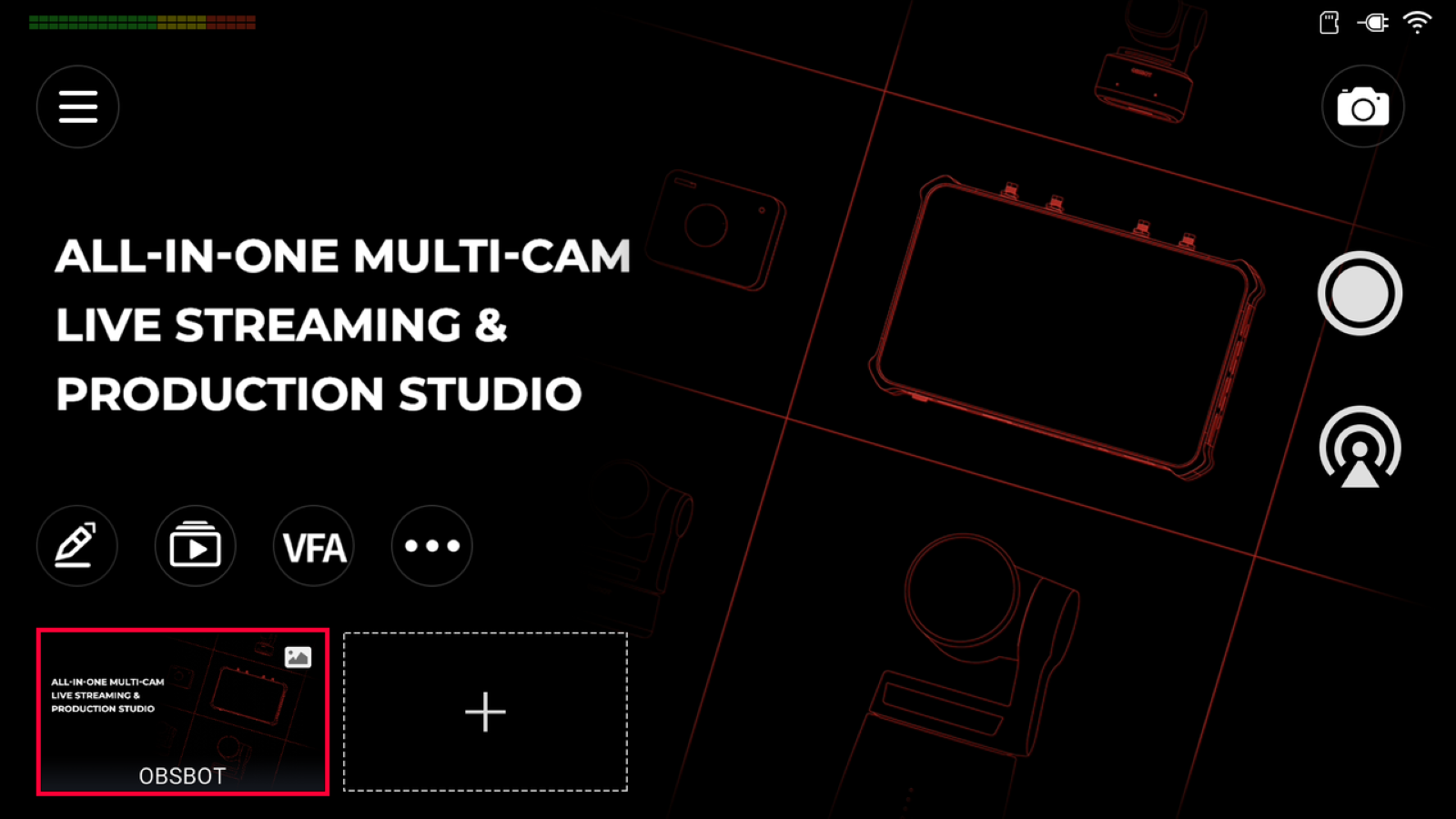
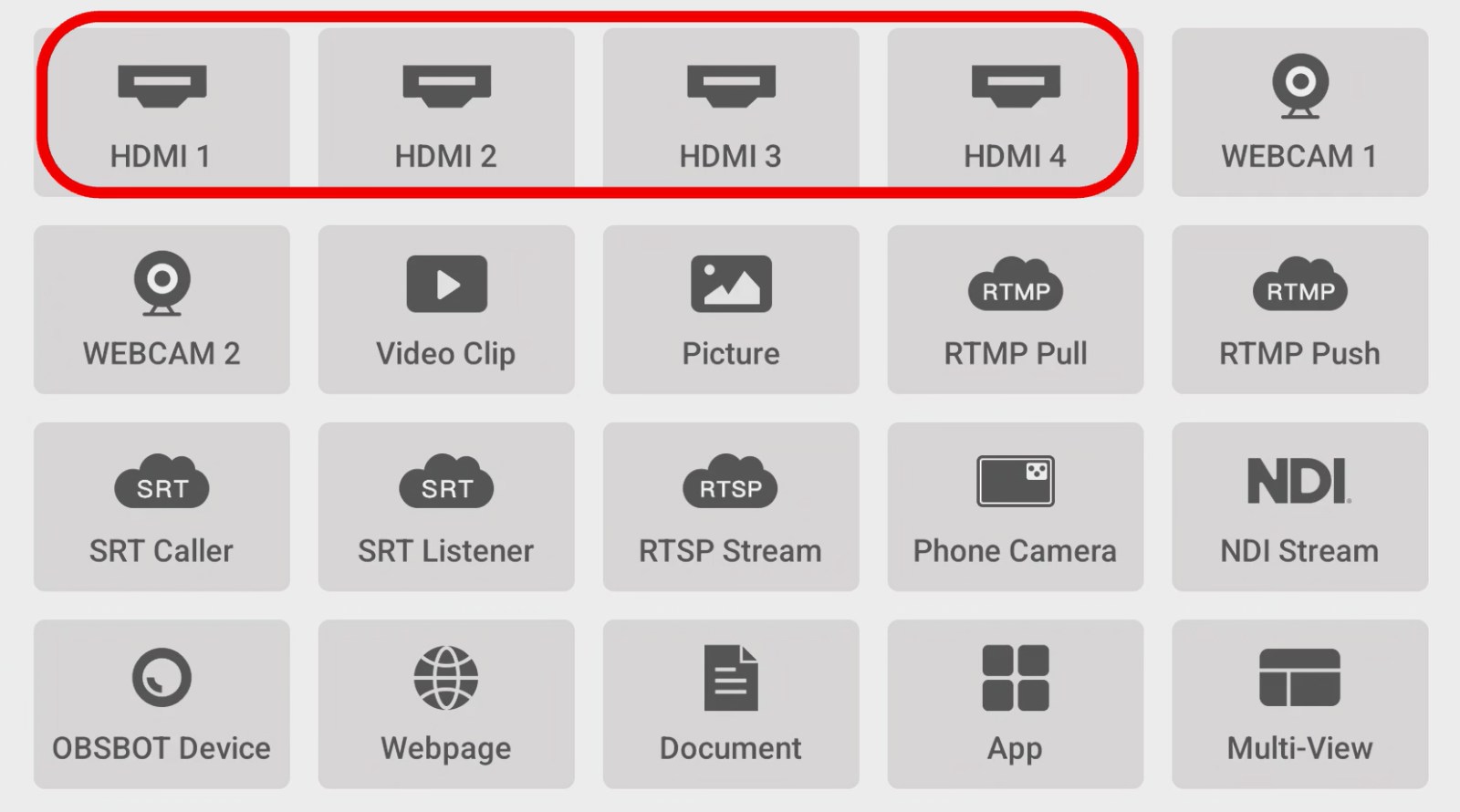
- Tap Save to add the HDMI video source to the Home screen.
Connect via USB
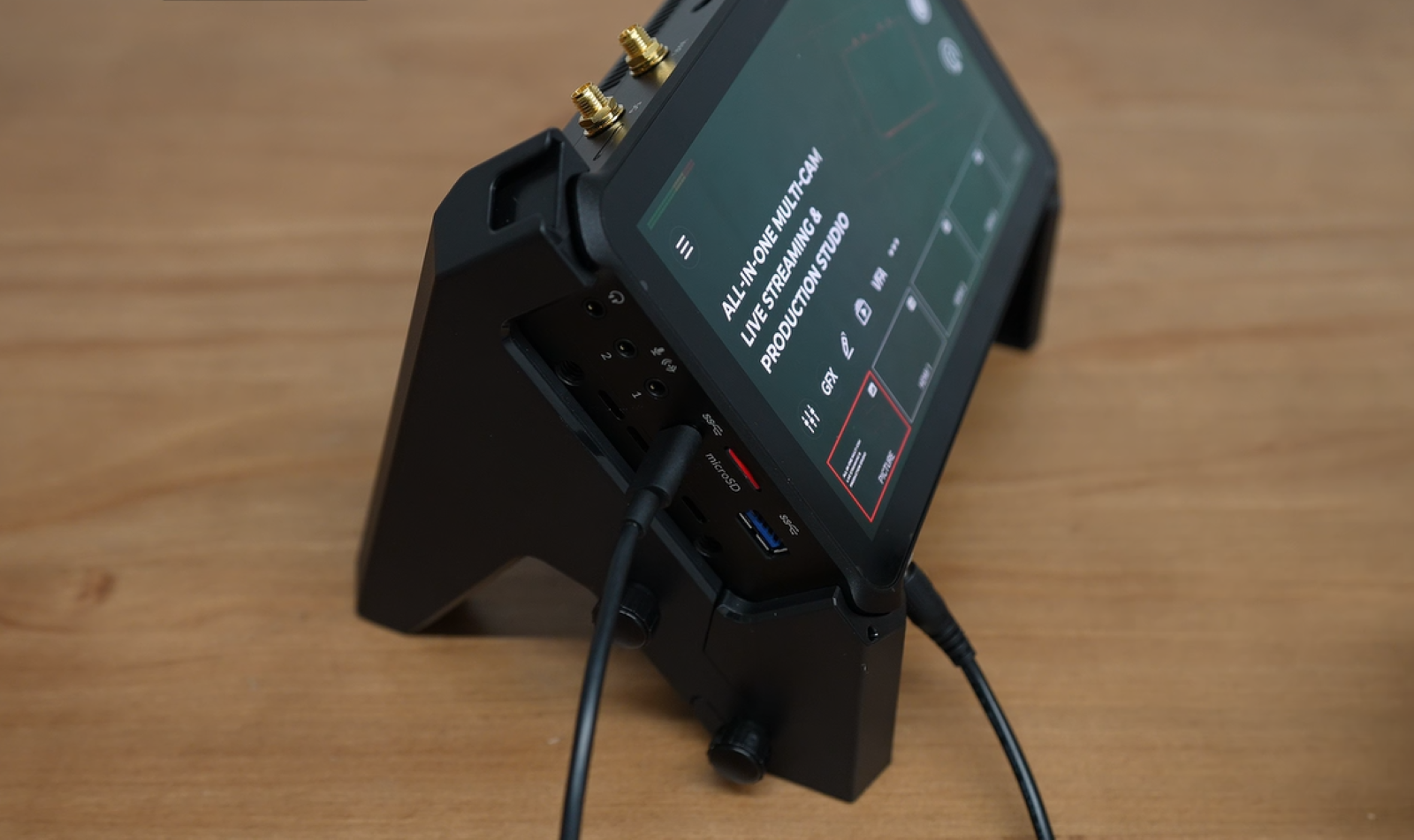
Talent 2 provides three USB inputs, including two USB-C ports and one USB-A port, for connecting compatible USB video devices.
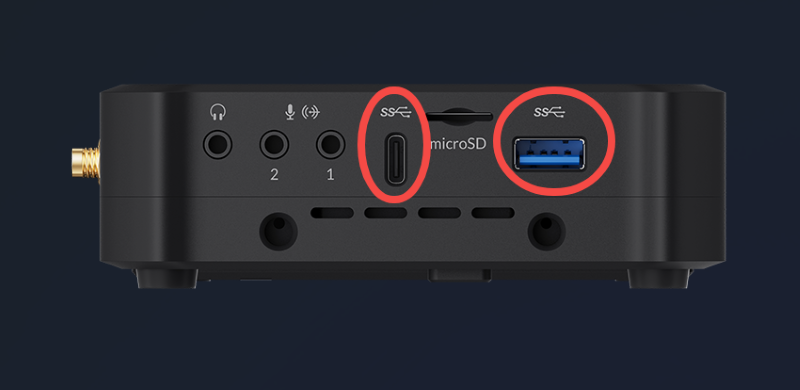
Using OBSBOT Tiny 3 as an example:
- Connect the Tiny 3 to a USB input port on Talent 2 using a USB cable.
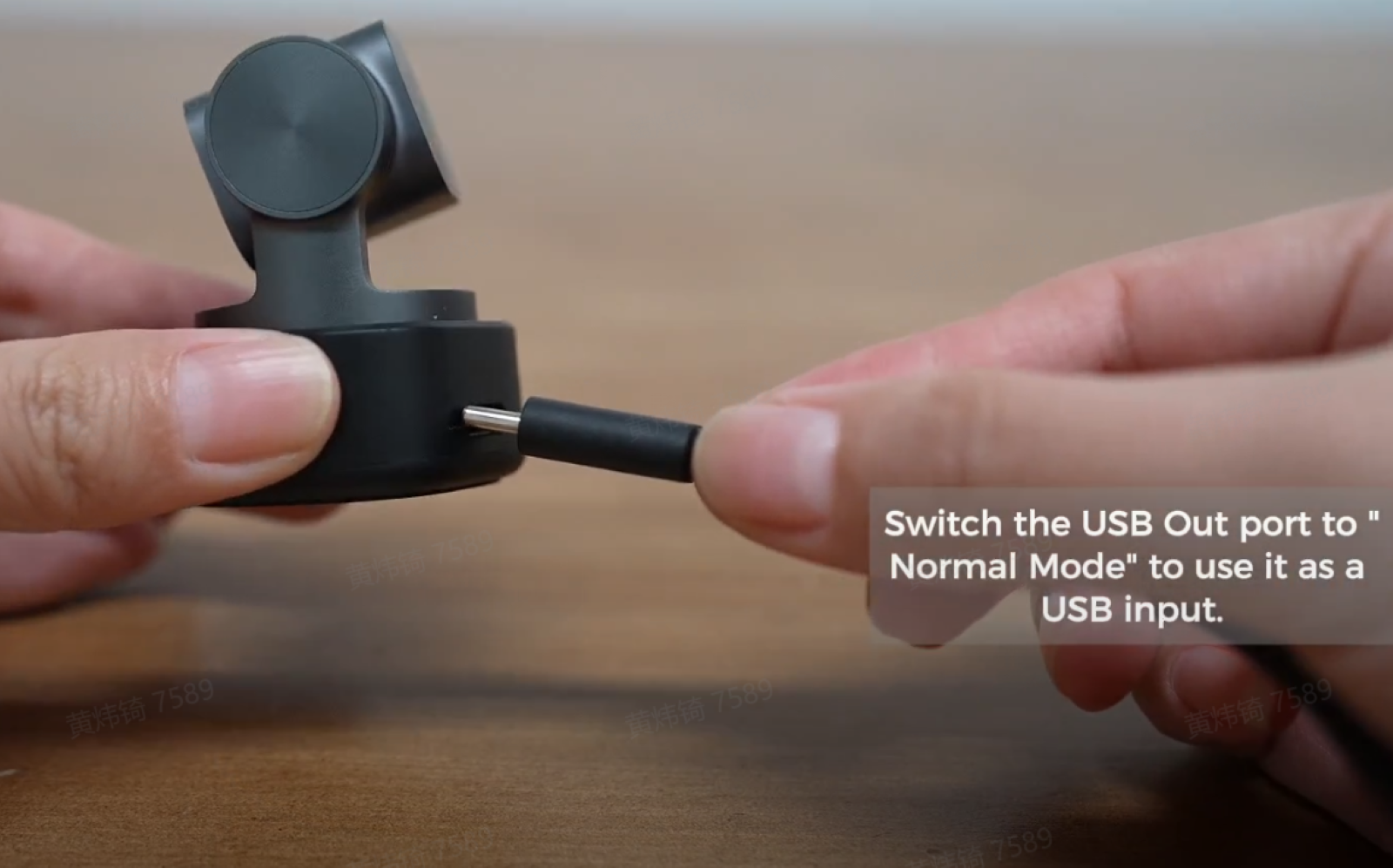
- On the Talent 2 Home screen, tap + to create a new scene. Select Webcam Device and choose the connected Tiny 3.
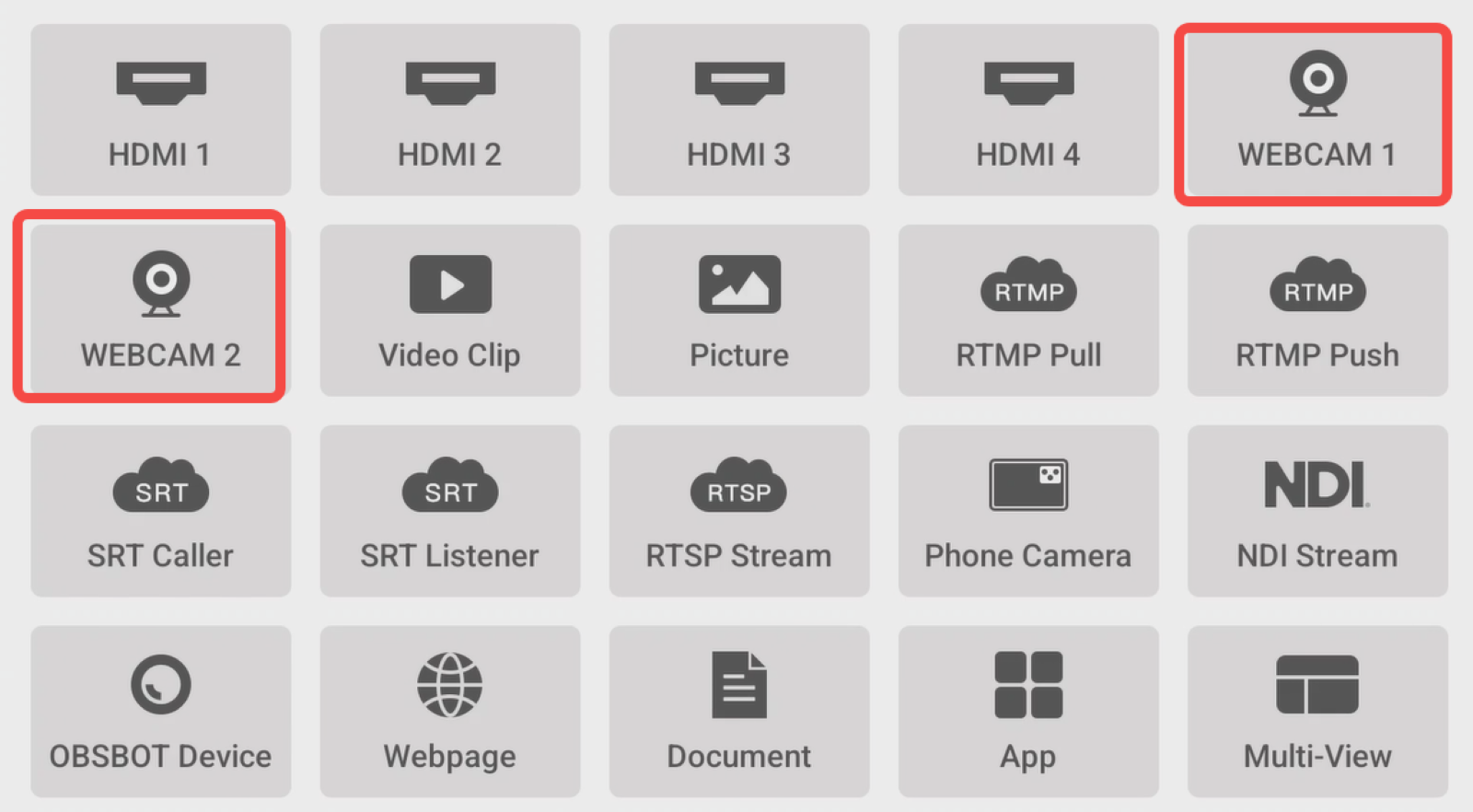
- Tap Save to add the webcam video source to the Home screen.
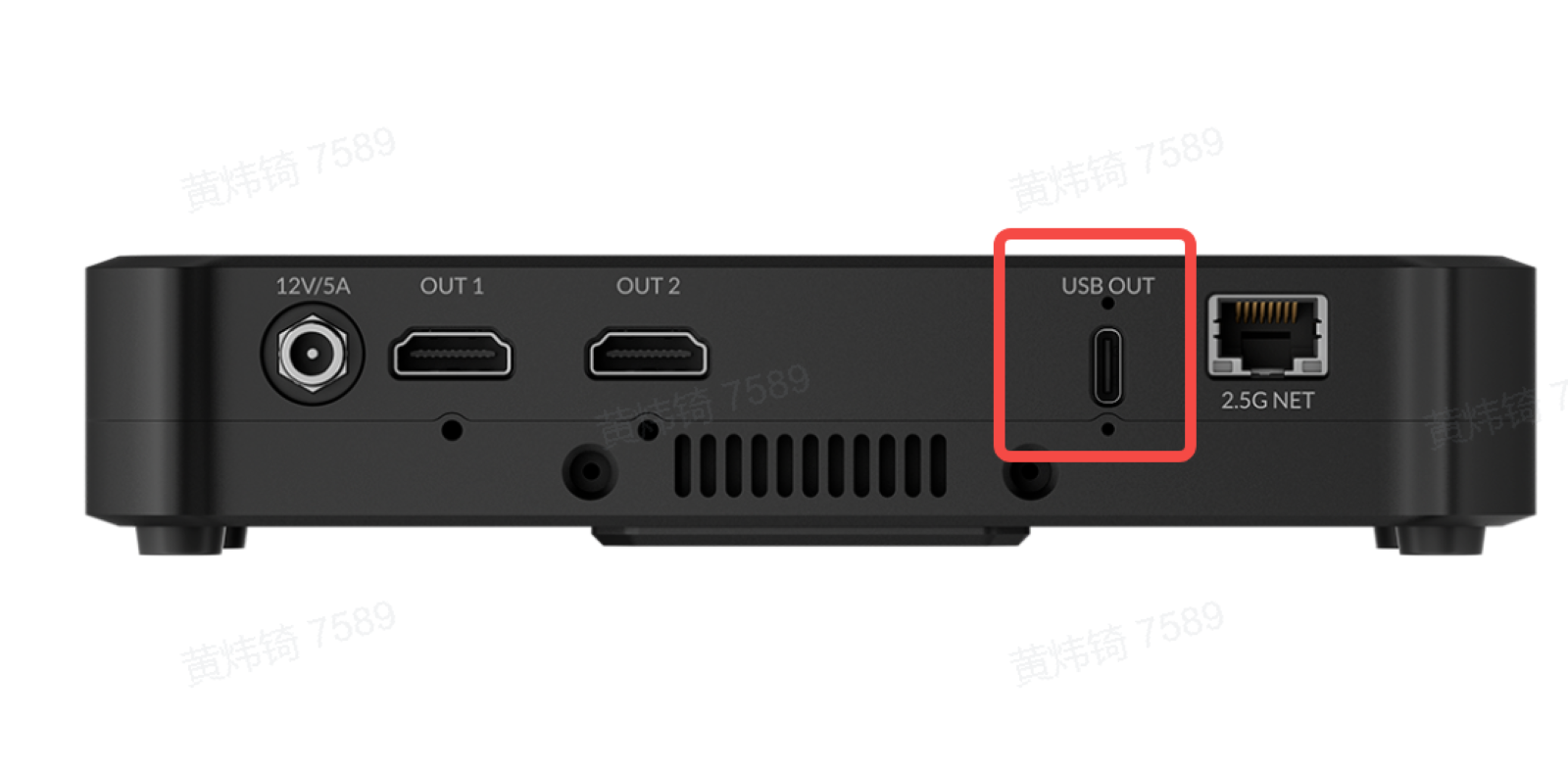
The USB OUT port at the bottom of Talent 2 can also function as a USB input when its operating mode is set to Normal Mode.
Wireless Connections
Connect OBSBOT Devices Directly
In addition to HDMI and USB, Talent 2 supports multiple wireless and IP-based connection methods, allowing compatible devices to be added without a direct video cable connection.
Talent 2 can discover compatible OBSBOT devices nearby and bring them directly into your production workflow.
- On Talent 2, tap + to create a new scene. Select OBSBOT Device > Discover Devices.
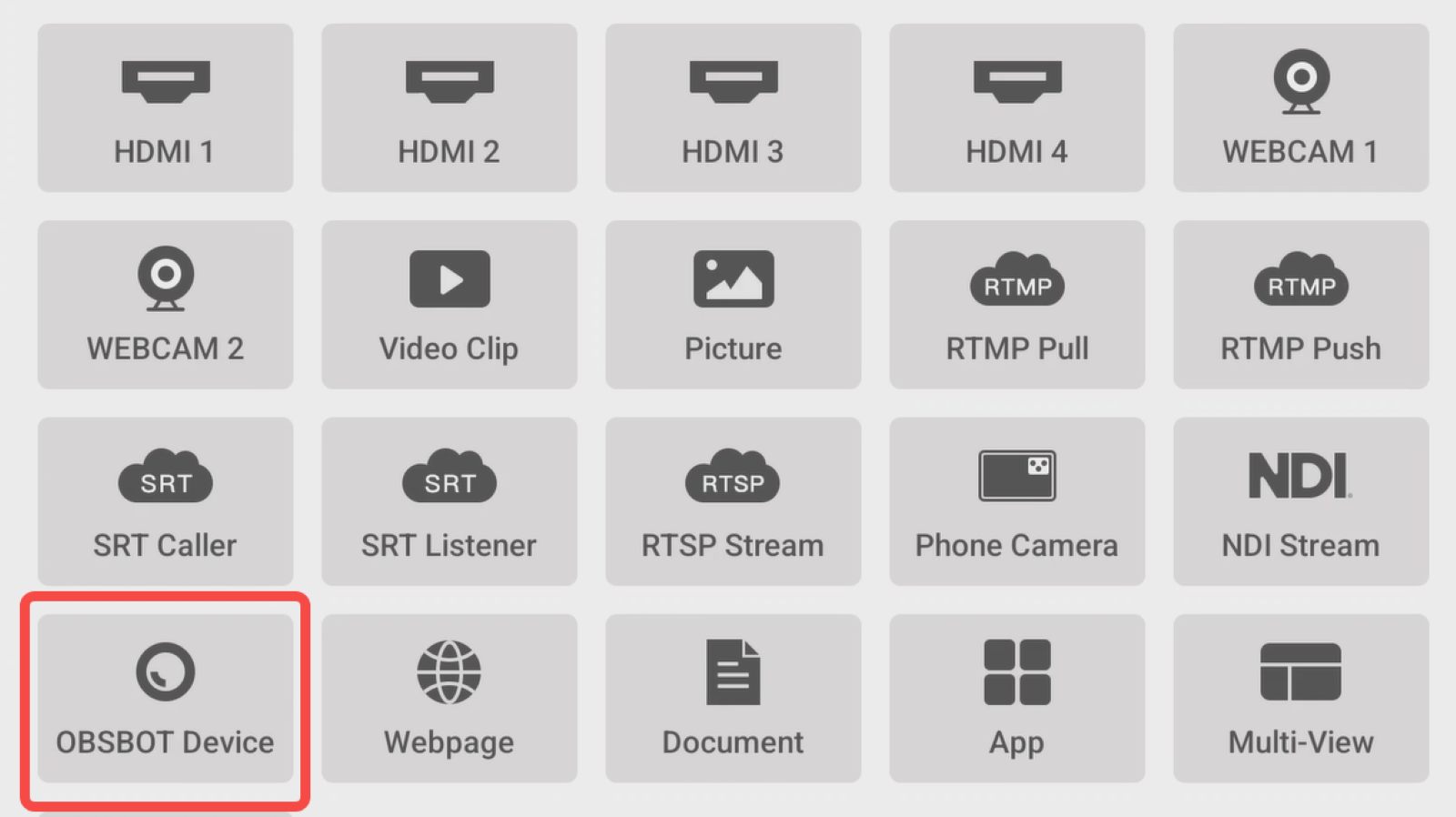
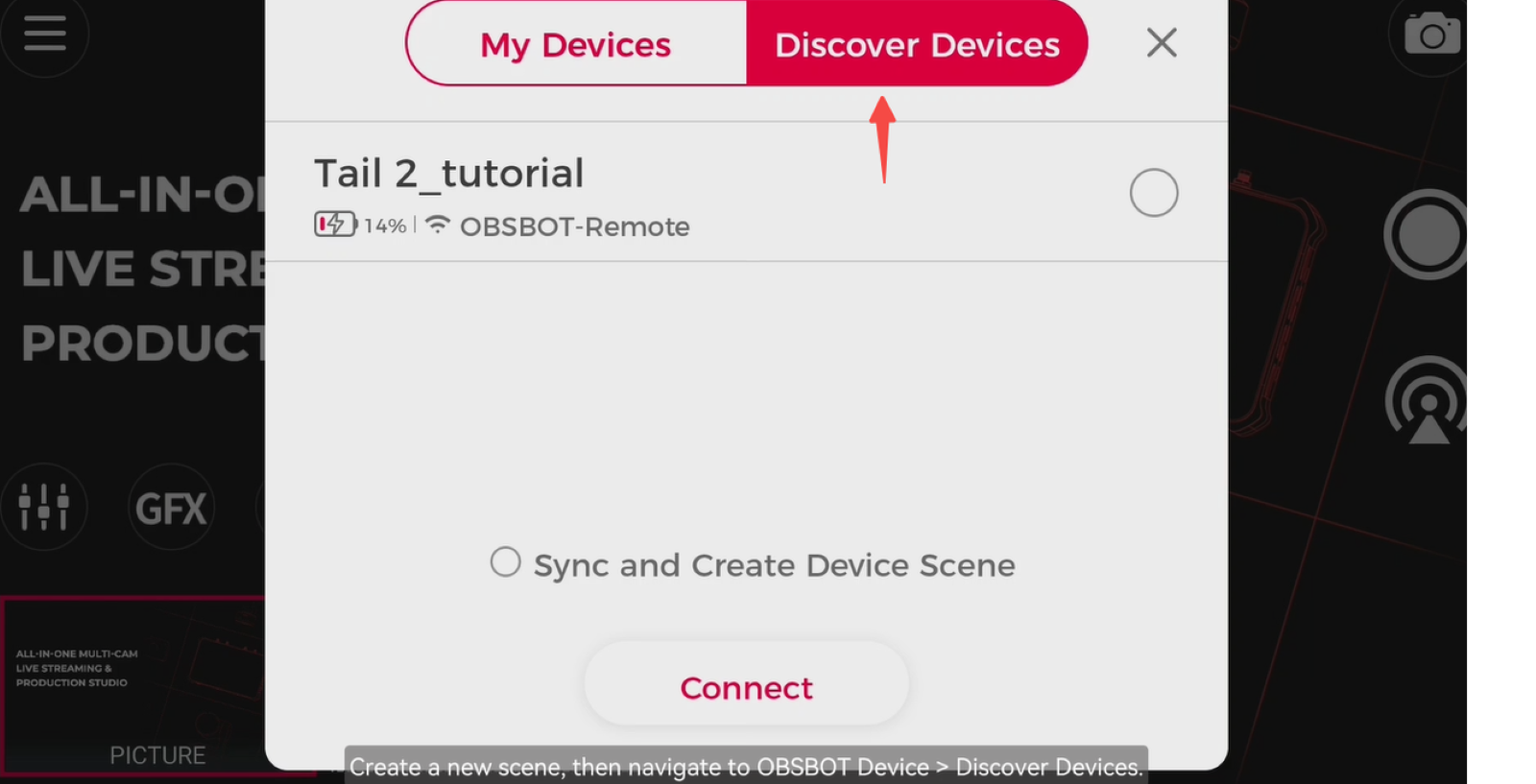
- Talent 2 will discover nearby compatible OBSBOT devices via Bluetooth. Follow the on-screen instructions to connect the device and Talent 2 to the same network.
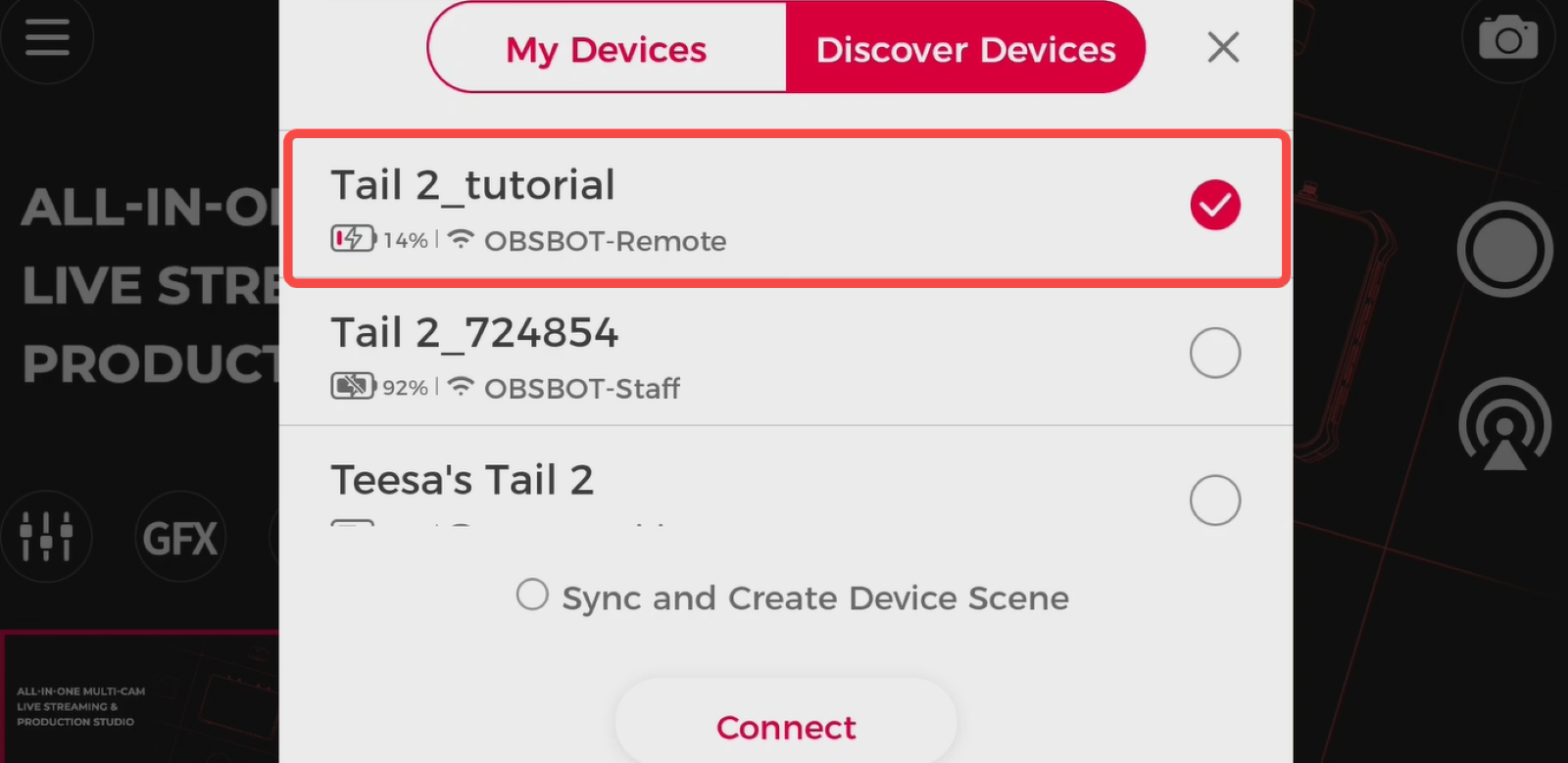
- Once connected, the device will appear under My Devices.
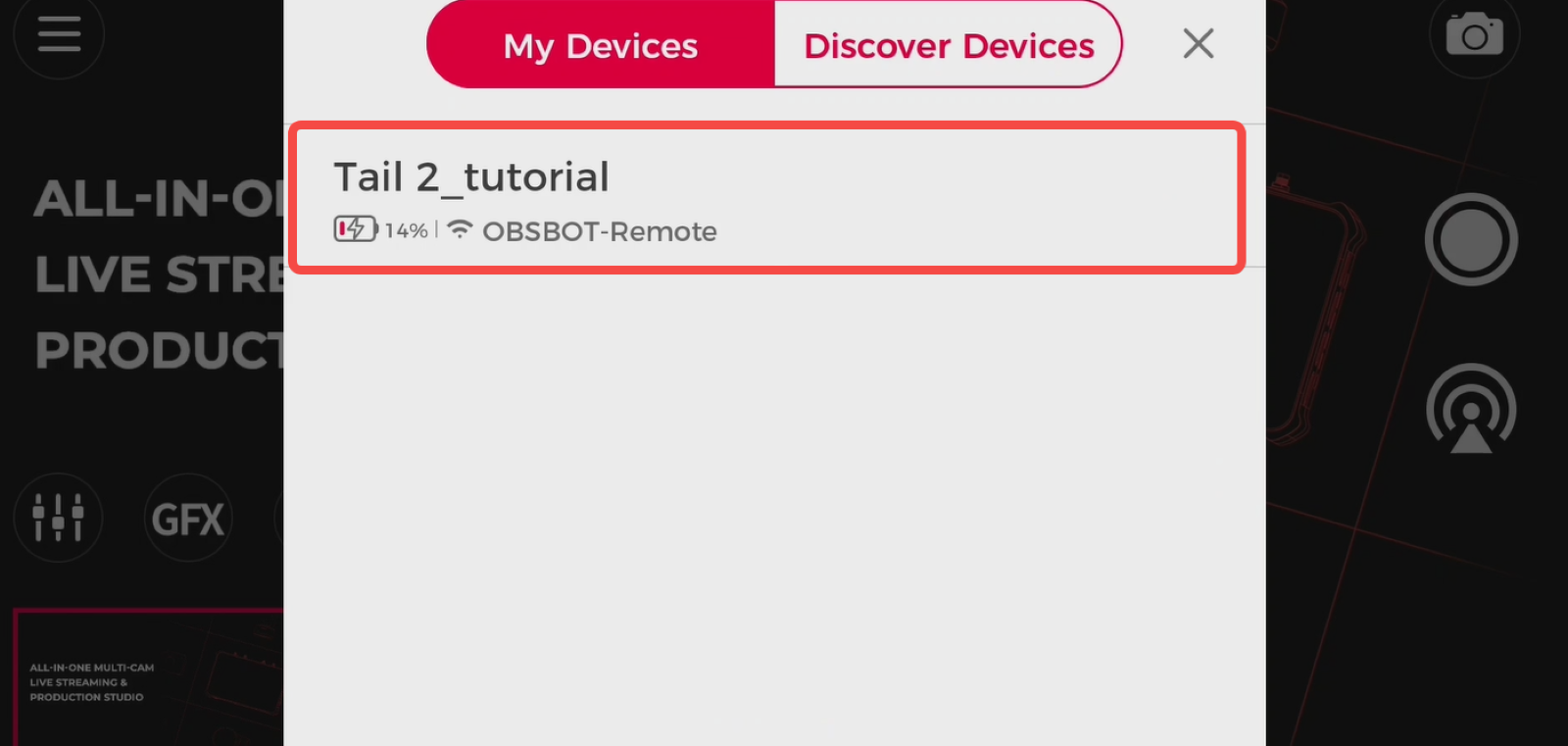
- Select the device to add it to your scene as a video source.
Connect via RTSP
You can also add OBSBOT cameras to Talent 2 using an RTSP stream over the network.
Using OBSBOT Tail 2 as an example:
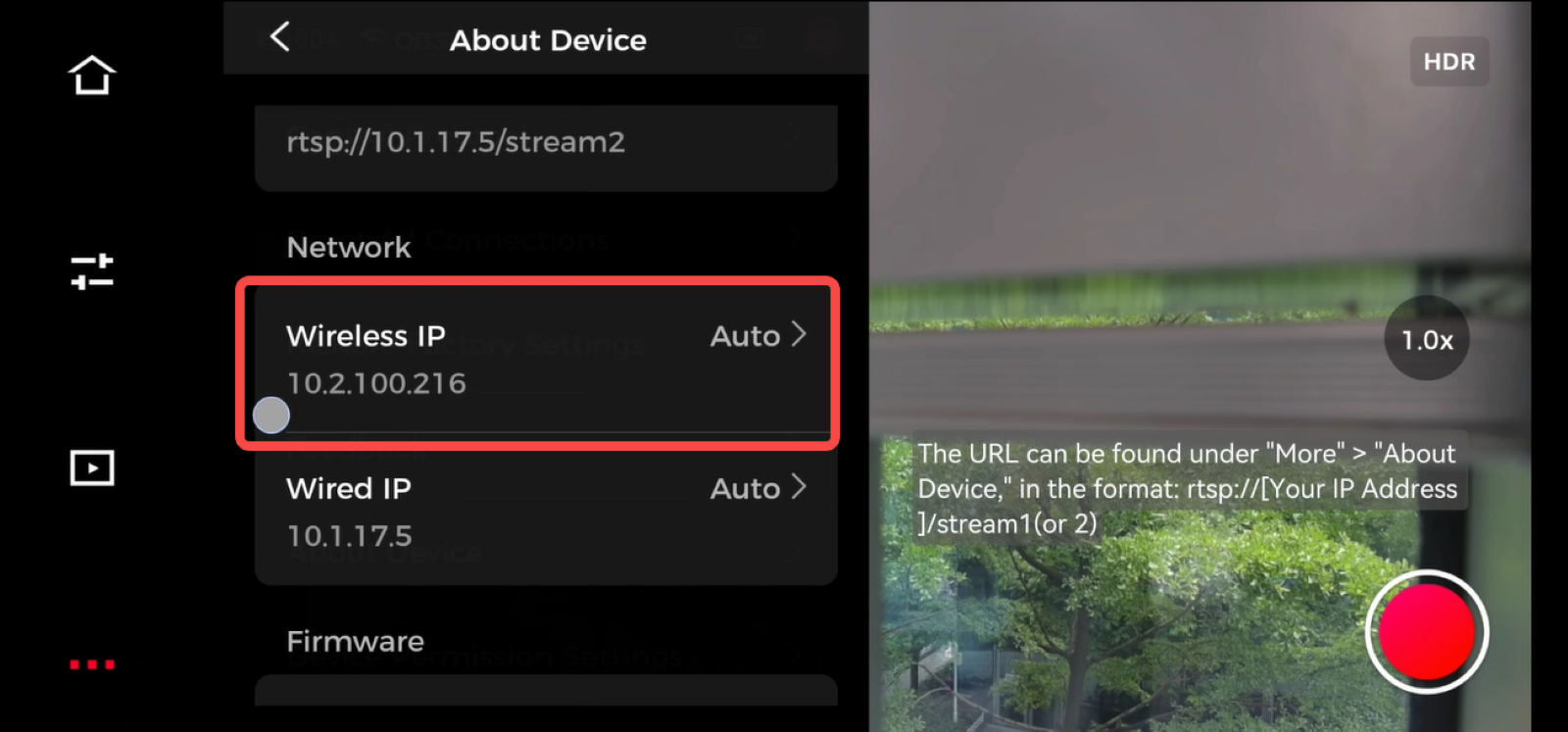
- Find the IP address of your Tail 2 in OBSBOT Center or the OBSBOT Start app.
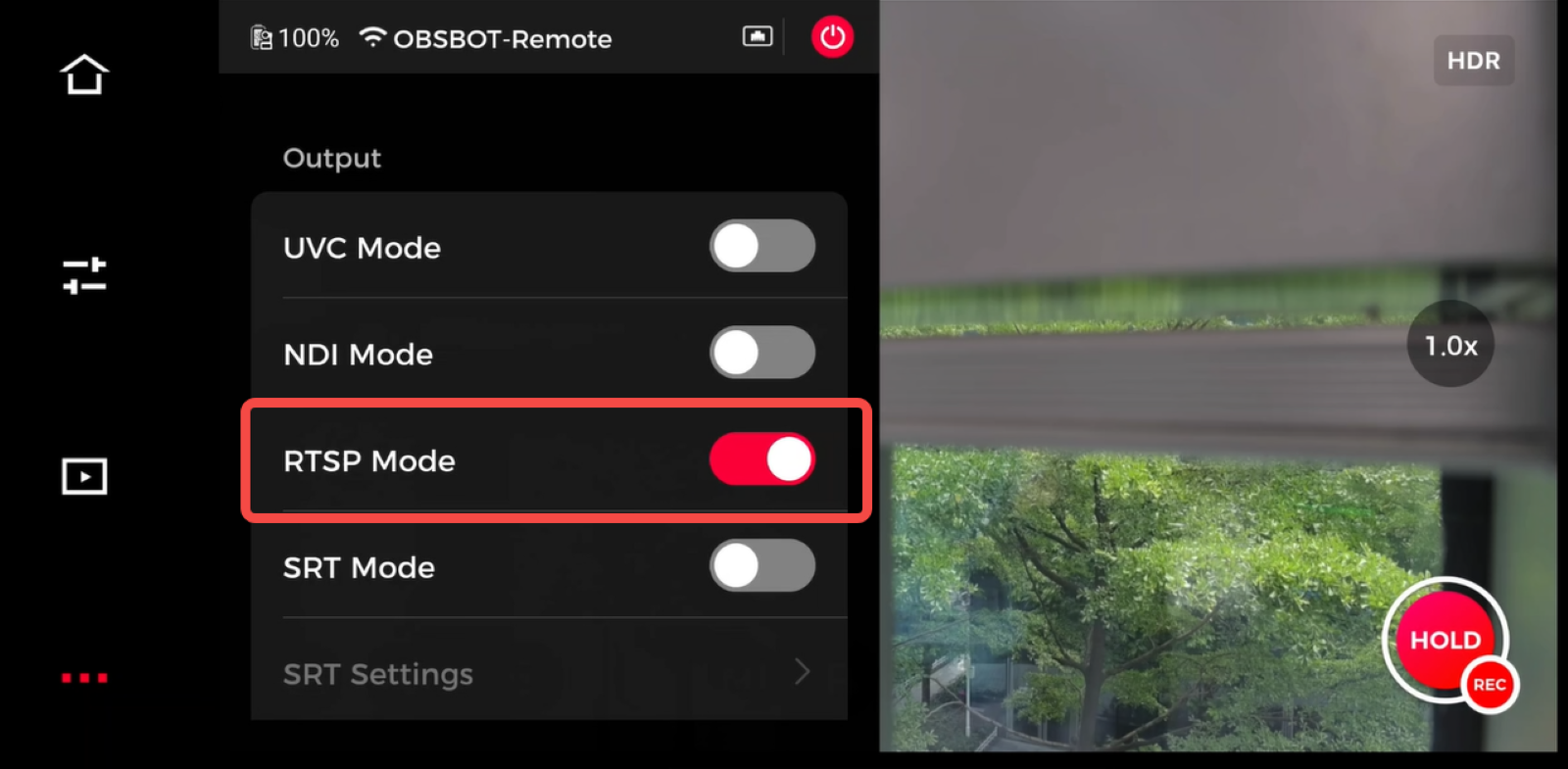
- On Tail 2, navigate to More > Output and enable RTSP Mode.
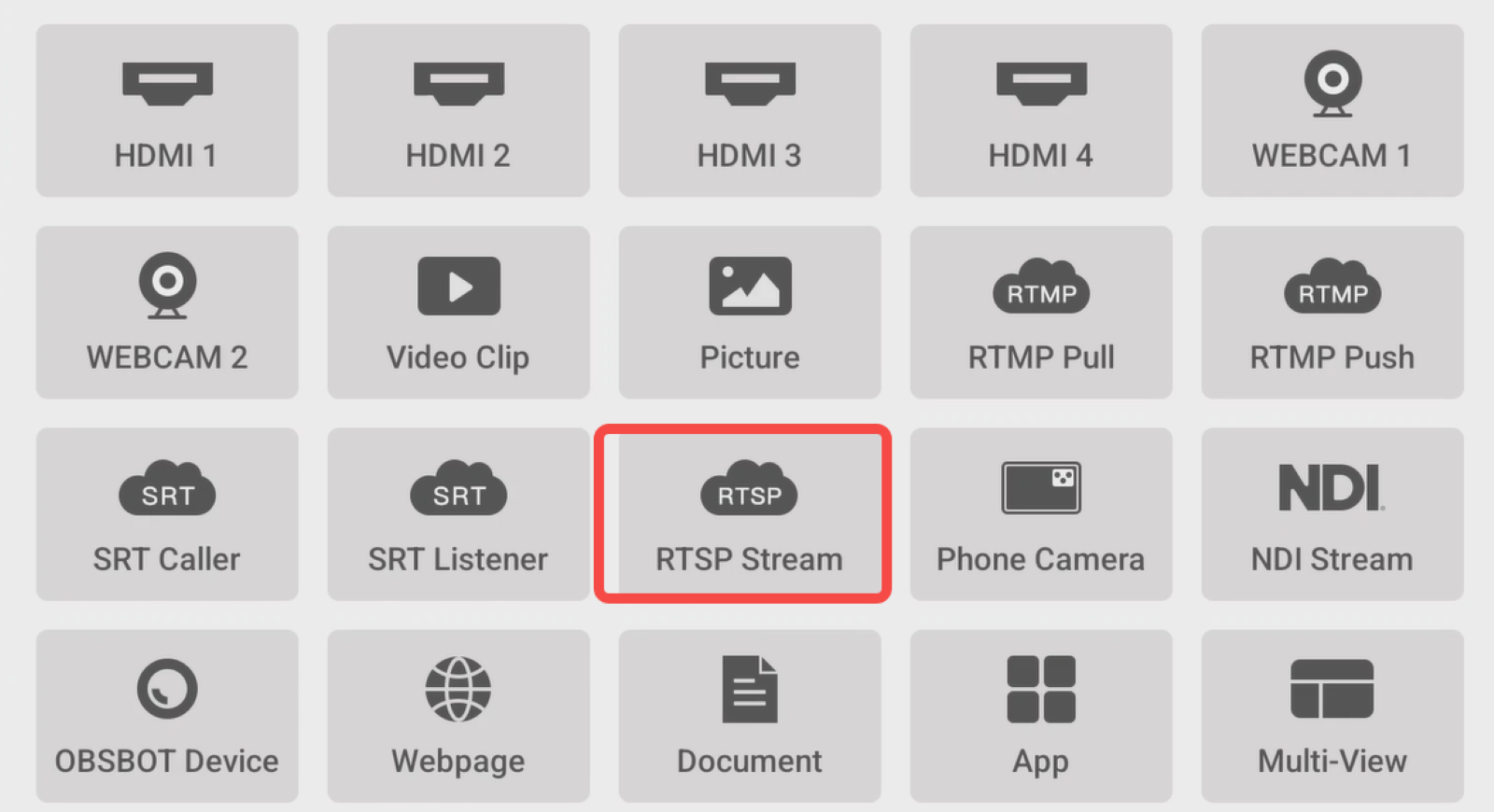
- On Talent 2, tap + to create a new scene and select RTSP Stream.
- Enter a custom name and the RTSP URL.
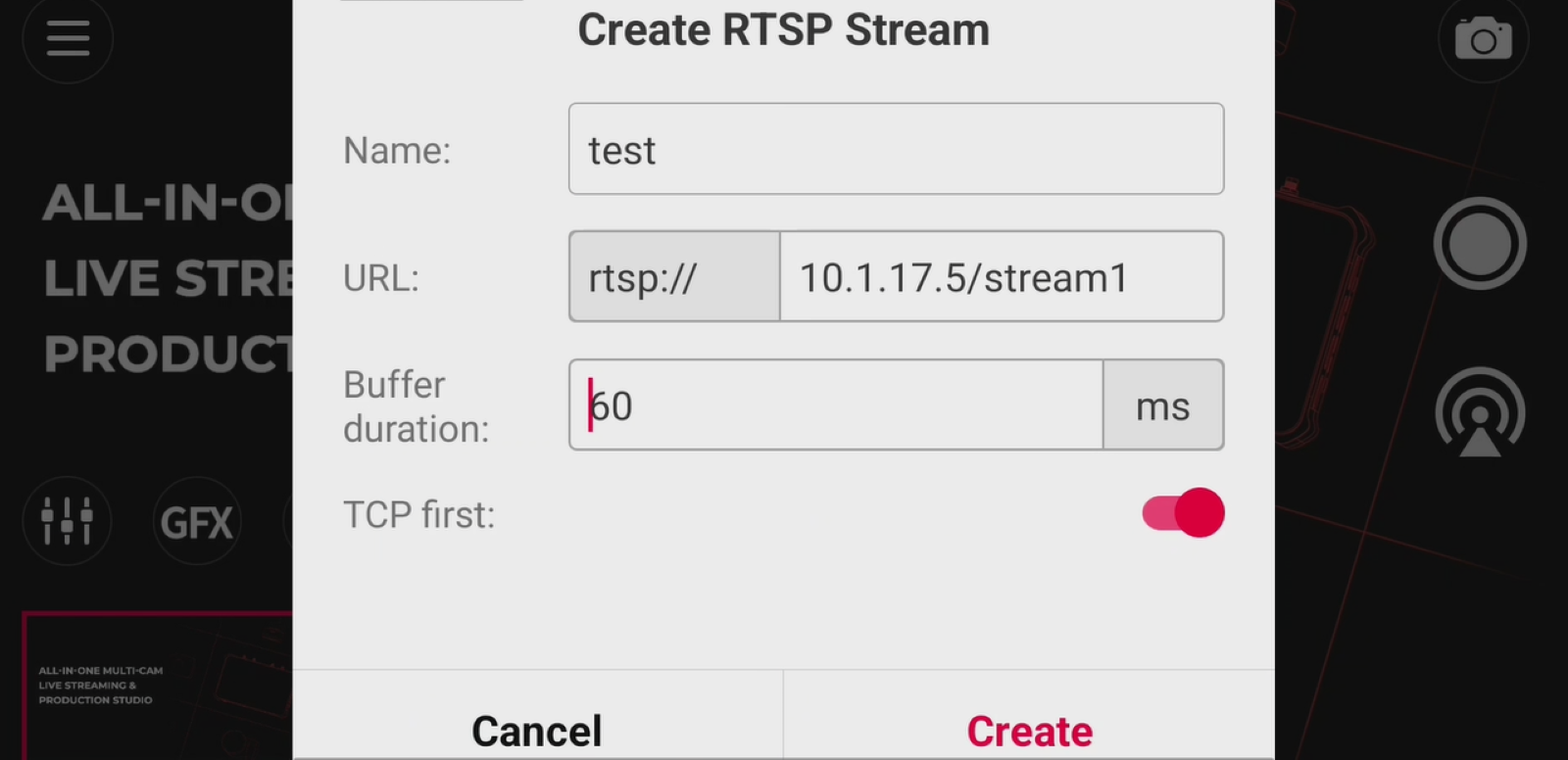
- Tap Create to add the RTSP video source.
Make sure Tail 2 and Talent 2 are connected to the appropriate network before establishing the RTSP connection.
Connect via SRT
Talent 2 also supports SRT connections in both Caller and Listener modes.
Using Tail 2 as an example:
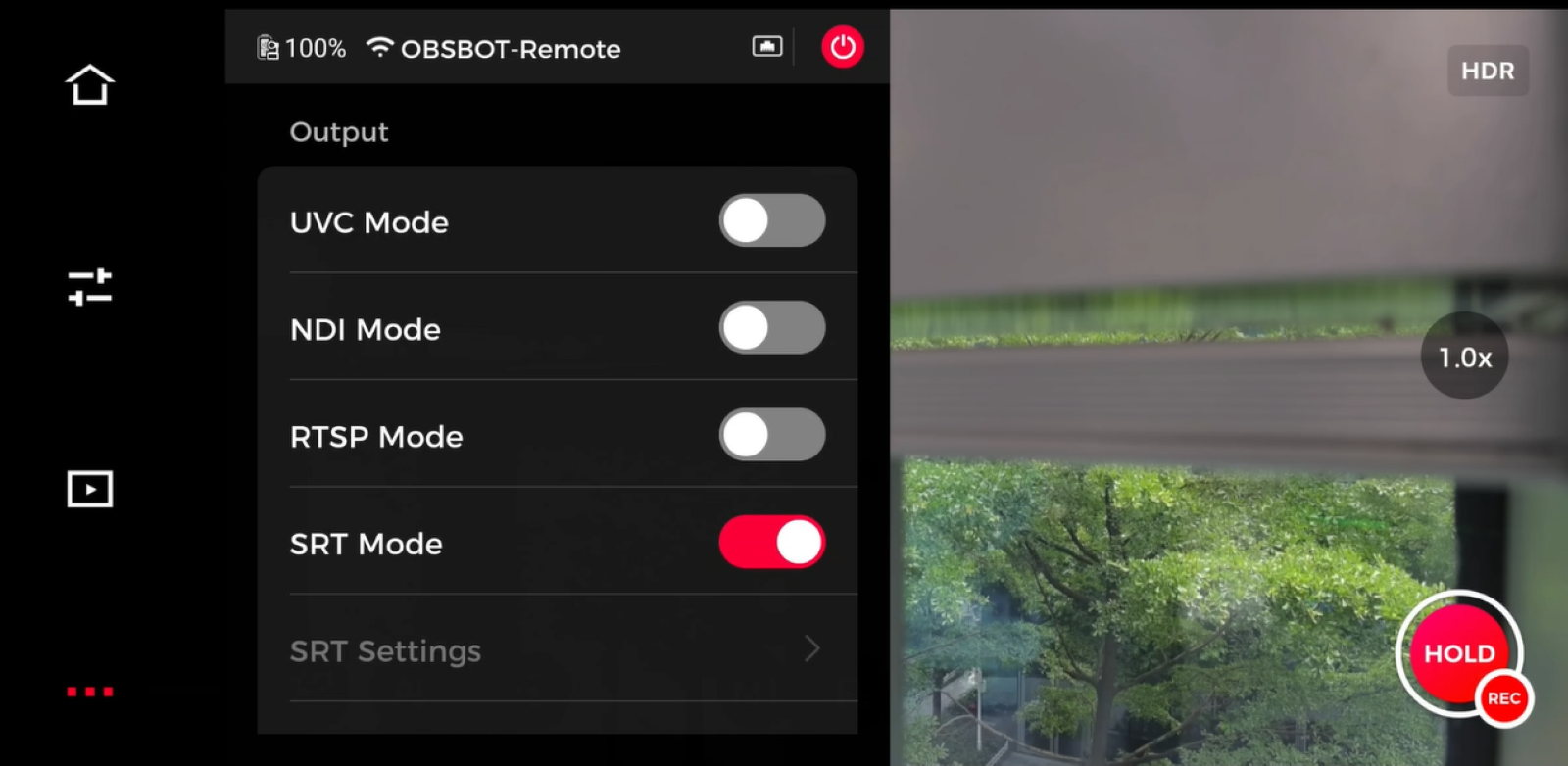
- On Tail 2, navigate to More > Output > SRT Settings.
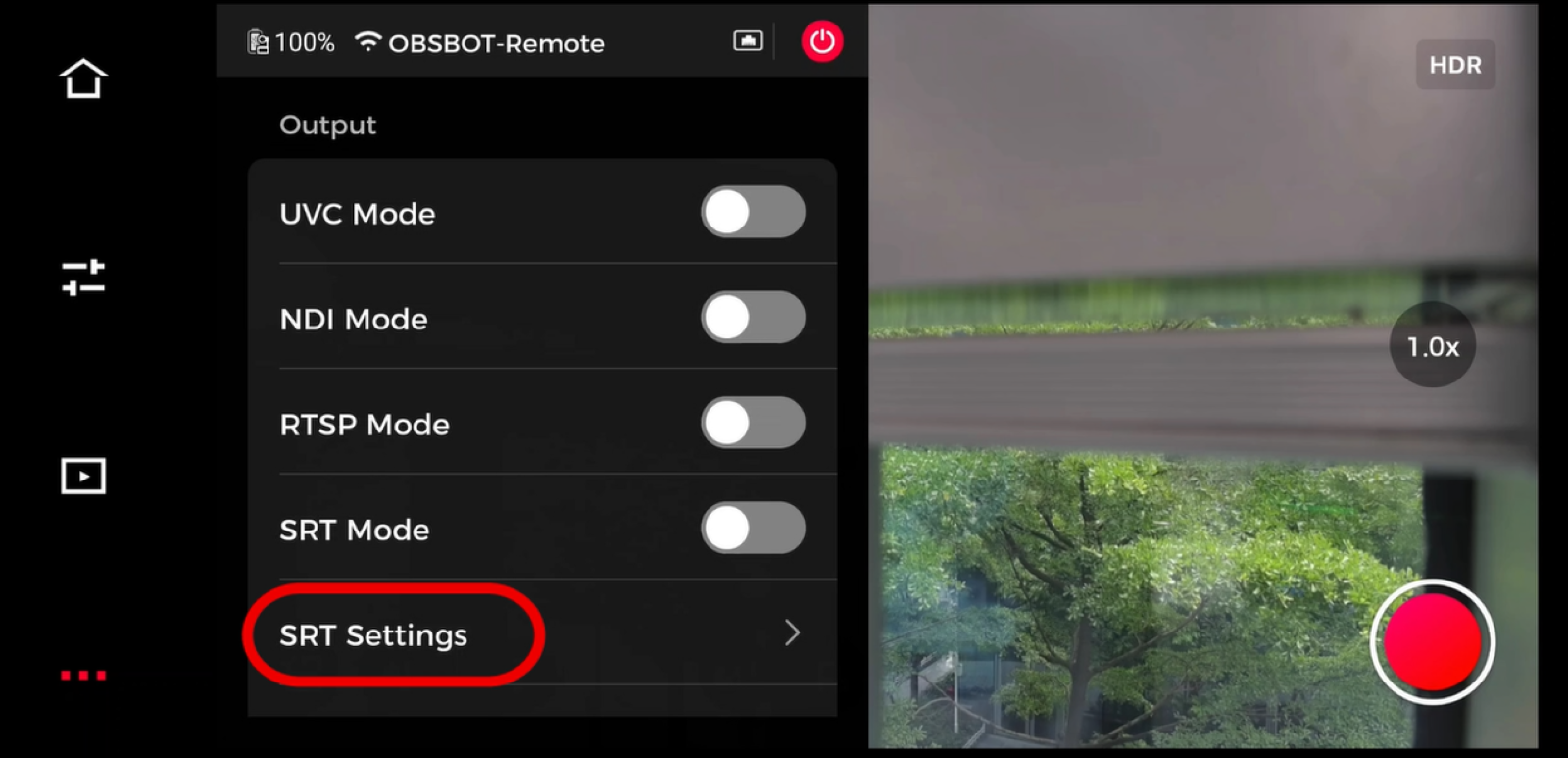
- Configure the required SRT parameters, then enable SRT Mode.
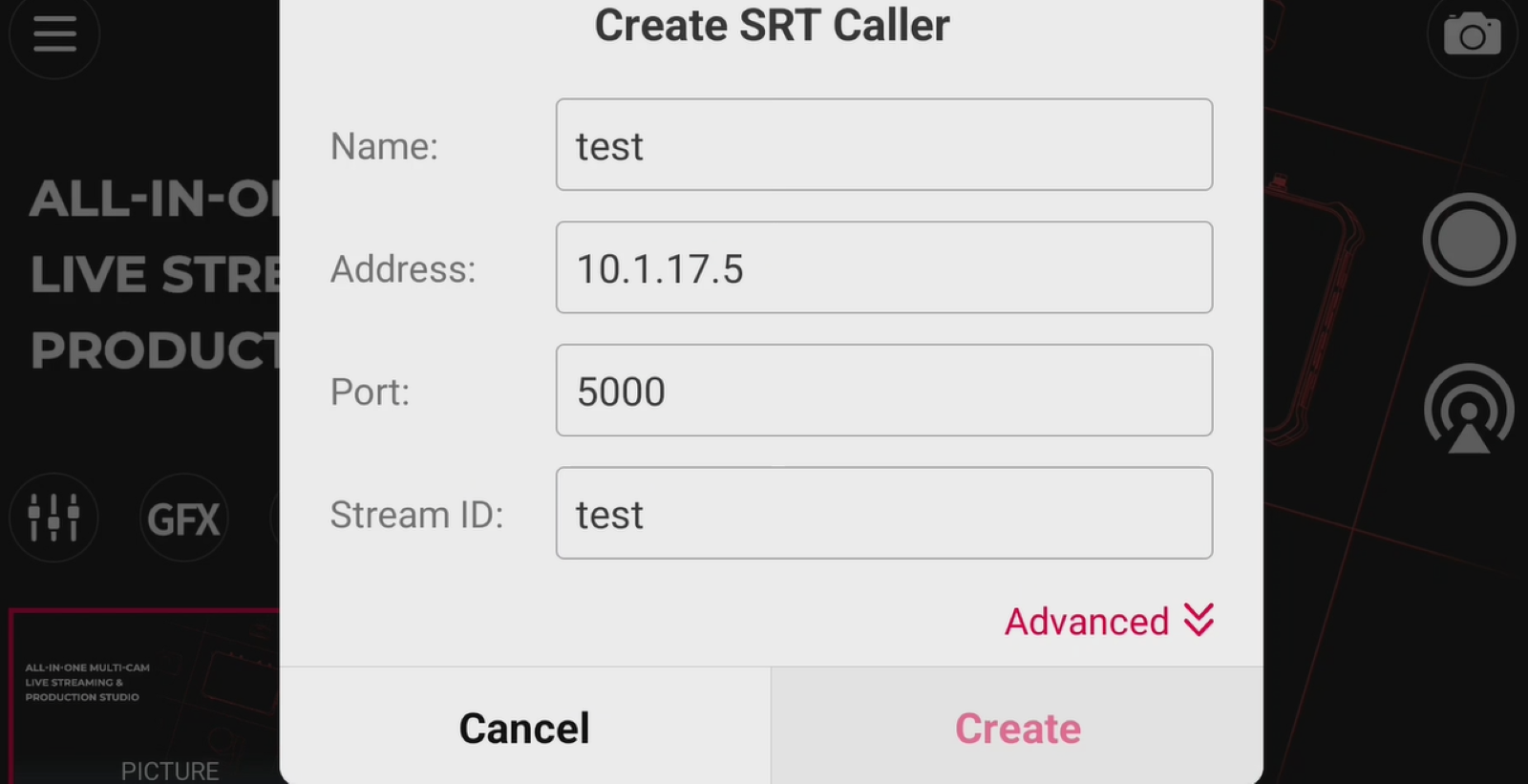
- On Talent 2, tap + to create a new scene. Select SRT Caller or SRT Listener, depending on your Tail 2 configuration.
- Enter the corresponding IP address and port number to establish the SRT video source.
Note: The SRT modes on the two devices must correspond to each other. If Tail 2 is configured as Caller, Talent 2 should be configured as Listener, and vice versa.
Connect via NDI
Talent 2 can discover and add available NDI sources on the local network.
Using Tail 2 as an example:
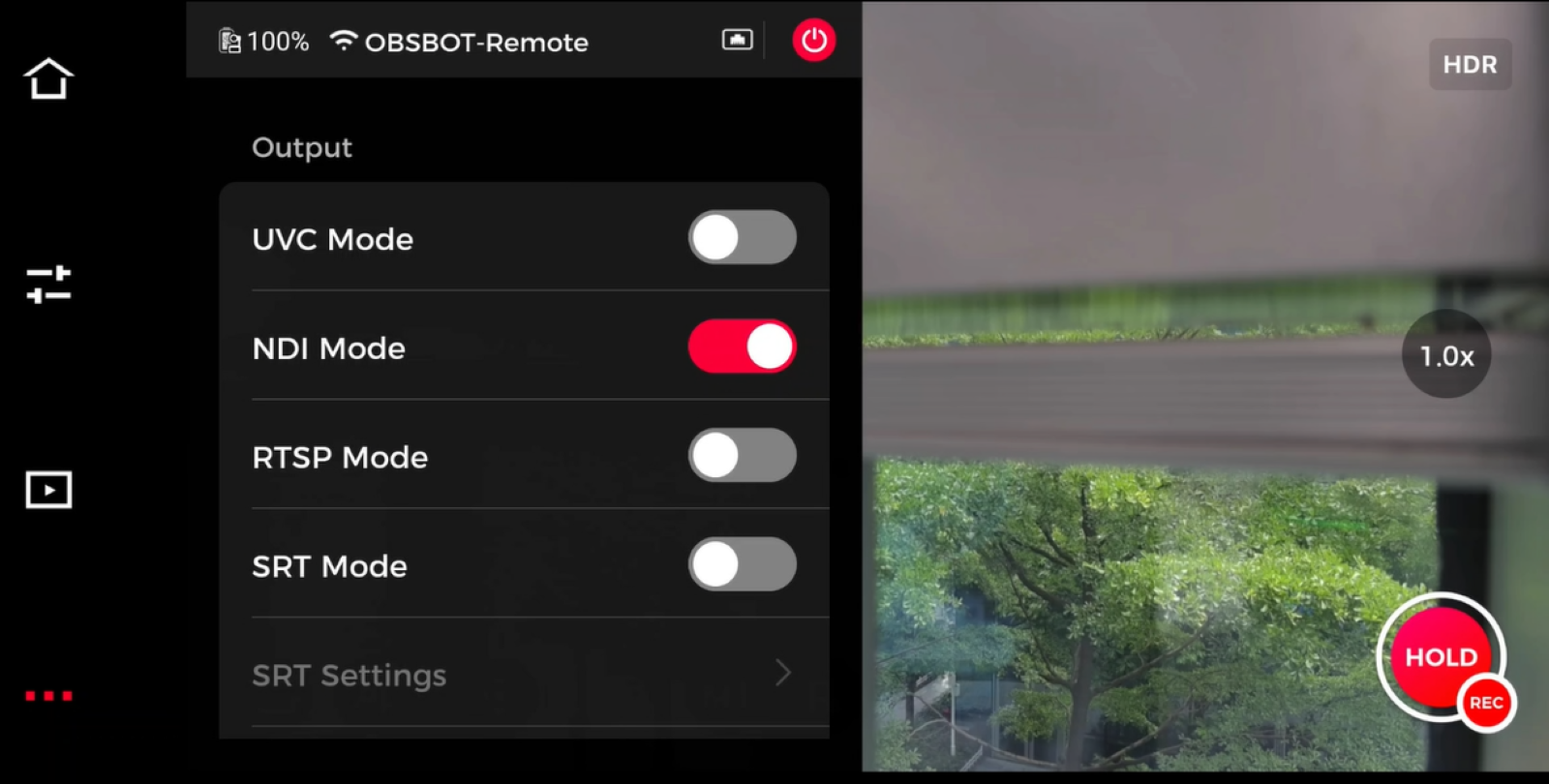
- On Tail 2, navigate to More > Output and enable NDI Mode.
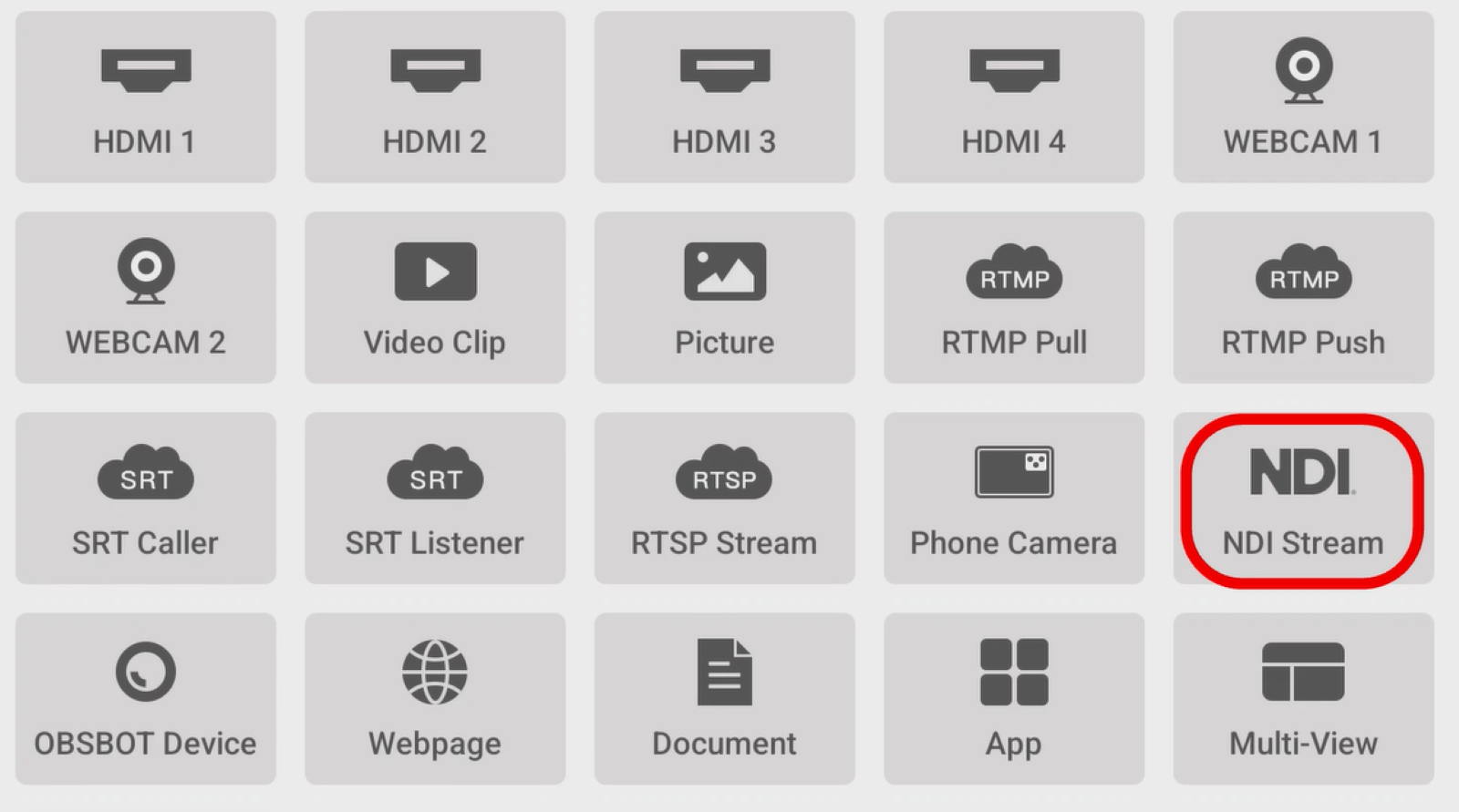
- On Talent 2, tap + to create a new scene and select NDI Stream.
- Tap NDI Search to scan for available NDI signals on the local network.
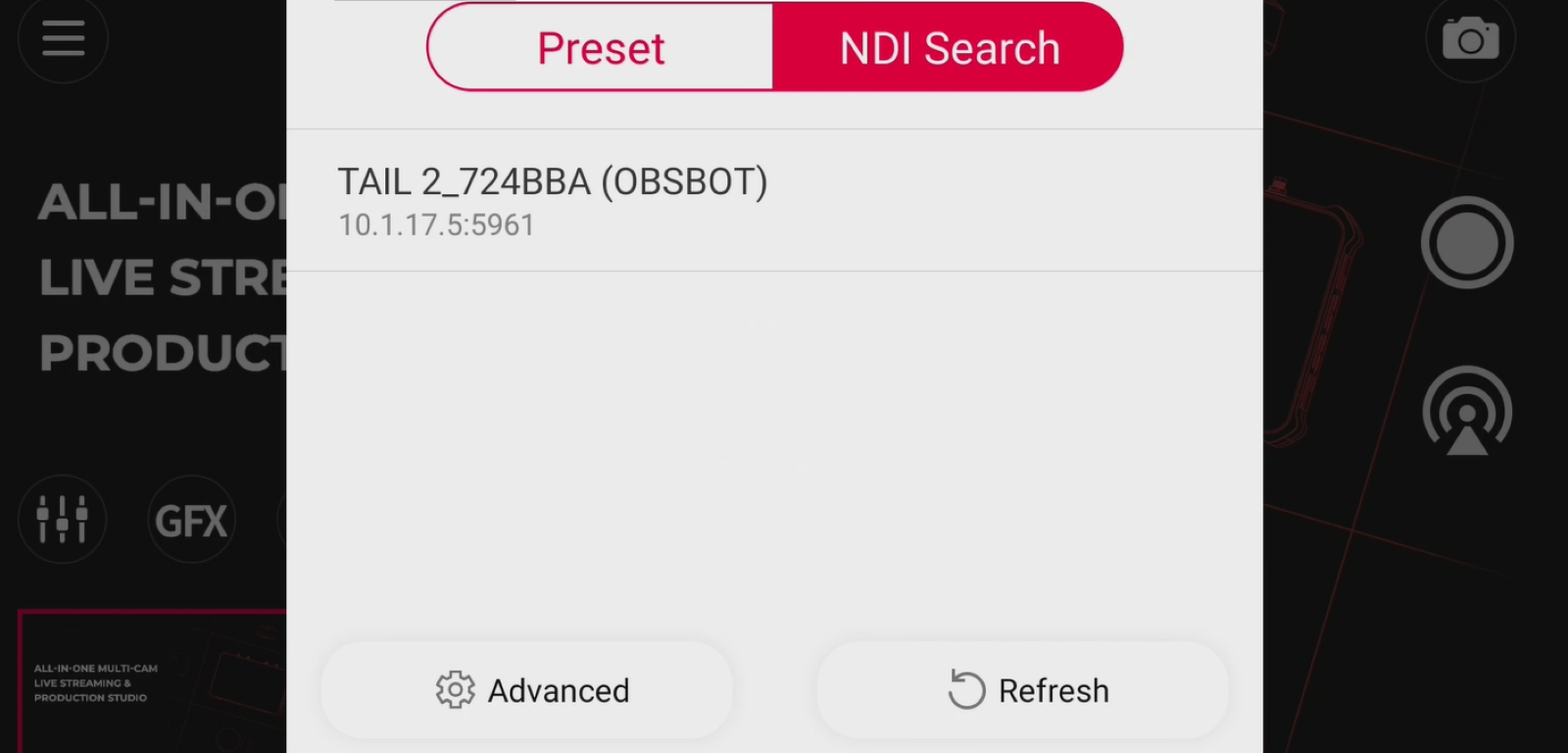
- Select the desired source and tap Save to complete the setup.
Once added, the Tail 2 NDI feed can be used as a video source in your Talent 2 production.
Connect a Smartphone or Tablet with Obsbot Live
With Obsbot Live, you can also bring the camera on your smartphone or tablet into Talent 2 as an additional video source.
- Install and launch Obsbot Live on your smartphone or tablet.
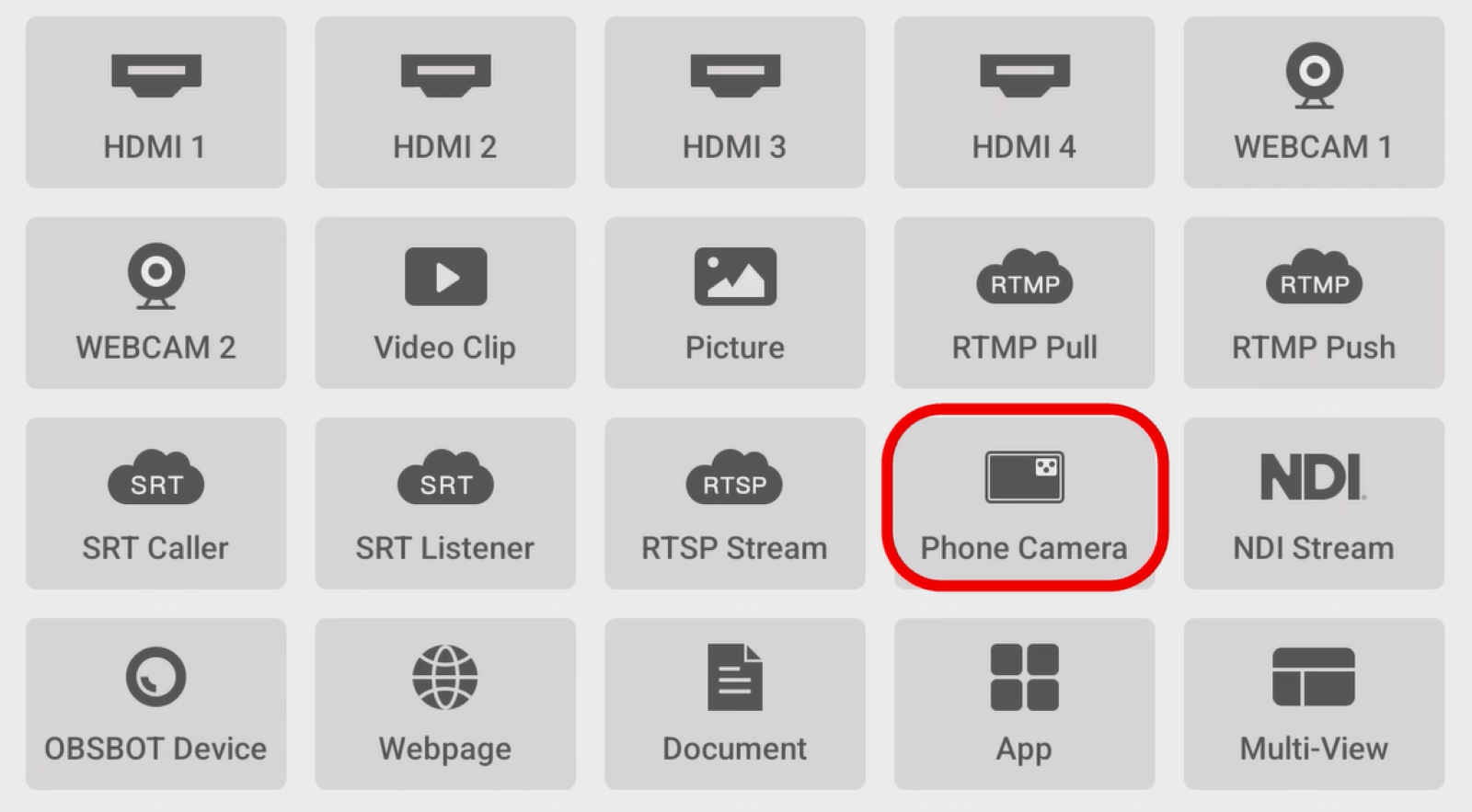
- On Talent 2, tap + to create a new scene and select Phone Camera.
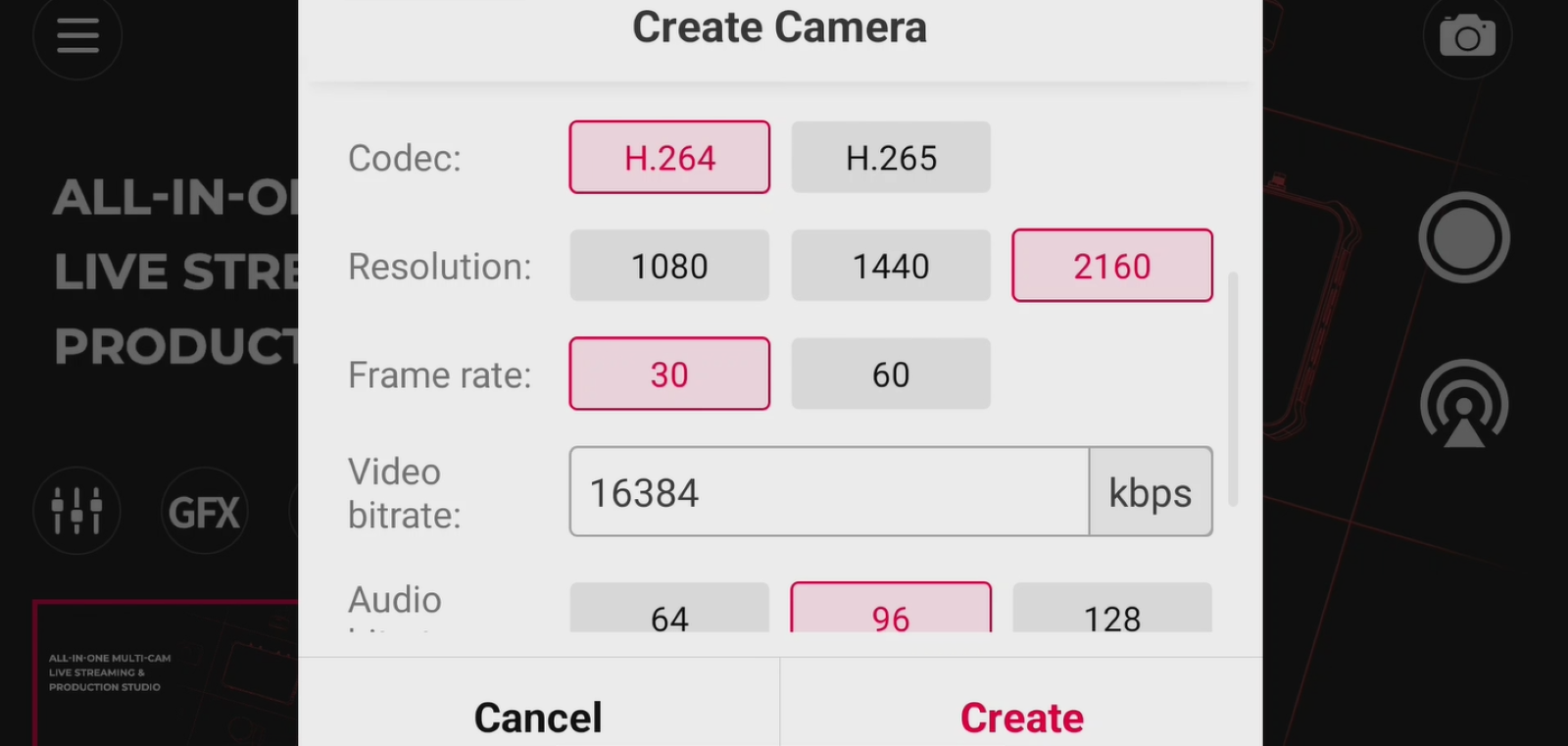
- Configure the required parameters, then tap Create.
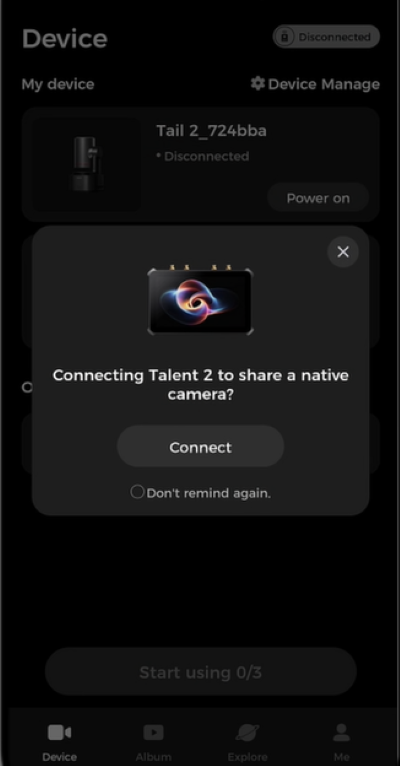
- In the sharing pop-up in Obsbot Live, tap Connect.
- Select the front or rear camera you want to use.
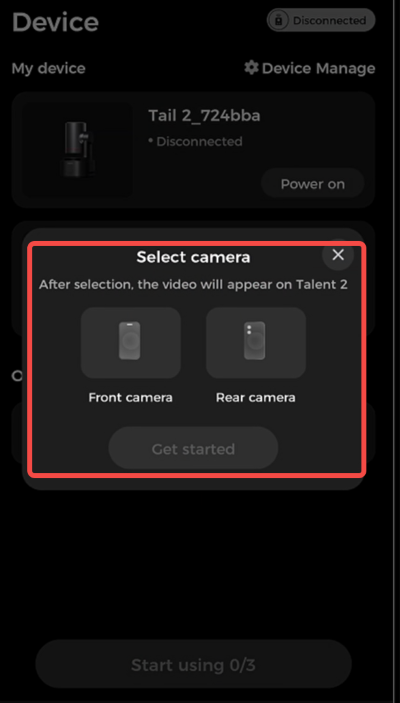
- Once connected, the mobile camera feed will appear on Talent 2 as an SRT source.
This makes it easy to add another camera angle using a mobile device without adding a dedicated camera to your setup.













