

How to Export Log Files from Talent 2
If you encounter an issue with Talent 2, exporting the log files can help the OBSBOT Support Team diagnose the problem by providing relevant system and operation records. Logs can be exported either through the Web UI or directly from the device.
Method 1: Export from Talent 2
-
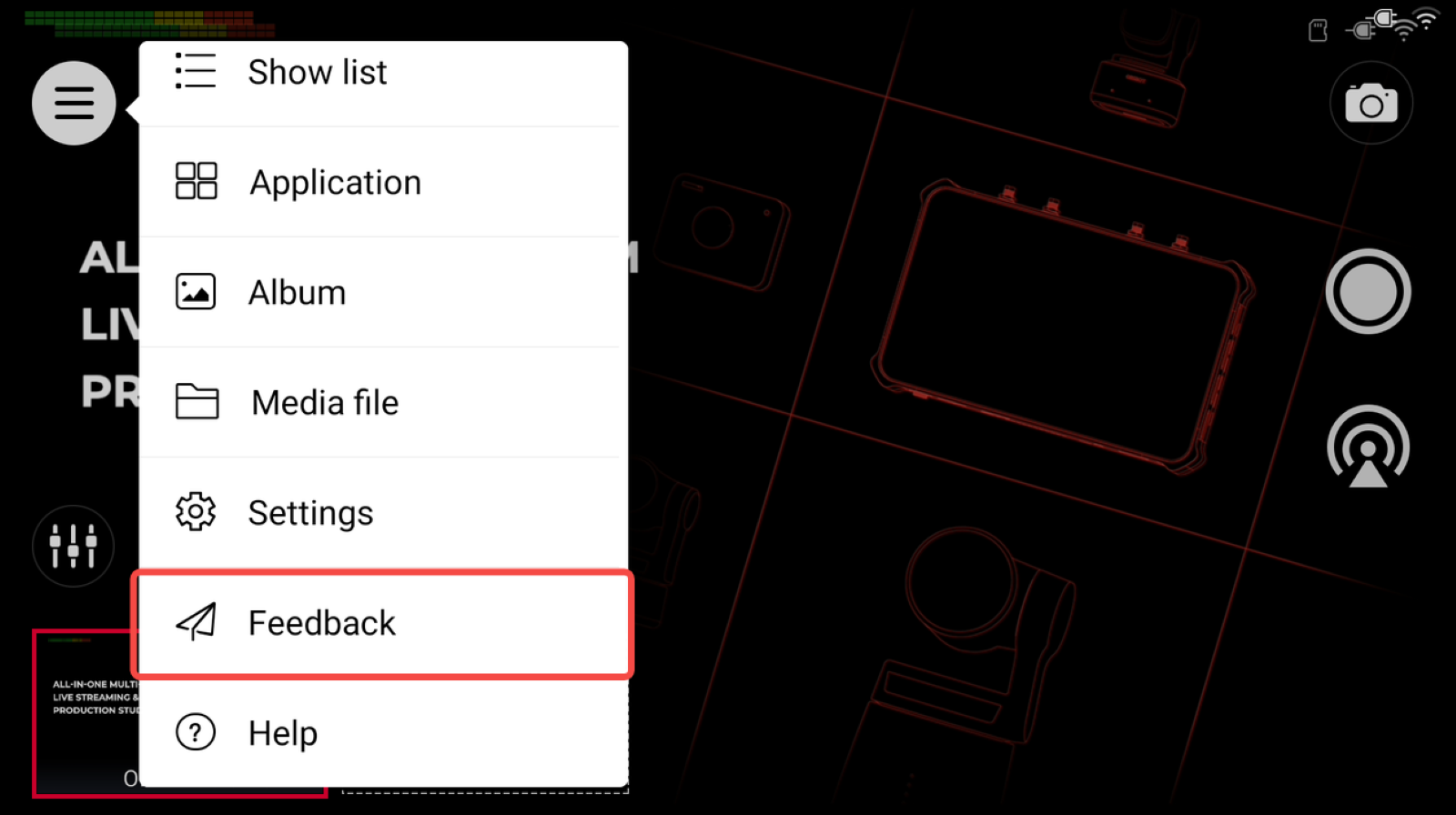
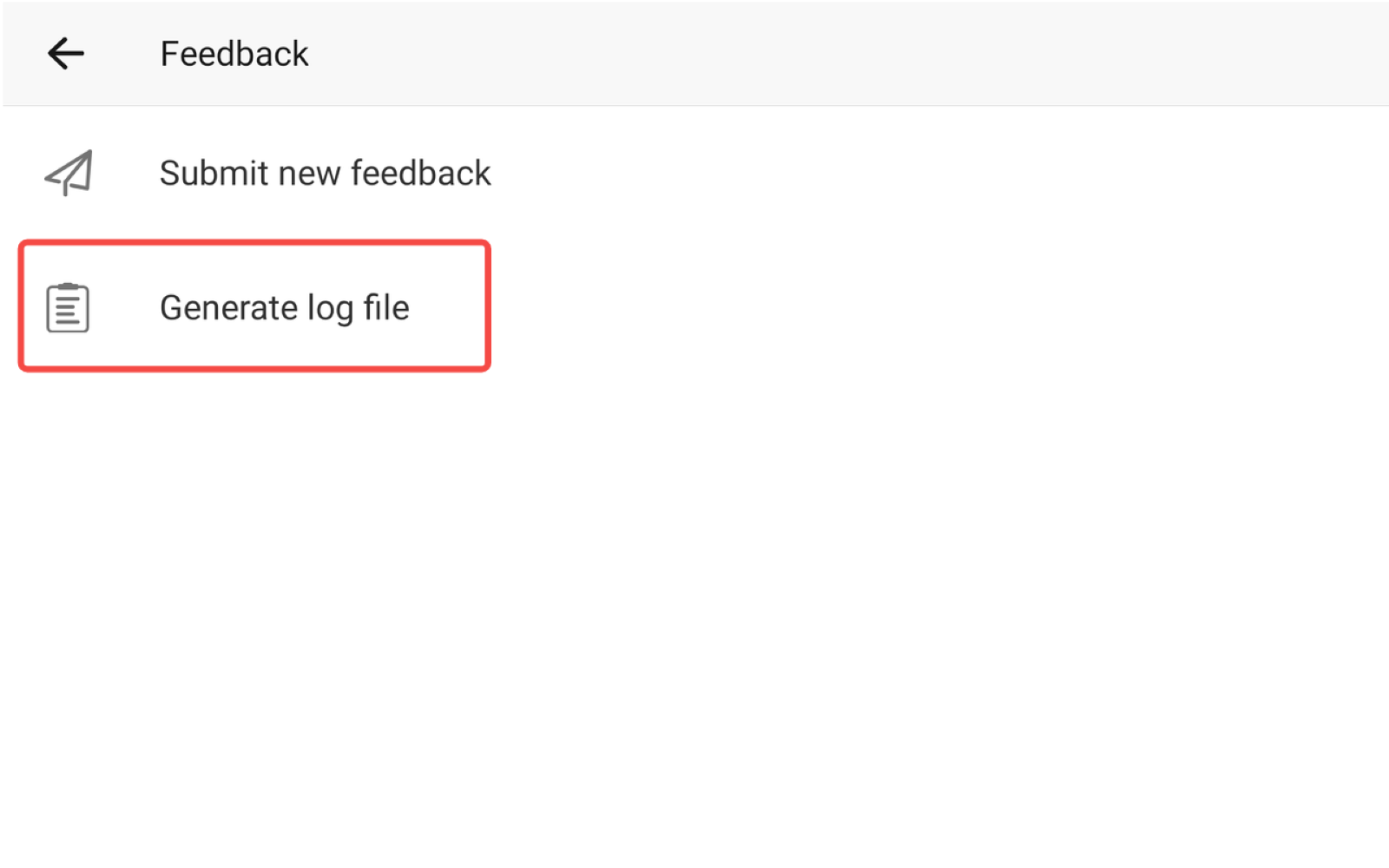
On Talent 2, tap Menu > Feedback > Generate Log File.
-
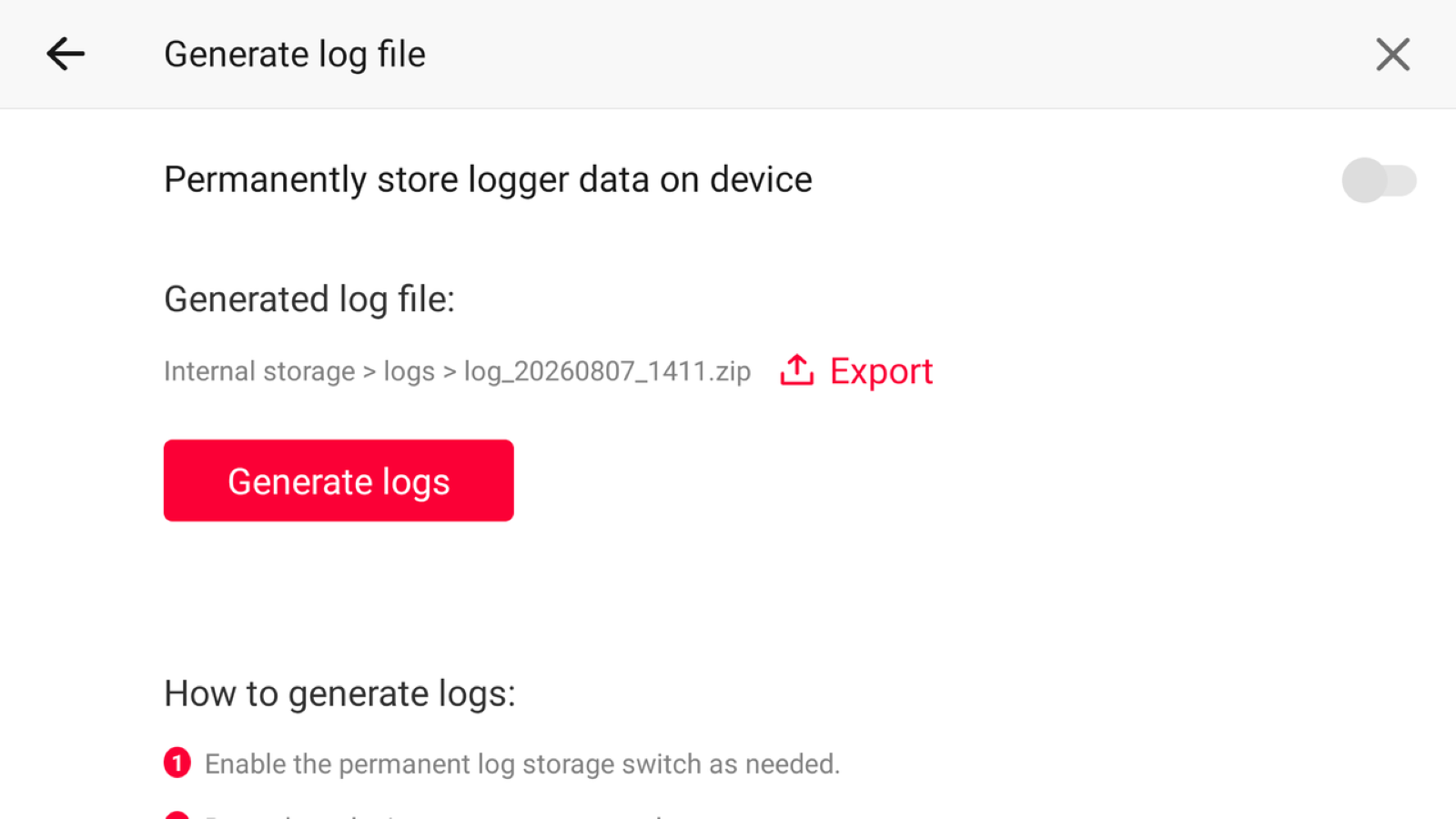
Tap Generate Logs. The system will generate a ZIP file containing the relevant logs and save it to the device's internal storage.
-
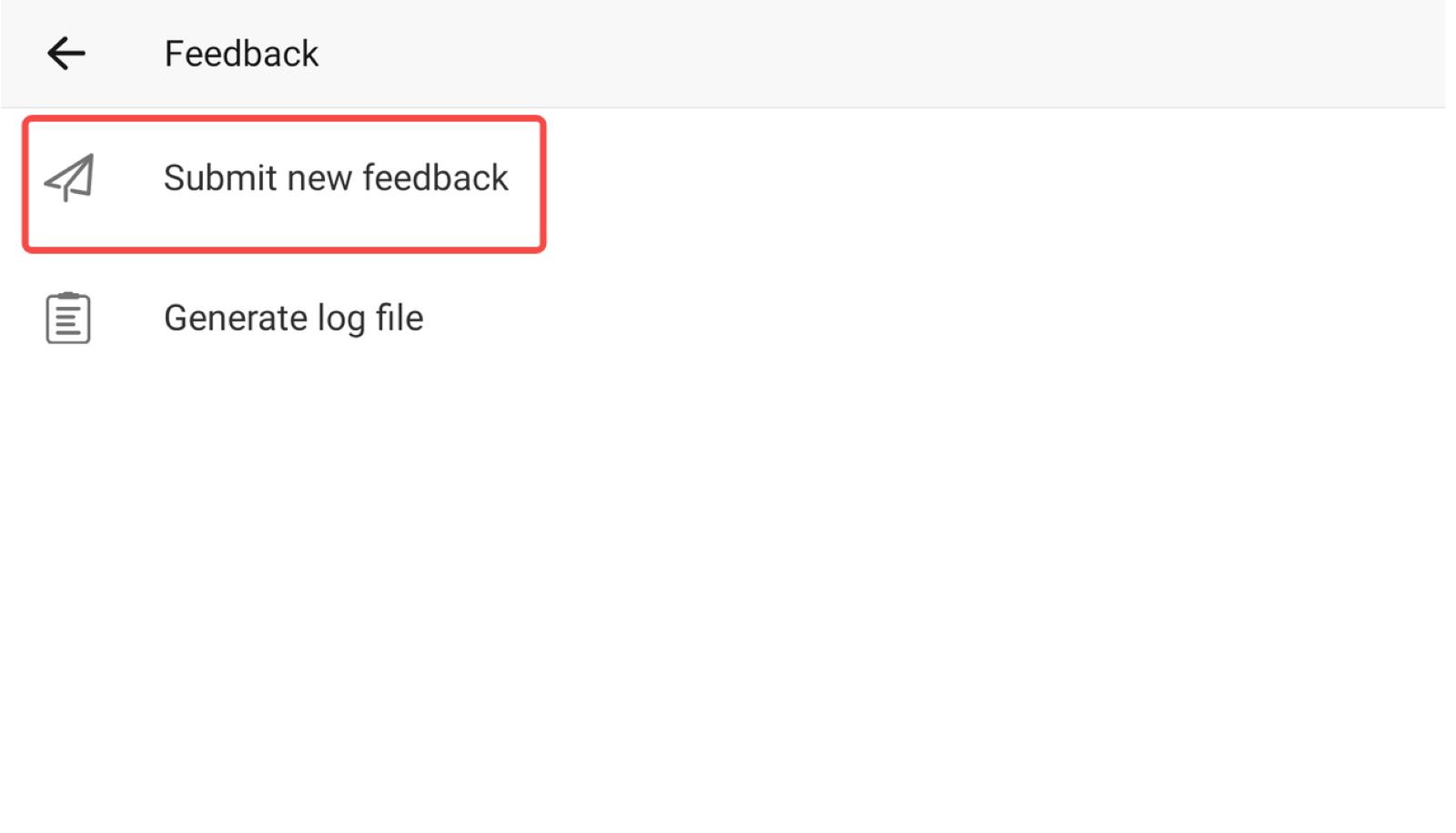
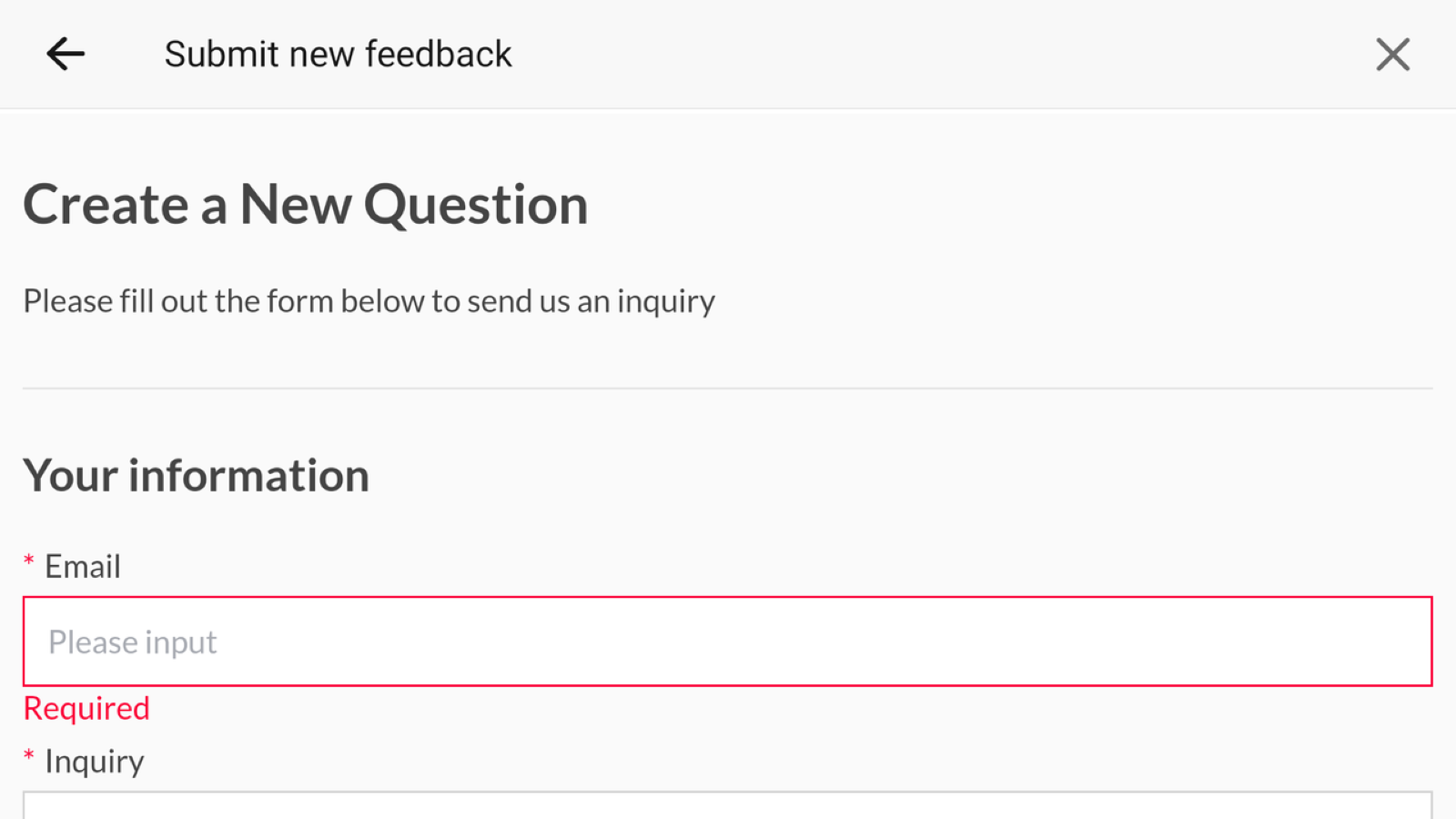
Return to the Feedback page and select Submit New Feedback, then enter the basic information about the issue you encountered.
-
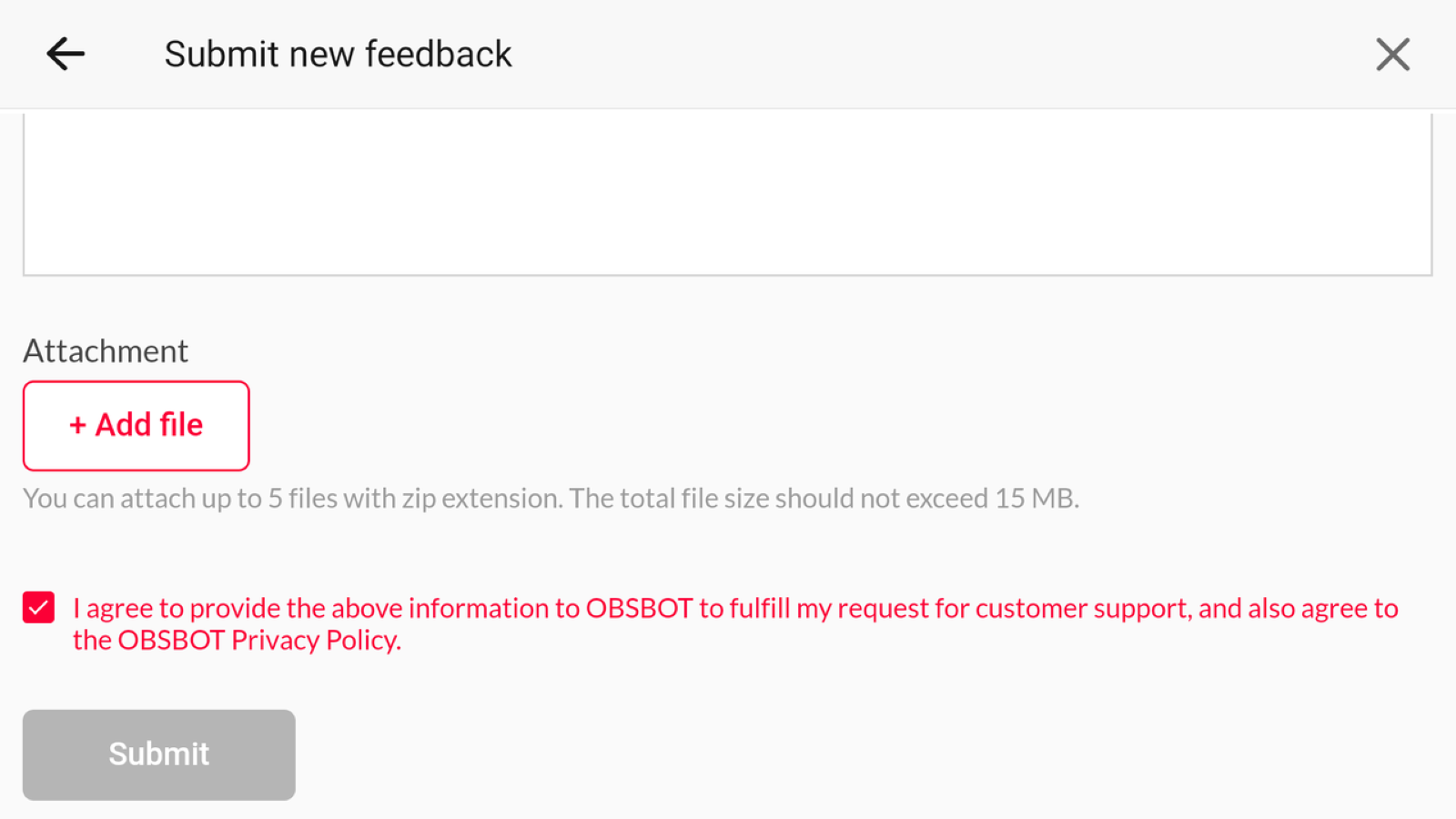
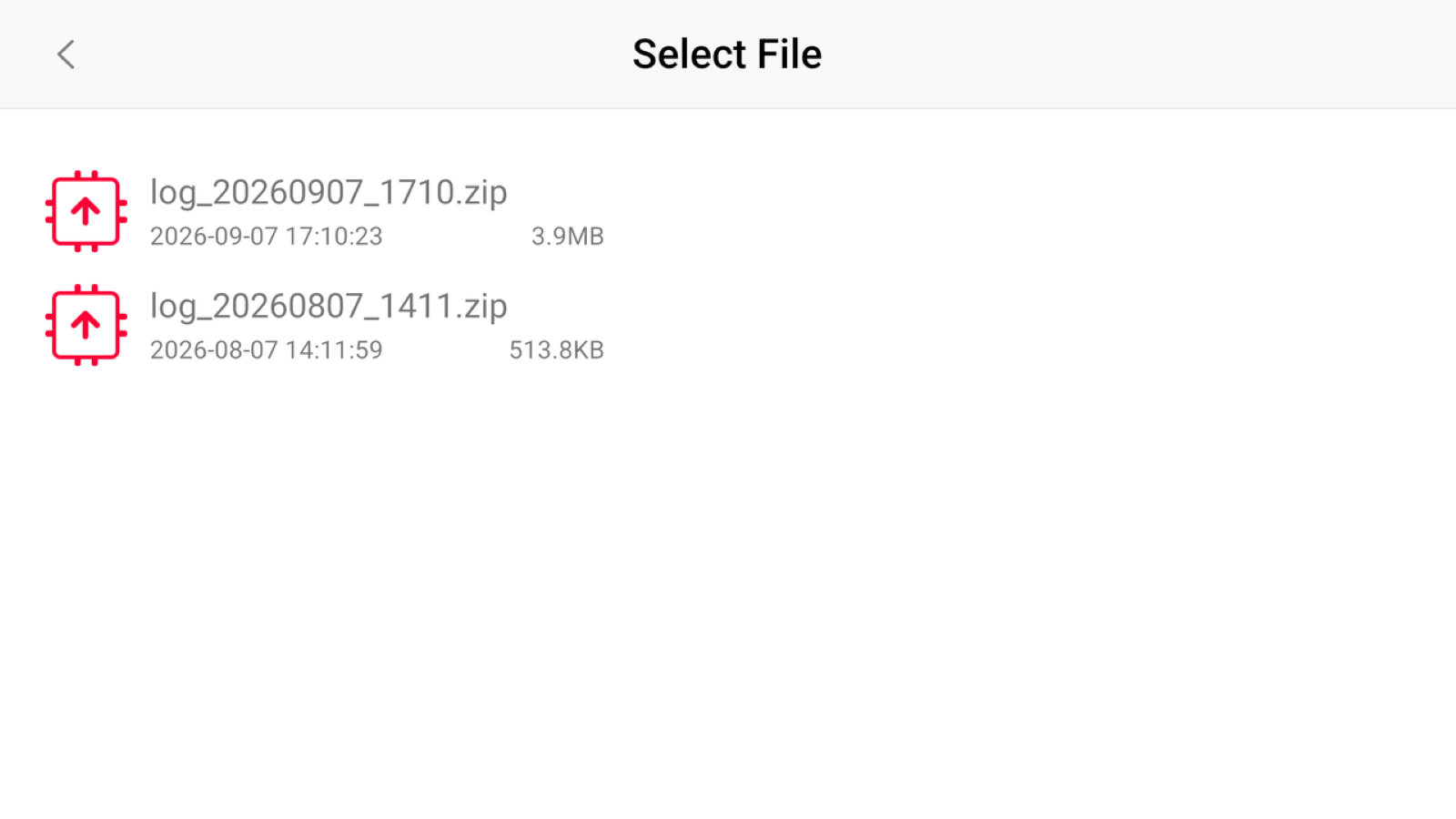
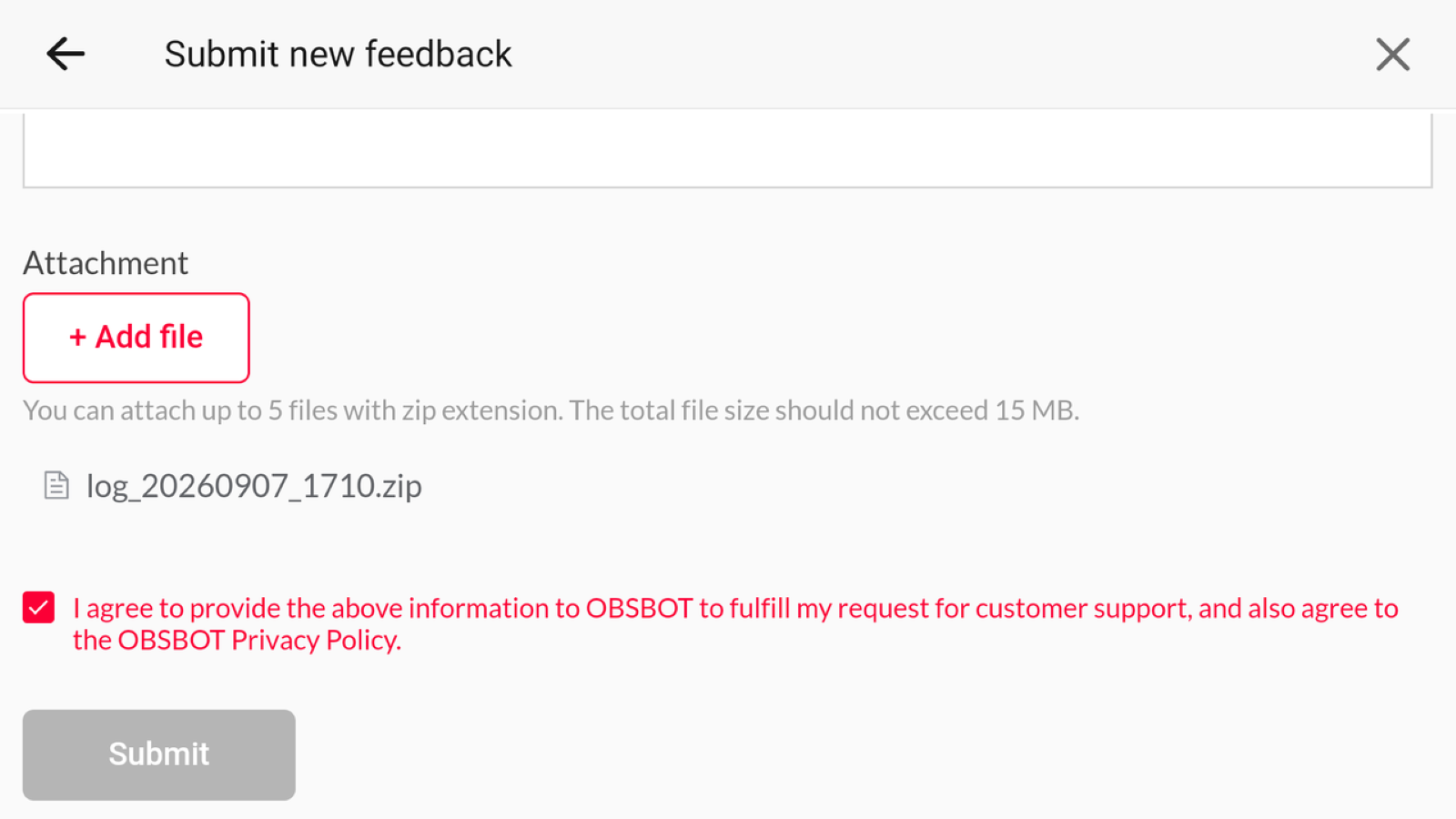
Under Attachment, attach the log file generated in the previous steps.
-
Once all required information is complete, tap Submit to send the feedback and log file to the OBSBOT Support Team.
Method 2: Export via Web UI
-
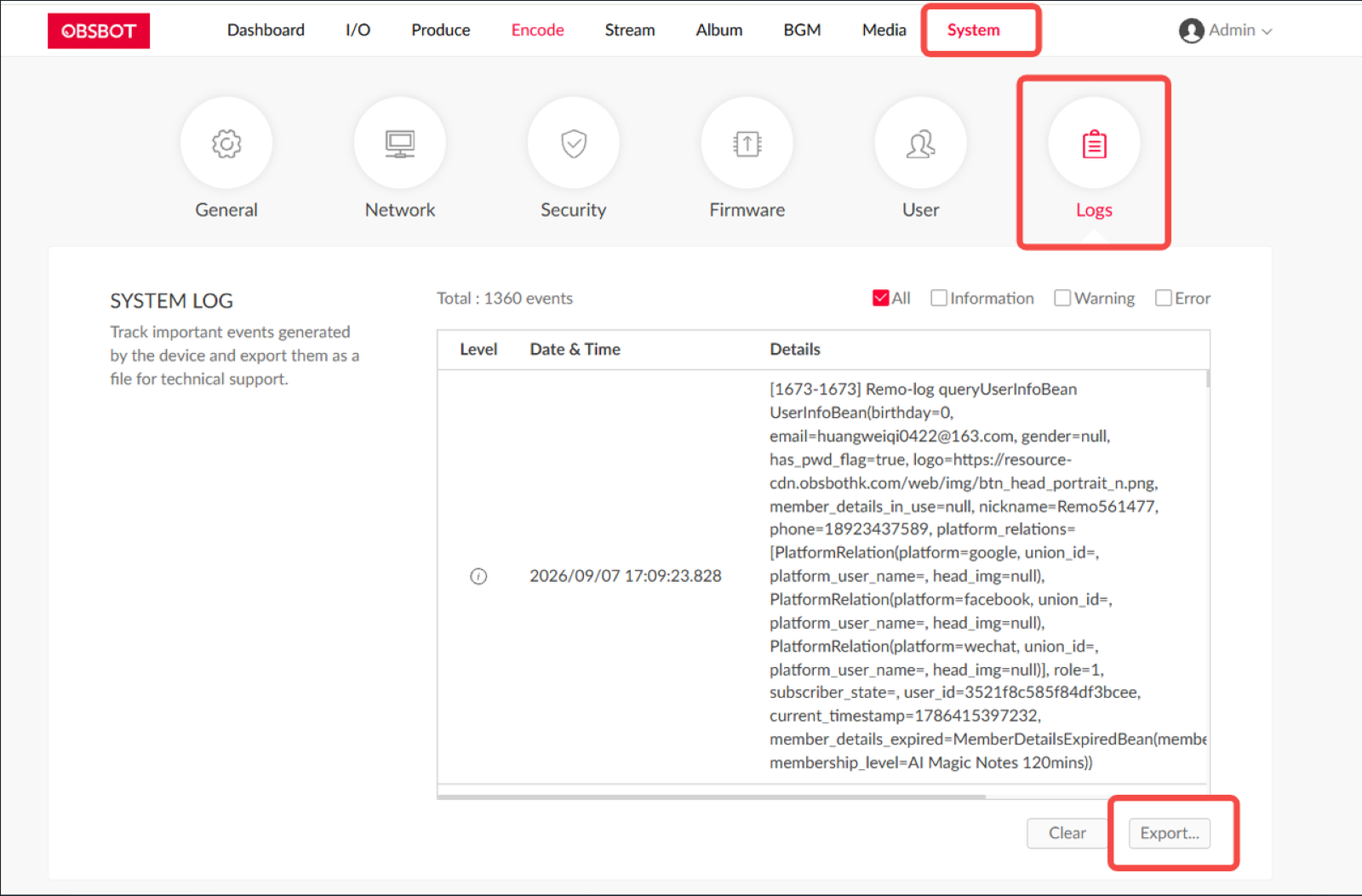
Open the Talent 2 Web UI and go to System > Logs.
-
Click All, then click Export. The system will package the logs into a compressed file and download it automatically.
-
Once downloaded, send the compressed file to the OBSBOT Support Team for troubleshooting.
Note:
Logs exported via the Web UI include records of operations performed within the Web UI, while logs generated directly on Talent 2 do not include Web UI operation records. Please choose the appropriate method based on the issue you are troubleshooting.













