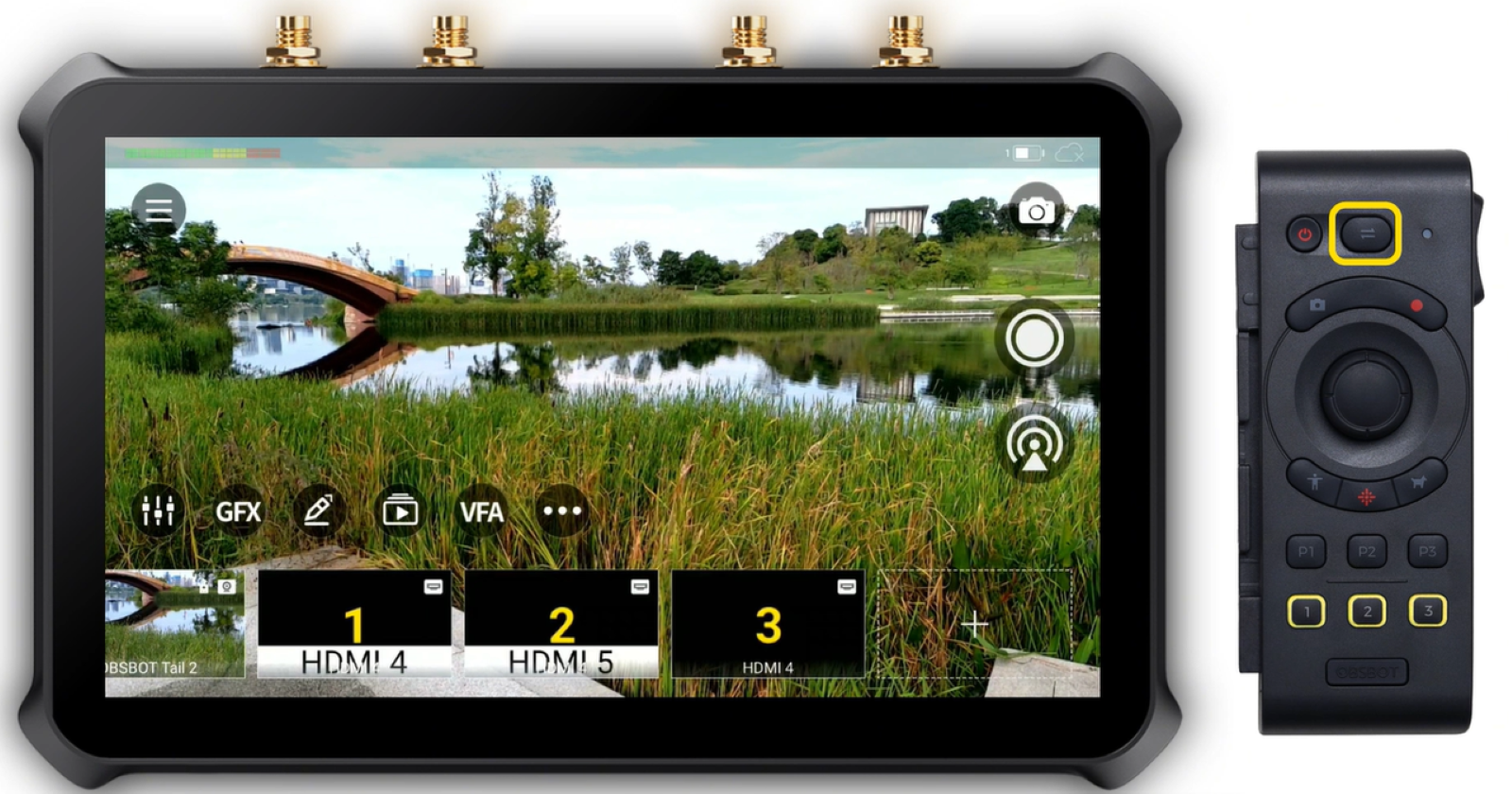
How to Pair & Use the Remote Controller with OBSBOT Talent 2
Pair the OBSBOT Tail Air Smart Remote Controller with Talent 2 to control connected OBSBOT cameras and switch scenes remotely. Before you begin, connect your Smart Remote Controller and compatible OBSBOT camera to Talent 2.
Connect the Smart Remote Controller
-
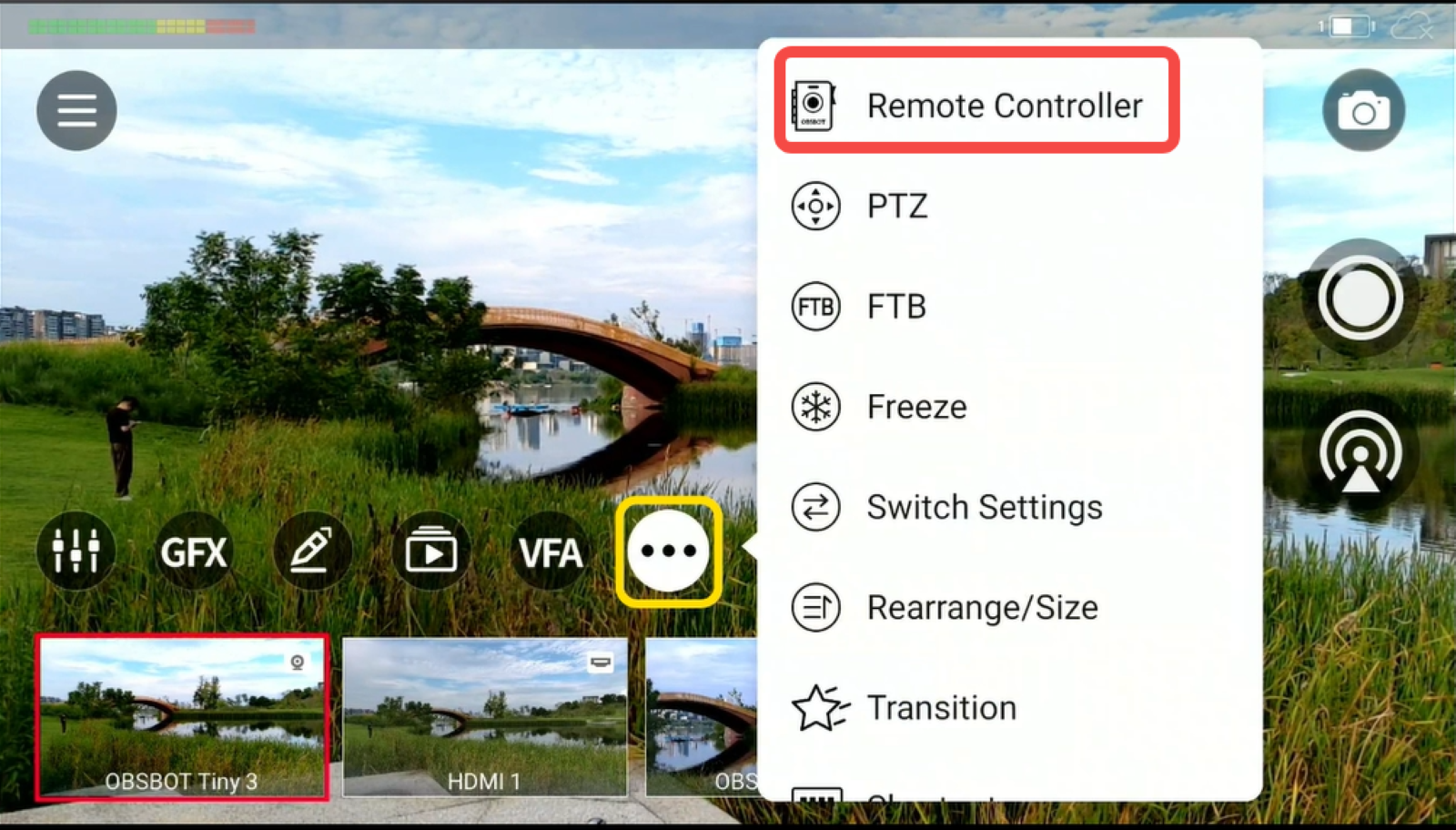
On Talent 2, tap More > Remote Controller.
-
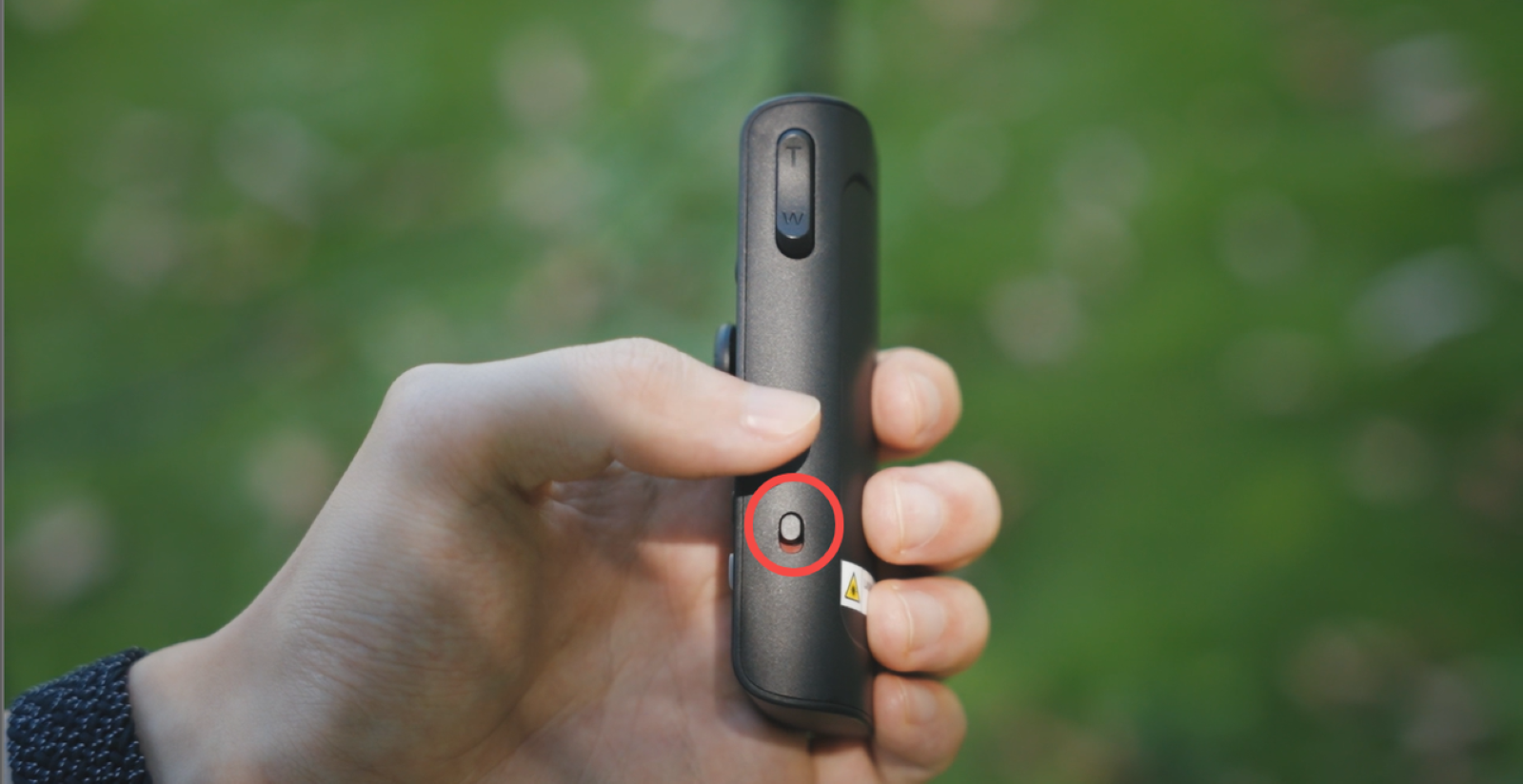
Turn on the Remote Control switch on the side of the Smart Remote Controller.
-
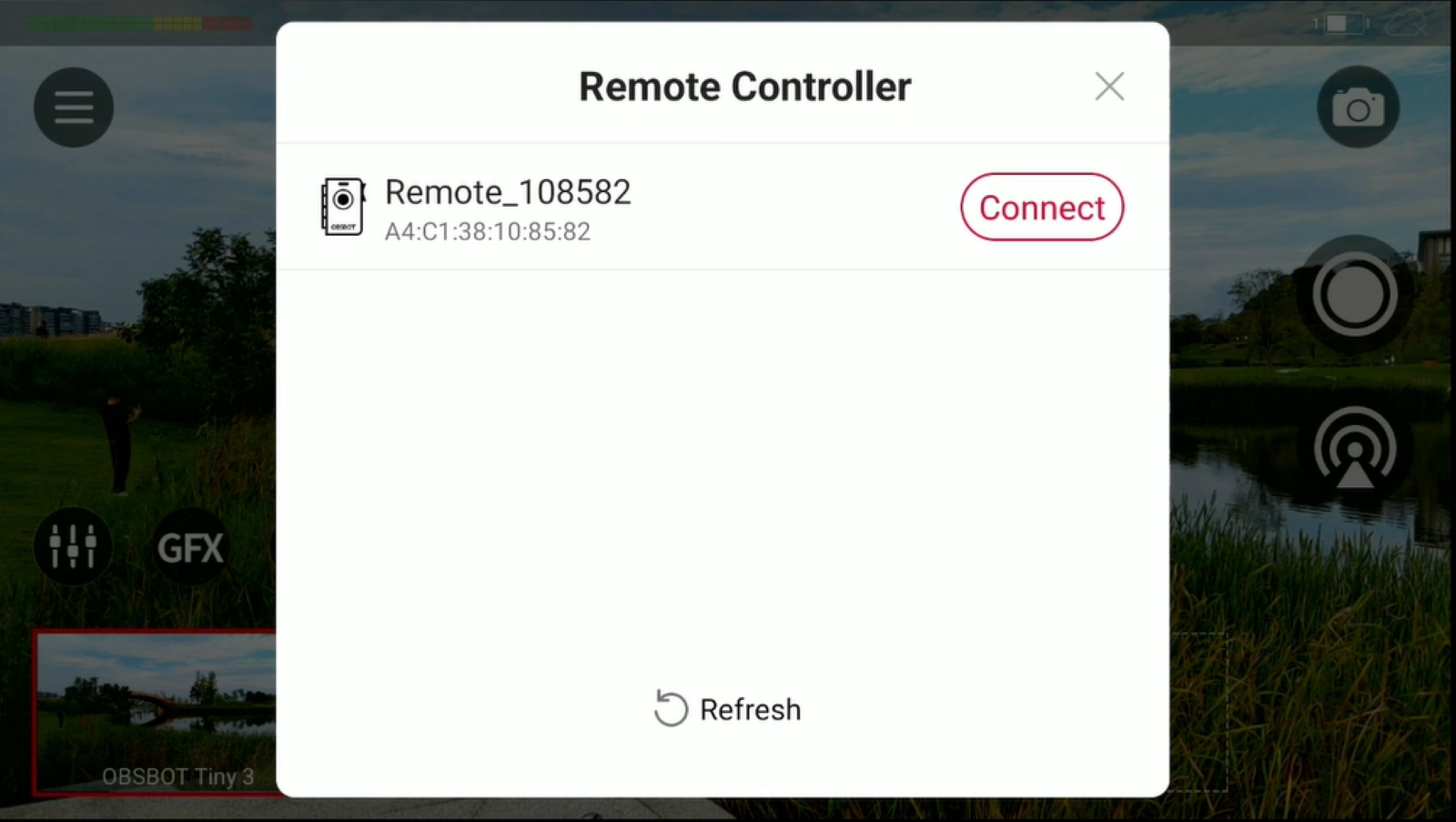
On the Remote Controller page of Talent 2, locate your Smart Remote Controller and tap Connect.
-
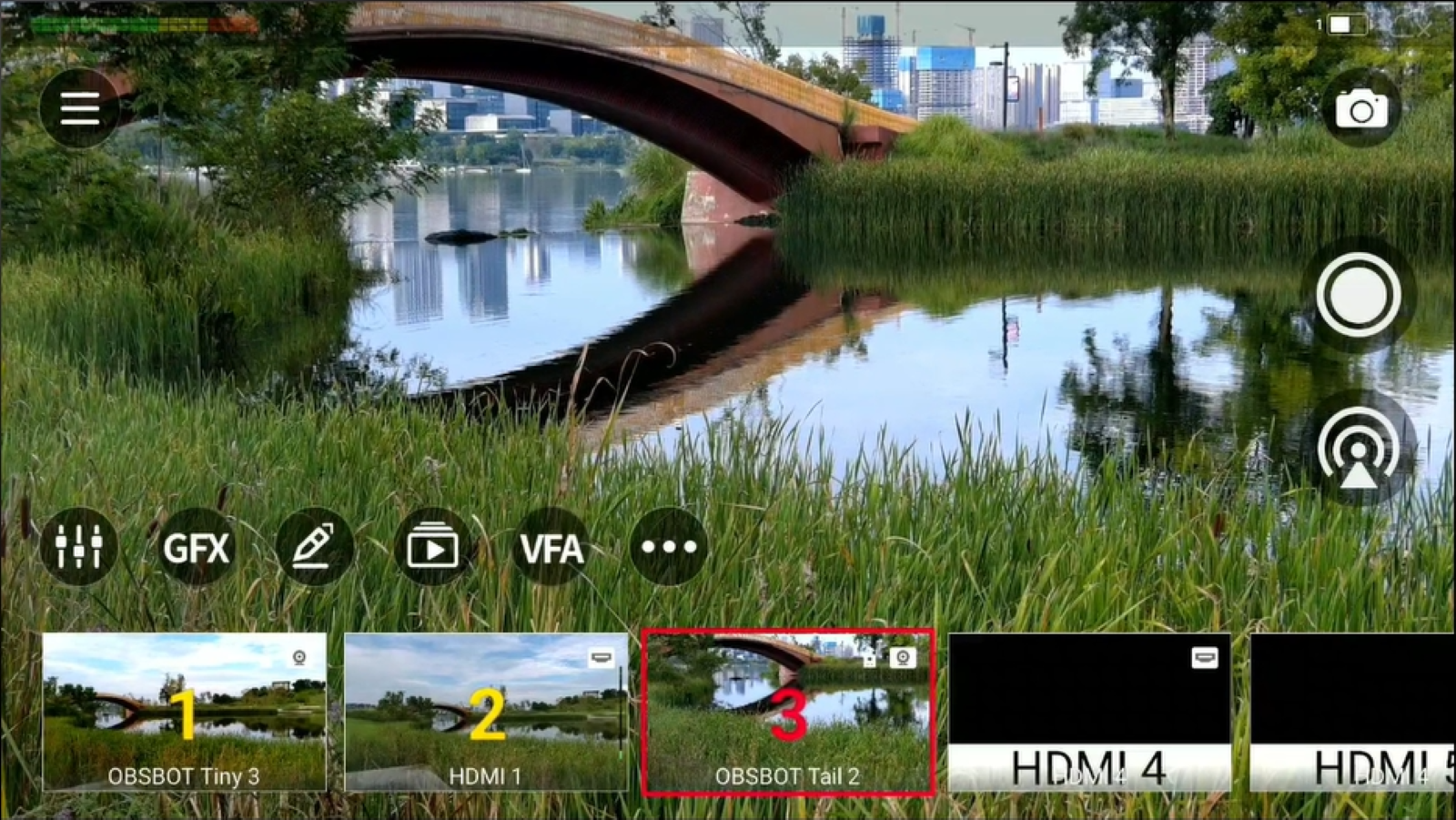
Once connected, numbers 1, 2, and 3 will appear in the corresponding scenes, indicating the scenes that can be controlled by the remote.
Select and Control an OBSBOT Camera
-
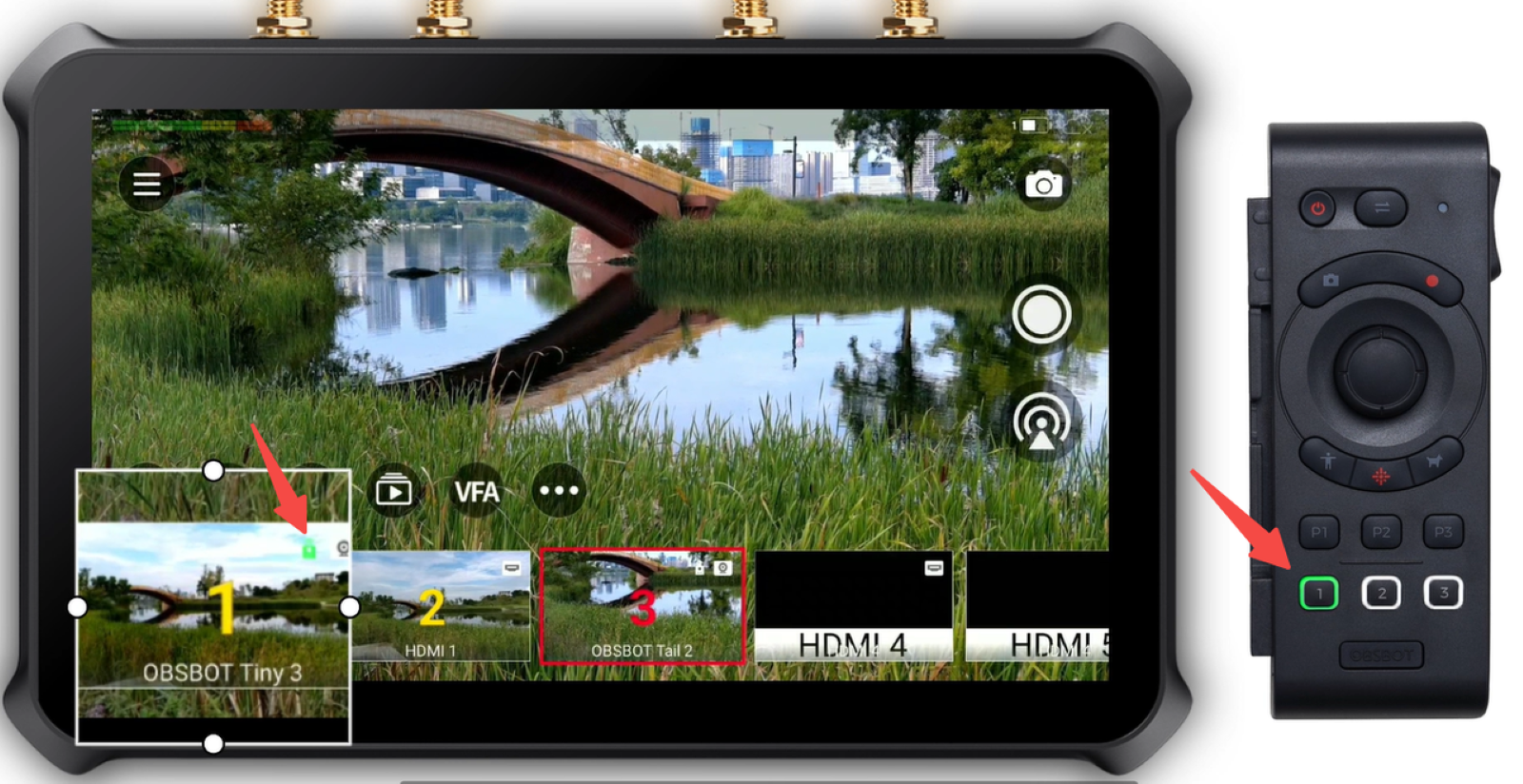
Single-press the corresponding number button on the Smart Remote Controller to select the device you want to control.
-
Once selected, you can use the Smart Remote Controller to control the camera's PTZ movement and preset positions.
-
A green remote controller icon will appear on the selected scene, indicating which camera is currently being controlled.
Switch Scenes
-
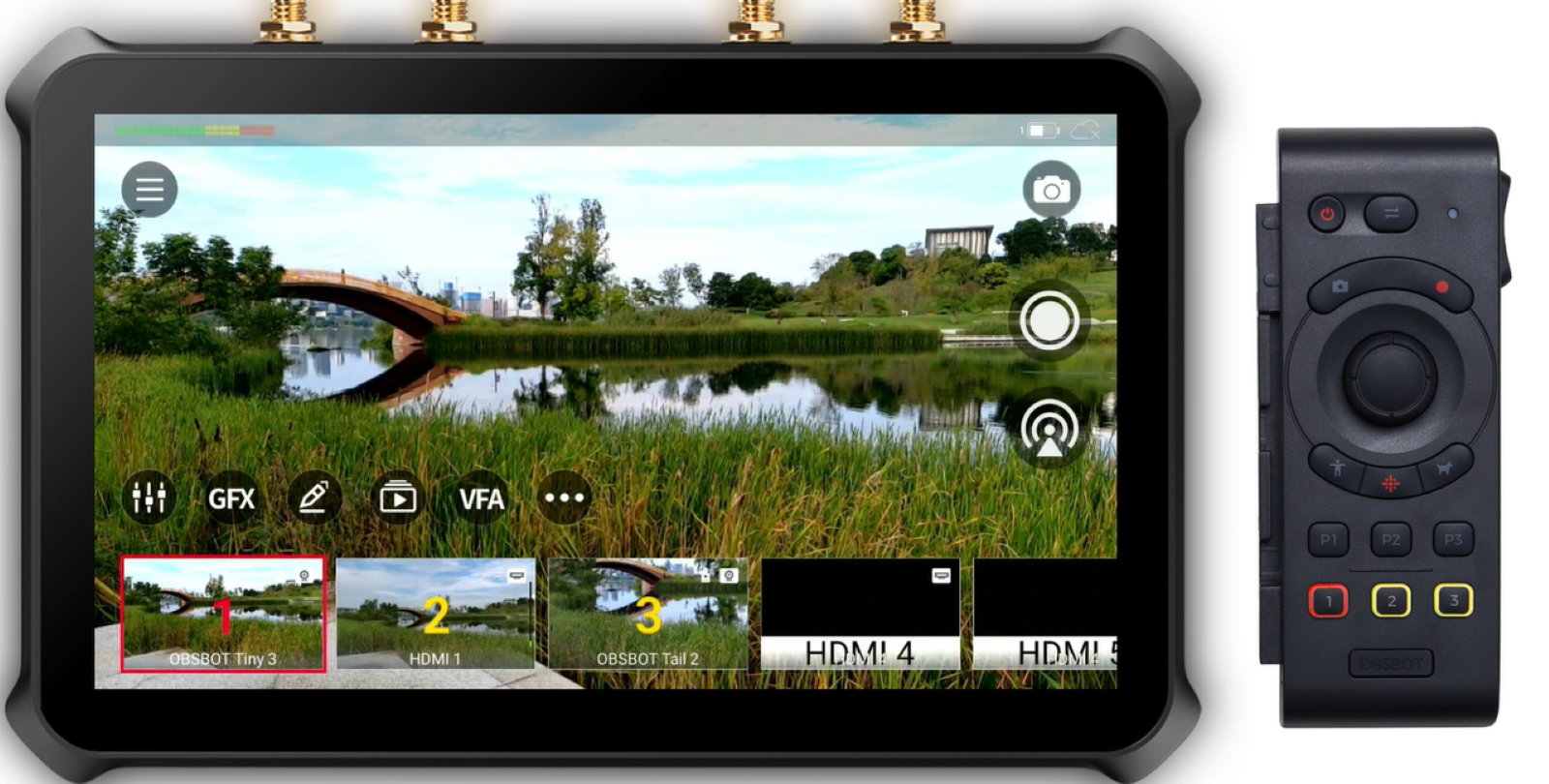
Double-press the corresponding number button to switch to that scene.
-
Once the scene goes live, its border will turn red, indicating that it is currently the live output.
-
This allows you to select a camera for PTZ control with a single press and switch the corresponding scene live with a double press.
Switch Between Scene Groups
-
If you have more controllable scenes, press the Multi-Screen Mode button on the Smart Remote Controller to cycle through different groups.
-
Continue pressing the button until the group containing the scenes you want to control appears.
-
You can then use the corresponding number buttons to select a camera or switch scenes within that group.