

How to Use Smart Auto-Switching on OBSBOT Talent 2
OBSBOT Talent 2 offers three Smart Auto-Switching modes: Sequential Switching, Random Switching, and Video Follows Audio. Choose how scenes switch automatically based on your production needs.
1. Set Up Sequential or Random Switching
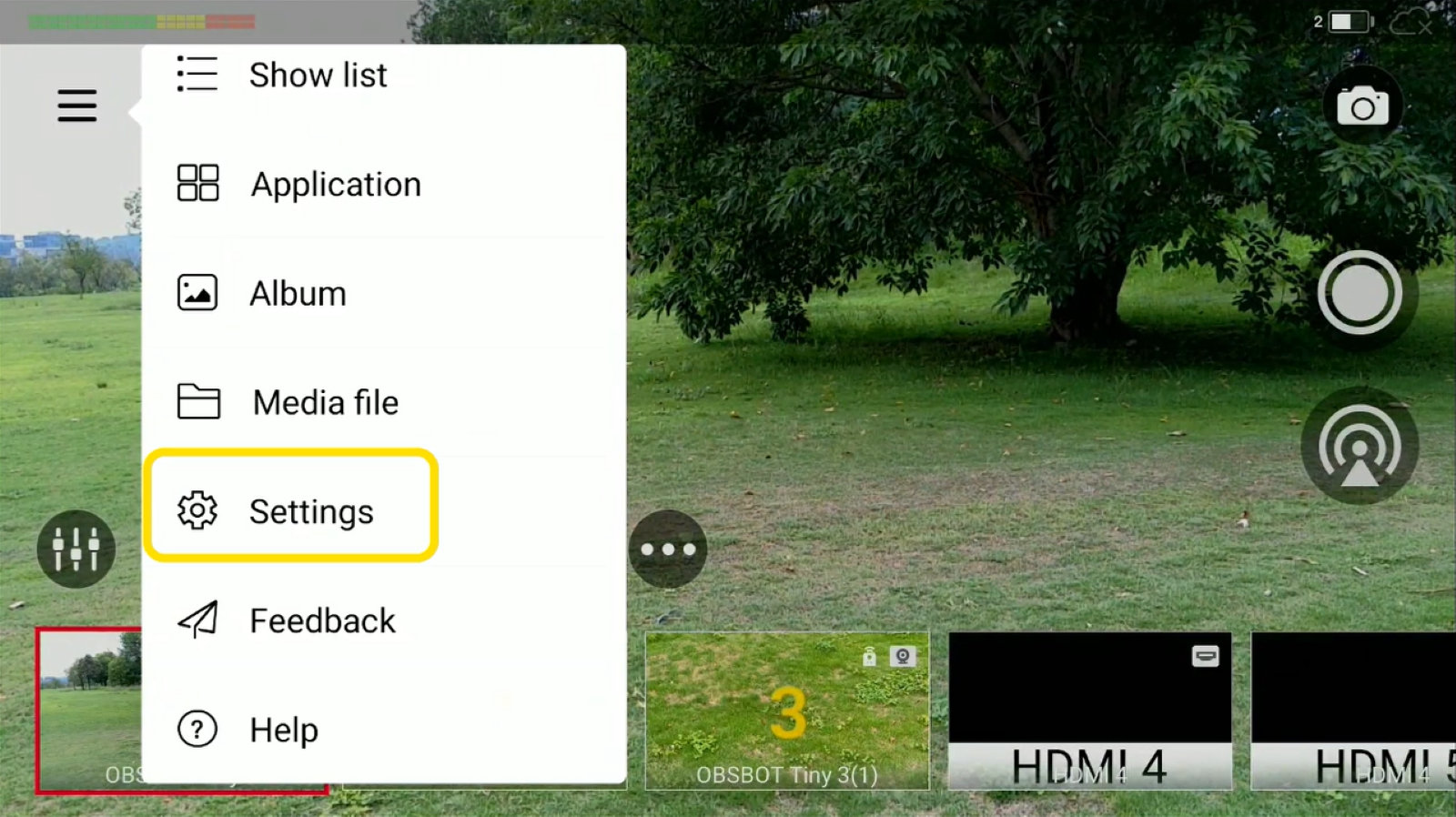
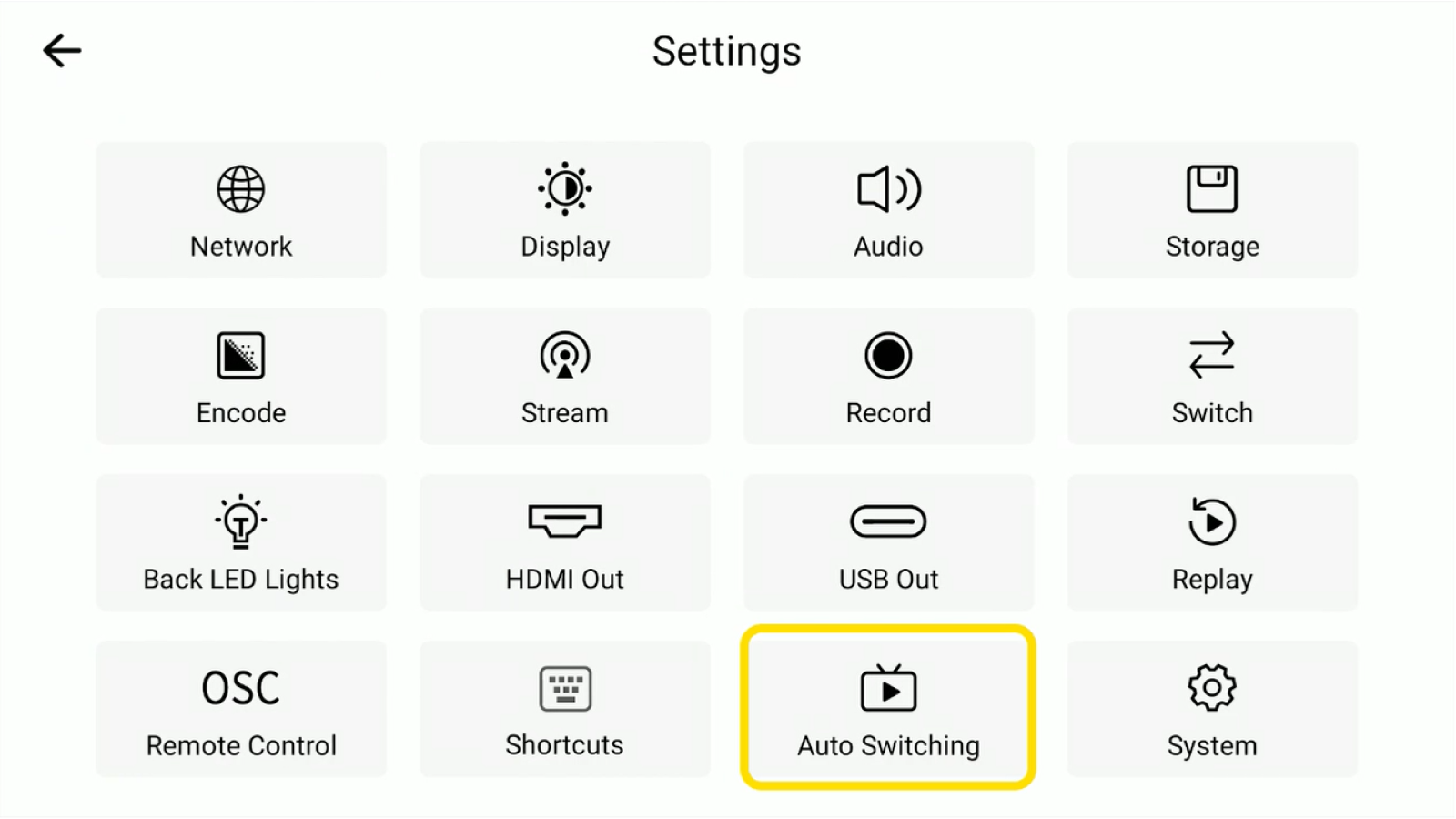
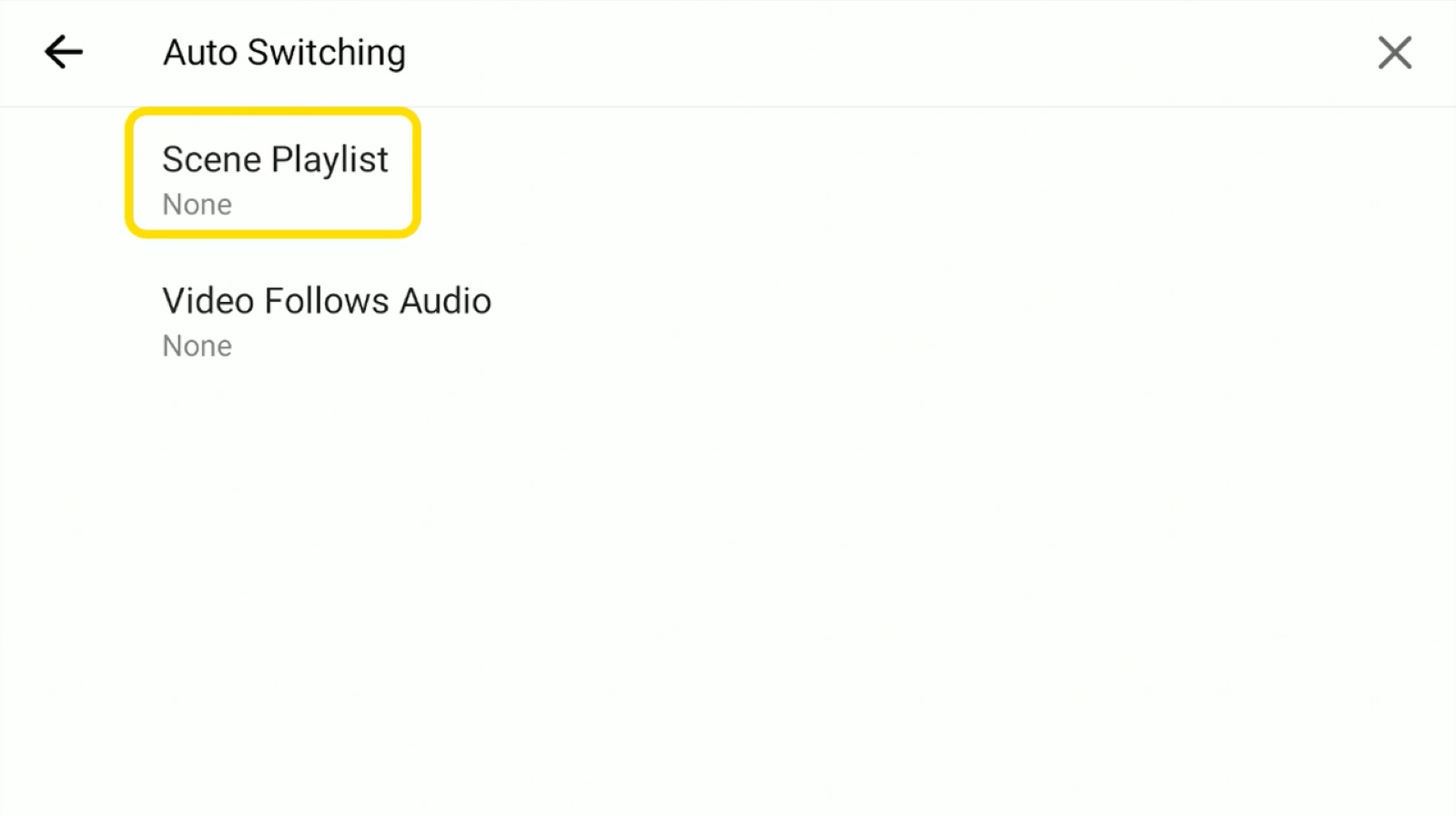
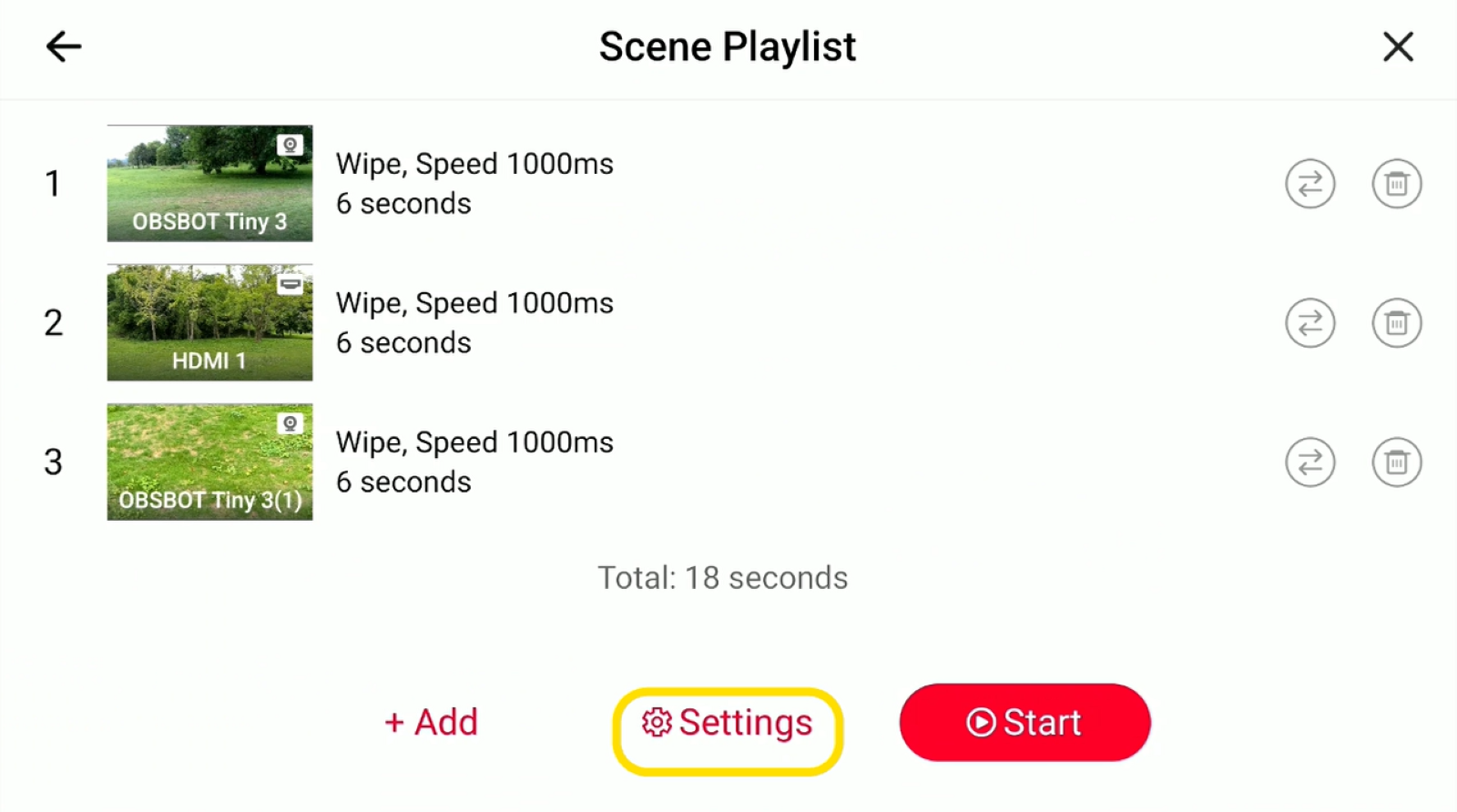
1. Open Menu > Settings > Auto Switching.
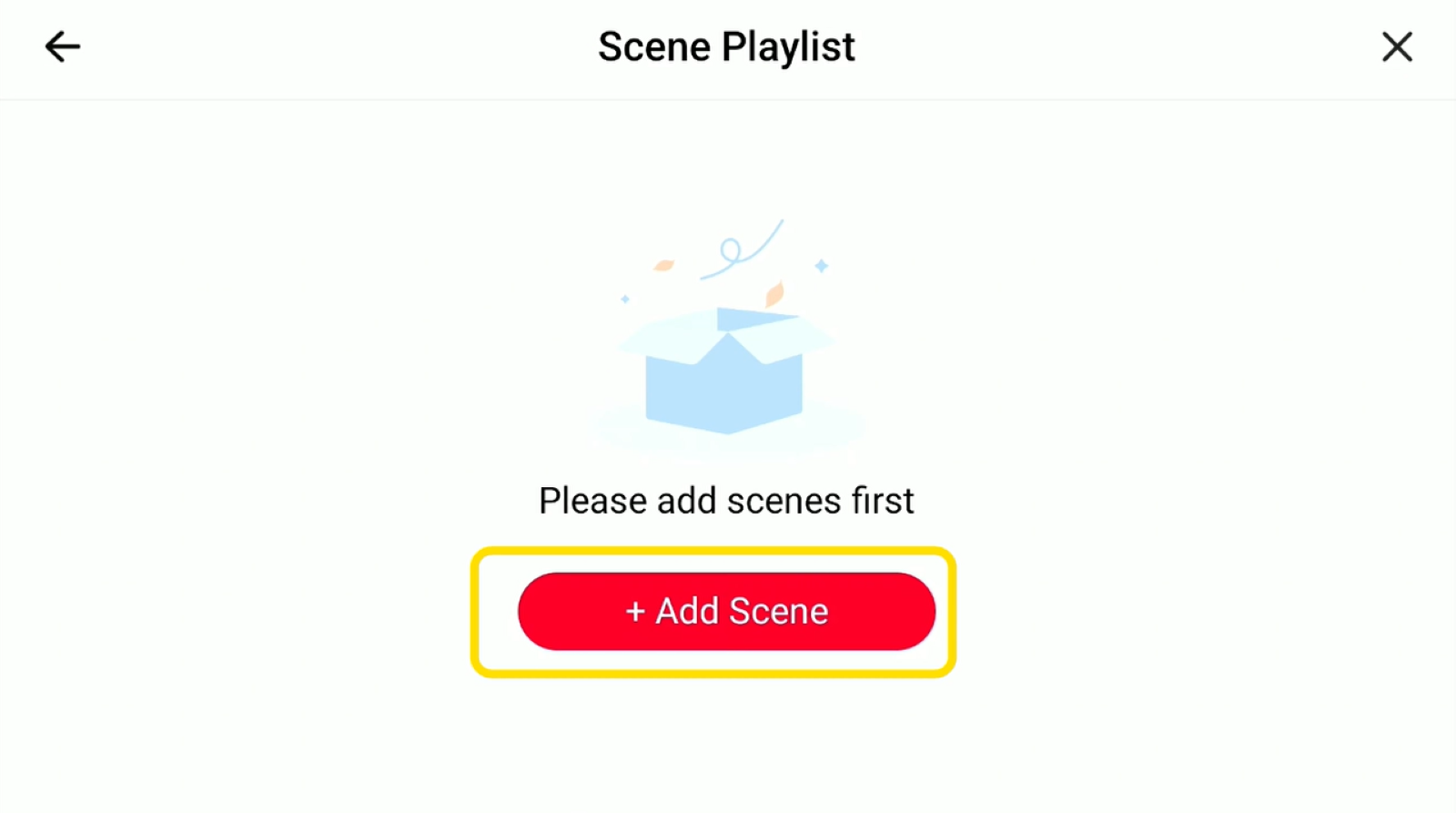
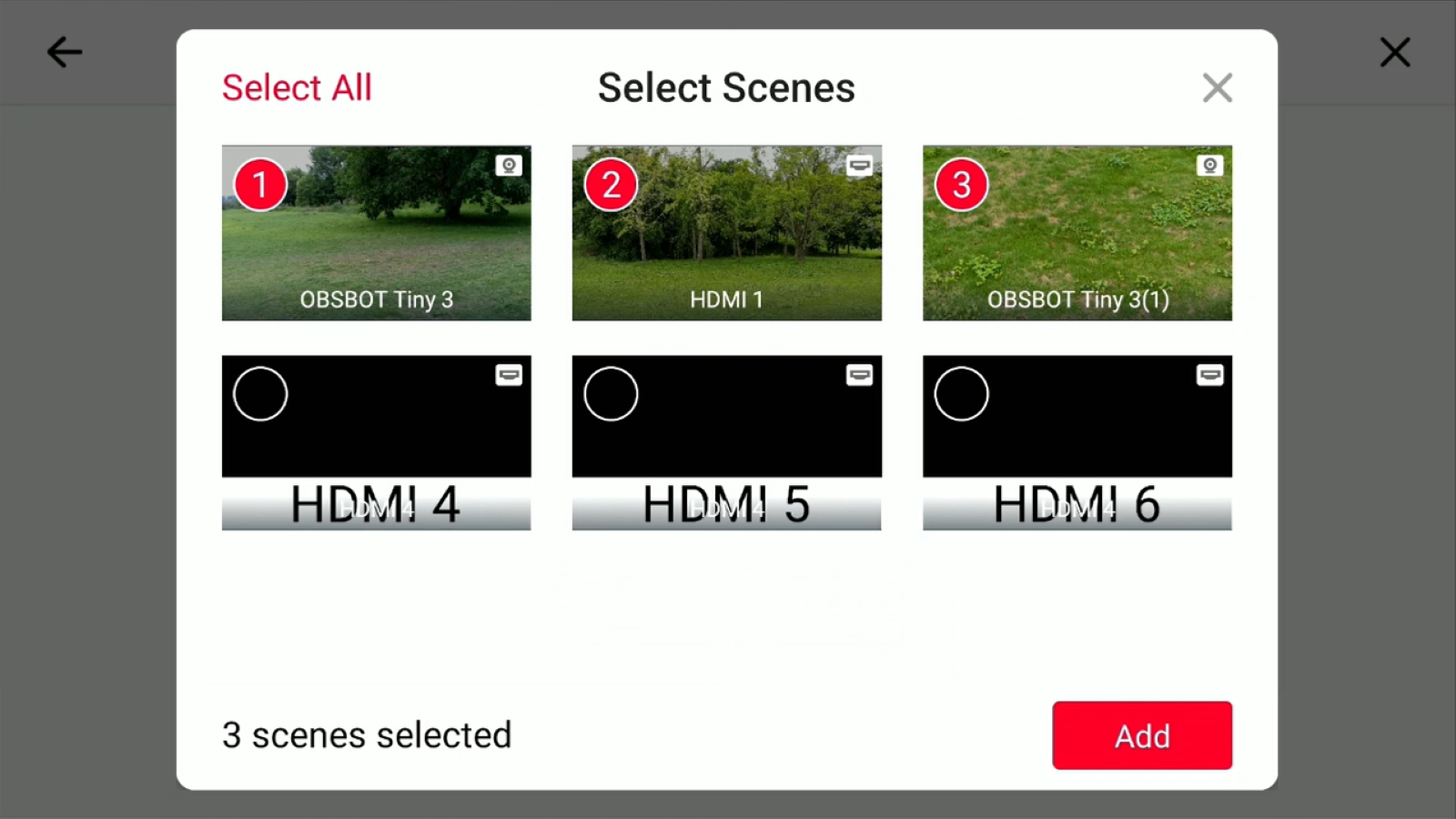
2. Add the scenes you want to include in the switching playlist.
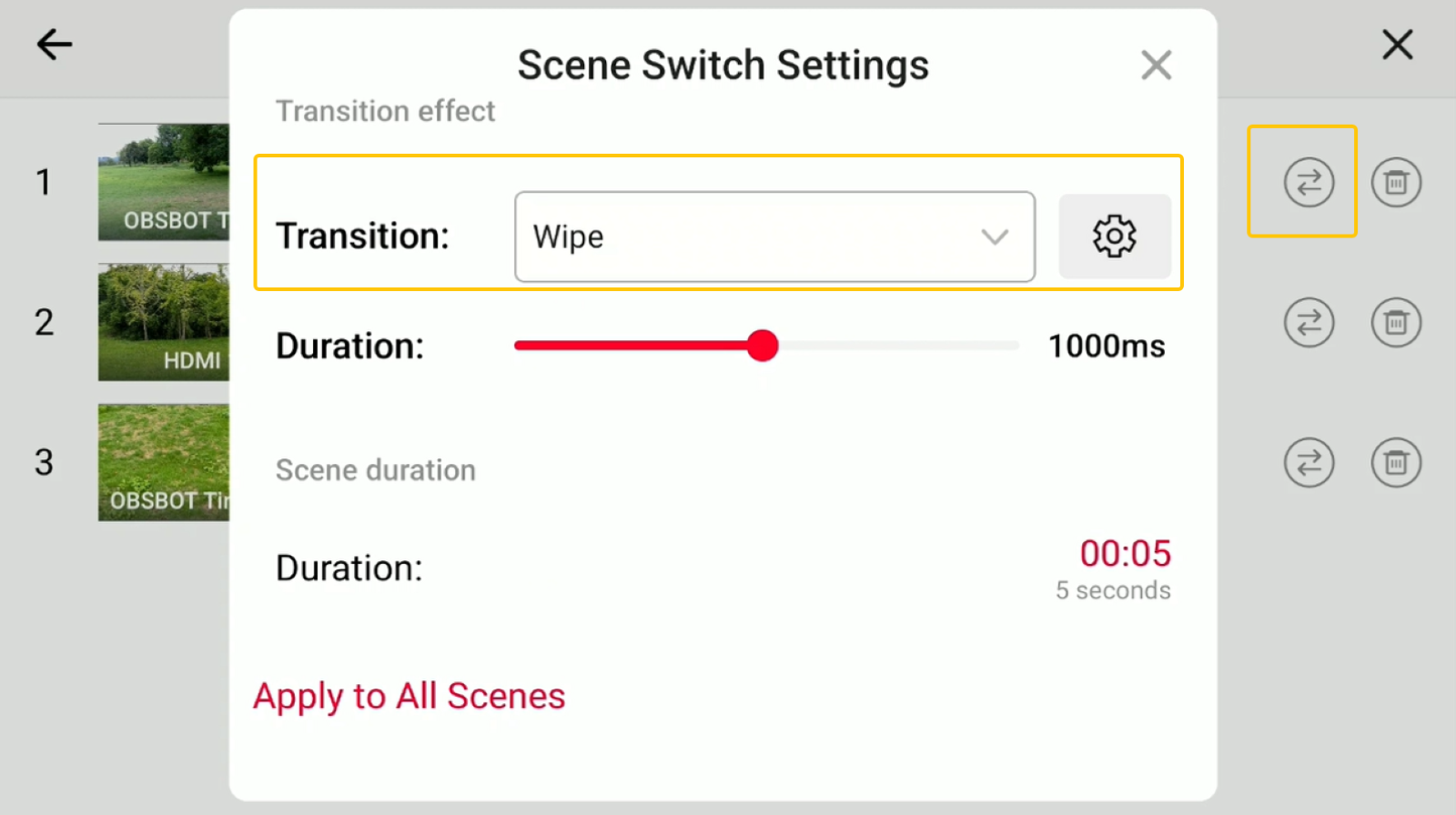
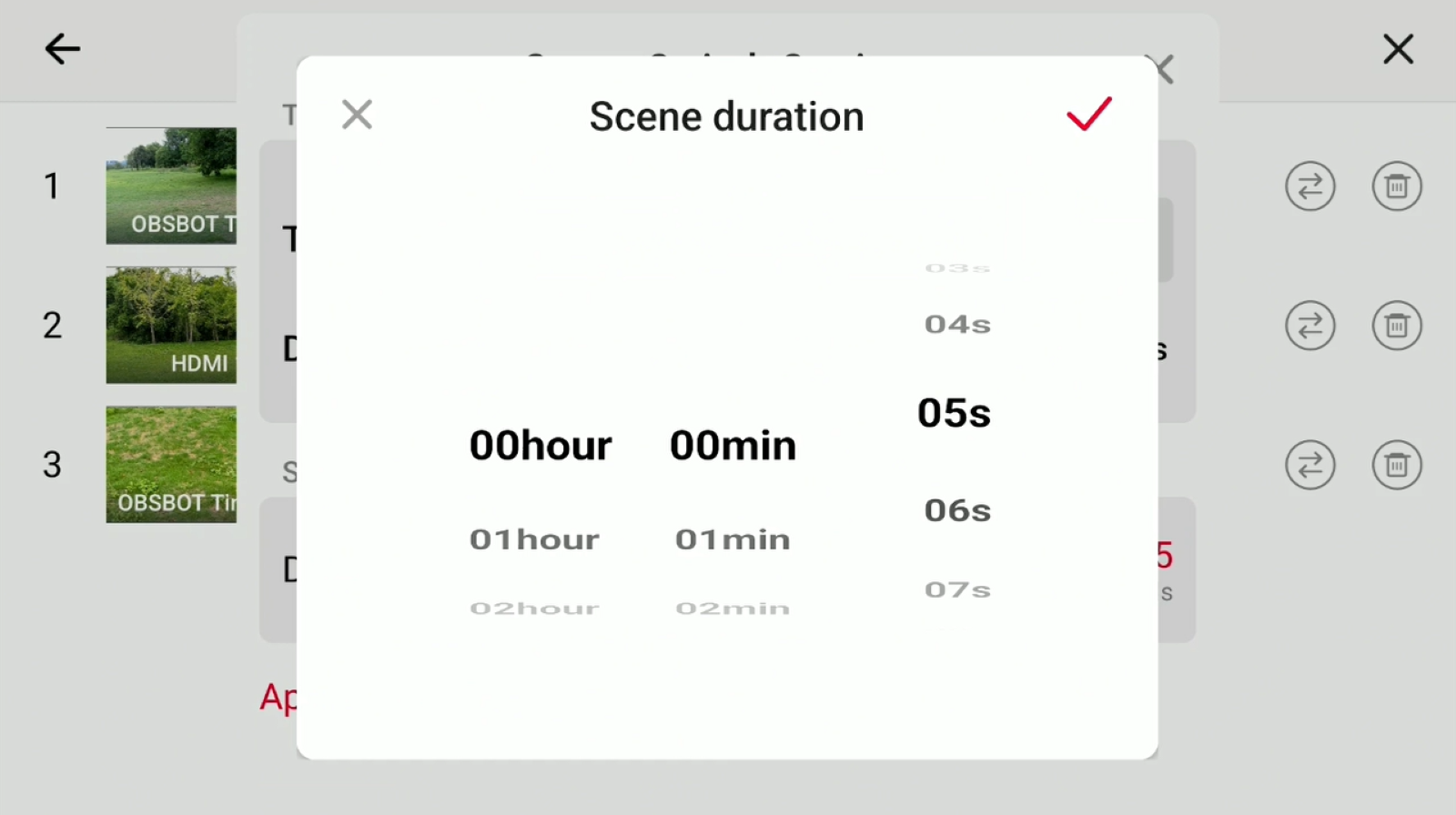
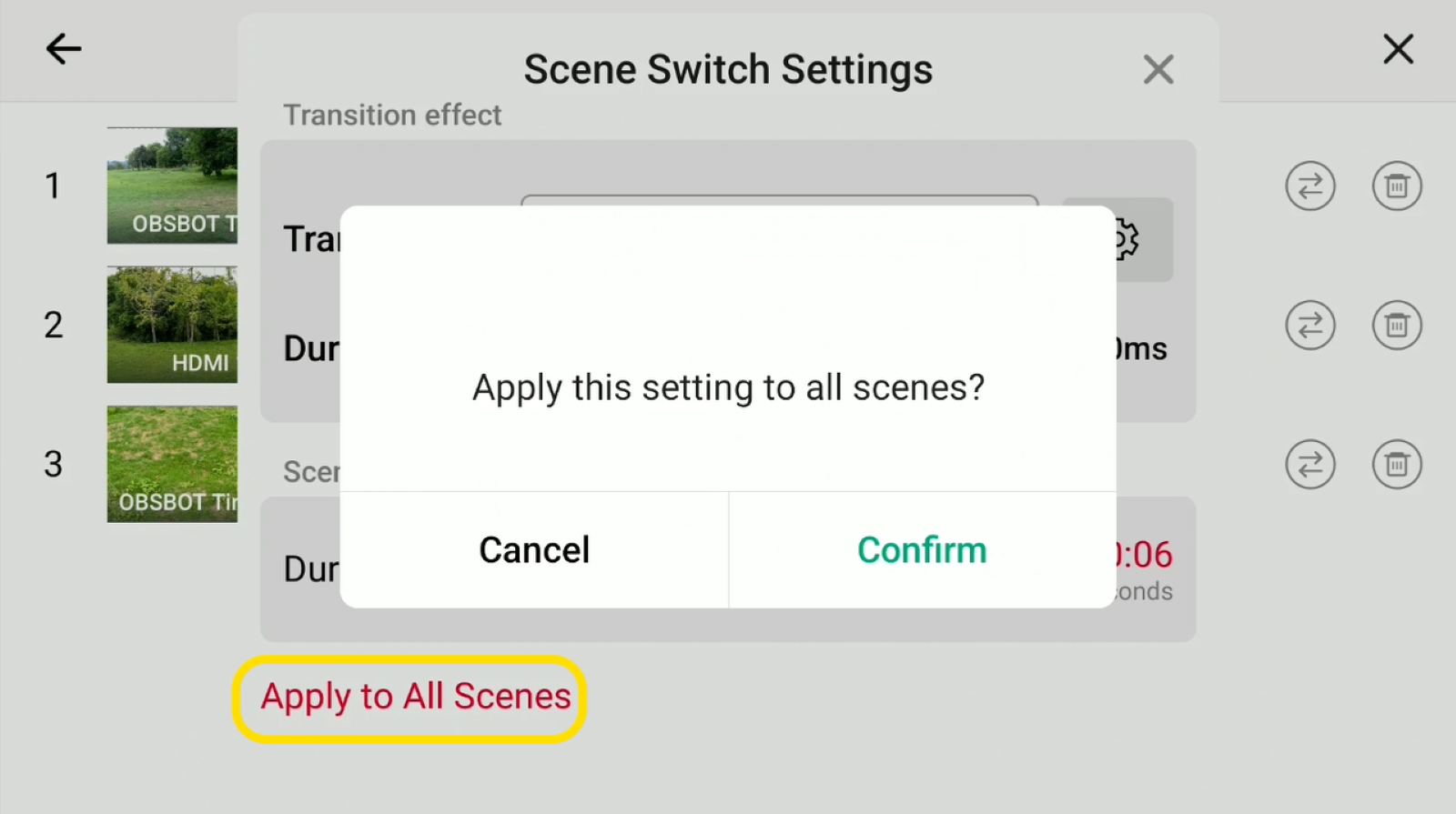
3. Tap the transition icon to set the transition effect and dwell time. You can also apply the same settings to all scenes at once.
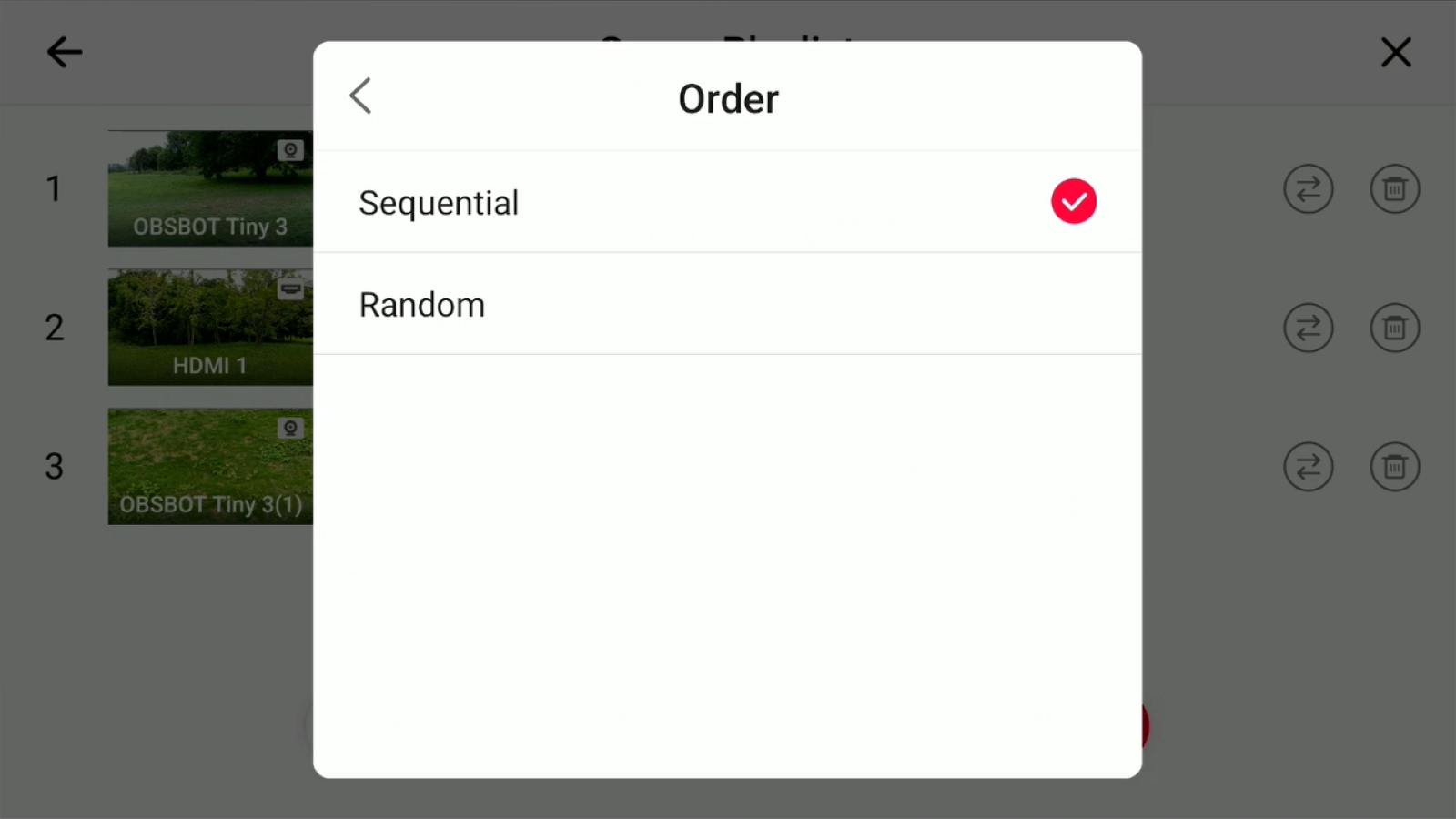
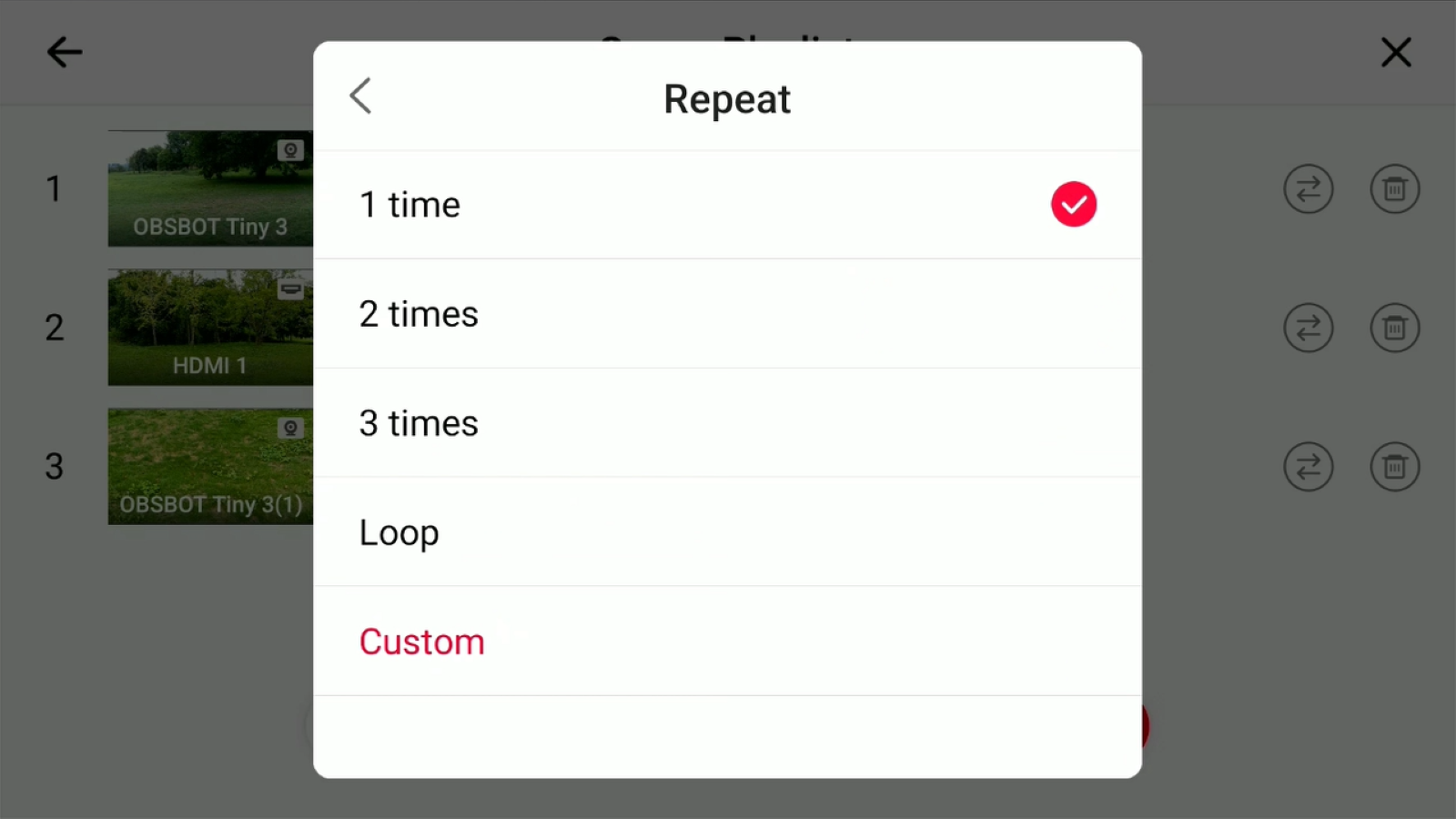
4. Tap setting to choose Sequential or Random switching, then set the switch count to Once, a specific number of times, or Loop.
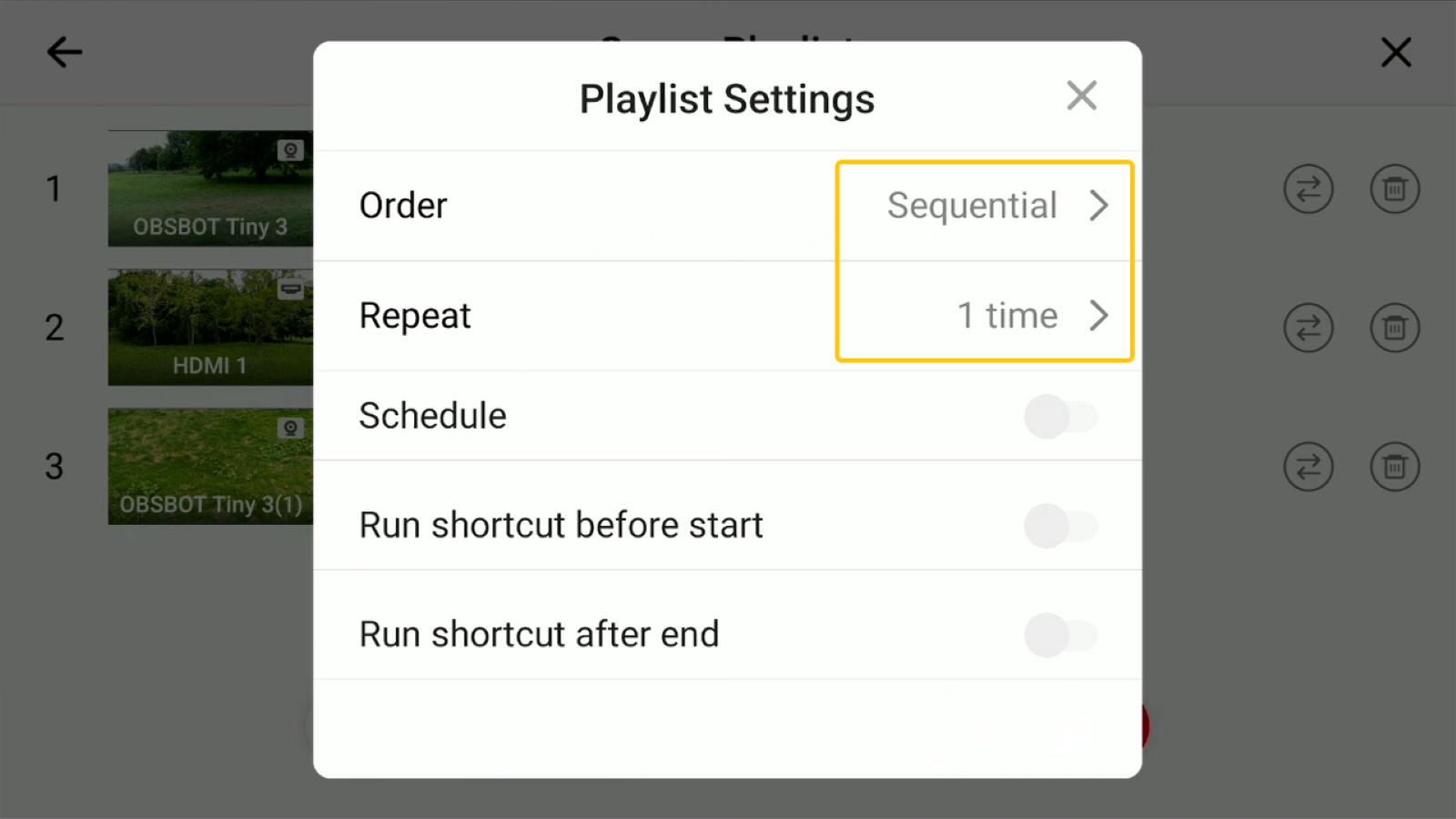
5. If needed, configure a schedule or assign hotkeys to run before or after each switch.
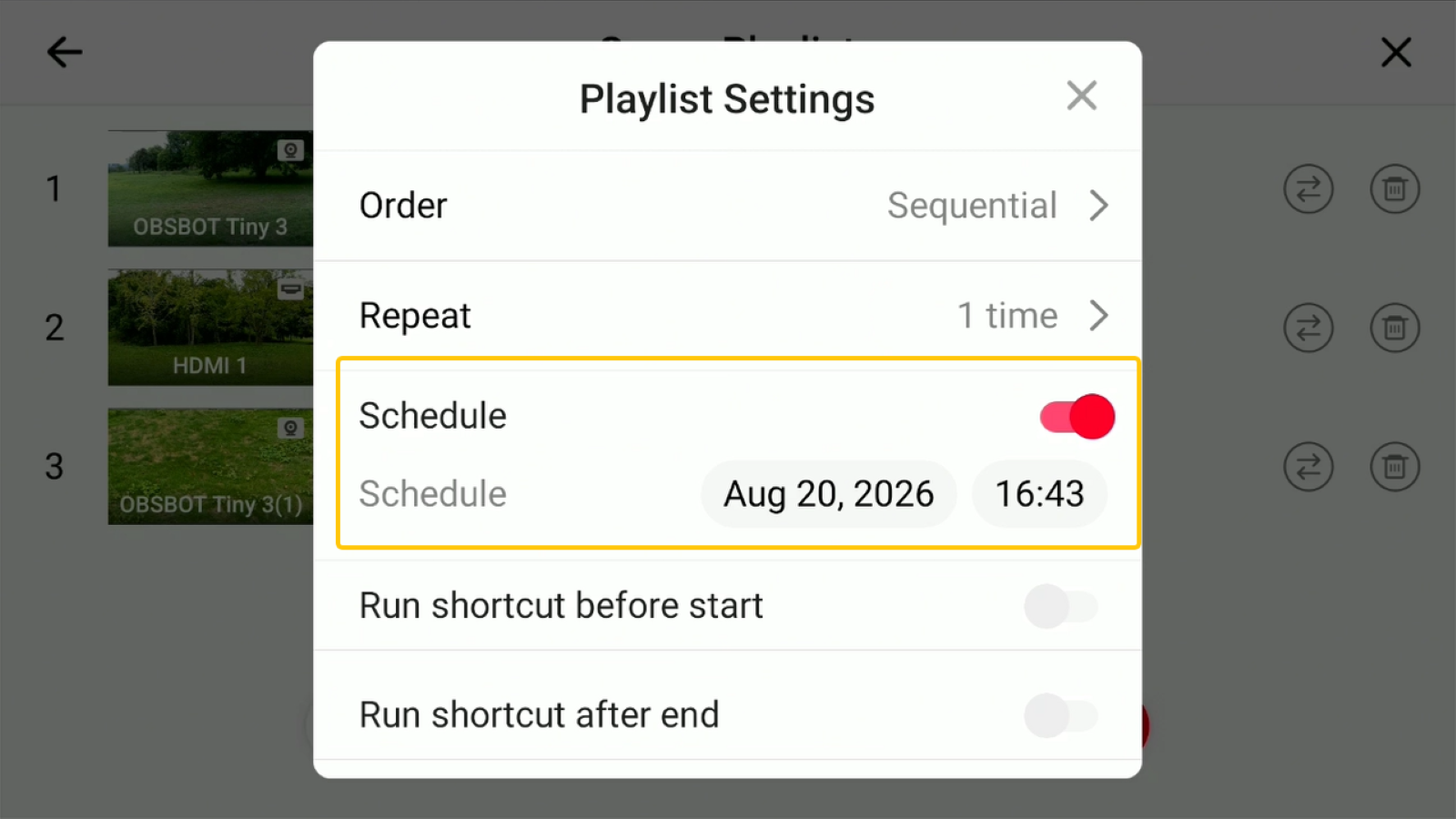
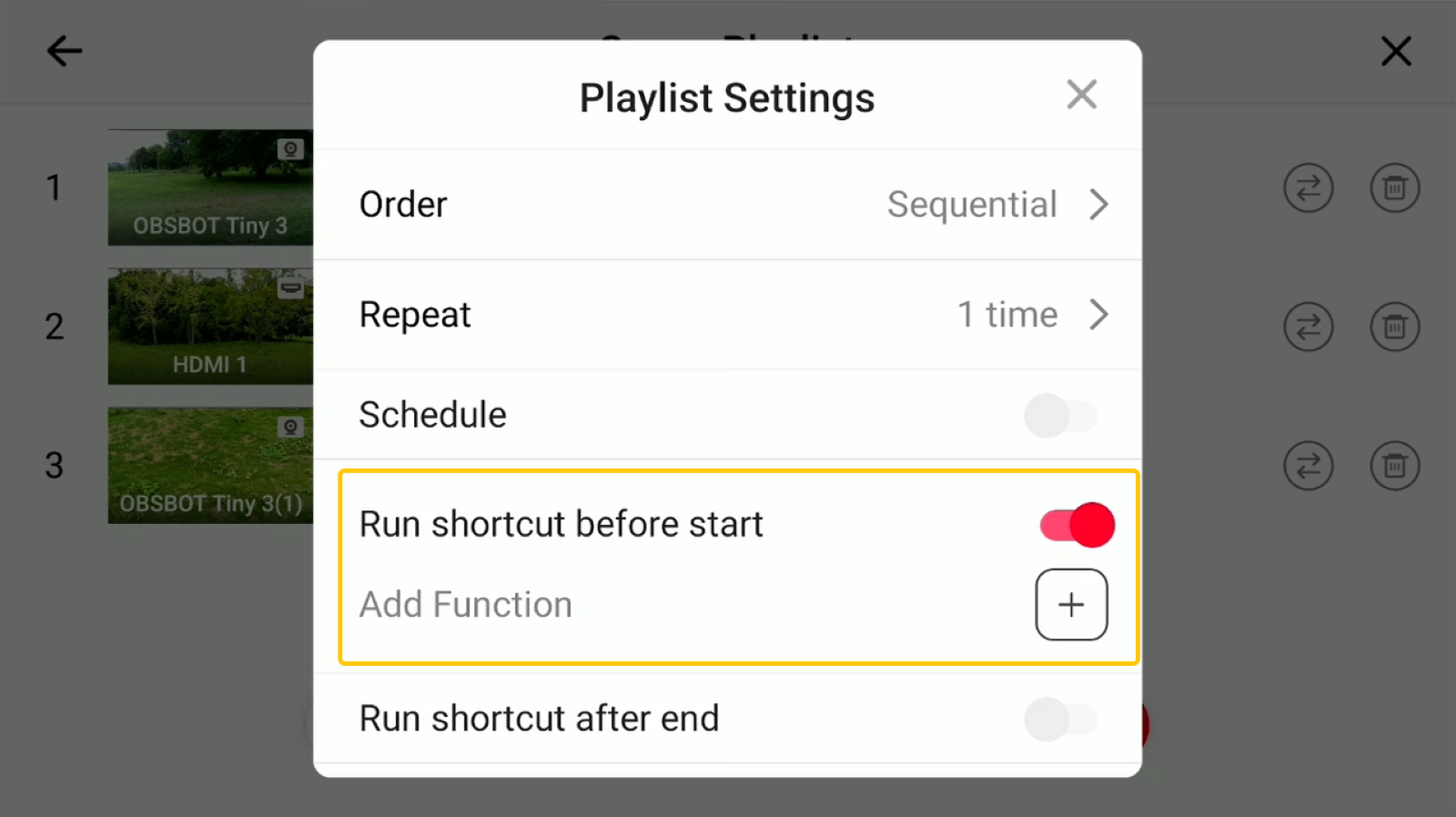
6. Tap Start to begin auto-switching. You can pause or stop it at any time.
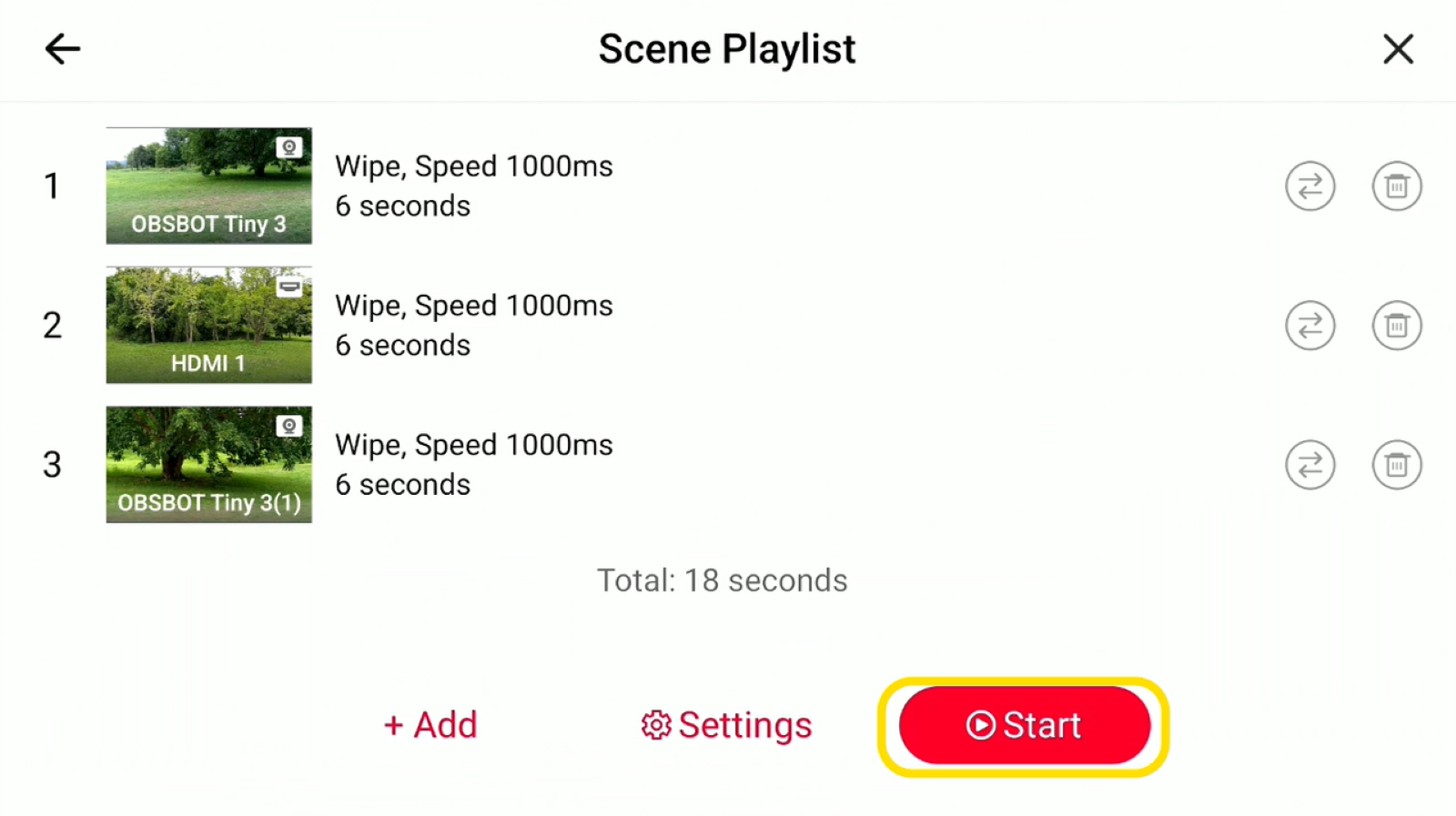
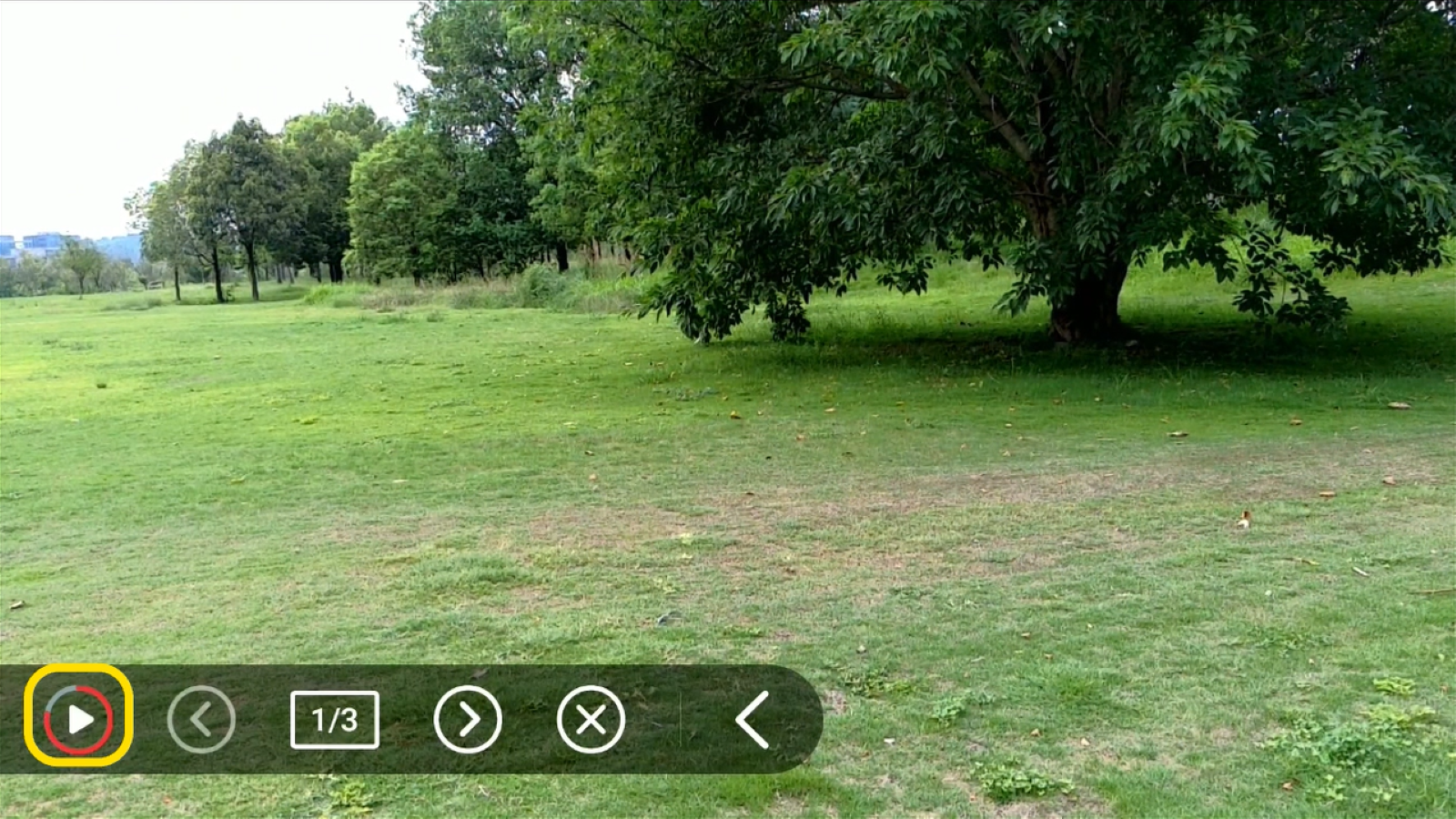
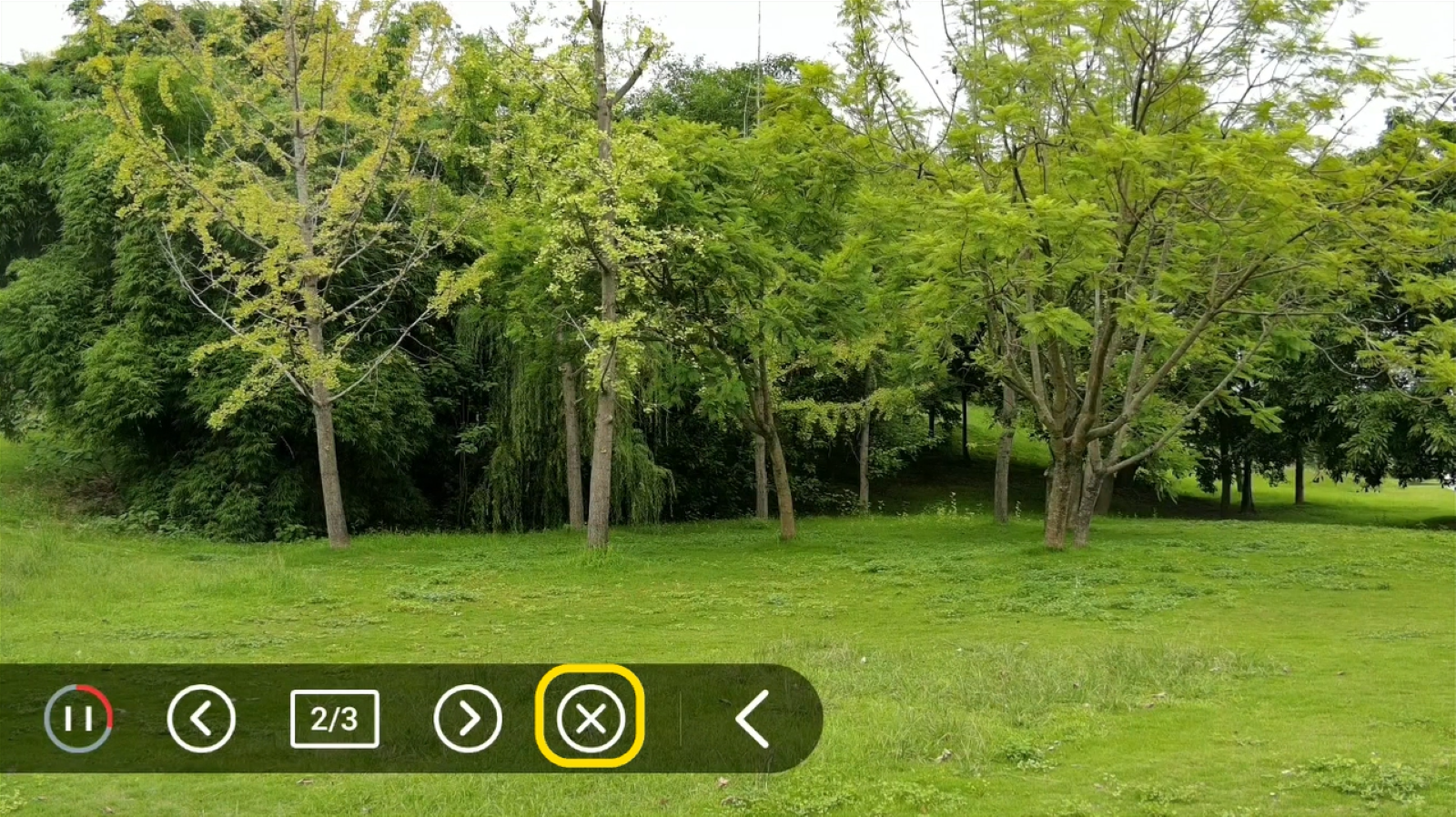
Talent 2 will now switch between scenes automatically based on your settings.
2 Set Up Video Follows Audio
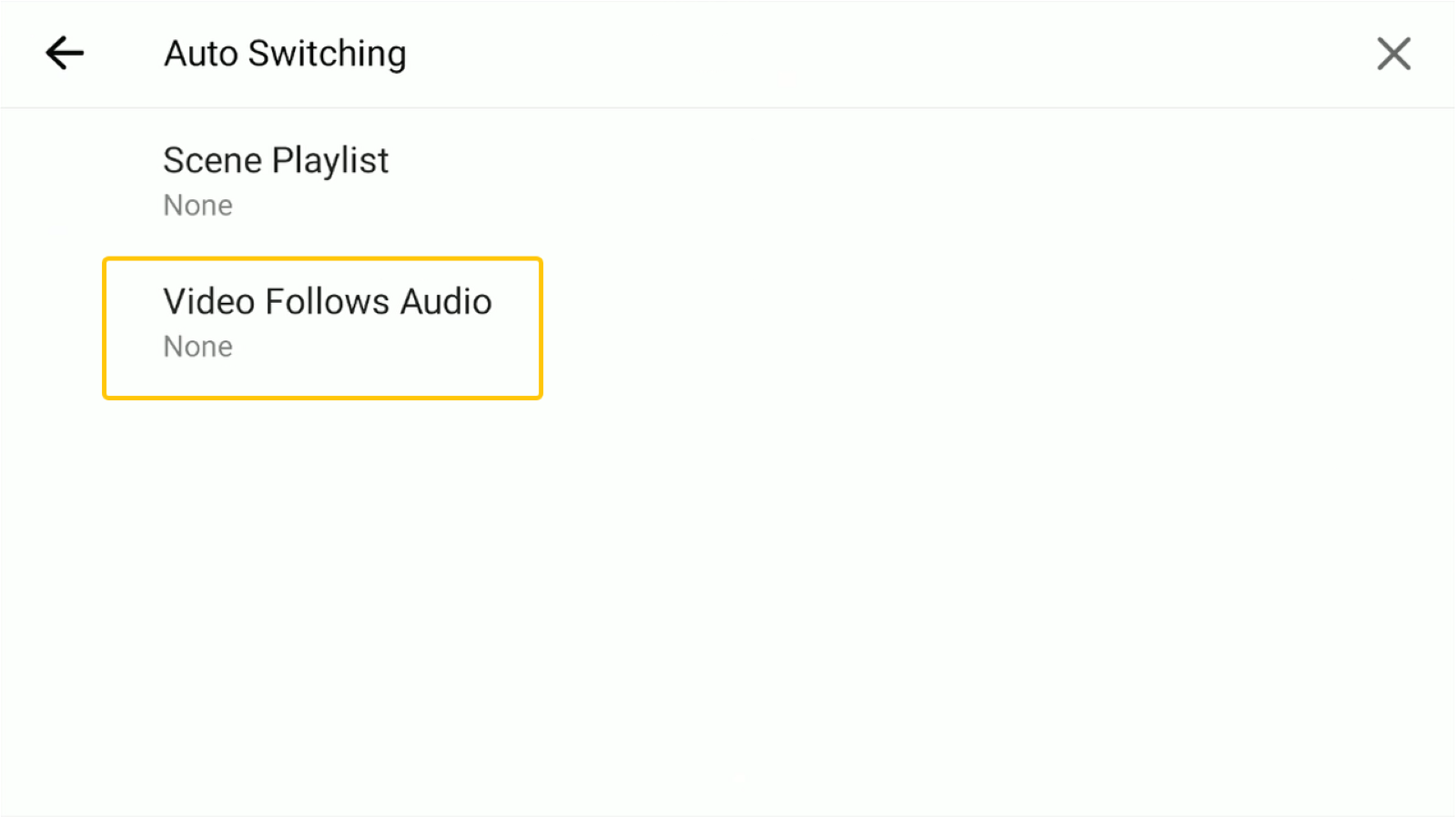
You can also enable Video Follows Audio to automatically switch scenes based on detected audio.
1. Open the Video Follows Audio settings and select a scene.
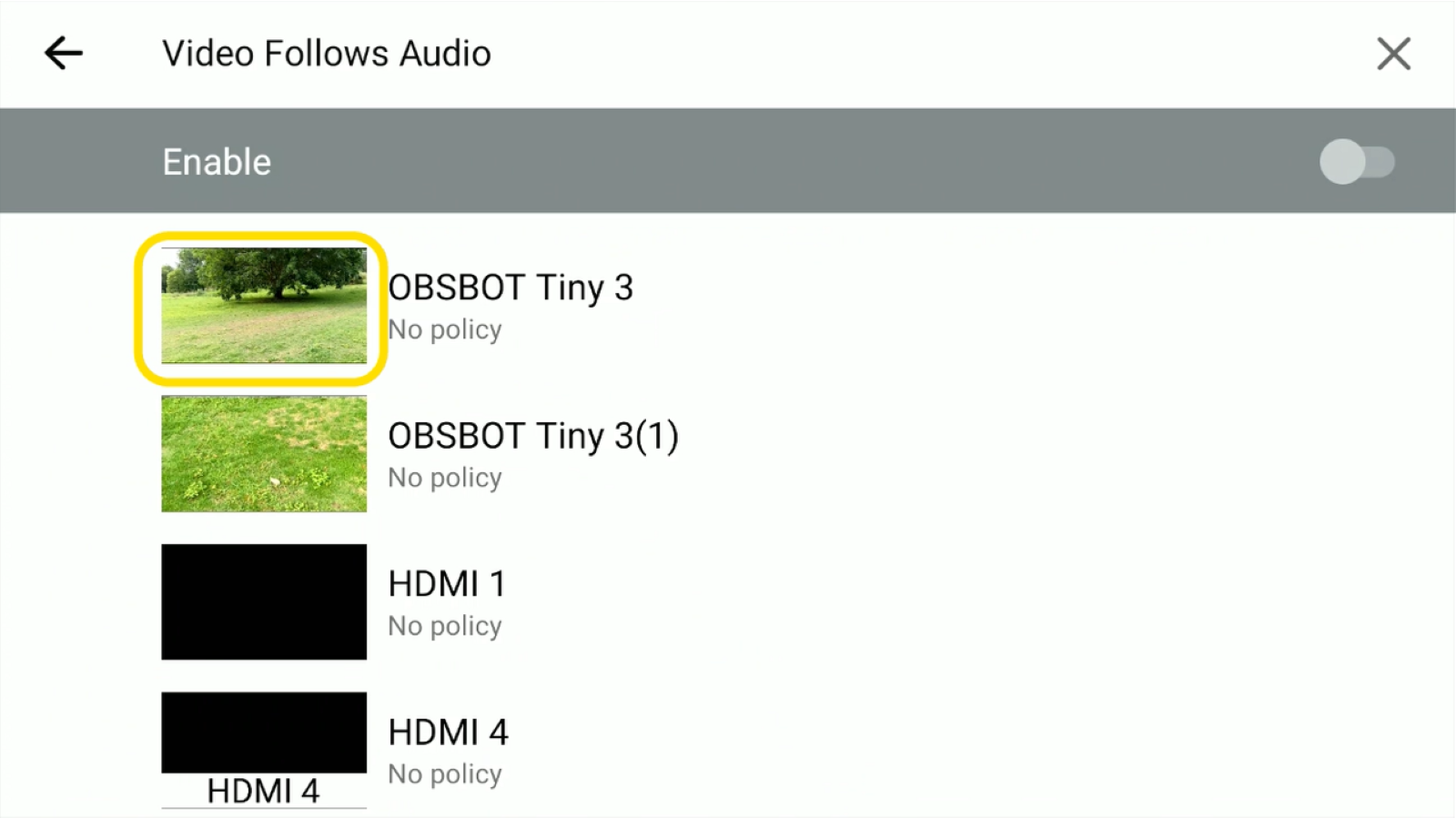
2. Choose the audio trigger for that scene:
a. No Policy: The scene will not be triggered automatically.
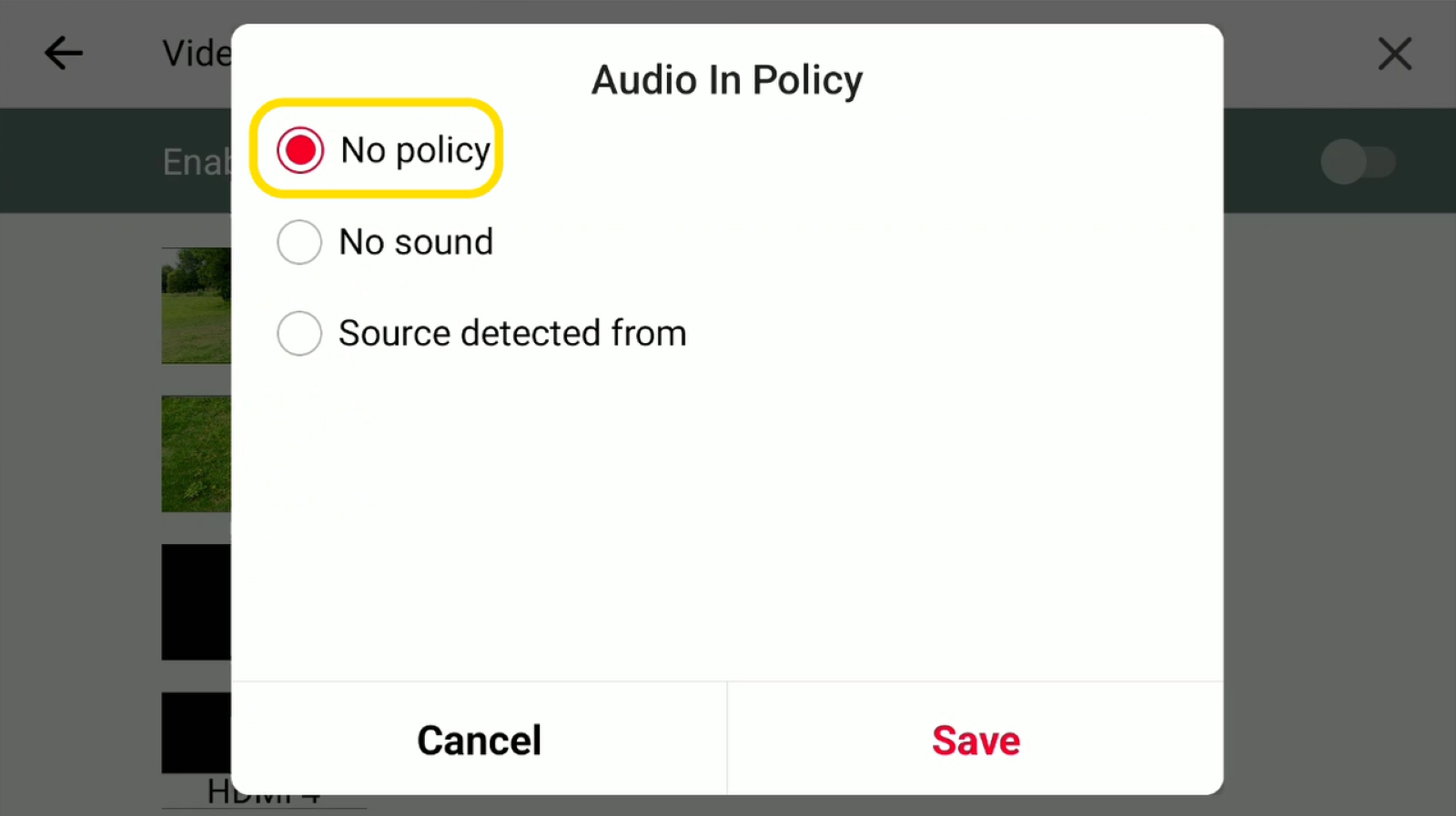
b. No Sound: Switches to this scene when no audio is detected.
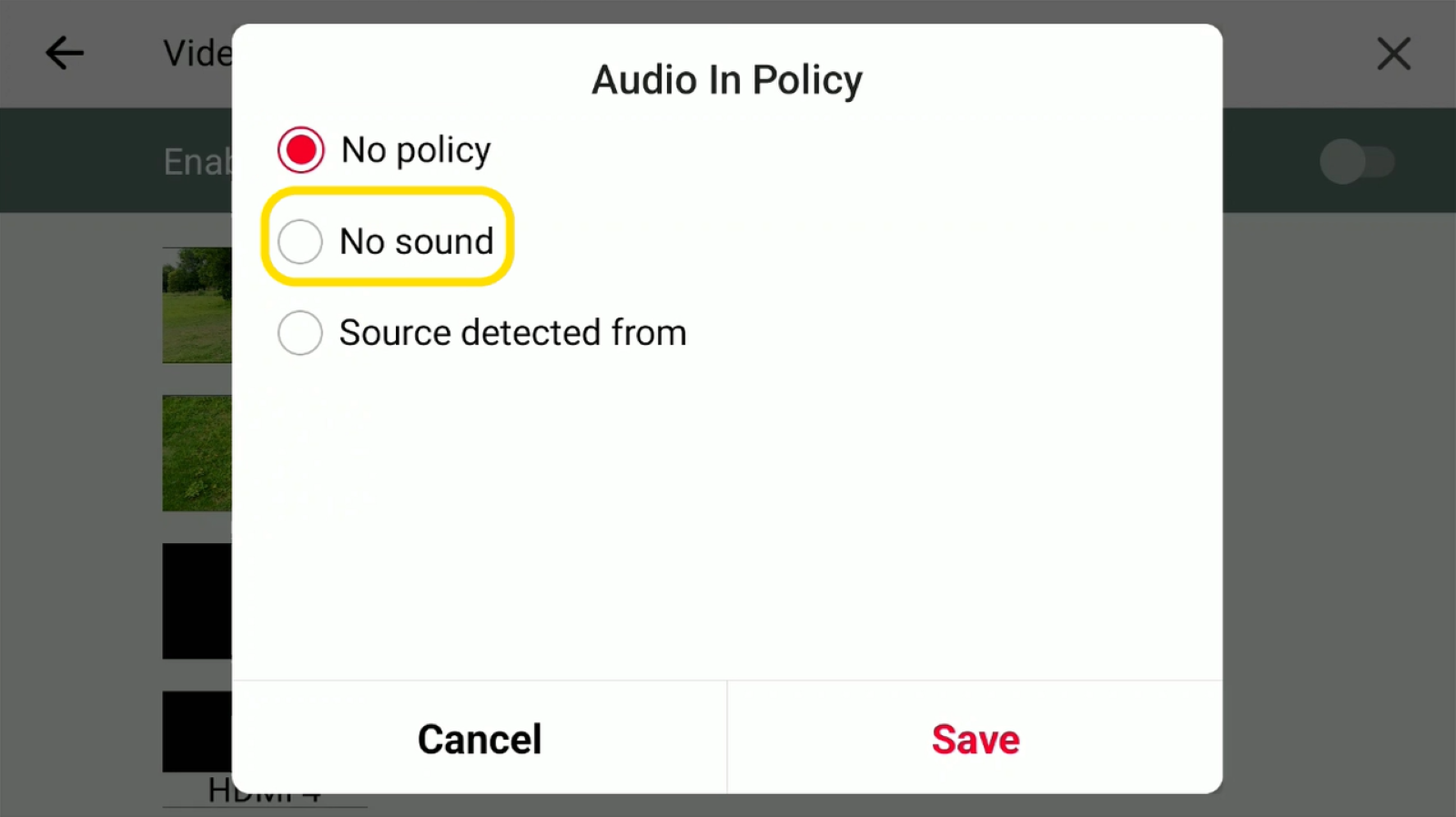
c. Sound Detected From: Select an audio source to monitor. When sound is detected from that source, Talent 2 switches to the corresponding scene.
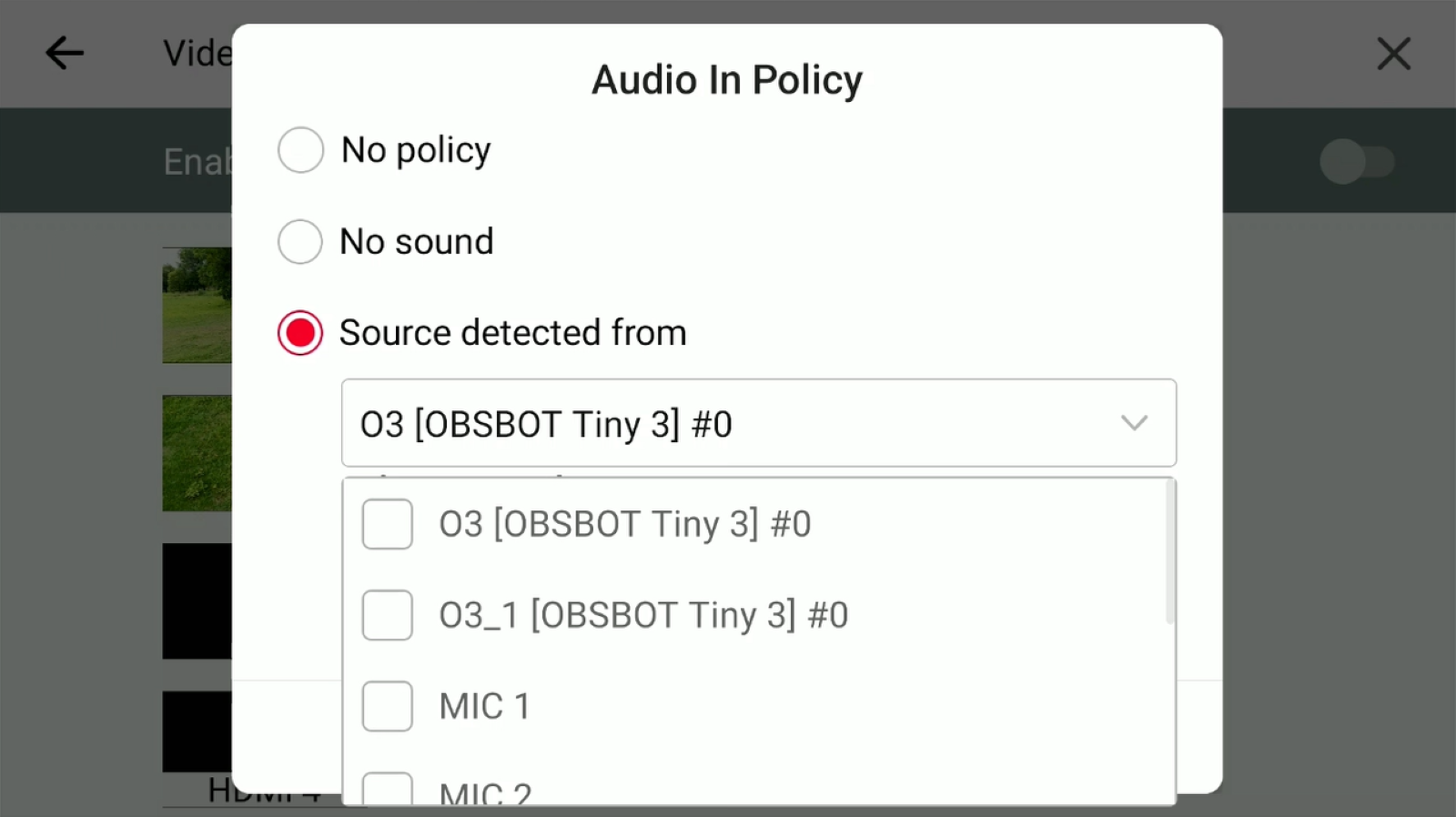
3. Repeat the setup for other scenes as needed.
4. Turn on Video Follows Audio to activate automatic scene switching.
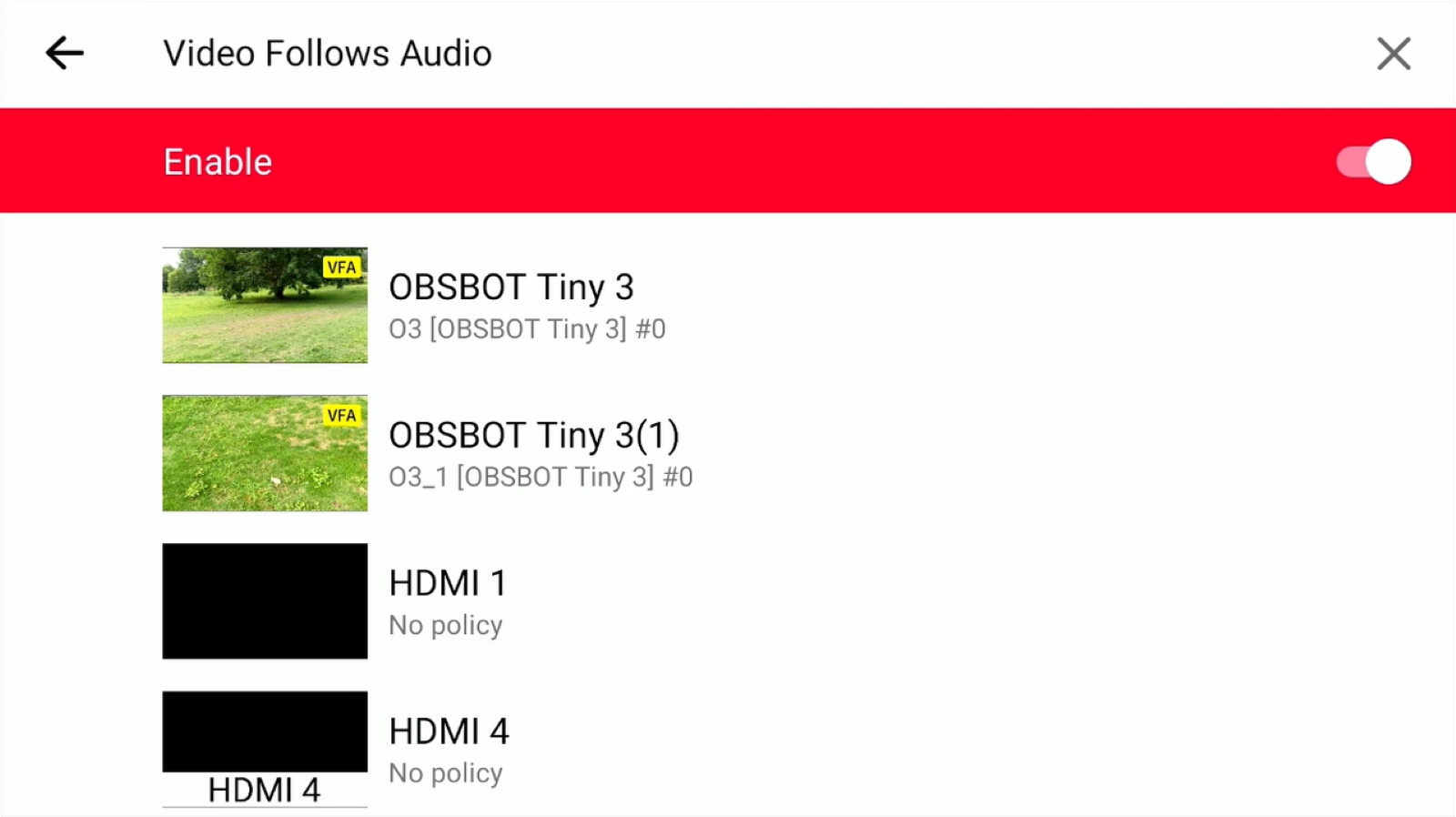
Once enabled, Talent 2 will automatically switch scenes based on your configured audio triggers.













