

How to Fix Camera Not Working on Laptop - 8 Quick Methods

When your camera is not working on a laptop, it can interrupt an important meeting, online class, interview, or video call. A black screen, a "camera not found" message, or a camera that works in one app but not another usually points to a privacy setting, app conflict, driver issue, or physical privacy switch.
This guide explains how to fix a laptop camera not working on Windows 11, Windows 10, Dell, HP, Lenovo, and Mac devices. Start with the quick checks below, then move to drivers, firmware settings, and an external webcam only if the built-in camera still fails.
Part 1: Why Is Your Camera Not Working on a Laptop?
Most laptop camera problems come from blocked access rather than a broken camera. Before assuming a hardware failure, check the physical shutter, app permissions, camera selection, and driver status.
1. Physical Shutter, Kill Switch, or Camera Hotkey
Many laptops include a webcam privacy shutter, side switch, or keyboard shortcut with a camera icon. If the shutter is closed or the camera has been disabled with a hotkey, apps may show a black screen, a crossed-out camera icon, or a "camera not found" error.
2. Camera Permissions Are Disabled
Windows and macOS control which apps can use the camera. If system-level access, desktop app access, or a specific app's camera permission is disabled, Zoom, Teams, Google Meet, Skype, browsers, and the Camera app may not detect the webcam.
3. Another App Is Using the Camera
A laptop camera may work in Zoom but fail in Teams, or work in the Camera app but fail in a browser. This often happens when another video app, browser tab, recording tool, or background process is already using the camera.
4. Camera Driver Problems After an Update
A missing, outdated, or incompatible driver can stop Windows from detecting the webcam. This is common after a Windows update, a driver update, or a system reset.
5. Camera Is Disabled in Device Manager or Firmware
Windows can disable a camera in Device Manager, while some Dell, HP, Lenovo, and other laptops can disable the integrated webcam in BIOS or UEFI settings. In either case, apps cannot use the camera until it is enabled again.
6. Security Software or Work Policies Are Blocking Access
Antivirus software, privacy software, or a work-managed device policy can prevent camera access. If the camera setting is greyed out or you use a company laptop, your IT administrator may need to enable it.
Part 2: How to Fix a Camera Not Working on a Laptop
Method 1: Test the Camera Before Changing Settings
Step 1: Close Zoom, Teams, Google Meet, Skype, OBS Studio, browser tabs, and any other app that might use the camera.
Step 2: On Windows, open Start, search for Camera, and open the Camera app.
Step 3: Check the preview. If it works in the Camera app but not in Zoom, Teams, or another app, the problem is likely related to that app's permissions or camera selection.
Step 4: Restart the laptop if the preview remains frozen or black. A full restart can release a camera that is still being used by a background process.
Method 2: Check the Physical Privacy Shutter and Camera Key
Step 1: Look at the top bezel of the laptop display for a physical privacy shutter. Slide it open so the lens is fully visible.
Step 2: Check the keyboard for a camera icon. Depending on the laptop, you may need to press the camera key alone or use Fn + the camera key to enable the webcam.
Step 3: Check the sides of the laptop for a privacy or camera switch, especially on business-focused models.
Step 4: Open the Windows Camera app again to confirm whether the camera preview returns.
Method 3: Enable Camera Access in Windows 11 or Windows 10
Windows 11: Go to Start > Settings > Privacy & security > Camera.
Windows 10: Go to Start > Settings > Privacy > Camera.

Step 1: Turn on Camera access.
Step 2: Turn on Let apps access your camera.
Step 3: Enable access for the app you need, such as Zoom or Microsoft Teams.
Step 4: Turn on Let desktop apps access your camera. This setting is important for many browsers, Teams, Zoom, Skype, OBS Studio, and other non-Microsoft Store apps.
Step 5: Reopen the affected app and select the built-in camera from its video settings.
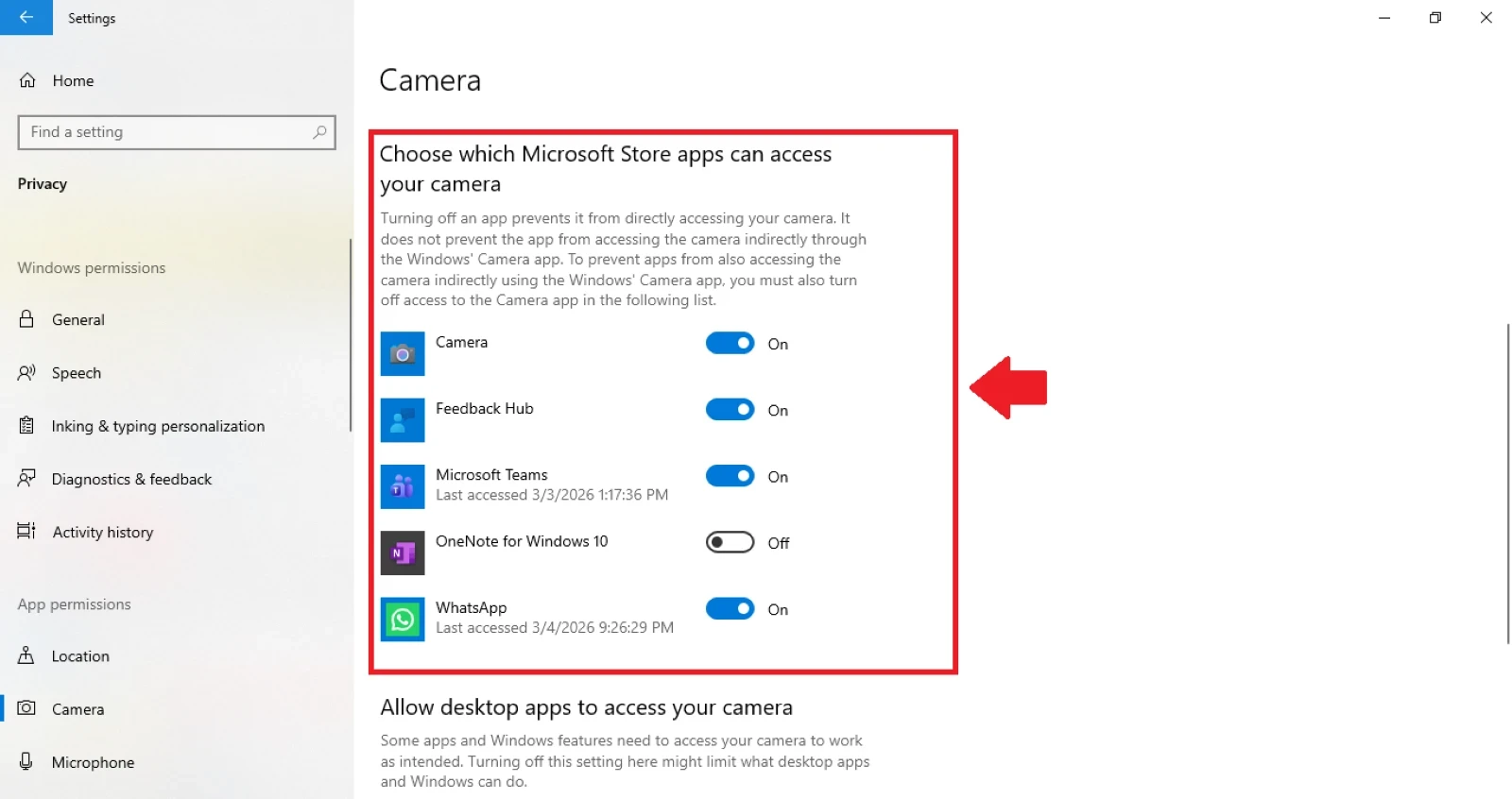
Method 4: Check Camera Selection and App Conflicts
Step 1: Open the video settings in Zoom, Teams, Google Meet, Skype, or the app where the camera is not working.
Step 2: Select the correct integrated webcam from the camera list. If you have connected an external webcam, virtual camera, capture card, or phone camera, the app may select the wrong source automatically.
Step 3: Close other apps that may use the camera. On Windows, open Task Manager, check running apps, and end only the app that is holding the camera if necessary.
Step 4: If the camera works in one app but not another, reset that app's camera permission, update the app, or reinstall it if needed.
Method 5: Repair or Reset the Windows Camera App
Step 1: Go to Start > Settings > Apps > Installed apps.
Step 2: Find Camera, select the menu next to it, and choose Advanced options.
Step 3: Select Repair first. This attempts to fix the Camera app without removing its data.
Step 4: If Repair does not help, select Reset, then reopen the Camera app and allow camera access when prompted.
Note: Resetting the Camera app does not repair a disabled physical camera or a broken driver. Use the next method if the laptop still cannot detect the webcam.
Method 6: Enable, Update, Roll Back, or Reinstall the Camera Driver
Step 1: Right-click Start and select Device Manager.
Step 2: Expand Cameras, Imaging devices, or Sound, video and game controllers.
Step 3: Right-click the built-in camera. If you see Enable device, select it. If you see Disable device, the camera is already enabled.
Step 4: Select Update driver > Search automatically for drivers, then restart the laptop after the update.

Step 5: If the camera stopped working after a Windows update, right-click the camera, select Properties > Driver, and use Roll Back Driver when the option is available.
Step 6: If the camera is still not working, select Uninstall device, restart the laptop, and allow Windows to detect and reinstall the camera driver.
Step 7: If the camera does not appear in Device Manager, select Action > Scan for hardware changes. Then check Windows Update, including optional driver updates, or download the camera driver from the laptop manufacturer's support page.

Method 7: Run the Windows Camera Troubleshooter
Step 1: On Windows 11, open the Get Help app and run the camera troubleshooter.
Step 2: Follow the on-screen diagnostics and apply any recommended fixes.
Step 3: If the troubleshooter cannot fix the issue, return to Device Manager and check the driver, camera permissions, and physical privacy controls again.
Method 8: Check BIOS or UEFI Camera Settings
Step 1: Restart the laptop and immediately press the firmware access key shown by the manufacturer. Common keys include F2, F10, F12, Del, or Esc.
Step 2: Find a menu such as Integrated Devices, Advanced, Security, or Hardware Configuration.
Step 3: Look for Integrated Camera, Webcam, or a similar option, and confirm that it is set to Enabled.
Step 4: Save the change, exit the BIOS or UEFI menu, and test the camera again in the Windows Camera app.
Part 3: Dell, HP, Lenovo, and Mac Camera Checks
Brand-specific software can add another camera control on top of Windows or macOS settings. Check these items after completing the general troubleshooting steps above.
Camera Not Working on a Dell, HP, or Lenovo Laptop
- Check the privacy shutter and keyboard key: Many Dell, HP, and Lenovo laptops include a physical shutter or camera hotkey that can disable the webcam.
- Use the manufacturer's support tool: Run Dell SupportAssist, HP diagnostics, or Lenovo Vantage to check for model-specific driver, BIOS, or hardware updates.
- Install the model-specific camera driver: Use the laptop's service tag or model number on the manufacturer support site instead of downloading drivers from an unverified third-party website.
- Check work-device restrictions: On a managed work or school laptop, camera access may be restricted by an administrator.
Camera Not Working on a Mac Laptop
- Quit apps using the camera: Close FaceTime, Zoom, Teams, browsers, and recording software, then reopen only the app you want to use.
- Check camera permissions: Go to Apple menu > System Settings > Privacy & Security > Camera and allow access for the affected app.
- Restart the Mac: A restart can release the camera if another app or process is using it.
- Update macOS and the app: Install available macOS and video-app updates before assuming that the built-in camera has failed.
- Contact Apple Support if no app can detect the camera: If the camera does not work in FaceTime, Photo Booth, or another Apple app after a restart and update, the issue may require hardware service.
Part 4: External Webcam Solution - OBSBOT Meet Flip Foldable 4K Webcam
If your laptop camera still shows a black screen after checking the shutter, permissions, app conflicts, drivers, and firmware settings, an external webcam can help you return to meetings, classes, interviews, and livestreams while you arrange a hardware repair.
The OBSBOT Meet Flip offers a separate USB webcam option for users who need clearer video, automatic framing, and physical privacy controls without relying on an unstable built-in laptop camera.
- USB-C Plug-and-Play Setup: Connects to a laptop through USB-C for video calls, virtual classes, streaming, and recording without using the built-in camera.
- 4K at 30fps Video: Captures detailed video for work meetings, interviews, virtual lessons, and content recording where a sharper image is useful.
- 1080p at 60fps Mode: Provides smoother video for live reactions, movement, and streaming workflows.
- AI Auto Framing and Gesture Control: Keeps the subject framed and supports hands-free adjustments during presentations, demonstrations, and livestreams.
- Foldable Hardware Privacy: Covers the lens and enters sleep mode when folded, giving users direct control after a call ends.
Part 5: FAQs About a Laptop Camera Not Working
Why is my laptop camera just a black screen?
A black screen can be caused by a closed privacy shutter, camera hotkey, blocked app permission, another app using the camera, an outdated driver, or a hardware issue. Test the webcam in the Windows Camera app first. If it works there, check the video settings and permissions in the app where the black screen appears.
How do I reset my camera on my laptop?
On Windows, first restart the laptop and test the Camera app. If the issue continues, go to Settings > Apps > Installed apps > Camera > Advanced options, then select Repair or Reset. If Windows cannot detect the camera, reinstall the driver from Device Manager instead.
How do I enable the camera on my laptop?
Open the physical privacy shutter, use the camera keyboard shortcut if your laptop has one, and then check Settings > Privacy & security > Camera on Windows 11. Turn on Camera access, Let apps access your camera, and Let desktop apps access your camera. In Device Manager, select Enable device if the camera has been disabled.
What is blocking my camera on my laptop?
A privacy shutter, camera hotkey, antivirus setting, blocked camera permission, app conflict, work-device policy, or disabled device can block a laptop webcam. If the camera setting is greyed out, contact the device administrator because a company or school policy may control access.
Why is my camera working in one app but not another?
If the camera works in the Windows Camera app but not in Zoom, Teams, or Google Meet, the issue is usually app permission, the wrong selected camera, or another app already using the webcam. Close other camera apps and check the affected app's video settings.
Why Is My Camera Not Working on a Mac?
Your Mac camera may not work because the app does not have camera permission, Screen Time restrictions have disabled the camera, or macOS and the affected app need an update.
First, go to the Apple menu > System Settings > Privacy & Security > Camera and enable camera access for the app you want to use. Then check Screen Time > Content & Privacy > App Restrictions and confirm that Camera is allowed. Restart your Mac after changing these settings.
If the built-in camera does not appear in any app after updating macOS and restarting, or its indicator light flashes green, the issue may require Apple Support or hardware service.
Conclusion
A laptop camera problem is often caused by a privacy control, app permission, camera conflict, or driver issue rather than permanent hardware failure. Test the camera in the Windows Camera app, check physical and privacy controls, then update or reinstall the driver only when needed.
If the built-in camera still cannot be detected after these checks, use an external webcam for immediate video calls and contact your laptop manufacturer's support team for model-specific diagnosis or repair.














