Video Editing Tips for Beginners: 15+ Easy Ways to Edit Better Videos
 You have the footage and the editing software. The hard part is knowing what to do first. These video editing tips for beginners follow the editing process from planning and shooting to cutting, audio, color, and export, so you can work on the part of the workflow you need most.
Quick Answer: What Should Beginners Learn First?
Start with the workflow below and skip effects for now.
| Step | What to focus on |
|---|---|
| 1. Plan | Know what the video needs to say |
| 2. Organize | Sort your footage before cutting |
| 3. Rough cut | Remove mistakes, pauses, and weak takes |
| 4. Pace | Keep the video moving without rushing it |
| 5. Audio | Make dialogue clear before adding music |
| 6. Polish | Add B-roll, captions, color, and simple effects |
| 7. Export | Match the format to the platform |
The biggest beginner mistake is reaching for flashy effects before the basics feel solid. Get the cuts clean, the audio intelligible, and the pacing right. Everything else comes later.
Pre-Shooting
Planning before shooting can reduce the amount of footage you have to sort through later.
1. Plan the Edit Before You Start
Before you hit record, figure out three things:
- What is the main point of the video?
- What does the viewer need to see?
- What should the viewer feel or do after watching?
It doesn't need to be a formal script. A short outline is enough for a tutorial, vlog, product video, or talking-head piece.
Shoot With Editing in Mind
Get the main take first. Then capture the supporting footage that can cover cuts or show what you're talking about.
Some footages you can try:
- Close-ups for cutaways
- Screen recordings for demonstrations
- Product shots
- Hands working
- Different angles
- Wide shots of the location
You are not trying to collect as much footage as possible. Instead, you're trying to collect footage that gives you useful choices when you start cutting.
2. Recreate a Video You Like
This may be the best video editing tips for beginners. Recreating a video is a good start to quickly master the editing core. Don't start with a 20-minute documentary or a complicated commercial.
Recreate the first 60 to 90 seconds using your own footage. Pay attention to what happens such as : Where does each cut happen? How long does each shot stay on screen? When does the music change?
You can define this as a practice, the aim is to understand the decisions behind an edit.
Shooting
Below are video tips when shooting. What you capture during filming determines how much freedom you'll have later.
1. Two Camera Angles Are Used More Often
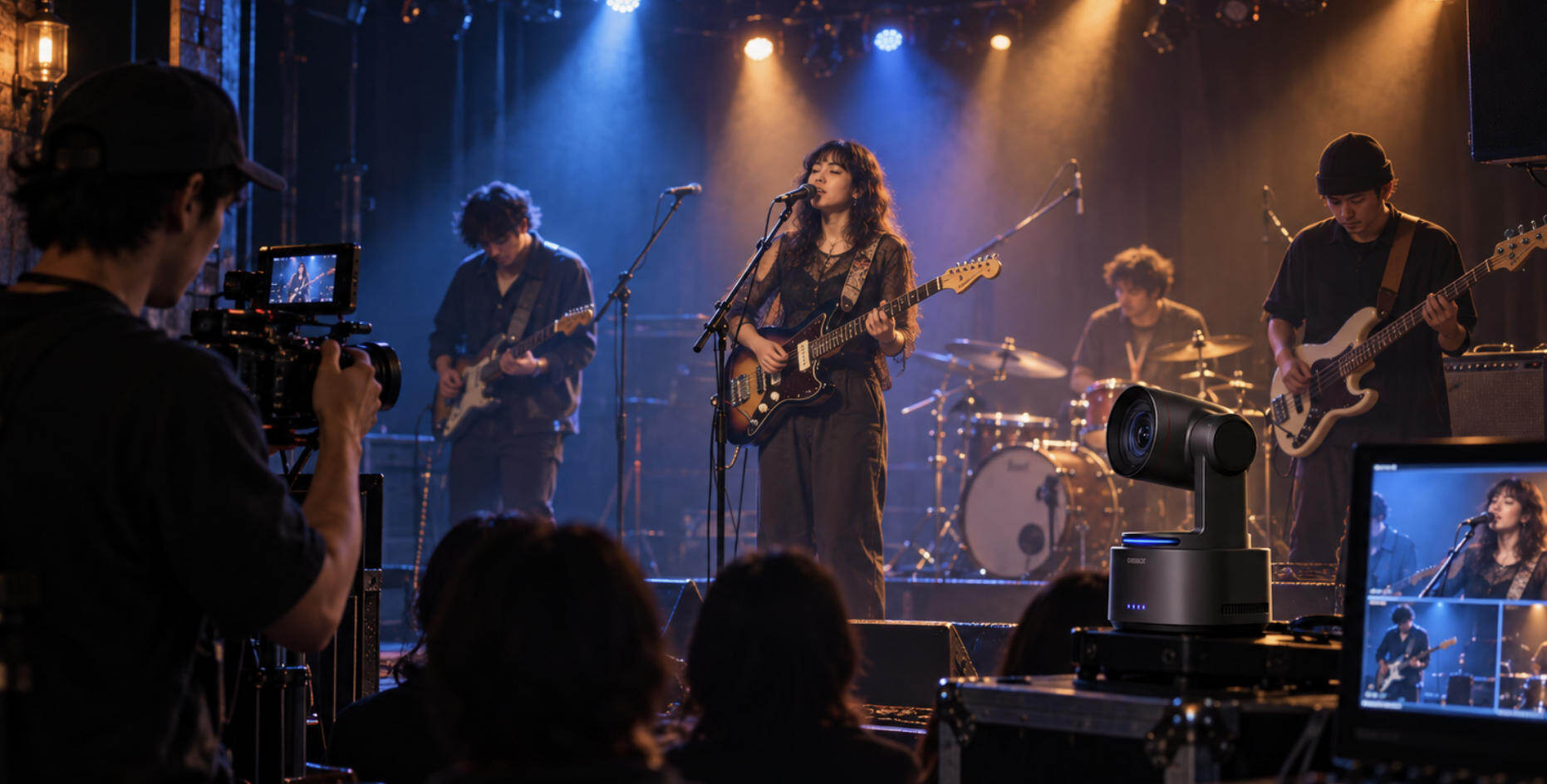
For example, a simple two-camera setup can make a talking-head edit much easier. Keep Camera A on the main shot and use Camera B for a wider or tighter angle. Record consistent audio with an external microphone if possible.
Now you have somewhere to cut when you remove a mistake or shorten a sentence. You can also change angles between ideas without adding an effect.
For solo creators, an AI-powered camera can simplify the recording side. For example, the Obsbot Tiny 3 ptz webcam uses AI tracking and auto-framing to reduce the need to stop recording and reposition the camera manually.
The goal is simple: bring footage into the edit that is already usable.
Equipment
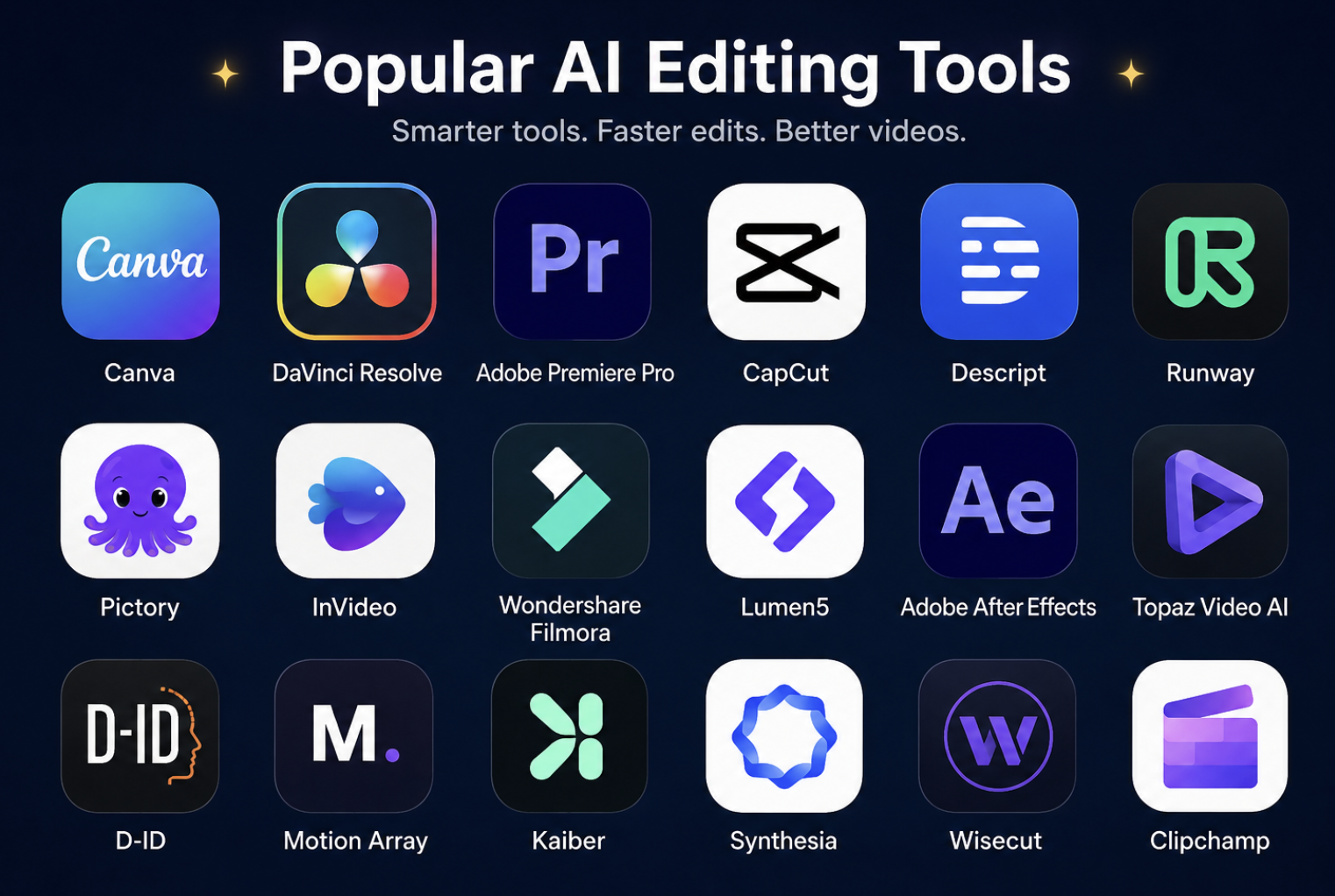
2026 has more AI editing tools coming to take care of many repetitive tasks.
1. Flexibly Utilize AI Editing Tools.
Nowadays, many AI video editing tools can help handle complex steps; for instance, CapCut is useful for short-form content, offering AI-assisted features such as automatic captions, background removal, and smart reframing.
DaVinci Resolve and CapCut both include AI-assisted tools, although the exact features and workflows differ between versions.
The useful approach is not to hand the entire edit over to AI. Let automation handle repetitive work, then review the result yourself.
Editing
This is the most important stage of the editing process. Don't try to solve every problem at once.
1. Organize Your Footage Before Cutting
The first few minutes of an edit should not happen on the timeline.
Sort your files before you start cutting. A simple project folder might look like this:
Project
├── A-Roll
├── B-Roll
├── Music
├── Sound Effects
├── Graphics
└── Exports
It's necessary to rename important takes and mark the clips you already know you want to use. When you need to replace a shot later, you won't have to search through dozens of unnamed files.
Back Up Your Project
For projects you cannot afford to lose, use a 3-2-1 backup approach: keep three copies of important files, use two different storage types, and keep one copy somewhere separate.
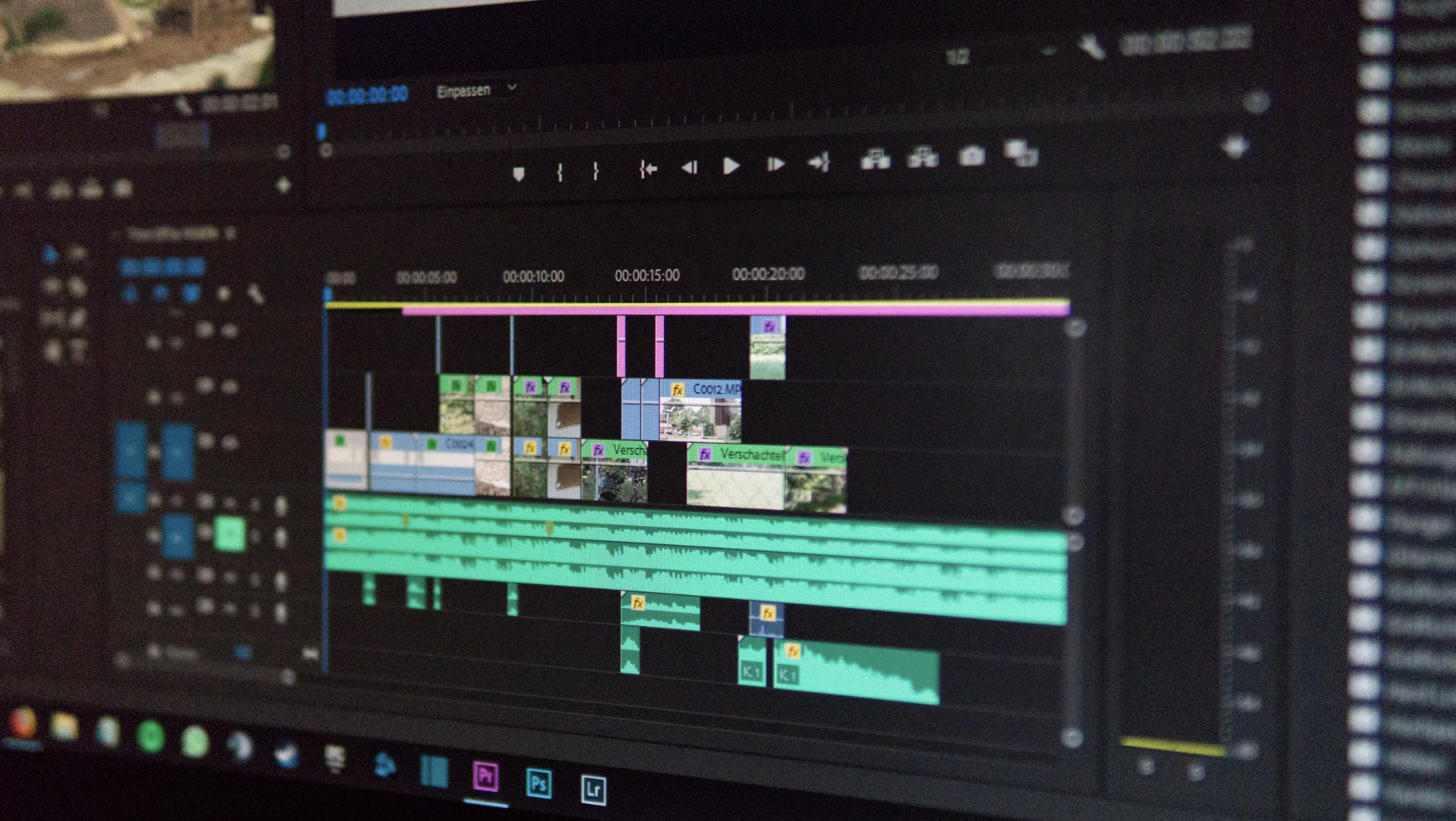
2. Make a Rough Cut First
You can start with the footage you know you need.
Put the strongest take on the timeline and work through the video from beginning to end. On this first pass, below things are necessarily needed to removed:
- Mistakes and false starts
- Repeated lines
- Long pauses
- Sections that don't move the video forward
The core purpose of this is to dicede what belongs in the video, so don't worry if the timeline looks ugly.
In regard to color, transitions, sound effects, and animations, save them for later.
3. Cut When the Shot Has Done Its Job
Watch your talking-head clip for pauses, repeated explanations, filler words, or shots that linger after the key information.
Trim anything that slows the video without adding value, then review the section again. You don't need to cut everything quickly, a longer shot can help when viewers need time to understand or observe.
One useful exercise is to pick a video you like and count the cuts during the first 60 to 90 seconds. Then try to reproduce the rhythm with your own footage. You'll learn more about shot length by doing this than by simply watching another tutorial.
B-Roll Makes Cuts Feel Natural
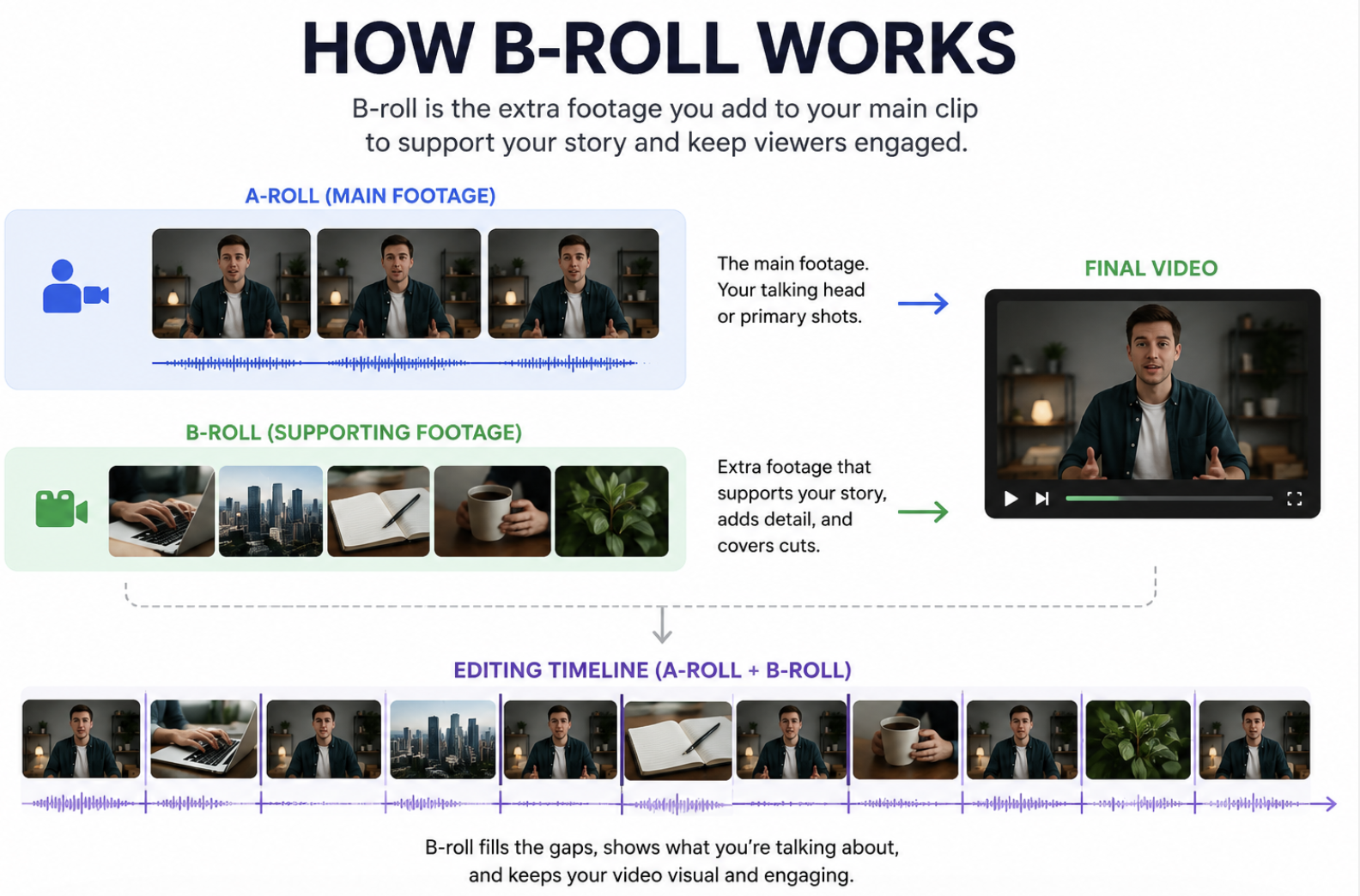
Suppose you remove three seconds from a talking-head clip. The dialogue now flows better, but the speaker suddenly jumps to a different position.
This is where B-roll works, it can cover that change.
Use a screen recording, close-up, product shot, or other relevant footage while the original audio continues. The viewer hears the explanation and sees something related to it, so the cut feels intentional.
4. Let the Cut Do Most of the Work
Try finishing your edit with straight cuts before adding transitions.
Then watch the sequence.
A transition is useful when it communicates something. A fade can mark the beginning or end of a video. A dissolve can connect related scenes or suggest a passage of time. A J-cut or L-cut lets audio lead into or continue through the next shot.
For normal changes between shots, a straight cut is usually enough.
If a transition makes you notice the editing more than the story, take it out.
5. Keep Captions Easy to Read
Watch your video once without sound.
If you can still follow the important information, your captions and on-screen text are doing their job. If the screen becomes crowded with animated captions, titles, stickers, emojis, and zooms, decide which elements actually need to stay.
For tutorials, use text when it helps the viewer remember a setting, step, number, or key point. You don't need to put every spoken word on screen.
6. Watch the Edit Without Touching the Timeline
Before calling the video finished, watch the whole thing without stopping to make changes. It can create the overall feeling towards this video. Keep a notepad nearby and mark the moments where you: Feel bored, notice the music more than the voice, want to skip ahead, that's the parts you should make changes after the viewing.
If you publish on YouTube, audience retention data can give you another perspective after the video is live.
7. Start With a Simple Video
A 30-second product/vlog clip can be a good starter for the first video.
The useful part is finishing the whole process: import, rough cut, pacing, audio, B-roll, polish, and export.
After you've completed a few small projects, you'll have a better idea of which parts of editing actually slow you down.
Audio
1. Listen Before You Start Grading
Put on headphones and listen to the first minute of your rough cut before you spend time on color.
Check the voice for:
- Background noise
- Sudden volume changes
- Long silences
- Filler words
Then bring in music and sound effects around the dialogue. If you keep reaching for the volume control because the voice disappears under the music, the mix needs another pass.
Keep in mind that a clean voice track matters more than an elaborate soundtrack.
Color
Color correction and color grading are related, but they solve different problems.
1. Correct First, Grade Second
Imagine two clips from the same interview. One looks warmer and slightly darker than the other. You'd better first fix exposure, white balance, contrast, and other obvious differences, then do color grading. Once the shots look consistent, you can decide whether the video needs a particular visual style.
Export
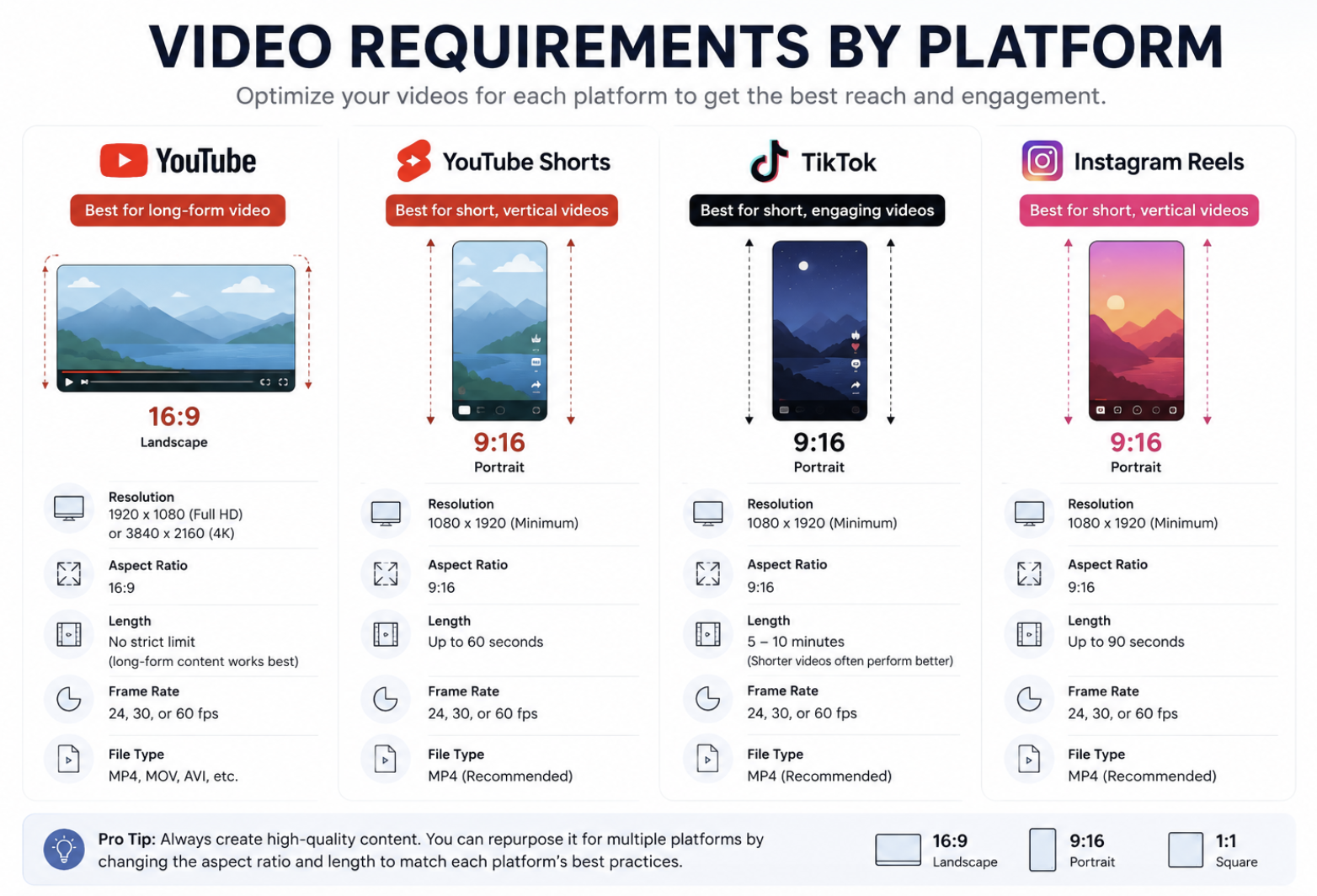
Keep in mind what viewing platform the video are going to post, then choose the suitable export setting.
A YouTube video and a TikTok video don't have the same framing requirements.
| Platform | Beginner-friendly approach |
|---|---|
| YouTube | 16:9 is the standard format for long-form video |
| YouTube Shorts | Use vertical framing; Shorts can be up to 3 minutes |
| TikTok | Prioritize vertical framing and readable text |
| Instagram Reels | Use vertical framing and keep important information clear of interface elements |
If you plan to publish both long-form and vertical versions, leave some space around the subject while filming.
Common Video Editing Mistakes Beginners Make
Too many transitions. If every cut has an effect, the effects quickly become distracting.
Keeping every clip. You filmed it, but that doesn't mean it belongs in the final edit.
Skipping the audio pass. Viewers will notice unclear dialogue even when they don't notice your color work.
Editing before organizing. Searching for files in the middle of an edit wastes time and makes projects harder to manage.
Trying to learn everything at once. Learn cutting first. Add pacing, audio, color, and effects as you become comfortable.
Padding the runtime. A useful 90-second tutorial is better than a five-minute version filled with pauses and repeated information.
Best Video Editing Software for Beginners
You don't need the most complicated editor to start learning.
| Software | Best for |
|---|---|
| DaVinci Resolve | Beginners who want a powerful editor they can grow into |
| CapCut | Short-form and social media content |
| iMovie | Mac and iPhone users who want a simple starting point |
| Premiere Pro | Creators who want the Adobe workflow |
The best editor is the one you'll actually use. Learning the basic tools in one program is more valuable than switching between several editors because you are still searching for the "perfect" one.
FAQs About Video Editing Tips for Beginners
What should a beginner learn first in video editing?
Start with cutting and trimming. Once you can remove mistakes and arrange clips into a clear sequence, work on pacing and audio. The rest can be later.
How can I practice video editing?
From most experience in Redit, recreating a short section of a video is the most often mentioned tips. it forces you to study shot length, pacing, music timing, B-roll, and text placement.
Is AI video editing tools good for beginners?
Yes, especially for repetitive tasks. AI can help with captions, transcription, audio cleanup, scene detection, and other time-consuming work. You should still make the decisions about storytelling, pacing, and what stays in the final cut.
Should beginners use lots of transitions?
No. Start with clean cuts. Add a transition when it communicates a change in time, location, or idea.
Conclusion
Pick a small project and finish it. That's the most useful first step in getting better at video editing.
Tutorials can teach you where the buttons are, but finishing a real edit forces you to make decisions about what to keep, what to cut, how fast the story should move, and what the viewer actually needs to see.
If you're a beginner recording yourself, the Obsbot Tiny 3 can reduce some of the work involved in keeping yourself framed while recording, so you can bring more usable footage into the edit.