How to Use Remote Desktop Connection: A Step-by-Step Guide
Many people work from home and sometimes need to access important files on their work PC. Then, there are some people who help their friends or family fix their PC issues from afar. If that's the case with you, you will need the Remote Desktop Connection. However, many people don't know how to use Remote Desktop Connection, so we are sharing how you can see and control another desktop from a distance.
Part 1: What Is Remote Desktop Connection?
Remote Desktop Connection is a built-in tool in Windows, and it's completely free to use. It lets you control one desktop from another system. In particular, it uses Microsoft's Remote Desktop Protocol. Your computer will be the local computer and the one you've to control is the remote control. It is also called the host.
When you connect, the host's screen will show up on your device. This means you will be able to move files, open apps, change the settings, and print stuff.
However, there is one limit. To be precise, only Windows Pro, Enterprise, and Education editions can be the remote (host) computer. Windows 11 Home can initiate outbound Remote Desktop connections but cannot accept incoming ones. So, a Home PC can connect to other computers, but nobody can connect to it with RDC.
Part 2: How to Enable Remote Desktop on Windows
If you don't know how to remotely access another computer over the internet, we are sharing the some things that you've to do. You have to follow these steps on the remote computer.
Check your Windows edition
Go to Settings > System > About and look under "Windows specifications." If it says Home, you can't host Remote Desktop. You'll need to upgrade to Pro or use a third-party tool (see Part 5).
Turn on Windows Remote Desktop
- Windows 11: Open Settings > System > Remote Desktop. Turn the Remote Desktop switch on, then click Confirm.
- Windows 10: Open Settings > System > Remote Desktop and turn on Enable Remote Desktop.
Keep "Require devices to use Network Level Authentication" checked. It adds a layer of safety.
Write down the PC name
The PC name is shown on the same Remote Desktop page. You'll type it in later.
Find the IP address (optional but helpful)
Go to Settings > Network & internet, click Wi-Fi or Ethernet, then open your network's properties. Look for the IPv4 address (for example, 192.168.1.25). You can also open Command Prompt and type ipconfig.
Give users access
Admin accounts can connect by default. To let other people in, click Remote Desktop users and add their account.
Keep the PC awake
A sleeping PC can't take connections. In Settings > System > Power & battery, set sleep to "Never" when plugged in, or make sure the PC stays on while you need it.
Part 3: How to Use Remote Desktop Connection on Windows
If you are using a Windows system and need to know how to remotely access another computer, check these steps.
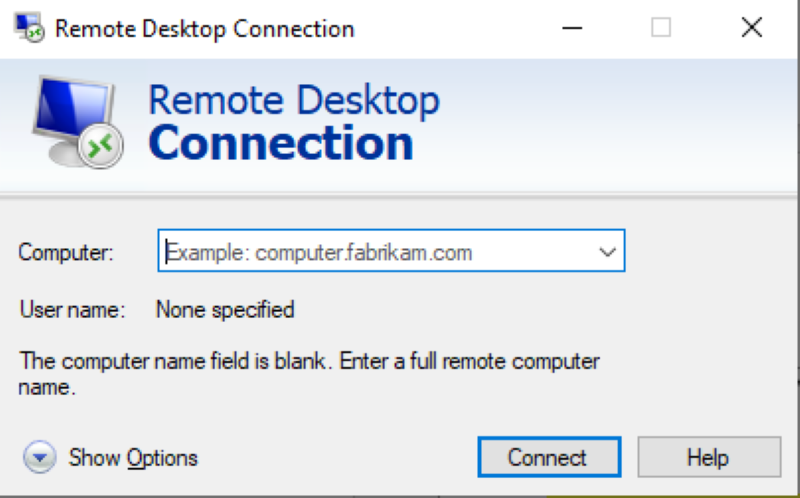
Step 1: On your local computer, click Start and type Remote Desktop Connection, then open it. Another quick way: press Windows + R, type mstsc, and press Enter.
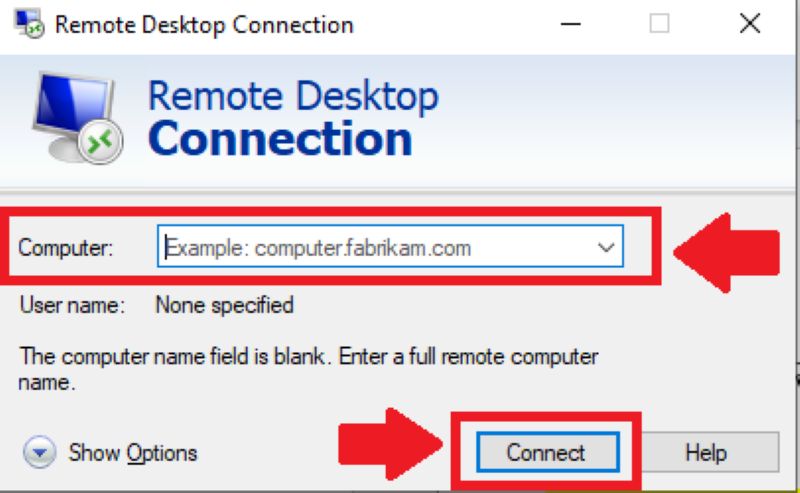
Step 2: In the Computer box, type the PC name or IP address you wrote down in Part 2. Then click Connect.
Step 3: Enter the username and password of the remote computer. For a Microsoft account, use the full email address and the account password, not your PIN. For a local account, type it as PCname\username.
Accept the security certificate warning if the connection is expected and trusted. Click Yes. You can tick “Don't ask me again for connections to this computer” if it's your own PC.
Step 4: The remote desktop opens in a new window. A bar at the top of the screen shows the PC name. Use it to minimize, restore, or exit full-screen mode. Everything you do now happens on the remote computer.
Step 5: To leave your apps running, close the window or click X on the top bar. This disconnects you. To fully end the session, click Start > your profile > Sign out on the remote PC.
Part 4: How to Use Remote Desktop Connection on Mac, iPhone, and Android
Microsoft has retired the Remote Desktop versions for macOS, iOS, and Android. So, if you are one of them and need to learn how to use Remote Desktop, you have to use the Windows app. Remember that the steps will be the same for all devices.
Step 1: Follow Part 2 to turn on Remote Desktop. Write down the PC name or IP address.
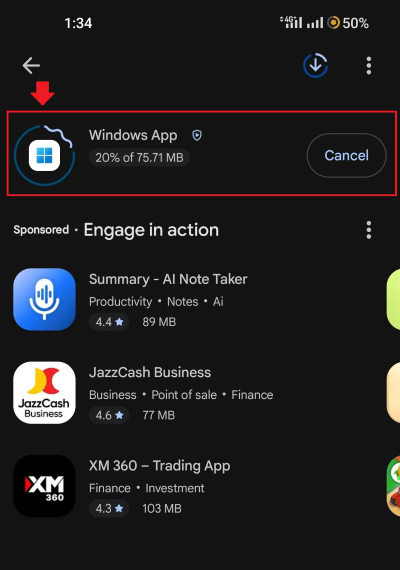
Step 2: You've to download Windows App. On Mac, you can download it from the Mac App Store; on iPhone or iPad, you can download it from the App Store; and on Android, you can download it from the Google Play Store.
Step 3: Then, you have to add your PC. For this purpose, open the Windows App and tap or click the + button, then choose Add PC.
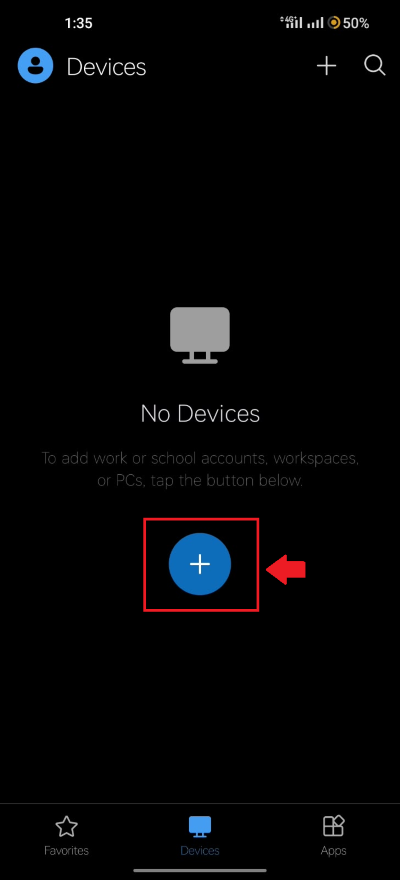
Step 4: Type the PC name or IP address. Under Credentials, add your username and password, or choose "Ask when required." You can also give it a friendly name like "Office PC." Tap Save or Add.
Step 5: Tap or click the PC tile. Enter your password if asked. If you see a certificate warning for your own PC, tap Continue.
Step 6: When you're done, open the toolbar and tap End session, or sign out from the Start menu.
Part 5: How to Use Remote Desktop Connection Over the Internet
If you want to know how to connect to another PC remotely over the internet, this section provides all the details you need. This is important because Remote Desktop only works when both devices are on the same network, like your home or office Wi-Fi. So, if you need to reach a PC from far away, choose one of these options.
Option 1: Use a VPN (Recommended)
A VPN puts your device "inside" the remote network. Many offices already have one, so ask your IT team before you try anything else.
Step 1: Set up a VPN on your router, or install a mesh VPN app like Tailscale or ZeroTier on both devices.
Step 2: Connect to the VPN from your local device.
Step 3: Open Remote Desktop Connection and type the remote PC's local IP address or VPN address. Then click Connect.
Option 2: Port Forwarding (Use with Care)
Port forwarding opens a door on your router so outside devices can reach your PC directly. It works without extra apps, but it needs careful setup to stay safe when you are learning how to set up a remote desktop.
Step 1: Give the remote PC a fixed (static) local IP address in your router settings.
Step 2: In your router, forward TCP port 3389 to that PC's IP address.
Step 3: Find your public IP address by searching "what is my IP" on the remote network.
Step 4: On your local device, type the public IP address in Remote Desktop Connection.
Step 5: If your public IP changes often, set up a free Dynamic DNS (DDNS) name.
However, there is a warning. Opening port 3389 to the internet attracts hackers. If you use this method, set a strong password, keep Network Level Authentication on, keep Windows updated, and think about changing the default port.
Bonus: Best Webcam for Remote Work – OBSBOT Meet Flip Foldable 4K Webcam
Once Remote Desktop gets you into your work PC, a high-quality remote webcam helps you look and sound professional on every call. The OBSBOT Meet Flip is a compact, plug-and-play webcam made for meetings, online classes, and live streams. It sets up in seconds and helps you show up confidently, whether you work from home or the office.
Key Features:
- Sharp Video Quality: Shoots at 4K@30fps or 1080p@60fps, so you look sharp on every call, even while a Remote Desktop session runs in the background.
- PDAF for Instant Focus: It locks onto your face or a document in milliseconds, which is useful when you show notes or paperwork while you give remote tech support.
- Intelligent Dual-Mic System: One omnidirectional mic, one directional mic, and four audio modes keep your voice clear, so your remote work calls stay professional.
- AI Magic Notes: Get multilingual transcripts and smart summaries in any meeting app, so you can focus on the remote PC you're controlling instead of taking notes.
- Foldable Privacy Design: Weighs 37.7g and folds shut to cover the lens, making it easy to carry anywhere you connect to your office PC remotely without privacy concerns.
Part 6: FAQs About How to Use Remote Desktop Connection
1. Can I use Remote Desktop on Windows 11 Home?
Yes and no. A Windows 11 Home PC can connect to another PC, but it can't be controlled through RDP. To control a Home PC, upgrade to Windows 11 Pro or use a free tool like Chrome Remote Desktop.
2. Why does Remote Desktop say "Your credentials did not work"?
Usually, it happens when you're using the wrong login format. You should use your full Microsoft account email and password, not your Windows Hello PIN. Also, make sure the account is added under Remote Desktop users on the remote PC.
3. Why is my Remote Desktop Connection not working?
You have to ensure that the remote PC is running Windows Home and it's turned on. This is because the connection won't work if the remote/host PC is asleep or shut down. Also, another reason could be Windows Firewall blocked, so check the “Allow an app through firewall.”
4. Do both computers need to be on the same network?
No, not always, but it's the easiest way. To connect over the internet, use a VPN, port forwarding, or a third-party tool, as shown in Part 5.
5. Is Remote Desktop safe to use?
It's safe if you set it up well. Use strong passwords, keep Network Level Authentication on, install Windows updates, and connect through a VPN instead of opening port 3389 to the internet. Only accept certificate warnings for computers you know and trust.
Conclusion
Now you know how to use Remote Desktop Connection on Windows, Mac, and mobile. First, turn on Remote Desktop on a Pro PC and note its name or IP address. Then open the app, enter your login, and connect. For smooth, safe sessions, you should always check your network setup, give the right accounts access, and use strong passwords with a VPN. Also, pick Windows RDP for Pro PCs and office work, or choose a third-party tool for Home editions or easy internet access.