Top Streaming Software for Facebook You Need to Know
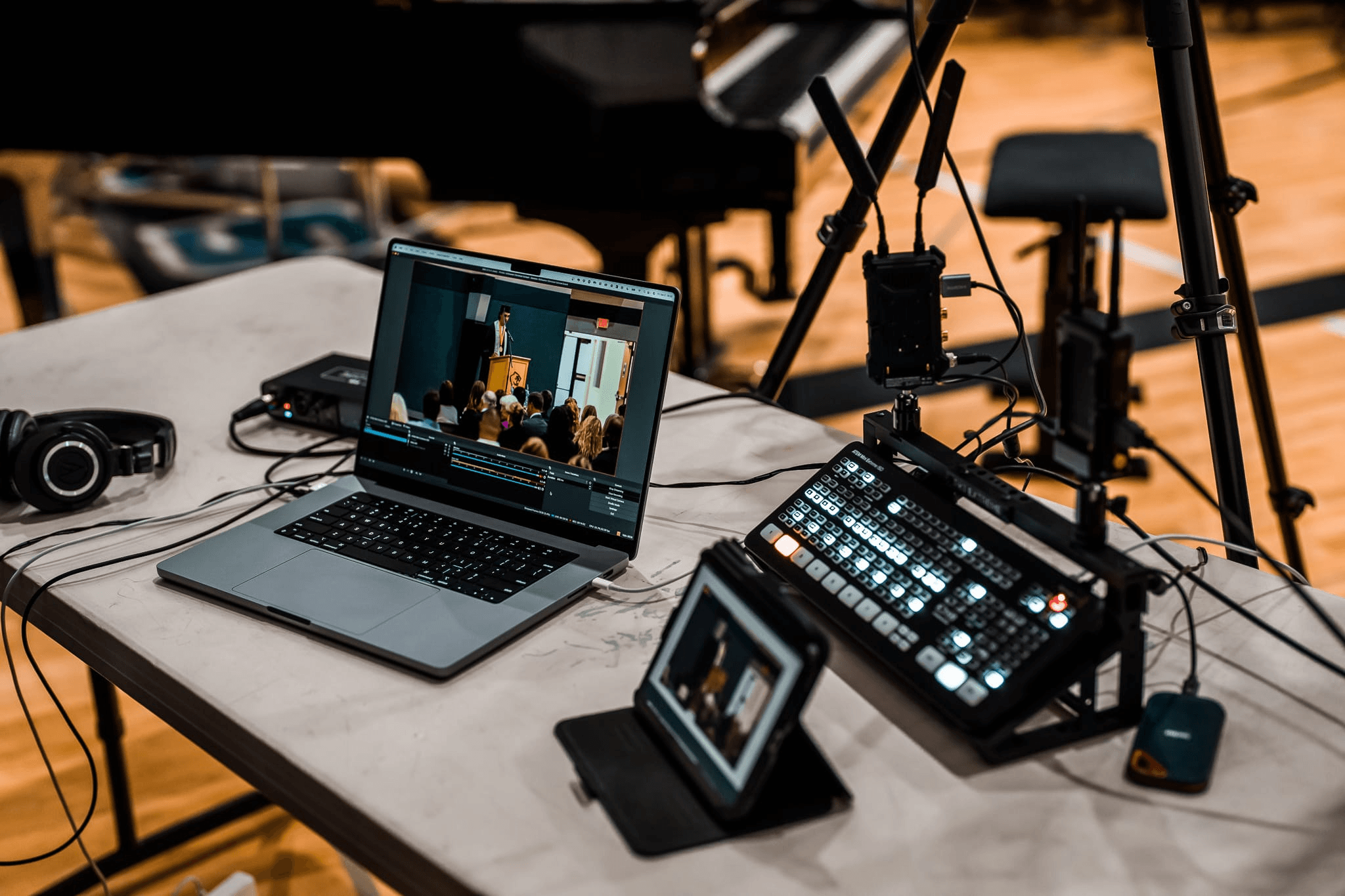
Facebook Live is still useful for creators, churches, coaches, sellers, educators, and small businesses that already have an audience on Facebook. The tricky part is choosing the right tool. Some users need a simple browser studio, while others need full scene control, guest interviews, overlays, or multistreaming. This guide compares the best streaming software for Facebook so you can choose based on how you actually go live.
Best Streaming Software for Facebook Live Comparison
The right Facebook Live software depends on your format. A solo creator may only need a clean browser studio, while a gaming streamer or event team may need scenes, overlays, multiple sources, and stronger production control.
| Software | Best Use | Platform | Facebook Setup | Guests / Multistream | Price (Only for reference) |
|---|---|---|---|---|---|
| StreamYard | Interviews, webinars, simple branded shows | Browser | Native Facebook destination | Guests and paid multistreaming | $0 / from $45 |
| OBS Studio | Full free control for scenes and sources | Windows, macOS, Linux | Stream key or service connection | Needs plugins or external tools | $0 |
| Streamlabs Desktop | Creators who want alerts and overlays fast | Windows, macOS | Facebook login integration | Strong creator widgets | $0/ from $27 |
| XSplit Broadcaster | Windows creators who want guided production | Windows | Facebook output or custom RTMP | Premium unlocks more production features | $0 / from $15 |
| Restream | Streaming to Facebook plus other platforms | Browser and encoder workflow | Facebook Page requires paid plan | Built for multistreaming | $0 / from $19 |
| Riverside | Podcasts, interviews, and recorded live shows | Browser | Social livestream destinations | Guests, recording, repurposing tools | $0 / from $35 |
6 Best Streaming Software for Facebook Live
These tools all serve different types of Facebook Live creators. Choose based on your format first, then compare control, guest access, multistreaming, and budget.
Best for Browser-Based Facebook Shows: StreamYard
StreamYard is a strong pick if you want to go live on Facebook without installing desktop software. It works well for interviews, webinars, panel talks, coaching sessions, churches, and business livestreams where guests need to join from a link.
Price: $0 / from $45.
Key Features:
- Browser-based studio, so hosts and guests do not need a complex local setup.
- Native Facebook destination support for Pages, Profiles, and live events depending on account eligibility.
- Guest-friendly workflow for interviews, panels, and remote presenters.
- Branding tools such as overlays, logos, backgrounds, and lower thirds on paid plans.
- Multistreaming support on paid plans when you want Facebook plus YouTube or LinkedIn.
Note: The free plan is useful for testing, but branded shows and broader multistreaming usually need a paid plan.
Best Free Streaming Software for Facebook Live: OBS Studio
OBS Studio is the best fit when you want full control without paying for software. It is especially useful for screen sharing, gaming, church services, product demos, music sessions, and multi-source scenes.
Price: $0.
Key Features:
- Free and open-source software for live streaming and recording.
- Supports Windows, macOS, and Linux.
- Scene-based production with cameras, screen capture, media, browser sources, images, and text.
- Audio mixer with filters such as noise suppression, gain, and noise gate.
- Plugin support for creators who want to expand workflows over time.
Note: OBS gives you the most flexibility, but beginners need time to learn scenes, sources, audio routing, and Facebook stream-key setup.
Best for Alerts and Creator Overlays: Streamlabs Desktop
Streamlabs Desktop is useful for creators who want a faster path to overlays, alerts, widgets, and a polished stream layout. It is a practical option for Facebook Gaming, creator livestreams, Q&A shows, and community streams.
Price: $0/ from $27.
Key Features:
- Desktop streaming app for Windows and macOS.
- Facebook login workflow for connecting a Facebook destination.
- Built-in overlays, alerts, widgets, and chat tools for creator-style streams.
- Automatic setup help for stream settings based on your computer and connection.
- Useful for creators who want OBS-style streaming with more ready-made design tools.
Note: It can feel heavier than OBS Studio on some computers, especially when using animated overlays and multiple widgets.
Best for Windows Production Control: XSplit Broadcaster
XSplit Broadcaster is a good choice for Windows users who want a more guided production interface than OBS. It works for presentations, gaming, branded streams, and creators who prefer built-in setup flows.
Price: $0 / from $15.
Key Features:
- Built-in support for Facebook Live and custom RTMP workflows.
- Scene and source controls for cameras, media, games, text, web content, and presentations.
- Free plan for basic streaming, with premium features for higher-resolution and commercial use.
- Useful preview and production controls for switching between scenes.
- Facebook output setup supports direct login or manual stream-key methods.
Note: XSplit is strongest on Windows. Mac and Linux users should look at OBS, StreamYard, Restream, or Riverside instead.
Best for Multistreaming From Facebook to More Platforms: Restream
Restream is built for creators and teams that want Facebook Live to be one destination in a larger distribution plan. It is helpful when you need Facebook, YouTube, LinkedIn, Twitch, or custom destinations from one workflow.
Price: $0 / from $19.
Key Features:
- Multistreaming workflow for broadcasting to multiple platforms from one stream.
- Browser Studio Plus support for third-party software such as OBS.
- Cross-platform chat and analytics for managing multiple audiences.
- Facebook Page streaming support on paid plans.
- Useful for brands, events, educators, and creators who want broader reach than Facebook alone.
Note: The free plan can stream to Facebook, but Facebook Page destinations may be subject to platform or plan limits. If Page streaming is your main need, confirm the current plan requirements before building your workflow around Restream.
Best for Interviews and Repurposed Content: Riverside
Riverside is a strong option when the live stream is only part of the content plan. It works well for podcasts, expert interviews, webinars, and brand shows where you also want clean recordings and clips after the Facebook Live ends.
Price: $0 / from $39.
Key Features:
- Browser-based live studio for guests and hosts.
- Facebook, YouTube, LinkedIn, and other livestream destination support on live-focused plans.
- Separate recording and editing features for turning a live show into reusable content.
- Guest-friendly interface for interviews, podcasts, and remote conversations.
- Repurposing tools for clips, transcripts, and post-show editing.
Note: Riverside is more than basic streaming software, so it makes the most sense if recording quality and post-production matter.
Bonus: Upgrade Your Facebook Live Production Setup - OBSBOT Talent
Software controls the broadcast, but your stream still depends on what viewers see and hear. If you run Facebook Live shows with multiple cameras, presentations, interviews, product demos, or event coverage, a computer-only setup can become messy fast.
OBSBOT Talent is a practical fit when you want an all-in-one live production studio for switching, monitoring, recording, and streaming without building every layer inside desktop software.
Why It Fits Facebook Live Production:
- All-in-one control: Combines switching, monitoring, recording, and streaming control in one production device.
- Multi-source workflow: Useful for camera feeds, slides, media playback, and live presentation setups.
- Touchscreen operation: Helps solo creators and small teams manage live scenes without juggling several windows.
- Event-friendly setup: Works well for churches, small businesses, live podcasts, education, and product demos.
- OBSBOT ecosystem fit: Pairs naturally with OBSBOT cameras when you want a more complete live production workflow.
How to Choose Facebook Live Streaming Software
Start with your live format, then choose the tool that removes the most friction. The best Facebook live streaming software is not always the one with the most features.
Choose Browser-Based Software for Guests
If you host interviews, coaching calls, webinars, or panel discussions, a browser studio is usually easier. StreamYard, Riverside, and Restream let guests join with less setup than desktop encoder software.
Choose Desktop Software for Scene Control
If you need cameras, screen capture, overlays, media sources, alerts, or gaming capture, desktop tools give you more control. OBS Studio, Streamlabs Desktop, and XSplit Broadcaster are better for hands-on production.
Check Facebook Destination Support
Some tools can stream to Facebook Profiles, Pages, Groups, or Events, but access depends on Facebook permissions and platform rules. Before paying, confirm that the exact destination you need is supported.
Look at Guest, Recording, and Repurposing Needs
If you only go live once and move on, basic streaming is enough. If you turn livestreams into podcasts, clips, courses, or sales content, choose software with stronger recording and editing support.
Compare Free Limits Before Choosing Free Software
Free streaming software for Facebook Live can be enough for beginners, but free plans often limit branding, resolution, guest count, storage, or multistreaming. Free is best when it helps you test the workflow, not when it blocks the show you actually want to run.
How to Use Streaming Software for Facebook Live
The basic workflow is similar across most tools: prepare your Facebook destination, connect your software, test audio and video, then go live from the software or Facebook Live Producer.
- Check your Facebook account or Page eligibility. Some Facebook Live destinations require account age, followers, and access permissions.
- Choose your software. Use browser software for guest shows or desktop software for full scene control.
- Connect Facebook. Sign in with Facebook when the software supports it, or copy your Facebook stream URL and stream key into the encoder.
- Set your video and audio sources. Add your camera, microphone, screen share, overlays, videos, and graphics.
- Use safe stream settings. For most Facebook Live streams, 1080p or 720p, H.264 video, AAC audio, and a stable upload connection are the practical starting point.
- Run a private test. Check framing, sound level, captions, graphics, and internet stability before promoting the stream.
- Go live and monitor comments. Keep the software dashboard open so you can watch audio levels, stream status, and audience engagement.
FAQs About Streaming Software for Facebook
What do I need to stream on Facebook?
You need an eligible Facebook account or Page, a stable internet connection, a camera or screen source, a microphone, and either browser-based streaming software or encoder software. For better quality, use a dedicated camera, external mic, and wired internet when possible.
How to use streaming software for Facebook Live?
Open Facebook Live Producer or connect Facebook inside your streaming software. Add your video and audio sources, set your title and destination, test your stream privately, then start the broadcast from the software.
How do I stream to Facebook?
You can go live directly from Facebook, use a browser studio such as StreamYard or Riverside, or connect an encoder such as OBS Studio, Streamlabs Desktop, or XSplit. If you use an encoder, Facebook provides a server URL and stream key.
Is Facebook streaming still a thing?
Yes, especially for creators and organizations that already have active Facebook communities. It works well for local businesses, churches, coaches, events, classes, live selling, and community updates.
What is the best free streaming software for Facebook Live?
OBS Studio is the strongest free option for full production control. Streamlabs Desktop is also free and easier for creators who want alerts and overlays. Browser tools may offer free plans, but branding, guest, storage, or multistreaming limits can apply.
Conclusion
The best streaming software for Facebook depends on how you go live. Use StreamYard or Riverside for guest-friendly browser shows, OBS Studio for free production control, Streamlabs for creator overlays, XSplit for Windows-based production, and Restream when Facebook is one part of a multistream strategy.