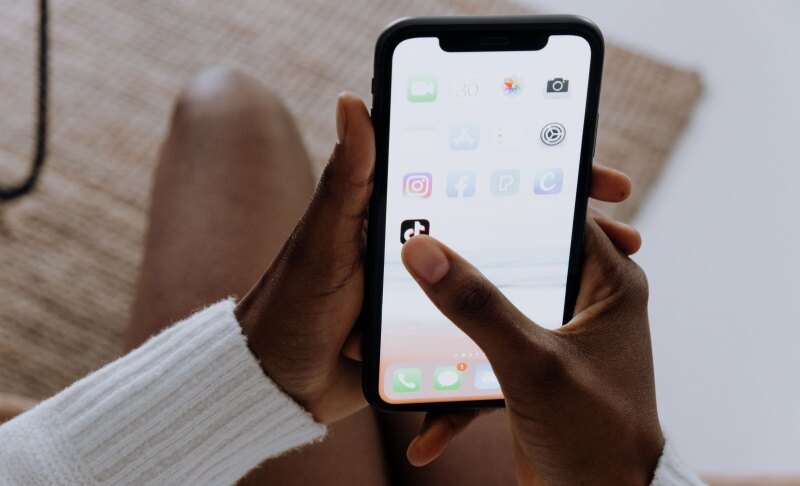
How to Download TikTok Videos on Any Device

To download TikTok videos, open a video, tap Share, and choose Save video when the creator allows downloads. You can also check TikTok's website for a desktop download option, use a browser-based downloader, or save your own content before publishing. This guide explains how to download TikTok videos using each method, where to find the files, and what to do when downloading fails.
Part 1: How to Download TikTok Videos
Method 1: Download Videos Through the TikTok App
Best for: Saving downloadable videos directly to an iPhone or Android phone.
If you're wondering how to save videos on TikTok, start with the built-in download feature. It requires no extra software, and the process is similar on both mobile platforms.
- Open TikTok and find the video you want.
- Tap the Share arrow on the side.
- Select Save video from the sharing menu.
- Allow photo or media access if prompted.
- Wait for saving to finish, then check your Photos or Gallery app.
TikTok confirms that this feature depends on the creator's download settings. If Save video is missing, the creator does not allow downloading through this feature.
After saving, open the file and check that the full clip plays. This is useful before relying on it for offline viewing during travel or somewhere with poor reception.
Method 2: Download Videos Through TikTok's Website
Best for: Saving an available video directly to a PC or Mac.
You can check for a download option in your desktop browser without installing TikTok. The website method works when the relevant option is available:
- Visit TikTok in your browser.
- Open the individual video you want to save.
- Right-click the video, or Control-click on a Mac.
- Choose Download video if it appears.
- Select a folder if prompted and confirm.
Desktop guides document this right-click method, although the available controls can vary. Do not assume every video will display a download option.
If you searched for how to download TikTok on PC because you wanted to save a clip, installing the app is unnecessary for this browser method. Downloading the TikTok application and downloading a video are separate tasks.
When desktop saving is unavailable, use Method 1 for an eligible video and transfer the file through cloud storage, a USB cable, or your preferred device-sharing feature.
Method 3: Download Videos Using an Online Downloader
Best for: Browser-based downloads of content you own or have permission to save.
Online downloaders accept a video link and provide a downloadable file. For example, SSSTik describes a copy-and-paste workflow and advertises MP4 downloads without a watermark. These are the service's stated features; results depend on the particular video and service availability.
Here is the typical process:
- Open the TikTok video.
- Tap Share → Copy link. On a computer, copy the individual video's URL from the address bar.
- Open the downloader in your browser.
- Paste the link into its input field.
- Click its processing or download button.
- Choose MP4 or a video option rather than an audio-only file.
- Save the file and check your browser's download history.
That second step also answers how to copy Tik Tok video link: use the sharing menu inside the app, or the video page's address on desktop.
Do not enter your TikTok password into a downloader. Avoid unrelated installation prompts and check that you select the actual video download button.
If your goal is how to download TikTok videos without watermark, this method may offer that option. However, removing a watermark does not provide permission to republish someone else's content, and a downloader cannot improve detail missing from the uploaded video.
Method 4: Save Your Own Video Before Publishing
Best for: Keeping a local backup of content you create.
Save your own work before posting so you have a copy available for editing, archiving, or sharing elsewhere.
TikTok provides these options:
- On the Post screen, open More options and enable Save to device.
- While editing, look for Save in the side panel to download the post.
For an already published video, open your profile, select the post, and check its sharing or options menu for Save video.
Keep your original recording or editing export whenever possible. It gives you a separate backup without depending on TikTok's current export behavior. Before deleting any project or draft, open your saved copy and confirm its picture, sound, and duration.
Bonus: Best Camera for TikTok Videos - OBSBOT Tail Air Streaming Camera
Creating your own TikTok videos? Start with clear, detailed footage before saving or sharing it. OBSBOT Tail Air is a versatile camera for tutorials, product demonstrations, and talking-head videos. Its 4K recording gives you flexibility to crop for TikTok's vertical format, while its low-light capabilities support indoor shoots and evening content creation.
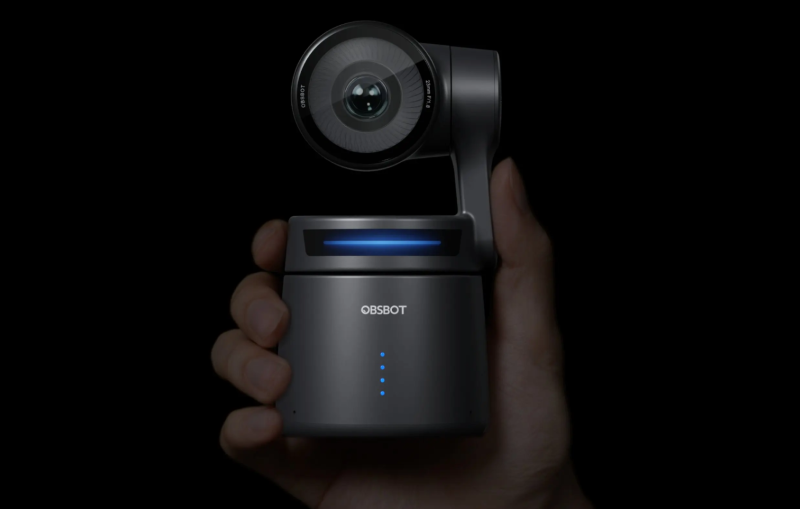
Key Features:
- Detailed 4K Video: Record at up to 4K at 30fps to capture facial expressions, product textures, and other details. For smoother movement, choose 1080p at 60fps.
- Flexible Vertical Editing: Capture in 4K with your subject near the center, then crop the footage to a 9:16 frame in your editor. This workflow lets you create TikTok-ready vertical videos from landscape recordings.
- Low-Light Performance: A 1/1.8-inch CMOS sensor and f/1.8 aperture help capture clearer footage in dim indoor settings, giving you more flexibility when filming beyond bright daylight.
- AI Auto Tracking: Keep the camera following your movement during demonstrations or presentations, making solo recording easier without someone operating the camera.
Part 2: Where to Find Downloaded TikTok Videos
Downloaded files usually appear in Photos, Gallery, or your browser's Downloads folder, depending on the method you used.
| Device or method | Where to check |
|---|---|
| TikTok app on iPhone | Photos → Recently Saved or Recents |
| TikTok app on Android | Google Photos or Gallery → recent videos or device folders |
| Browser on PC or Mac | Downloads folder or browser download history |
| Browser on a phone | Files or file manager → Downloads |
Folder names vary by operating system, manufacturer, and your chosen download settings. A browser download on your phone may stay in Files rather than appear automatically in Photos.
If a file is missing, open the browser's download list first. Check whether the transfer finished, then use its folder or file-opening control.
Also, Favorites and downloads are different. Adding a post to Favorites bookmarks it inside TikTok; it does not create an offline video file. To save a video on TikTok for viewing without internet access, confirm that a playable copy exists on your device.
Part 3: Why Can't You Download TikTok Videos?
A missing save button generally indicates a download restriction; a failed transfer calls for device or connection checks. Identify which problem you have before changing settings.
| Problem | What to do |
|---|---|
| Save video is missing | Ask the creator for a copy or keep the post's link. |
| Saving starts but fails | Check internet access and available storage, then retry. |
| TikTok cannot save to your photo library | Review its photo or media permissions in device settings. |
| Several eligible videos fail to download | Restart TikTok, update the app, and test another video. |
| Desktop download controls are unavailable | Try the mobile app for an eligible post. |
| The post is private, deleted, or unavailable | Request access or a copy from its creator. |
When troubleshooting how to save video from TikTok, try another downloadable post. If that works, the issue is more likely specific to the original video.
Repeatedly tapping Download can create duplicate files. Check your saved videos and browser history before trying again. Third-party services should not be treated as guaranteed solutions for private or unavailable posts.
Part 4: FAQs About Downloading TikTok Videos
1. How Do You Save a TikTok Video to Your Phone?
Open the video, tap Share, and select Save video. If you're asking how do you save a TikTok, this is the quickest starting point. Check Photos or Gallery afterward; if the save option is absent, use the troubleshooting section above.
2. Can You Download TikTok Videos Without a Watermark?
Some online downloaders offer watermark-free files, while retaining your own original export avoids needing watermark removal. Use Method 3 for permitted content, and check the downloaded result. Cropping a watermarked file can remove part of the picture, so it is a poor substitute for obtaining a clean source file.
3. Does TikTok Notify Creators When You Download Their Videos?
TikTok does not send creators an individual notification identifying you when you download their video. This differs from other interactions that may generate notifications, such as likes or comments.
4. Can You Download TikTok Videos Without an Account?
Some public videos can be downloaded through browser-based services without a TikTok account. SSSTik states that its downloader accepts public video links without an account, but does not support private-account content. Access may still vary by video and region.
5. Can You Download Multiple TikTok Videos at Once?
The standard in-app saving process handles individual posts. An account-data request is a separate feature: TikTok describes exports containing information such as watch history, comments, and privacy settings. Do not assume that export supplies every video as a playable file.
Conclusion
The easiest way to download a TikTok video is through Share → Save video in the mobile app. Now that you know how to download TikTok videos, choose the method that fits your device and check the saved file before relying on it offline. For your own content, retain the original export; for another creator's video, obtain permission before republishing or adapting it.