How to Do Split Screen on TikTok
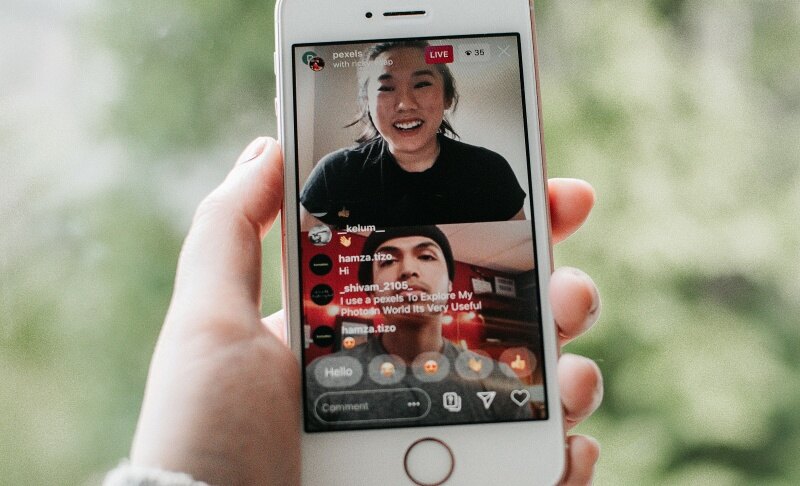
How to do split screen on TikTok depends on the video you want, because TikTok has no single “split screen” button. You can use the built-in Split effect, a Duet, a video editor, or LIVE Multi-Guest. This guide explains each method step by step, including how to do a split screen video on TikTok that combines two different clips.
Which Method Is Right for You?
Pick the Split effect for one clip repeated in frames, Duet to pair with another creator, an editor for different clips, and LIVE for real-time guests.
| Method | Best for | Frames | Different clips? | Extra app? |
|---|---|---|---|---|
| Split effect | Repeating one clip in a grid | Up to 9* | No | No |
| Duet | Reacting to or pairing with a video | 2 | Yes (yours + theirs) | No |
| Video editor | Full control over layout | Any | Yes | Yes |
| LIVE Multi-Guest | Streaming with guests | Varies | Yes (live feeds) | No |
Note: Frame counts vary by effect and app version.
Method 1: Split Screen on TikTok With the Built-In Split Effect
The Split effect is the fastest way to make a split screen video on TikTok, but it duplicates the same clip across every frame. It cannot put two different videos together.
Step 1: Tap + and record a new video or upload one from your gallery.
Step 2: Tap Effects and search for "Split" (or browse the Trending and Visual tabs).
Step 3: Choose a layout, such as 2, 3, 4, 6 or 9 frames.
Step 4: Press and hold the effect while recording or previewing to apply it.
Step 5: Tap Next, add a caption and hashtags, then post.
Limitations to Know
- The same clip repeats in every frame.
- Available layouts depend on your region and app version.
- Mirrored or time-delayed layouts make the repetition look deliberate.
Method 2: Split-Screen Duet on TikTok
A Duet places your video next to someone else's, which makes it the best choice for reactions, collabs and "me vs. me" clips.
Step 1: Open the video you want to pair with.
Step 2: Tap Share, then Duet.
Step 3: Pick a layout (side-by-side, top/bottom or react).
Step 4: Record your part, then trim, adjust the audio and post.
Duet Requirements
The original creator must allow Duets. To turn Duets on for your own videos, go to Settings and privacy → Privacy → Duet and choose who can use your content. If the option is greyed out, the creator has disabled it.
Duet With Yourself
Post a video first, then Duet your own clip. This is the usual trick for a two-version split screen, such as before and after, or two characters played by one person.
Method 3: Split Screen Video on TikTok Using an Editor
Use an editor when you want two or more different clips, custom layouts, or better quality than the native tools give you. This is the most flexible way to create a split screen video on TikTok with unrelated footage.
Step-by-Step (CapCut Example)
Step 1: Import both clips into a new project.
Step 2: Add the second clip as an overlay (picture-in-picture), or choose a layout or collage option.
Step 3: Resize and position each clip: top and bottom, or left and right.
Step 4: Match the clip lengths and mute one audio track if needed.
Step 5: Export in 9:16 vertical at 1080p, then upload to TikTok.
InShot, VN and most desktop editors work the same way: overlay one clip on another, then resize.
Using a TikTok Split Screen Template
A TikTok split screen template saves time because the layout, timing and transitions are already built. In CapCut, open the Templates tab, search "split screen" and pick one you like. Tap Use template, then swap in your own clips and export. Templates are ideal for trends and quick edits.
Tips for a Clean Result
- Add a thin divider line between frames.
- Keep captions and key action away from the edges, where TikTok's buttons and text sit.
- Use one audio track so the video does not sound messy.
Method 4: How to Split Screen on TikTok LIVE
On TikTok LIVE, split screen works through Multi-Guest, which places your feed and your guests' feeds on screen together.
Requirements
- Your account needs LIVE access, which depends on age and follower thresholds in your region.
- Multi-Guest is not available to every account or country.
Step 1: Tap +, choose LIVE, and go live on TikTok.
Step 2: Tap the Multi-Guest (or Guests) icon.
Step 3: Invite viewers or accept their join requests.
Step 4: Choose a layout if offered, and manage guests (mute or remove) as needed.
To join someone else's LIVE, tap the join or request button and wait for the host to accept.
LIVE tip: split-screen LIVE uses more battery and bandwidth, so use stable Wi-Fi, steady lighting and keep your phone charging.
Bonus: Best Video Camera for TikTok Recording - OBSBOT Tail Air Streaming Camera
If you plan to record clips for a split screen video on TikTok regularly, a dedicated camera gives you sharper footage and hands-free framing than a phone propped on a shelf. The OBSBOT Tail Air is a compact AI-powered 4K PTZ camera that suits solo creators.
Key Features:
- 4K@30fps / 1080p@60fps: Detailed footage that still looks sharp after cropping into split-screen frames.
- AI Tracking (human, animal, object): Keeps you or your pet in frame while you move, with no one behind the camera.
- Gesture Control 2.0: Start or stop recording and zoom with hand gestures.
- Strong low-light performance: The large aperture and pixel size let the camera capture brighter, cleaner video, so your footage stays clear even in dim rooms.
- AI Director Grids: Splits the image into grids in real time, so you can switch views quickly during a live stream
How to Remove Split Screen on TikTok
How to remove split screen on TikTok depends on where the split came from.
- While editing: go back to the Effects screen and tap the undo option or the "no effect" icon to remove the Split effect before posting.
- After posting: TikTok does not let you edit effects on a published video. Delete the video and repost a version without the split, ideally from a saved draft.
- Duet you no longer want: delete your Duet video, or ask the original creator to adjust their settings.
- Stopping others from using your content: go to Settings and privacy → Privacy → Duet and set it to Only me.
- LIVE: the host can remove a guest from the Multi-Guest panel, which returns the stream to a single full screen.
FAQs About How to Do Split Screen on TikTok
1. Why can't I find the split-screen effect on TikTok?
Effect availability varies by app version, region and account. Update TikTok, search "Split" in Effects, or switch to a Duet or an editor if it still does not appear.
2. Can I put two different videos on one screen?
Not with the native Split effect, which repeats one clip. Use a Duet for two creators or an editor for two different clips.
3. How many splits can I make on TikTok?
Duets show 2 frames, while the Split effect offers up to 9 on some versions. Editors let you create as many as you like.
4. Do I need to enable Duet to make a split screen?
Only for Duet-based splits, and it is the original creator's setting that matters. The Split effect and editor methods do not need Duet.
5. Does split screen work the same on iPhone, Android and iPad?
Mostly yes, but menu names, effect lists and LIVE features can differ slightly. Update the app first if something looks missing.
6. Can I make a split screen video from my computer?
Yes, edit in a desktop editor, export in 9:16 and upload the file to TikTok.
Conclusion
The simplest way to learn how to do split screen on TikTok is to match the method to your goal. Use the Split effect for one clip repeated in frames, a Duet for reactions and collabs, an editor or a TikTok split screen template for different clips, and Multi-Guest for LIVE. If you are new, start with the Split effect, then move to an editor when you want more control. Now that you know how to do split screen on TikTok, pick a method and post your first split-screen video today.