How to Split Screen on TikTok: Step-by-Step Guide
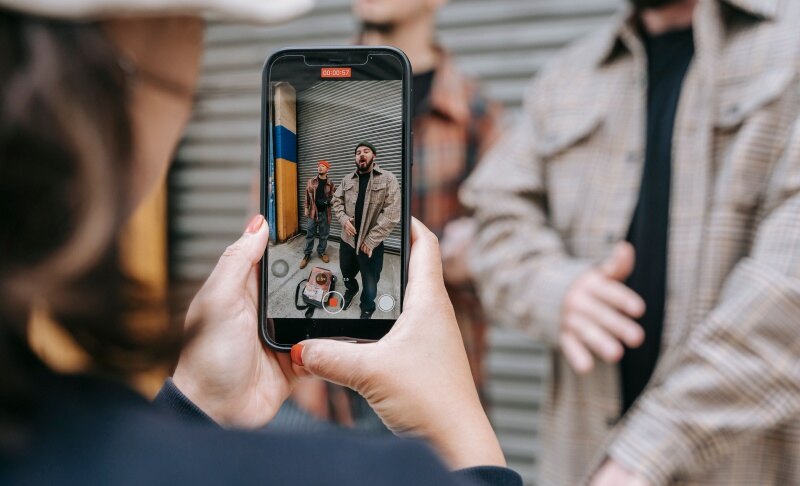
If you want to know how to split screen on TikTok, you have several options depending on what you want to create. You can use Duet to place your video alongside another TikTok, use an available split-screen effect for a multi-frame look, or use a third-party editor to combine your own pre-recorded clips. This guide covers each method, plus split-screen options for TikTok LIVE.
Method 1: Use TikTok Duet for a Side-by-Side Video
Duet is TikTok's built-in option for placing your video alongside another creator's TikTok. It's useful for reactions, collaborations, responses, and other videos where you want the original post and your recording to appear together.
Step 1: Open TikTok and find the video you want to use.
Step 2: Tap the Share icon and look for Duet in the available options.
Step 3: Choose an available Duet layout that matches how you want the two videos to appear.
Step 4: Record your part of the video. Depending on the available layout and editing options, you may be able to adjust how your video is positioned.
Step 5: Review the result, add captions, sounds, or other edits, and post your video.
What If the Duet Option Is Missing?
The Duet option is not available for every TikTok. The original creator may have disabled Duet or restricted how their content can be reused. If Duet isn't available for a specific video, you can use another video or create your own split-screen video with a video editor instead.
Method 2: Use a TikTok Split-Screen Effect
If you're wondering how to do a split screen on TikTok with your own footage, you can check TikTok's Effects for available split-screen or multi-screen effects. The exact effects and layouts can vary by account, region, app version, and device.
Step 1: Open TikTok, tap +, and record a video or upload footage from your camera roll.
Step 2: Open Effects and browse the available effects for a split-screen or multi-screen option.
Step 3: Select an effect that creates the layout you want.
Step 4: Preview the result and adjust your recording or timing as needed.
Step 5: Continue editing your video, then add captions, sounds, or other elements before posting.
This method works well when you want to create a grid or repeated-frame effect from your own footage. However, if you want to place two different pre-recorded videos side-by-side, a dedicated video editor gives you more control over the layout.
| Feature | Duet | Split-Screen Effect |
|---|---|---|
| Main purpose | Combine your video with another TikTok | Create a multi-screen effect from your footage |
| Source footage | Another TikTok video + your recording | Your own recording or uploaded footage |
| Best for | Reactions and collaborations | Multi-frame and creative video effects |
Method 3: Combine Two Videos With a Third-Party Editor
If TikTok's built-in tools don't provide the layout you need, a third-party video editor can give you more control over how two pre-recorded clips appear together. This is useful when you want to create a true side-by-side video using your own footage.
You can use an editor such as CapCut, Filmora, or InShot, depending on the tools and layout options you need.
Step 1: Open your video editor and import both videos.
Step 2: Place the first video on the main timeline or canvas.
Step 3: Add the second video as an overlay or additional video layer.
Step 4: Resize and reposition the clips so they appear side-by-side or in another split layout.
Step 5: Adjust the timing, cropping, and framing of each clip as needed.
Step 6: Export the finished video and upload it to TikTok as a regular post.
This approach gives you more control over the position, aspect ratio, timing, and number of clips than a fixed TikTok effect. It's particularly useful when you need to combine two or more videos that were recorded separately.
Bonus: Use OBSBOT Tail Air Streaming Camera for TikTok Content
If you're creating TikTok split-screen videos, reaction content, tutorials, or LIVE streams, a multi-camera setup can give you more flexibility to capture different angles and create more dynamic content. The OBSBOT Tail Air is designed for multi-camera workflows, making it easier to build a flexible setup for recording and live production.
Key Features:
- High-Quality 4K Video: Captures detailed footage that gives you more flexibility when cropping, reframing, or combining clips for TikTok content.
- AI Tracking: Automatically follows the selected subject to help keep you in frame while recording, even when you move around.
- Remote PTZ Control: Remotely pan, tilt, and zoom the camera to adjust framing without physically repositioning it.
- Multi-Camera Production: Use Tail Air as part of a multi-camera setup to capture different perspectives, giving you more options when creating split-screen videos or switching between angles during a live production.
- Flexible Connectivity: Connect Tail Air through USB-C, HDMI, or Ethernet to fit different recording and multi-camera workflows, whether you're creating videos or setting up a live production.
Method 4: Split Screen During TikTok LIVE
For creators asking how to do split screen video on TikTok while streaming, TikTok also supports multi-guest LIVE layouts.
Step 1: Start a TikTok LIVE session.
Step 2: Use the available guest or co-host options to invite another participant.
Step 3: Choose an available multi-guest layout or view that displays the participants together.
Step 4: Adjust the available LIVE settings and continue your stream.
The available layouts and controls can vary depending on your account, device, and whether you're using the TikTok mobile app or LIVE Studio.
FAQs About How to Split Screen on TikTok
1. Can I use Duet with a video from my camera roll?
No. Duet is designed to combine your recording with another video posted on TikTok. If you want to combine two videos from your camera roll, use TikTok's available editing tools or a third-party video editor.
2. Why can't I find the Duet option on TikTok?
The creator may have disabled Duet or restricted reuse of their content. Duet is not available for every TikTok video.
3. Why can't I find a split-screen effect on TikTok?
TikTok's available effects can vary by account, region, device, and app version. Update TikTok to the latest version and check the Effects section again.
4. Can I put two of my own videos side-by-side on TikTok?
Yes. If TikTok's built-in editing options don't provide the layout you want, use a third-party video editor to place two pre-recorded clips side-by-side, export the result, and upload it to TikTok.
5. Can I make a split-screen video with more than two clips?
Yes. The number of clips you can combine depends on the TikTok effect or video editor you use. A third-party editor generally gives you more flexibility for multi-clip layouts.
6. Does split screen work the same on iPhone, Android, and iPad?
The basic workflow is similar, but available features and the interface can vary by device, app version, and account. If a particular effect or editing option is not available, check TikTok for updates or use a video editor with the layout you need.
Conclusion
There are several ways about how to split screen on TikTok, depending on the type of video you want to create. Use Duet when you want to appear alongside another TikTok, a split-screen effect when you want a multi-frame look from your own footage, and a third-party editor when you need more control over two or more pre-recorded videos. For LIVE content, TikTok's multi-guest features can also display multiple participants together.