How to Update Zoom [2026 Guide]
Zoom has become an essential tool for remote connection: from personal chats with family to high-stakes business meetings and recordings. An updated Zoom app ensures you access the latest features and critical security patches. Furthermore, keeping your software current is the first step toward achieving professional video quality and reliable audio. In this guide, we will walk you through how to update Zoom on desktop, mobile, and browsers, ensuring your virtual presence is always at its best.
Part 1: How to Update Zoom on Desktop
Whether you use Windows or macOS, updating Zoom on your computer is straightforward. Keeping the desktop client current allows your hardware—like a high-end AI webcam—to perform at its peak video quality.
How to Update Windows 10 and Windows 11 Zoom
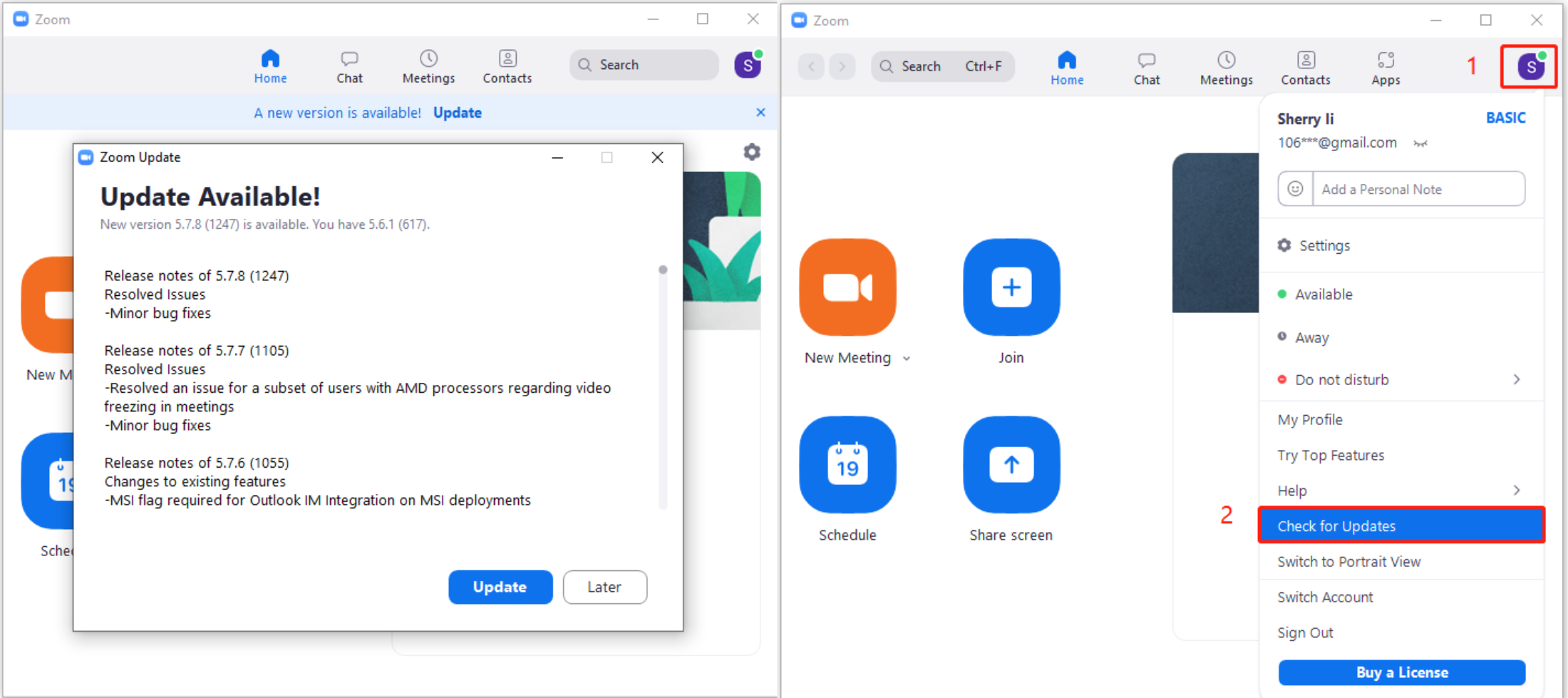
- Launch Zoom: Open the Zoom desktop application.
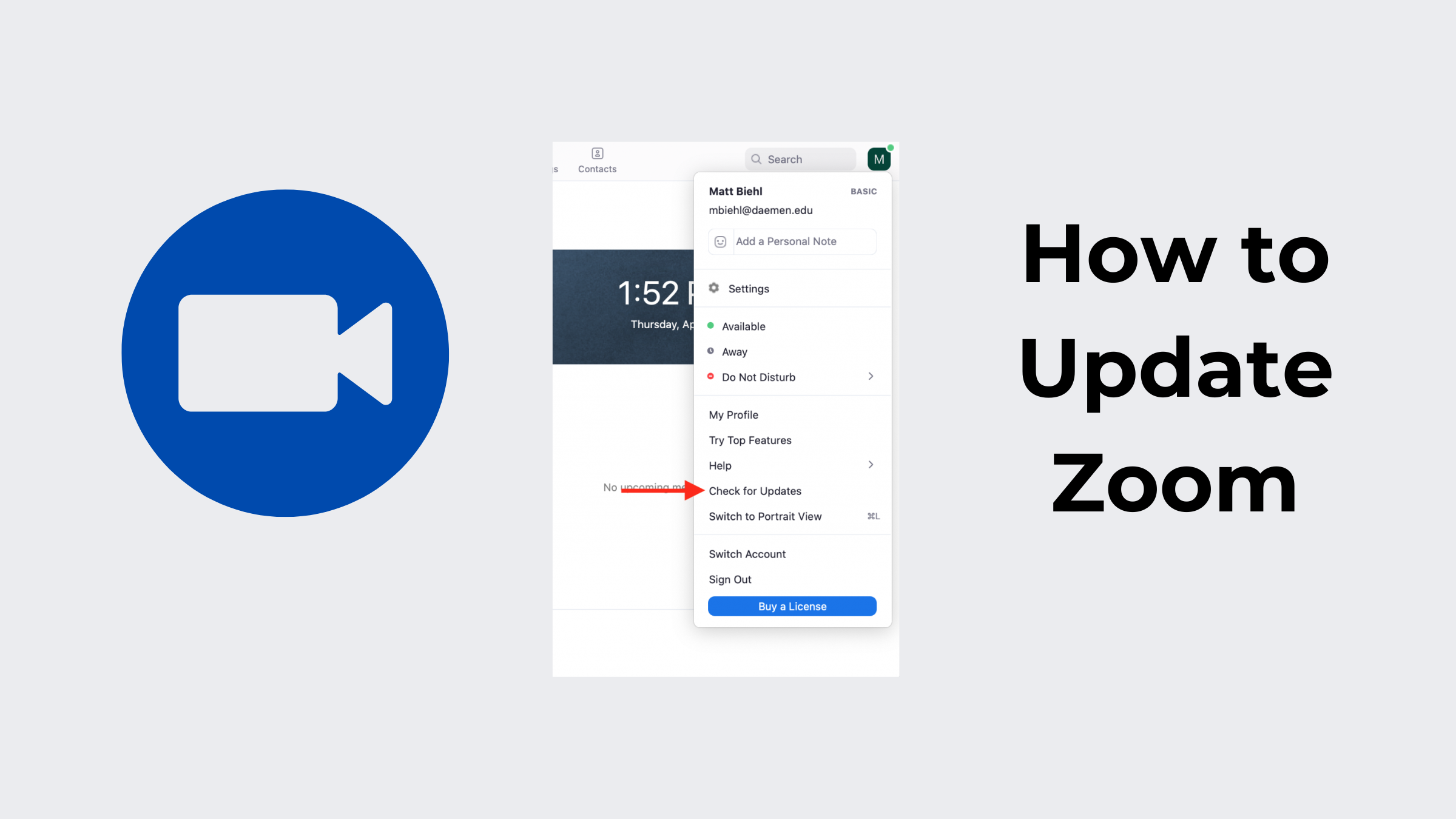
- Access the Menu: Click on your profile picture in the top-right corner.
- Check for Updates: Select "Check for Updates" from the drop-down menu. This is the quickest way to find a Zoom update.
- Install Update: If a new version is available, click "Update" to begin the installation.
How to Update Zoom on MacBook Air and macOS
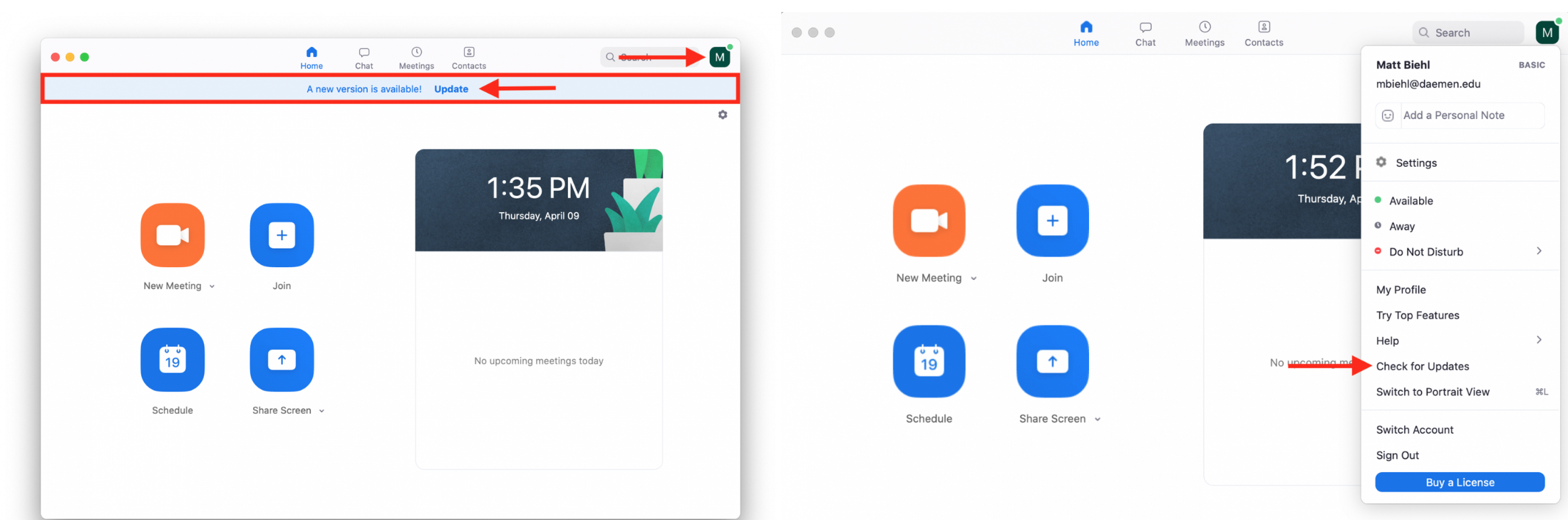
- Open Zoom: Launch the Zoom app from your Mac Applications folder.
- Click on the Profile Icon: Locate your profile photo in the top-right corner.
- Select "Check for Updates": Click this option to see if a macOS-specific patch is available.
- Install the Update: Click "Update" to ensure your Mac maintains seamless audio performance and visual clarity.
The Best Webcam for Zoom Meetings - OBSBOT Meet Flip Foldable 4K Webcam
Keeping Zoom updated ensures you get the smoothest performance, but pairing it with the right hardware is what truly elevates your video setup. If you need crisp visuals on the go or at your desk, the OBSBOT Meet Flip is designed to fit right into your workflow.
Key Features for Zoom:
- Foldable & Ultra-Portable Design: Easily flips open for instant setup on laptop screens or monitors, making it perfect for remote work and travel.
- 4K Crystal-Clear Video: Delivers sharp imaging and high dynamic range, keeping you looking professional in any lighting.
- AI Magic Notes: Elevate your productivity with AI-generated minutes across every meeting app—delivering precise transcripts and smart summaries so your key ideas are always seamlessly captured and organized.
- Smart Framing & Auto Focus: Keeps you centered and clear as you move, ensuring seamless presentation during Zoom calls
Part 2: How to Update Zoom on Mobile Devices
Updating Zoom on mobile is vital for bug fixes and mobile-exclusive audio performance enhancements. Follow these steps for your iPhone or Android device.
Update Zoom on iPhone and iPad
- Open the App Store: Tap the App Store icon.
- Search for Zoom: Use the search bar to find "Zoom Workplace."
- Tap Update: If an update is available, the button will say "Update." Tap it to begin.
How to Update Zoom on Android Devices
- Open Google Play Store: Tap the Play Store icon.
- Search for Zoom: Enter "Zoom" in the search field.
- Click "Update": Tap the update button to ensure your mobile video quality remains consistent and stable.
Part 3: How to Update Zoom via Browser
While most people use the app, the web client also requires updates to support high-definition video quality and browser-based audio performance.
- Visit Zoom.us: Open your browser and navigate to the official Zoom website.
- Log into Your Account: Access your profile to trigger version checks.
- Notification Prompt: Zoom typically notifies you via a banner if the web client needs an update for better compatibility.
- Follow On-Screen Instructions: Follow the prompts to ensure your browser-based meetings run smoothly.
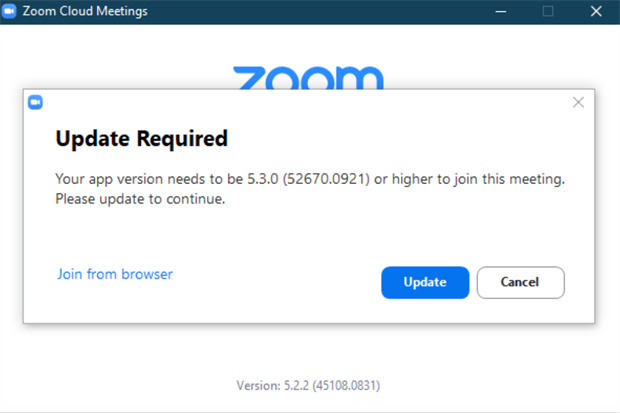
Part 4: Troubleshooting Update Issues
If you encounter issues while trying to improve your video quality through updates, try these solutions:
- Slow Download: Check your internet stability. A high-speed connection is required for downloading 4K-compatible software patches.
- Update Stuck: Force quit the application and restart your device. This often clears frozen installation states.
- Device Compatibility Error: Ensure your operating system meets the minimum requirements. Older hardware may struggle to support the latest audio performance features.
- Missing Update Option: If you can't find the "Check for Updates" button, uninstall Zoom entirely and download the latest version from the official website.
FAQs About Update Zoom
1. Why Should I Keep Zoom Updated?
Regular updates provide the newest features, security patches, and improved video quality. Modern updates often optimize how Zoom interacts with hardware like the OBSBOT Meet Flip, ensuring elite audio performance and smoother framing.
2. Is the Zoom Update Free?
Yes, all Zoom software updates are free. They are designed to improve your user experience, fix bugs, and enhance audio quality without requiring a subscription.
3. Will Updating Zoom Improve My Video Quality?
Updating Zoom helps with smoother video and bug fixes, but software alone can't fix a dark, grainy laptop camera. To get a truly clear image on your calls, upgrading your camera hardware makes all the difference. A 4K webcam like the OBSBOT Meet Flip gives you instant sharpness, great low-light performance, and smart auto-framing.
4. Does OBSBOT Meet Flip Require Zoom Updates?
While the OBSBOT Meet Flip is plug-and-play, keeping Zoom updated ensures full compatibility with its advanced AI tracking, 4K resolution, and spatial audio features for the most professional result.
Conclusion
Maintaining the latest version of Zoom across Windows, macOS, and mobile is essential for security and peak video quality. Whether you are leading a webinar or catching up with family, an updated app ensures a stable and professional connection.
Don't let outdated software hold back your hardware. Pair your freshly updated Zoom app with the OBSBOT Meet Flip to experience unrivaled 4K video quality and studio-grade audio. Upgrade your app and your gear today for the ultimate virtual presence.