6 Best Webcams for Dell Computers
 Many Dell laptop users eventually look for an external webcam for Dell computers because the built-in cameras, especially on XPS, Latitude, Inspiron, and older Precision models, often fall short of today’s video standards. While Dell machines excel in performance and build quality, their integrated cameras typically struggle with low resolution, grainy low-light performance, and awkward placement in some models. To help Dell users upgrade their video calls, remote meetings, or content creation sessions, this article reviews six of the best webcams for Dell computers that offer clearer visuals, better color, and stronger overall performance. All recommendations fall within a reasonable price range and come from reliable, well-established brands.
Part 1: Why Dell Computers Need an External Webcam?
Dell laptops are known for productivity and durability, but their built-in cameras can be a common source of frustration. From grainy resolution to unflattering angles, Dell laptop webcam issues often lead users to seek a reliable external upgrade. Here are the main reasons to consider making the switch:
Low Resolution
Multiple Dell lines, including many XPS, Latitude, and Inspiron models, still use 720p cameras, which are noticeably soft and grainy on modern platforms such as Teams, Zoom, and Google Meet.
Poor Low-Light Performance
The built-in Dell computer webcam often struggles to maintain clarity in dim rooms, producing noise, washed-out colors, or inconsistent exposure.
Limited Dynamic Range
Dell webcams often blow out highlights or lose details in shadowed areas, making lighting conditions harder to control.
‘Nose-Cam’ Placement on Older Dell XPS Models
Some older XPS 13s placed the webcam at the bottom bezel, causing unflattering, upward-facing shots.
Lack of Advanced Features
Most integrated Dell cameras do not support:
- AI tracking
- Auto-framing
- Noise-reduction algorithms
- High-frame-rate recording
- 4K or HDR
For professionals, creators, teachers, and remote workers, these limitations make an external webcam a valuable upgrade.
Part 2: 6 Best Webcams for Dell Computers
Best 4K Webcam for Dell Computer - OBSBOT Tiny 3 Lite 4K PTZ Webcam
Price: $199
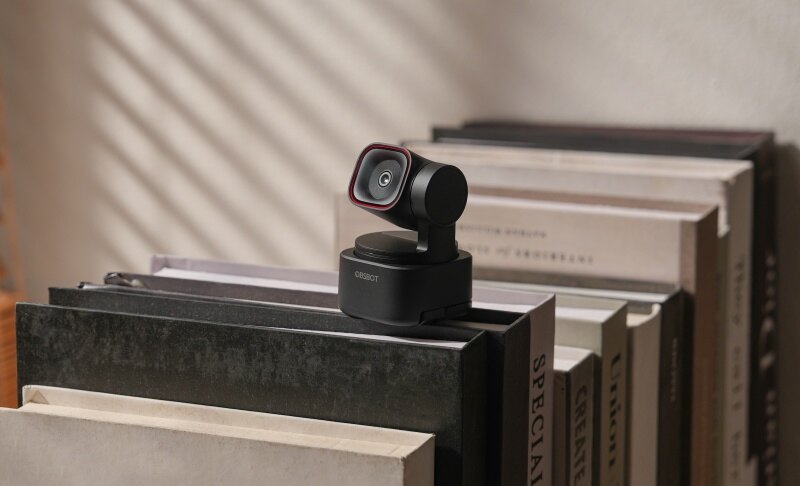
If you're using a Dell laptop or desktop and want a major upgrade from the usual soft 720p webcam quality, the OBSBOT Tiny 3 Lite is the most versatile 4k PTZ Webcam you can find. Carrying the "Tiny in size, Titan in power" philosophy, it brings professional clarity, superior low-light handling, and AI-driven intelligence that Dell’s built-in cameras simply don’t offer. Whether you're presenting on Teams, recording Zoom meetings, or collaborating via RTC remote interaction, the Tiny 3 Lite ensures you look sharp and professional.
Key Features:
- Professional 4K Clarity: 1/2" CMOS sensor delivers stunning 4K 30fps video, providing a massive leap over Dell's standard 720p output.
- AI Tracking 2.0: Advanced Smart Tracking and Perfect Framing (Human + Voice Tracking) keep you perfectly centered even if you move around your desk.
- Immersive Audio: Built-in Stereo Mic System with Voice Locater ensures clear, directional audio pickup.
- Reliable Performance: Features PDAF for fast focusing and Beauty Mode to keep you looking polished with one click.
- Smart Interaction: Effortless Voice Control and Gesture Control allow for hands-free adjustments during live sessions.
- Broad Compatibility: Seamlessly works with Stream Deck, Switch 2, and major streaming platforms on your Dell device.
Compatibility With Dell
Works smoothly with Dell XPS, Inspiron, Latitude, Precision, and Vostro systems via USB-A or USB-C. No drivers required for standard meeting apps on Windows 10/11, featuring plug-and-play simplicity.
User Reviews
- Plug-and-play on my Dell XPS — the 4K quality is immediately obvious compared to the built-in lens.
- The AI tracking is so smooth! It's the perfect 4k PTZ webcam for my home office setup.
Best Webcam for Creators & Calls - Insta360 Link

Price: $299.99
If you use a Dell laptop or desktop and want your video calls, livestreams, or content-creation sessions to look significantly sharper and more professional than your built-in webcam allows, the Insta360 Link is an excellent upgrade. It suits Dell users who move around while talking, give presentations, or record tutorials, delivering stable, high-quality video that makes you stand out during meetings, streams, or broadcasts.
Key Features:
- 4K output that greatly upgrades standard Dell webcam quality, providing sharp detail and better overall clarity.
- AI-powered gimbal tracking to keep you centered even if you move, making it useful for dynamic presentations or when speaking without holding still.
- Strong auto-focus and good low-light handling, ensuring clear visuals even in home-office or dim-light conditions where built-in webcams fall short.
- Plug-and-play USB-C (or USB-A with adapter) compatibility and works with Dell laptops/desktops without additional driver hassles.
Compatibility With Dell
The Insta360 Link connects via USB-C (or USB-A via adapter) and is compatible with Windows 10/11, making it plug-and-play on almost all Dell laptops and desktops. Its external mounting avoids the limitations of built-in Dell webcams (like poor angle or low resolution), so you get a reliable, high-quality camera regardless of your device model.
User Reviews
- The picture quality is stunning, even in low light — much sharper than my Dell’s built-in webcam.
- AI tracking works well; I don’t need to stay still during calls or presentations, and I stay centered in frame.
Best Webcam for Remote Work - Dell Pro Webcam WB5023

Price: $119.99
If you use a Dell computer for work, video calls, or remote collaboration, the WB5023 delivers a noticeable upgrade over built-in cameras. While premium options like Dell UltraSharp webcams offer top-tier 4K performance for demanding setups, the WB5023 strikes an ideal balance between crisp QHD quality and everyday affordability. For regular conferencing on Zoom or Microsoft Teams, it makes your video presence look sharp and professional without requiring a complicated setup.
Key Features:
- 2K QHD (2560 × 1440) output gives cleaner, sharper video compared to standard 720p.
- Built-in Sony STARVIS sensor with HDR and noise-reduction helps keep the image clean even in low or uneven light, useful for home offices or indoor lighting.
- AI auto-framing and digital zoom adjust framing automatically so your face stays centered, solving camera placement limitations found on some Dell laptops.
- Privacy shutter and universal USB-A connectivity make it easy to install and secure; no extra drivers needed, plug-and-play with Dell machines.
- Built-in noise-reduction microphone gives acceptable audio quality for calls, reducing the need for a separate mic if you’re starting.
Compatibility With Dell
Works out of the box with any Dell laptop or desktop (XPS, Inspiron, Latitude, Vostro, Precision, etc.) that runs Windows 10/11. Connection via USB-A ensures broad compatibility, and it requires no additional drivers. You just have to plug it in and select it as your camera in conferencing or streaming apps.
User Reviews
- Clear step up from the built-in Dell camera — much better color and sharpness even in my dim home office.
- Easy to mount on my Dell monitor and works immediately with Teams. HDR helps when the lighting isn’t great.
Best Low-Light Webcam - Razer Kiyo

If you often use your Dell laptop or desktop in dimly lit rooms, home offices, late-night sessions, or shared spaces with poor lighting, the Razer Kiyo steps up where built-in webcams fail. Its adaptive light sensor and clean video output help deliver clear, evenly exposed video even without studio lighting. For Dell users who care about appearance on calls, streams, or recordings, not just convenience, the webcam offers a reliable and noticeable boost over standard Dell webcams.
Price: $99.99
Key Features:
- The adaptive light sensor helps maintain clear, bright video even in low or uneven lighting — ideal when room lighting is less than ideal.
- 1080p at 60 fps delivers smooth, crisp motion — useful for video calls, streaming, or presentations where movement matters.
- Adjustable field-of-view and dynamic exposure handling ensure you stay well-framed and visible even if your Dell’s built-in lighting or webcam angle is poor.
- Privacy cover and robust, adjustable mounting make it practical for both monitor setups and laptop screens — good for users switching between desk and mobile workstations.
- Plug-and-play USB connection — no special drivers required on Windows, so setup is as simple as connecting to your Dell PC.
Compatibility With Dell
The Kiyo Pro works seamlessly with Dell laptops and desktops (XPS, Inspiron, Latitude, Vostro, Precision) running Windows 10 or 11. It connects via USB-A/USB-C and is recognized automatically by Windows.
User Reviews
- Handles low light far better than my Dell’s built-in webcam — now I’m clearly visible even at night.
- 1080p 60fps video looks smooth for streaming and calls; installation was straightforward, and video stays sharp even without fancy lighting.
Best Budget Webcam for Dell Computer - Logitech C920s HD Pro Webcam

Many Dell laptops ship with basic webcams that struggle in low light or deliver flat color for video calls. The C920s gives Dell users an easy, affordable upgrade: it improves color realism, delivers sharper frames, and produces a stable 1080p image that holds up well for meetings, classes, or casual streaming. It’s a reliable plug-and-play choice that makes regular calls look far more professional without needing expensive gear.
Price: $69.99
Key Features:
- Full HD 1080p video that’s a noticeable jump from most built-in 720p webcams
- Dual built-in microphones for clear voice capture, which is useful if you don’t have a separate mic
- Automatic light correction to help balance exposure in rooms with uneven lighting (a common issue on laptops)
- A privacy shutter to cover the lens when not in use adds security for those concerned with camera safety
- Universal USB-A compatibility that works out of the box on virtually all Dell laptops and desktops
Compatibility With Dell
Works seamlessly with Dell Inspiron, XPS, Latitude, Vostro, and desktop series via USB-A. You’d need no additional drivers, just plug in and start your video call or recording.
User Reviews
- Image quality is a clear upgrade over my Dell’s built-in webcam and remains consistent across different apps.
- Easy to set up, good balance of sharpness and color. Not the newest model, but still a great value for everyday calls.
Budget-Friendly & Reliable Webcam - Anker PowerConf C200

If you want to upgrade from the basic webcam on a Dell laptop or desktop, without spending too much, the Anker PowerConf C200 gives you solid performance in an affordable, compact package. It’s a good choice when you just need reliable video quality for remote work, classes, or casual streaming. The C200 improves over built-in Dell cameras in clarity and low-light handling, and its size and design make it easy to mount on a laptop screen or external monitor, ideal for everyday Dell users upgrading their setup without breaking the bank.
Price: $59.99
Key Features:
- 2K resolution, offering more detail and crispness than standard 720p or 1080p webcams commonly built into Dell laptops.
- Adjustable field of view (65°, 78°, or 95°), which is useful if you want flexibility depending on whether you’re alone, with a guest, or showing your background.
- Autofocus and good low-light performance, so video remains clear even under less-than-ideal home or office lighting, a common weakness with stock laptop webcams.
- Built-in dual microphones with noise reduction and directional/omnidirectional pickup modes.
- Built-in privacy shutter, a handy security and convenience feature often missing on older internal webcams.
Compatibility With Dell
The PowerConf C200 connects via USB and works immediately with Dell laptops and desktops running Windows (or compatible OSes). It doesn’t require special drivers — making it plug-and-play with common conferencing, streaming, or recording applications.
User Reviews
- Great 2K image for under $60 — much sharper than my Dell’s built-in camera.
- Compact, works well even in dim light, and mounting on my Dell monitor was easy. Autofocus is fast and reliable.
Part 3: FAQs About Webcams for Dell Computers
1. How do you set up a webcam on a Dell computer?
Setting up a webcam on a Dell computer is usually plug-and-play. Connect the webcam to a USB port, wait for Windows to install drivers automatically, and then open your preferred app (Zoom, Teams, OBS, etc.) and select the webcam as the video source. If the webcam has companion software, installing it can unlock features like framing, resolution control, or firmware updates.
2. Do Dell computers have a webcam?
Most Dell laptops, such as Inspiron, Latitude, and XPS, include a built-in webcam, but many models still ship with 720p cameras or unusual placements (like lower-bezel webcams in older XPS devices). Desktop towers and standalone monitors typically do not include webcams, so users need an external one.
3. Are all webcams compatible with all computers?
Most external webcams work universally with Windows as long as the computer has a USB-A or USB-C port. Compatibility issues can arise with older operating systems, restricted corporate devices, or webcams that require specific software features. For general use, including video calls, streaming, and screen recording, almost any modern USB webcam will work with a Dell system.
4. Why is my Dell computer not detecting the camera?
This can happen for several reasons:
- Faulty USB cable or port
- Driver issues
- Camera disabled in Windows Privacy
- Another app is using the webcam
- Pending Windows/Dell driver updates
Restarting, changing ports, or updating drivers usually fixes the issue.
5. What should I consider when choosing a Dell 4K webcam for my setup?
When choosing a Dell 4K webcam, consider image quality, smart features, and connectivity. A true 4K resolution with a quality sensor, such as a 1/2" CMOS sensor, ensures sharper images and better low-light performance. AI features like auto-framing, tracking, and autofocus help keep you clear and centered during calls. Also, check USB compatibility (USB-A or USB-C) and choose a webcam with a secure mount for your Dell device.
Conclusion
Upgrading to a high-quality webcam for a Dell computer is one of the easiest ways to improve your video calls, online teaching, or content creation quality. Built-in Dell cameras often struggle with low resolution and poor low-light performance, so an external Dell webcam provides clearer visuals, better color, and more reliable focus. Each recommendation in this list works seamlessly with Dell systems and offers features suited for different needs, from everyday calls to advanced AI tracking and 4K streaming.