How to Improve Camera Quality on Laptop 2026

If you’re wondering how to clear up your grainy or blurry video and how to improve camera quality on a laptop, then here is the right post for you. Begin with faster, tangible fixes before moving on to settings, and only if you still don’t like the results, consider hardware upgrades.
Way 1: Enhance Camera Quality Using Environmental & Physical Fixes
Laptop webcams have the most trouble with normal indoor lighting, so small adjustments around your desk can yield the quickest results. Those fixes are affordable and easy, and they also make your software settings work better.
Improve Lighting Conditions
- Typically, more light means less noise and better color, because the camera doesn’t have to “boost” the image as much. This boost, in fact, can lead to grainy and muddy skin tones.
- The easiest arrangement is to face a window, so the light hits your face. Don’t sit in front of a bright window, as the camera will expose for the window and you will appear in shadow.
- If you use a lamp, position it just above eye level and slightly to one side, rather than straight up underneath your chin. Mixed warm and cool light can turn your video gray, so stick to the same color for all of your lights.
- Quick test: Open your camera preview and hold the light up before you start poking around in any app settings. If you look (and feel) more radiant and the grain falls away, you are doing the right thing.
Clean the Camera Lens
- Use a dry microfiber cloth. Even a tiny smudge can make the video soft and hazy.
- If it still looks foggy, add a drop of lens cleaner or isopropyl alcohol to the cloth and wipe gently. Never spray liquid directly onto the laptop.
Adjust Camera Position and Angle
- Elevate the camera to eye level. Avoid low angles that darken your face or affect autofocus.
- Sit slightly farther away so your face doesn’t fill the frame.
Way 2: Make the Camera Better through Software and Settings Adjustment
When lighting and framing are good, settings can stop apps from forcing low quality and can clean up exposure and color. Software can enhance what the camera sees, but it cannot invent detail that was never recorded in the first place.
Check the System Camera Settings (Windows / macOS)
- On Windows 11: Go to Settings → Bluetooth & devices → Cameras and adjust brightness, contrast, or HDR.

- Ensure camera permissions: Settings → Privacy & security → Camera.
- On macOS: Make sure camera access is allowed for the app. Using the Continuity Camera can significantly improve quality.
Optimize App-Specific Camera Settings
- Zoom: Enable HD video and keep appearance filters light.

- Google Meet: Select a higher send resolution if the internet allows.

- Microsoft Teams: Ensure the app is updated and use proper angle, lighting, and resolution.

Employ Software-Boosting Tools (Within Reason)
- OBS Studio can act as a virtual camera for light color correction and mild sharpening.

- Avoid heavy filters that look unnatural or slow down your laptop.
Way 3: Enhance Your Camera Hardware for Better Results
If you’ve attempted lighting, lens cleaning, and settings, and your video still looks atrocious, well, maybe your webcam is just not very good. An external webcam is the best way to get a real leap in quality.
Why Does an External Webcam Really Make a Difference?
For the thin lid of a laptop, most laptops use a tiny sensor and a simple lens. In indoor light, it usually becomes grainy, soft focus, and a strange color.
An external webcam usually has a better sensor and lens, so it can deal with the same room lighting but with less noise. You can also position them at your eye level, something a low-angle laptop camera will never be.
Buy an External Webcam
If you’ve experimented with lighting and settings and still hate the result, an external webcam is the best way to clean up your look long term. It’s also the most straightforward method to improve laptop camera quality without having to replace your whole setup.
1080p is usually sufficient, but a quality 4K webcam stays cleaner after compression. Look for responsive autofocus, a suitable field of view, and a stand for eye-level positioning. The tripod thread is a small but useful extra feature.
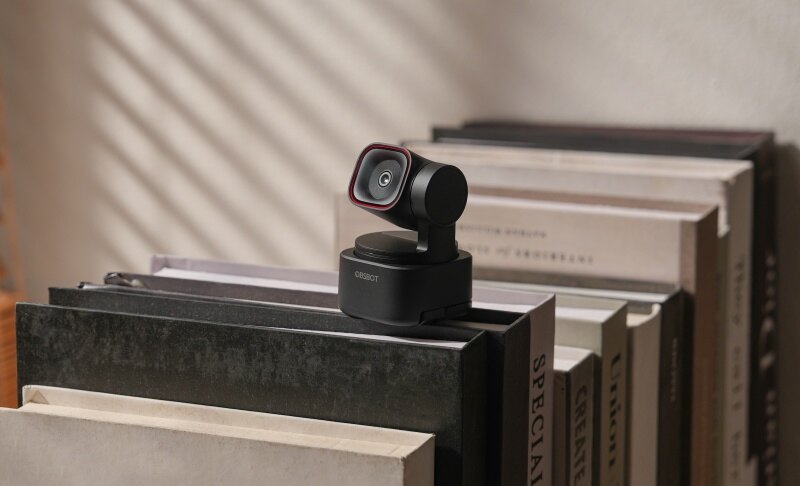
If you’re ready to take your laptop camera quality to the next level, the OBSBOT Tiny 3 is an excellent choice that brings professional-grade features right to your desk.
The OBSBOT Tiny 3 is a high-performance 4k PTZ Webcam designed to help you improve camera quality on a laptop without complex setups. As the smallest PTZ webcam in the industry, it is "Tiny in size, Titan in power," ensuring your video calls and recordings look professional and sharp.
Main Features:
- Tiny in size, Titan in power: The smallest PTZ webcam that delivers massive performance without cluttering your workspace.
- Immersive Stereo Mic System: Beyond just visuals, it features a dual-microphone setup with Voice Locater, capturing crystal-clear audio that follows your voice.
- Advanced AI Tracking 2.0: Packages Human Tracking and Voice Tracking together to ensure you are always perfectly framed and focused based on where you are and what you say.
- Superior 4K Imaging: Features a 1/1.28'' CMOS sensor supporting 4K 30fps and 1080p 120fps, significantly reducing grain compared to standard laptop cameras.
- Professional Low-light Capability: With Dual Native ISO (100~12800) and Dual All-Pixel PDAF, it maintains a clean image and instant focus in any lighting environment.
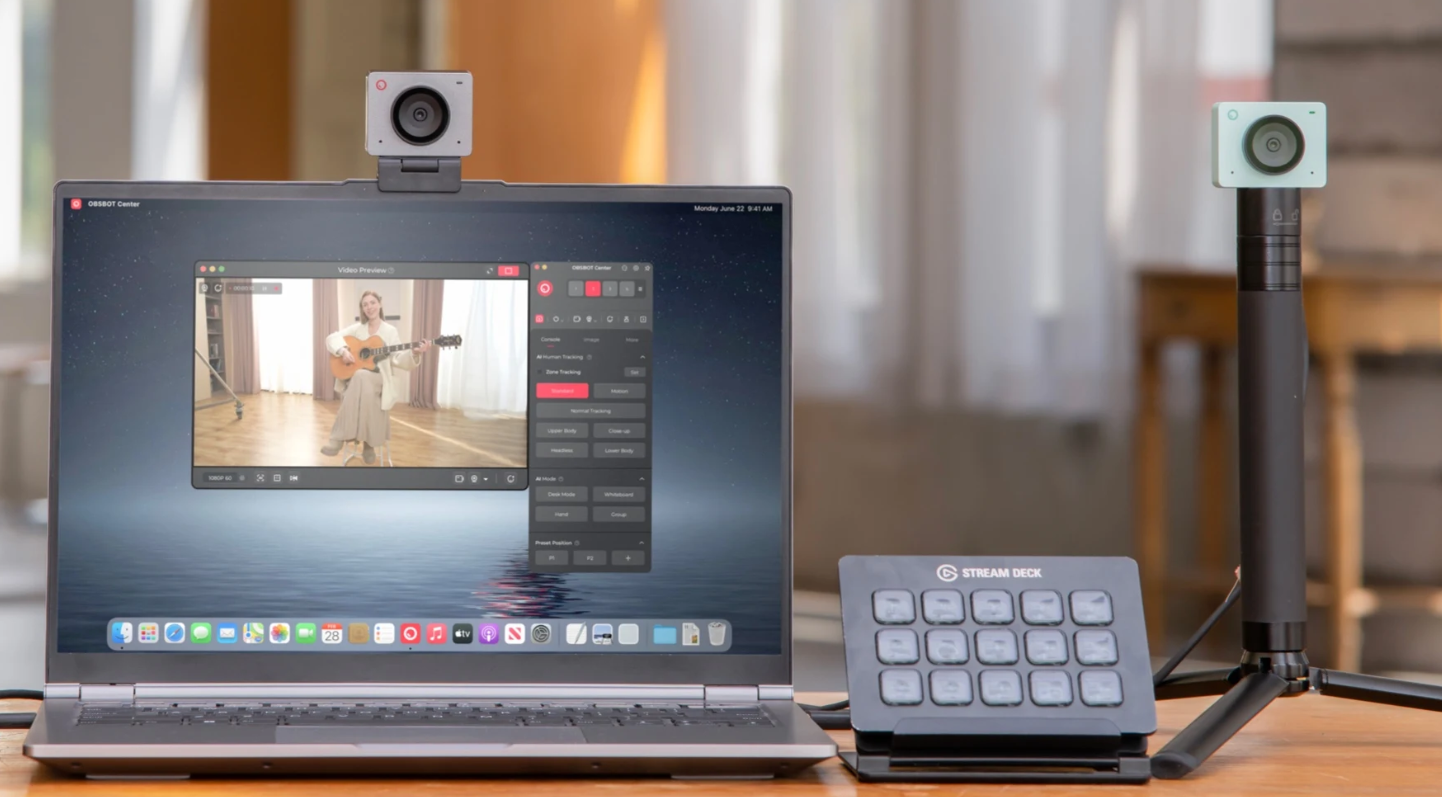
- Extensive Compatibility: Seamlessly integrates with tools like Stream Deck, Switch 2, and all major streaming platforms.
With all these features combined, the OBSBOT Tiny 3 doesn't just upgrade your webcam—it transforms your laptop video experience. You get sharper images, more natural colors, and immersive audio, which means your calls, classes, or recordings look and sound professional from the very first frame. If improving camera quality on your laptop is your goal, this 4k PTZ Webcam gives you a reliable, all-in-one solution.
FAQs about How to Improve Camera Quality on a Laptop
1. Why is the Camera Quality on My Laptop So Bad?
They generally have small sensors and cheap lenses for several reasons: the screen cover is usually thin, which limits the size of lens that can be installed in it; tiny light sensors are less expensive than larger ones, and they fit more easily into a computer.
2. Can Software Possibly Enhance Camera Quality?
Software can fix exposure, color, and noise, and it can prevent bad apps from forcing low quality, but it can’t add sharp detail.
3. Is a Webcam Better Than a Laptop Camera?
Yes, generally speaking, external webcams tend to be built with better hardware, and raising them up to eye level makes you look better immediately.
4. How Do I Test My Webcam Resolution on a Laptop?
On Windows, look at the Camera app for available quality options, and on Mac, check the details about your camera in System Information or within your meeting app.
5. Should I Choose a 1080p or 4K Webcam?
Many calls are fine even in 1080p, but after compression, 4K can look cleaner, and it allows for better cropping. If you want a “day one” upgrade, a 4k PTZ Webcam like OBSBOT Tiny 3 is built for that kind of use.
Conclusion
How to improve camera quality on a laptop? Start by adjusting lighting and framing, and then clean up your system and app settings. If you do want another substantial jump in clarity, then a good external webcam like the OBSBOT Tiny 3 is your most reliable upgrade.