How to Use Your Phone as a Webcam: 5 Ways

Have you ever thought about using your phone as a webcam to get better video quality? A phone camera is often sharper and clearer than the built-in laptop cameras, and the setup is easier than it sounds. If you want to learn how to use your phone as a webcam, you've come to the right place. With the right method, you can improve your video calls, interviews, or online meetings without buying extra gear.
Part 1: Can I Use My Phone as a Webcam?
Yes, most modern computer and mobile software support using mobile cameras as webcams. If you want to learn more about webcams, you can click here.
Apple has already built this feature into its OSs with its Continuity Camera, where you can pick your phone as the primary camera inside most Mac video apps. For users who use Android and Windows 11, the Phone Link connected camera lets you use your phone as a webcam while joining the meeting from a computer.
If you have an iPhone and a Windows PC, or an Android phone with a macOS computer, you can use apps like Camo, DroidCam, and Iruin that help you bridge the phone and the computer.
Part 2: How to Use Your Phone as a Webcam (5 Ways)
There are several easy ways to use your phone as a webcam, depending on your phone and computer. Some options are built into the system, and others use simple apps. Below are five common setups, you can find the one that works best for your device.
1. iPhone to Mac (Continuity Camera)
If you have an iPhone and a Mac, Continuity Camera is the best way to use a phone as a webcam. Follow these steps:
- Make sure your iPhone uses iOS 16 or later, and your Mac uses macOS Ventura or later. Sign in to both using the same Apple ID. Turn the Wi-Fi and Bluetooth on.

- Open your iPhone, go to “Settings”, then “General”, then “AirPlay and Handoff,” and turn on the Continuity Camera.

- Mount the iPhone near the top of your monitor. Then open any video app on your Mac and select your iPhone as the camera inside that app.
2. iPhone to Windows
Windows can’t use the iPhone as a webcam on its own, so you'll need a third-party helper app. Follow these steps if you have an iPhone and a Windows PC:
- Install an app like Camo or DroidCam on your iPhone and its companion app on your Windows PC.

- Connect the phone over USB for the best quality, or put both devices on the same Wi-Fi if the app supports wireless.

- Open the helper app on both devices, follow the onscreen steps until you see a live preview, and then choose the ‘virtual camera’ inside your meeting or call app on Windows.
- These apps usually have a limited free version and a paid version with better resolution and no watermarks.
3. Android to Windows 11
Windows 11 has a feature called “Phone Link” that allows connecting some Android devices and using their cameras as webcams. Follow these steps:
- On your PC, go to Settings, then Bluetooth and Devices, and then Mobile Devices. You’ll see an option to connect your Android phone using the “Phone Link” app.

- You’ll see an option to use your phone as a connected camera. Turn it on. Then start a video call on your PC and pick your phone from the camera list.
- Approve the prompt from the phone and use any on-screen controls to switch between the front and back cameras.
4. Android to Any Computer (USB Webcam Mode)
Some Android 14 and newer phones, especially Google Pixel models, have a USB webcam mode. It works like this:
- Connect your phone to the computer with a USB data cable, not a charge-only cable.

- On the phone, choose the “Webcam” or “Camera” option that appears.

- Wait for the computer to detect the new camera, then select it in your meeting or streaming app.
- In most cases, it only sends video, and you’ll have to use your computer mic or headset for audio.
5. Android to Other Computers (Apps Like DroidCam or Iriun)
For older Windows versions or for macOS, you can use third-party, cross-platform apps for using phone cameras in meetings:
- Install a webcam app such as DroidCam or Iriun on your Android and install the matching client on your computer.

- Connect both devices with USB and connect to the same Wi-Fi on both of them. Open the app on both your phone and your computer.

- Inside the computer, you'll have an option to choose a new virtual camera inside Zoom, Teams, Meet, or OBS.
USB vs Wi‑Fi: Which Connection Should You Use?
You usually have two main options to connect your phone and computer: USB and Wi-Fi. Both work, but with slight differences:
- USB: Best for Stability — Video is more stable over a USB connection. It has fewer delays, fewer freezes, and the phone can stay plugged in, so no battery problems during long calls. Best for important meetings, interviews, or long streams. Occasional drivers or USB debugging may be needed.
- Wi‑Fi: Best for Flexibility — Wi-Fi connection is more prone to lag, but it has the convenience of one less wire on your table. Quality depends on Wi-Fi strength. Good for short meetings or casual calls.
For the best experience, use a strong Wi-Fi network. Keep the phone closer to the router and choose a lower frame rate if the video stutters.
Part 3: When to Upgrade to a Dedicated Webcam Instead
Using your phone as a webcam is a clever upgrade, but it's not the best long-term setup. Over time, extra steps, battery stress, and constant mounting can start to get in the way of your actual work. Especially if video calls are a part of your daily work routine.
A dedicated webcam is a great investment for your video needs because it can sit on your monitor all day with no battery, heating, or connection problems. It says plugged in, keeps framing consistent from call to call, and doesn't wear out like a phone battery. Most modern webcams also have larger sensors and HDR that can match or even beat the phone's recording quality.
Bonus: The Best Webcams for an Enhanced Experience - OBSBOT Tiny 3 Lite 4K PTZ Webcam
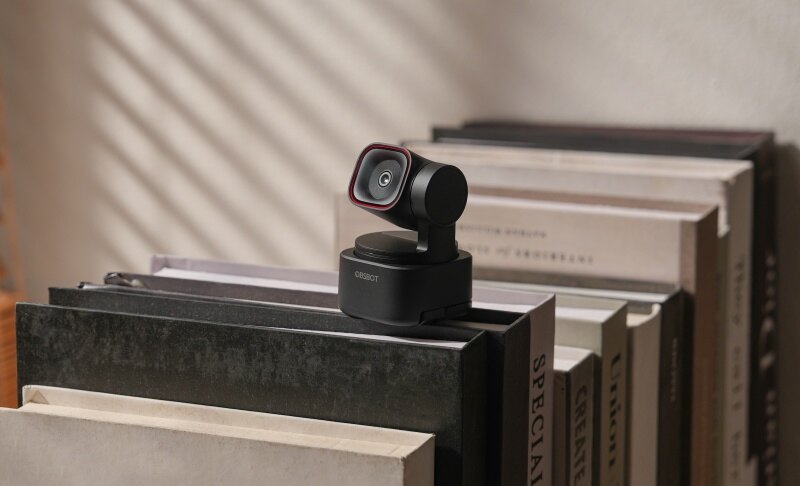
If video calls are a regular part of your week, we recommend getting a webcam like AI-powered OBSBOT Tiny 3 Lite. Apart from high resolution and convenience, it also has AI features like smooth subject tracking and fast focusing. It helps you look sharp, and you always stay at the center.
Key Features:
- Clear Spatial Audio with Multiple Audio Modes: Built-in Silicon MEMS microphones capture clean, natural voice and reduce background noise for calls and streaming.
- High-Resolution Video with 1/1.2" Sensor: 4K at 30fps, or Full HD 1080p at 120fps for smoother motion. Makes you look professional even in casual calls.
- Human & Voice Tracking: The camera follows your voice, keeps you centered automatically, no need to adjust manually.
- Fast Autofocus: The camera can focus on you quickly, so your face is always sharp and clear. It works automatically, so you can focus on talking, not adjusting the camera.
- Compact & Plug-and-Play Design: One of the world's smallest webcams, easy to place on TVs or desks—just plug in and start using it with Zoom, Teams, Google Meet, and OBS.
FAQs about How to Use Your Phone as a Webcam
1. How Do I Use My Phone as a Webcam for My Computer?
Install any webcam app on your phone and its companion app on your computer. Connect your phone with the computer using USB or Wi-Fi, and you’ll see an option to select your phone camera as the primary webcam for the meeting joined from the computer.
2. Can I Use My Phone as a Webcam without Installing Any Apps?
Yes, but only in limited cases. Apple users can use the “Continuity Camera” feature to connect the iPhone’s camera to macOS. Android users can connect with certain Windows laptops using the “Phone Link” feature in Windows.
3. Will Using My Phone as a Webcam Drain/ Damage the Battery?
Yes. Phone camera takes more battery power, so if you keep it plugged in all the time, the battery can be affected in the long term.
4. Is it Safe to Use Apps Like DroidCam, Camo, or Iriun?
Yes. It’s generally safe to use these apps as long as you download them from their official websites or legit app stores. Carefully review the app’s permissions and close the app when you’re done with the call.
5. Can I Use My Phone as a Webcam for Zoom, Teams, Google Meet, or OBS?
Yes, you can. Most of the video apps allow picking up a virtual camera if you have already set it up.
6. When Should I Switch from a Phone Webcam to a Dedicated Webcam?
Using your phone as a webcam is fine for occasional calls. But if you join video meetings often, it can feel inconvenient. A dedicated webcam like the OBSBOT Tiny 3 Lite stays connected and ready to use. With AI tracking and fast autofocus, it keeps you clear and centered without extra setup.
Wrapping Up
Want to look more professional and less pixelated on video calls? The fastest way is to use your phone camera as a webcam. The best way, however, is to use a dedicated camera for a computer like OBSBOT Tiny 3 Lite. Using a phone gives you convenience, and using a dedicated camera gives you performance.