Software vs Hardware RTMP Encoder: Which Is Best for Your Live Setup?

Choosing an RTMP encoder comes down to a single tradeoff: software flexibility versus hardware reliability. Software encoders like OBS Studio offer unmatched control over complex scene layouts and graphic overlays for free. However, they heavily drain your local computer's CPU. Conversely, dedicated hardware encoders like the Blackmagic ATEM Mini or OBSBOT Talent 2 do only one job. They isolate your stream from local PC crashes, ensuring 99.9% uptime and zero thermal throttling during long broadcasts. If you have a powerful PC and a $0 budget, choose software. If failure is not an option, buy hardware.
What is an RTMP Encoder and How Does It Work for Live Streaming?
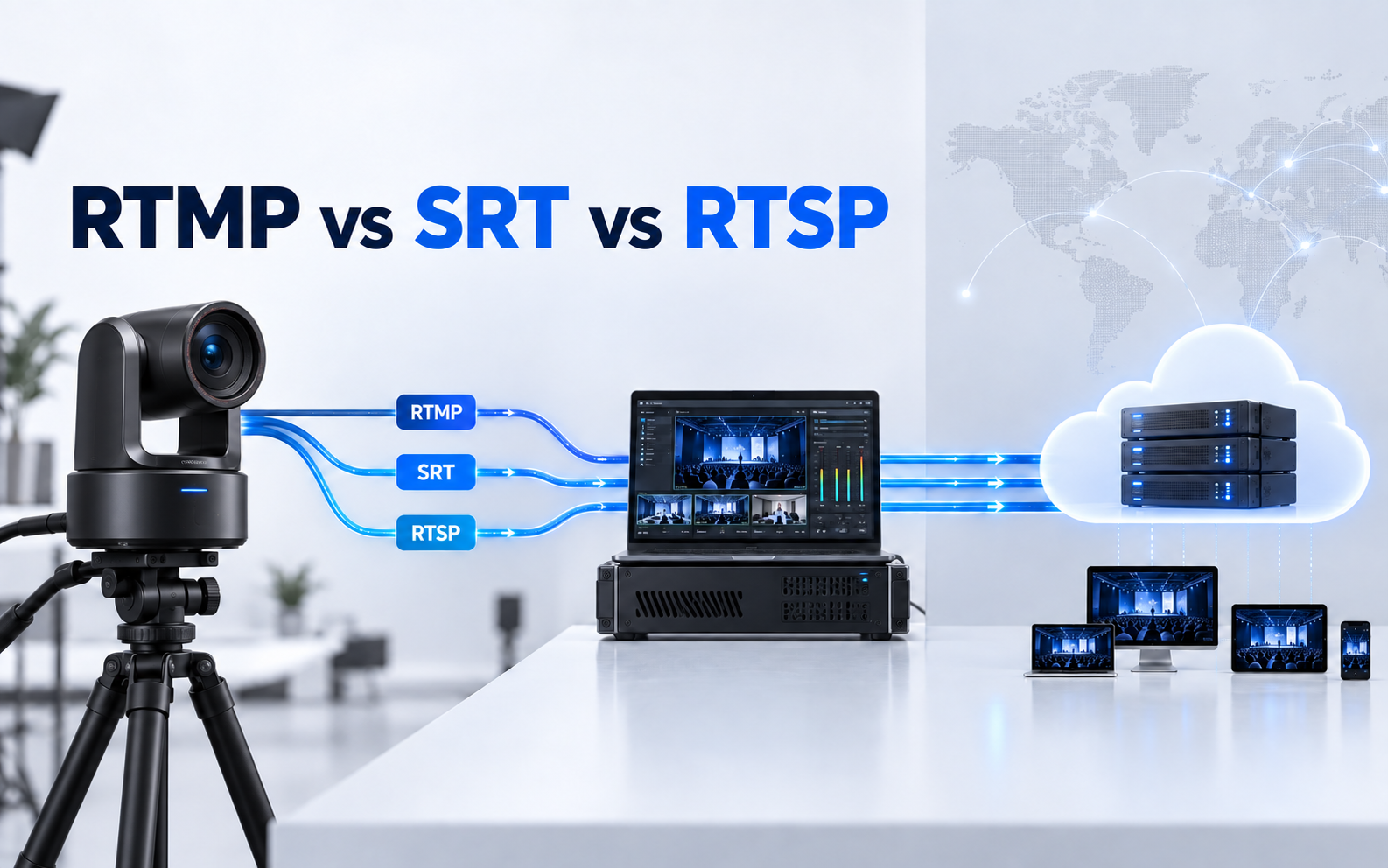
An RTMP encoder is a dedicated tool that compresses raw video/audio data into digital fragments and transmits them to a media server for first-mile delivery. While standard encoders rely heavily on H.264 and AAC codecs, the defining technical bottleneck of any RTMP encoder lies in its underlying transport layer: TCP (Transmission Control Protocol).

TCP relies on a strict, ordered handshake that ensures data integrity in stable network conditions. However, in unpredictable public internet or congested Wi-Fi scenarios, this mechanism creates significant performance issues:
- The Packet Loss Penalty: Under network packet loss, TCP's error handling leads to Head-of-Line Blocking, where the RTMP encoder halts transmission to resend missing packets, causing catastrophic stream stuttering.
- RTMP vs. SRT: Unlike traditional RTMP, modern SRT (Secure Reliable Transport) uses a UDP-based ARQ (Automatic Repeat reQuest) mechanism. SRT is designed to handle up to 10% packet loss without stalling, maintaining sub-second latency.
- RTMP vs. WebRTC: For interactive, ultra-low latency requirements, WebRTC operates with sub-500ms delay, bypassing the 3-to-5 second propagation lag inherent in standard RTMP encoding buffers.
Software vs. Hardware RTMP Encoder and Recommendations
Software Encoders
Software encoders run as applications on a standard computer. They utilize the host computer's Central Processing Unit (CPU) or Graphics Processing Unit (GPU) to handle the video compression calculations.
- Advantages: These programs are inexpensive or free. They receive regular feature updates and allow you to change your visual layout easily.
- Disadvantages: Video encoding demands high processing power. Running an encoder alongside a resource-heavy PC game or production software can overload your operating system, causing stuttering video.
Hardware Encoders
Hardware encoders are dedicated physical appliances. They feature internal chips designed solely to process video compression.
- Advantages: They do not share processing power with other apps. This isolation makes them highly reliable for long broadcasts. They rarely crash or experience operating system slowdowns.
- Disadvantages: They cost significantly more upfront. They also have rigid physical input limits, meaning you cannot easily add more camera connections without buying new hardware.
Here is a table help you differentiate these two:
| Evaluation Dimension | Software Encoder | Hardware Encoder |
|---|---|---|
| Upfront Purchase Cost | $0 (Free and Open-Source) | $200 - $2,000+ (High initial capital investment) |
| Core Hidden Cost | High (Requires a dedicated GPU like the RTX 4060, plus associated PC power supply upgrades) | Extremely Low (Out-of-the-box functionality without relying on external high-performance PC specs) |
| Hourly Power Consumption | Approx. 350W - 500W (Generates significant heat, requiring robust cooling infrastructure) | Approx. 15W - 30W (Highly efficient; supports low-power environments or NP-F mobile batteries) |
| System Stability Risk | High (Prone to interruptions from host OS auto-updates, driver conflicts, or system crashes) | Extremely Low (Dedicated embedded RTOS with a single-purpose focus, eliminating OS-level crashes) |
| Network Redundant Support | Typically restricted to a single Ethernet connection or local Wi-Fi link | Frequently features native support for Multi-Network Cellular Bonding |
Best Software RTMP Encoder for PC and Mac
OBS Studio

This free, open-source application runs smoothly across Windows, Mac, and Linux systems. Did you know that it remains the most utilized encoding software globally? By supporting hardware-accelerated encoding via NVIDIA NVENC, AMD AMF, and Apple Silicon engines, OBS Studio offloads heavy tasks from your main CPU. Use this software if you want maximum control over your plugins without spending a dime.
Streamlabs OBS

Consider Streamlabs OBS if you want a faster setup tailored for content creators. This modified version of the core OBS engine integrates chat overlays, alert boxes, and donation tracking directly into a single interface. The convenience comes with a trade-off, however, as it consumes significantly more background RAM than standard OBS Studio.
vMix

Built exclusively for Windows systems, vMix operates as a high-end, full-scale broadcast switcher. It handles advanced input routing, NDI integration, and multi-bitrate RTMP streaming simultaneously. Because the software requires a paid license, it serves primarily as a premium tool for professional broadcast engineers.
Best Hardware RTMP Encoders
OBSBOT Talent 2 Live Production Studio
Standard hardware encoders are highly stable, but they lack built-in monitoring screens and scene switchers, forcing you to carry extra gear to your venue. The OBSBOT Talent 2 solves this headache by packing a 7-inch AMOLED touchscreen monitor, a multi-source video switcher, and a dedicated hardware RTMP encoder into one portable unit. This setup gives you the visual control of computer software without the risk of system crashes or heavy gear bags.
- 16-Input Hybrid Ingestion: Do you need to mix different types of video gear? This device ingests up to 16 inputs simultaneously — including 4 physical HDMI lines, USB webcams, and up to 10 network streams like NDI, SRT, RTSP, or RTMP — and encodes them directly into an RTMP stream.
- H.264 & H.265 Hardware Codecs at True 4K: This system compresses your video using either H.264 or highly efficient H.265 algorithms, delivering up to true 4K@60fps quality while cutting your required upload bandwidth in half, preventing stream buffering on slow networks.
- Instant Portrait Swapping: Traditional hardware encoders require tedious scaling adjustments to change video layouts. This unit lets you toggle between landscape and vertical modes instantly, ensuring your RTMP feed matches the exact aspect ratio of your target platform.
- Multi-Network RTMP Insurance: If local Wi-Fi gets congested, the system bonds Wi-Fi 6, 2.5Gbps Ethernet, and cellular connections (via SIM slot or dongle) together, so your stream stays connected to the RTMP server even if one network path fails.
Teradek Cube Series

Are you streaming from remote locations with unpredictable internet? This compact, camera-top hardware encoder specializes in professional electronic news gathering by accepting HD-SDI and HDMI inputs. It relies heavily on cellular bonding. This technology combines multiple network connections, ensuring a stable broadcast even when local cellular coverage drops.
- Multi-Network Cellular Bonding: Aggregates up to 4 network links (dual 4G/5G, Wi-Fi, USB tethering) into one stable pipeline to bypass cellular congestion.
- Core Cloud Routing: Encodes a single high-bitrate stream into Teradek Cloud, which splits and transcodes the feed to dozens of RTMP/SRT destinations simultaneously.
- Camera-Top Form Factor: Ultra-lightweight aluminum chassis with a 3G-SDI loop-through to feed an on-camera monitor without an extra splitter.
- Ultra-Low Latency HEVC: Supports H.265 compression, maintaining broadcast-quality 1080p60 at just 3 Mbps to cut cellular data costs in half.
Blackmagic Design ATEM Mini Series

This device functions as a physical video switcher while simultaneously operating as a dedicated hardware encoder. Connect it directly to your local network via Ethernet to stream straight to popular ingest servers. Because internal silicon handles every compression task, your connected computer remains completely free from processing strain.
- Direct Hardware Ingestion: Streams directly via Ethernet using internal real-time silicon, ensuring 0 dropped frames even if the connected PC crashes.
- Multi-Source Switching: Ingests up to 8 HDMI inputs with built-in hardware standards converters that automatically sync mismatched resolutions and frame rates.
- USB Webcam Emulation: Features a USB-C output that tricks PCs into recognizing the live production as a standard webcam, fully compatible with Zoom and OBS.
- Isolated ISO Recording: Records all raw camera inputs and the live program as separate H.264 files onto USB drives, complete with DaVinci Resolve project files.
Kiloview E Series

Deploy Kiloview hardware when your production requires continuous, 24/7 streaming operations on a budget. Schools and houses of worship often choose the E1 model for wired SDI inputs or the E2 for standard HDMI connections. These units provide a highly resilient entry point for organizations migrating away from software-based setups.
- 24/7 Continuous Operation: Built with fanless aluminum casing and an embedded Linux system designed to run non-stop for months without thermal throttling.
- Dual-Stream Simulcasting: Processes main (1080p for RTMP server) and sub (360p for local preview) streams simultaneously from a single video source.
- NDI|HX & SRT Gateway: Converts standard HDMI/SDI camera inputs into low-latency NDI|HX or SRT network streams for modern IP video routing.
- Audio De-Embedding: Features 3.5mm analog inputs to easily strip out camera audio and embed a clean, line-level feed from a house mixing console.
How to Choose Your RTMP Encoders
Your choice of an RTMP encoder depends entirely on one factor: who is running the show?
| Use Case | Recommended Setup Type | Ideal Encoder Choice(s) | Benefit |
|---|---|---|---|
| Gaming Streamers & Tech Reviewers (High frame rates, desktop capture, real-time overlays) |
Software + Dedicated GPU | OBS Studio or Streamlabs OBS (powered by NVIDIA NVENC / AV1) | Utilizes hardware encoding chips embedded in the GPU. This offloads the rendering strain from the CPU, preventing in-game frame drops while keeping the budget at $0. |
| Outdoor / IRL Broadcasters (Weddings, sports events, on-the-go content) |
Portable Dedicated Hardware | OBSBOT Talent 2 or Teradek Cube Series | Features cellular bonding and internal battery power. It bypasses unreliable laptop setups in harsh outdoor temperatures, ensuring zero thermal throttling and 99.9% uptime. |
| Corporate Events & Houses of Worship (Multi-camera setups, fixed installations, volunteer operators) |
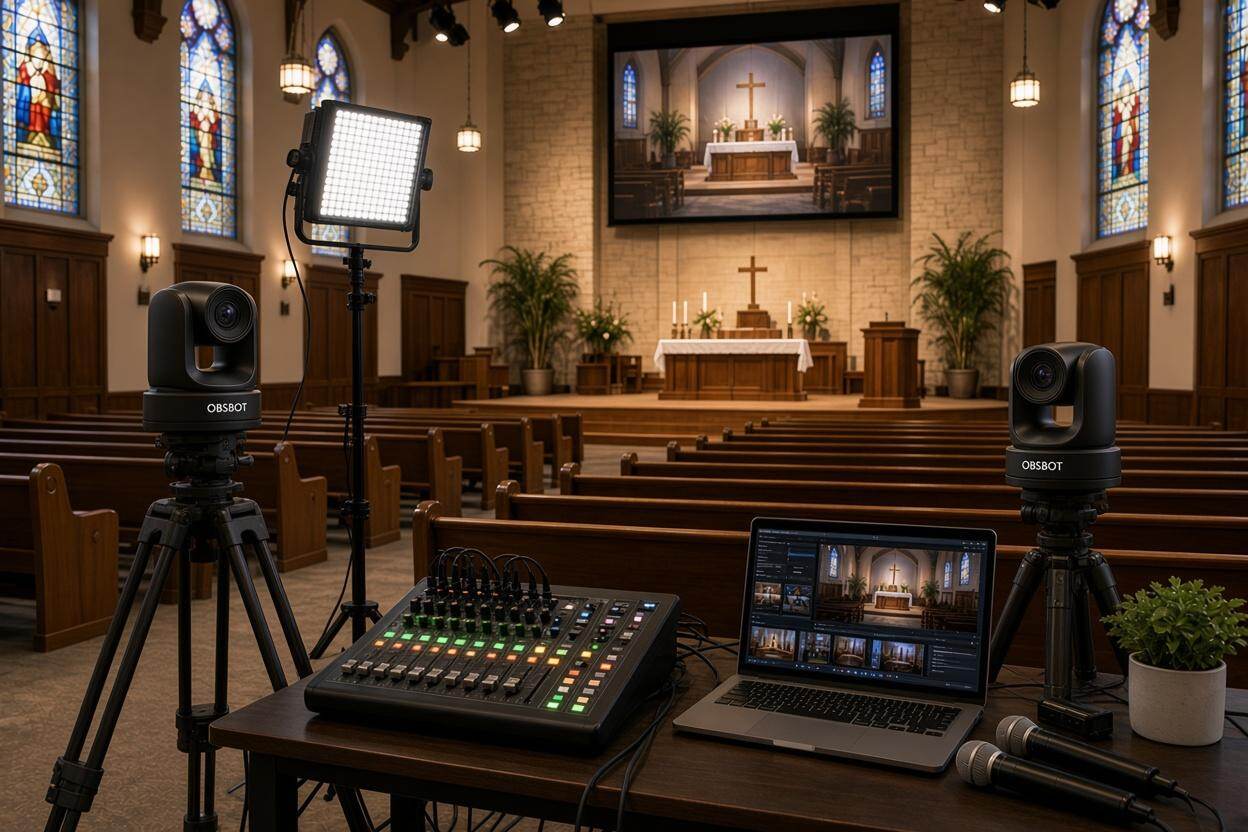
Hardware Switcher / Encoder | OBSBOT Talent 2 | Isolates the entire streaming process from local OS crashes or background updates. Physical buttons provide foolproof switching for non-technical volunteers. |
| Enterprise & Broadcasters (Multi-protocol routing, 24/7 continuous playout, SRT links) |
Rackmount / Industrial Hardware | Kiloview E Series or Teradek Prism | Supports high-bandwidth NDI/SDI inputs and simultaneous RTMP/SRT multi-platform streaming. Offers heavy-duty 24/7 reliability with dedicated Linux-based encoding pipelines. |
How to Configure and Optimize Your RTMP Encoder
Measure your upload speed: Run a speed test
Navigate to a speed testing site to check your upload bandwidth. Your target stream bitrate must not exceed 70% of your total upload capacity. If your upload speed is 10 Mbps, cap your total stream output at 7 Mbps.
Input the RTMP URL and Stream Key: Establish the handshake
Log into your streaming platform platform dashboard to locate the ingestion settings. Copy the primary RTMP URL and paste it into your encoder network settings. Copy the unique stream key and paste it into the designated security field. Keep this key private to prevent unauthorized broadcasts on your channel.
Set the video bitrate and resolution: Match your bandwidth allocation
For a 1080p video at 60 frames per second, configure your video bitrate between 4,500 Kbps and 6,000 Kbps. For a 720p stream at 30 frames per second, set the bitrate between 2,500 Kbps and 4,000 Kbps. Select the H.264 video codec.
Enforce a strict keyframe interval: Align video synchronization
Change the keyframe interval setting from automatic to exactly 2 seconds. This setting forces the encoder to transmit a complete, uncompressed video frame every two seconds. Streaming platforms require this fixed interval to properly segment your video for viewers.
Configure audio settings: Finalize output parameters
Set the audio codec to AAC. Select a sample rate of 44.1 kHz or 48 kHz based on your mixing console output. Allocate an audio bitrate of 128 Kbps for standard stereo speech, or 160 Kbps for musical performances.
FAQs About RTMP Encoder
Why is my stream status showing dropped frames?
Dropped frames indicate a network bottleneck or a processing deficit. If your CPU usage exceeds 85%, your computer cannot compress the video fast enough. Lower your encoder preset to a faster setting. If CPU usage is normal, your local network cannot maintain the selected bitrate. Lower your video bitrate or switch from a Wi-Fi connection to a wired Ethernet cable.
Why is my encoder failing to connect even after pasting the correct RTMP URL?
Most major platforms (like YouTube and Facebook) now strictly require RTMPS (the encrypted version of RTMP). Ensure your Stream URL begins with rtmps:// instead of rtmp://, and make sure your network firewall hasn't blocked Port 443 (used for RTMPS). If you are using an older hardware encoder, you may also need to update its firmware so it can support this modern security encryption.
Can I stream to multiple platforms simultaneously using one RTMP encoder?
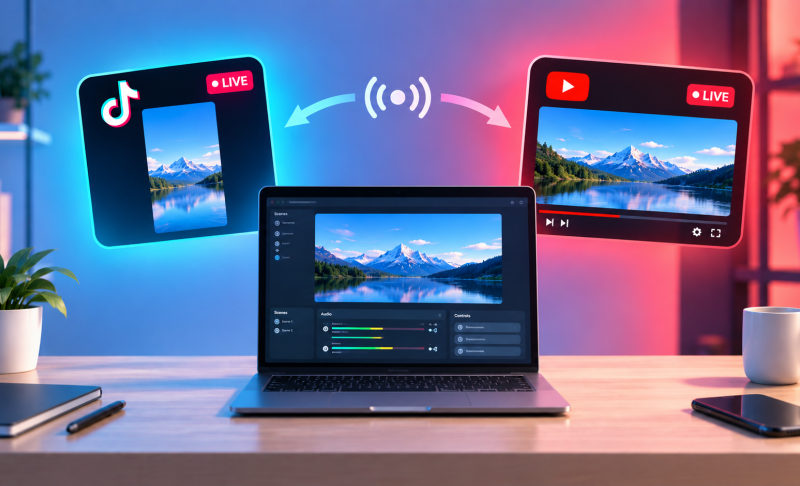
Yes, but it requires extra resources. Multistreaming directly from a software encoder multiplies the required upload bandwidth and processing power for each destination. To avoid overloading your local hardware, route a single high-quality RTMP feed to a cloud-based distribution service. The cloud server clones and forwards the stream to your target destinations.
Conclusion
Selecting the right RTMP encoder and configuring it properly is the foundation of a stable, smooth live stream. Whether you choose flexible software or dedicated hardware — from single-purpose encoders to all-in-one production studios like the OBSBOT Talent 2 — the key lies in optimizing parameters based on your network bandwidth. Understanding how your encoder works allows you to eliminate lag and buffering, delivering a high-quality viewing experience for your audience.