Best OBS Settings for Twitch: A Practical Streaming Guide
A Twitch stream can look sharp while you stand still, then turn blurry as soon as the game gets busy. Higher resolution doesn't always help, and changing the bitrate will not fix every kind of stutter. The best OBS settings for Twitch balance motion, picture detail, computer workload, and upload capacity. This guide provides practical starting profiles, shows where to enter them, and explains which setting to change when a test fails.
Recommended OBS Settings for Twitch Streaming
For a conventional single-track stream, start with H.264, CBR, and a two-second keyframe interval. Then choose the resolution, frame rate, and video bitrate below.
These are manual starting profiles, not Enhanced Broadcasting settings. The fast-game profile deliberately trades resolution for more data per frame.
| Stream Type | Output Resolution | FPS | Video Bitrate |
|---|---|---|---|
| General gaming | 1920 × 1080 | 60 | 6,000 kbps |
| Fast-paced games | 1280 × 720 | 60 | 6,000 kbps |
| Chatting and slower content | 1920 × 1080 | 30 | 4,500 kbps |
| Low-end PC or restricted upload | 1280 × 720 | 30 | 3,000 kbps |
For shooters and racing games, compare 720p60 against 1080p60 during actual movement. At a fixed bitrate, fewer pixels can preserve moving detail better, although small text may look less sharp. If upload capacity is tighter, 720p60 at 4,500 kbps is another published Twitch reference point.
Leave upload headroom. A 6,000 kbps video stream also needs bandwidth for audio and network overhead. Around 10 Mbps of sustained usable upload is a practical planning target for this single-track profile, not a guarantee. Enhanced Broadcasting can require more total bandwidth because it may send multiple tracks.
How to Configure OBS for Twitch Streaming
Stop streaming and recording before changing these settings. The following steps configure the manual profiles above; the next section covers the automatic alternative.
1. Select Twitch and the Manual Streaming Mode
Open Settings > Stream, select Twitch, and connect your account. Leave the server on Auto for the initial test.
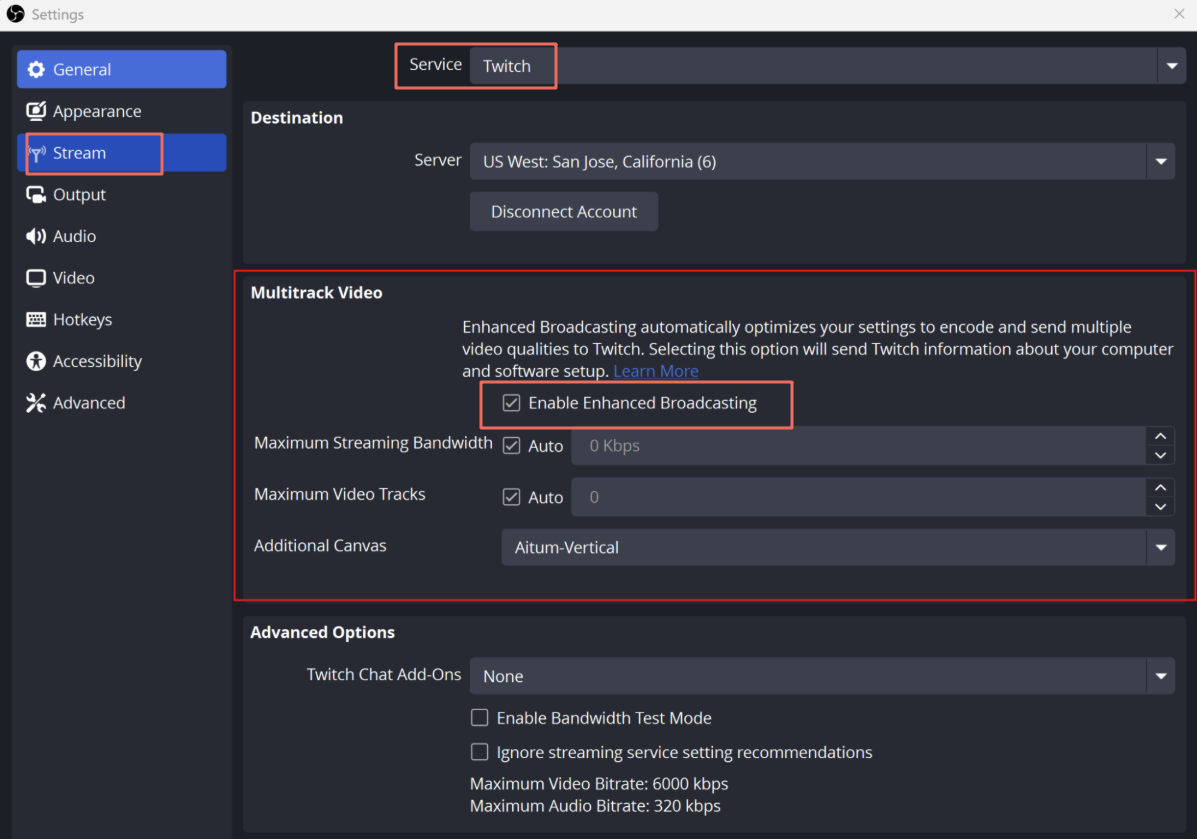
For this manual setup, turn off Enable Enhanced Broadcasting in the Multitrack Video section. You can enable it later and compare results, but do not mix its automatic configuration with the manual encoder instructions below.
2. Set the Encoder and Bitrate
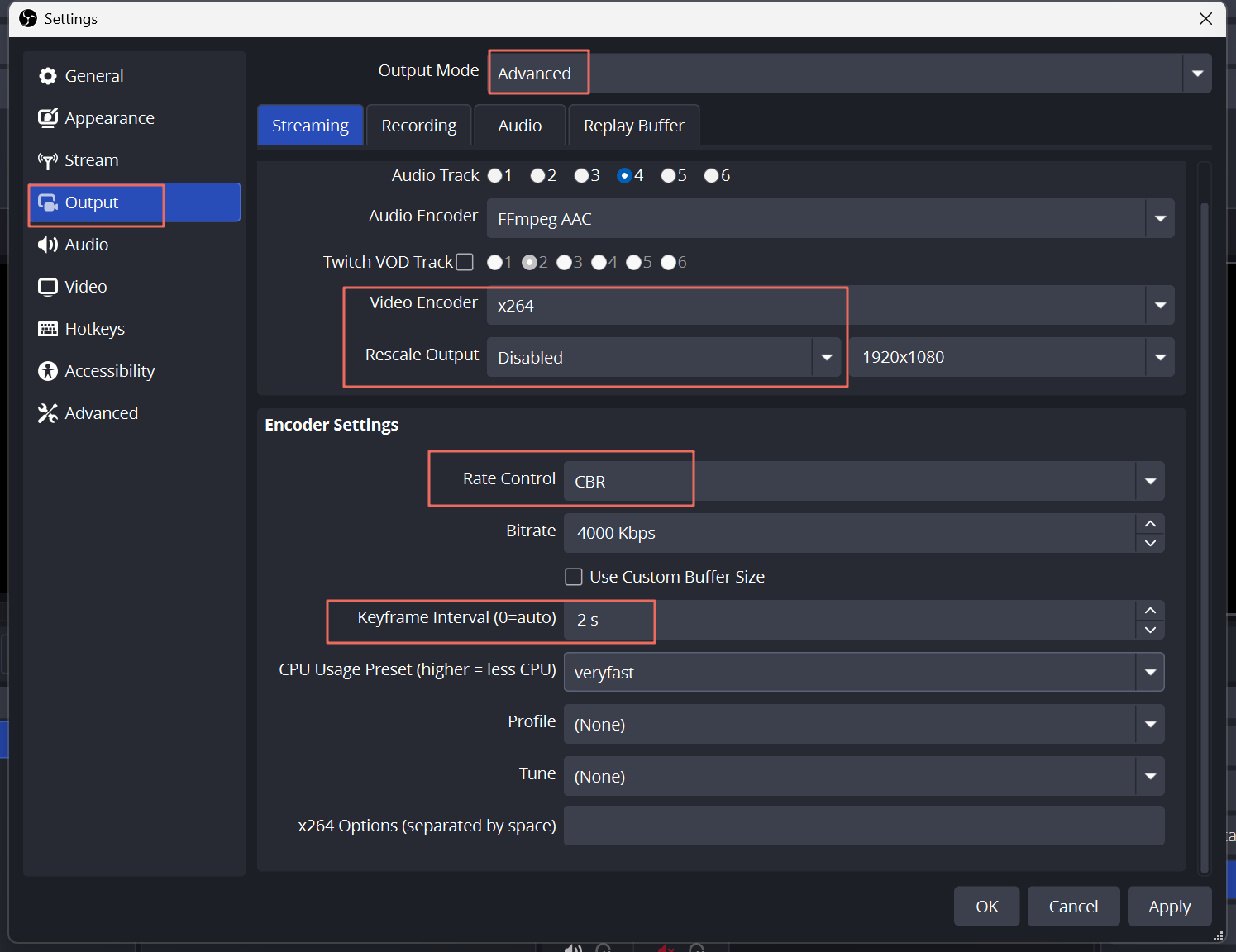
Open Settings > Output, change Output Mode to Advanced, and select the Streaming tab.
- Video Encoder: Select an available hardware H.264 encoder, such as NVIDIA NVENC, AMD, Intel Quick Sync, or Apple VideoToolbox on a supported Mac.
- Rate Control: CBR.
- Bitrate: Enter the value from your selected profile.
- Keyframe Interval: 2 seconds.
- Rescale Output: Leave disabled; set the stream size under Settings > Video instead.
Hardware encoding is usually the first option to test on a single gaming computer. If no supported hardware encoder is available, use x264 with the veryfast CPU preset and begin at 720p30. Selecting a slower x264 preset adds CPU work and can compete with the game.
For NVIDIA NVENC H.264, this is a performance-conscious starting configuration:
- Preset: P5.
- Tuning: High Quality.
- Multipass Mode: Single Pass.
- Profile: High.
- Look-ahead: Off.
- Adaptive Quantization, sometimes labeled Psycho Visual Tuning: On.
- B-frames: 2.
These NVIDIA controls do not apply to every encoder. Keep other vendors' encoder-specific defaults for the first test. Once the stream is stable, you can compare higher-quality presets; do not begin by maximizing every option.
3. Set Resolution and Frame Rate
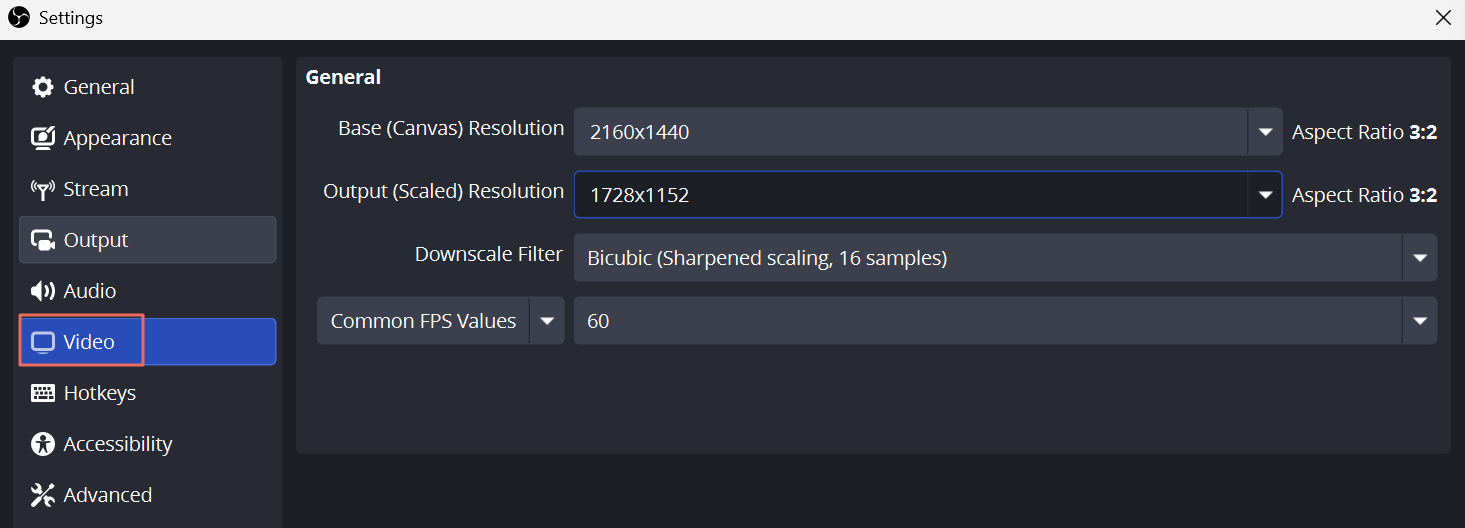
Open Settings > Video:
- Base (Canvas) Resolution: Use the resolution of your intended scene layout. For a scene built around 1440p gameplay, 2560 × 1440 can remain the canvas size.
- Output (Scaled) Resolution: Enter the stream resolution from the table.
- Downscale Filter: Start with Bicubic when scaling down. Test Lanczos later if you want a sharper result and have GPU headroom.
- Common FPS Values: Select 60 or 30 to match your profile.
Your game can run above 60 fps while OBS outputs 60 fps. However, an uncapped game can consume the GPU capacity OBS needs to compose the scene. If rendering lag appears, cap the game's frame rate before buying faster hardware.
4. Configure Audio and the Webcam Source
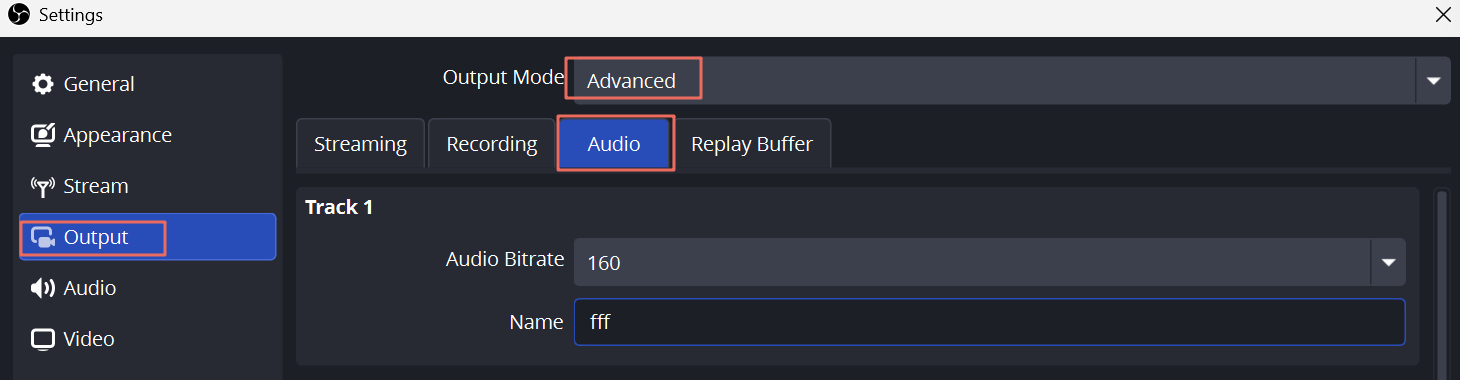
In Settings > Audio, use 48 kHz and Stereo. In Advanced Output's Audio tab, set your streaming track to 160 kbps AAC, then confirm that the same track is selected for streaming.
Speak at your loudest normal level and adjust the microphone so peaks sit roughly between -12 and -6 dB. Keep game audio low enough that speech remains understandable during action.
For a small facecam overlay, start the webcam source at 1080p30, or 1080p60 when smoother camera motion matters. Capturing it at 4K does not automatically improve a small overlay and may add unnecessary processing or USB load.
When to Use Enhanced Broadcasting and 1440p on Twitch
Enhanced Broadcasting is an alternative configuration path, not an extra quality switch for the manual presets. It can automatically configure multiple video qualities so viewers have playback options suited to their connections.
- Update OBS and your graphics driver.
- Open Settings > Stream and connect your Twitch account.
- Enable Enhanced Broadcasting under Multitrack Video.
- Begin with automatic configuration, then monitor the actual total upload and encoder load.
Maximum Streaming Bandwidth and Maximum Video Tracks are resource limits, not quality targets. If automatic configuration overloads your connection or encoder, lower the relevant limit and test again.
Should You Use 1080p or 1440p?
Keep 1080p as the initial target unless your account offers Twitch's 2K workflow and your system can run it reliably. For eligible accounts, 1440p requires Enhanced Broadcasting; simply entering 2560 × 1440 in a conventional manual H.264 profile is not the same setup.
Check your Creator Dashboard's stream settings for access, follow the current 2K requirements, and use OBS 32 or later for that workflow. The automatic configuration may use codecs and bandwidth allocations different from the single-track table.
1440p is worth testing for detailed gameplay or readable interfaces when the supported workflow is available. It is not a fix for GPU overload, network instability, or poorly lit webcam footage.
Bonus: Set Up a Clearer Facecam with OBSBOT Tiny 3
If gameplay looks clean but the facecam is noisy or badly framed, changing the stream bitrate is not the first fix. Improve the light on your face, check camera exposure, and use a source suited to your desk setup.
OBSBOT Tiny 3 fits streamers who want USB connectivity, adjustable framing, and tracking for moments when they move away from their usual seated position.
Key Features
- USB webcam connection: Add it through OBS Video Capture Device without an HDMI capture card.
- High-frame-rate 1080p capture: Select a supported 60 fps mode for smoother facecam motion without capturing at 4K.
- AI tracking: Follow movement during standing breaks or demonstrations; use a fixed composition when seated gameplay does not need tracking.
- OBSBOT Center controls: Adjust framing, exposure, and white balance before starting the broadcast.
- Built-in microphone system: Use it for a simple setup, or mute it in OBS when a separate microphone is your main audio source.
How to Test and Troubleshoot Your Twitch Stream
Test with the actual game and scene, including fast turns, effects, overlays, and the webcam. A static menu does not represent the load or compression demands of gameplay.
- Check content locally. Make a short recording to verify framing, microphone routing, and audio balance. A high-quality recording preset will not predict the quality of a lower-bitrate stream.
- Check delivery to Twitch. Enable Bandwidth Test Mode in Settings > Stream, start the test, and inspect it in Twitch Inspector. This checks transport without publishing an ordinary live broadcast; it does not provide a public picture-and-sound preview.
- Watch OBS Stats. Open View > Stats and run a demanding gameplay section for about ten minutes. Look for counters that continue increasing, not only isolated startup events.
- Check the finished stream. Disable Bandwidth Test Mode before a planned live test. Watch from another device with playback muted near your microphone, or review the VOD afterward if recording is enabled.
Dropped Frames: Check the Network
If Dropped Frames (Network) keeps increasing, use Ethernet, pause competing uploads, and test a different Twitch ingest server. For a manual stream, lower bitrate. For Enhanced Broadcasting, review the total bandwidth limit rather than changing an unused manual bitrate field.
Rendering Lag: Free GPU Capacity
If Frames Missed Due to Rendering Lag rises, cap game FPS and reduce demanding graphics settings. Simplify browser sources, animated overlays, and unnecessary high-resolution inputs. On Windows, running OBS as administrator can also help with GPU scheduling, but it is not a substitute for leaving capacity available.
Encoding Lag: Reduce Encoding Work
If Skipped Frames Due to Encoding Lag rises, use a faster encoder preset, reduce output resolution or FPS, and stop unnecessary simultaneous recording or encoding jobs. With Enhanced Broadcasting, reducing the number of video tracks can reduce encoding workload.
Clean Stats but Blocky Motion: Compare Resolution
If the counters remain clean but grass, particles, or fast camera turns break into blocks, compare 720p60 against 1080p60 at the same bitrate. Do not increase sharpening to hide compression artifacts. Change one setting at a time and repeat the same game sequence.
FAQs About OBS Settings for Twitch
Is 6,000 Bitrate Too High for Twitch?
Not for the conventional 1080p60 profile, but it may be too demanding for a particular upload connection or viewer. If OBS delivery is stable but viewers buffer, check whether lower playback qualities are available. A source-only stream can be difficult to watch on a slower connection.
Is 10,000 Bitrate Too High for Twitch?
Do not use 10,000 kbps as a general manual H.264 recommendation. Enhanced Broadcasting is different: its total upload can exceed the bitrate of one video track because several tracks may be sent. Check the active workflow before comparing a total bandwidth reading with a single-track recommendation.
Why Are Some OBS Streaming Settings Grayed Out?
An active stream or recording can lock settings. Enhanced Broadcasting can also manage encoder values automatically. Stop the active output first, then check which configuration mode you are using before trying to edit the manual Streaming tab.
Can I Use These OBS Settings on an iPhone?
OBS Studio runs on Windows, macOS, and Linux, not iOS. An iPhone can act as a camera source through a compatible workflow, but the OBS settings are configured on the computer. Direct mobile broadcasting uses the options available in the mobile app instead.
Conclusion
Choose one profile, apply it consistently, and test demanding content before raising quality. Use OBS Stats to separate network, rendering, and encoding problems. For supported 1440p or multitrack workflows, use Enhanced Broadcasting rather than forcing a larger resolution or bitrate into the manual baseline.