How to Put a Picture on OBS Virtual Camera: 5 Steps
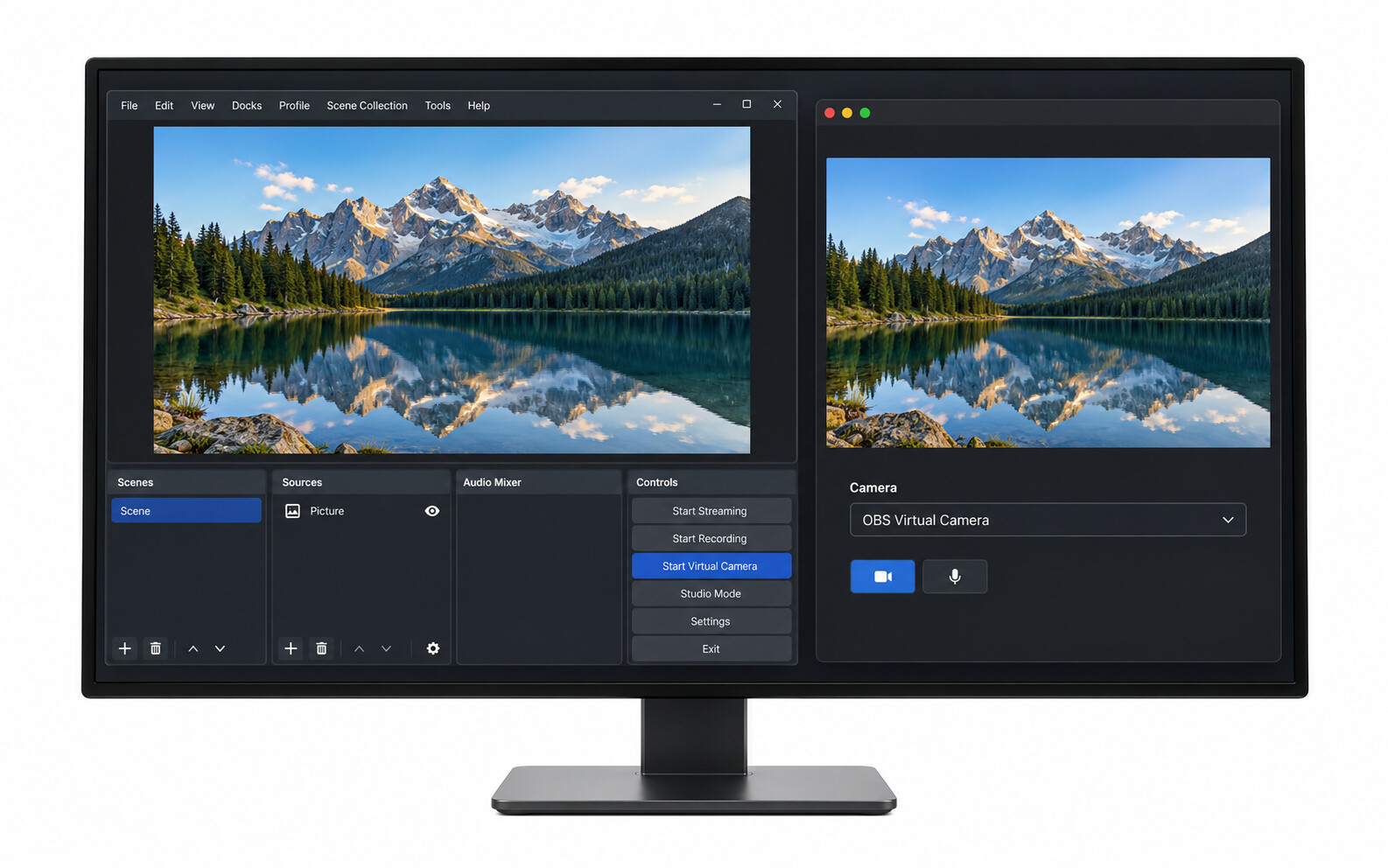
A profile photo usually appears only when your camera is off. If you want a custom picture to appear inside your camera tile instead, OBS can send that image as a video feed. Here is how to put a picture on OBS Virtual Camera for desktop video calls, replace it later, and fix common setup problems.
Put a Picture on OBS Virtual Camera in 5 Steps
Add your file as an Image source, start the virtual camera, and select it in the receiving app. You need OBS Studio, a PNG or JPG saved on your computer, and a calling app that accepts virtual cameras. A physical webcam is not required.
Step 1: Add Your Picture to a New Scene
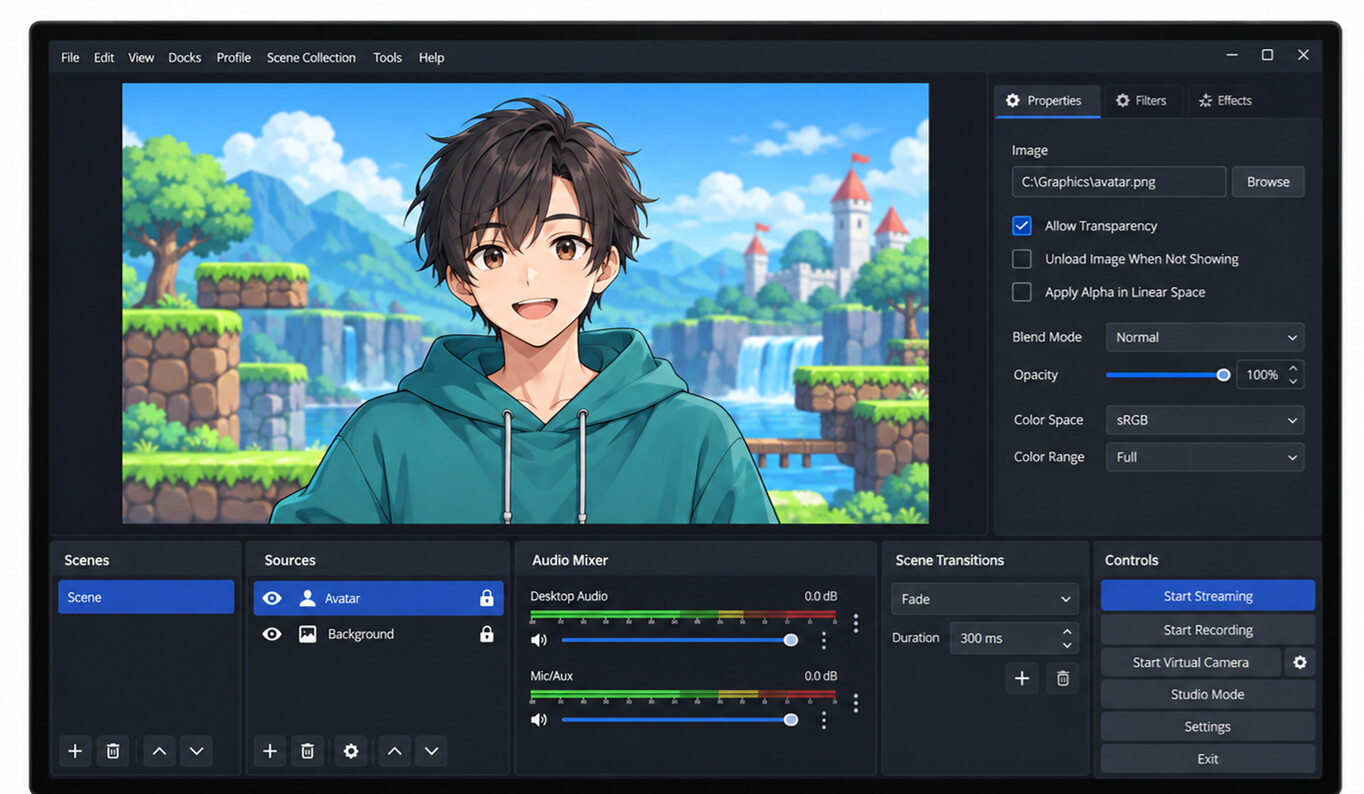
- Open OBS. In Scenes, click +, name the scene Picture Camera, and click OK.
- In Sources, click + > Image.
- Name the source Picture, click OK, then select Browse.
- Choose your PNG or JPG and click OK. Confirm the picture appears in the OBS preview.
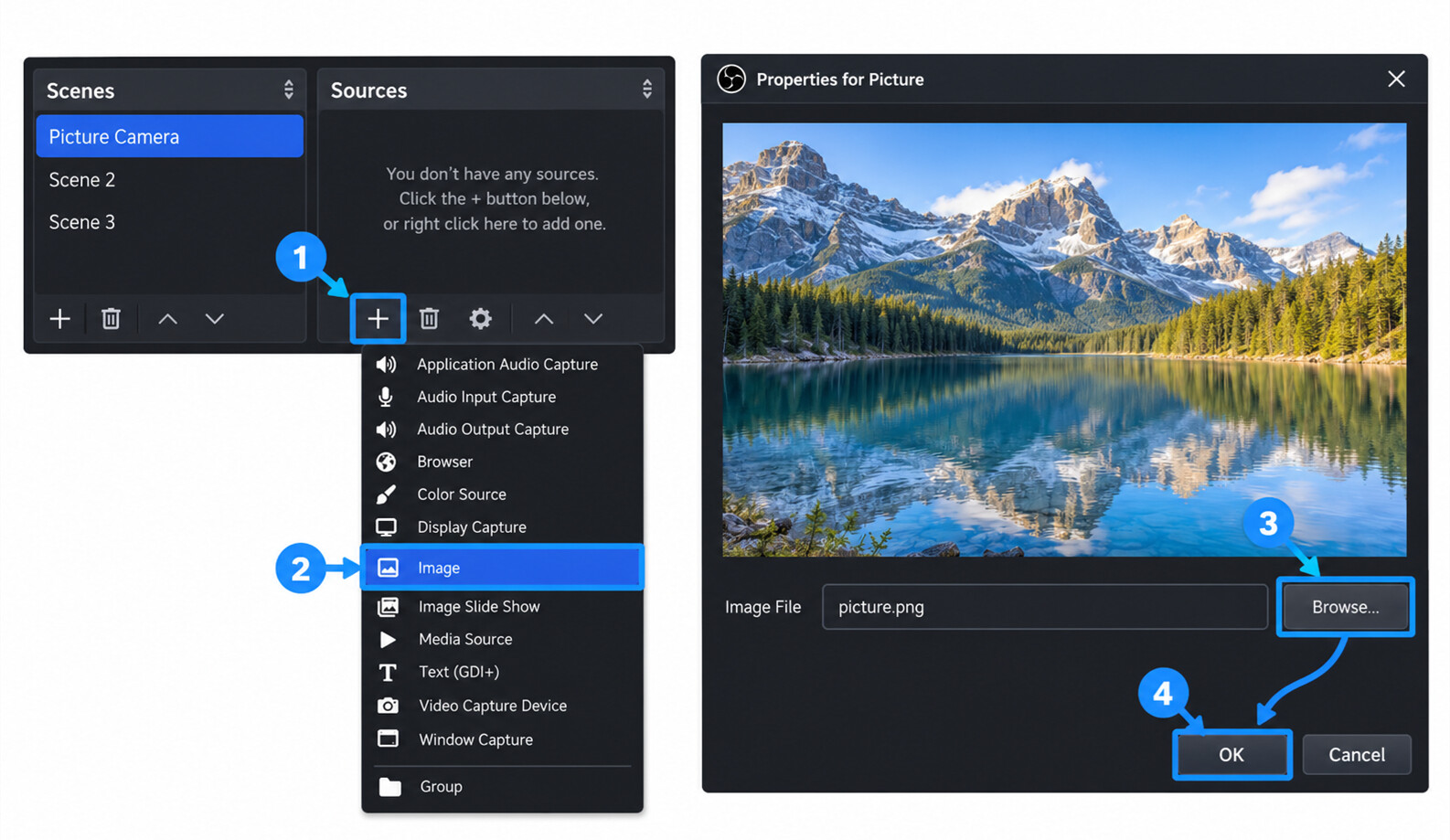
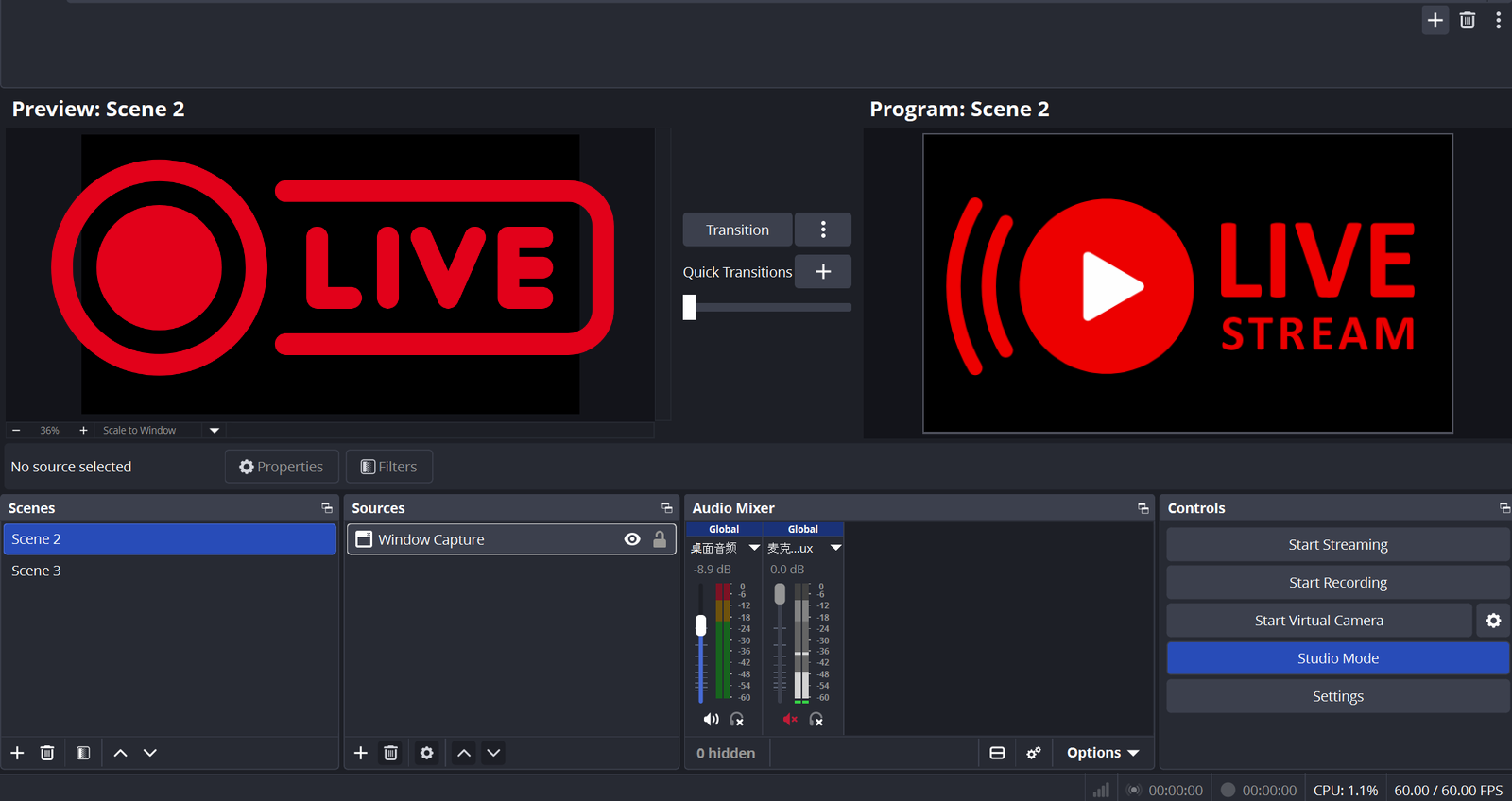
The images in this guide are annotated interface illustrations, not captured screenshots. Control placement can vary by version.
Step 2: Fit the Picture to the Frame
Right-click Picture in Sources and choose Transform > Fit to Screen. This preserves the image's proportions.
A portrait or square image will leave unused space on a widescreen canvas. For a full-frame picture, prepare a matching image, such as 1920 × 1080 for a 16:9 canvas. Alternatively, add a Color Source below the picture to fill the surrounding area. Avoid Stretch to Screen if it distorts faces or text.
Step 3: Keep the Virtual Camera on the Picture Scene
In Controls, click the gear beside Start Virtual Camera. Set the output type to Scene and select Picture Camera, then confirm.
This keeps the image on your virtual camera even if you select another OBS scene. Choose Program instead only when you want the camera feed to follow your main OBS output.
Step 4: Start OBS Virtual Camera
Click Start Virtual Camera. The button changes to Stop Virtual Camera when it is running.
You do not need to click Start Streaming or Start Recording. Keep OBS open and the virtual camera running for as long as you want to send the image.
Step 5: Select OBS Virtual Camera in Your Calling App
Open the app's camera selector and choose OBS Virtual Camera, then turn your video on.
- Zoom: Open Settings > Video & effects, then select OBS Virtual Camera in the Camera menu. During a meeting, use the camera-selection menu beside the video control.
- Google Meet: Open Settings > Video > Camera and select OBS Virtual Camera.
- Other desktop apps: Look under Video, Camera, or Devices settings. Select the virtual camera rather than the laptop's built-in camera.
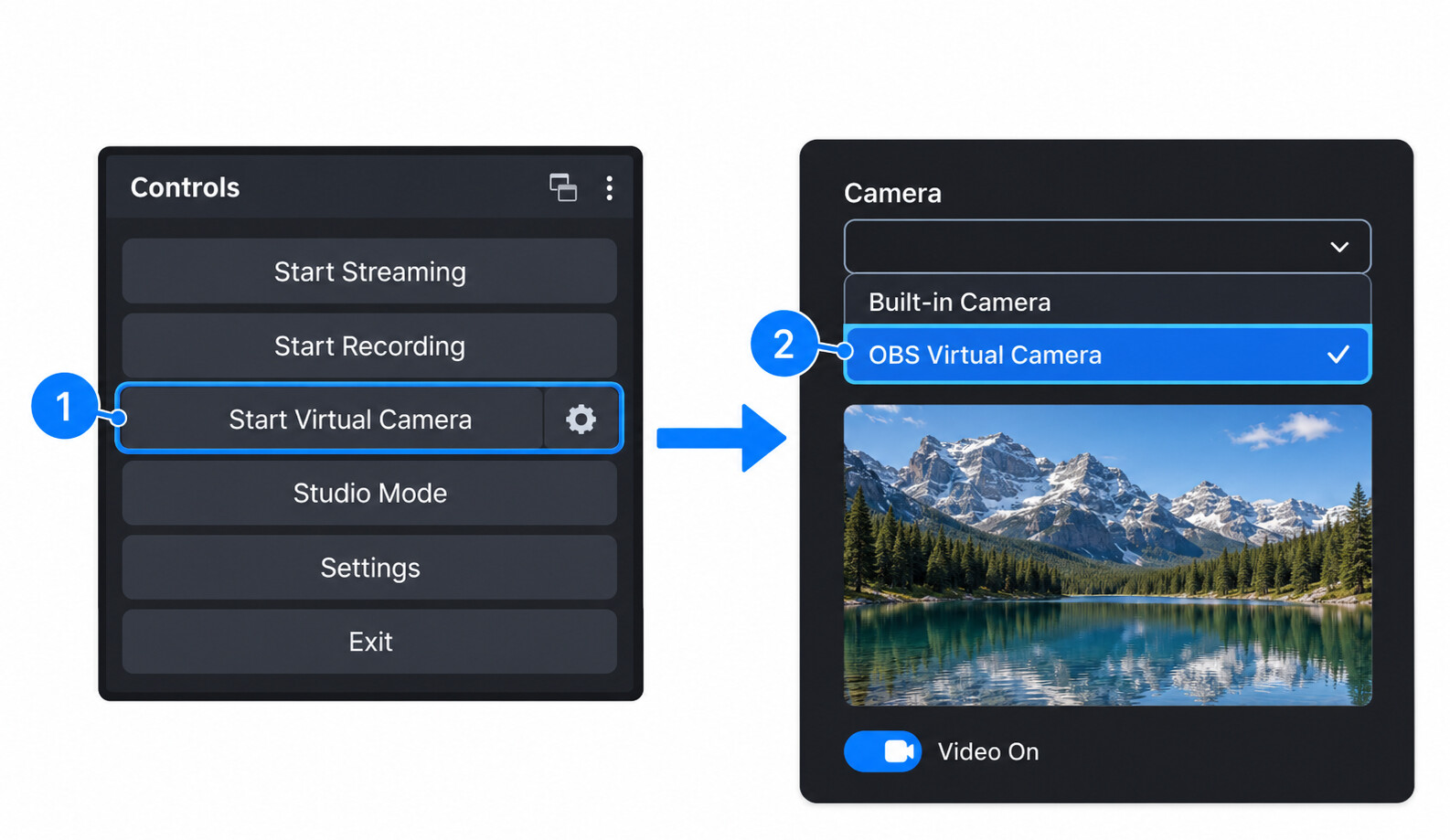
Check the receiving app's preview before joining. Your picture should appear there, not just in OBS. Select your microphone separately in the app's audio settings.
Change the Picture Without Reconnecting
To replace the image, double-click the Picture source in OBS, select Browse, and choose another file. The running virtual camera updates without changing your camera selection in the calling app.
If the replacement has different dimensions, apply Fit to Screen again. Keep the image file in a permanent folder so OBS can still load it next time.
Fix Black Screens and a Missing OBS Virtual Camera
The Picture Appears in OBS but Not in the Call
- The app shows your real webcam: Change its camera selection to OBS Virtual Camera.
- The app shows an OBS placeholder: Confirm the OBS button reads Stop Virtual Camera. If it still reads Start Virtual Camera, the output is not running.
- The feed is black or shows another scene: Check the virtual camera's output setting and reselect the Picture Camera scene. Also check that the Picture source's visibility eye is on.
- A background effect replaces or hides the picture: Turn off the calling app's virtual background, blur, or avatar effects, then check again.
OBS Virtual Camera Is Missing from the Camera List
Start the virtual camera first, then fully close and reopen the calling app. For browser calls, allow camera access and reload the page.
On macOS 15 or later, open System Settings > General > Login Items & Extensions > Camera Extensions and enable OBS if it is disabled. On macOS 13 or 14, check Privacy & Security for an OBS system-extension approval prompt. Restart OBS after approval.
On Windows, if the virtual camera component is missing, the standard installation includes virtualcam-install.bat in C:\Program Files\obs-studio\data\obs-plugins\win-dshow. Close OBS and run that file as administrator, then reopen OBS. A custom installation may use a different folder.
Bonus: Add Live Video Beside Your Picture with OBSBOT Meet 2 4K Webcam
A still image is enough for a holding slide. For lessons or demonstrations, you may want the slide to stay visible while you appear in a small camera window. OBSBOT Meet 2 can supply that live view inside the same OBS scene.
Key Features for a Picture-in-Picture Setup
- USB connection: Add the webcam as a Video Capture Device without a separate HDMI capture card.
- 4K at 30 fps: Use a detailed source when the lesson also includes a full-screen camera segment.
- 1080p at 60 fps: Capture smoother hand movements when demonstrating an object or technique.
- Autofocus and manual focus: Use autofocus for changing distances or manual focus for a fixed demonstration area.
- AI auto framing: Keep a seated presenter framed while the slide occupies the rest of the layout.
Connect Meet 2, add it under Sources > + > Video Capture Device, and place it above Picture in the Sources list. Resize the camera view into a corner. The virtual camera then sends the combined scene. No webcam is needed for an image-only feed.
FAQs About Pictures on OBS Virtual Camera
How Do I Make OBS Virtual Camera Show My Screen?
Use Display Capture on Windows, or macOS Screen Capture on Mac, instead of an Image source. Include that source in the scene sent to the virtual camera. Check the selected screen for private content before enabling video.
Does OBS Virtual Camera Send Microphone Audio?
No. It supplies video. Choose a microphone separately in Zoom, Meet, or your other calling app; moving audio meters in OBS does not mean the call is receiving that audio.
Does Adding a Picture Change the OBS Offline Placeholder?
No. This method sends a picture while the virtual camera is running. It does not replace the placeholder shown when the virtual camera is inactive. For a reliable holding image, keep the picture scene running instead of modifying OBS installation files.
Will a Transparent PNG Remove the Background Behind Me?
No. PNG transparency reveals layers below the image in OBS. It does not remove a person's background from a webcam feed, and calling apps generally receive the final composed frame rather than separate transparent layers.
Conclusion
Add an Image source, fit it to the frame, and send its scene through OBS Virtual Camera. Confirm the picture in your calling app before joining, and keep OBS running until you no longer need the image.