How to Multistream on OBS: Step-by-Step Setup Guide
This guide covers how to multistream on OBS using two methods: a free RTMP plugin, or a cloud-based multistreaming service. OBS Studio doesn't have built-in multistreaming; it can only push to one platform at a time by default. But with either method below, you can go live on Twitch, YouTube, Kick, and Facebook simultaneously, and this guide walks through exactly how to set up each one so you can pick the right fit for your setup.
Method 1: How to Multistream on OBS Using a Multiple RTMP Output Plugin
This is the most direct way to learn how to multi stream on OBS for free. A plugin like Multiple RTMP Output (obs-multi-rtmp) lets OBS reuse the same encoded stream for RTMP streaming to several destinations at the same time, without requiring a separate full video encoding process for each platform.
Step-by-step setup:
Step 1: Download the plugin. Get it from its official GitHub or OBS Forum resource page. It's available for Windows, macOS, and Linux, so grab the build that matches your OS.
Step 2: Install it into your OBS plugins folder. On Windows, this is typically C:\Program Files\obs-studio\obs-plugins\64bit. Copy the plugin files there, then fully restart OBS.
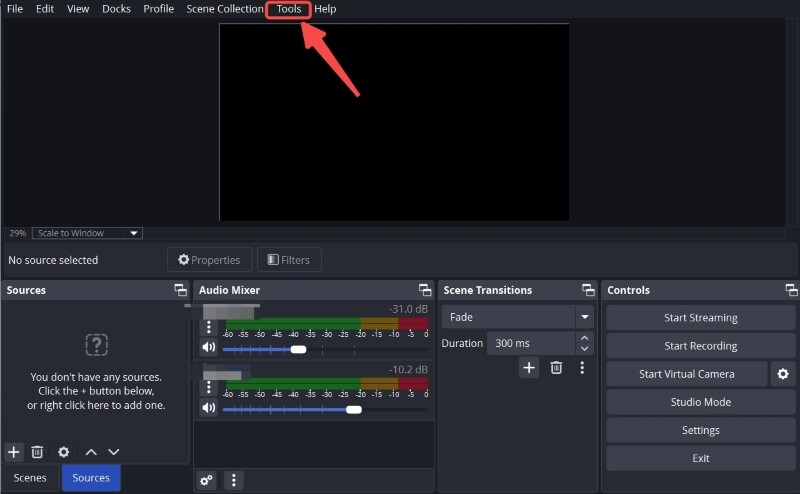
Step 3: Open the plugin panel. After restarting OBS, look for the Multiple RTMP Output panel or menu option added by the plugin. Its location may vary depending on the plugin version.
Step 4: Add each destination. For every platform (Twitch, YouTube, Kick, Facebook, etc.), enter the platform name, its RTMP server URL, and your stream key.
Step 5: Enable your destinations and hit Start Streaming. Once confirmed, you're live everywhere at once. If you're streaming to two platforms, the same setup can be used for a dual-stream workflow, or full multistreaming if you add more.
Pros and Cons
| Advantages | Limitations |
|---|---|
| Free to use | Requires more upload bandwidth |
| No third-party multistream account required | More manual configuration |
| Uses your existing OBS setup | Network problems can affect multiple platforms |
| Full control over RTMP outputs | Plugin support may vary by OBS version |
If you're specifically searching for the best multi stream plugin for OBS, Multiple RTMP Output is a commonly used free option for adding multiple RTMP destinations to OBS. The main trade-off is higher upload bandwidth usage, while local processing overhead depends on the plugin and output configuration.
Bonus: Best Camera for RTMP Streaming - OBSBOT Tail Air Streaming Camera
OBSBOT Tail Air is a flexible 4K video camera for RTMP streaming and live production, especially when you want a camera that can fit directly into an existing streaming workflow. Its AI-powered tracking and multi-camera capabilities help simplify camera operation while giving you more flexibility when building a live setup.
Key Features:
- Direct RTMP Streaming – Stream directly to supported platforms over RTMP without relying solely on a computer-based camera connection.
- AI Tracking – Automatically keeps people, animals, or selected objects in frame, making it easier to manage the camera while focusing on your live production.
- Multi-Camera Setup – Tail Air supports multi-camera workflows, making it suitable for live productions that use multiple camera angles.
- Flexible Connectivity – With wireless connectivity, Ethernet support through an adapter, HDMI, and USB-C, Tail Air can fit into different live production workflows.
Method 2: How to Multistream on OBS Using a Dedicated Multistreaming Service
If you'd rather not manage multiple outgoing streams from your own connection, a dedicated service like Restream answers can OBS stream to multiple platforms at once in a simpler way. OBS sends a single stream to the service's servers, and the service handles redistributing it to every connected platform in the cloud.
Step-by-step setup:
Step 1: Create a free account on your chosen multistreaming service (e.g., Restream.io).
Step 2: Connect your destination channels. Add Twitch, YouTube, Facebook, LinkedIn, and others through the service's "Channels" or "Destinations" section.
Step 3: Open OBS and go to Settings → Stream.
Step 4: Select the service from the Service dropdown (e.g., "Restream.io"), or choose "Custom" and manually paste in the service's RTMP URL and stream key.
Step 5: Use "Connect Account" instead, if the service supports direct OBS linking. This auto-syncs your key and often unlocks built-in chat and widget docks.
Step 6: Click Start Streaming in OBS. Check the service's dashboard to confirm you're live across all connected platforms.
Pros and Cons
| Advantages | Limitations |
|---|---|
| Beginner-friendly setup | Free tiers often cap you at 2-3 destinations |
| Reduces the amount of upload bandwidth needed from your computer | Higher resolutions may require a paid plan |
| Unified chat and analytics dashboard | Depends on the service's uptime |
| Quick to connect via OBS's Service dropdown | Less granular control than a local plugin |
This is a simple way to learn how to stream on multiple platforms with OBS without manually configuring multiple RTMP outputs or worrying about your home internet handling multiple upload streams at once.
Which Multistreaming Method Should You Choose?
Your choice comes down to five practical factors:
- Upload bandwidth. Strong, stable upload speed favors the local plugin; limited bandwidth favors a cloud service.
- Number of platforms. More destinations generally make cloud-based multistreaming more convenient to manage.
- Budget. The plugin is free indefinitely; cloud services often require a paid plan beyond basic limits.
- Technical comfort. Plugins involve manual file installation; services are mostly point-and-click.
- Need for unified chat/analytics. Only cloud services typically offer this.
| Your situation | Recommended method |
|---|---|
| Strong upload speed, comfortable with manual setup, want it free | Multiple RTMP Output plugin |
| Beginner, targeting multiple platforms, want unified chat/dashboard | Dedicated service (e.g., Restream) |
Whichever route you take, this is what makes multistreaming made easy in practice: matching the method to your bandwidth and budget rather than forcing one approach.
FAQs About How to Multistream on OBS
1. Can you multistream on OBS natively?
No. OBS Studio does not provide built-in multistreaming in its standard streaming interface. Native multistreaming isn't built in, which is exactly why the plugin and service methods above exist.
2. What can I use to multistream?
Two main options: a free RTMP output plugin installed directly into OBS, or a cloud-based multistreaming service like Restream that connects through OBS's Stream settings.
3. What is the best OBS plugin for multistreaming?
Multiple RTMP Output (obs-multi-rtmp) is a commonly used free option for sending an OBS stream to multiple RTMP destinations. It can reuse the encoded stream for multiple destinations without requiring a third-party account.
4. How can I stream on multiple platforms simultaneously?
Set up either the RTMP plugin for direct, local multistreaming, or connect a multistreaming service in OBS's Stream tab. Both let you broadcast to Twitch, YouTube, Kick, and other platforms at the same time from a single OBS session.
Conclusion
OBS doesn't multistream on its own, but how to multistream on OBS really comes down to just two paths: the free Multiple RTMP Output plugin for full local control, or a cloud-based service like Restream for an easier, beginner-friendly setup. Base your decision on your upload bandwidth, budget, and how many platforms you're targeting, then follow the steps above to go live everywhere at once.