How to Make Veadotube Transparent on OBS: Easy Fix
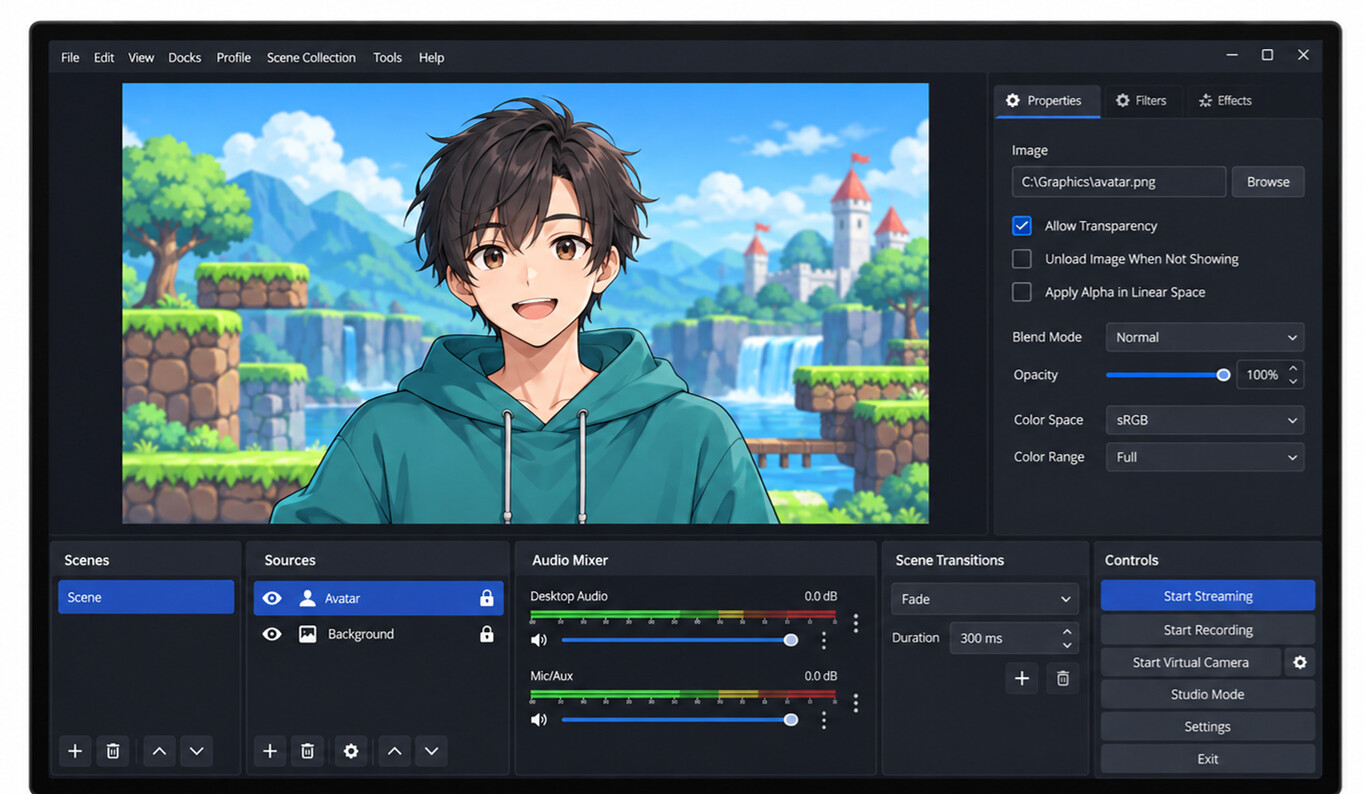
Your avatar is moving in OBS, but a solid box still covers the game or background behind it. The fix usually involves the capture source, not the artwork. This guide shows how to make Veadotube transparent in OBS on Windows and Mac, with a color-removal fallback if native transparency is unavailable.
Make Veadotube Transparent in OBS on Windows
Start with Game Capture if you want a setup without an extra plugin. Use Spout2 if Game Capture does not work or you want an avatar feed without the app interface.
Option 1: Use Game Capture Without a Plugin
- Prepare the avatar. Open Veadotube Mini and load your avatar. In Display Settings (the grid icon), set the background to transparent. In the full Veadotube app, use a transparent scene background.
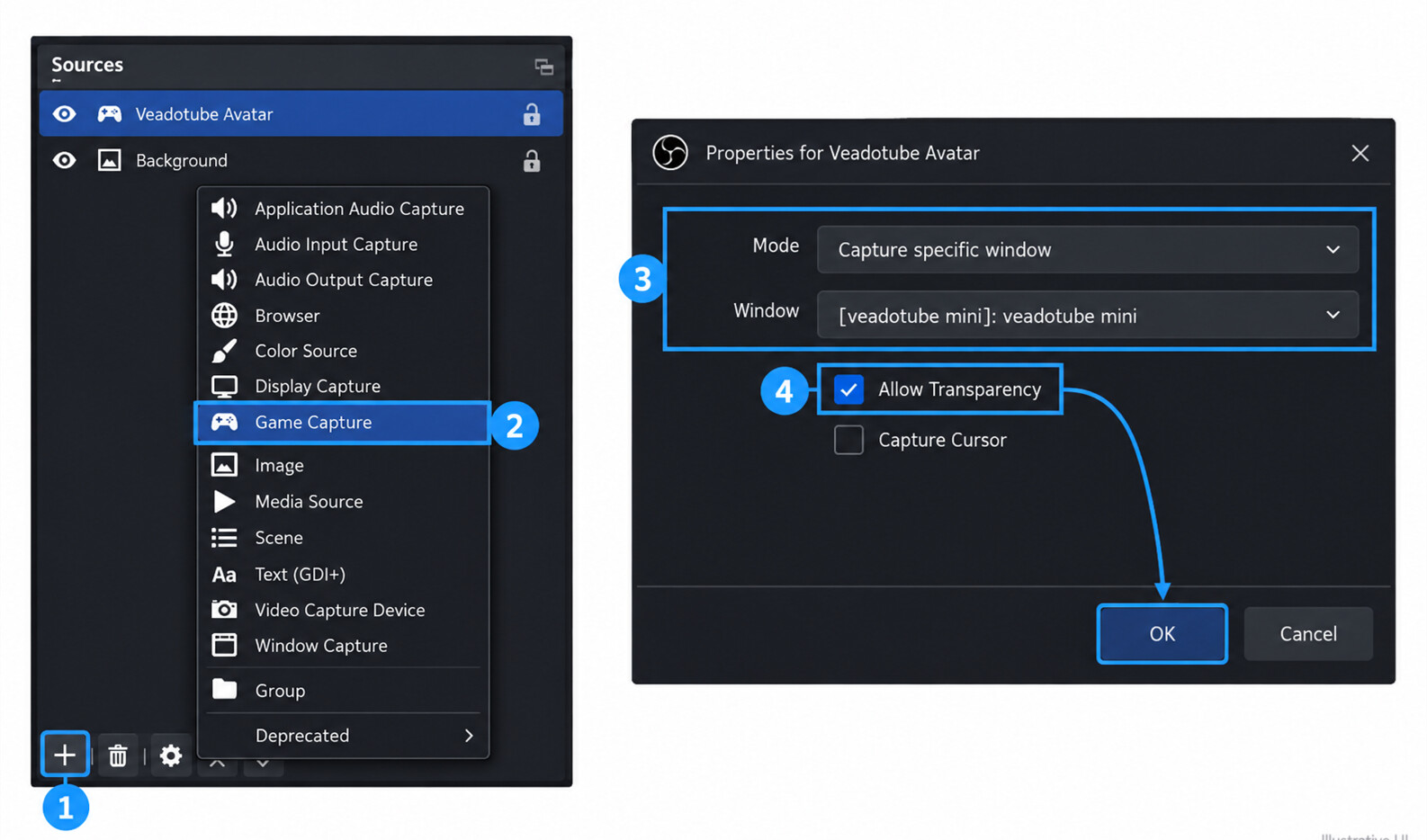
- Add the source. In OBS, select Sources > + > Game Capture. Name it Veadotube Avatar and click OK.
- Select the app. Set Mode to Capture specific window, then choose the Veadotube window.
- Enable transparency. Check Allow Transparency in the source properties and click OK.
Check the Result Against Another Layer
- In OBS, add Sources > + > Color Source and choose a bright color.
- Drag the Color Source below the avatar in the Sources list.
- Confirm the color appears around the character without a rectangular box.
An empty OBS canvas can look black even when your avatar is transparent. Testing against a visible layer distinguishes an opaque capture from an empty background. Once the test passes, replace the Color Source with your game, image, or video.
Option 2: Use Spout2 Capture
- Close OBS. Download the Windows installer from the Spout2 plugin releases and install it for your OBS installation.
- In VeDoTube Mini, enable Spout stream in Program Settings. In full VeDoTube, enable it in the preview panel.
- Reopen OBS and select Sources > + > Spout2 Capture.
- Select the VeDoTube instance under Spout Senders. Set Composite Mode to Default, not Opaque.
Spout2 transfers the app's video output instead of capturing the desktop window. You do not need to key out a background color when the feed already includes transparency.
Capture Veadotube with Transparency on Mac
Use Syphon Client rather than following the Windows Game Capture instructions.
- Enable the Syphon stream in Veadotube Mini's Program Settings, or in the full Veadotube preview panel.
- In OBS, select Sources > + > Syphon Client.
- Select the Veadotube feed and enable Allow Transparency.
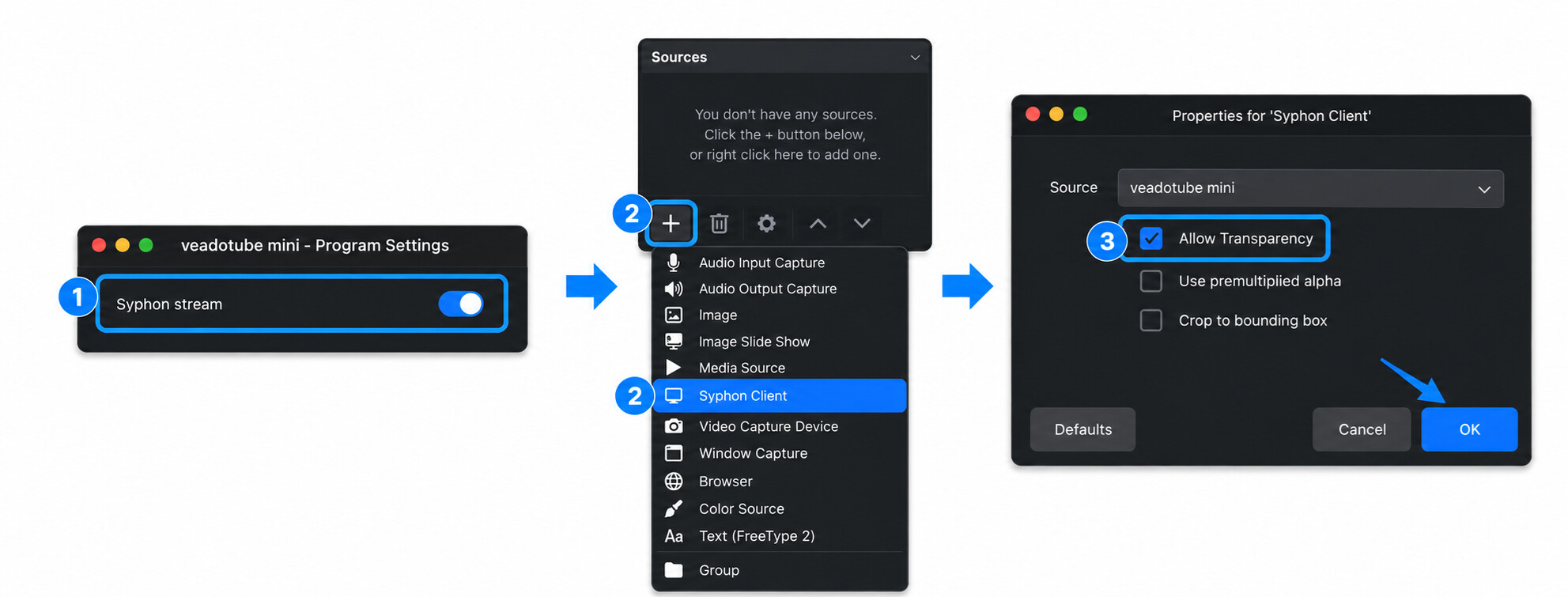
If you use macOS Screen Capture to capture the app window instead, follow the Color Key fallback below.
Remove a Solid Background with Color Key
Use Color Key when your captured window contains a flat background that you cannot capture transparently. This filter removes a selected color, so choose one absent from the avatar.
- In VeDoTube Mini's Display Settings, choose a solid background color. Avoid green if your character has green hair or clothing; choose another contrasting color instead.
- Add the app using Window Capture in OBS. On Mac, use macOS Screen Capture with its window-capture method.
- Right-click that source and select Filters.
- Under Effect Filters, select + > Color Key.
- Set Key Color Type to the matching color, or choose Custom and select the exact background color.
- Adjust Similarity until the background disappears. Stop if parts of the character disappear too. Use Smoothness sparingly to soften jagged edges.
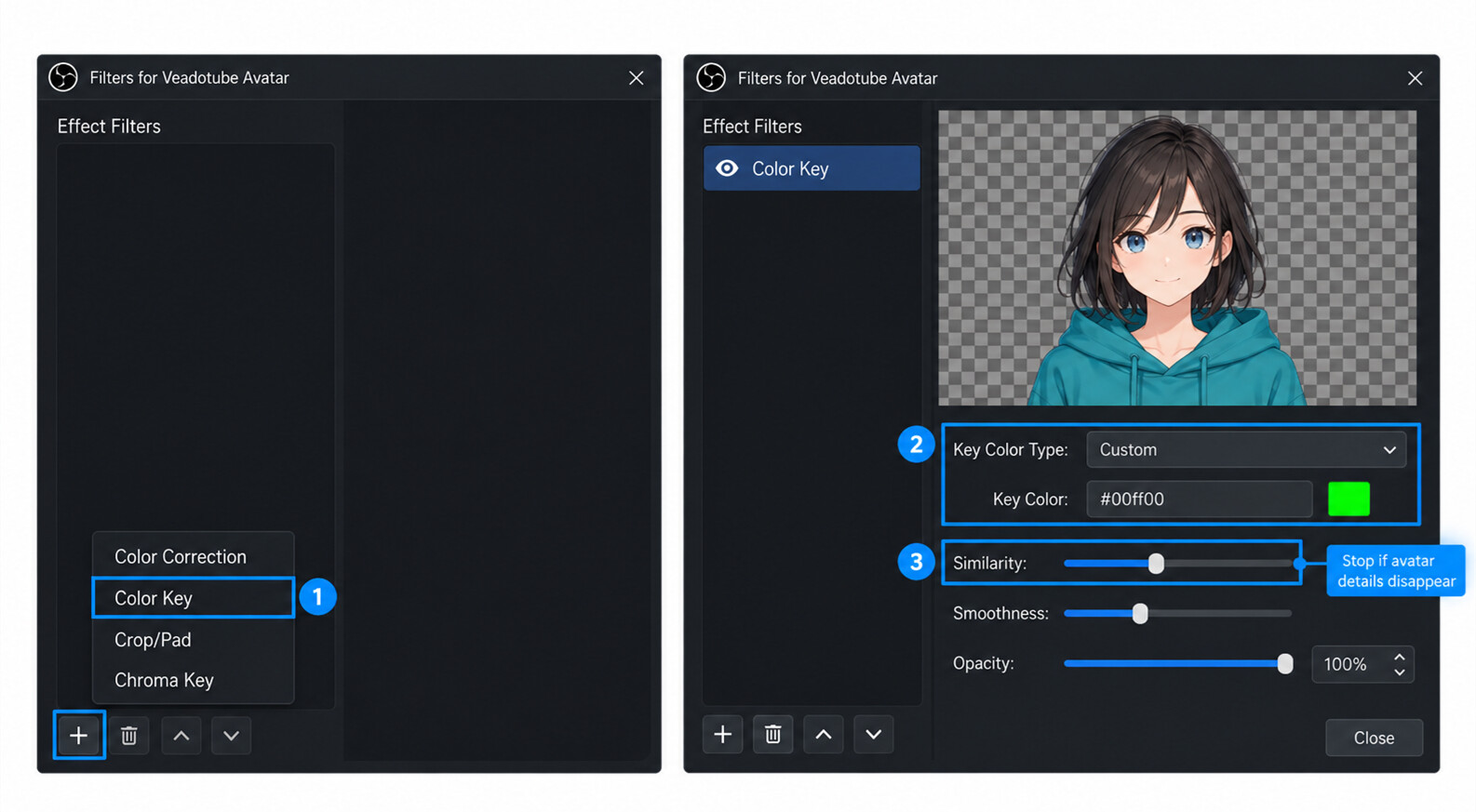
Leave Opacity at its fully opaque setting. Lowering opacity fades the character as well as the background; it does not isolate the avatar.
Combine Your Avatar with Live Video Using OBSBOT Meet 2 4K Webcam
A PNG avatar can represent you while a separate camera shows what you are making, playing, or demonstrating. For craft streams, unboxings, or tabletop tutorials, OBSBOT Meet 2 can capture the real-world action while your veadotube avatar stays in a corner of the OBS scene.
Key Features for a Hybrid Avatar Stream
- 4K at 30 fps: Capture small objects and desk demonstrations with a detailed source image, even when your final stream is 1080p.
- 1080p at 60 fps: Choose a higher frame rate for hand movements, card handling, or other action within the camera view.
- Automatic and manual focus: Use autofocus when showing objects at different distances, or select manual focus for a fixed tabletop setup.
- USB connectivity: Add the webcam directly to OBS as a Video Capture Device without a separate HDMI capture card.
- Compact mounting options: Use the magnetic mount or a compatible 1/4-inch tripod to position the camera toward the demonstration area.
To combine the sources: Add Meet 2 as a Video Capture Device, place your transparent veadotube source above it in the Sources list, then resize and position the avatar.
Fix Missing Avatars, Black Boxes, and Rough Edges
Match the fix to what you see. A missing feed, an opaque background, and damaged artwork are different problems.
The Avatar Does Not Appear
- Check the source: Open its Properties and reselect the running video source or sender. Confirm its visibility eye is enabled.
- Check its position: Right-click the source and choose Transform > Fit to Screen to bring an off-canvas source back into view.
- Game Capture stays blank: Try SLI/Crossfire Capture Mode (Slow) in its Properties. This is a fallback, not a default performance setting.
- A Windows laptop uses multiple GPUs: Open Settings > System > Display > Graphics and assign OBS and veadotube to the same high-performance GPU. Restart both apps.
Only One Mouth or Blink State Has a Box
Inspect that state's original image. A PNG can still contain an opaque background. Open it in an image editor, remove the background, export it with transparency, and reload the affected state. Check each mouth and blink image rather than fixing only the idle pose.
Color Key Removes Parts of the Character
The selected background color overlaps with the artwork, or Similarity is too high. Lower Similarity first. If the background remains, change the app background to a color farther from the character's palette.
The Avatar Has a Halo or Visible App Controls
For a transparency border, try Scale Filtering > Bilinear on the source; Point can suit pixel art. For Veadotube mini's controls, enable hide UI in Program Settings. Double-click the app view when you need the controls again.
FAQs About Veadotube Transparency
How Do I Make Other Sources Transparent in OBS?
First decide whether you want to remove a background or fade the entire source. Use an alpha-capable source or a keying filter for background removal. For a fade, add a Color Correction filter and lower Opacity.
Can I Use Veadotube with Streamlabs?
Some capture and keying steps also apply to Streamlabs, but source names and plugin support can differ. Do not assume an OBS Spout2 plugin installs into Streamlabs. Check the capture sources available in your version.
Can I Use My Avatar in Discord or Video Calls?
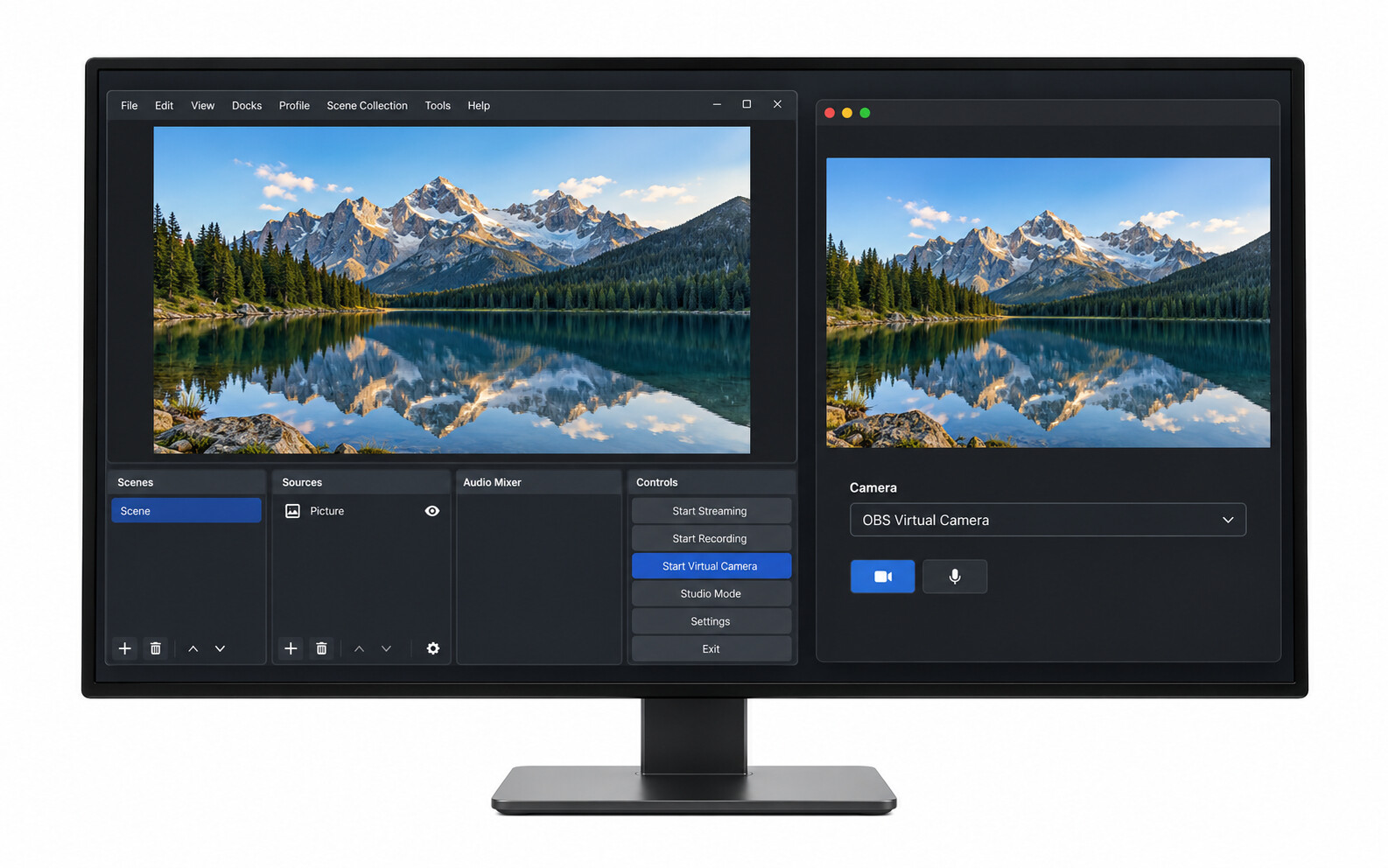
After composing the avatar in OBS, click Start Virtual Camera and select OBS Virtual Camera in the calling app. Expect the composed scene, not an alpha-transparent overlay. Select your microphone separately for call audio.
Conclusion
Use the capture method for your operating system, then test the avatar over a visible background layer. Keep Color Key as a fallback for flat-color captures, and check every avatar state before recording or going live.