How to Add SoundCloud Music to an OBS Stream (Windows & Mac)

A SoundCloud track can play normally on your computer and still be missing from your OBS stream. The fix is to capture the browser or app as its own audio source, then confirm that OBS receives it without also capturing the same sound through Desktop Audio. This guide covers Windows and macOS, plus a local-file option for music you have permission to use.
Choose the Right SoundCloud Capture Method
Use application audio capture for SoundCloud playing in a browser or desktop app. It isolates the music from unrelated computer sounds and is the quickest route for most setups.
| Setup | Use this OBS source | Best when |
|---|---|---|
| Windows 10/11 | Application Audio Capture | You want only the browser or app music in OBS. |
| macOS 13+ | macOS Audio Capture | You want to capture SoundCloud without routing all system audio. |
| Any supported OS | Media Source | You have a local audio file and the rights to use it in the stream. |
SoundCloud playback access is not the same as permission to rebroadcast a track. Use music you created, licensed for livestream use, or have permission to transmit. Downloading a track—or crediting its artist—does not by itself grant those rights.
Capture SoundCloud Audio in OBS
Start the SoundCloud track first so its browser or app window appears in OBS’s capture list. You do not need to add the SoundCloud page as a visual source just to capture its audio.
Windows: Add Application Audio Capture
- Open SoundCloud in your browser or desktop app and play the track you have permission to stream.
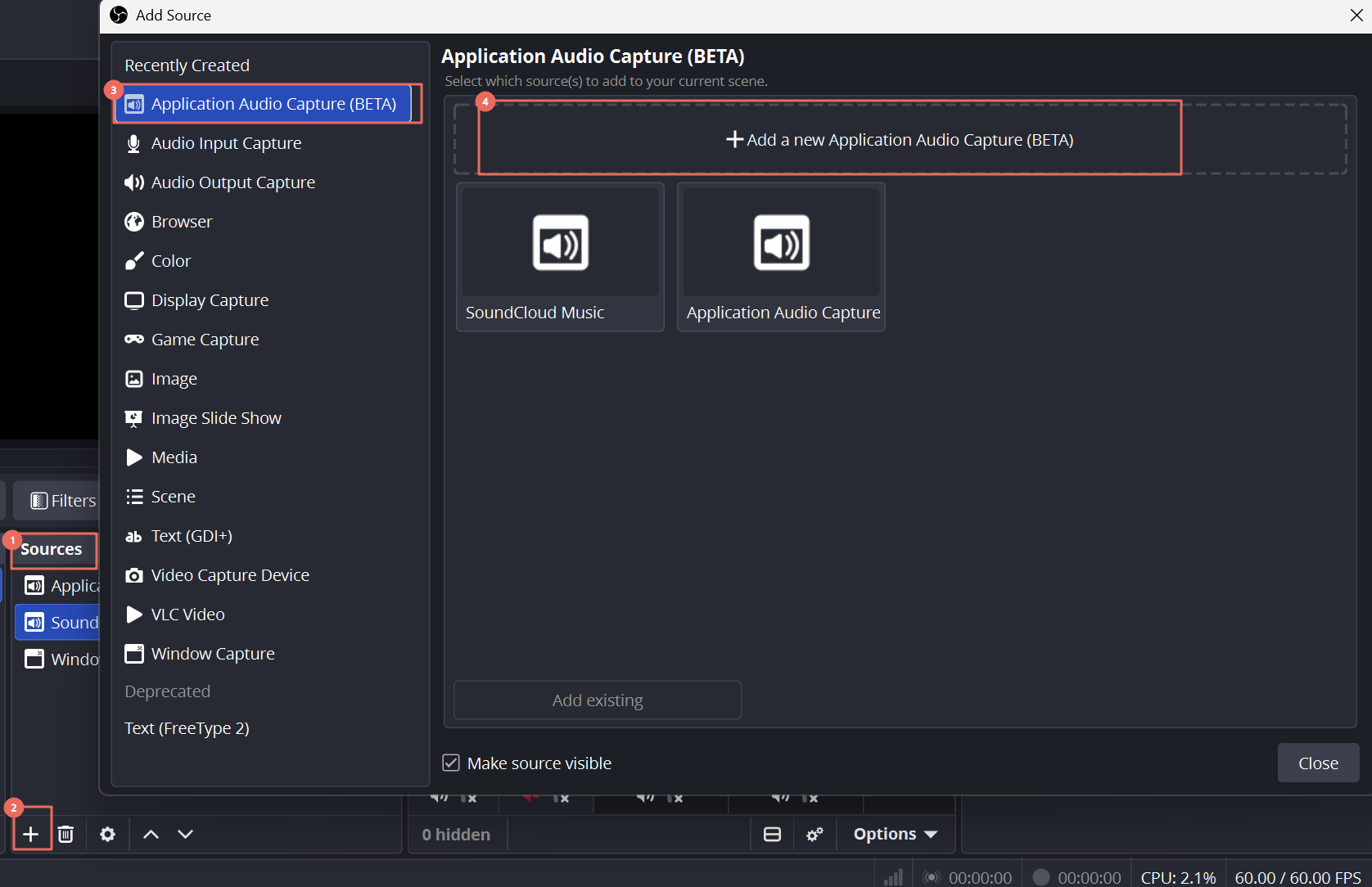
- In OBS, select the scene for your stream. In Sources, click + and choose Application Audio Capture (it may appear as “Application Audio Capture (BETA)”).
- Name the source “SoundCloud Music” and click OK.
- In the source properties, choose the browser or SoundCloud app that is playing the track, then confirm.
- Return to OBS and check the Audio Mixer. The SoundCloud Music meter should move when the song plays.
If you use this dedicated source, turn off the global Desktop Audio device in Settings → Audio unless you intentionally need it. Otherwise, OBS may capture the same song twice, causing louder playback or echo. Application Audio Capture is supported on Windows 10 version 2004 or later and Windows 11.
macOS: Add macOS Audio Capture
- Use OBS Studio 30 or later on macOS 13 (Ventura) or later for the built-in application audio source.
- Play SoundCloud in the browser or app you plan to stream.
- In OBS, click + under Sources and choose macOS Audio Capture.
- Select the SoundCloud app or browser as the capture target. If macOS asks, allow OBS to capture system audio.
- Play the track and confirm that its meter moves in the Audio Mixer.
If the dedicated source is not available, use the current macOS Screen Capture source and set its capture mode to the SoundCloud application or window; macOS 13 and later can include that source’s audio. Grant OBS the required Screen & System Audio permission in macOS when prompted.
Use a Local File You Are Authorized to Stream
If you have a properly licensed audio file, add it with Sources → + → Media Source, leave Local File enabled, and browse to the file. Turn on Loop if it should repeat. This is a separate workflow from capturing SoundCloud’s player; do not rip or download a SoundCloud track to bypass platform or rights restrictions.
Set Music Levels and Prevent Echo
Balance the music against your voice by listening to a short test recording. There is no single mixer-slider number that works for every song, microphone, or stream.
- Speak at your normal streaming volume while the music plays.
- Lower the SoundCloud Music fader until speech remains easy to understand and the music sits behind it. Watch the meter and avoid peaks entering the red.
- Wear headphones while testing. Speakers can feed the music back into your microphone.
- If you want to hear the music through OBS, open Edit → Advanced Audio Properties and choose a monitoring option for the SoundCloud source. Keep monitoring off if you do not need a separate headphone feed.
- Make a short local recording and play it back before going live. Check both the music level and whether your microphone is captured once.
OBS’s Audio Mixer confirms that the source reaches OBS; it does not confirm that the track is licensed for a public livestream. Separate stream and VOD audio tracks can change what gets recorded, but they do not replace permission.
Bonus: Keep Yourself in Frame with OBSBOT Tail Air
If you stream alone and move around while presenting, managing the camera can compete with monitoring your SoundCloud audio and OBS mixer. OBSBOT Tail Air is a compact 4K PTZ camera with AI tracking, so it can follow you during a demonstration or performance. It supports 4K at 30 fps and 1080p at 60 fps, with USB-C, Micro HDMI, and Ethernet connectivity. It handles the camera side of your stream; SoundCloud audio capture and music-use permissions still need to be configured separately in OBS.
Key Features
- AI tracking: When you step away from the desk to demonstrate an instrument or perform, the camera can follow your movement without a second operator.
- 1080p at 60 fps: Use this mode when smoother motion matters more than 4K detail, such as a movement-heavy performance or live stream.
- Multiple connection options: Connect through USB-C, Micro HDMI, or Ethernet with the required adapter, depending on your streaming setup.
Fix Missing or Doubled Music
- No meter movement: Make sure the track is playing, then reopen the capture source properties and select the browser or app that actually produces the sound.
- Music is doubled or echoes: Remove duplicate capture paths. If you use Application Audio Capture, disable Desktop Audio unless you need it for other system sounds.
- You hear music but the stream does not: In Advanced Audio Properties, confirm the SoundCloud source is assigned to the audio track used for streaming. Also check that the source is not muted.
- Music is in the stream but not your headphones: This can be normal when audio monitoring is off. Set OBS’s monitoring device and enable monitoring for that source, then test with headphones.
- macOS captures nothing: Confirm macOS 13 or later, use a supported OBS audio capture source, grant Screen & System Audio permission, and restart OBS after changing permissions.
FAQs About SoundCloud Music in OBS
How do I add background music to a live stream?
Add the music player as an application-audio source in OBS, check its mixer meter, balance it under your voice, and test a recording before streaming.
Why won’t OBS pick up SoundCloud audio?
The source may be pointed at the wrong browser window, the track may be paused, or macOS may be blocking audio capture. Re-select the playing app and check the relevant system permission.
Can I export or download a SoundCloud song and use it in OBS?
You can download a track only when SoundCloud exposes a download option, but downloading does not grant livestream rights. Use a file only when its license or rights holder permits streaming use.
How can I show the current song title on stream?
That is a separate visual overlay. Add a browser-based now-playing overlay as an OBS Browser Source; the overlay does not capture or license the music itself.
Conclusion
For SoundCloud music in OBS, capture the playing app directly: use Application Audio Capture on Windows or macOS Audio Capture on a supported Mac. Confirm the mixer meter, remove duplicate Desktop Audio capture, balance the track against your voice, and use only music cleared for livestream use.