A Quick Guide to Transmit PC to TV: 5 Simple Methods
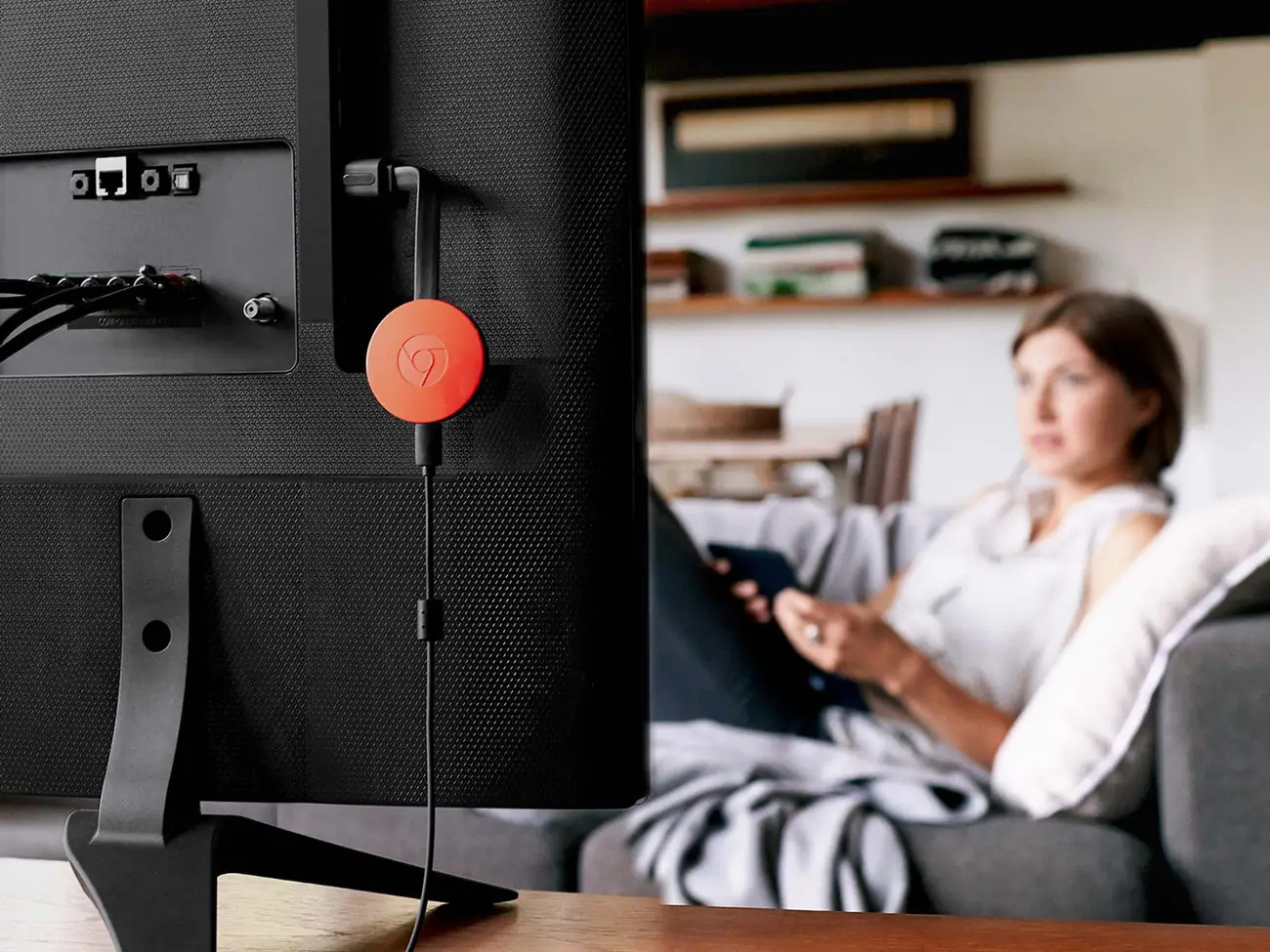
The most reliable way to transmit from PC to TV is still a classic HDMI cable—zero lag, best picture. But if you hate messy wires (who doesn't?), Miracast (Windows) or AirPlay (Mac) are your best friends for a wireless setup. Need to stream a specific movie file? Go with Plex or Chromecast.
In this article, we will cover the five best ways to transmit from PC to TV. From simple cables to advanced wireless technologies, we will guide you through the most efficient options. Go through the options, choose the method that fits your setup, and start enjoying your PC content on the big screen.
Part 1: Benefits of Transmitting Your PC to a TV
Why bother hooking everything up? Because everything looks better big. Honestly, once you switch, it's hard to go back to a 13-inch monitor.
- Immersion Level 100: Movies and games hit differently on a massive screen.
- Save Your Eyes: No more hunching over to read tiny text or spreadsheets.
- Social Streaming: Stop crowding around a laptop. Watch Netflix with friends like civilized humans.
- Pro Presentations: Ideal for presentations. Show your work clearly without asking, "Can everyone see my screen?"
- Multitasking Magic: Use your TV as a second monitor. Keep Slack on the laptop, YouTube on the TV. Perfect chaos.
Bonus: Best Webcam to TV for Video Call/Game Streaming - OBSBOT Meet Flip Foldable 4K Webcam
If your PC-to-TV setup also becomes a space for big-screen meetings, presentations, or casual game streaming, a reliable webcam can make the experience feel more complete. The OBSBOT Meet Flip fits naturally into that setup because it is easy to connect, simple to place around a desk or TV area, and useful for moments when you need to appear on camera instead of only sharing what is on your PC screen.
Key Features:
- 4K Video for Big-Screen Calls: Captures crisp 4K@30fps video, so your facecam stays sharp when viewed on a TV, monitor, or larger shared display.
- Foldable Hardware-Level Privacy: Flip the webcam open when you need it, then fold it down to physically cover the lens and enter sleep mode after calls or streams.
- AI Auto Framing and Gesture Control: Keeps you centered automatically and lets you adjust framing or zoom hands-free, which is useful when presenting or sitting farther from the screen.
- Scenario-Based Audio Modes: The intelligent dual-mic system offers four audio modes with AI Noise Reduction and Auto Gain for clearer voice capture in video calls, game chat, or small-room conversations.
- Flexible Setup for PC-to-TV Workflows: USB-C plug-and-play, 4x digital zoom, landscape/portrait support, and tripod compatibility make it easy to place the webcam on a monitor, desk, shelf, or TV-side setup.
Which Method Should You Choose?
Don't have time to read everything? Here is the cheat sheet to help you decide how to transmit from PC to TV based on your vibe.
| Method | Best For... | Difficulty | Lag / Stability |
|---|---|---|---|
| HDMI Cable | Gaming, high-res work, zero frustration | Super Easy | Perfect (Zero Lag) |
| Miracast | Windows users wanting wireless convenience | Easy | Good (Wi-Fi dependent) |
| AirPlay | Mac & Apple TV ecosystem | Easy | Very Stable |
| Chromecast | Streaming browser tabs or YouTube | Easy | Good |
| Plex | Movie buffs with a local media library | Hard (Setup required) | Excellent |
Part 2: Transmit from PC to TV in 5 Ways
Method 1: Transmit PC to TV via HDMI Cable (The "Old Reliable")
Look, I know cables aren't pretty. But if you want to play games without lag or watch a movie without it buffering right at the climax, HDMI is king. It just works.
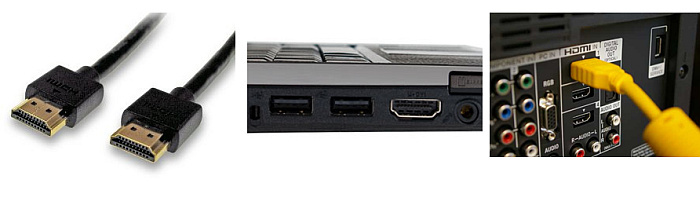
- Step 1: Plug one end of the HDMI cable into your PC. If you have a super thin laptop, you might need a USB-C hub (dongle life, am I right?).
- Step 2: Plug the other end into the TV. Remember which port number you used!
- Step 3: Grab your TV remote, hit "Source" or "Input," and find that HDMI port. Boom, you're live.
Method 2: Transmit PC to TV Wirelessly with Miracast
Hate cables? Me too. If you're on Windows 10 or 11, you have a magic trick built right in called Miracast. It basically turns your Wi-Fi into an invisible HDMI cable.
- Step 1: Make sure your Smart TV is on and Wi-Fi is connected.
- Step 2: On your PC keyboard, press Windows Key + K. (Seriously, try it, it's a shortcut life-saver).
- Step 3: A menu will pop up on the right. Click your TV's name.
- Step 4: Your TV might ask for permission. Say "Yes" or "Allow," and watch your desktop appear on the big screen.
Method 3: Cast PC to Apple TV Wirelessly with AirPlay
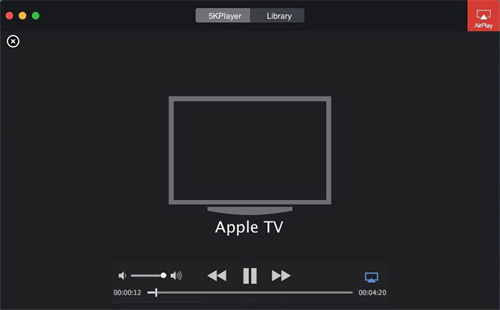
For the Apple crew—if you have a MacBook and an Apple TV (or an AirPlay 2 compatible Smart TV), the ecosystem just gets you. It’s incredibly smooth.
- Step 1: Ensure your Mac and TV are on the same Wi-Fi network. This is usually the culprit if it fails.
- Step 2: Look for the Control Center icon in your menu bar (the two little switches) and click "Screen Mirroring."
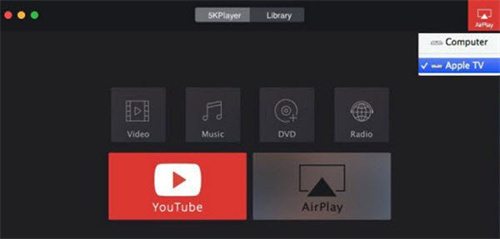
- Step 3: Select your Apple TV from the list. Done. Your Mac is now enormous.
Method 4: Stream PC to TV with Chromecast
Got a Chromecast plugged in, or a TV with "Google Cast" built-in? This is the best way to share a specific browser tab or stream video without sharing your whole messy desktop background.
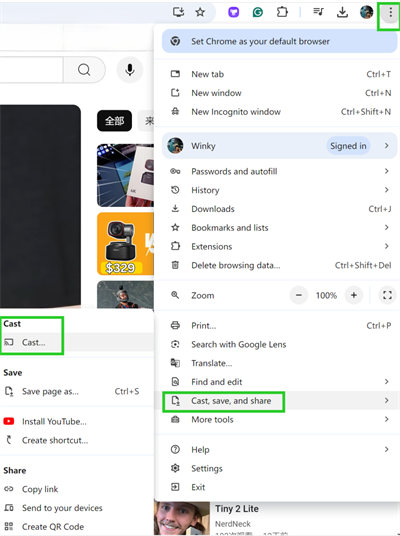
- Step 1: Open Google Chrome browser. Click the three dots in the top right corner. Select "Save and Share" > "Cast...".
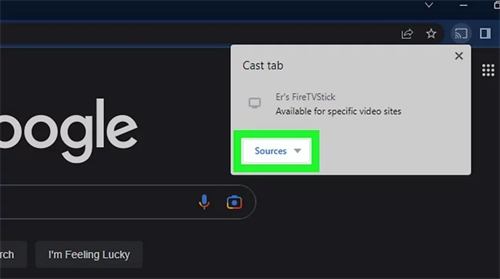
- Step 2: Choose your device. Pro tip: Click the "Sources" dropdown if you want to cast your entire screen instead of just the tab.
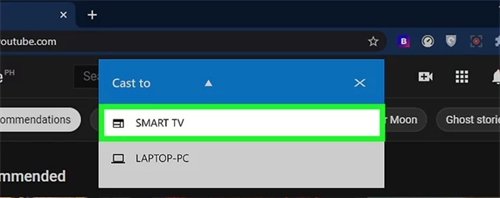
- Step 3: Select your TV.
- Step 4: If you have multiple screens, Chrome will ask which one to show. Pick one and hit "Share."
Method 5: Stream PC to TV with Plex Software
Okay, this one is for the collectors. If you have a hard drive full of movies and shows, Plex is absolutely beautiful. It organizes your files like your own personal Netflix.
- Step 1: Install Plex Media Server on your PC. It’s free!
- Step 2: Point Plex to the folders where you keep your movies. It will download posters and info automatically (so satisfying).
- Step 3: On your Smart TV, download the Plex app and sign in.
- Step 4: As long as the PC is running, your TV can stream everything instantly. It feels very futuristic.
Part 3: FAQs About How to Transmit from PC to TV
1. Can I connect my computer to my TV wirelessly?
Absolutely! You don't need to be tethered to the wall. If you have a Smart TV, chances are it supports Miracast (for Windows) or AirPlay (for Mac). If not, a cheap dongle like a Chromecast or Roku stick works wonders. Just a heads-up: wireless is great for movies, but if you're playing a fast-paced game, you might feel a tiny bit of lag.
2. How can I play my PC through my TV?
Think of your TV as just a really, really big computer monitor. The simplest way is an HDMI cable—plug it in, switch the TV input, and you're done. If you want to play media files specifically, setting up a Plex server or using Cast from Chrome browser is often smoother than mirroring your whole screen.
3. How do I connect my PC directly to my TV?
Direct connection usually means wires. Grab an HDMI cable (or USB-C to HDMI if your laptop is modern). Connect the PC output to the TV input. Then—and this is the part everyone forgets—grab your TV remote and change the "Source" to the HDMI port you plugged into. If the edges of the screen look cut off, check your PC's "Display Settings" and adjust the resolution.
Conclusion
So there you have it! Whether you're a cable purist or a wireless wanderer, transmitting from PC to TV is easier than it looks. You've got options: the stability of HDMI, the convenience of Miracast/AirPlay, or the media-center power of Plex.
My advice? Start with what you have. Got an HDMI cable lying in a drawer? Use that. Hate wires? Try the Win+K trick. Once you see your PC content on the big screen, you'll wonder how you ever managed with just a monitor. Go have fun with it!
```
The most reliable way to transmit from PC to TV is still a classic HDMI cable—zero lag, best picture. But if you hate messy wires (who doesn't?), Miracast (Windows) or AirPlay (Mac) are your best friends for a wireless setup. Need to stream a specific movie file? Go with Plex or Chromecast.
In this article, we will cover the five best ways to transmit from PC to TV. From simple cables to advanced wireless technologies, we will guide you through the most efficient options. Go through the options, choose the method that fits your setup, and start enjoying your PC content on the big screen.
Part 1: Benefits of Transmitting Your PC to a TV
Why bother hooking everything up? Because everything looks better big. Honestly, once you switch, it's hard to go back to a 13-inch monitor.
- Immersion Level 100: Movies and games hit differently on a massive screen.
- Save Your Eyes: No more hunching over to read tiny text or spreadsheets.
- Social Streaming: Stop crowding around a laptop. Watch Netflix with friends like civilized humans.
- Pro Presentations: Ideal for presentations. Show your work clearly without asking, "Can everyone see my screen?"
- Multitasking Magic: Use your TV as a second monitor. Keep Slack on the laptop, YouTube on the TV. Perfect chaos.
Bonus: Best Webcam to TV for Video Call/Game Streaming - OBSBOT Meet Flip Foldable 4K Webcam
If your PC-to-TV setup also becomes a space for big-screen meetings, presentations, or casual game streaming, a reliable webcam can make the experience feel more complete. The OBSBOT Meet Flip fits naturally into that setup because it is easy to connect, simple to place around a desk or TV area, and useful for moments when you need to appear on camera instead of only sharing what is on your PC screen.
Key Features:
- 4K Video for Big-Screen Calls: Captures crisp 4K@30fps video, so your facecam stays sharp when viewed on a TV, monitor, or larger shared display.
- Foldable Hardware-Level Privacy: Flip the webcam open when you need it, then fold it down to physically cover the lens and enter sleep mode after calls or streams.
- AI Auto Framing and Gesture Control: Keeps you centered automatically and lets you adjust framing or zoom hands-free, which is useful when presenting or sitting farther from the screen.
- Scenario-Based Audio Modes: The intelligent dual-mic system offers four audio modes with AI Noise Reduction and Auto Gain for clearer voice capture in video calls, game chat, or small-room conversations.
- Flexible Setup for PC-to-TV Workflows: USB-C plug-and-play, 4x digital zoom, landscape/portrait support, and tripod compatibility make it easy to place the webcam on a monitor, desk, shelf, or TV-side setup.
Which Method Should You Choose?
Don't have time to read everything? Here is the cheat sheet to help you decide how to transmit from PC to TV based on your vibe.
| Method | Best For... | Difficulty | Lag / Stability |
|---|---|---|---|
| HDMI Cable | Gaming, high-res work, zero frustration | Super Easy | Perfect (Zero Lag) |
| Miracast | Windows users wanting wireless convenience | Easy | Good (Wi-Fi dependent) |
| AirPlay | Mac & Apple TV ecosystem | Easy | Very Stable |
| Chromecast | Streaming browser tabs or YouTube | Easy | Good |
| Plex | Movie buffs with a local media library | Hard (Setup required) | Excellent |
Part 2: Transmit from PC to TV in 5 Ways
Method 1: Transmit PC to TV via HDMI Cable (The "Old Reliable")
Look, I know cables aren't pretty. But if you want to play games without lag or watch a movie without it buffering right at the climax, HDMI is king. It just works.
- Step 1: Plug one end of the HDMI cable into your PC. If you have a super thin laptop, you might need a USB-C hub (dongle life, am I right?).
- Step 2: Plug the other end into the TV. Remember which port number you used!
- Step 3: Grab your TV remote, hit "Source" or "Input," and find that HDMI port. Boom, you're live.
Method 2: Transmit PC to TV Wirelessly with Miracast
Hate cables? Me too. If you're on Windows 10 or 11, you have a magic trick built right in called Miracast. It basically turns your Wi-Fi into an invisible HDMI cable.
- Step 1: Make sure your Smart TV is on and Wi-Fi is connected.
- Step 2: On your PC keyboard, press Windows Key + K. (Seriously, try it, it's a shortcut life-saver).
- Step 3: A menu will pop up on the right. Click your TV's name.
- Step 4: Your TV might ask for permission. Say "Yes" or "Allow," and watch your desktop appear on the big screen.
Method 3: Cast PC to Apple TV Wirelessly with AirPlay
For the Apple crew—if you have a MacBook and an Apple TV (or an AirPlay 2 compatible Smart TV), the ecosystem just gets you. It’s incredibly smooth.
- Step 1: Ensure your Mac and TV are on the same Wi-Fi network. This is usually the culprit if it fails.
- Step 2: Look for the Control Center icon in your menu bar (the two little switches) and click "Screen Mirroring."
- Step 3: Select your Apple TV from the list. Done. Your Mac is now enormous.
Method 4: Stream PC to TV with Chromecast
Got a Chromecast plugged in, or a TV with "Google Cast" built-in? This is the best way to share a specific browser tab or stream video without sharing your whole messy desktop background.
- Step 1: Open Google Chrome browser. Click the three dots in the top right corner. Select "Save and Share" > "Cast...".
- Step 2: Choose your device. Pro tip: Click the "Sources" dropdown if you want to cast your entire screen instead of just the tab.
- Step 3: Select your TV.
- Step 4: If you have multiple screens, Chrome will ask which one to show. Pick one and hit "Share."
Method 5: Stream PC to TV with Plex Software
Okay, this one is for the collectors. If you have a hard drive full of movies and shows, Plex is absolutely beautiful. It organizes your files like your own personal Netflix.
- Step 1: Install Plex Media Server on your PC. It’s free!
- Step 2: Point Plex to the folders where you keep your movies. It will download posters and info automatically (so satisfying).
- Step 3: On your Smart TV, download the Plex app and sign in.
- Step 4: As long as the PC is running, your TV can stream everything instantly. It feels very futuristic.
Part 3: FAQs About How to Transmit from PC to TV
1. Can I connect my computer to my TV wirelessly?
Absolutely! You don't need to be tethered to the wall. If you have a Smart TV, chances are it supports Miracast (for Windows) or AirPlay (for Mac). If not, a cheap dongle like a Chromecast or Roku stick works wonders. Just a heads-up: wireless is great for movies, but if you're playing a fast-paced game, you might feel a tiny bit of lag.
2. How can I play my PC through my TV?
Think of your TV as just a really, really big computer monitor. The simplest way is an HDMI cable—plug it in, switch the TV input, and you're done. If you want to play media files specifically, setting up a Plex server or using Cast from Chrome browser is often smoother than mirroring your whole screen.
3. How do I connect my PC directly to my TV?
Direct connection usually means wires. Grab an HDMI cable (or USB-C to HDMI if your laptop is modern). Connect the PC output to the TV input. Then—and this is the part everyone forgets—grab your TV remote and change the "Source" to the HDMI port you plugged into. If the edges of the screen look cut off, check your PC's "Display Settings" and adjust the resolution.
Conclusion
So there you have it! Whether you're a cable purist or a wireless wanderer, transmitting from PC to TV is easier than it looks. You've got options: the stability of HDMI, the convenience of Miracast/AirPlay, or the media-center power of Plex.
My advice? Start with what you have. Got an HDMI cable lying in a drawer? Use that. Hate wires? Try the Win+K trick. Once you see your PC content on the big screen, you'll wonder how you ever managed with just a monitor. Go have fun with it!