DaVinci Resolve can feel slow when every cut, trim, and playback change starts with a mouse click. The right shortcuts turn those repeated actions into single keystrokes. This guide groups the most useful DaVinci Resolve keyboard shortcuts by task, shows the Windows and macOS differences, and explains the two common controls that do not have a standard default shortcut.
Essential DaVinci Resolve Shortcuts to Learn First
If you only learn ten DaVinci Resolve hotkeys, start here. These cover playback, cutting, selecting, trimming, saving, and moving around the timeline.
| Action | Windows | macOS | When to Use It |
|---|---|---|---|
| Play / Pause | Spacebar | Spacebar | Review an edit without reaching for the viewer controls. |
| Reverse / Stop / Forward | J / K / L | J / K / L | Search through footage at variable speed. |
| Split Clip | Ctrl + B | Cmd + B | Cut clips under the playhead on enabled tracks. |
| Select Clip at Playhead | V | V | Select the current clip without clicking it. |
| Selection Mode | A | A | Return to the normal pointer after using another tool. |
| Trim Edit Mode | T | T | Make ripple, roll, slip, and slide adjustments. |
| Toggle Snapping | N | N | Let clips lock to edits, markers, and the playhead. |
| Undo | Ctrl + Z | Cmd + Z | Reverse the last change. |
| Save Project | Ctrl + S | Cmd + S | Save before a major edit, render, or app update. |
| Keyboard Customization | Ctrl + Alt + K | Cmd + Option + K | Find, check, or remap a command. |
Playback and Navigation Shortcuts
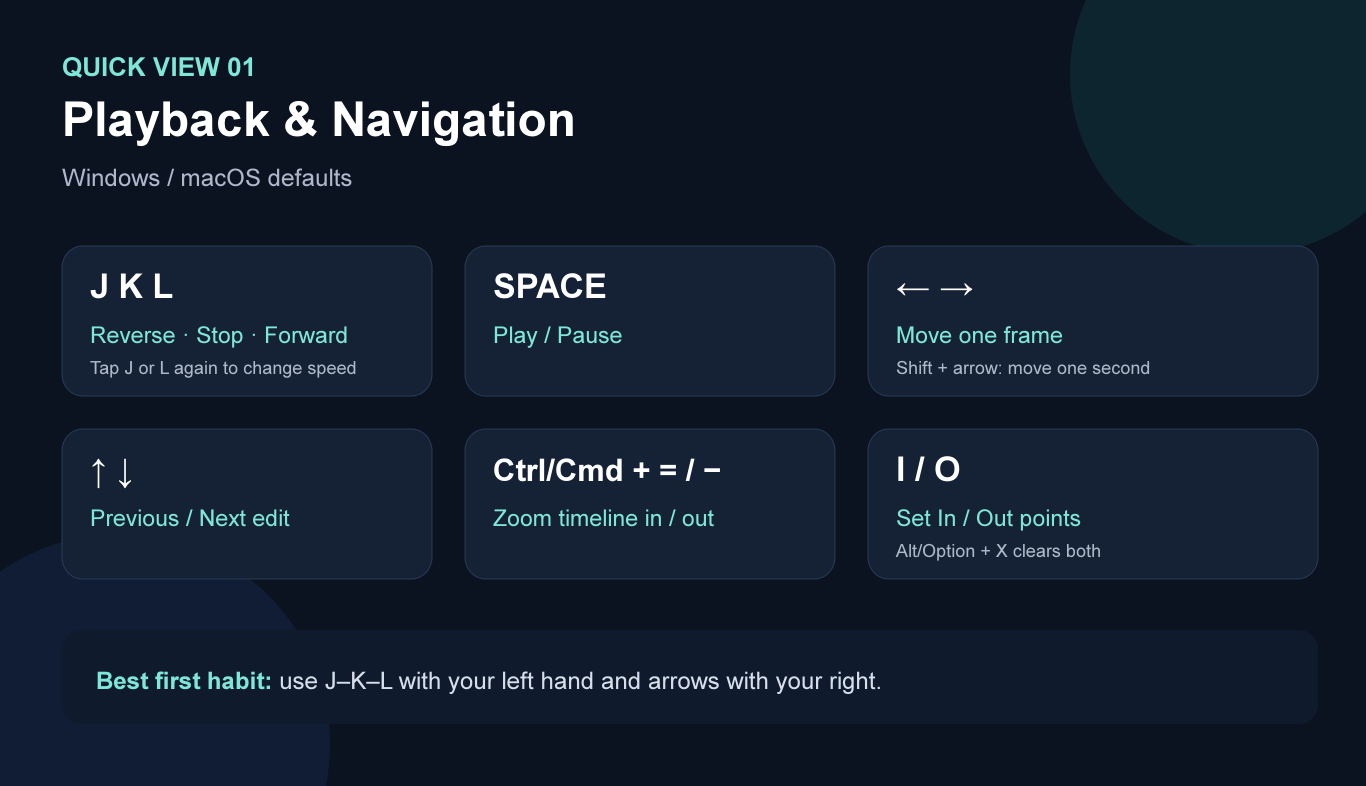
Playback shortcuts help you find the right frame before you make an edit. Keep your left hand over J, K, and L. Press J to play backward, K to stop, and L to play forward. Press J or L again to increase the playback speed.
Playback and Shuttling
- Spacebar: Play or pause.
- J / K / L: Play backward, stop, or play forward.
- Left / Right Arrow: Move one frame backward or forward.
- Shift + Left / Right Arrow: Move one second backward or forward.
- Ctrl/Cmd + /: Toggle loop playback.
- Alt/Option + Spacebar: Play from the In point to the Out point.
Moving Around the Timeline
- Up / Down Arrow: Jump to the previous or next edit point.
- Ctrl + Home / End on Windows; Cmd + Left / Right Arrow on macOS: Go to the beginning or end of the timeline.
- Ctrl/Cmd + = or -: Zoom the timeline in or out.
- I / O: Set In and Out points.
- Alt/Option + I or O: Clear the corresponding point.
- Alt/Option + X: Clear both In and Out points.
- X: Mark the current clip as the active range.
A practical review pattern is J–K–L to find the moment, Left/Right Arrow to reach the exact frame, then I and O to mark the section. That sequence is faster than repeatedly dragging the playhead and zooming with the mouse.
Editing, Splitting, and Timeline Selection
These are the shortcuts you will use most on the Edit page. They cover the answer people usually want when they search keyboard shortcuts DaVinci Resolve: how to make a cut, remove a section, select clips, and keep the timeline moving.
Cut and Place Clips
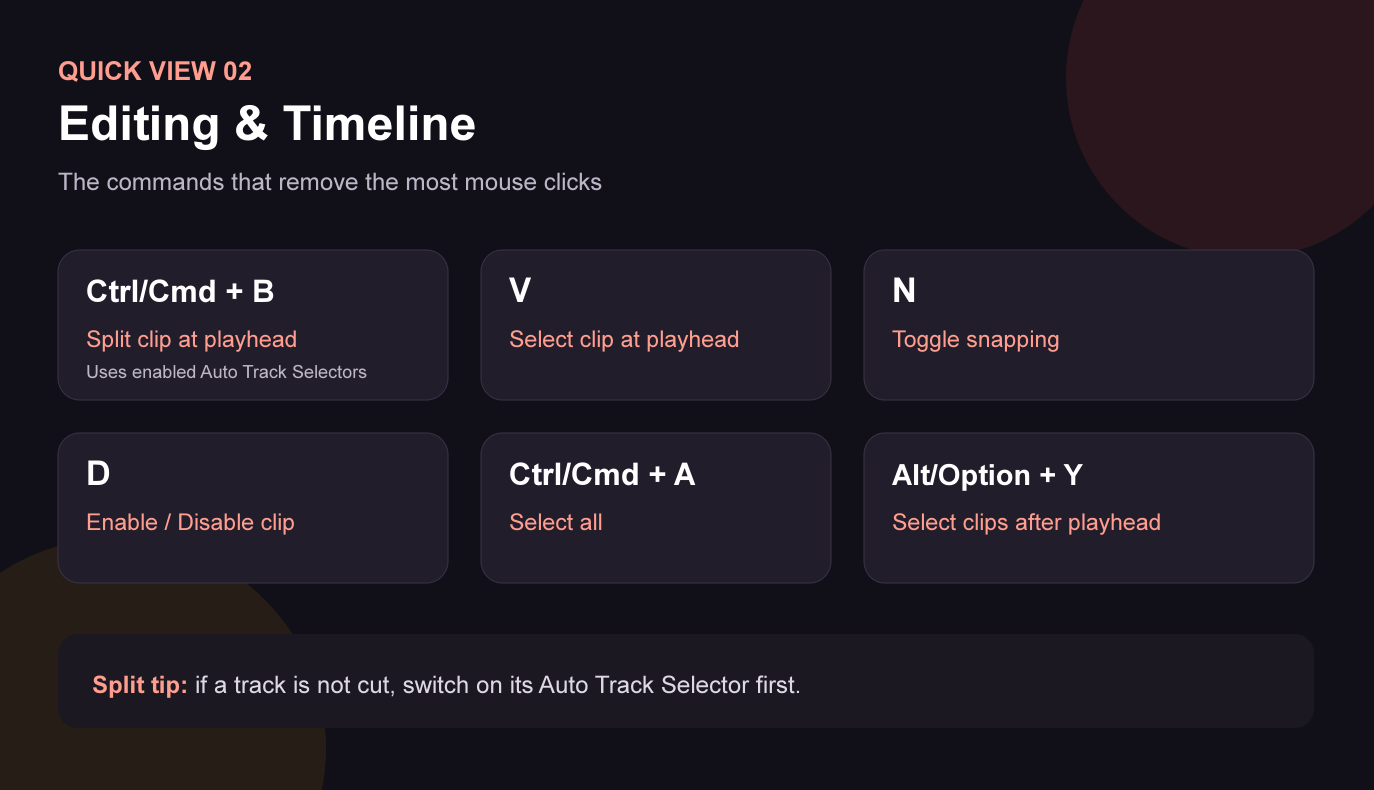
- Ctrl/Cmd + B: Split clips at the playhead.
- F9: Insert the source clip at the playhead and push later material forward.
- F10: Overwrite the timeline at the playhead without changing its total duration.
- F11: Replace the selected timeline clip with the source clip.
- Shift + F11: Fit the source clip into the marked timeline range.
- Shift + F12: Append the source clip to the end of the timeline.
Split shortcut DaVinci Resolve answer: the standard current mapping is Ctrl + B on Windows or Cmd + B on macOS. The command cuts clips under the playhead only on tracks whose Auto Track Selector is enabled. If one track stays uncut, turn on its Auto Track Selector in the track header and try again.
Select, Disable, and Remove Clips
- V: Select the clip under the playhead.
- Ctrl/Cmd + A: Select all clips in the active timeline context.
- Alt/Option + Y: Select clips after the playhead on enabled tracks.
- Alt/Option + Shift + V: Select clips under the playhead across tracks.
- D: Enable or disable the selected clip.
- Delete on Windows / Backspace on macOS: Delete the selection and leave a gap.
- Shift + Delete on Windows / Shift + Backspace on macOS: Ripple delete and close the gap.
- Ctrl + Alt + L on Windows / Cmd + Option + L on macOS: Link or unlink selected video and audio.
If Resolve shows red offline frames, keyboard shortcuts will not reconnect the source files. Use the symptom-based steps in this DaVinci Resolve Media Offline guide before continuing the edit.
Trimming and Ripple Editing Shortcuts
Splitting creates a new edit point. Trimming changes an edit point that already exists. Use trimming shortcuts when the cut is in roughly the right place but needs to start earlier, end later, or move without leaving a gap.
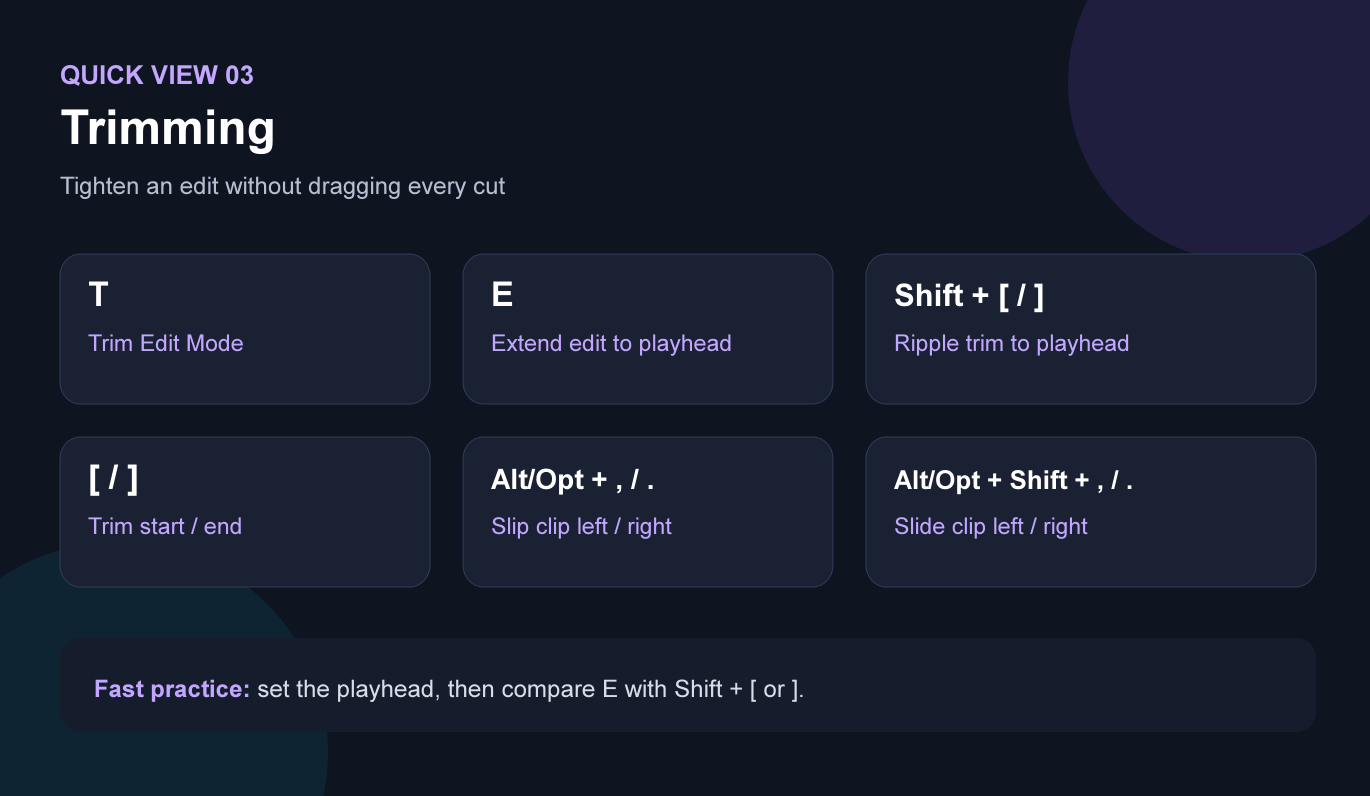
- T: Enter Trim Edit Mode.
- W: Enter Dynamic Trim Mode for J–K–L trimming.
- E: Extend the nearest edit point to the playhead.
- Shift + [: Ripple the start of the clip to the playhead.
- Shift + ]: Ripple the end of the clip to the playhead.
- [ / ]: Trim the start or end of the selected clip.
- Alt/Option + , or .: Slip the clip contents left or right while its timeline position stays fixed.
- Alt/Option + Shift + , or .: Slide the clip left or right while neighboring edits adjust.
- , / .: Nudge the selected clip one frame left or right.
For dialogue, park the playhead where the sentence should begin and press Shift + [. Resolve moves the clip's start to the playhead and closes the empty time automatically. Use E when you want the nearest edit to meet the playhead but do not want to decide whether you are changing the outgoing or incoming clip manually.
Audio and Fairlight Shortcuts
Audio editing becomes much faster once solo, mute, normalization, splits, and fades are available from the keyboard. The same split shortcut works on the Edit and Fairlight pages, but the active page and track selection determine what receives the command.
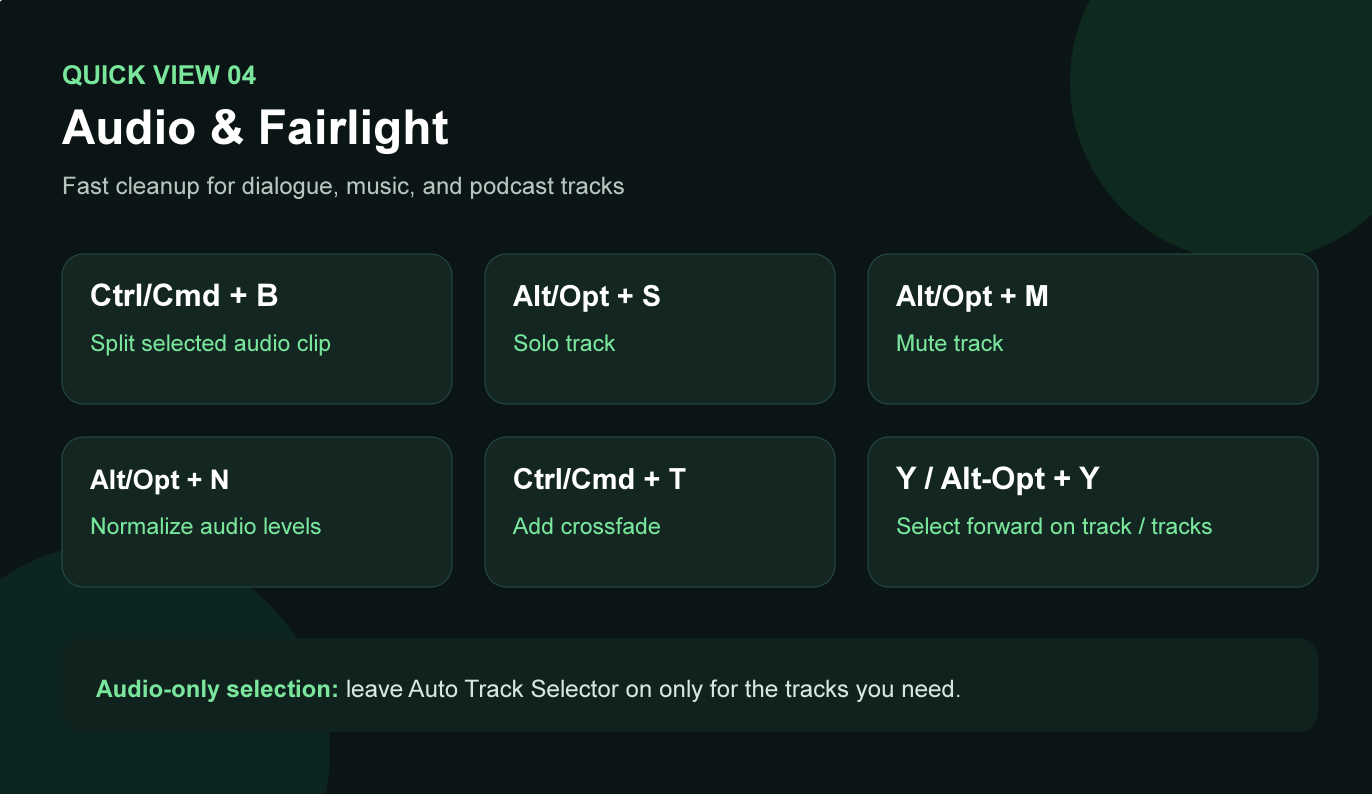
- Ctrl/Cmd + B: Split the selected audio clip or audio clips under the playhead.
- Alt/Option + S: Solo the selected track.
- Alt/Option + M: Mute the selected track.
- Alt/Option + N: Normalize the selected audio.
- Ctrl/Cmd + T: Add a crossfade to the selected audio edit.
- = / - on the Fairlight page: Zoom the audio waveform display.
- Ctrl/Cmd + R: Start recording on an armed Fairlight track.
How to Select All Audio Clips Without Selecting the Video
The search “DaVinci select all audio clips” does not lead to one universal audio-only default key. Ctrl/Cmd + A selects all clips in the current timeline context, including video. Use track targeting instead:
- Move the playhead to the beginning of the timeline.
- Leave Auto Track Selector enabled only on the audio tracks you want.
- Disable Auto Track Selector on the video and unwanted audio tracks.
- Press Alt + Y on Windows or Option + Y on macOS to select clips after the playhead on those enabled tracks.
For one audio track, target that track and use Y to select clips forward on the track. This track-based method is safer than selecting everything and manually removing video clips from the selection.
Color, Fusion, and Page Navigation Shortcuts
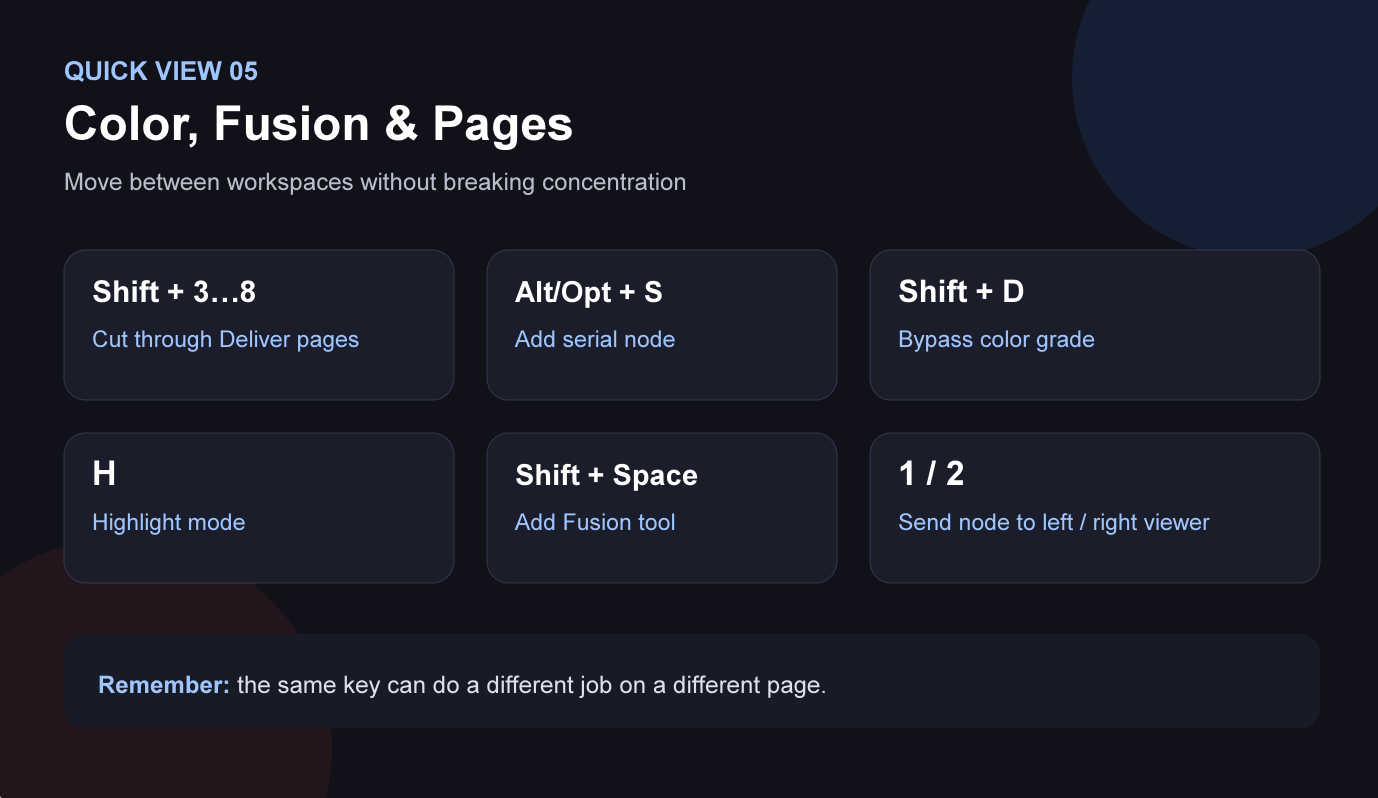
Resolve uses the same keyboard for editing, audio, color, and compositing. A key can therefore perform a page-specific action. Learn the page-switching shortcuts first; then keep only the Color or Fusion commands you actually use.
Move Between Pages
- Shift + 3: Cut page.
- Shift + 4: Edit page.
- Shift + 5: Fusion page.
- Shift + 6: Color page.
- Shift + 7: Fairlight page.
- Shift + 8: Deliver page.
Color Page
- Alt/Option + S: Add a serial node.
- Alt/Option + P: Add a parallel node.
- Alt/Option + L: Add a layer node.
- H: Toggle Highlight mode.
- Shift + D: Bypass the grade so you can compare before and after.
- Ctrl/Cmd + ]: Copy the grade from the previous clip.
- Ctrl/Cmd + [: Copy the grade from the next clip.
Fusion Page
- Shift + Spacebar: Open Select Tool to add a node.
- 1 / 2: Send the selected node to the left or right viewer.
- Ctrl/Cmd + F: Fit the node graph in the panel.
- Ctrl/Cmd + A: Select all nodes.
- Delete / Backspace: Remove selected nodes.
Inspector and Auto Resolution: What Can You Actually Map?
Resolve can assign shortcuts to commands, tools, and many context-menu actions. It cannot automatically turn every slider, text field, or checkbox in the Inspector into a keyboard command. Search for the action in Keyboard Customization first. If it appears, you can assign a key. If it does not appear, Resolve has not exposed that control as a mappable command.
DaVinci Resolve Add Keyboard Shortcut to Control in Inspector
The phrase "DaVinci Resolve add keyboard shortcut to control in Inspector" usually describes one of two needs:
- The action already exists as a command: open Keyboard Customization, search its command name, assign a free combination, and save a custom preset.
- The action is only a parameter field or checkbox: it cannot receive a normal shortcut unless the current Resolve version lists a matching command. Use the Inspector, a supported control surface, or a purpose-built macro workflow instead.
For example, Resolve exposes commands for enabling or disabling a clip, adding nodes, changing pages, and adjusting selected clip audio levels. Individual Transform values such as a specific Zoom number are Inspector parameters, not separate default keyboard commands.
DaVinci Resolve Keyboard Shortcut to Uncheck Auto Resolution
There is no standard default shortcut for the Fusion Background node's Auto Resolution checkbox. To switch it off:
- Open the Fusion page.
- Select the Background node.
- Open Inspector > Image.
- Uncheck Auto Resolution.
If you searched “DaVinci Resolve keyboard shortcut to uncheck Auto Resolution”, this is why ordinary shortcut lists do not provide one. Search Auto Resolution in Keyboard Customization after a major Resolve update; you can map it only if Blackmagic has added it as a command in that version.
Clean footage saves more time than any hotkey. Shortcuts accelerate cutting, but stable framing and usable resolution reduce the corrections you must make in the Inspector. For solo presenters, tutorials, demonstrations, and studio shoots, OBSBOT Tail 2 can create a more edit-ready camera angle while the operator concentrates on the recording.
- 4K at up to 60fps: provides detail for moderate reframing and cleaner motion in the edit.
- AI Tracking 2.0 with Auto Zoom: keeps a moving presenter framed, reducing repeated Scale and Position corrections.
- 5x optical zoom: changes shot size optically instead of relying only on a quality-reducing digital crop.
- Motorized rotation: supports native horizontal or vertical capture when a project needs different delivery formats.
How to Change Keyboard Shortcuts in DaVinci Resolve
Change a shortcut when a default combination is hard to reach, conflicts with another app, or does not match the editor you already know.
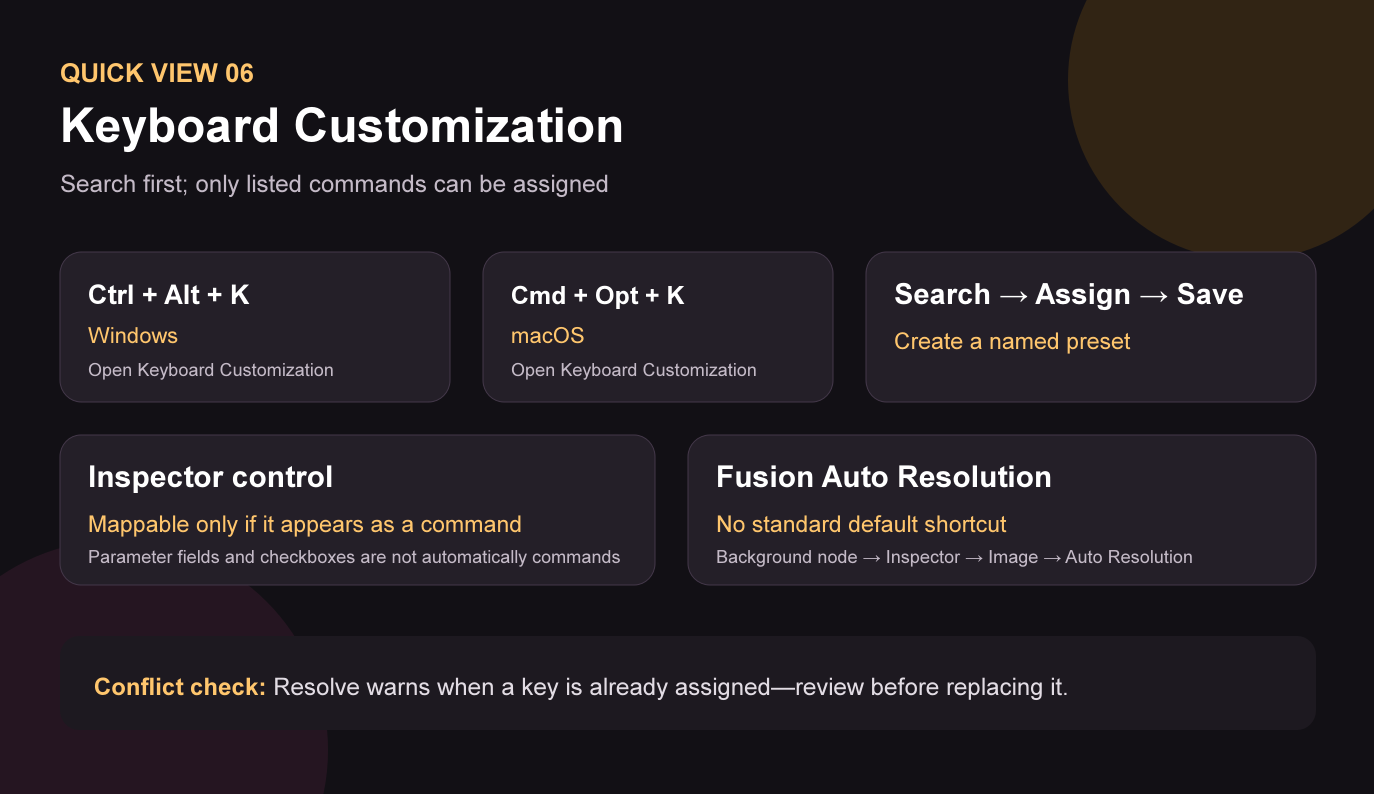
- Open Keyboard Customization. Choose DaVinci Resolve > Keyboard Customization, or press Ctrl + Alt + K on Windows or Cmd + Option + K on macOS.
- Choose a starting preset. Keep the DaVinci Resolve map, or start with the built-in Adobe Premiere Pro, Final Cut Pro, Avid Media Composer, or Pro Tools preset.
- Search for the command. Select All Commands and type the action name, such as Split Clip, Ripple Delete, or Disable Clip.
- Check the existing assignment. Select the command to see its current key. Press a key on the visual keyboard to see which commands already use it.
- Enter the new combination. Double-click the current shortcut field for the command, then press the combination you want to use. Review any conflict before replacing an existing assignment.
- Save a new preset. Use Save As New Preset and give it a recognizable name such as My Resolve Edit Map. The built-in default preset remains available.
- Export the preset for another computer. Open the options menu in Keyboard Customization and choose Export. Import that file on the other Resolve workstation.
How to Import Premiere Pro Keyboard Shortcuts into DaVinci Resolve
Open Keyboard Customization and select the built-in Adobe Premiere Pro preset from the preset menu. Use it as the starting map, adjust any Resolve-specific commands you need, and save the result as a new preset. This preserves familiar cutting habits while leaving the original Premiere-style map untouched.
Why Does a Shortcut Work on One Page but Not Another?
Resolve uses context-sensitive commands. The active page, focused panel, selected clip, track target, and Auto Track Selector can change the result. When a key appears to do nothing, click the intended panel, confirm the selection, and search the command in Keyboard Customization. If your timeline has several tracks, also check which Auto Track Selectors are enabled.
Conclusion: Learn playback, Split Clip, selection, ripple trim, and timeline navigation before adding dozens of specialized commands. Once those actions feel automatic, create one custom preset for the tasks you repeat every session. When the edit is finished, use this step-by-step guide to export from DaVinci Resolve with the right MP4 or master settings.