Learning how to export in DaVinci Resolve starts with choosing between two tools. Quick Export creates a standard video with a preset, while the Deliver page gives you control over the format, codec, resolution, bitrate, audio, and export range. This guide walks through both methods step by step, including how to create an MP4 and select settings for YouTube, social media, review files, and high-quality masters.
- Two Ways to Export from DaVinci Resolve
- Method 1: How to Use Quick Export in DaVinci Resolve
- Method 2: How to Export Video from DaVinci Resolve with the Deliver Page
- Best DaVinci Resolve Export Settings by Use Case
- How to Export at the Highest Quality
- Common DaVinci Resolve Export Problems and Fixes
- FAQs About Exporting from DaVinci Resolve
Two Ways to Export from DaVinci Resolve
DaVinci Resolve provides two practical export methods. Choose the method based on how much control you need over the finished file.
| Export Method | What It Does | Use It For |
|---|---|---|
| Quick Export | Uses a ready-made preset and exports in a few clicks | Review copies, routine uploads, presentations, and fast H.264 exports |
| Deliver Page | Provides full control over video, audio, bitrate, range, and render jobs | YouTube, social media, client delivery, masters, and professional workflows |
Quick Export is the fastest option. The Deliver page is the better choice when the finished file must meet a particular resolution, codec, bitrate, or delivery requirement.
Method 1: How to Use Quick Export in DaVinci Resolve
Quick Export creates a finished video without opening the full Deliver workspace. Use it when you need a standard H.264 or H.265 file and do not need to adjust detailed encoding controls.
Step 1: Open Quick Export
Open the project and select the timeline you want to export. Then choose:
File > Quick Export
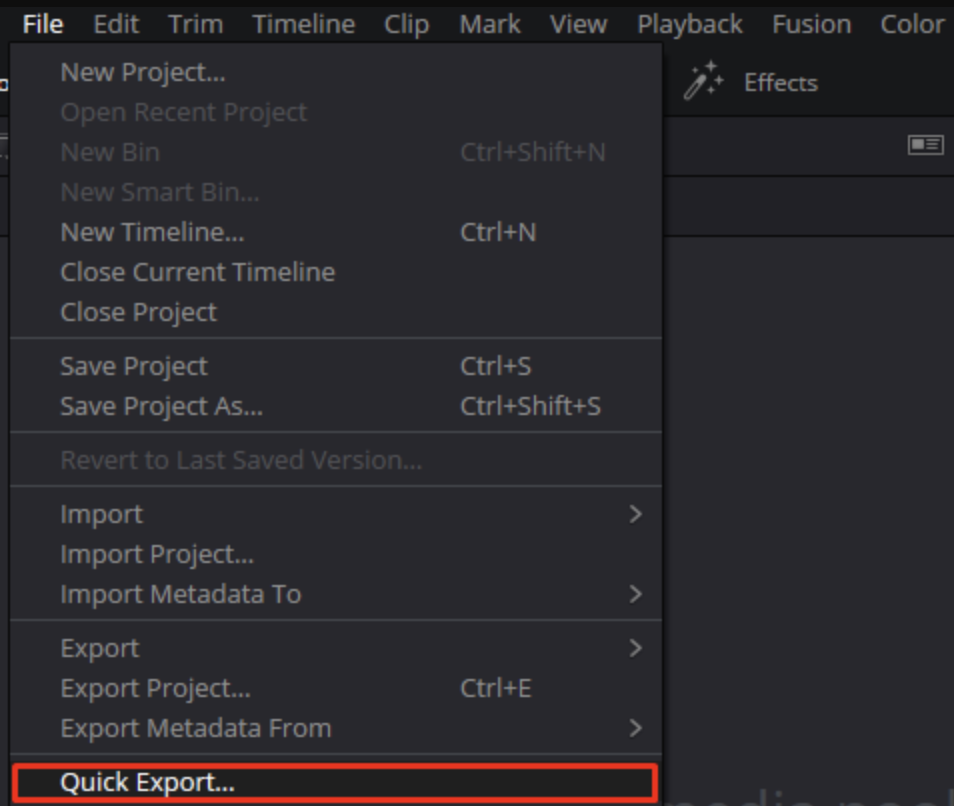
You can open Quick Export from the Cut, Edit, Fusion, Color, or Fairlight page.
Step 2: Choose an Export Preset
The Quick Export window displays available presets. Common options include:
- H.264 Master: Creates a widely compatible video for everyday playback and uploading.
- H.265 Master: Creates a smaller file, especially for 4K video.
- ProRes: Creates a larger, higher-quality master for future editing.
- YouTube or Vimeo: Creates a platform-ready file and can upload it after account authorization.
- TikTok or Presentations: Uses a preset designed for that destination.
Choose H.264 Master when you need an MP4 that plays easily on phones, computers, browsers, televisions, and presentation systems.
Step 3: Select Export
Select Export. When the file window opens, enter a recognizable name and choose the destination folder.
A useful naming pattern is:
project-name-platform-resolution-version.mp4For example:
product-demo-youtube-4k-v2.mp4And wait for the export to finish.
When to move to the Deliver page: Use the Deliver page instead when you need to limit the bitrate, export only part of the timeline, create separate clips, change the audio codec, prepare a professional master, or queue several versions at once.
Method 2: How to Export Video from DaVinci Resolve with the Deliver Page
The Deliver page is the main answer to how to export video from DaVinci Resolve with full control. It lets you decide exactly what part of the timeline is rendered and how the finished file is encoded.
Step 1: Open the Deliver Page
Select the rocket-shaped Deliver icon at the bottom of the DaVinci Resolve interface.
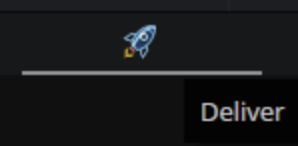
The Deliver workspace contains three important areas:
- Render Settings: The panel on the left where you choose the format, codec, resolution, quality, and audio settings.
- Timeline: The center area where you select the section to export.
- Render Queue: The panel on the right where export jobs wait to be rendered.
Step 2: Choose Custom Export
Select Custom Export in the Render Settings panel.
DaVinci Resolve also provides presets for YouTube, Vimeo, H.264, H.265, ProRes, and other workflows.
Step 3: Enter the File Name and Save Location
Enter a file name at the top of the Render Settings panel. Select Browse next to Location and choose the folder where DaVinci Resolve should save the finished video.
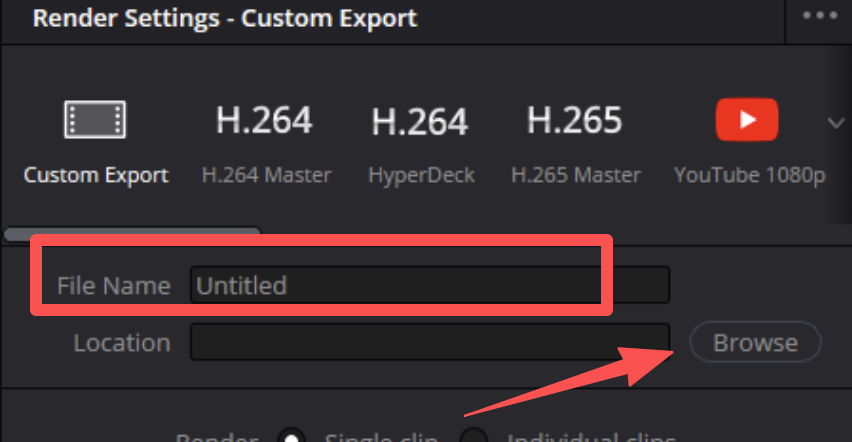
Use a folder you can find easily, such as:
Videos / Project Name / ExportsInclude the version or destination in the file name:
interview-final-1080p-v3.mp4Step 4: Choose Single Clip or Individual Clips
Select one of the following render modes:
- Single Clip: Exports the timeline as one completed video.
- Individual Clips: Exports every timeline clip as a separate media file.
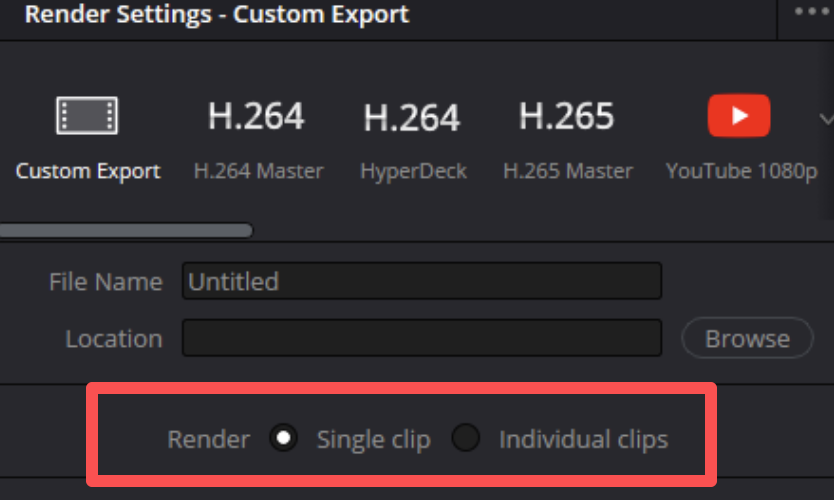
Choose Single Clip for YouTube videos, presentations, social posts, client review copies, films, interviews, and other finished projects.
Choose Individual Clips when sending media to another editor, visual-effects artist, or colorist.
Step 5: How to Export DaVinci Resolve as MP4
Open the Video tab and enable Export Video. Use these settings for a standard MP4:
- Format: MP4
- Codec: H.264
- Encoder: Auto
- Resolution: Match the timeline
- Frame rate: Match the timeline
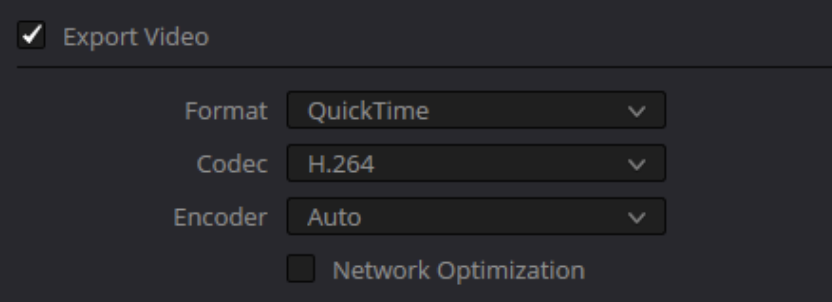
MP4 is the container that holds the video and audio. H.264 is the codec that compresses the video. MP4 with H.264 is the most practical combination for sharing, uploading, presenting, and playing the file on different devices.
Choose H.265 when you need a smaller 4K file. H.265 keeps more detail at a lower bitrate, but it takes more processing power to encode and play.
Step 6: Set the Resolution
Set the export resolution to match the timeline:
- 1920 × 1080: Standard horizontal Full HD video
- 3840 × 2160: Horizontal 4K video
- 1080 × 1920: Vertical Full HD video for Shorts, Reels, or TikTok
- 2160 × 3840: Vertical 4K video
Exporting a 1080p timeline at 4K makes the file larger without restoring details that are missing from the timeline.
Step 7: Set the Frame Rate
Use the same frame rate as the timeline:
- Export a 30 fps timeline at 30 fps.
- Export a 60 fps timeline at 60 fps.
Changing a 30 fps timeline to 60 fps during export does not create real 60 fps motion. It adds duplicate or generated frames and increases the file size.

Step 8: Choose the Video Quality or Bitrate
For a simple export, set Quality to Automatic and choose Best.
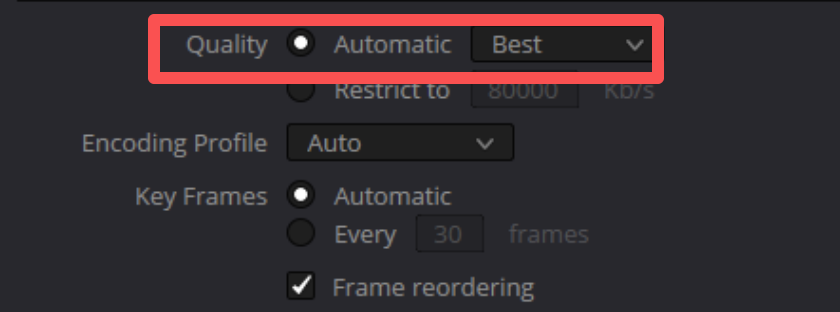
To control the file size, select Restrict to and enter a bitrate. Use these practical starting points:
| Resolution and Frame Rate | Starting Bitrate |
|---|---|
| 1080p at 24, 25, or 30 fps | 10,000–16,000 Kb/s |
| 1080p at 50 or 60 fps | 16,000–24,000 Kb/s |
| 4K at 24, 25, or 30 fps | 35,000–45,000 Kb/s |
| 4K at 50 or 60 fps | 53,000–68,000 Kb/s |
Use the higher end of the range for sports, water, foliage, confetti, crowds, camera movement, or other scenes containing fine detail and fast motion.
Step 9: Configure the Audio
Open the Audio tab and enable Export Audio.
For a standard MP4, select:
- Codec: AAC
- Sample rate: 48 kHz
- Bitrate: 320 kb/s
- Output track: Bus 1 or the main stereo bus
Use Linear PCM instead of AAC when creating a ProRes or DNxHR master for editing, archiving, or professional delivery.
Step 10: Choose What Part of the Timeline to Export
Use the range control above the timeline to choose:
- Entire Timeline: Exports the complete timeline.
- In/Out Range: Exports only the area between the marked In and Out points.
Select Entire Timeline for a finished project.
To export one section, move the playhead to the starting frame and press I. Move to the ending frame and press O. Select In/Out Range before adding the job to the queue.
To remove an unwanted range, choose Mark > Clear In and Out.
Step 11: Add the Export to the Render Queue
Select Add to Render Queue at the bottom of the Render Settings panel.
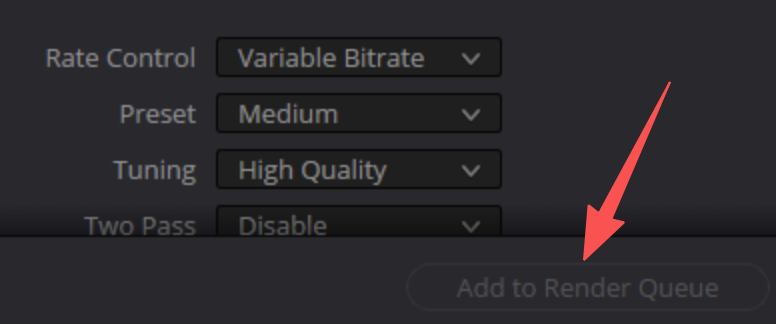
The export job will appear in the Render Queue on the right. Review the file name, destination, codec, and resolution shown in the queued job.
You can create several versions before rendering. For example:
- Add a 4K H.265 version for upload.
- Change the settings to 1080p H.264.
- Add the second version to the queue.
- Change the settings to ProRes or DNxHR.
- Add the master file to the queue.
Step 12: Start Rendering
Select Render All. DaVinci Resolve will process the jobs in the order shown in the queue.
The progress display shows the percentage completed, the current frame, and the estimated time remaining.
If a render stops, note the timecode or percentage. That information helps locate the clip, title, transition, or effect causing the problem.
Best DaVinci Resolve Export Settings by Use Case
The right DaVinci Resolve export settings are determined by the destination. Use this table after learning the main Deliver-page workflow.
| Use Case | Resolution | Format and Codec | Frame Rate | Video Quality | Audio |
|---|---|---|---|---|---|
| Everyday MP4 | Match timeline | MP4, H.264 | Match timeline | Automatic, Best | AAC, 48 kHz, 320 kb/s |
| YouTube 1080p | 1920 × 1080 | MP4, H.264 | Match timeline | 10–16 Mb/s; 16–24 Mb/s at 60 fps | AAC, 48 kHz, 320 kb/s |
| YouTube 4K | 3840 × 2160 | MP4, H.264 or H.265 | Match timeline | 35–45 Mb/s; 53–68 Mb/s at 60 fps | AAC, 48 kHz, 320 kb/s |
| TikTok, Reels, or Shorts | 1080 × 1920 | MP4, H.264 | 30 or 60 fps | 10–16 Mb/s; 15–24 Mb/s at 60 fps | AAC, 48 kHz, 256–320 kb/s |
| Small review file | Match timeline | MP4, H.265 | Match timeline | 6–10 Mb/s for 1080p; 20–35 Mb/s for 4K | AAC, 48 kHz, 192–256 kb/s |
| High-quality master | Match timeline | ProRes 422 HQ or DNxHR HQX | Match timeline | Automatic or master quality | Linear PCM, 48 kHz, 24-bit |
For a complete workflow covering the steps before export, see this guide to editing YouTube videos.
How to Export at the Highest Quality
People searching for the highest quality to export videos with in DaVinci Resolve are often choosing between a viewing file and a reusable master.
For a High-Quality Viewing or Upload File
- Match the timeline resolution and frame rate.
- Use MP4 with H.264 for compatibility.
- Use H.265 for a smaller 4K file.
- Use the bitrate range recommended for the resolution.
- Export AAC audio at 48 kHz and 320 kb/s.
For a Reusable Master File
- Use ProRes 422 HQ on macOS or DNxHR HQX on Windows.
- Keep the timeline's original resolution and frame rate.
- Use Linear PCM audio at 48 kHz and 24-bit.
- Leave Use Proxy Media unchecked.
- Leave Use Optimized Media unchecked unless it was generated at mastering quality.
- Enable Force Sizing to Highest Quality when the edit contains scaled clips.
Export settings preserve the detail available in the timeline; they do not replace detail that was never captured. Recording clean, high-resolution footage gives you more freedom to crop, stabilize, reframe, color grade, and create several delivery versions.
Capture Flexible Footage for DaVinci Resolve with OBSBOT Tail 2
When filming a presenter, interview, performance, class, or demonstration, OBSBOT Tail 2 can create footage that gives the editor more options in DaVinci Resolve. Its tracking and motorized framing help a small crew keep a moving subject in the shot, while its higher-resolution recording modes provide room for reframing before export.
- 4K at up to 60 fps: Retains detail for 4K delivery or a cleaner 1080p crop.
- 1080p at up to 120 fps: Supports smooth slow-motion sections when the project needs them.
- AI Tracking 2.0 and 5× optical zoom: Keeps a moving subject framed without relying on digital enlargement.
- O-Log and LUT support: Provides more room for color grading before the final export.
Common DaVinci Resolve Export Problems and Fixes
| Problem | Cause | Fix |
|---|---|---|
| The render will not start | The job has not been added to the Render Queue | Enter a file name and location, select Add to Render Queue, and then select Render All |
| Only part of the timeline exports | In and Out points are limiting the range | Select Entire Timeline or clear the In and Out points |
| The exported file has no audio | Export Audio is off or the wrong output bus is selected | Enable Export Audio and choose the main stereo bus |
| The video looks blurry | The resolution or bitrate is too low | Match the timeline resolution and raise the bitrate |
| The file is too large | The export uses a master codec or excessive bitrate | Use MP4 with H.264 or H.265 and apply an appropriate bitrate |
| Rendering stops at the same point | A clip, title, transition, Fusion composition, or effect is failing | Inspect the failure timecode, disable the item, and render that section again |
| The export contains black frames | Source media is offline | Relink the missing media before exporting |
Fix a Render That Stops at the Same Point
- Note the timecode where the render stops.
- Go to that point on the timeline.
- Disable the effect, title, transition, or Fusion composition at that position.
- Render a short In/Out range around the problem area.
- Replace damaged media or rebuild the effect if the test succeeds.
- Check the destination drive for sufficient free space.
Fix an Export with No Audio
- Open the Audio tab on the Deliver page.
- Enable Export Audio.
- Select AAC for an MP4 file.
- Select Bus 1 or the main stereo mix.
- Return to the Edit or Fairlight page.
- Confirm that the audio tracks are not muted.
- Play the timeline and confirm that the output meters move.
- Render a ten-second test section.
FAQs About Exporting from DaVinci Resolve
How do I export DaVinci Resolve as MP4?
Open the Deliver page and select Custom Export. Enter a file name and location, choose Single Clip, set Format to MP4 and Codec to H.264, match the timeline resolution and frame rate, and enable AAC audio. Select Add to Render Queue, followed by Render All.
Why can't I export on DaVinci Resolve?
DaVinci Resolve needs an open timeline, a valid file name, a writable destination, and a job in the Render Queue before it can export.
- Open the timeline you want to export.
- Enter a file name.
- Select a destination folder.
- Confirm that the drive has free space.
- Select Add to Render Queue.
- Select the queued job and click Render All.
- Relink any offline media if the render fails.
- Switch to MP4 and H.264 if the selected codec or encoder is unavailable.
Should I use Quick Export or the Deliver page?
Use Quick Export for a routine H.264, H.265, ProRes, YouTube, or presentation file. Use the Deliver page when you need to set the bitrate, audio codec, render range, master format, vertical resolution, or multiple export jobs.
How do I export only part of a timeline?
Move the playhead to the first required frame and press I. Move to the last required frame and press O. Open the Deliver page, select In/Out Range, and add the job to the Render Queue.
Can I export from DaVinci Resolve without a watermark?
The free version of DaVinci Resolve exports standard projects without a watermark. A watermark appears when the timeline contains a Studio-only effect or feature.
Where does DaVinci Resolve save exported videos?
The video is saved in the location shown at the top of the Render Settings panel. Quick Export asks you to choose a destination after you select Export. The Deliver page displays the output path in both Render Settings and the Render Queue.
Conclusion
Use Quick Export when speed matters and the preset already matches your needs. Use the Deliver page when you need precise control over the MP4 format, codec, resolution, frame rate, bitrate, audio, or export range. For everyday delivery, start with MP4, H.264, matching timeline settings, and AAC audio. Create a separate ProRes or DNxHR master when the project will be archived or edited again.