How to Split Video in Premiere Pro Without Slowing Down

Splitting a clip is one of the first skills you need when editing in Premiere Pro. The fastest method is to place the playhead on the required frame and press Ctrl+K on Windows or Command+K on macOS. You can also use the Razor Tool when you prefer to click directly on the timeline. This guide explains how to split a video in Premiere Pro using both methods.
Table of Contents:
Faster Method
The Add Edit shortcut is the fastest way to split a clip on an exact frame. It lets you keep using the Selection Tool instead of switching to the Razor Tool for every cut.
- Place the clip on the timeline.
Import your video, then drag it from the Project panel onto a video track in the Timeline panel.
- Move the playhead to the cut point.
Drag the playhead to the approximate position. Use the Left Arrow and Right Arrow keys to move one frame at a time when you need a precise cut.
- Add the cut.
Press Ctrl+K on Windows or Command+K on macOS. Premiere Pro divides the clip at the playhead.
This is usually the quickest method when learning how to split clips in Premiere Pro. It works well for removing pauses, shortening interviews, dividing gameplay footage, or separating scenes in a long recording.
Editing tip: To remove a section from the middle of a clip, add one cut at the beginning and another at the end. Select the unwanted section and use Ripple Delete if you want Premiere Pro to remove it and close the empty space automatically.
How to Split Video in Premiere Pro with the Razor Tool
The Razor Tool lets you make a cut by clicking directly on the timeline. It is useful when you want to place cuts visually across one or more clips.
- Find the frame where the cut should happen.
Move the playhead to the required position so you can see the intended frame in the Program Monitor.
- Select the Razor Tool.
Click the Razor Tool in the toolbar or press C on your keyboard.
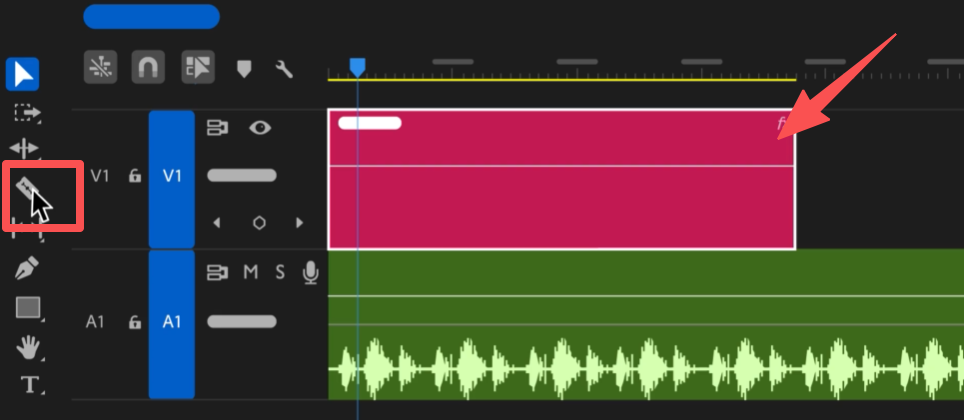
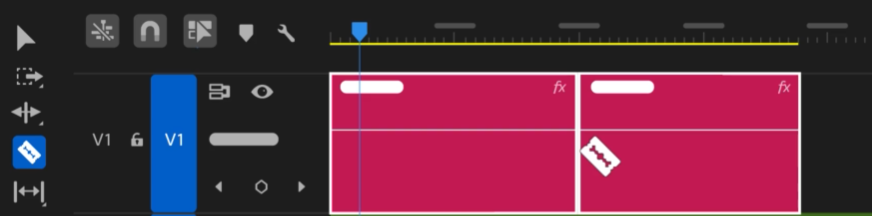
3. Click the clip at the cut point.
Premiere Pro divides the timeline item into two separate segments.
4. Return to the Selection Tool.
Press V, then select, move, trim, or delete either segment.
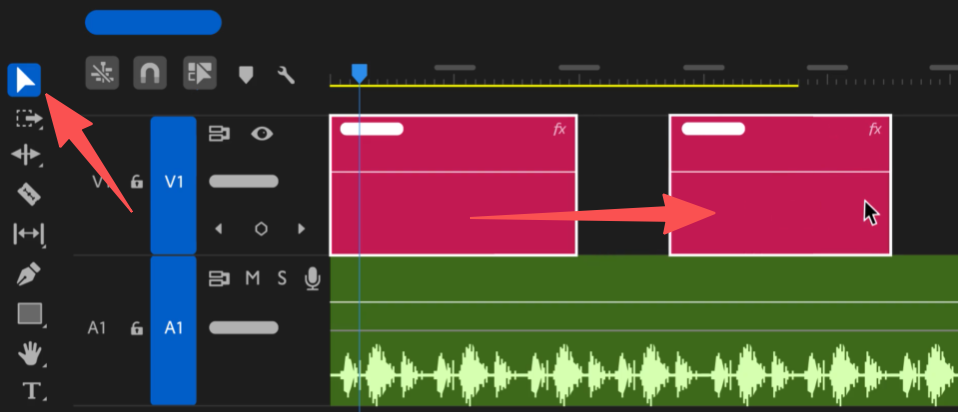
This is the basic answer to how to split a clip in Premiere Pro. The edit does not duplicate, shorten, or permanently alter the original video file stored on your computer.
How to Split Audio, Video, or Every Track
Linked video and audio normally move and cut together, but you may not always want to divide both. Premiere Pro provides separate commands for cutting one component, one targeted track, or every unlocked track.
| Action | Windows | macOS | When to Use It |
|---|---|---|---|
| Add Edit | Ctrl+K | Command+K | Cut targeted tracks at the playhead |
| Add Edit to All Tracks | Ctrl+Shift+K | Shift+Command+K | Cut every unlocked track at the playhead |
| Select Razor Tool | C | C | Click directly on individual clips |
| Cut Only Audio or Video | Alt-click with Razor | Option-click with Razor | Cut one component of a linked clip |
| Return to Selection Tool | V | V | Select or move the new segments |
Split Only the Audio or Video
Select the Razor Tool, then hold Alt on Windows or Option on macOS while clicking the audio or video portion of the linked clip. Premiere Pro cuts only the component you clicked.
This is useful when you want the dialogue to continue beneath a new shot, remove a section of unwanted sound, or replace the picture without interrupting the audio.
Split Every Track at the Same Frame
Place the playhead at the required frame and press Ctrl+Shift+K on Windows or Shift+Command+K on macOS. Premiere Pro adds an edit to every unlocked track that crosses the playhead.
Lock any track that must remain untouched before using this command. This prevents music, captions, graphics, or other clips from being divided accidentally.
Bonus: Record Footage That Is Easier to Cut with OBSBOT Tail 2
Premiere Pro can divide, crop, and rearrange footage, but it cannot restore detail or framing that was not captured. When recording moving presenters, performances, demonstrations, or long-form videos, OBSBOT Tail 2 can create a cleaner, more flexible source file before editing begins. The camera can follow the subject through a longer take, giving you more usable moments to separate and arrange on the timeline.
- 4K at 60fps: Captures detailed motion footage and provides more room to crop or reframe when the final video will be exported at 1080p.
- AI Tracking 2.0: Keeps a moving presenter or performer framed during long recordings, reducing the number of sections you need to discard because the subject moved out of view.
- 5× optical zoom: Creates closer framing while preserving more detail than enlarging a distant subject digitally in Premiere Pro.
- 1080p at 120fps: Records fast movement for smooth slow-motion sections that can be cut into sports, performance, or demonstration videos.
FAQs About Splitting Clips in Premiere Pro
What is the shortcut to split a clip in Premiere Pro?
Place the playhead on the required frame and press Ctrl+K on Windows or Command+K on macOS. The Add Edit command cuts the targeted clip without requiring the Razor Tool.
Why is Ctrl+K or Command+K not splitting my clip?
Click inside the Timeline panel, position the playhead over the clip, and confirm that the clip's track is targeted. If the shortcut was customized, open Edit > Keyboard Shortcuts on Windows or Premiere > Keyboard Shortcuts on macOS and search for "Add Edit."
How do I split only the audio from a linked clip?
Press C to select the Razor Tool. Hold Alt on Windows or Option on macOS, then click the audio section. The video portion remains uncut.
Is splitting a clip the same as creating a split-screen video?
No. Splitting divides one timeline clip into consecutive segments. A split-screen effect displays two or more clips at the same time and requires you to resize and reposition each clip in the frame.
Does splitting a clip reduce video quality?
No. A split only creates new edit points in the timeline. It does not recompress or alter the source media. The recording quality and final export settings determine the quality of the finished video.
Conclusion
Use Ctrl+K or Command+K when the playhead is already on the exact frame. Use the Razor Tool when you prefer to place cuts by clicking directly on the timeline. These two methods cover almost every situation in which you need to split videos in Premiere Pro.