DaVinci Resolve Media Offline: Causes and Step-by-Step Fixes
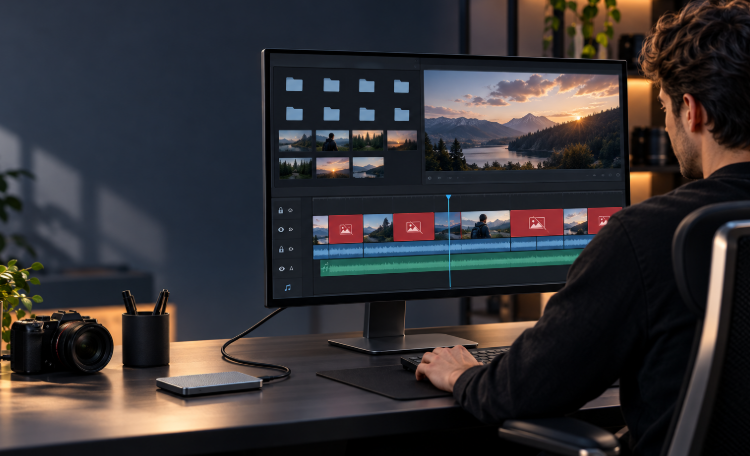
A Reddit editor described a particularly confusing version of the DaVinci Resolve media offline problem: the files were linked, the paths were correct, audio waveforms were visible, and the same project worked on a collaborator's computer. Yet the timeline still displayed red Media Offline frames.
This example matters because relinking the same files again will not fix a codec, cache, proxy, GPU, or timeline conform problem. The correct DaVinci Resolve media offline fix starts by matching what you see to the most likely cause.
Start here: If every clip from one folder is offline, relink that folder first. If audio works but video is offline, check the codec. If the clip works in the Media Pool but fails on the timeline, repair its timeline association.
Table of Contents
What Does Media Offline Mean in DaVinci Resolve?
Media Offline means DaVinci Resolve cannot read or display the frames it expects from a clip. The source file may have moved, but that is only one possible cause. Resolve can also show the warning when a codec cannot be decoded, a proxy is missing, a damaged cache is being used, or a timeline clip is connected to the wrong Media Pool item.
In practical terms, Resolve knows that a clip belongs in the edit, but it cannot retrieve or decode the correct picture at that moment. Your edit decisions usually remain intact.
Use the symptoms below to identify where to begin:
| What You See | Likely Cause | Try First |
|---|---|---|
| An entire folder or drive is offline | Files moved, drive disconnected, drive letter changed, or permission lost | Reconnect the drive and relink the clips |
| Audio plays but the picture is offline | Unsupported or unavailable video decoder | Check the codec, bit depth, chroma sampling, OS, and Resolve edition |
| Only random frames flash Media Offline | Render cache, GPU decoding, or variable-frame-rate footage | Disable the cache, test camera originals, and check frame-rate mode |
| Clip plays in the Media Pool but not on the timeline | Timeline conform mismatch | Use Conform Lock With Media Pool Clip |
| Project works on another computer only | Different paths, permissions, codecs, drivers, or Resolve editions | Compare the two systems instead of changing the edit |
How to Fix Media Offline in DaVinci Resolve
Work through these fixes in order and stop when the clips return. The early steps repair common file-path problems; the later steps address clips that are visible and linked but still cannot be displayed.
1. Confirm That the Original File Still Exists
Before changing Resolve settings, verify that the source file is present and readable.
- Open the Media Pool.
- Select an offline clip.
- Open the Metadata panel and locate its file path.
- Browse to that location in File Explorer or Finder.
- Open the file in a normal media player.
If the file is missing, reconnect the external drive, download the file from cloud storage, or restore it to the expected folder. A cloud placeholder must be fully downloaded before Resolve can use it.
Also check whether the filename or folder name changed after the clip was imported. Resolve links to a specific location; renaming either part of that location can break the connection.
2. Relink Files That Were Moved
If the original files open normally outside Resolve, reconnect them to the project:
- On the Media or Edit page, select the offline clips in the Media Pool.
- Right-click the selection.
- Choose Relink Selected Clips.
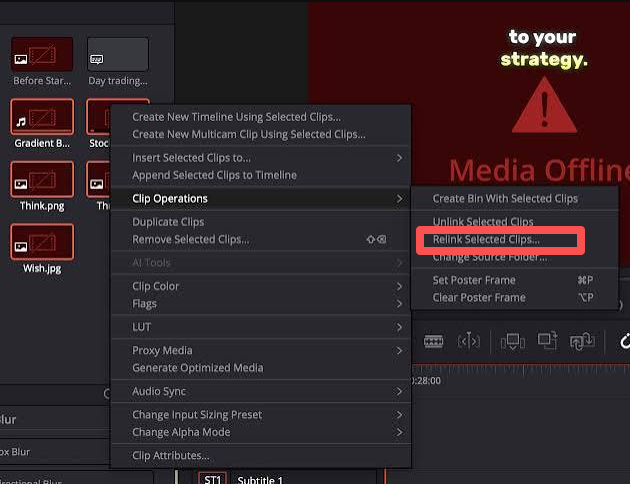
4. Select the folder that now contains the original files.
5. Let Resolve search the folder and reconnect matching filenames.
If Resolve does not find the files, choose a higher-level parent folder so the search includes its subfolders. Confirm that the restored files have the same names as the clips originally imported.
When an entire camera card or project folder was moved, select all affected clips before relinking. Resolve can reconnect them together instead of making you locate every file individually. This method has also been confirmed to be effective by Reddit users.
3. Check External Drives, Drive Letters, and Permissions
A drive can be connected while Resolve still sees a different path.
- Windows: Check whether the external drive received a new letter. A project linked to
D:\Footagewill not automatically use the same folder onE:\Footage. - macOS: Confirm that the drive appears in Finder and that Resolve has permission to access removable volumes and project folders.
- Network storage: Reconnect the same mapped drive or shared folder used when the media was imported.
Open Preferences > System > Media Storage and confirm that the drive or media root is accessible. Then relink the clips to their current location.
4. Repair a Timeline Conform Mismatch
Sometimes the clip is online and playable in the Media Pool, but its timeline instance remains offline. This points to an incorrect association between the timeline and the Media Pool item.
On the Blackmagic forum, a user resolved this issue with Conform Lock With Media Pool Clip.
- Find and select the working source clip in the Media Pool.
- Select the corresponding offline clip on the timeline.
- Right-click the timeline clip. On macOS, you can also Control-click it.
- Choose Conform Lock With Media Pool Clip.
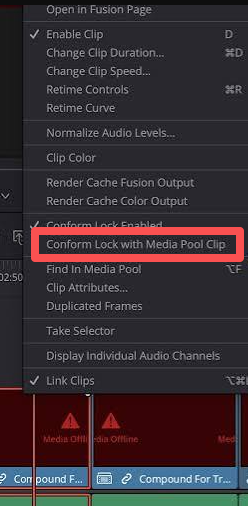
5. Check the start frame and playback before repeating the process for other clips.
This tells Resolve exactly which Media Pool clip the timeline item should use. It is particularly useful when clips have matching timecode, similar filenames, or material from multiple camera cards.
If a timeline item still points to the wrong file, select the correct source in the Media Pool, right-click the timeline clip, and use Replace Selected Clip. Check the clip's timing immediately after replacement.
5. Disable Render Cache and Test the Original Media
A damaged render-cache file can display Media Offline even while the original recording remains healthy. Some users said restoring playback by disabling cache or deleting generated cache files.
- Go to Playback > Render Cache.
- Select None.
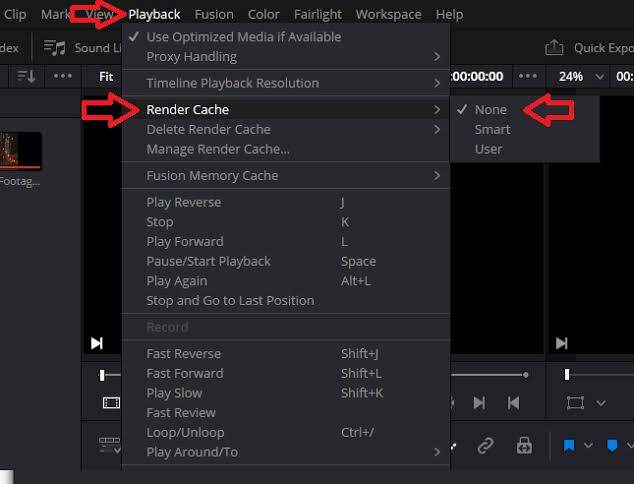
3. Play the affected section again.
4. If the picture returns, go to Playback > Delete Render Cache > All.
5. Re-enable Smart or User cache only after confirming that the source plays correctly.
Deleting render cache removes temporary files generated by Resolve. It does not delete the original recordings, timeline edits, transitions, or color grades.
6. Switch From Missing Proxies to Camera Originals
If the project was edited with proxy media, Resolve can continue looking for proxies that were moved, deleted, or stored on another computer.
- Open the Playback menu.
- Choose Proxy Handling > Prefer Camera Originals.
- Play the affected clip.
If the original footage works, the problem is limited to the proxy files. Delete or unlink the missing proxies, then generate new ones from the online camera originals.
This is also an important test when a project works on a collaborator's machine. Their computer may have access to a proxy folder that does not exist on yours. Turning off proxy viewing and deleting render cache on both systems before comparing the projects.
7. Check Codec Support When Audio Works but Video Does Not
If Resolve imports the clip and displays its audio waveform but the picture remains offline, inspect the video codec. The container alone is not enough: two MP4 or MXF files can contain different codecs, bit depths, profiles, and chroma formats.
- Select the clip in the Media Pool and inspect its metadata.
- Use MediaInfo when you need the exact codec, profile, bit depth, chroma sampling, and frame-rate mode.
- Compare those details with the official DaVinci Resolve 20 supported codec list.
- Check the correct row for your operating system and Resolve Free or Studio.
Pay close attention to H.264 and H.265 footage recorded in 10-bit or 4:2:2, along with camera-specific MXF formats. Codec support depends on the complete format combination, not merely the file extension.
If the format is not supported on the current system, transcode the original file to an editing format such as DNxHR or ProRes. Keep the same resolution and frame rate, import the transcoded file, and relink or replace the offline clip.
For HEVC footage on Windows, install the official Microsoft HEVC Video Extensions when the required HEVC decoder is missing, restart the computer, and test the file again.
8. Fix Random Offline Frames and GPU Decode Errors
When Media Offline appears for only a few frames, the source path is usually not the problem. Test the decoding path instead.
- Save the project.
- Open Preferences > System > Memory and GPU.
- Set GPU Processing Mode to Auto.
- Restart Resolve and test the same section.
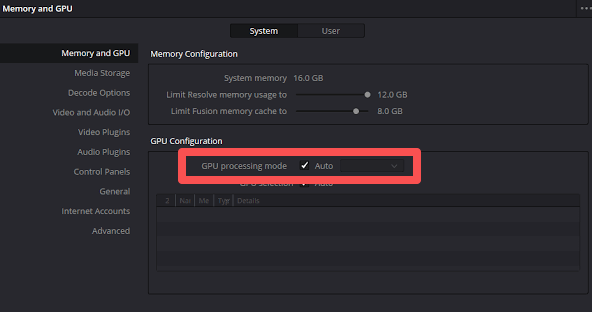
In Resolve Studio, open Preferences > System > Decode Options and temporarily disable hardware acceleration for H.264 and H.265. Restart Resolve after changing this setting.
If playback becomes stable with hardware decoding disabled, keep it disabled for the project or install the latest stable GPU Studio driver before testing acceleration again.
9. Convert Variable-Frame-Rate Footage
Phone recordings, screen captures, meeting recordings, and gameplay footage often use a variable frame rate. Their frame timing changes during recording, which can cause offline flashes, skipped frames, or audio-sync errors during editing.
- Inspect the file in MediaInfo.
- Look for Frame rate mode: Variable.
- Convert the clip to a constant frame rate with Shutter Encoder or HandBrake.
- For smoother editing, choose DNxHR or ProRes when storage space allows.
- Import the converted file and replace or relink the original timeline clip.
This method is supported by several user reports. In one iPhone HEVC discussion, users identified the changing frame rate and recommended transcoding to DNxHR with a constant frame rate.
Match the new file's frame rate to the intended recording rate, such as 23.976, 25, 29.97, 30, or 60 fps. If the recording was intended to be 30 fps, select 30 fps and enable the encoder's constant-frame-rate option.
How to Prevent Media Offline Errors
Once the project is working, a consistent media structure prevents the same issue from returning.
- Create one project folder before importing. Store camera originals, audio, graphics, proxies, cache, and exports in clearly labeled subfolders.
- Do not rename or move source files after editing begins. Organize them before adding them to the Media Pool.
- Keep external-drive letters and mount points consistent. This is especially important when moving between editing computers.
- Transcode variable-frame-rate recordings before editing. Constant-frame-rate media produces more predictable playback and exports.
- Check unusual camera codecs before a large import. Test one representative file on the editing computer first.
- Rebuild proxies on the destination computer. Avoid transferring a project that depends on proxy paths available only on the original system.
- Use Media Management or Project Archive for handoff. Collect the required media instead of sending only the project file.
For collaborative projects: Agree on one folder structure before editing starts. Each editor should use the same source filenames, compatible codecs, Resolve version, plugins, and project settings.
Bonus: Create More Edit-Ready Source Footage with OBSBOT Tail 2
A camera cannot repair an unsupported codec, disconnected drive, or broken Resolve link. However, a controlled recording workflow can reduce the number of capture problems that reach the edit.
For presentations, interviews, classes, performances, and live events, OBSBOT Tail 2 provides an in-camera recording option through its MicroSD slot alongside HDMI, 3G-SDI, USB 3.0, Ethernet, and supported NDI workflows. You can select a recording route that fits the production, then copy the resulting files into one organized project folder before importing them into Resolve.
Useful features for an editing workflow:
- MicroSD recording and professional outputs: Record to expandable storage or connect the camera to a computer, switcher, or external recording system through HDMI, 3G-SDI, USB 3.0, Ethernet, or supported NDI configurations.
- 4K at up to 60 fps: Capture detailed footage with enough resolution for reframing, stabilization, and delivery in lower-resolution timelines.
- AI Tracking 2.0 with 5× optical zoom: Keep a moving speaker or performer framed during recording, reducing the amount of corrective cropping, digital zooming, and position keyframing required in Resolve.
FAQs About DaVinci Resolve Media Offline
Why does it say Media Offline in DaVinci Resolve?
Resolve displays Media Offline when it cannot find, access, decode, or correctly associate the video frames required by a clip. Check the source path first. If the path is correct, test the codec, proxies, render cache, GPU decoding, and timeline conform association.
Why is my video offline while the audio still plays?
The audio and video streams can use different codecs. Resolve may decode the audio while failing to decode the video. Inspect the video codec, profile, bit depth, and chroma sampling, then compare them with the official support list for your operating system and Resolve edition.
Why does the project work on another computer but not mine?
The other computer can have a different drive path, proxy folder, codec component, Resolve edition, GPU driver, or media permission. Compare those items before modifying the timeline. If both systems can open the source file, switch to camera originals and clear the local cache.
Does deleting the render cache delete my edits?
No. Render-cache files are temporary media generated to improve playback. Deleting them leaves source recordings, cuts, effects, grades, and timeline structure unchanged. Resolve can rebuild the cache later.
How do I relink a whole folder in DaVinci Resolve?
Select all offline clips from that folder in the Media Pool, right-click, and choose Relink Selected Clips. Point Resolve to the folder's current location. Select a parent folder when the material is divided across several subfolders.
Why does Media Offline appear for only a few frames?
Brief red frames usually point to corrupted cache files, unstable GPU decoding, damaged media, or variable-frame-rate footage. Disable render cache, test camera originals, turn off hardware decoding, and convert variable-frame-rate clips to a constant frame rate.
Conclusion
The fastest way to fix Media Offline in DaVinci Resolve is to follow the symptom. Relink files that moved, repair timeline conform mismatches, test camera originals, clear damaged cache, and inspect the codec when audio works without video. Once the footage returns, organize the project into one stable folder before continuing the edit.