6 Best Privacy Webcams in 2026
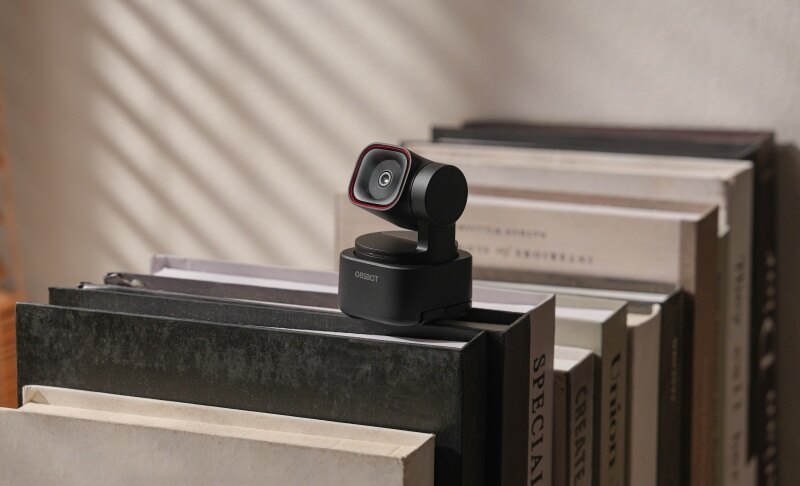
A good webcam can make online meetings, video calls, classes, and interviews better. However, leaving the webcam uncovered can compromise your privacy. For this reason, it is better to choose a privacy webcam, which gives you more control by offering a physical shutter. It's also important because a laptop camera shutter isn't always reliable. Some privacy webcams also offer camera positions that block the lens when you aren't using it. This is a good add-on for people who stay on calls all day long. In this article, we are sharing the 6 best options that you can try.
Part 1: 6 Best Privacy Webcams
The best webcam depends on how you plan to use it. This section includes privacy webcams without compromising on resolution and other essentials.
Quick Comparison Table
| Privacy Webcam | Resolution & FPS | FOV | Privacy Shutter | Microphone | Image Sensor | Price |
|---|---|---|---|---|---|---|
| Elgato Facecam Neo | 1080p@60fps | 77° | Built-in sliding physical shutter | None | 1/2.9" CMOS | $59.99 |
| Lenovo 510 FHD Webcam | 1080p@30fps | 95° | Internal slicing physical shutter | 2 built-in microphones | 1/2.9" RGB sensor | $69.99 |
| OBSBOT Tiny 3 Lite | 4K@30fps 1080p@120fps |
79.1° diagonal at 4:3 72° at 16:9 66.9° horizontal |
Lens-down privacy + Sleep Mode 2.0 | 1 omnidirectional + 2 directional mics | 1/2" 48MP CMOS | $199 |
| EMEET SmartCam Nova | 1080p@30fps | 73° | Physical privacy cover | 2 omnidirectional noise-cancelling mics | 1/2.7" 2.07MP CMOS | $45.99 |
| NexiGo N60 Webcam | 1080p@30fps | 110° | Attach-on physical privacy cover | Omnidirectional noise-cancelling mic | 1/2.9" 2MP CMOS | $39.99 |
| Logitech C920S | 1080p@30fps 720p@30fps |
78° | Attachable physical privacy shutter | 2 omnidirectional stereo mics | 3MP | $69.99 |
1. Elgato Facecam Neo
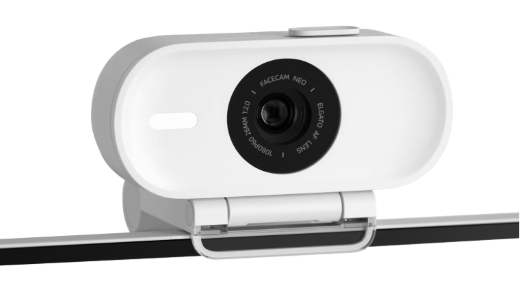
Built for simple daily use, this webcam with privacy shutter focuses on smooth setup, flexible placement, and dependable image control. Elgato Facecam Neo works well for meetings, livestreams, and casual recording, while autofocus, software tuning, and an adjustable mount help users stay clear and properly framed without spending extra time correcting settings.
Key Features:
- Autofocus adjusts quickly as your seating distance changes
- Monitor mount keeps framing stable on thin displays
- Camera Hub gives manual control over image settings
- Low Light Mode brightens scenes without manual tweaking
- Compact design fits neatly into smaller workspaces.
- Plug-and-play setup avoids complicated driver installation
2. Lenovo 510 FHD Webcam
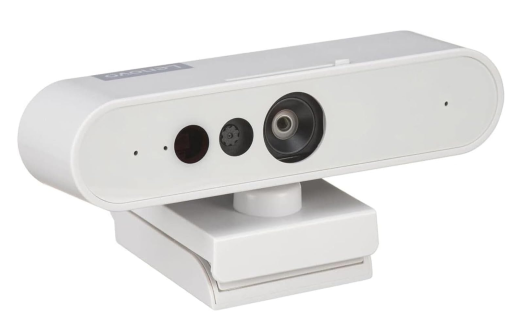
Frequent business calls become easier when the camera handles more than basic video. Windows Hello facial recognition gives the Lenovo 510 FHD Webcam an extra workplace advantage, allowing compatible PCs to recognize the user for sign-in. Its flexible positioning also suits changing desk arrangements, shared workstations, and wider meeting setups. Also, you won't need an external webcam cover.
Key Features:
- Windows Hello 4 X enables secure facial sign-in
- 95-degree lens accommodates wider conference-room framing
- 360-degree pan-and-tilt expands positioning flexibility considerably
- UVC compliance supports standardized video device communication
- Type-C-to-A connection accommodates varied computer port layouts
- Replaceable 1.8-meter cable supports distant desktop placement
3. OBSBOT Tiny 3 Lite 4K PTZ Webcam
If you want more than basic privacy protection, the OBSBOT Tiny 3 Lite combines a physical lens-down position with a full set of AI-powered PTZ features. Unlike standard 1080p privacy webcams, it delivers 4K video, 1080p at 120fps, AI Tracking 2.0, voice tracking, and a three-microphone system in a compact design. It can automatically follow movement, adjust framing, and respond to voice or gesture controls, making it a stronger fit for presentations, livestreams, online teaching, and content creation where both privacy and camera performance matter.
Key Features
- Manual Privacy Position: Tilt the camera downward to physically point the lens away whenever video capture is not needed.
- Automatic Sleep Timer: Configure Sleep Mode 2.0 to activate after a chosen period of inactivity, reducing the chance of leaving the webcam active accidentally.
- High-End Video: Records at 4K@30fps or 1080p@120fps, giving you either extra image detail or smoother motion for presentations, demonstrations, and active video sessions.
- AI Tracking 2.0: Tracks people and objects while the PTZ system adjusts framing, helping presenters stay visible without manually repositioning the webcam throughout a call.
- Voice-Activated Sleep: Saying "Sleep, Tiny" puts the webcam into sleep mode without touching the device, useful when you need to disable camera operation quickly.
4. EMEET SmartCam Nova
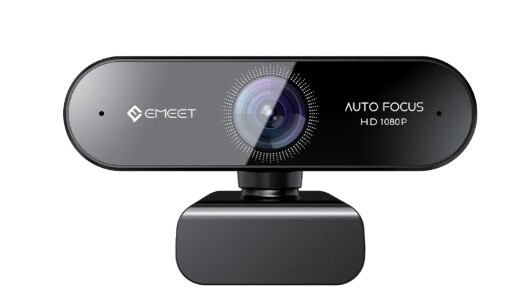
For users who want a compact webcam that adapts easily to changing workspaces with the best webcam cover, EMEET SmartCam Nova offers fast focusing, simple USB setup, software-based image tuning, and broad conferencing support. Its design works well for business calls, home offices, and portable setups where quick adjustment matters more than advanced creator-focused controls.
Key Features:
- PDAF autofocus reacts quickly to subject movement
- Automatic light correction balances changing room brightness
- EMEETLINK software enables customized image parameter control
- USB 2.0 connection supports straightforward plug-and-play use
- Tripod thread expands placement beyond monitor mounting
- YUY2 and MJPEG codecs support flexible video handling
5. NexiGo N60 Webcam
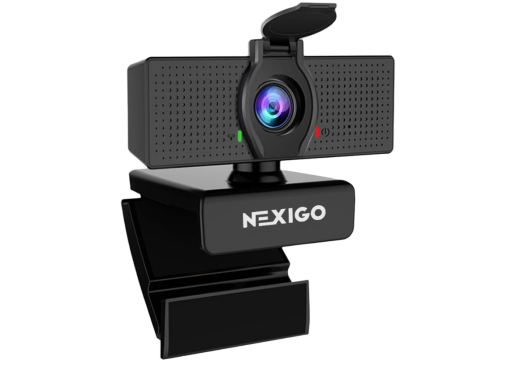
Wide framing makes this model practical when more of the room needs to stay visible during calls. Its fixed-focus design also avoids constant refocusing when the user remains within a regular desk setup. NexiGo N60 1080p Webcam adds software-controlled digital zoom and broad operating-system support, making it a straightforward option for conferencing across different computers.
Key Features:
- 110-degree field captures more within each frame
- Fixed focus maintains consistency during seated calls
- 2X digital zoom enables closer software-based framing
- Skype and Zoom compatibility simplifies cross-platform meetings
- NexiGo software adds adjustable webcam configuration controls
- Multi-OS support covers Windows, macOS, and ChromeOS
6. Logitech C920S
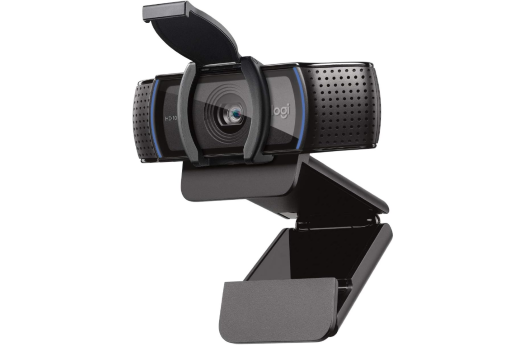
Logitech C920S suits users who want steady image quality without spending time correcting camera settings before each call. Its glass optics, responsive focusing, automatic lighting adjustment, and Logi Tune controls work together to maintain a polished appearance across changing desk setups, lighting conditions, and conferencing needs.
Key Features:
- 5-element glass lens preserves sharper image definition
- Autofocus continuously corrects focus as distance changes
- HD light correction adapts exposure to surroundings
- Broad-angle audio capture supports natural conversation pickup
- Logi Tune provides zoom and framing adjustments
- One-click meeting access speeds up conference joining
Part 2: Factors to Consider When Choosing a Privacy Webcam
The most important things to check are the type of privacy protection, resolution and frame rate, field of view, autofocus and lighting performance, microphone quality, and connection compatibility.
Type of Privacy Protection
A remote employee finishes a private client meeting but leaves the webcam connected for the rest of the workday. A physical shutter lets them slide an opaque barrier over the lens immediately, providing visible confirmation that video cannot be captured through it. Some webcams instead rotate downward when entering sleep mode. If computer camera privacy is your main concern, check whether the protection physically blocks the lens or depends on a powered mechanism.
Resolution and Frame Rate
An online fitness instructor shows exercises while moving quickly across the room. At 1080p and 30 fps, fast movements may appear less smooth, while 1080p at 60 fps captures twice as many frames each second and can make motion look more natural. A 4K webcam provides greater image detail but usually uses more bandwidth and processing power. For ordinary office meetings, 1080p is generally practical without placing unnecessary demands on the computer.
Field of View
A customer support agent takes video calls from a desk in a shared apartment, with shelves and personal belongings only a few feet behind them. A 65-degree field of view keeps the frame tighter around the person, exposing less of the room. In a small conference room where two or three coworkers share one webcam, a 90-degree view is more useful. Adjustable FOV settings provide flexibility for both situations without physically moving the camera.
Autofocus and Low-Light Performance
A freelancer joins an evening call after daylight has faded, using only a desk lamp beside the monitor. A larger sensor, wide aperture, and automatic light correction can help the webcam retain facial detail instead of producing a dark, noisy picture. An f/2.0 aperture, for example, allows more light through the lens than a narrower aperture. Autofocus also keeps the face sharp when the user leans forward to read or moves backward during the conversation.
Microphone Quality
A remote worker attends a morning meeting while an air conditioner runs beside the desk and family members talk in another room. A webcam with dual beamforming microphones can focus more strongly on speech coming from the user's direction, while noise-reduction processing may reduce steady background sounds. Microphone pickup range also matters when sitting farther from the screen. For podcasts or professional recordings, however, a dedicated microphone generally offers greater control than a built-in webcam mic.
Part 3: FAQs About Privacy Webcams
1. Can webcam malware record through a closed physical privacy shutter?
No, no image can pass through an opaque shutter that fully covers the lens. However, malware may still access other parts of the computer, including microphones, files, or connected devices.
2. Can a webcam privacy cover damage a laptop screen?
Yes, a thick privacy shutter laptop accessory can create pressure when the lid closes. Choose a very thin cover approved for your device, or use the laptop's built-in shutter when available.
3. Does covering a webcam also turn off its microphone?
No, a physical camera cover blocks only the lens. The microphone may remain active unless you mute it separately, disable microphone permission, disconnect the webcam, or use a hardware microphone switch.
4. Should I unplug an external webcam after every use?
It is not required, but unplugging it cuts its USB connection completely. This can be useful when you rarely use the camera or want a simple hardware-level separation between video sessions.
5. Why does my webcam light turn on when I am not making a call?
An application, browser tab, background service, or operating-system feature may be accessing the camera. Check camera permissions and active programs, then close or remove access for anything you do not recognize.
Conclusion
Choosing a privacy webcam is about finding the right balance between control, picture quality, sound, and everyday convenience. Some models use a sliding barrier or removable cap, while smart PTZ cameras can move into a protected resting position. Beyond that, consider how your room, computer ports, meetings, and recording needs affect the features you require. A carefully chosen webcam with a laptop computer camera cover can make online communication clearer while giving you an easy way to limit the lens whenever video is no longer needed.