5 Best Monitors with Webcam: Top Picks for 2026

Working from home and video meetings have become a normal part of work, school, and daily activities. While an external webcam is a popular choice, a monitor with webcam offers a more integrated setup by combining the display and camera in one device. However, monitors with built-in webcams can vary significantly in both screen performance and camera quality. That's why we researched the market to find the 5 best options.
Part 1: 5 Best Monitors with Webcam
This section includes the 5 best monitors with webcam. But remember that the final choice depends on how you want to use your monitor.
Comparison Table
| Product | Resolution | Screen Size | Panel Type | Brightness | Contrast Ratio | Price |
|---|---|---|---|---|---|---|
|
Dell P2724DEB |
2560 × 1440 QHD | 27-inch | IPS | 350 nits | 1,000:1 | $519.99 |
|
ASUS BE24EQK |
1920 × 1080 FHD | 23.8-inch | IPS | 300 nits | 1,000:1 | $179 |
|
HP E27m G4 |
2560 × 1440 QHD | 27-inch | IPS | 300 nits | 1,000:1 | $549 |
|
Lenovo Yoga Pro |
3840 × 2160 4K UHD | 26.5-inch | QD-OLED | Up to 1,000 nits peak | 1,500,000:1 | $1,279.99 |
|
Apple Studio Display (2026) |
5120 × 2880 5K | 27-inch | IPS LCD | 600 nits | 1,100:1 to 1,200:1 | $1599 |
1. Dell P2724DEB

Built for busy workspaces, this 27-inch display combines conferencing tools with practical docking functions. The Dell P2724DEB supports single-cable laptop connectivity, integrated imaging, and flexible positioning. This monitor with built-in webcam, wide viewing angles, and business-focused design suits professionals who switch between video calls, documents, and everyday office tasks. You no longer need to worry about how to position webcam with large monitor.
Key Features:
- 4MP IR camera supports secure Windows facial login
- USB-C delivers 90W power for laptop charging
- 150mm height adjustment improves eye-level webcam positioning
- Gigabit RJ45 provides stable wired meeting connectivity
- Auto KVM simplifies control across connected computer systems
- MST daisy-chaining supports efficient multi-monitor workstations
2. ASUS BE24EQK

A compact office setup benefits from a screen that handles calls, viewing comfort, and flexible placement without adding extra desk clutter. With the ASUS BE24EQK, users get a business-focused display suited to meetings, online classes, and daily productivity. This is the best video conferencing monitor as it has integrated camera controls, mounting support, and eye-care tools that make long work sessions easier to manage.
Key Features:
- 315-degree camera rotation enables flexible meeting angles
- 10-degree tilt fine-tunes framing during video calls
- Sliding privacy shutter blocks unwanted camera access
- 178-degree viewing angles improve off-center screen visibility
- 100x100mm VESA support allows cleaner desk mounting
- Flicker-free technology reduces strain during long sessions
3. HP E27m G4

Frequent video calls are easier when the screen handles more than basic display tasks. This PC monitor with built-in webcam is designed for workers who need quick laptop connection, easy privacy control, comfortable positioning, and dependable conferencing support throughout the day. Its office-ready design also helps reduce cable clutter and simplify shared workspaces. That makes the HP E27m G4 a strong fit for hybrid professionals.
Key Features:
- USB-C delivers 65W charging through one cable
- 25-degree webcam tilt improves meeting frame control
- Pop-up camera design adds instant physical privacy
- Zoom certification supports smoother conferencing performance
- Four-way ergonomics improves comfort during long sessions
- DisplayPort daisy-chaining expands multi-screen productivity setups
4. Lenovo Yoga Pro 27UD-10

Creative professionals often need one display that can handle editing, meetings, streaming, and demanding desk setups without adding extra gear. It has a webcam in a monitor, an OLED panel, fast motion handling, creator-focused software, and flexible connectivity, which makes it well-suited to mixed workloads. The Lenovo Yoga Pro 27UD-10 also pairs a modular camera with studio-style tools for content creation. It works especially well in home studios and advanced hybrid workspaces.
Key Features:
- 120Hz refresh rate keeps creative motion visibly smoother
- 0.03ms response reduces blur during fast editing
- USB4 delivers 40Gbps for high-speed studio workflows
- 140W USB-C charging powers demanding creator laptops
- 1000-nit peak brightness strengthens HDR highlight detail
- 100x100mm VESA support enables flexible studio mounting
5. Apple Studio Display

The Apple Studio Display (2026) is built for users who want a polished desktop setup with strong visual quality and seamless Apple-device support. Its premium design suits creative work, professional calls, and everyday productivity without requiring many extra accessories. Flexible stand options and broad Mac and iPad compatibility also make it easier to fit into different workspaces if you need a computer screen with camera.
Key Features:
- Thunderbolt 5 reaches 120Gbps for fast transfers and connections
- 96W host charging powers compatible Mac notebooks
- Center Stage automatically keeps callers properly framed
- Desk View shows workspace during video meetings
- 105mm height adjustment improves long-session viewing comfort
- 100x100mm VESA support enables flexible camera-level placement
Bonus: Best External Webcam for Monitor - OBSBOT Tiny 3 Lite 4K PTZ Webcam
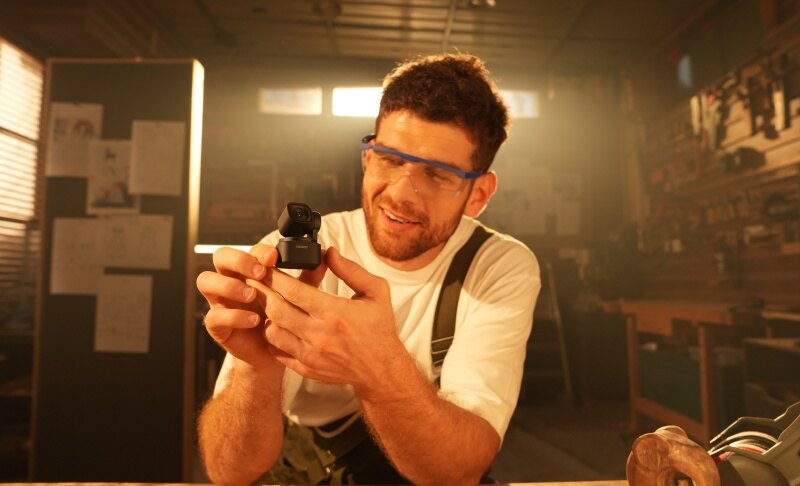
If you feel there isn't a monitor on the market that meets your needs, why not try adding an external webcam to improve image quality? The OBSBOT Tiny 3 Lite is an excellent choice for turning almost any display into a capable video-call setup. This webcam for PC monitor comes with a built-in stand that can sit directly on top of a monitor.
Key Features:
- Great Video Quality: Records at 4K@30fps and 1080p@120fps for detailed video, making it a strong webcam for a PC monitor.
- Reliable Low-Light Performance: Uses a ½” 48MP CMOS sensor with an ISO range of 100–6400, helping maintain clear video in uneven lighting.
- Spatial Audio System: Includes three microphones with immersive stereo capture, 24-bit/48kHz recording, and AI noise reduction for clear voice during video calls.
- Preset Positions: Save 3 preset camera positions with preferred image settings, useful for switching between sitting meetings and standing presentations.
- Privacy & Safety: Tilts downward for a physical privacy position or can enter Sleep Mode 2.0 after a chosen period of inactivity, giving you more control over camera access.
Part 2: What to Look For in a Monitor with Webcam
You cannot judge a computer monitor with webcam by its screen size. When choosing one, consider these key factors:
1. Webcam Resolution
Start with the camera resolution:
- 2MP 1080p: Enough for normal video calls.
- 4MP, 5MP, or higher: Provides more detail and a sharper picture.
- Autofocus and auto-framing: Help keep you clear and properly positioned.
- IR facial recognition: Adds convenient and secure login.
- Privacy shutter: Provides physical control over camera access.
- For daily client meetings: A higher-resolution camera can create a more professional picture.
- For occasional family calls: A basic Full HD camera is usually enough.
2. Screen Size and Resolution
Choose the screen based on how much space and detail you need:
- 24-inch Full HD: Works well for email, web browsing, and simple office jobs.
- 27-inch QHD: Provides more usable space and sharper text for multitasking.
- 4K or 5K: Offers finer detail for photo, video, and design work.
- For comparing documents during meetings: QHD or higher resolution is usually more useful.
- For single-app use: Full HD may already be sufficient.
3. Microphones and Speakers
Check the microphone type and speaker power instead of assuming every conferencing monitor sounds the same:
- Dual microphones: Help make speech easier to understand in a busy room.
- Noise or echo reduction: Improves voice clarity during calls.
- Two 5W speakers: Generally provide stronger meeting audio than small 2W units.
- For a quiet bedroom: Simple speakers may be enough.
- For an open office: Better microphones and stronger speakers become much more useful.
4. USB-C and Other Connections
USB-C is especially helpful for laptop users. Look for these connections and specifications:
- DisplayPort Alt Mode: Lets USB-C carry the display signal.
- 65W USB Power Delivery: Can carry the picture and charge many everyday laptops through one cable.
- 90W or more: Useful for power-hungry machines.
- HDMI and DisplayPort: Remain useful for desktop PC monitor with camera.
- Ethernet and USB-A: Can turn the monitor into a small docking station for keyboards, drives, and wired internet.
5. Ergonomics and Camera Position
Comfort and camera placement also matter when you sit at your desk for many hours:
- Height adjustment: Helps position the screen and camera comfortably.
- Tilt, swivel, and pivot: Give you more flexibility when adjusting the display.
- 130–150mm of height movement: Common on better business stands.
- Camera near eye level: Helps avoid an awkward viewing angle.
- Adjustable camera tilt: Gives you more control over the final frame.
FAQs About Best Monitors with Webcam
1. What are the best curved monitors with webcams for video conferencing?
The Philips 34B1U5600CH is a useful option. It combines a curved UltraWide display with a pop-up 5MP Windows Hello webcam, microphone, USB-C docking, KVM, and noise cancellation.
2. How do I choose a monitor with built-in microphone and speakers for remote meetings?
Look for at least a Full HD camera, dual microphones, clear stereo speakers, adjustable camera positioning, and USB-C. Noise or echo cancellation is especially useful for frequent meetings.
3. Are 4K monitors with webcams suitable for professional video calls?
Yes, a 4K screen provides sharp text and extra workspace, but video-call quality mainly depends on the webcam resolution, lighting, internet connection, microphone, and conferencing app.
4. Can you use a webcam with a monitor?
Yes, you can place a compatible external webcam on top of the monitor and connect it to your computer through USB, such as the OBSBOT Tiny 3 Lite. Many webcams include monitor clips or adjustable stands for easy setup.
5. How to Connect a Webcam to a Monitor?
To connect a webcam to a monitor, first attach the webcam to the top of the monitor using its monitor clip or stand. Then, connect the webcam to your computer via USB. Your computer should automatically detect the webcam, after which you can select it as the camera source in apps such as Zoom, Microsoft Teams, or Google Meet.
Conclusion
Finding the right monitor with webcam comes down to matching its features with your daily needs. A good setup should provide clear video, sharp screen quality, useful audio, simple connections, and comfortable viewing. Built-in models are convenient for keeping a desk neat, while an external camera can offer greater flexibility when the included webcam is not enough. Before buying, consider how often you join video calls, what resolution you need, and which connections your computer supports. These points will help you choose a setup that works well for years.