Best 5 Webcams for PC 2026

If you work from home, stream games, or attend online classes, you need the best webcam for PC. A good webcam will help you stream with clear video and smooth motion. In addition, the webcams promise good sound, so all your meetings and recordings are clear. Some people use phone as webcam, but it is not enough for professional videos. So, if you want the right webcam for your office or creative work, we are sharing the 5 best options and factors to help you choose the best one.
Part 1: Best 5 Webcams for PC
These webcams cover every budget and use case. Whether you need high-quality streaming, business meetings, online teaching, or content creation, one of these models will fit your needs.
Quick Comparison Table
| Webcam | Max Resolution | Image Sensor | Field of View (FOV) | Mounting Options | Connectivity | Price (USD) |
|---|---|---|---|---|---|---|
| OBSBOT Tiny 3 Lite | 4K@30fps 1080p@120fps |
1/2-inch, 48MP CMOS | 72° (16:9) / 79.1° (4:3) | Monitor mount, 1/4-inch tripod mount | USB-C 2.0 (USB-A adapter included) | $199 |
| Logitech MX Brio | 4K@30fps 1080p@60fps |
8.5MP Sony STARVIS | 90° / 78° / 65° | Universal monitor clip, 1/4-inch tripod thread | USB-C (USB 3.0) | $199.99 |
| YoloCam S3 | 4K@30fps 1080p@60fps 720p@60fps |
1/1.28-inch, 50MP CMOS | 82° | Magnetic mount, 1/4-inch tripod mount | USB-C (USB-A adapter included) | $199 |
| Razer Kiyo V2 X | 1440p@60fps | 3.7MP Sony Starvis sensor | 80° | Universal Pivoting Mount | USB Plug-and-Play | $99.99 |
| Insta360 Link 2C | 4K@30fps 1080p@60fps 720p@60fps |
1/2-inch CMOS | 79.5° DFOV / 67° HFOV | Magnetic mount, 1/4-inch tripod mount | USB-C 2.0 (USB-A adapter included) | $199.99 |
1. Best 4K & Premium Quality: OBSBOT Tiny 3 Lite 4K PTZ Webcam
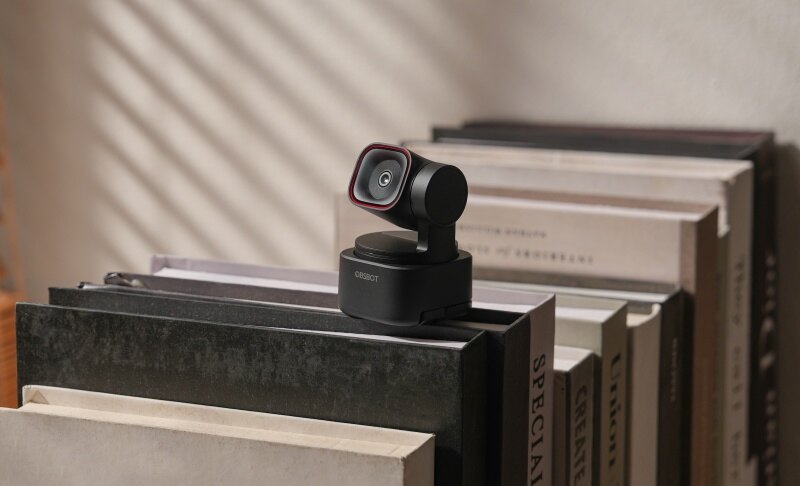
The OBSBOT Tiny 3 Lite is a premium webcam built for professionals, remote workers, educators, and content creators. This computer camera with microphone pairs reliable performance with an easy-to-use design, making it an excellent choice for video calls, live streaming, online teaching, and video production. Its advanced capabilities help deliver a polished and professional experience.
Key Features:
- Best Video Performance: Records at4K@30fps or 1080@120fps to deliver sharp visuals for professional meetings and ultra-smooth video for fast-paced streaming.
- Reliable Audio: Has one omnidirectional and two directional microphones, plus a VOX SE wireless microphone to capture clear voices in both solo and group streaming.
- Good Image Quality: Uses an AI image signal processor (ISP) with HDR support and PDAF to improve clarity in changing lighting conditions during streaming.
- Strong Mounting& Connectivity: An integrated monitor mount supports standard tripod mounting and connects through USB-C 2.0 for a flexible streaming setup.
- Flexible Audio Pickup Modes: Offers five audio modes: Pure Audio, Spatial Audio, Smart Omni, Directional, and Dual-Directional, giving you better control over voice during streaming.
2. Best for Professional Video Calls: Logitech MX Brio

Designed for professionals who expect excellent video quality, this webcam for PC under 500 delivers dependable performance for meetings, presentations, and live streaming. The Logitech MX Brio joins intelligent imaging with advanced customization tools, making it a strong choice for users who want a polished appearance and greater control over their video experience.
Key Features:
- Advanced autofocus keeps your face consistently sharp while moving
- RightLight 5 with AI balances exposure and skin tones
- Customize the framing for every meeting
- Show Mode instantly shares documents without changing camera positions
- Logi Options+ provides manual ISO, shutter, and white balance
- Built-in privacy shutter physically blocks the camera when unused
3. Best for Low-Light Streaming: YoloLiv YoloCam S3

Low-light environments often make ordinary webcams produce grainy and dull video, but YoloCam S3 is designed to overcome that challenge. It delivers consistent visual quality for livestreams, online meetings, and content creation while remaining simple to use, making it a dependable choice for creators who value professional-looking results.
Key Features:
- PDAF autofocus delivers instant, blur-free subject focusing
- f/1.85 aperture produces natural optical background blur
- HDR technology improves contrast and color accuracy automatically
- Live color grading enables professional adjustments during streaming
- 4× digital zoom maintains sharp Full HD output
- Aluminium housing prevents overheating during extended livestream sessions
4. Best for Beginner Streamers: Razer Kiyo V2 X

Whether you're livestreaming gameplay, chatting with viewers, or joining virtual meetings, consistent video quality helps you make a better impression. Built for those everyday tasks, Razer's Kiyo V2 X offers a practical balance of performance, convenience, and straightforward operation for people who need a good-quality but cheap webcam for PC.
Key Features:
- Razer Synapse adjusts ISO, contrast, saturation, and sharpness precisely
- Image presets instantly optimize settings for streaming or meetings
- Twist-to-close privacy shutter physically blocks camera access securely
- Wide-angle lens captures gaming setups without constant repositioning
- Continuous autofocus quickly refocuses during product showcases and unboxings
- Native compatibility supports OBS, XSplit, Teams, Zoom, and Streamlabs
5. Best for AI-Powered Meetings: Insta360 Link 2C

Whether you're presenting to clients, teaching online, or creating content, maintaining a polished appearance on camera is essential. With intelligent imaging and productivity-focused software, Insta360 Link 2C is a high-resolution computer camera that helps users achieve professional-looking results while adapting to a wide range of work, learning, and streaming scenarios.
Key Features:
- PDAF autofocus maintains sharp focus from 10cm to infinity
- HDR operates across all supported resolutions and frame rates
- Natural Bokeh uses AI for realistic depth-of-field effects
- AI noise cancellation isolates voices in noisy environments effectively
- Smart Whiteboard Mode automatically straightens and enhances presentation content
- Link Controller enables advanced framing, color, and virtual camera controls
Part 2: What to Look for When Buying Webcams for PC
The best webcams for PC depend on how you plan to use it. A student joining online classes has different needs than a streamer broadcasting for hours. Focus on features that improve your daily experience instead of paying for tools you may never use.
1. Resolution
Resolution determines how sharp and detailed your video looks. A 1080p webcam is more than enough for video calls, online classes, and remote work, while a 4K webcam is a better choice for content creators and streamers who want professional-looking videos. If you often record tutorials or upload videos to YouTube, the extra detail from 4K can make your content stand out when you use a good PC camera.
2. HDR and Low-Light Performance
High Dynamic Range (HDR) improves image quality by balancing bright and dark areas in the same frame. This helps when sunlight comes through a window behind you or when lighting changes throughout the day. Combined with good low-light performance, HDR produces clearer colors and better contrast in challenging lighting conditions.
3. Autofocus and AI Tracking
Autofocus automatically adjusts the lens to keep your face sharp, even if you move around. Many high-quality computer cameras now include AI tracking, which uses artificial intelligence to keep you centred in the frame. This feature is useful for teachers, presenters, fitness coaches, and creators who move while recording.
4. Field of View (FOV)
The Field of View (FOV) is measured in degrees and shows how much the best computer webcam can capture. Common options include 65°, 78°, and 90°. A narrower FOV focuses mainly on one person, while a wider FOV is better for group meetings, classroom lessons, or showing your workspace during demonstrations.
5. Microphone Quality
Many webcams include built-in microphones with noise reduction to reduce background sounds like keyboard typing, fans, or air conditioners. Some premium webcams use dual microphones to capture your voice more naturally. While these microphones work well for meetings, creators often prefer an external USB microphone for higher-quality audio recordings.
6. Software Compatibility
Good webcam software gives you more control over your video settings. Choose a webcam that works with Windows webcam capture software and the best webcam software for recording, allowing you to adjust exposure, white balance, brightness, contrast, zoom, and focus. Software updates can also add new AI features and improve overall performance over time.
Part 3: How Do I Set Up a Webcam on My PC?
Many people don't know how to set up the best PC camera, so we are sharing some quick steps to help you complete the setup.
Step 1: Connect your webcam to an available USB port on your computer. Wait a few moments while Windows detects the device and installs the basic drivers automatically.
Step 2: If the webcam includes special software, download it from the manufacturer's official website. Installing the latest software will provide features like HDR and image adjustments.
Step 3: Open the Windows Camera app to check whether your webcam is working correctly. Test both the video and microphone before joining an important meeting or recording.
Step 4: Adjust the webcam angle so your face stays centred and your lighting looks natural. Position the camera at eye level because this creates a more comfortable viewing angle.
Step 5: Choose your webcam inside Zoom, Microsoft Teams, OBS Studio, or your preferred recording software. Save your settings so the correct camera opens automatically each time.
Part 4: FAQs About Best Webcam for PC
1. Are there any reliable webcam software options for Windows?
Yes, OBS Studio, Logitech G Hub, OBSBOT Centre, Elgato Camera Hub, and the Windows Camera app are reliable choices. They provide recording, webcam controls, and streaming features for different experience levels.
2. What are the best webcams for streaming and video calls?
The OBSBOT Tiny 3 Lite, Logitech MX Brio, Razer Kiyo Pro Ultra, Insta360 Link 2, and Logitech Brio 500 are among the strongest options. They deliver excellent image quality, autofocus, and dependable performance.
3. How can I improve the video quality of my webcam?
Place a light in front of you instead of behind you, clean the webcam lens regularly, and use the highest available resolution. Updating your webcam software and adjusting camera settings also improves overall video quality.
4. How do I install and set up a webcam driver on my PC?
Connect the webcam and let Windows install the basic driver automatically. If advanced features are missing, download the latest driver and software directly from the webcam manufacturer's official website.
5. Can I use my phone as a webcam for my PC?
Yes, many Android and iPhone apps let you use phone as webcam through USB or Wi-Fi. This is a great option if you want better image quality without buying a new webcam.
Conclusion
Choosing the right webcam depends on your budget, daily activities, and video quality expectations. Premium models deliver advanced AI features, while affordable options still provide sufficient video quality for meetings and online classes. Before purchasing, compare resolution, lighting performance, software support, and ease of setup to find the best match. Whether you stream, record tutorials, attend virtual meetings, or create content, the best webcam for PC will help you communicate more clearly and produce better-looking videos. Taking a little time to compare features now can help you enjoy better results for years to come.