Best Streaming Camera for Twitch and YouTube in 2026
Choosing a camera for Twitch and YouTube is less about buying the highest resolution and more about matching the camera to the way you stream. A seated gaming creator may get more value from clean 1080p60 and reliable low-light performance than from 4K. A creator who moves around the room may need AI tracking, while someone producing recorded clips may benefit from 4K cropping flexibility.
This guide compares the best streaming cameras for Twitch and YouTube by live output, lighting, autofocus, AI tracking, software control, microphone options, and budget.
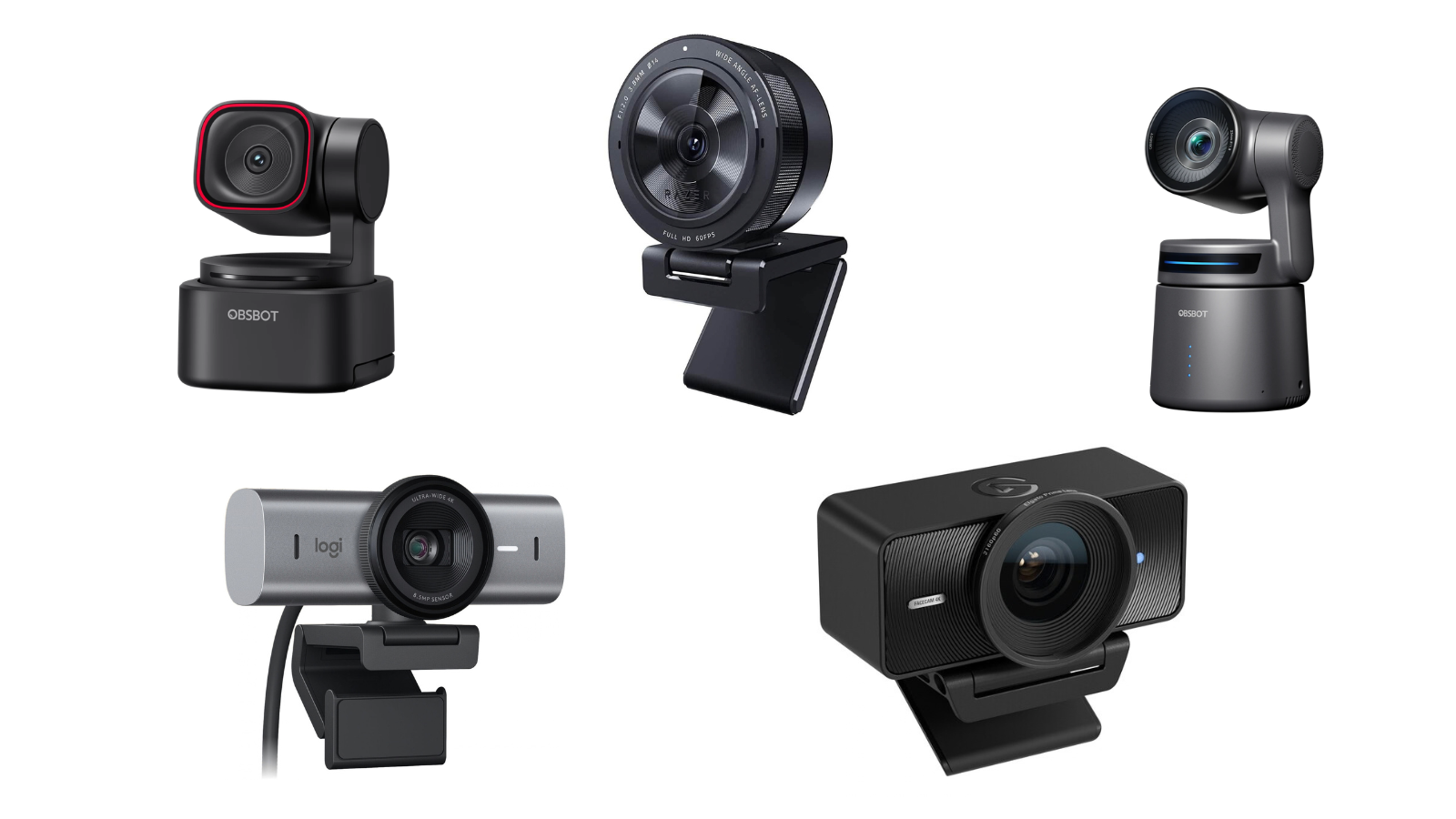
Best Streaming Cameras for Twitch and YouTube Compared
For most live streams, 1080p60 is the practical starting point. It keeps motion smooth, works well with common streaming workflows, and usually places less demand on your computer and network than a 4K live output.
4K becomes more useful when you record locally, crop the image inside OBS, create short clips, or need several framing options from one camera.
| Camera | Live output | Focus and framing | Low-light focus | Audio and control | Budget tier |
|---|---|---|---|---|---|
| OBSBOT Tiny 3 Lite | 4K30; 1080p120 | AI tracking and PTZ movement | HDR and 1/2-inch sensor | Spatial audio; PC and mobile control | Under $200 |
| Razer Kiyo Pro Ultra | 4K30; 1080p60 | Autofocus and face tracking | Large sensor and wide-aperture lens | Razer Synapse image controls | $200-$300 |
| Elgato Facecam 4K | 4K60; 1080p60 | Fixed focus; 90-degree view | HDR and adjustable noise reduction | Camera Hub; separate microphone workflow | Around $200 |
| Logitech MX Brio | 4K30; 1080p60 | Fixed desk framing | AI image enhancement for difficult lighting | Built-in microphones; USB-C | Around $200 |
| OBSBOT Tail Air | 4K30; 1080p60 | AI tracking and remote PTZ control | 1/1.8-inch sensor and f/1.8 aperture | NDI, Micro HDMI, USB-C, network control | $400-$600+ |
Best AI Tracking Webcam: OBSBOT Tiny 3 Lite
OBSBOT Tiny 3 Lite fits solo creators who move beyond a fixed gaming-chair frame. It works well for Just Chatting, tutorials, product demonstrations, and small home studios where the creator may sit, stand, or move between parts of the room.
The main appeal is the combination of AI tracking, PTZ movement, and built-in spatial audio in a compact USB setup. That combination keeps the workflow simple while adding more movement flexibility than a fixed desk webcam.
Key Features:
- AI Tracking 2.0: Keeps the creator in frame while they stand, gesture, demonstrate an object, or move between a desk and a wider shooting area.
- 4K30 and 1080p120: Covers detailed recordings and smoother motion-focused clips.
- Voice Tracking: Turns toward the active speaker in a conversational or tutorial setup.
- Spatial audio system: Captures voice directionally when the creator has not yet added a dedicated microphone.
- PC and mobile control: Handles framing, exposure, and camera movement through OBSBOT Center or a mobile workflow.
Best Webcam for Low-Light Gaming: Razer Kiyo Pro Ultra
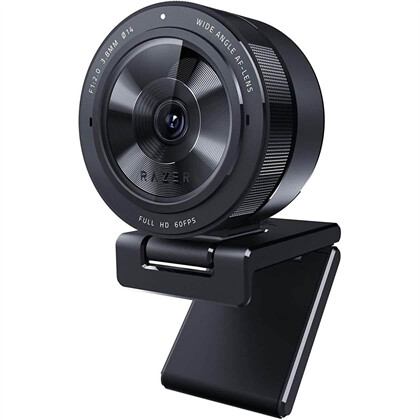
The Razer Kiyo Pro Ultra is designed for seated streamers whose rooms are lit mainly by monitors, accent lights, or a single soft light. Its imaging system concentrates on face detail and exposure control, which matters when a gaming setup cannot maintain bright, even lighting across the entire room.
It fits a traditional Twitch face-cam position above a monitor. The camera stays focused on the streamer while desktop controls help tune the image to match the room.
Key Features:
- Large webcam sensor: Holds onto more visible facial detail when the room is darker or the background contains bright screens.
- Wide-aperture lens: Keeps the face visually separated from a busy gaming background.
- 4K30 and 1080p60: Covers detailed recordings and smooth live output.
- Autofocus with face tracking: Maintains focus when the streamer leans toward the monitor or moves during commentary.
- Razer Synapse controls: Puts exposure, ISO, shutter speed, and color adjustments into the desktop workflow.
Best 4K60 Webcam for Clips and Reframing: Elgato Facecam 4K
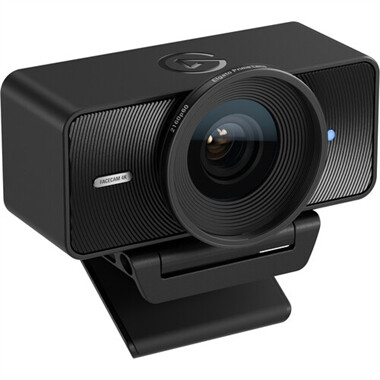
Elgato Facecam 4K suits creators who use a separate microphone, controlled lighting, and a software-centered production setup. It is useful when the same camera feed supports a livestream, recorded clips, and vertical or cropped content after the broadcast.
Its fixed-focus design works naturally for a streamer who remains within a consistent desk distance. Instead of motorized movement, the camera focuses on image control, 4K60 capture, and creator software.
Key Features:
- 4K at 60fps: Keeps hand movement, reactions, and fast gestures smoother in local recordings and clipped content.
- 90-degree field of view: Shows more of a desk or creator background without requiring an unusually large room.
- Fixed focus: Holds a consistent look when the streamer stays within the intended shooting distance.
- HDR support: Helps balance a bright key light, monitor glow, and darker background areas at supported settings.
- Camera Hub controls: Supports manual image adjustments and 49mm filter compatibility for a more controlled visual style.
Best Built-In Audio Webcam for a Simple Desk Setup: Logitech MX Brio
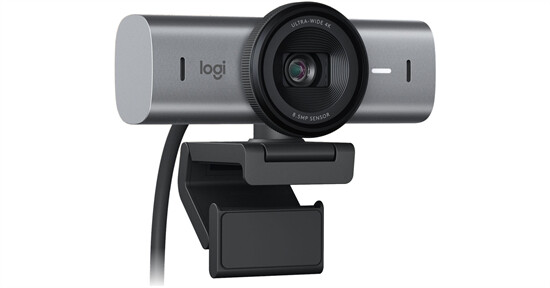
Logitech MX Brio is a practical choice for creators who want one compact camera for Twitch, YouTube, video calls, and occasional recordings. It works best in a fixed desk position where the streamer remains centered and does not need PTZ movement.
The built-in microphones simplify the first setup, while the image enhancement helps when a window or monitor creates uneven lighting.
Key Features:
- 4K30 and 1080p60: Covers detailed recording and smooth everyday live output.
- AI image enhancement: Keeps facial detail more visible when the room includes backlighting or mixed light sources.
- Built-in microphones: Handles basic voice capture when the setup does not yet include an external microphone.
- USB-C connection: Fits a direct computer setup without a capture card or extra video converter.
- Desk-focused framing: Works naturally above a monitor for gameplay commentary and fixed Just Chatting scenes.
Best PTZ Camera for Dynamic Twitch and YouTube Streams: OBSBOT Tail Air
OBSBOT Tail Air is built for streams that move beyond a single desk angle. It fits cooking, music, interviews, workouts, demonstrations, and room-based YouTube or Twitch content where the camera needs to follow action or switch between wider and tighter views.
Its value comes from PTZ movement, AI tracking, and network-based production options. The camera can become part of a larger live workflow instead of staying fixed above a monitor.
Key Features:
- AI auto tracking: Keeps a presenter, performer, pet, or demonstration subject within the frame as the action moves.
- 4K30 and 1080p60: Supports detailed recorded content and smooth Full HD livestream output.
- NDI connectivity: Routes the camera through a network-based multicamera workflow when the production setup uses NDI.
- Micro HDMI and USB-C: Connects to capture devices, computers, and other production hardware.
- Remote PTZ control: Changes framing and camera movement without requiring the streamer to leave the scene.
How to Choose a Streaming Camera in 2026
Start With 1080p60 or 4K
1080p60 is more practical for most live Twitch and YouTube streams. It keeps movement smooth, works with common streaming settings, and usually places less demand on the computer and network than 4K live output.
Choose 4K when you plan to record locally, crop the camera image inside OBS, create short clips, or produce several framing options from one shot. A 4K camera is most valuable when you use the extra resolution after capture, not simply because the number is larger.
Prioritize Low-Light Performance in Gaming Rooms
Many streamers work with monitor light, RGB lighting, or one small key light. In that environment, a camera with better light handling can look cleaner at 1080p than a 4K camera that produces visible noise.
Check the sensor size, lens aperture, HDR support, noise processing, and manual exposure controls. These features matter when your face is darker than the background or when a bright monitor sits beside you.
Choose Autofocus Based on How Much You Move
Autofocus matters when you lean toward the camera, hold products up to the lens, stand during a stream, or change distance frequently.
If you remain seated at a fixed desk distance, fixed focus can keep the image stable. For tutorials, demonstrations, and active Just Chatting streams, autofocus is more useful because your position changes during the broadcast.
Use AI Tracking When Movement Is Part of the Content
AI tracking is useful for cooking, fitness, demonstrations, tutorials, standing presentations, and room-based livestreams. It keeps the subject framed while the creator moves instead of forcing someone to adjust the camera manually.
For a traditional gaming setup, tracking may add little value because the streamer usually stays in one chair. In that situation, image quality, low-light performance, and stable focus should come first.
Check the Software Before Buying
Software control matters when you adjust the camera regularly. Exposure, white balance, focus, framing, background effects, and presets are easier to manage when the camera software keeps them in one desktop interface.
This becomes more important when one camera serves several purposes, such as Twitch gameplay, YouTube recording, vertical clips, and video calls.
Decide Whether You Need a Built-In Microphone
A built-in microphone is useful when you want the shortest path from opening the box to starting a stream. It can handle casual commentary, early broadcasts, or backup audio.
For regular Twitch or YouTube production, a separate microphone usually offers more control over placement, background noise, compression, and monitoring. Treat built-in audio as a setup convenience rather than the main reason to choose a camera.
Match the Camera to Your Budget
Under $200: Look for a capable USB webcam with 1080p60, 4K capture, or basic AI tracking.
Around $200: This is the practical range for creator-focused webcams with stronger image controls, 4K capture, HDR, or improved low-light performance.
$200-$300: This range suits creators who want more advanced image adjustment and stronger low-light handling.
$400-$600 or more: This budget makes sense when PTZ movement, remote framing, NDI, multicamera production, or room-based streaming is part of the workflow.
FAQs About Streaming Cameras for Twitch and YouTube
What camera do most Twitch streamers use?
Many Twitch streamers use USB webcams because they are quick to mount, easy to select in OBS, and suitable for a fixed face-cam position. Creators with moving formats or more complex broadcasts may use AI tracking webcams, mirrorless cameras, or PTZ cameras.
Is 1080p60 enough for Twitch and YouTube?
Yes. 1080p60 is enough for most live streams and is often more practical than 4K because it keeps motion smooth while using less processing power and bandwidth. 4K is more useful for local recording, cropping, and repurposed content.
What is the best webcam for streaming on Twitch?
The right choice depends on the setup. OBSBOT Tiny 3 Lite suits moving solo creators, Razer Kiyo Pro Ultra fits low-light gaming rooms, Elgato Facecam 4K suits creators with a separate microphone, and Logitech MX Brio works well for a simple desk stream.
Do I need AI tracking for a YouTube livestream?
AI tracking is useful when you move around the frame. It fits tutorials, cooking, fitness, demonstrations, and standing presentations. A fixed or autofocus webcam is enough for a seated gaming or commentary setup.
Is a built-in microphone enough for streaming?
It can be enough for casual streams or as a starting point, but a separate microphone usually offers better placement and audio control. Once streaming becomes regular, audio quality often benefits more from a dedicated microphone than from moving between similar camera models.
Should I buy a 4K webcam for Twitch?
Buy a 4K webcam when you plan to record clips, crop the image, or use one camera for several framing options. If you only need a standard live face-cam, a strong 1080p60 image with good lighting may be the more efficient choice.
Conclusion
The best streaming camera for Twitch and YouTube depends on how you appear on screen. Start with 1080p60 if you mainly need a smooth live face-cam. Choose 4K for cropping and recorded content, prioritize low-light performance for gaming rooms, and add autofocus or AI tracking when your position changes. For larger rooms, performances, or multicamera workflows, a PTZ camera can make the entire production easier to control.