How to Connect Multiple Monitors with HDMI?

People connect multiple monitors with HDMI because it helps them create more screen space. This screen space is suitable for video editing, work, gaming, and even online meetings with demos. A multi-monitor setup is perfect if you want to view different apps at the same time without switching tabs and windows. The good thing is you don't have to worry about limited ports on the device if you need to connect HDMI to two monitors or more. This article includes the easy steps to complete the monitor and computer setup.
Method 1: Use Multiple HDMI Ports (Simplest)
If your computer has two or more HDMI output ports, connect each monitor directly for the easiest setup. The steps to connect HDMI to multiple monitors are:
Step 1: Check that your computer has enough HDMI output ports for each monitor, then turn off all devices before connecting the cables.
Step 2: Connect every monitor to its own HDMI port, power on the monitors, and then start your computer.
Step 3: Open your display settings, select Detect. Once it detects the HDMI, click on Extend these displays, and arrange the monitors to match their physical positions.

Method 2: Use an HDMI Splitter (Not for Extended Displays)
An HDMI splitter sends the same picture to multiple monitors and does not create extra desktop space. It is good for presentations and displays. To use this for connecting HDMI for multiple monitors, follow these steps:
Step 1: Connect the HDMI splitter to your computer's HDMI output and make sure the splitter has power if it requires an external adapter.
Step 2: Plug an HDMI cable from the splitter into each monitor and switch all monitors to the correct HDMI input.
Step 3: Turn on your computer and confirm that every monitor shows the same picture instead of separate desktop screens.
Bonus: Simplify Multi-Screen Production with OBSBOT Talent 2 Live Streaming Studio
OBSBOT Talent 2 is an all-in-one live streaming and production studio designed for users who manage multiple displays, cameras, and video sources. Instead of relying on several devices, it features switching, monitoring, recording, and streaming into one portable system, making complex multi-screen production easier and more efficient.
Key Features:
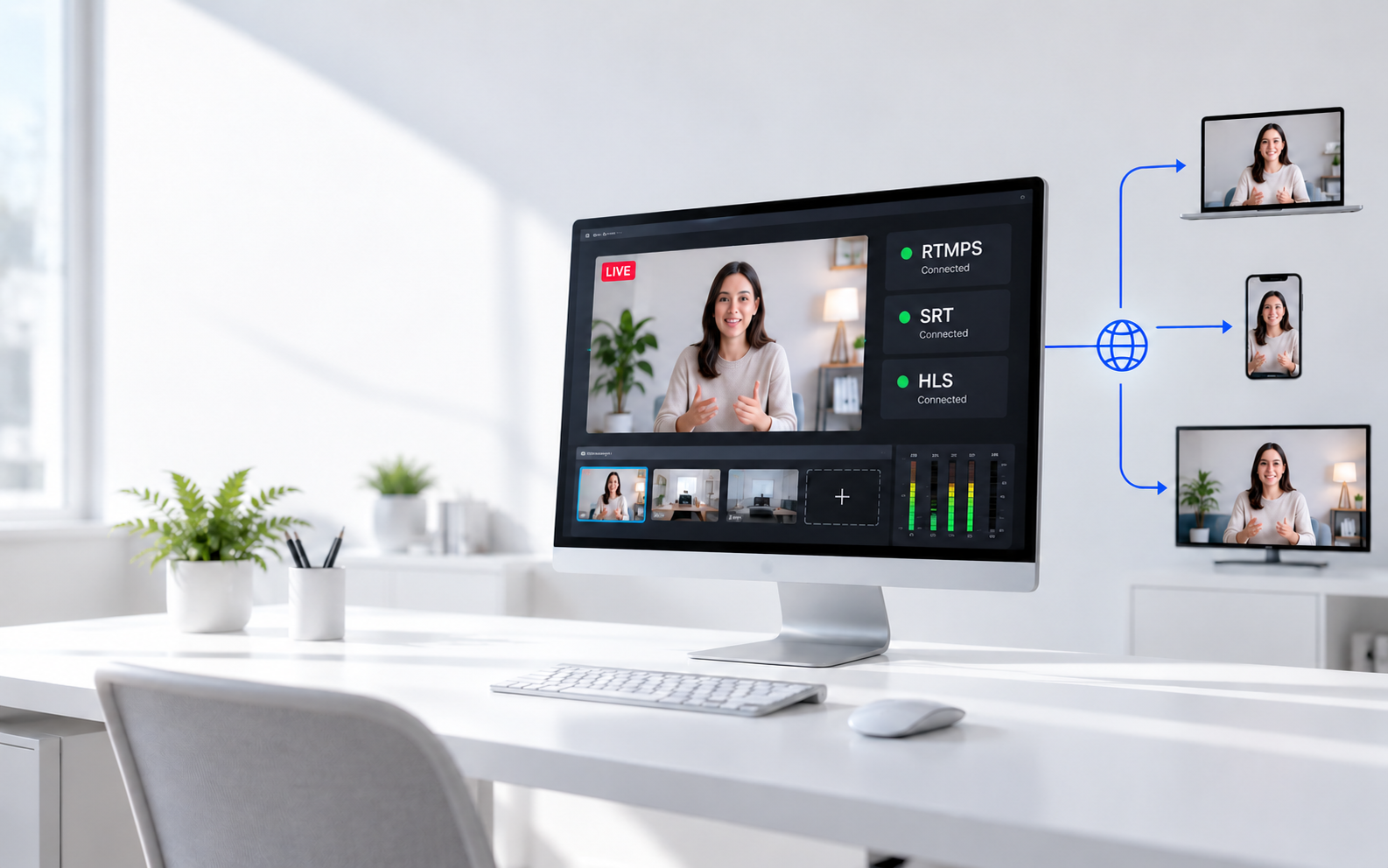
- Connect Massively More Video Sources: Supports up to 16 video inputs, including 4x HDMI, 2x USB, and up to 10x network inputs (NDI/SRT/RTSP/RTMP) to monitor and manage multiple video feeds at once.
- External Display Expansion: Connect an external monitor to expand your multi-camera preview beyond the built-in 7" screen, giving you a larger workspace for complex switching setups.
- All-in-One Switching: Integrates an encoder, video switcher, monitor, and recorder into one device to organize and control multiple HDMI sources.
- Control Multiple OBSBOT Cameras: Built-in control panel for up to 3 OBSBOT cameras, allowing users to adjust PTZ movement, AI Tracking, Preset Positions, and Focus from one interface.
- One-Click Multi-Camera Recording: Compatible with the Tail Air Smart Remote Controller and the OBSBOT Live App to start and manage synchronized multi-camera recordings without manually triggering each device.
Method 3: Use a USB to HDMI Adapter
A USB to HDMI adapter adds another display when your computer has only one HDMI output and supports additional monitors to create an HDMI multi-screen setup.
Step 1: Install the adapter driver if needed, then connect the USB to HDMI adapter to an available USB port on your computer.
Step 2: Connect your monitor to the adapter with an HDMI cable and wait for the operating system to detect the new display.
Step 3: Open your display settings, choose Extend these displays, and adjust the monitor layout for a smooth workspace.
Method 4: Use a Docking Station
A docking station expands your laptop's display connections, allowing you to connect multiple monitors through a single cable. This is good if you want to connect 2 monitors to a laptop with 1 HDMI port.
Step 1: Connect the docking station to your laptop using the recommended USB-C, Thunderbolt, or USB connection.
Step 2: Attach each monitor to the docking station using HDMI or other supported display ports and turn on the monitors.
Step 3: Open your computer's display settings, extend the desktop across all screens, and arrange them in the correct order for comfortable use.
FAQs About Multiple Monitors with HDMI
1. Can I connect two monitors with one HDMI port?
No, A single HDMI port can only send one video signal, so you need a docking station, USB to HDMI adapter, or another display output to use two independent monitors.
2. Does an HDMI splitter let me extend my desktop?
No, An HDMI splitter only duplicates the same image across all connected monitors because it does not create separate video outputs.
3. How many HDMI monitors can a computer support?
The number depends on your graphics card, processor, and available display outputs. Most modern desktop computers and many laptops can support two to four monitors when the hardware allows it.
4. Why is my second HDMI monitor not being detected?
This can happen because of a faulty cable, outdated graphics drivers, incorrect display settings, or unsupported hardware. Try reconnecting the monitor, updating your graphics driver, and selecting Extend these displays in your operating system.
5. Can I mix HDMI with other display connections for multiple monitors?
Yes, Many computers support using HDMI together with DisplayPort, USB-C, VGA, or DVI at the same time if the graphics hardware supports multiple displays.
Conclusion
Setting up multiple monitors with HDMI is easier when you choose the right connection method for your device. Direct HDMI ports provide the simplest solution, while USB adapters and docking stations let you add more displays when ports are limited. HDMI splitters are useful only when you want the same picture on every screen. Before buying extra equipment, check what your computer and graphics hardware can support. With the correct setup, you can enjoy a larger workspace, improve productivity, and manage tasks more efficiently across multiple displays.