What Is a Stream Key? A Beginner’s Guide to Going Live
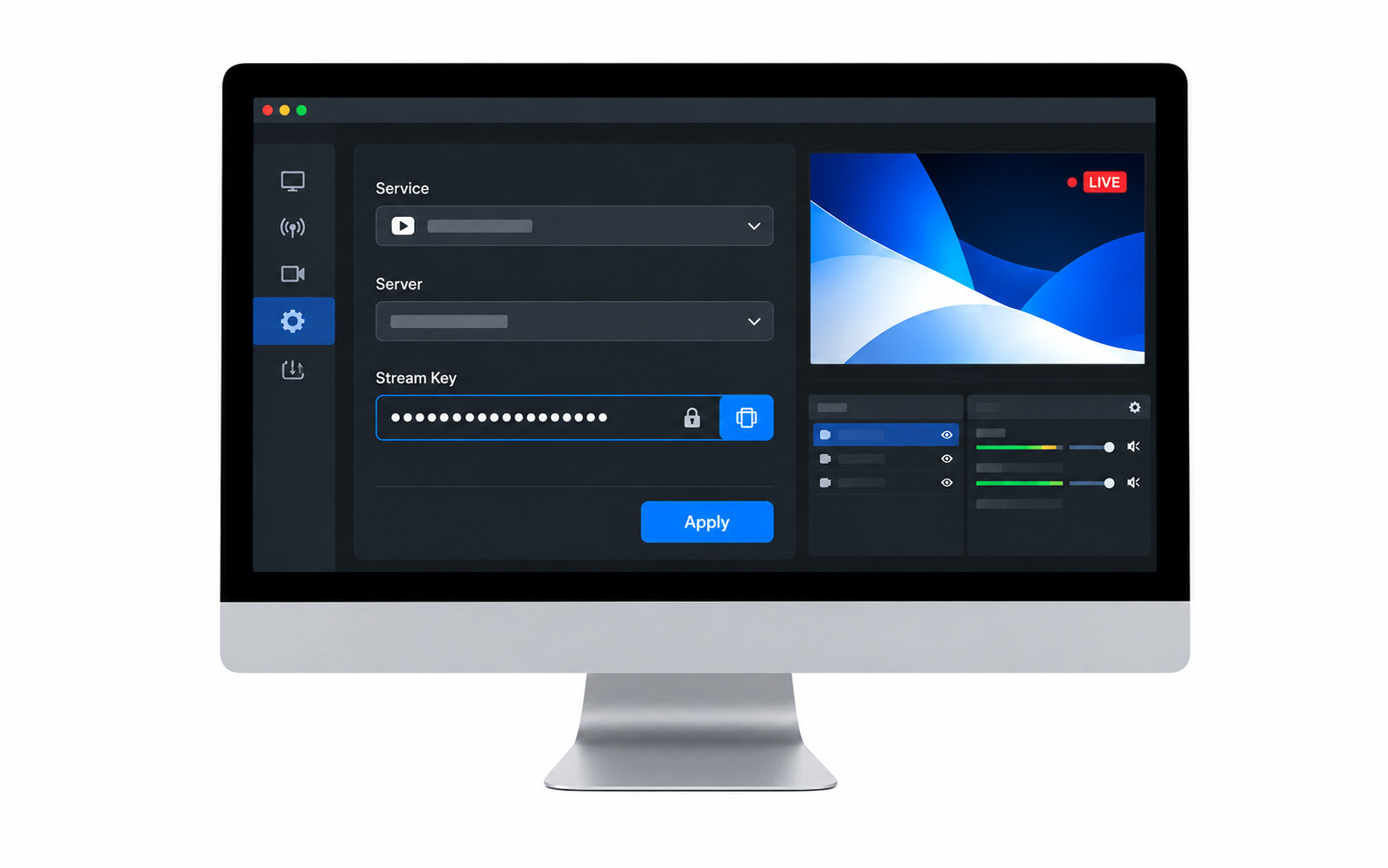
Your streaming software is ready, but the setup screen asks for a stream key. Where does that code come from, and is it safe to paste it into OBS? This guide explains what a stream key is, where to find yours, and how to connect your broadcast without exposing access to your channel.
What Is a Stream Key and How Does It Work?
A stream key is a private code that authorizes streaming software or a hardware encoder to send a broadcast to a particular channel or live event. The streaming platform issues it; you enter it into the tool sending your video.
For example, your Twitch stream key connects the broadcast from OBS to your Twitch channel. It is not your channel name, a link for viewers, or your account password.
A manual connection usually has two separate fields:
- Server URL: The platform's receiving address. It tells the encoder where to connect.
- Stream key: The credential that identifies and authorizes your broadcast at that destination.
Think of the server URL as the delivery address and the key as permission to deliver your broadcast there. A public channel URL cannot replace either field.
Where to Find Your Stream Key
Open the streaming platform's dashboard, not your camera settings. Use the instructions for your destination below.
Twitch
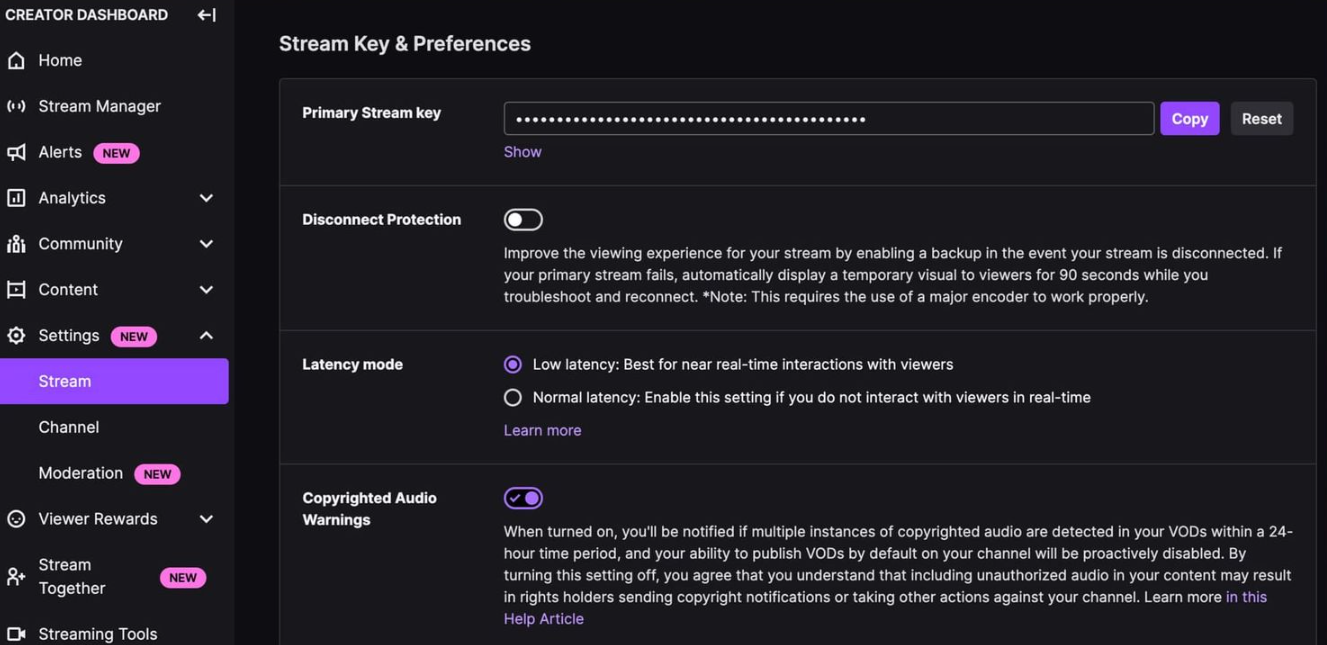
- Sign in to Twitch in a desktop browser.
- Open Creator Dashboard > Settings > Stream.
- Find Primary Stream key and select Copy.
Use Copy rather than revealing the key on screen, especially while screen sharing.
YouTube
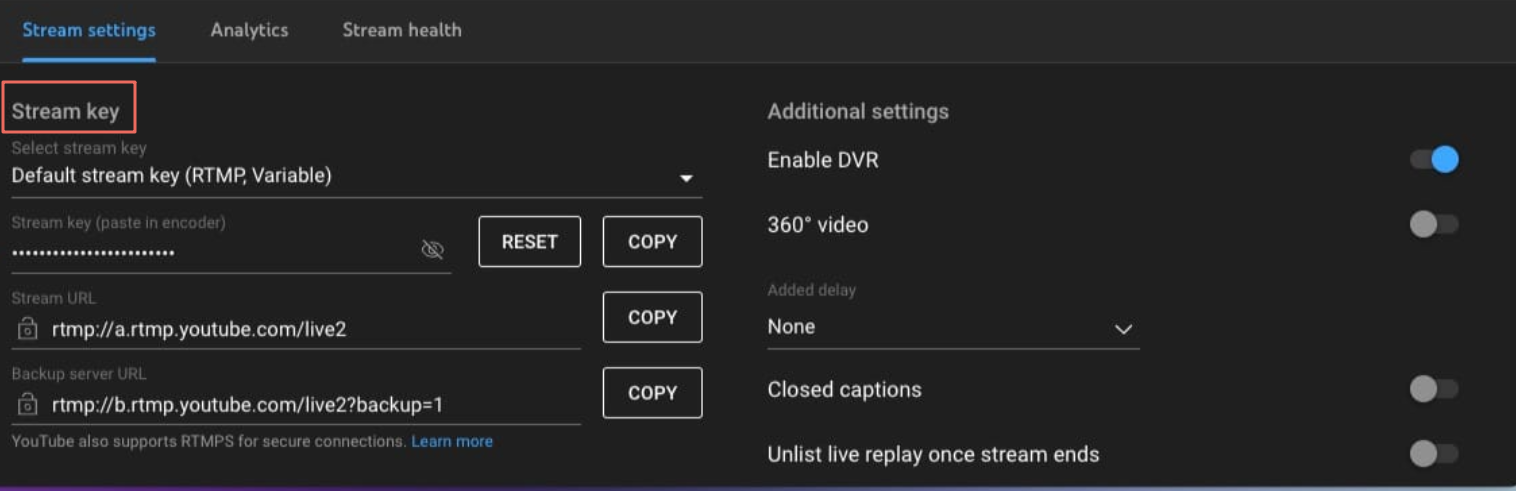
- Sign in to YouTube Studio and select Create > Go live.
- Open the Stream tab, or select your scheduled encoder stream under Manage.
- In Stream settings, copy the stream key and, if your encoder requests it, the stream URL.
If this is your first broadcast, enable live streaming first. Activation can take up to 24 hours. Select the intended live event before copying its connection details.
Facebook Live
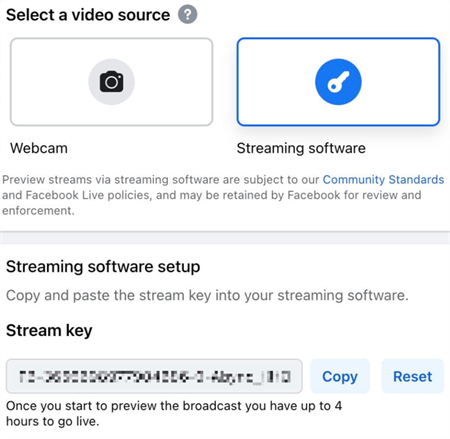
Open Live Producer for the profile or Page you plan to broadcast from. Choose the streaming software option, then copy the server URL and stream key from the setup panel. A webcam-only setup does not use the same manual encoder fields.
TikTok LIVE
To stream to TikTok through an external encoder, you need a server URL and stream key. These details are available only to accounts with the appropriate streaming access.
- Open the TikTok app, tap +, and select LIVE.
- If available, select Cast to PC or Stream to PC. The label may differ by account or app version.
- Copy the displayed server URL and stream key. Keep both ready for your encoder setup.
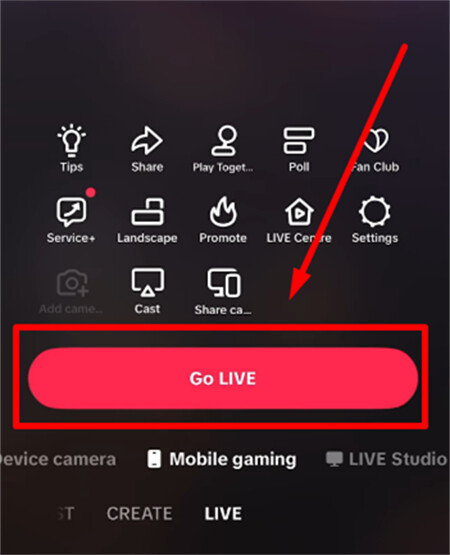
No PC streaming option? Your account may have mobile LIVE access without permission to use an external encoder. Check the LIVE access options available to your account. TikTok LIVE Studio may offer an alternative for eligible accounts, but access to LIVE Studio does not guarantee a stream key you can copy into OBS.
Before each broadcast, check the connection details shown for that session rather than assuming a previously saved key is still valid.
How to Add a Stream Key to OBS
In OBS, open Settings > Stream. Select your platform under Service, then follow the matching route.
- Connect Account: If available, sign in through the platform's authorization window. You do not need to copy a key manually for this route.
- Use Stream Key: Choose the manual key option and paste the code from your platform dashboard.
- Custom: If your destination is not listed, select Custom and enter both its server URL and stream key.
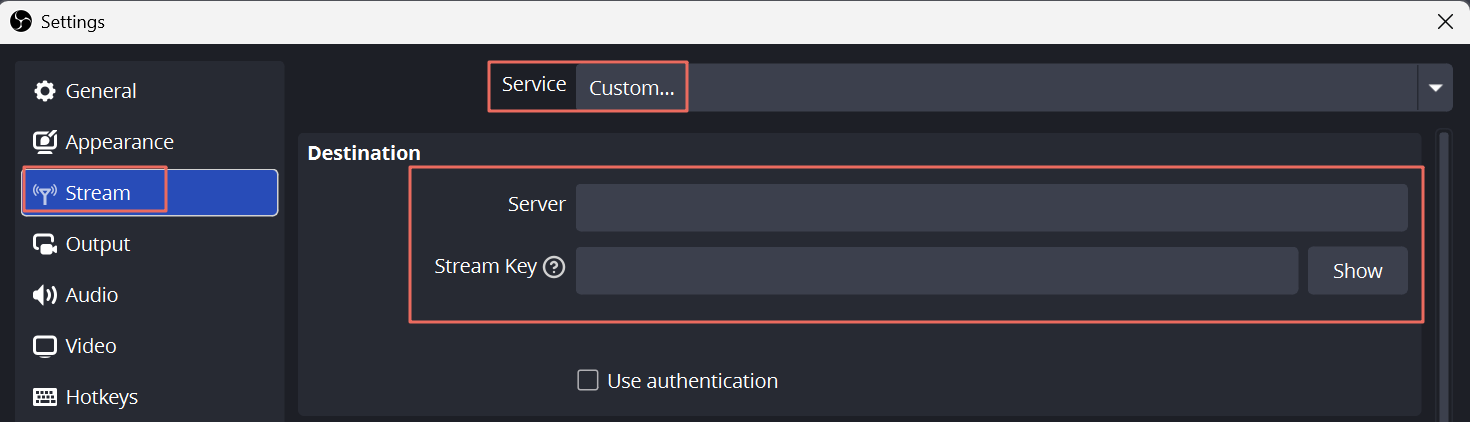
For a listed service such as Twitch, keep the default server selection unless you have a specific reason to change it. In a custom connection, paste each value into its own field; do not put the whole server address into Stream Key.
- Select Apply > OK to save the connection.
- Check that your intended scene is visible and your microphone meter moves when you speak.
- When you are ready to broadcast, click Start Streaming.
- Check the destination dashboard for the incoming video. If it displays a separate preview and Go live control, complete that step there.
Start Streaming can make your channel public immediately. Do not assume every platform waits for another confirmation. For a rehearsal, use a destination's explicit test mode or an unlisted YouTube event with auto-start turned off.
How to Protect Your Key and Fix Connection Errors
Treat your key like a broadcasting password. Someone who obtains it may be able to publish to your channel, even without signing in to your account.
If Your Stream Key Is Exposed
- Open your platform's stream settings and reset or regenerate the exposed key.
- Replace it in OBS and every other encoder that used the old one.
- Remove it from screenshots, recordings, shared documents, and public messages. Deleting the visible copy is not a substitute for resetting the key.
- If you suspect account access too, change your password, review connected applications, and enable two-factor authentication.
On Twitch, resetting your primary key does not revoke guest stream keys. Review authorized broadcasters separately if you need to remove someone else's broadcasting access.
If OBS Reports an Invalid Key or Cannot Connect
- Invalid key: Copy it again from the correct account or event. Remove accidental spaces and replace any key you recently reset.
- Wrong destination: Check that the service matches the platform. For Custom, confirm the server URL and key belong to the same destination.
- Connection failure: Check the platform's status, internet connection, and firewall permissions. Do not keep resetting a valid key to troubleshoot a network outage.
- Video arrives, but viewers see nothing: Check whether the destination is waiting for Go live or whether you selected a different scheduled event.
If the broadcast connects but the picture stutters, the key has already done its job. Investigate upload stability, bitrate, and encoder load instead.
Bonus: Add a Tracking Camera to Your OBS Setup
For a solo lesson or product demonstration, OBSBOT Tail Air can supply the camera view while OBS handles the broadcast connection. Its AI tracking follows you when you move away from a fixed seated position.
Key Features for This Setup
- AI tracking: Keep a standing presenter in frame during a demonstration without assigning someone to operate the camera.
- Micro HDMI output: Connect to a compatible HDMI capture device, then add that device in OBS as a Video Capture Device source.
- 4K at 30 fps or 1080p at 60 fps: Choose the camera output to match the capture device and production rather than assuming a 4K camera requires a 4K stream.
FAQs About Stream Keys
Can I Reuse the Same Stream Key?
A reusable key can stay saved between broadcasts until it is reset or invalidated. Event-specific or temporary keys may behave differently, so check the selected event rather than assuming an old key will work everywhere.
How Do I Find My Twitch Stream Key on Mobile?
For manual encoder setup, try the Twitch Creator Dashboard in a mobile browser with desktop view enabled. A computer is easier if the settings page does not display properly. Streaming directly from the Twitch mobile app does not require manually entering a key.
What Is a Stream Key on Discord?
Discord's normal Go Live and screen-sharing features do not require an RTMP stream key. Join a voice channel and use the screen-sharing controls. In OBS, Start Streaming is for sending video to a streaming destination, not for starting Discord screen sharing.
Conclusion
Get your stream key from the destination platform, keep it private, and enter it into the encoder sending your broadcast. Check the correct channel or event before going live, and replace the key everywhere it was saved after a reset.