If you are choose best video editing app in 2026, the debate comes down to DaVinci Resolve vs Premiere Pro.
When comparing these two editors, the price, color grading, audio work, visual effects, and the way each editor handles larger projects can all influence your decision.
In this guide, we have compared both editors on these factors to help you decide which one fulfills your needs better. Let's get into it.
DaVinci Resolve vs Premiere Pro at a Glance
Resolve and Prremiere pro, both are non linear professional apps and the table below gives you a quick overview of how the two editors compare across multiple features.
| Factor | DaVinci Resolve | Premiere Pro |
|---|---|---|
| Price | Basic: Free Studio: $236 one-time |
$22.99/mo (annual plan) |
| Learning curve | More to learn | Easier to pick up |
| Color grading | Node-based Color page | Lumetri Color |
| Motion graphics | Built-in Fusion | After Effects via Dynamic Link |
| Audio | Fairlight, a full DAW | Essential Sound, Audition integration |
| AI features | Neural Engine, extra tools in Studio | Firefly-powered features, generative credits |
| Platforms | Mac, Windows, Linux | Mac, Windows |
| Best for | Independent editors, colorists, filmmakers | Adobe users, agencies, production teams |
DaVinci Resolve vs Premiere Pro Head-to-Head Comparison
This year Resolve upgraded to Resolve 21, and Premiere Pro came with its 26.5 desktop version. Both updates bring improvements to editing, AI-assisted workflows, audio, and visual effects, with Resolve expanding its color, Fusion, and Fairlight tools while Premiere adds new AI-powered editing and media-generation capabilities. Let's get into these in detail:
Pricing and Licensing
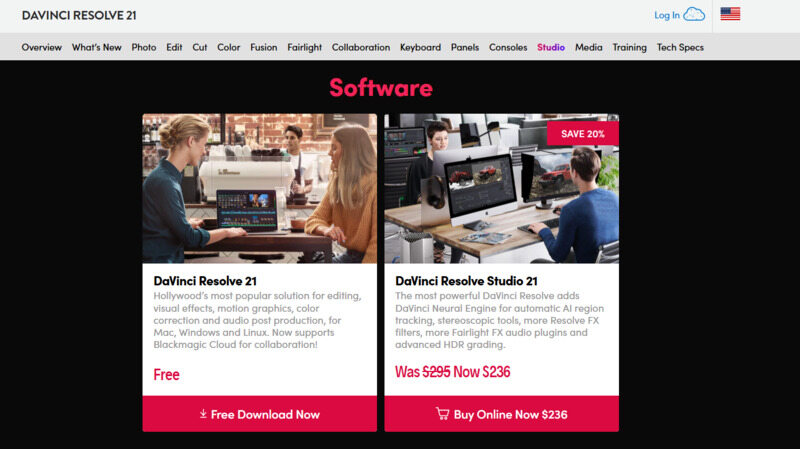
Resolve 21 has a free version, and Premiere 26.5 comes with a seven-day free trial. Resolve's free version does not have any watermark or time limit. It covers editing, color grading, audio, and basic visual effects at up to Ultra HD resolution and 60fps.
Let's compare their costs:
-
Resolve 21: The Studio version costs $236 as a one-time purchase. It adds advanced noise reduction, HDR grading tools, and multi-user collaboration. And there is no recurring fee and no subscription to cancel later.
-
Premiere Pro: After free trail, latest 26.5 version has annual plan, billed monthly, costs $22.99 per month, while the month-to-month option is $34.49. If you also use Photoshop, After Effects, or Audition, Adobe's All Apps plan costs $59.99 per month.
The payment models make a considerable difference over time. Resolve Studio requires a larger upfront payment, but you don't have to renew it every year. Premiere's lower starting price is easier to manage initially, although the subscription continues for as long as you need the software.
Ease of Use and Learning Curve
Premiere Pro is easier to get started with if you've used a video editor before. Its interface follows familiar editing conventions, so the basic controls don't take long to figure out. Due to its user-friendly interface, users usually put together their first few cuts without spending much time learning where everything is.
For a practical first step, see our guide on how to split video in Premiere Pro using keyboard shortcuts or the Razor Tool.
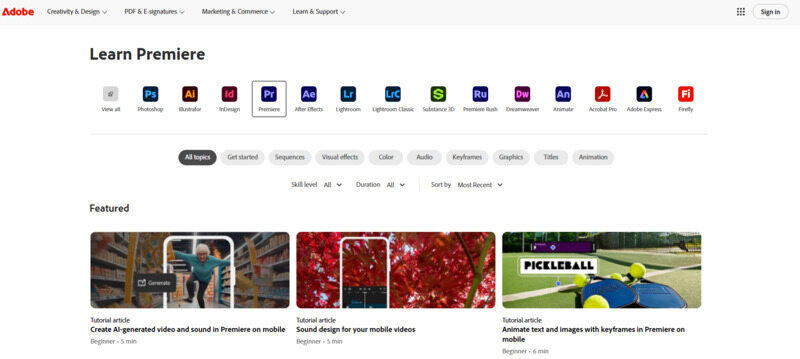
The software provides official tutorials, "Learn Premiere"and community forum where people can share their issues, ask questions, and get troubleshooting solutions.
DaVinci Resolve takes a different approach. It separates the work into dedicated pages, including Cut, Edit, Color, Fairlight, Fusion, and Deliver. This layout feels unfamiliar at first, especially if you're coming from Premiere. But you can learn editing from basic to professional with its tailored training blogs and videos.
Color Correction and Color Grading
-
For serious color work, DaVinci Resolve has a clear advantage. Its dedicated Color page uses a node-based system that gives colorists detailed control over how adjustments are applied.
For example, a colorist can isolate skin tones with its qualifier, refine them on a separate node, and track them through the shot. The software also draws on Blackmagic's long history in professional color grading.
-
YouTubers utilise Premiere to fix exposure and white balance in Lumetri's Basic Correction tab.
Premiere Pro's Lumetri panel is adequate for straightforward corrections but is limited for advanced node trees, power windows, or secondary grading work. Resolve also offers a more extensive set of scopes, qualifiers, and tracking tools.
Motion Graphics and Visual Effects
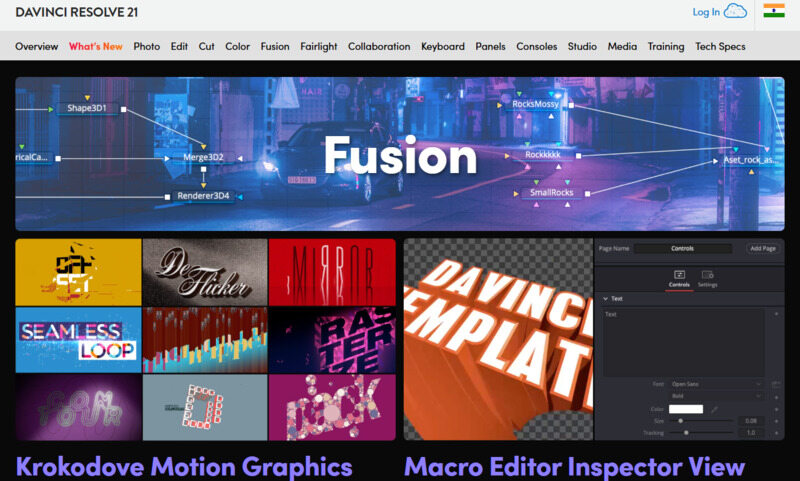
Resolve has Fusion, a node-based compositor built right into the app. You build motion graphics and effects without leaving the project or paying for a second tool.
For instance: Animators make a lower third on the Fusion page, then return to the Edit page and drop it straight onto the timeline.
Premiere hands that work to After Effects through Dynamic Link, which links a Premiere sequence to an After Effects composition. This means you can send a clip to After Effects, animate it there, and see the updated result back in your timeline without exporting a file.
The catch is that After Effects is a separate app outside the full Creative Cloud plan, so it requires a separate cost.
The link has certain limits like:
-
Adobe requires Premiere and After Effects to be on matching major versions, so if one app updates before the other, Dynamic Link stops working until both are brought back in line.
-
A heavily linked composition can also slow down playback in Premiere, because the timeline has to wait for After Effects to render it. When that happens, Render and Replace is the usual workaround.
Audio Editing and Mixing
Not every video project needs a full audio workstation. Sometimes you just need to clean up dialogue and balance a music track. Other projects involve several recorded tracks, voiceovers, and sound effects, where having more control makes a difference.
That's where Fairlight gives Resolve an advantage:
It has multitrack mixing, ADR tools, noise reduction, and Foley capabilities built into the application. With everything in one place, you can clean dialogue, replace lines in ADR, add footsteps or props, and mix the final track without exporting audio to another program. That saves time and keeps the sound in sync with the picture.
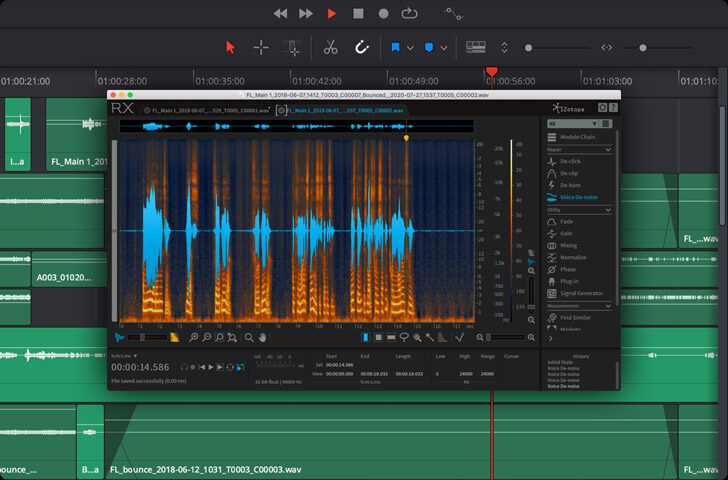
Premiere keeps things simpler with its Essential Sound panel:
You can use it for dialogue cleanup, music leveling, and basic repair. If you need more, Adobe Audition is available as a separate application within the Creative Cloud ecosystem.
Fairlight users have noticed that having the mixer, ADR, and effects in the same app as the timeline is its biggest benefit. Some say many controls can feel overwhelming at first. Premiere users praise Essential Sound for fast dialogue cleanup.
AI Features and Editing Automation
AI tools aren't identical across the two applications. Some major differences are:
Resolve 21:
-
This software runs its AI through the Neural Engine, which is designed to remove repetitive work.
-
Resolve also added the IntelliSearch feature with new update. It lets you find clips by what is in them, so you can locate a shot in a big project without scrubbing through footage.
-
CineFocus lets you change the focal point after shooting to rescue your slightly missed focus.
Premiere Pro 26.5:
-
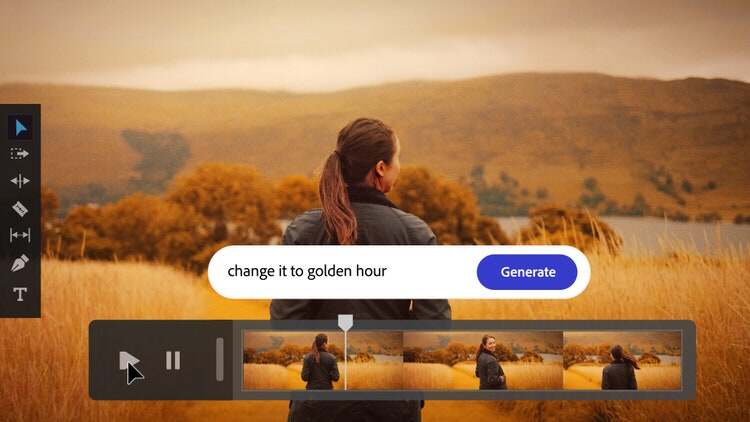
Premiere's AI runs through Adobe Firefly. It's most useful feature is Generative Extend that can add up to 2 seconds of video or 10 seconds of ambient audio. That is helpful when a clip ends a moment too early, or when you need a little more room tone to smooth an audio gap.
-
Adobe also gives new single-app subscribers 25 generative credits each month. Old subscribers can find their latest plan on their official page.
Camera Formats and Codec Support
Your editors can't do much if your footage is glitch, low quality and shaky. First thing required to make a good video is a good camera and OBSBOT Tail 2 is great choice in tis regard. It records 4K at 60fps and 1080p at 120fps, using standard, widely supported codecs. You won't need a special plugin just to bring this footage into an editing timeline. Both Premiere Pro and DaVinci Resolve handle it in a normal editing workflow.
The difference is more noticeable when you work with footage from several camera brands. Premiere has broad native codec support, so you're less likely to run into formats that need transcoding before editing. That's useful in multi-camera livestream and event production, where footage often comes from different sources.
Resolve handles the Tail 2 just as well for everyday editing. Some older or less common third-party camera formats may need to be converted before they import cleanly.
If your clips show red offline frames, our DaVinci Resolve Media Offline guide covers codec issues, missing files, proxies, and other common causes.
If you're setting up the Tail 2 for the first time, our guide to using the OBSBOT Tail 2 for recorded and live production covers the camera-to-edit workflow in more detail.
Playback, Rendering, and Stability
Playback results can change quite a bit depending on the machine and the kind of footage you're editing. That is why it helps to look at how each editor handles the load.
-
Resolve uses optimized media and a render cache to keep playback smooth during demanding color work and effects. This often helps on systems with less powerful GPUs, since the heavy processing is done once and reused.
-
Premiere takes a different route for large multicamera timelines. It relies on its proxy workflow, which swaps in lightweight copies of your clips while you edit, along with hardware decoding.
Your hardware plays a part in both cases, and newer Intel and Apple Silicon machines can make a noticeable difference in Premiere.
Across eight ProRes export runs from three outlets, including testing and studio's review, Resolve's median export time was 56% of Premiere's. Green-screen footage produced the opposite result. Premiere handled that export faster, with Resolve taking 188% of its time on the same hardware.
Exporting and Delivery
The steps to export in Premiere are simple.
- To start with, open your sequence and click Export button.
- Now pick a preset for where the video is going, such as YouTube or Instagram.
- Choose a file name and save location, and click Export.
- If you have several files to deliver, you can send them to a queue and let Premiere export them one after another while you keep working. If the rest of the project already lives in Adobe applications, there's little disruption to that workflow.
Resolve gives you more control in exporting on its Deliver page. Use these steps to get it done:
- First, pick a preset or set your own format and resolution.
- Choose where to save the file, and click Add to Render Queue.
- You can add several versions to the queue, such as one for YouTube and one for Instagram, and render them all with a single click. If a client needs an HDR or Dolby Vision master, you can set that up on the same page.
For detailed MP4, resolution, bitrate, and codec settings, see our step-by-step guide on how to export in DaVinci Resolve.
There is one more thing to consider if you plan to use both editors:
Moving a project between them isn't always straightforward.
The two editors store projects differently, so you have to export the timeline in a shared format first, such as XML, AAF, or OpenTimelineIO. Premiere has supported these formats since version 26.0. According to Adobe's documentation, they keep basics, like clip order and cuts, but some effects and audio settings may not transfer accurately.
Which Should You Choose: DaVinci Resolve or Premiere Pro
Before you make the final decision, run through this checklist.
Opt for DaVinci Resolve if you:
-
Want advanced color grading tools built into your video editor.
-
Prefer a free editing option or a one-time $236 payment for the Studio version.
-
Need compositing and audio mixing tools without opening separate applications.
-
Don't mind a steeper learning curve if it means having more advanced tools at your disposal.
Premiere Pro is worth it when you:
-
Already work with After Effects, Photoshop, or Audition.
-
Collaborate with editors or clients who exchange Premiere project files.
-
Frequently prepare videos in different aspect ratios for social media.
-
Need an interface that new team members can learn relatively quickly.
FAQs About DaVinci Resolve vs Premiere Pro
Here are answers to some common questions about the two editors.
What is the No. 1 best video editor?
There isn't one video editor that's best for everyone. DaVinci Resolve stands out for its color-grading tools and pricing, while Premiere Pro is a strong choice for editors who rely on Adobe's applications. The right choice for you is to be determined by your workflow and budget.
Is DaVinci Resolve easier to learn than Premiere Pro?
Generally, no. Premiere Pro follows familiar editing conventions, so beginners can usually get comfortable with basic cuts more quickly. Resolve has a page-based layout that takes longer to understand, particularly if you're new to video editing. That structure can become an advantage once you know your way around it.
Do professionals use DaVinci Resolve?
Yes, professionals widely use DaVinci Resolve for professional film, television, and commercial work, particularly for color grading. Some studios also use it alongside other editing applications, like cut a film in Premiere Pro or Avid, then send the timeline to Resolve for color grading and final delivery.
Is the free version of DaVinci Resolve enough?
Yes. DaVinci's free version is good enough for most YouTube, social, and personal projects. The free version supports resolutions up to Ultra HD at 60fps and doesn't add a watermark. Studio is mainly worth considering if you need features such as advanced noise reduction, higher-resolution timelines, or additional collaboration tools.
Which is better for YouTube, Premiere Pro or DaVinci Resolve?
Both work well for YouTube editing. Resolve's free version is a good starting point if you don't want to pay for editing software. Premiere may suit creators who already know its interface or use other Adobe applications in their production process.
Can I use DaVinci Resolve and Premiere Pro together?
Yes, you can use DaVinci Resolve and Premiere Pro together. Some editors use Premiere Pro for the initial edit and then move their projects into Resolve for color grading. Others use a similar combination in reverse. XML and AAF are among the interchange formats that can help transfer project information between applications, although the results depend on the effects and features used in the original timeline.
Conclusion
In conclusion, coming back to the debate between DaVinci Resolve and Premiere Pro, both are capable editors, but they suit different working habits. If you are a solo creator grading footage alone, your choice has to be different from a team pushing files between five Adobe apps.
If you're still undecided, don't base the purchase on a feature list alone. Take a short piece of footage, edit it in both programs, and try the tasks you handle most of the time. You should particularly see which one lets you finish the job with less friction. This experience will tell you more than another comparison chart.