How to Make Scrolling Text on OBS 2026

Needless to say, OBS Studio is incredibly versatile, whether you are teaching classes, recording tutorials, streaming live events, or demonstrating products. One standout tool you can easily use is scrolling text, which can be prepared or refined using an OBS editor for smoother animations and professional effects. It is a dynamic way to display announcements, titles, or running information without interrupting your content flow. This article will show you precisely how to make scrolling text on OBS.
Part 1: When to Use Scrolling Text on OBS?
1. Sports Live Stream
- Share live scores, player stats, and game updates.
- Ensures fans don't miss critical moments during the match.
2. Video Game and eSports Streams
- Show tournament schedules, rankings, and sponsor messages.
- Adds a professional touch and keeps viewers engaged with ongoing events.
3. Entertainment Live stream
- Share show schedules, behind-the-scenes updates, or interactive messages from viewers.
- Keeps the audience engaged, informed, and entertained throughout the stream.
4. Business Events Live Stream
- Highlight key topics, speaker names, and segment schedules.
- Helps participants follow the event easily, even if they join partway through.
Bonus: The Best OBS Streaming Camera - OBSBOT Tail 2 Live Production Camera
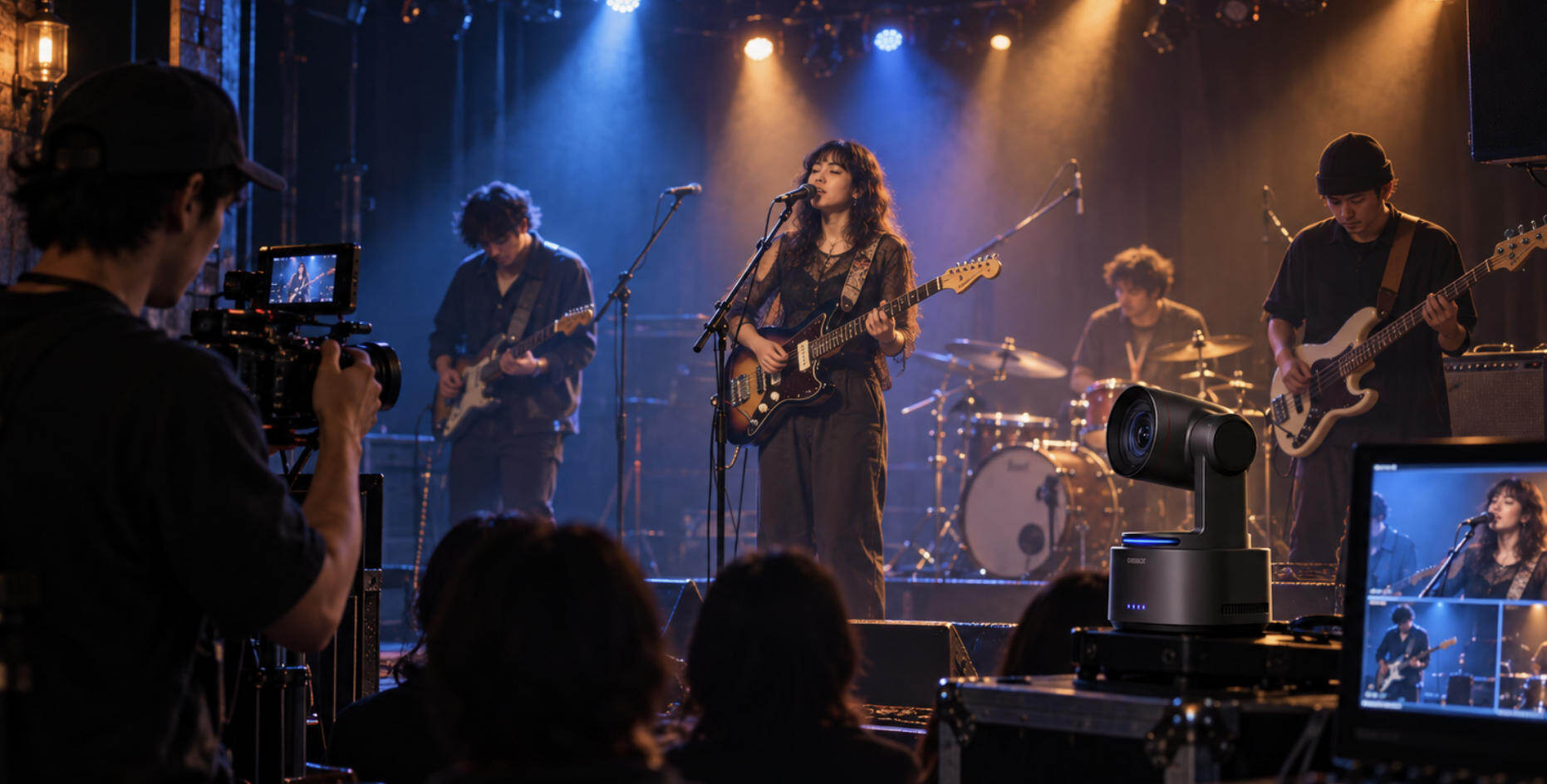
If you want your OBS streams to look professional, your camera must deliver smooth, high-quality video that works seamlessly with OBS. The OBSBOT Tail 2 is built exactly for that, as it combines advanced connectivity and image quality to give your video content the clarity it deserve.
Key Features:
- 4K@60fps Video Quality: OBSBOT Tail 2 streams in true 4K@60fps, so your scrolling text, overlays, and on-screen graphics remain clear and sharp without being blurred by lower resolution.
- Multiple OBS-Friendly Connections: The camera offers USB-C, HDMI, SDI, and IP over Ethernet/Wi-Fi so you can connect directly to OBS without extra converters or complicated setups.
- Precise AI-Tracking 2.0: The camera's AI tracking feature keeps you perfectly framed on camera, ensuring your scrolling text and graphics stay positioned exactly where you planned.
- Smart Remote Controller: Connect via Bluetooth to enable seamless PTZ control, preset positions, and device switching between up to 3 Tail 2 cameras, making it easy to manage shots directly within your OBS live stream.
- Flexible Placement Options: The camera's wireless connectivity enables you to place the camera anywhere without clutter, making it ideal for creating a clean and distraction-free OBS scene.
- Instant Format Switching: The camera allows you to quickly change from horizontal to vertical formats to adapt your OBS scenes for different platforms without reconfiguring your setup.
Part 2: How to Make Scrolling Text on OBS
Here is an easy-to-follow process on how to add scrolling text in OBS Studio:
Step 1: Open OBS Studio
Launch OBS Studio on your computer. In the Sources panel, click the '+' icon and select Text (GDI+) on Windows or Text (FreeType 2) on macOS.

Step 2: Add a Text Source
Give your text source a name (e.g., "How to Make Scrolling Text on OBS") and click OK.

Step 3: Enter Your Text
In the text properties window, type or paste the text you want to scroll.

Customize the font, size, color, and alignment according to your preferences.

Step 4: Adjust Position
Drag and resize the text box in the preview window to position it where you want it on the screen.
Typically, scrolling text is placed at the bottom of the screen like a news ticker, but you can place it anywhere.

Step 5: Apply the Scroll Filter
Right-click your new text source in the Sources list and select Filters.

In the filters window, click the '+' button and choose "Scroll" to add the scroll filter.

Step 6: Adjust Scrolling Settings
Adjust the speed slider to control how fast the text moves. Optionally, enable smooth scrolling for a cleaner effect.
Click "Close" to return to the main OBS interface.

Step 7: Preview and Fine-Tune
Press Start Recording or Start Streaming to preview the effect. Return to the filter settings to tweak speed, limits, or looping until it looks right to you.
Once you perform these steps, your scrolling text should now move fluidly across your stream, giving your audience real-time updates or branding effects without interrupting your content.
Part 3: The Benefits of Scrolling Text in OBS
Adding scrolling text brings numerous benefits:
- Share updates without breaking flow: You can stream important headlines, sponsorship mentions, or reminders in a way that blends seamlessly with your content, ensuring your audience stays informed without breaking their viewing experience.
- Deliver live information instantly: You can keep viewers instantly informed by displaying live updates such as social handles, breaking news, or event hashtags during your stream.
- Enhance your professional image: You can add a ticker-style scrolling effect to boost your branding and create a polished, broadcast-quality feel.
- Adaptable to any streaming style: Scrolling text can be used for any content type, from gaming streams to tutorials or live events.
- Built-in and easy to use: You don't need any extra plugins or software, as OBS already includes everything required to create the effect.
Part 4: FAQs About How to Make Scrolling Text on OBS
1. How do I rotate text in OBS?
Use the Transform settings (right-click source → Transform → Rotate 90°). Or apply the Scroll filter with vertical speed for vertical movement.
2. How to animate text on scroll?
The Scroll filter handles movement. For more complex animations (fade, bounce), add additional filters like Fade or Move.
3. How to move text in OBS Studio?
Just drag the text source in the main canvas or use the arrow keys for precise positioning.
4. How to make rolling credits in OBS?
For vertical credits, use the Scroll filter with vertical speed (positive for upward, negative for downward). Enable Loop and adjust Limit Height.
Conclusion
In this article on how to make scrolling text on OBS, you've learned how to create a smooth, continuous ticker using just OBS Studio without any plugins. We covered how to add, filter, and position your scrolling text for maximum impact. Plus, pairing it with the OBSBOT Tail 2 elevates your stream visuals while keeping everything crisp and professional. Incorporate scrolling text to keep your audience informed, engaged, and visually impressed.