PTZ Camera Controller Guide: 5 Best Options for Live Production
If you search for a PTZ camera controller, you probably already know why remotely operated cameras fit your venue. The harder question is which controller will work with your cameras and stay manageable during a live production. This guide compares five useful options, explains the buying decisions that matter, and shows how to build a reliable multi-camera workflow.
What Is a PTZ Camera Controller?
A PTZ camera controller is the interface used to pan, tilt, and zoom a remote camera. Depending on the camera and controller, it may also select cameras, recall presets, adjust movement speed, focus, iris, exposure, or white balance, and trigger other production commands.
A controller can be a physical joystick, desktop application, browser-based Web UI, Stream Deck configuration, or handheld remote. Hardware joysticks suit continuous live movement. Software and button-based controls are often enough when a small crew mainly recalls repeatable shots.
Best PTZ Camera Controllers for Live Production
The five options below cover the most useful differences: mixed IP and serial control, built-in NDI preview, deep manufacturer integration, an affordable compact panel, and a customizable high-end surface. Prices are rounded references and may change.
| Controller | Control Method | Main Protocols | Cameras | Best For | Reference Price |
|---|---|---|---|---|---|
| PTZOptics SuperJoy | 3-axis joystick | VISCA, IP, NDI, Pelco | 253 | Mixed IP and serial systems | $1,299 |
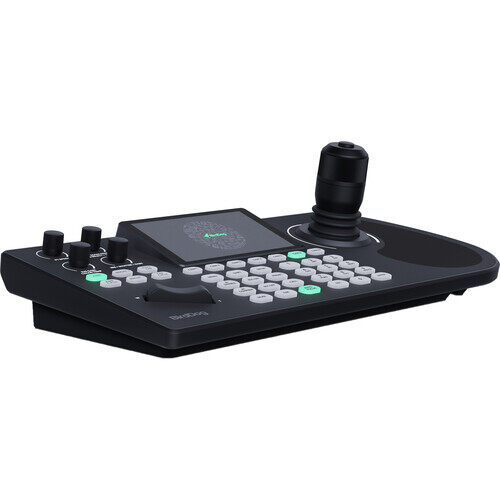
| BirdDog KBD | 4D joystick + screen | NDI, VISCA-IP, ONVIF, Pelco | 255 | NDI workflows needing preview | $1,295 |
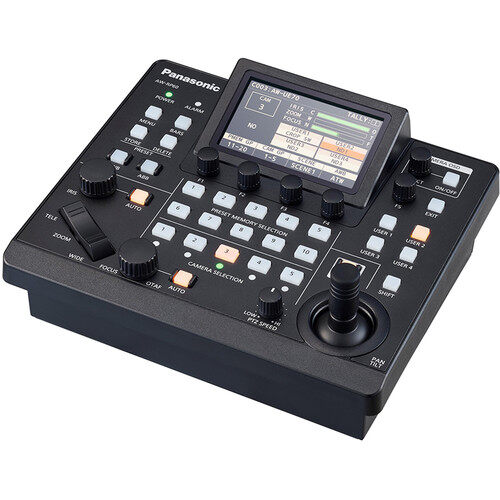
| Panasonic AW-RP60 | Joystick + status LCD | Panasonic IP, RS-422 | 200 IP / 5 serial | Panasonic broadcast systems | $2,410 |
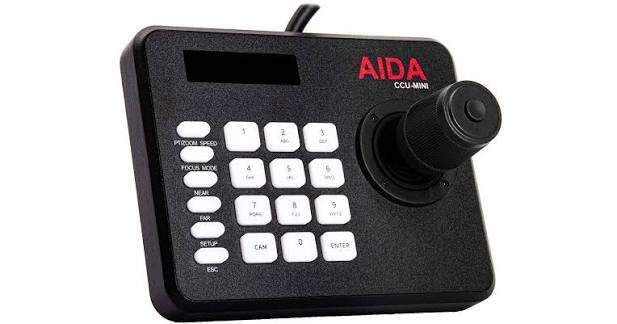
| AIDA CCU-MINI | Compact joystick | VISCA over IP and serial | 7 | Budget-conscious small crews | $385 |
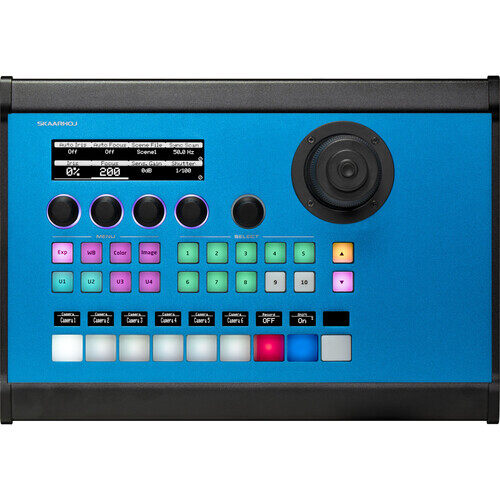
| SKAARHOJ PTZ Pro | 4-axis joystick + programmable controls | IP device cores | Configuration dependent | Custom high-end productions | $3,169 |
PTZOptics SuperJoy
The SuperJoy suits venues combining network and serial cameras. It provides camera groups, presets, custom commands, HDMI monitor output, and support for PTZOptics plus limited third-party implementations of VISCA, NDI, ONVIF, Pelco, and Panasonic HTTP control. Its main limitation is uneven cross-brand depth: basic movement may work while image controls or special functions do not.
BirdDog KBD
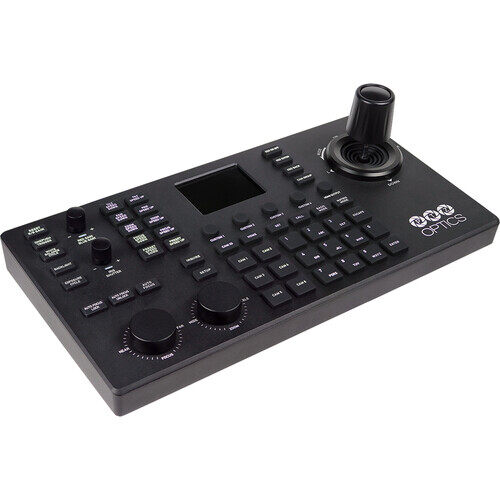
BirdDog KBD is the most useful option here when the controller itself must show video. Its 5-inch display supports NDI-HX2/HX3 and RTSP previews, including multiview, while the panel offers NDI, VISCA-IP, ONVIF, Pelco, RS-232, and RS-422 control. The cost is harder to justify in a mostly serial system that cannot use its strongest preview and IP features.
Panasonic AW-RP60
The AW-RP60 is designed for productions already using Panasonic professional PTZ cameras. It can register up to 200 IP cameras or five serial cameras and gives direct access to presets, focus, zoom, iris, and camera settings. Its 3.5-inch LCD displays menus and status rather than live video. Mixed-brand buyers should look elsewhere unless the required third-party support is explicitly documented.
AIDA CCU-MINI
The CCU-MINI is a practical low-cost controller for a small system. It controls up to seven cameras through VISCA over IP or serial, stores ten presets per camera, supports PoE+, and provides one-touch camera selection. The compact surface has fewer dedicated image controls and no live preview, so it works best beside a separate multiview monitor.
SKAARHOJ PTZ Pro
PTZ Pro serves productions that need a configurable control surface rather than a fixed camera keyboard. Its Blue Pill platform, device cores, programmable OLED labels, encoders, and four-axis joystick can support complex multi-device workflows. That flexibility comes with the highest price and more setup work. Confirm that a supported device core exposes the commands required by your exact camera.
How to Choose the Right PTZ Camera Controller
Compatibility should eliminate unsuitable products before price or features enter the decision. Work through these five checks in order.
1. Compatibility and Control Protocol
Match the controller to the camera's exact implementation of VISCA, VISCA over IP, RS-232, RS-422, NDI, ONVIF, Pelco, or a brand-specific API. A shared protocol name does not guarantee support for presets, tracking, focus, exposure, or tally. Verify the camera model, controller model, firmware, connection method, and command list.
2. Number of Cameras
Count the cameras used now and those likely to be added. Also check how many cameras have direct-selection buttons. A controller may register 200 cameras, but reaching Camera 18 through menus feels very different from pressing a labeled key during a show.
3. Joystick vs. Software Control
| Control Method | Better When |
|---|---|
| Hardware joystick | Following live movement in sports, worship, or stage productions |
| Software or Web UI | Small crews need setup, preview, image adjustment, or preset recall |
| Stream Deck | Volunteers need labeled buttons for repeatable shots and macros |
| Handheld remote | One to three cameras only need simple nearby operation |
4. Presets and Camera Controls
Check the number of presets per camera, preset recall speed, movement-speed controls, camera groups, and custom macros. Decide whether the operator also needs focus, iris, gain, shutter, and white balance. Cross-brand controllers often provide reliable PTZ movement but expose fewer image settings.
5. Production Workflow
Map the controller to the whole system: OBS or vMix, NDI, the video switcher, tally, Stream Deck, Bitfocus Companion, and the production network. Remember that video and control can follow different paths. A camera may send video over SDI while receiving VISCA commands over Ethernet.
How to Set Up and Control Multiple PTZ Cameras
A dependable multi-camera system is built around clear camera roles and a small number of tested commands. Use the following order.
- Connect and verify each camera. Record its model, firmware, IP or serial address, protocol, and physical location. Connect one camera first and confirm pan, tilt, zoom, stop, and preset recall before adding the others.
- Assign names and roles. Use labels such as Stage Wide, Speaker, Worship, Follow, or Close-up instead of Camera 1 and Camera 2.
- Create safe presets. Give every camera a home position and safe shot, then add only the medium and close views the production uses regularly.
- Set movement speeds and limits. Begin with slower values. Check that a camera cannot expose backstage areas, lighting stands, private seating, or an unprepared presenter.
- Test camera switching. Select an off-air camera, recall the nearest preset, trim the composition, and only then switch it live. Keep a wide shot available while another camera moves.
- Rehearse the real workflow. Test with actual people, lighting, switching, graphics, and audio. Restart the cameras and controller once to confirm that addresses, assignments, and presets return correctly.
For a church, a simple role plan is Wide / Speaker / Worship. For sports, use Wide / Follow / Close-up. These roles give the operator a safe fallback and reduce unnecessary camera movement. This multi-camera live streaming guide can help map the cameras to the switcher, audio, graphics, recording, and streaming destinations.
Using a PTZ Camera Controller with OBSBOT Tail 2
OBSBOT Tail 2 can fit professional live-production workflows in churches, classrooms, studios, conferences, and event spaces. Its 5x optical zoom, 4K/60fps video, AI tracking, and motorized pan, tilt, zoom, and rotation help a small crew maintain useful framing while operating several camera positions.
The control method can scale with the crew. Tail 2 supports VISCA over IP and VISCA over UART, while its Web UI provides live preview and browser-based operation. An NDI-enabled Tail 2 can also carry low-latency video and supported control data across an IP workflow. AI tracking can follow the presenter while an operator uses compatible controls to select cameras, recall presets, correct framing, or take over manually.
FAQs About PTZ Camera Controllers
Can one PTZ controller manage cameras from different brands?
Sometimes. Basic movement may work through a shared protocol, while presets, tracking, tally, focus, or exposure controls do not. Verify each camera model and required command.
Do I need a hardware joystick?
Use a joystick when an operator must follow unpredictable movement or adjust framing smoothly. A Web UI, software controller, or Stream Deck may be enough for fixed, preset-driven productions.
Does NDI guarantee PTZ controller compatibility?
No. NDI can carry video and supported control data, but compatibility still depends on the NDI version, camera, controller, firmware, and commands exposed by each device.
How many PTZ cameras can one person control?
Three cameras are manageable for many small productions when each has a clear role and tested presets. The hardware may support hundreds, but the practical limit is the operator's attention while monitoring switching, audio, graphics, and program output.
Final takeaway: Start with exact camera compatibility, then choose the simplest controller that covers the required movement, presets, image controls, and production integrations. Channel count matters less than whether the operator can reach the right shot quickly and repeatably.