How to Attach and Set Up a Webcam to Laptop?

Everyone is using laptops these days for their meetings, streaming, or attending online classes. This is why they use an external webcam. However, many people don't know how to attach webcam to laptop. The process is actually quite simple and will help you improve the video setup. The good thing is you don't need any technical skills to connect and use an external webcam. With this article, we are sharing a step-by-step guide on how to connect and set up the webcam. Also, we will share common mistakes that people make while connecting their webcams to the laptop, so you don't struggle with bad videos!
Part 1: How to Attach Webcam to Laptop?
The simplest and most common way to learn how to attach a webcam to a laptop is by using a USB connection. Most webcams are plug-and-play, which means you just connect them, and your computer will recognize them automatically.
Step 1: Before connecting, make sure your webcam cable matches your laptop port. Most webcams use USB-A, while newer laptops may use USB-C. If needed, you can use an adapter.
Step 2: Insert the webcam's USB cable into a free port on your laptop. Make sure it is firmly connected so it does not disconnect during use.
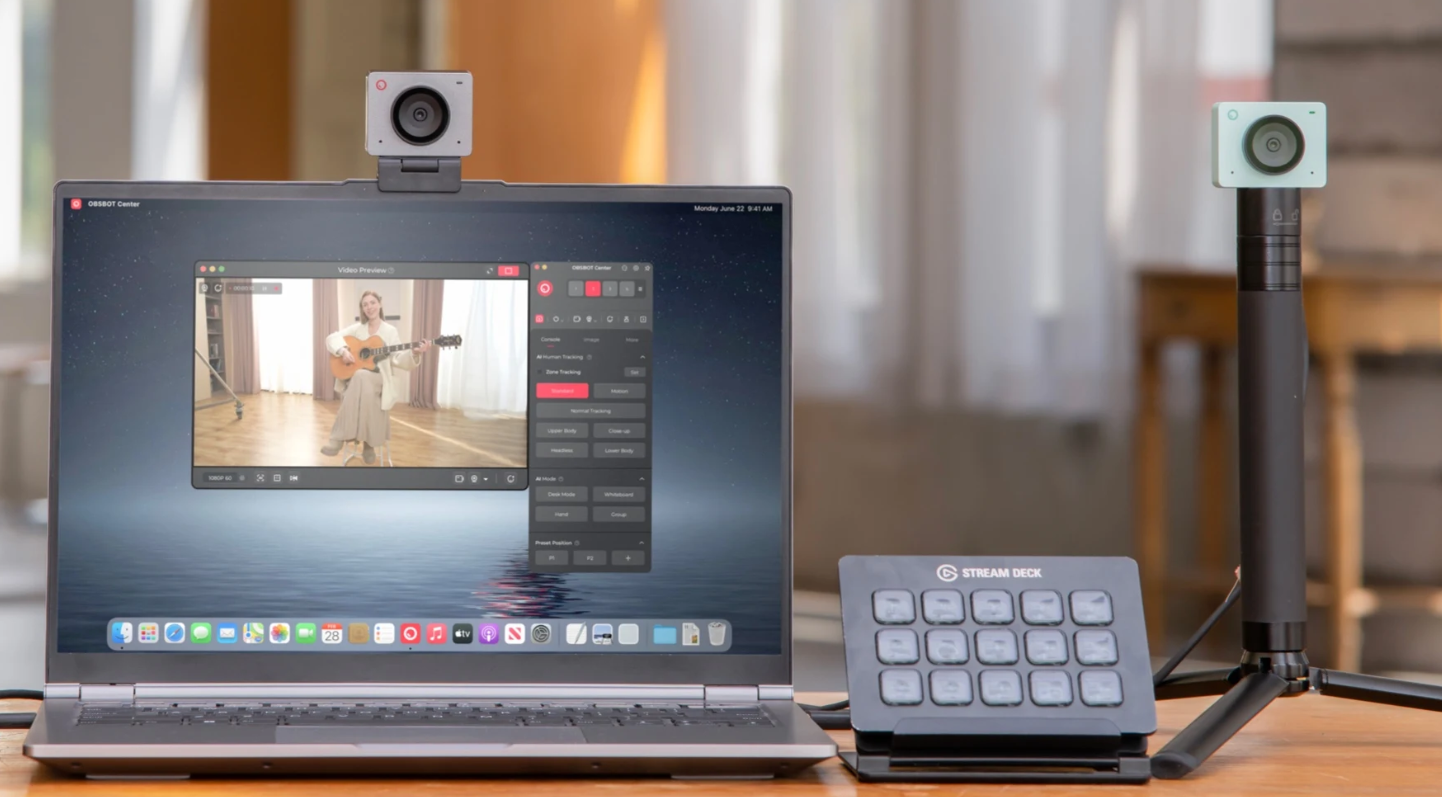
Step 3: Most webcams come with a clip. Attach it to the top of your laptop screen. You can also place it on a desk or tripod if you prefer a different angle.
Step 4: Once connected, your laptop should automatically detect the webcam. Windows or macOS will install the necessary drivers without needing extra steps.
Step 5: Position the webcam so your face is centered. Adjust the tilt and focus to get a clear image.
Step 6: Some webcams come with special software for extra features like zoom or brightness control. Install it if you want more customization.
Bonus: Best Webcam for Easy Setup on Laptop - OBSBOT Meet Flip Foldable 4K Webcam
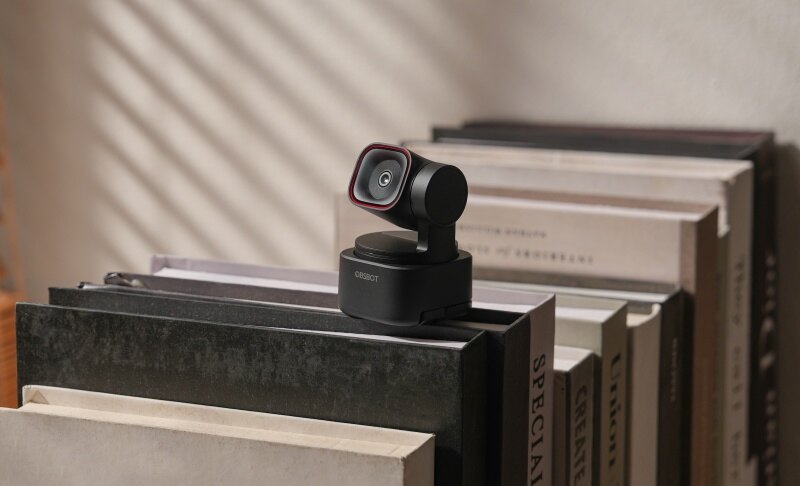
The OBSBOT Meet Flip is a smart and compact webcam built for users learning how to attach a webcam to a computer and wanting better video quality. It combines AI features with powerful hardware to create a smooth and professional experience. Whether for meetings, classes, or content creation, it offers reliability, ease of use, and high performance.
Key Features:
- Great Video Resolution: Supports 4K@30fps and 1080p@60fps with HDR, which means your video looks sharp, smooth, and full of color. It helps you stand out and look more polished.
- Plug & Play setup: Works instantly when connected via USB, with no need to install drivers or complicated software. This makes it perfect for beginners, as you can start using it within minutes.
- AI Auto Framing: Using intelligent AI framing, the webcam automatically keeps you centered in the frame. You can also use gestures to zoom in or out, making it easier to adjust your view without interrupting your workflow.
- Reliable Sound Quality: Comes with dual omnidirectional microphones that capture your voice clearly while reducing background noise. This improves communication in meetings and classes.
- Low-Light Performance: With a 1/2'' CMOS sensor and f/1.8 aperture, the webcam captures more light, making your video bright and clear even in dim environments.
Part 2: How to Set Up and Test a Webcam on a Laptop?
After attaching your webcam, the next step is to learn how to setup a webcam on a laptop. This ensures everything works correctly before you join a meeting or start recording.
Step 1: On Windows, search for "Camera" in the Start menu. On macOS, use apps like Photo Booth or FaceTime.
Step 2: If your laptop has a built-in camera, switch to your external webcam in the settings. Look for the camera selection option.
Step 3: Look at the screen and see if the image is clear. Adjust lighting and angle if needed.
Step 4: Open apps like Zoom, Microsoft Teams, or Google Meet. Go to settings and choose your webcam.
Step 5: You can change brightness, contrast, and resolution in your webcam settings or software.
Step 6: If your webcam has a microphone, speak and check if the sound is clear.
Part 3: Common Webcam Attachment Mistakes and Solutions
Before using your webcam, it is important to avoid common mistakes. Many users face small issues when learning how to hook up a webcam to a laptop, but these problems are usually easy to fix.
|
Issues |
Why it happens | How to fix it |
|
Webcam not showing |
The USB port may not be working, or the connection may be loose | Try a different USB port or reconnect the cable firmly |
|
Blurry video |
Dust on the lens or poor lighting affects image quality | Clean the lens and use better lighting |
|
Wrong camera selected |
The system is using the built-in camera by default | Change camera settings in your app |
|
Loose cable |
The webcam is not fully plugged in | Push the cable in securely |
|
Driver not installed |
The system cannot recognize the webcam without proper drivers | Update your system or install drivers manually |
|
The camera angle is bad |
The webcam is placed incorrectly | Adjust position and height for a better view |
Part 4: FAQs About Attaching & Setting Up a Webcam to Laptop
1. How to attach a webcam to a laptop?
To attach a webcam to a laptop, plug it into a USB port and place it on top of your screen or desk. Most webcams are plug-and-play, so your laptop will detect them automatically. After connecting, open your camera app or video software to confirm it works. Adjust the angle and lighting for the best results.
2. Can I connect my phone to my laptop and use it as a webcam?
Yes, you can use your smartphone as a webcam. You need to install apps like DroidCam or EpocCam on both your phone and laptop. Then connect them using USB or Wi-Fi. This is a great option if you do not have a webcam, and it often provides good video quality, even if you don't know how to hook up a webcam to a computer.
3. How can I share a webcam between two computers?
Sharing a webcam between two computers is possible using software or network tools. You can use apps that stream your webcam over a local network. Another option is using remote desktop software. However, this setup may require extra configuration and a stable internet connection.
4. How do I get my laptop to recognize my webcam?
If your laptop does not recognize the webcam, try unplugging and reconnecting it. You can also restart your laptop or try another USB port. Make sure your system is updated. In some cases, you may need to install drivers from the webcam manufacturer's website to make it work properly when you attach webcam to laptop.
5. Are all webcams compatible with laptops?
Most webcams are compatible with laptops because they use standard USB connections. However, very old webcams or special models may need specific drivers. Always check the product details before buying to make sure it works with your operating system, like Windows or macOS.
Conclusion
Using an external webcam can greatly improve your video experience for work or personal use. Learning how to attach webcam to laptop is just the first step toward better communication and clearer visuals. You can also explore advanced features like background effects, AI tracking, and improved lighting setups to enhance your video quality even more. As technology continues to improve, webcams are becoming smarter and easier to use. By staying updated and trying new tools, you can create a more professional and enjoyable video setup that fits your needs perfectly. So, it's time to invest in a new external webcam and improve your videos.