1440p Resolution Explained: 1080p vs. 4K and Setup Guide
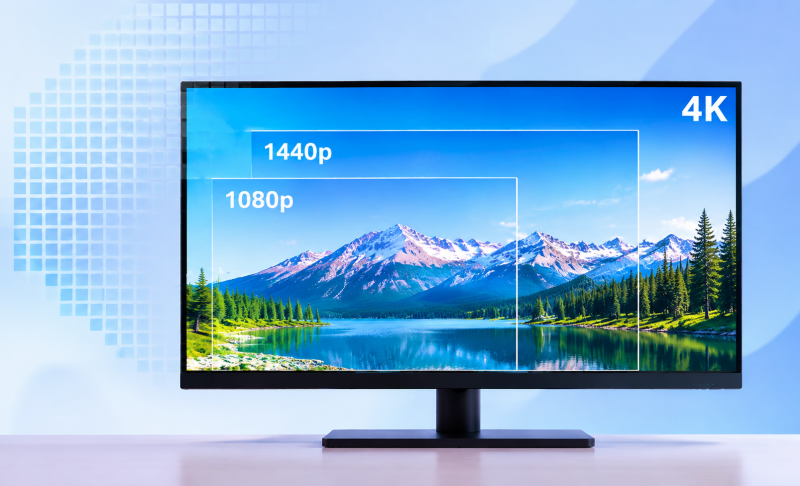
1440p resolution is 2560 × 1440 pixels, also known as QHD or Quad HD. It provides about 78% more pixels than 1080p, making images sharper and giving you more screen space without the hardware demands of 4K.
This guide explains what 1440p means, where it is used, how it compares with other resolutions, and how to set your display to 1440p on Windows, macOS, and consoles.
Part 1: What Does 1440p Resolution Mean?
1440p Resolution: 2560 × 1440 Pixels Explained
The term 1440p refers to a display with 1,440 vertical pixels. The "p" stands for progressive scan, meaning each frame displays its lines progressively rather than using interlaced scanning.
The standard 16:9 1440p resolution has:
- Horizontal pixels: 2,560
- Vertical pixels: 1,440
- Total pixels: 3,686,400, or approximately 3.69 million
This 1440p screen resolution offers four times the pixel count of 1280 × 720 HD, which is why it is also called Quad HD.
Is 1440p the Same as QHD, WQHD, or 2K?
QHD and WQHD are commonly used names for 2560 × 1440 resolution. WQHD emphasizes its widescreen 16:9 format.
You may also see the phrase 1440p resolution is 2K in product descriptions. Although 1440p is often marketed as 2K, the terms are not technically identical. The cinema 2K standard is approximately 2048 × 1080 pixels, while QHD is 2560 × 1440.
When comparing displays, check the actual pixel dimensions instead of relying only on labels such as 2K or QHD.
Common 1440p Resolution Variations
The term 1440p can describe different horizontal resolutions depending on the display's aspect ratio.
| Resolution | Aspect Ratio | Common Use |
|---|---|---|
| 2560 × 1440 | 16:9 | Standard QHD monitors |
| 3440 × 1440 | 21:9 | Ultrawide monitors |
| 5120 × 1440 | 32:9 | Super ultrawide monitors |
The 1440p resolution ratio is 16:9 for standard QHD displays. However, an ultrawide display can use the same 1,440 vertical pixels with a wider aspect ratio.
For example, 1440p ultrawide resolution at 3440 × 1440 provides a wider workspace for gaming, video editing, and multitasking.
Where Is 1440p Resolution Used?
1440p is commonly used in gaming, productivity, entertainment, and content creation.
- Gaming: QHD gaming monitors provide a balance between visual detail and GPU performance, making 1440p popular for PC and console gaming.
- Office work: The extra pixels allow more windows, spreadsheet columns, and documents to fit on the screen.
- Video streaming: Compatible displays can play QHD videos at their native resolution.
- Content creation: 1440p is useful for video editing, image processing, and reviewing high-resolution footage.
A 1440p resolution monitor is particularly popular at 27 inches because it offers a good balance between screen size, sharpness, and workspace.
Part 2: 1440p vs. 1080p vs. 4K: What's the Difference?
1440p vs. 1080p
The main difference between 1080p and 1440p is the number of pixels. A 1440p display contains approximately 78% more pixels than a 1080p display.
| Feature | 1080p | 1440p |
|---|---|---|
| Resolution | 1920 × 1080 | 2560 × 1440 |
| Pixel Count | 2.07 million | 3.69 million |
| Image Detail | Standard Full HD | Sharper QHD |
| GPU Demand | Lower | Higher |
| Best For | Budget gaming | Gaming and productivity |
The 1080pvs 1440p comparison comes down to image quality versus performance. At the same screen size, 1440p produces sharper text, finer details, and more workspace.
The difference is especially noticeable on 27-inch or larger monitors. On smaller screens, the improvement may be less obvious.
1440p vs. 4K
4K UHD uses 3840 × 2160 pixels, giving it approximately 2.25 times as many pixels as 1440p.
| Feature | 1440p | 4K UHD |
|---|---|---|
| Resolution | 2560 × 1440 | 3840 × 2160 |
| Pixel Count | 3.69 million | 8.29 million |
| Image Detail | High | Very high |
| GPU Demand | Moderate to high | High |
| Best For | Gaming and general use | Detail-focused work and 4K content |
4K provides more detail, especially on larger displays. However, it requires more GPU power to render games at the same frame rate.
1440p is a practical choice for users who want better image quality than 1080p without the full performance cost of 4K.
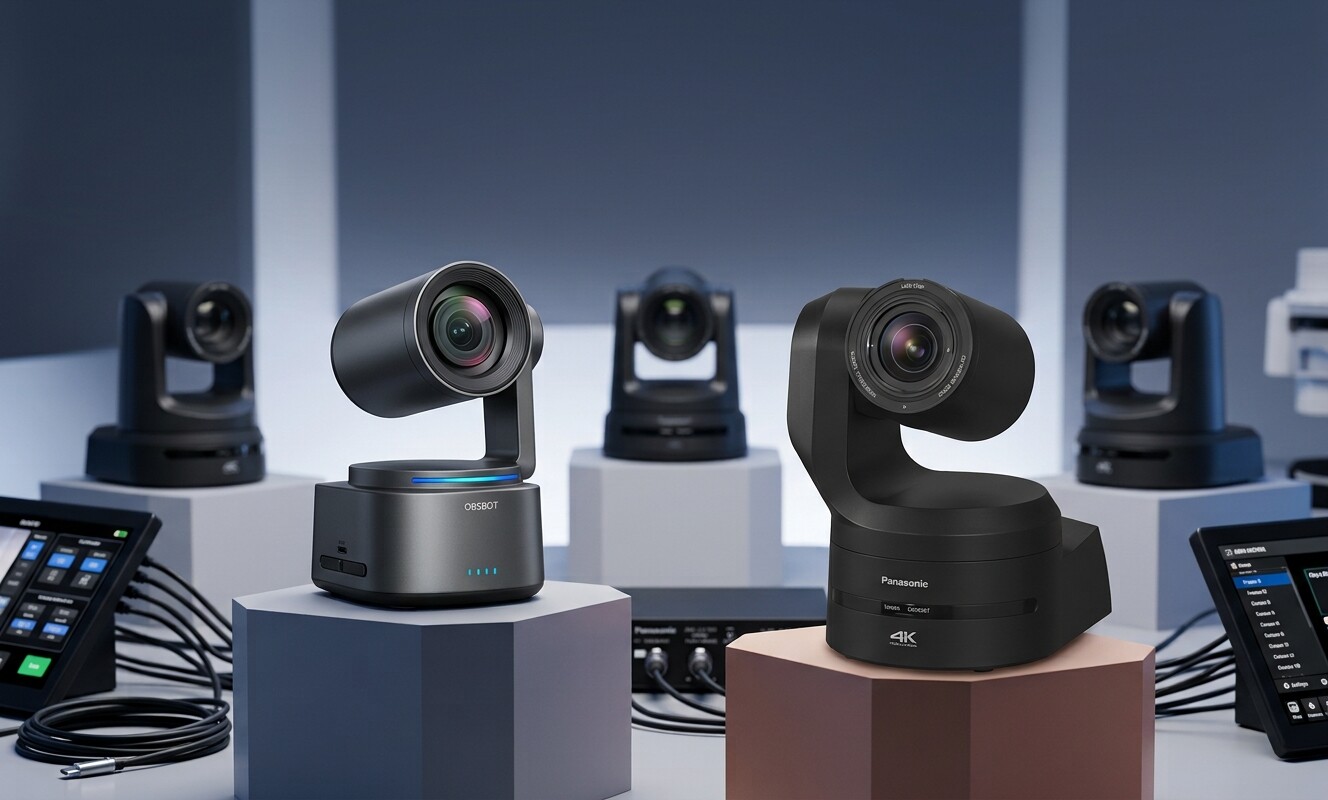
Bonus: Capture 1440p Video with OBSBOT Tiny 3 4K PTZ Webcam
If you need a webcam that supports 1440p video, the OBSBOT Tiny 3 offers a native 1920 × 1440 resolution at up to 30fps. Its 50MP 1/1.28-inch CMOS sensor, autofocus, and 2-axis gimbal help capture clear footage and keep you in frame during video calls, streaming, and content creation. It also supports 4K video at up to 30fps and 1080p at up to 120fps, giving you more flexibility for different recording needs.
Part 3: How to Choose the Right 1440p Monitor
Choose the Right Screen Size
The best screen size depends on your viewing distance and workspace.
- 24 inches: Compact, with relatively high pixel density.
- 27 inches: A popular balance of sharpness and workspace.
- 32 inches: A larger viewing area, though pixels may be more noticeable than on a 27-inch QHD display.
For most users, a 27-inch 1440p monitor is a practical starting point.
Check Refresh Rate and Response Time
Refresh rate determines how many times the display updates per second.
- 60Hz: Suitable for everyday work and casual use.
- 144Hz or 165Hz: A good choice for gaming.
- 240Hz: Useful for competitive gaming when your system can deliver high frame rates.
A high refresh rate does not guarantee high FPS. Your graphics card and the game must be able to produce enough frames.
Consider GPU Performance and Connectivity
Rendering at 1440p requires more GPU resources than 1080p. Check your graphics card's performance in the games or applications you use.
Upscaling technologies such as NVIDIA DLSS and AMD FSR can help improve frame rates in supported games.
Also check that your monitor, GPU, cable, and port support your desired resolution and refresh rate. DisplayPort and HDMI can both support 1440p, but the maximum refresh rate depends on the specific hardware and connection standard.
Part 4: How to Set Your Display to 1440p (Windows, macOS, and Console)
How to Set Your Display to 1440p on Windows
- Right-click your desktop and select Display settings.
- Go to System > Display.
- If you have multiple monitors, select the display you want to change.
- Under Display resolution, choose 2560 × 1440.
- Click Keep changes to confirm.
Windows usually marks the monitor's recommended or native resolution. If 2560 × 1440 is unavailable, check your graphics driver, cable, and display compatibility. HP Support
How to Set Your Display to 1440p on macOS
- Connect your compatible external monitor.
- Open the Apple menu and select System Settings.
- Click Displays.
- Select your external monitor.
- Choose 2560 × 1440 if it is available.
If you cannot see the resolution, enable Show all resolutions or switch to the resolution list. macOS may also offer scaled options that change the size of text and interface elements. Apple Support
How to Set Your Display to 1440p on PS5 and Xbox
On PS5:
- Go to Settings > Screen and Video > Video Output.
- Select Resolution.
- Choose 1440p.
- If needed, select Test 1440p Output to check compatibility.
Your display must support 1440p output. Supported refresh rates and VRR options depend on the connected display. PlayStation Support
On Xbox:
- Open Settings.
- Go to General > TV & display options.
- Select Resolution.
- Choose 1440p.
- Check the available refresh rates under Display options.
If 1440p is not listed, verify that your monitor or TV supports it through the connected HDMI port.
FAQs About 1440p Resolution
1. Is 1440p better than 1080p?
Yes. 1440p has about 78% more pixels than 1080p, resulting in sharper images and more screen space, especially on larger monitors.
2. Is 1440p considered 2K or 4K?
1440p is commonly marketed as 2K, but it is technically QHD at 2560 × 1440. It is not 4K, which uses 3840 × 2160 pixels for UHD displays.
3. Can you watch 4K videos on a 1440p monitor?
Yes. A 1440p monitor can play 4K video, but it scales the video down to fit its 2560 × 1440 pixels. It cannot display the full native 4K detail.
4. Is 1440p Resolution Good for Gaming and Everyday Use?
Yes. 1440p offers a good balance of image quality, performance, and screen space.
For gaming, it delivers sharper graphics while maintaining high FPS on compatible systems. For work, it provides more room for multitasking and viewing documents. It is also suitable for video editing and streaming, although the original video resolution determines the available detail.
5. Does 1440p require a powerful graphics card?
1440p requires more GPU power than 1080p, but less than 4K at comparable settings. The required GPU depends on the game, graphics settings, and target frame rate.
6. Can a 1080p monitor display 1440p resolution?
A 1080p monitor generally displays images at its native 1920 × 1080 resolution. Some displays may accept a higher-resolution input and downscale it, but they cannot show all 1440p pixels physically.
Conclusion
1440p resolution is an excellent middle ground between 1080p and 4K, offering sharper visuals and more workspace without the highest hardware requirements.
Choose 1080p if affordability and maximum FPS are your priorities. Choose 1440p for a balance of image quality, gaming performance, and productivity. Choose 4K if you need maximum detail for large displays or demanding creative work.
For most users looking for a versatile display, a 27-inch 1440p monitor with a 144Hz or 165Hz refresh rate is a strong choice.