How To Stream Games on TikTok

Many people use TikTok for GRWM and dancing videos, but gaming content is becoming equally popular. This is because pro gamers broadcast their games on TikTok. They livestream gameplay so they can interact with viewers and answer questions. Gamers are building their own communities where they discuss game updates, cheat codes, and more. However, if you are a gamer and don't know how to stream games on TikTok, we are sharing three different methods you can try.
Method 1: Stream Mobile Games Directly on TikTok
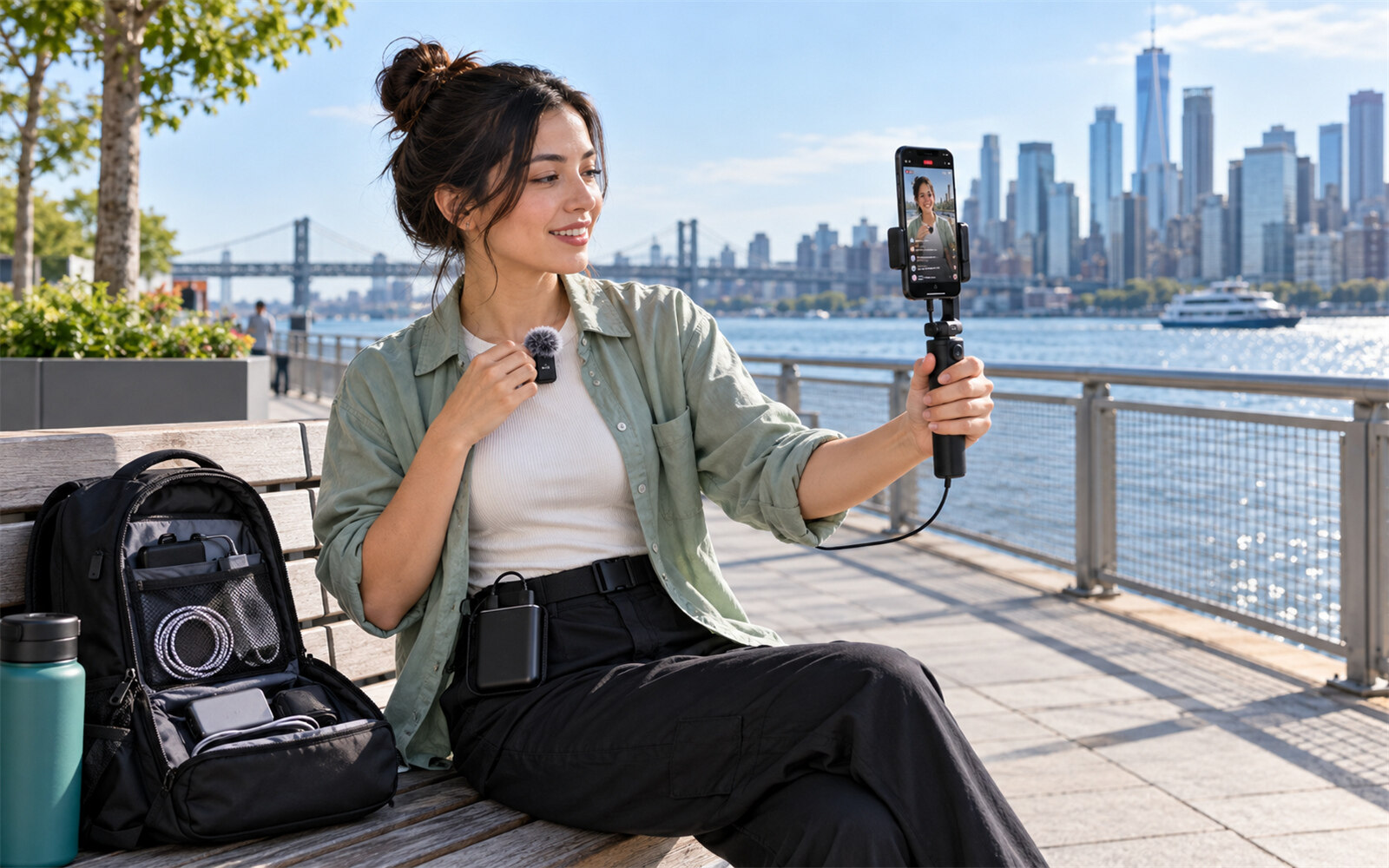
Mobile users can use this method to stream their games instantly. You only need the TikTok app, but make sure your device supports TikTok LIVE. Now, let's look at the steps if you want to learn how to play games on TikTok Live.
Step 1: Open the TikTok app and sign in to your account. Make sure your account is eligible for TikTok LIVE according to your region and platform requirements.

Step 2: Tap the + button at the bottom of the screen and swipe to the LIVE option.
Step 3: Enter a title for your livestream and select the Gaming category if it's available.
Step 4: Launch your mobile game. Depending on your device, enable screen sharing or screen broadcasting when TikTok prompts you.
Step 5: Tap Go LIVE to begin streaming your gameplay. Interact with viewers through comments while you play.
Method 2: Stream Games on TikTok with TikTok LIVE Studio
This method is recommended for PC gamers and creators who want higher-quality broadcasts with overlays and multiple video sources but don't know how to go live on TikTok on PC. Remember that TikTok LIVE Studio is TikTok's official streaming software.
Step 1: Download and install TikTok LIVE Studio from the official TikTok website. Sign in with your TikTok account.

Step 2: Complete the initial setup and allow the software to detect your microphone, webcam, and display.

Step 3: Click on Add Scenes and rename it according to your stream. You can choose between portrait and landscape scenes.
Step 4: Click Add Sources and choose Game Capture or Display Capture, depending on how you want to capture your gameplay.
Step 5: Add your webcam, microphone, alerts, overlays, or chat widgets to customize your stream layout.
Step 6: Adjust your video resolution, frame rate, and bitrate in the settings to match your internet connection.
Step 7: Click Go LIVE, launch your game, and start interacting with your TikTok audience.
Method 3: Stream Games on TikTok with OBS Studio
This method is suitable for experienced streamers who want advanced customization or prefer using OBS Studio instead of TikTok LIVE Studio. If you want the steps for how to start streaming on TikTok and grow your audience, follow these:
Step 1: Download and install OBS Studio on your Windows or Mac computer.
Step 2: Open OBS Studio and create a new scene by clicking the + button in the Scenes panel.

Step 3: Add a Game Capture, Window Capture, or Display Capture source to display your gameplay by clicking on the + in the Sources panel.

Step 4: Add additional sources such as your webcam, microphone, overlays, alerts, and background graphics.
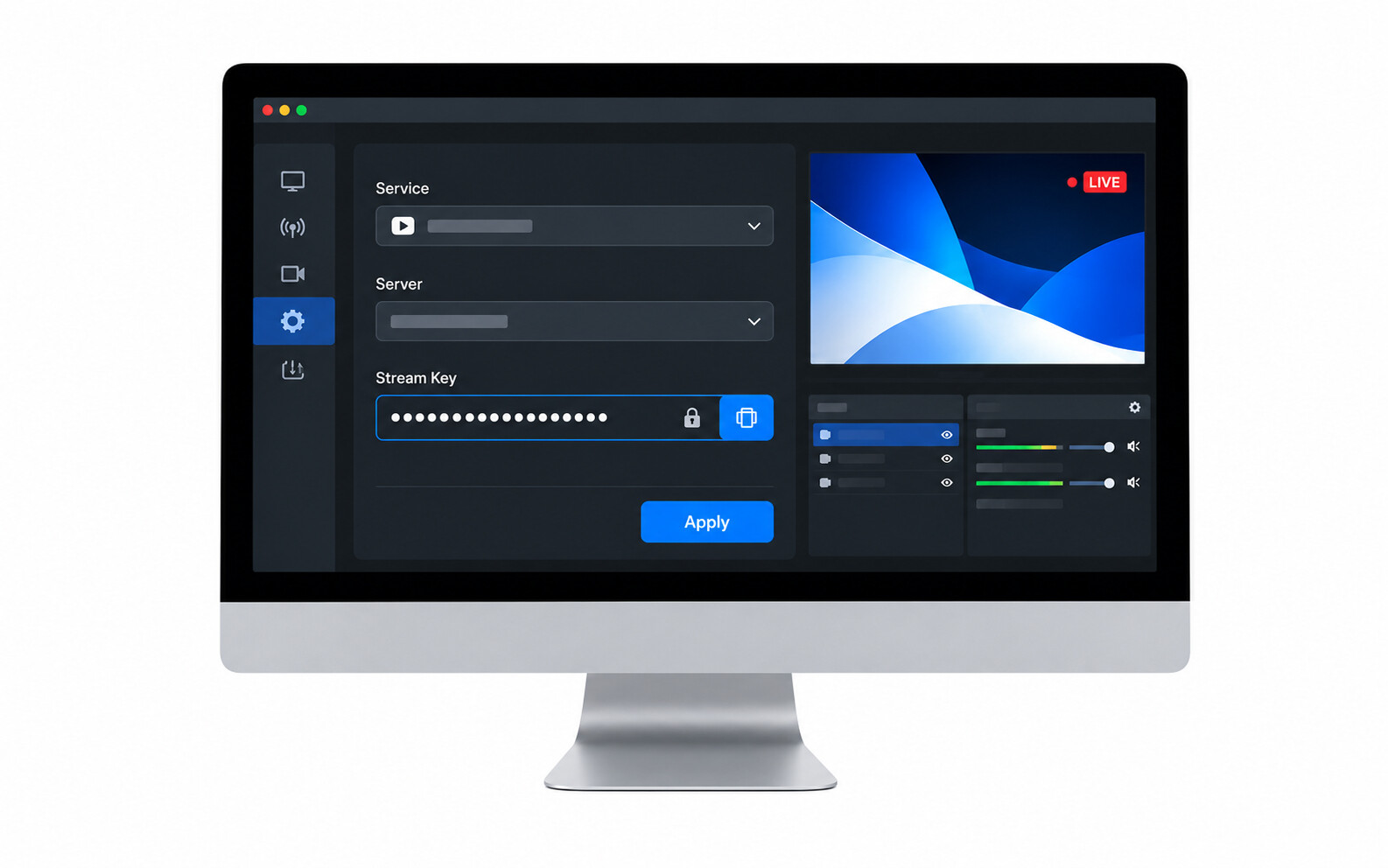
Step 5: Connect OBS Studio to TikTok using your stream key or the supported connection method available through your TikTok LIVE account. You have to click on Game Capture from the available options for this.

Step 6: Once selected, click Start Streaming or the OK button in OBS Studio and begin playing your game while your broadcast goes live on TikTok.
Bonus: Best Webcam for TikTok Game Streaming - OBSBOT Tiny 3 Lite 4K PTZ Webcam
For gamers learning how to stream TikTok on PC, the OBSBOT Tiny 3 Lite helps deliver professional-quality broadcasts with sharp visuals, intelligent tracking, and clear audio. Compatible with TikTok LIVE Studio and OBS Studio, it enhances gameplay streams while keeping your face centred and your voice crisp.
Key Features:
- High-Resolution Streaming: Create sharp gaming TikTok livestreams with 4K@30fps for exceptional detail or 1080p@120fps for smooth motion during fast-paced gameplay.
- Flexible Audio Modes: Pure Audio, Spatial Audio, Smart Omni, Directional, and Dual-Directional modes to match various TikTok game streaming environments.
- Dual Orientation: Stream games on TikTok by using Portrait Mode (9:16) for mobile-first TikTok LIVE broadcasts or Landscape Mode for PC gameplay.
- Built-In Privacy Protection: Protect your privacy between TikTok livestreams with the webcam's automatic sleep mode, which tilts the camera downward when it's not in use.
- Accurate PDAF Autofocus: Locks onto your face or objects, helping maintain focus even as you move during TikTok gaming sessions for a clear view throughout the livestream.
FAQs About Streaming Games on TikTok
1. What are the requirements to stream games on TikTok?
To stream games on TikTok, your account must have access to the LIVE feature. Eligibility requirements vary by country and may include a minimum age and follower count.
2. Can I stream both mobile and PC games on TikTok?
Yes, mobile games can be streamed directly from your smartphone using TikTok's screen-sharing feature. For PC games, you can use TikTok LIVE Studio or OBS Studio to capture gameplay.
3. Do I need a capture card for TikTok game streaming?
No, a capture card is only necessary if you're streaming gameplay from a console such as an Xbox, PlayStation, or Nintendo Switch.
4. What internet speed is recommended for streaming games on TikTok?
A stable upload speed of at least 15 Mbps is recommended for smooth 1080p streaming. If you plan to use multiple connected devices, a faster internet connection can help reduce lag and dropped frames during your livestream.
5. Can I use an external webcam and microphone while streaming on TikTok?
Yes, when streaming through TikTok LIVE Studio or OBS Studio, you can connect external webcams and USB microphones to improve video and audio quality.
Conclusion
Learning how to stream games on TikTok is straightforward once you choose the setup that fits your device and content style. Mobile players can begin with the built-in LIVE feature, while PC and console users have access to more advanced workflows through TikTok LIVE Studio, OBS Studio, or a capture card. Before each broadcast, test your internet connection, audio, and video settings to avoid technical issues. As your channel grows, upgrading your camera, refining your layout, and engaging consistently with viewers can help create broadcasts that keep your audience coming back.