How to Stream Videos from Laptop with OBS on Mac

With handy tools like OBS, one can stream omnidirectionally from the laptop onto the entire world. If you're a gamer, a content creator, or even hosting a virtual event, OBS is a great option when you want to share your screen and ideas with it. However, setting up for Mac could be a bit confusing without the proper guide.
In this article, we discuss a detailed, step-by-step guide to how to stream videos from a laptop with OBS on Mac for easy and trouble-free streaming.
Part 1: Best Way to Stream Videos from Laptop with OBS on Mac
Step 1: Prepare Your Equipment
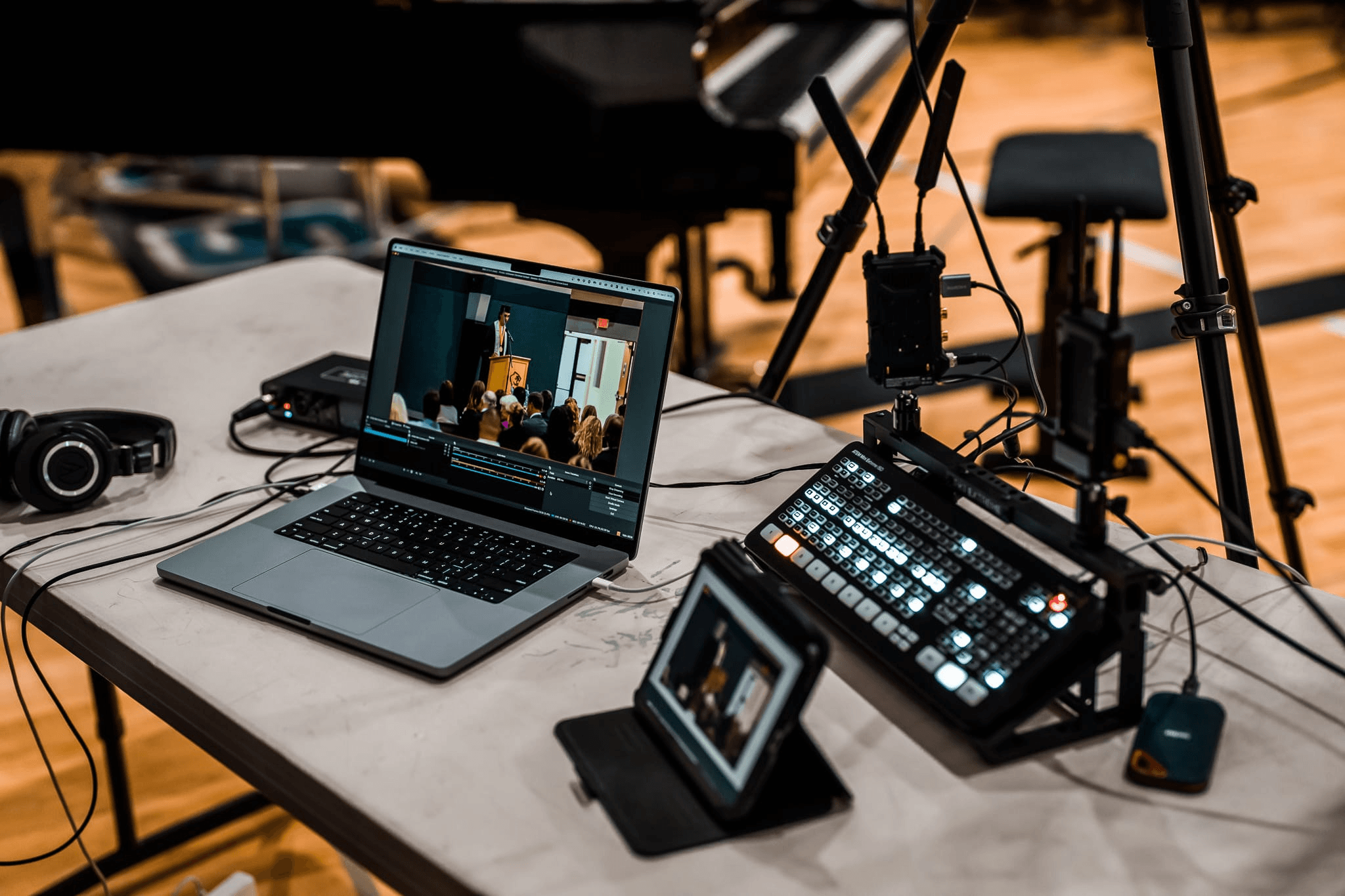
Before setting up OBS, make sure you have the following hardware:
- A MacOS Laptop: MacBook Air/Pro or iMac.
- OBS Studio: Download and install it from the official OBS website.
- A Capture Card: Essential for capturing video from external devices.
- Camera: For example, OBSBOT Tail 2 is used for online live streaming.
- HDMI Cable: To connect the capture card to the camera or other video sources.
- Stable Internet Connection: Preferably, an upload speed above 5 Mbps for HD streaming.
Step 2: Set Up OBS Studio on Mac
1. Download and Install OBS
- Visit the official OBS website and download its macOS version.

- Drag it to the Applications folder for installation and run the software.
2. Grant Necessary Permissions
- On the very first run, macOS may also ask for permission regarding the recording of screens and microphone access. Allow it in System Preferences > Security & Privacy.
3. Adjust Basic Settings
- Open up OBS and choose Settings > Stream.
- Choose your streaming platform, for example, YouTube, Twitch, or Facebook Live, and enter your Stream Key in the relevant box (found in your platform's account settings under streaming).

- In the Output category, set your video bitrate, e.g., 2500 Kbps for 720p or 6000 Kbps for 1080p.

Step 3: Connect and Set Up Your Capturing Card
1. Connect the Capture Card
- Insert the capture card into the USB-C or USB-A port of this Mac.
- Then use an HDMI cable to connect the video source from the laptop to the capture card.
2. Set the Capture Card as an Input in OBS
- Launch OBS software, click the 'plus' sign at the bottom of the Source panel, and select Video Capture Device.

- Name source (e.g. Capture Card Input) and hit 'OK'.

- From the drop-down list, select your card as the device.
- Specify resolution and frame rate for quality (for instance 1920x1080 at 30fps).

3. Audio Configuration
- Go to the Audio Mixer panel under OBS to set audio for synchronization.
- Click the wheel to the side of your capture card input and select Advanced Audio Properties to adjust latency as needed.

Step 4: Customize Your Stream Layout
1. Add Overlays and Scenes
Using the Scenes panel, you can create different layouts to use for your stream (e.g. full camera view, split screen with gameplay, or slides), as well as overlays, logos, and text to improve the appearance of the stream.

2. Optimize Your Webcam
If you are using a webcam, you should use it as an independent Video Capture Device source. Place the webcam feed within your layout as it relates to the main video source.
Step 5: Start Streaming
1. Preview Your Stream
Click Start Preview in the OBS, and see if everything heaps up to be okay when it sounds right. Check for lag, audio sync issues, and frame drop.
2. Go Live
So when you are satisfied with everything you have viewed in the preview window, click on Start Streaming, and your stream will go live on your selected platform.

Part 2: Best Camera for Live Streaming - OBSBOT Tail 2 Live Production Camera
The Tail 2 is the premier camera for live streaming, expertly engineered to meet the needs of content creators who demand high performance and exceptional quality. It remains extremely beneficial, convenient, and packed with helpful features that every streamer seriously considering providing a high-quality live stream cannot afford to go without. For streamers who want to improve and establish a more polished stream, the OBSBOT Tail 2 is a perfect recommendation for live streaming.
Key Features:
- AI Tracking 2.0: Keeps subjects centered and in focus, enhancing viewer engagement.
- High Resolution: Produces exceptional 4K@60fps and 1080P@120fps video clarity.
- Versatile Zoom Options: 5x optical and 12x hybrid zoom for creative shot composition.
- Dynamic Angle Adjustment: Hands-free 90° rotation allows for quick framing changes.
- 12 Optical Lenses & 1/1.5" CMOS Sensor: Provides sharp, vibrant images and excellent low-light performance.
- Comprehensive Connectivity: Supports NDI, SDI, HDMI, and more, offering seamless integration with various streaming platforms.
FAQs About How to Stream Videos From Laptop With OBS on Mac
1. Can You Stream with OBS on Mac?
Yes, you can stream with OBS on Mac by downloading the macOS version from the official OBS website. After installation, grant necessary permissions in System Preferences > Security & Privacy for screen recording and microphone access. Configure your streaming platform under Settings > Stream, enter your stream key, and adjust output settings like video bitrate (2500 Kbps for 720p or 6000 Kbps for 1080p).
2. How to Stream Laptop Screen on OBS?
Yes, you can stream your laptop screen on OBS by adding it as a source. Click the plus sign in the Sources panel and select Display Capture or Window Capture. Name your source and choose the specific screen or window you want to capture. Position and resize the capture in your scene layout, then configure your stream settings and click Start Streaming to go live.
3. Can You Record with OBS on a Laptop?
Yes, you can record with OBS on a laptop by setting up video and audio sources. Connect your camera (like the OBSBOT Tail 2) via USB-C or capture card, add it as a Video Capture Device in OBS, and configure resolution settings like 1920x1080 at 30fps. Click Start Recording instead of Start Streaming to save videos locally to your Mac's storage.
4. Is OBS Compatible with macOS?
Yes, OBS Studio is fully compatible with macOS and works seamlessly on MacBook Air, MacBook Pro, and iMac devices. Download the macOS version from the official OBS website, drag it to your Applications folder, and launch it. The software integrates perfectly with Mac's system preferences and supports various streaming platforms like YouTube, Twitch, and Facebook Live with proper configuration.
5. Can a Mac Handle Streaming?
Not all Macs are created equal—it depends on your Mac's specifications and internet connection. You need a stable internet connection with upload speeds above 5 Mbps for HD streaming. Modern MacBooks can handle streaming well when paired with quality equipment like the OBSBOT Tail 2 camera and a good capture card. Optimize OBS settings by adjusting bitrate and resolution based on your Mac's processing power.
Conclusion
It might seem difficult to stream videos from your laptop using OBS on Mac, but it's quite easy when done correctly. Now, you must know how to maximize your use of OBS, even external devices such as capture cards and really good cameras, so you can stream like a pro. With superb video quality and features that make your stream dynamic, your video content will stand out when you pair OBS with something like the OBSBOT Tail 2 for multi-purpose recording.