How to Record Specific Audio in OBS

Achieving a clean audio mix is just as important as high-definition video when it comes to engaging your audience. OBS Studio offers powerful internal tools to filter and route your sound, but the setup can be intimidating for many. This article provides a clear, stepwise breakdown of how to record specific audio in OBS, helping you streamline your workflow and capture only the audio that matters for your project.
Best Camera to Use with OBS Recording: OBSBOT Tail 2 Live Production Camera
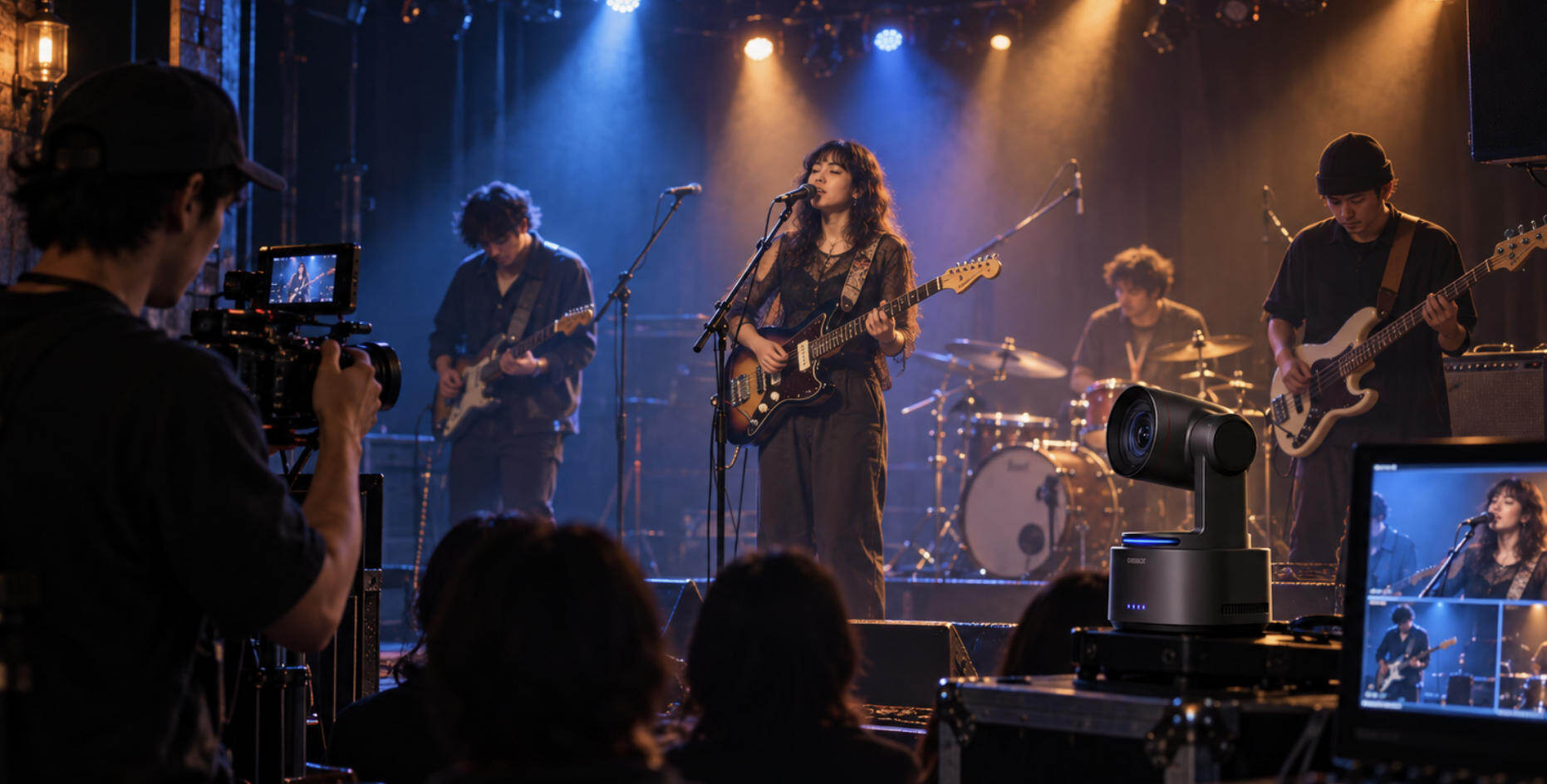
The OBSBOT Tail 2 is an exceptional camera designed to enhance your recording experience with OBS. Featuring advanced AI Tracking 2.0, it automatically follows your movements, keeping you centered and in focus, which is perfect for tutorials, vlogs, and presentations. With its ability to record in stunning 4K@60fps, the Tail 2 delivers crisp, professional-quality visuals that elevate your content.
Key Features:
- AI Tracking 2.0: The camera autonomously follows you, enabling hands-free operation during recordings.
- High-Definition Recording: Supports up to 4K@60fps, ensuring vibrant and detailed video quality for your audience.
- Dynamic Zoom Capability: Offers 5x optical and 12x hybrid zoom, allowing for versatile shot compositions and framing options.
- Streamlined Connectivity: Easily integrates with OBS through various options like NDI, HDMI, and SDI for hassle-free setup.
- Simple Operation: User-friendly design, including hands-free rotation, makes it accessible for content creators of all levels.
How to Record Specific Audio in OBS
Users can continue to use it without any concern with content since it streams with OBS from the selected audio input. Here is a stepwise guide:
Step 1: Open OBS and Access Settings
- Open OBS Studio.
- Click on the Settings icon at the bottom right section of your screen.
- Select the Audio tab.
Step 2: Configure Your Audio Devices
- Under Global Audio Devices, disable unwanted audio sources by selecting Disable from the dropdown menu.
- Select the appropriate option from the drop-down list depending on the option for audio device preference - Mic/Aux or Desktop Audio.
- Press the Apply button and then confirm by choosing OK to make changes. This is a key step if you want to stream and record without voice audio in obs, ensuring your microphone doesn't pick up any speech.
Tip: To further improve your recordings, check out our guide on raise recording quality in OBS, which covers optimizing both video and audio settings for the best results.

Step 3: Add Sources in OBS
- Add a new source by clicking on the "+" sign that appears in the Sources panel.
- Choose the external audio or microphone, which is known as Audio Input Capture.
- Choose Audio Output Capture for desktop audio or system sounds.
- To make it more convenient for you, it's better to rename it as, for example, "Game Audio" or "Mic".
Besides audio sources, OBS also supports advanced workflows, letting you record multiple scenes separately, which can be useful if you want to capture different camera angles or setups without combining them in a single scene.

Step 4: Use Advanced Audio Properties
- In the Audio Mixer, click the gear icon next to a source.
- Select Advanced Audio Properties from the menu.
- Assign specific audio sources to different tracks:
- Track 1: Desktop Audio
- Track 2: Microphone
- Track 3: Music

Step 5: Modify the Output Configuration
- Navigate to Settings > Output, then click on Advanced Mode.
- Enable multiple audio tracks in the Recording tab.
- Choose which tracks are to be recorded on this particular iteration.
- Ensure that only the necessary tracks are selected.

Step 6: Test Your Configuration
- Start a test recording.
- Play the recorded file to confirm that only the intended audio sources were captured.
- Adjust settings as needed.
FAQs About How to Record Specific Audio in OBS
1. How to make OBS record specific audio?
OBS can record specific audio sources by assigning them to separate audio tracks. Use Advanced Audio Settings to select which sources go to which track. This works well when you want to capture only game sound, music, or a microphone. Make sure your recording format supports multiple tracks.
2. Can you record audio separately on OBS?
Yes, OBS supports separate audio tracks in recordings. You can assign mic, desktop, and other audio sources to different tracks for easier editing. This is useful for podcasts, tutorials, or gameplay commentary. If you only need audio, you can also hide all video sources.
3. Why is there no audio when I record on OBS?
The most common reason is incorrect audio device settings. Desktop Audio or Mic may be disabled or set to the wrong device. OBS does not capture audio automatically. Check Audio Settings and ensure the correct input and output devices are selected before recording.
4. How to record audio using OBS?
OBS can record audio by enabling audio sources like Mic/Aux or Desktop Audio. Set the correct devices in Settings, then confirm sound levels move in the Audio Mixer. This works for voice, system sound, or both. OBS is flexible but needs a proper setup to work correctly.
5. Can OBS Studio record internal audio?
Yes, OBS Studio can record internal audio through Desktop Audio. This captures sounds from apps, browsers, and games. On some systems, you may need to select the correct output device or install extra drivers. Once set up, internal audio recording is reliable.
6. Is OBS Studio good for audio recording?
Yes, OBS is good for basic to intermediate audio recording. It supports multiple tracks, filters, and real-time monitoring. However, it is mainly designed for video, so dedicated audio software may offer simpler tools. OBS works best when audio is recorded alongside video.
7. Does OBS have an audio output?
Yes, OBS outputs audio to your system and recording files. You can choose where audio plays using monitoring settings. This is helpful for live streams or headphone monitoring. Audio output depends on your system device settings, not just OBS alone.
Conclusion
After having the right settings, it is quite simple to record specific audio in OBS. They simply erase all unneeded within OBS, regarding all control over one's recordings as centered solely within the platform. When paired with the OBSBOT Tail Air for the assurance of best quality videos, you should now be ready to create even more innovative and unparalleled quality work.