Upgrade Your Video: 6 Best External Webcams for Mac

Attending classes or meetings online has become the new norm since people are moving to remote work. The majority of people use Macs because they are reliable and come with good battery life. However, the built-in webcam doesn't always work well and makes you look very dark and grainy. This is why it's better to choose an external webcam for Mac, as it will help improve the video quality. They will promise better video quality, and some also come with extra features like auto-focus and face tracking. With this article, we are sharing the 6 best external webcams for Mac!
Part 1: How to Choose an External Webcam for Mac
1. macOS Compatibility
Most modern webcams are plug-and-play, but some need extra software. When choosing the best webcam for MacBook Pro, make sure the webcam supports your macOS version and offers reliable compatibility with your video apps. Make sure the brand clearly states support for the latest macOS version. This helps avoid driver problems or limited features.
2. Resolution and Image Quality
Mac users often use FaceTime, Zoom, or Teams. A webcam with at least Full HD (1080p) resolution gives a clear and sharp image. A high-quality external webcam ensures sharp images and clear sound, making it ideal not only for video calls but also when you want to record video on a Mac for tutorials, classes, or content creation.
3. Connection Type
Most webcams connect through USB-A or USB-C. Many newer Macs have USB-C or Thunderbolt ports. You may need an adapter if the cable does not match your port. Choosing a webcam with USB-C can make your setup simpler.
4. Built-in Microphone Quality
While many Macs have decent microphones, an external camera for a MacBook with noise reduction can improve voice clarity. This is helpful in busy homes or shared offices. Clear audio is just as important as clear video.
5. Autofocus and Auto Exposure
Autofocus keeps your face sharp, even if you move. Auto exposure adjusts brightness based on your room lighting. These features help you look natural without adjusting settings all the time.
6. Mounting Options
Check if the external webcam for MacBook can clip securely onto your MacBook or external monitor. Some models also support tripods. Flexible mounting helps you find the best angle.
Part 2: 6 Best External Webcams for Mac
Quick Comparison Table
| Product | Resolution | Focus Type | Audio System | FOV | Price |
|---|---|---|---|---|---|
| OBSBOT Tiny 3 4K PTZ Webcam | 4K@30fps 1080p@120fps |
All-Pixel PDAF (Phase Detection Auto Focus) | Intelligent directional mic system | 74° | $349 |
| Insta360 Link 2 | 4K@30fps 1080p@60fps |
PDAF (Phase Detection Auto Focus) | Built-in mics + AI noise reduction | 79.5° | $199.99 |
| Elgato Facecam 4K | 4K@60fps | Fixed focus | Uses external audio devices | 90° | $199.99 |
| EMEET SmartCam S800 | 4K@30fps 1080p@60fps |
PDAF (Phase Detection Autofocus) and TOF (Time of Flight) dual autofocus | Dual noise-canceling mics | Adjustable 40°–73° | $149 |
| Logitech MX Brio | 4K@30fps 1080p@60fps |
Auto focus | Built-in mics | 90°, 78°, and 65° | $199.99 |
| Razer Kiyo V2 | 4K@30fps 1080p@60fps |
Auto focus | Standard built-in mic | 93° | 149.99 |
1. OBSBOT Tiny 3 4K PTZ Webcam
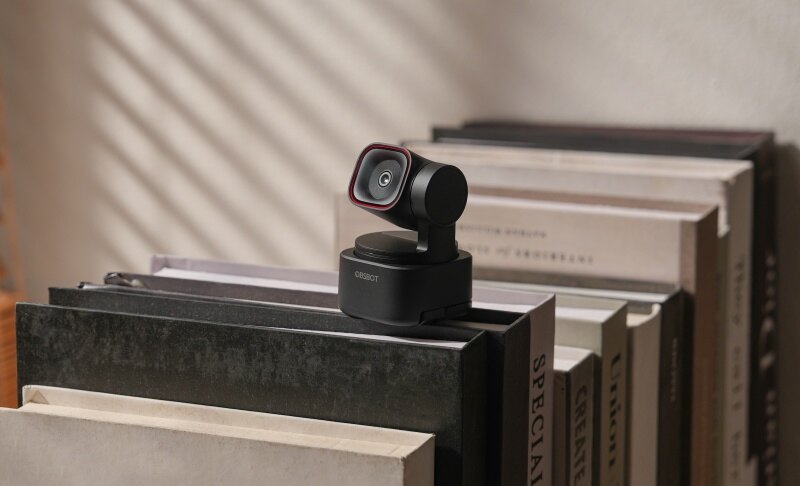
The OBSBOT Tiny 3 is a premium external webcam for MacBook Pro and other models designed to deliver high image clarity, intelligent automation, and flexible control in a compact body. It combines advanced camera hardware with AI-powered functions to provide a smooth and modern video communication experience.
Key Features:
- Top-Notch Video Quality: Provides crisp and detailed video at 4K@30fps. It matches the clarity of Retina displays of Mac for sharper on-screen meetings.
- Immersive Stereo Microphones: Built-in three silicon MEM mic system captures clear and directional sound. It improves voice clarity without requiring extra audio devices for your Mac.
- Reliable Voice Locator: Uses spatial audio positioning to detect where the voice is coming from and automatically rotate the webcam in that direction while you take calls on your Mac.
- Industry-Leading AI Features: Automatically follows and keeps you centered in the frame through human tracking. It maintains professional framing during movement or presentations on Mac.
- Compact & Tiny in Size: Extremely small and lightweight, making it easy to connect to your Mac even when you are on the move.
Why Best for Mac:
It works well with macOS without a complex setup. The USB-C connection matches modern Mac ports, making it a strong choice for Mac users who want smart features.
2. Insta360 Link 2

The Insta360 Link 2 is a webcam designed for smooth and flexible video communication. It combines advanced imaging hardware with intelligent framing and audio technology. With built-in software control and creative tools, this external camera for MacBook Pro offers a highly customizable experience for users who want more control over their on-screen presence.
Key Features:
- 1/2" sensor captures more light clearly
- HDR balances bright and dark areas
- AI noise canceling reduces background distractions
- DeskView mode tilts the camera downward automatically
- Gesture control to control the webcam without touching the camera
- Privacy mode flips the lens down automatically
Why Best for Mac:
The Insta360 Link 2 supports macOS 10.13 or later and works smoothly with major video platforms on Mac. Its desktop software allows Mac users to fine-tune framing, exposure, and special modes, making it a strong choice.
3. Elgato Facecam 4K

Elgato Facecam 4K is a studio-style webcam built around a fast sensor and strong image processing for clean, true-to-life video. It focuses on pro-level control through the Camera Hub app, with options that help you fine-tune lighting, color, and framing. This is the best external webcam for Mac that also supports real lens filters for extra visual style.
Key Features:
- Prime lens keeps desk-range subjects consistently clear
- Camera Hub offers manual ISO and shutter control
- Cinematic LUTs apply color grading with one click
- PTZ controls let you reframe without moving
- Supports 49mm lens filters for custom looks
- Uncompressed USB video reduces delay and artifacts
Why Best for Mac:
Camera Hub is available on Mac, so you can adjust exposure, framing, and LUTs right from macOS. The USB-C connection suits modern Mac ports, and saved presets make it easy to keep the same look across different apps and meetings.
4. EMEET SmartCam S800

EMEET SmartCam S800 is a high-performance webcam built for sharp visuals and fast focusing. It uses a large Sony sensor and intelligent autofocus technology to keep subjects clear at different distances. With built-in HDR support and adjustable field of view, this FaceTime external camera offers flexible framing and balanced image quality.
Key Features:
- Sony 1/2-inch sensor captures richer light detail
- Adjust contrast, color, and brightness through the EMEETLINK software
- HDR improves balance in mixed lighting
- Dual noise-canceling microphones reduce background sound
- Adjustable field of view supports flexible framing
- Built-in rotary privacy cover protects the lens
Why Best for Mac:
The S800 supports macOS 10.10 or later and connects through USB 3.0 for stable performance. It works with common Mac applications without extra drivers, and the EMEETLINK software allows additional adjustments for AI framing.
5. Logitech MX Brio

Logitech MX Brio is a premium collaboration webcam designed for sharp image detail and accurate color reproduction. It features Logitech's largest webcam sensor to improve clarity in challenging lighting. Built with sustainability in mind, this is the best external camera for MacBook Pro that combines advanced imaging technology with durable materials for long-term professional use.
Key Features:
- Large 1/1.3" sensor improves detail in low light
- AI image enhancement refines facial clarity automatically
- Show Mode tilts the camera for desk sharing
- Dual frame rates support smooth motion capture
- Advanced controls allow deep image customization
- Built with recycled plastic materials responsibly
Why Best for Mac:
MX Brio works smoothly with macOS and major meeting apps without extra drivers. Logitech's software allows Mac users to fine-tune exposure, framing, and color settings easily, while USB-C connectivity fits modern Mac devices for a clean and stable setup.
6. Razer Kiyo V2

Razer Kiyo V2 is a 4K webcam designed to deliver sharp visuals with intelligent automation. It combines a high-performance sensor with AI-powered framing and image enhancement to maintain clarity in different lighting conditions. Built with integrated privacy protection, this best external camera for Mac offers flexible performance for modern desktop setups.
Key Features:
- The AI auto-framing system keeps you centered automatically
- HDR video support to improve contrast in mixed lighting
- Ultrawide-angle lens design to capture wider scenes without distortion
- Uncompressed video encoding to preserve image clarity and reduce artifacts
- Built-in privacy shutter to block the lens for added security
- Customize the background, cinematic blur, and exposure through software
Why Best for Mac:
Razer Kiyo V2 works as a standard UVC webcam on macOS, allowing plug-and-play functionality with FaceTime and Zoom. Mac users can access 4K quality, HDR support, and stable USB connectivity without additional drivers.
Part 3: How to Connect an External Webcam to a Mac
Step 1: Turn on your Mac and log in to your account so you can access system settings and apps.
Step 2: Plug the webcam's USB cable into the correct port on your Mac, using a USB-C adapter if your Mac does not have a matching port.
Step 3: Wait a few seconds while macOS automatically detects the new device and installs any needed drivers.
Step 4: Open "System Settings" and go to "Privacy & Security," then select "Camera" to make sure your apps have permission to use the webcam.
Step 5: Open your video app, such as FaceTime or Zoom, then go to the app's video settings and choose the new webcam from the camera list.
Step 6: Adjust the camera angle and test the microphone to confirm that both video and sound are working properly.
Step 7: If your webcam includes special software, download it from the official website and follow the instructions to unlock extra features.
After setting up your external webcam, you can also adjust your view in apps like FaceTime or Zoom to zoom in and out on Mac for the perfect framing.
Part 4: FAQs About External Webcam for Mac
1. What are the best webcams for Mac mini and MacBook?
The best webcams for Mac mini and MacBook depend on your needs, such as video quality, microphone performance, and daily usage. The OBSBOT Meet Flip is a great option for Mac users, offering 4K video, AI features, and USB-C connectivity for meetings, online classes, and content creation.
2. Why is my external webcam not working on my Mac?
There can be several reasons. First, check if the USB cable is firmly connected. Second, make sure the app has permission to access the camera in System Settings. Third, restart your Mac to refresh system detection. If the problem continues, update macOS or test the webcam on another device to see if the hardware is working properly.
3. Is a 4K webcam worth it for Mac users?
Yes, a 4K webcam can provide sharper detail and better image clarity, especially on larger screens. However, it also uses more system resources and bandwidth. If you attend many professional meetings and want the best quality, it may be worth it. For regular video calls, a high-quality 1080p webcam is often more than enough.
4. Can I use an external webcam with a MacBook closed?
Yes, you can use an external webcam for Mac while your MacBook is closed, as long as you connect it to an external monitor, keyboard, and mouse. This setup is called clamshell mode. Make sure your MacBook is plugged into power, and then select the external webcam in your video app settings.
5. How can I improve video quality on my Mac with an external webcam?
To improve quality, place the webcam at eye level and face a light source instead of sitting in front of a bright window. Clean the lens gently to remove dust. Also, check your app's video settings and choose the highest resolution available. Good lighting and stable internet are just as important as the webcam itself.
6. Can I use my iPad as an external webcam for Mac?
Yes. With Apple's Continuity Camera feature, compatible iPads can be used as external webcams for Mac. After enabling this feature, your Mac can automatically recognize the iPad as a camera option in supported apps like FaceTime and video conferencing platforms.
Conclusion
Choosing the right external webcam for your Mac can transform every video call, virtual class, or online meeting into a clear, professional experience. By prioritizing macOS compatibility, resolution, microphone quality, connection type, and privacy features, you'll find a webcam that works seamlessly with your setup. Don't forget to consider lighting and desk arrangement for the best results. With the perfect webcam, you'll enjoy sharper images, clearer sound, and a more confident on-screen presence—making every call feel effortless. Upgrade today and see the difference for yourself!