How to Stream on Xbox: A Complete Guide for Beginners

Real gamers not only love playing on Xbox, but they also like sharing the gameplay with their friends. In fact, some gamers also stream their games to grow their audience and create content for their gaming channels. They stream gameplay and publish it on YouTube and Twitch. The good thing is that there are four different methods that you can try if you want to learn how to stream on Xbox. This guide will provide proper steps to follow and explain how you can improve the quality of gameplay with a good camera.
Method 1: Stream Directly from Xbox with Twitch
This is a good method for beginners and casual gamers who want to stream on Twitch quickly. With the Twitch app, you don't need a computer, and you can go live from your console. Now, let's see how to stream on Twitch from Xbox.
Step 1: Turn on your Xbox and connect it to a stable internet connection. Open the Microsoft Store, search for the Twitch app, and install it if you have not already.
Step 2: Launch the Twitch app and sign in to your Twitch account. If you do not have an account, create one on the Twitch website before continuing.
Step 3: Follow the on-screen instructions to link your Xbox with your Twitch account. Enter the activation code shown on your TV using your phone or computer.
Step 4: Adjust your stream settings, including the stream title, microphone, camera, and game audio. If you have a compatible USB webcam, connect it to include your face in the stream.
Step 5: Start the game you want to play and return to the Twitch app. Select Go Live to begin streaming. Your gameplay will now be broadcast to your Twitch channel.
Method 2: Stream Xbox with OBS Studio
This method is for professional streamers, YouTube creators, and people who want overlays and advanced controls. OBS Studio is free streaming software that gives you more control over your broadcasts. To use it with an Xbox, you will also need a capture card, so let's see how to stream on Xbox.
Step 1: Download and install OBS Studio on your Windows or Mac computer. Connect your Xbox to the capture card, and then connect the capture card to your PC.
Step 2: Open OBS Studio and create a new scene by clicking the + button in the Scenes panel.

Step 3: Click the + button in the Sources panel and choose Video Capture Device. Select your capture card from the list so OBS can display your Xbox gameplay.

Step 4: Add other sources such as your webcam, microphone, overlays, or alerts. Arrange everything in the preview window before going live.
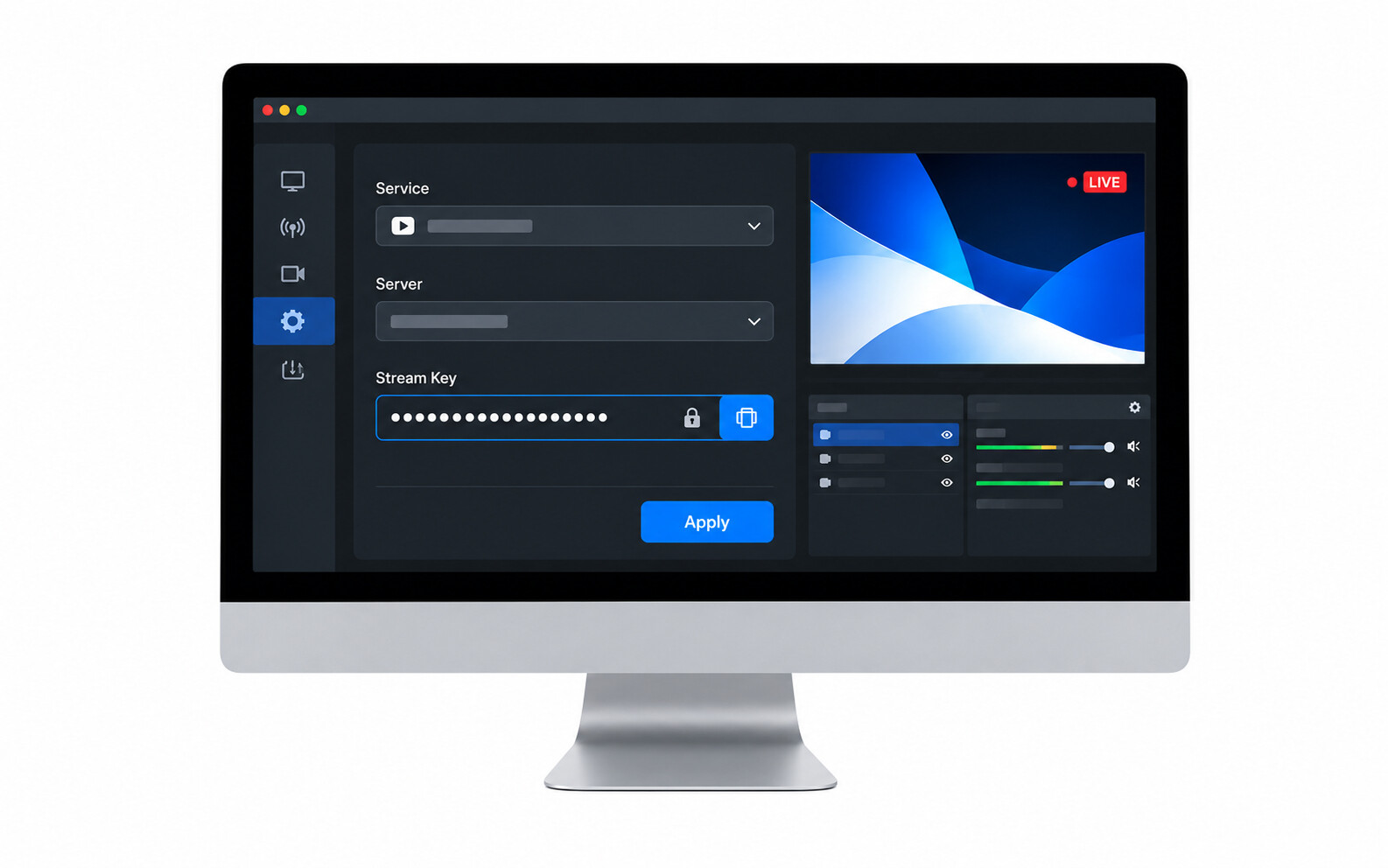
Step 5: Open Settings, select the Stream tab, and connect your Twitch, YouTube, or Facebook account. Enter your stream key if required.

Step 6: Click Start Streaming in OBS Studio and begin playing your game. OBS will stream your Xbox gameplay with your custom layout.
Method 3: Stream Xbox Using Xbox Remote Play
It is recommended for laptop users, travellers, and gamers who want to stream without a capture card. Xbox Remote Play lets you play your Xbox games on a PC while using streaming software to broadcast the gameplay. Now, have a look at the steps if you are wondering how to live stream Xbox.

Step 1: Enable Remote Play on your Xbox by opening Settings > Devices & Connections > Remote Features. Turn on the Remote Play option.
Step 2: Download the Xbox app on your Windows PC and sign in with the same Microsoft account used on your Xbox.
Step 3: Connect your PC to your Xbox through the Xbox app using the Remote Play feature. Your Xbox screen will appear on your computer.
Step 4: Open OBS Studio and add a Window Capture source. Select the Xbox Remote Play window so OBS can record the gameplay.
Step 5: Add your webcam and microphone if needed. Connect your streaming platform and click Start Streaming when everything is ready.
Bonus: Upgrade Your Xbox Streams with OBSBOT Tiny 3 Lite 4K PTZ Webcam
While Xbox allows you to start streaming gameplay easily, adding a high-quality webcam can make your streams more engaging and professional. The OBSBOT Tiny 3 Lite is designed for gamers and creators who want to add clear video, smooth tracking, and better audience interaction to their Xbox streaming setup. Whether you are streaming competitive matches, sharing game reactions, or chatting with your community, it delivers a more polished streaming experience.
Key Features:
- Professional Resolution for Xbox Streaming: Capture your reactions in sharp 4K@30fps or smooth 1080p@120fps. Tiny 3 Lite helps create a more engaging livestream experience with clear and detailed facecam video.
- AI Tracking Keeps You in Frame: AI Tracking 2.0 automatically follows your movements and keeps your face centered, so you can focus on gaming without adjusting your camera.
- Clear Video in Any Gaming Setup: The 1/2" CMOS sensor and HDR support deliver balanced exposure and clear facial details, even in RGB-lit or low-light gaming environments.
- Clear Audio for Game Commentary: The built-in stereo microphone system with 24-bit/48kHz audio capture and AI noise reduction helps deliver clear voice quality during livestreams.
- Easy Streaming Setup: Connect via USB-C and use Tiny 3 Lite with OBS Studio and other streaming software. Its compact design and flexible mounting options make it easy to add to your Xbox streaming setup.
Method 4: Stream Xbox with a Capture Card
If you want high-quality streaming and multi-platform broadcasting as professional creators, this is a good choice. This is because a capture card transfers your Xbox gameplay to your computer. As a result, you can stream with advanced software like OBS Studio or Streamlabs.
Step 1: Connect your Xbox to the HDMI input on the capture card. Connect the HDMI output from the capture card to your TV or monitor.
Step 2: Connect the capture card to your computer using the provided USB cable. Install any required drivers if prompted.
Step 3: Open your preferred streaming software, such as OBS Studio or Streamlabs, and add the capture card as a Video Capture Device.
Step 4: Configure your stream by adding overlays, webcam, microphone, alerts, and chat widgets if needed.
Step 5: Connect your Twitch, YouTube, or Facebook account in the streaming software. Click Start Streaming and begin playing on your Xbox.
FAQs About Streaming on Xbox
1. Can I stream directly from Xbox without a PC?
Yes, you can use the Twitch app on Xbox to stream directly without needing a computer or capture card.
2. Do I need a capture card to stream on Xbox?
No, a capture card is only needed if you want advanced streaming features with software like OBS Studio. Beginners can stream directly through Twitch.
3. Which streaming platforms support Xbox?
The most popular platforms are Twitch and YouTube. With OBS Studio, you can also stream to Facebook Live and other supported services.
4. What internet speed is recommended for Xbox streaming?
For smooth streaming, an upload speed of at least 10 Mbps is recommended. Faster internet provides better video quality and fewer interruptions.
5. Can I use a webcam while streaming on Xbox?
Yes, Xbox supports compatible USB webcams for Twitch streaming. If you stream through a PC with OBS Studio, you can use almost any webcam supported by your computer.
Conclusion
Learning how to stream on Xbox gives you more ways to share your gameplay, connect with other gamers, and build your online presence. From the built-in Twitch app to advanced setups with OBS Studio or a capture card, each option offers different features to match your needs. Take a few minutes to check your audio, video, and network before going live for a smoother broadcast. As you gain experience, you can improve your stream with better equipment, custom overlays, and interactive features to create a more enjoyable experience for your viewers.