Multi-Stream Transport (MST): How It Works and How to Use It
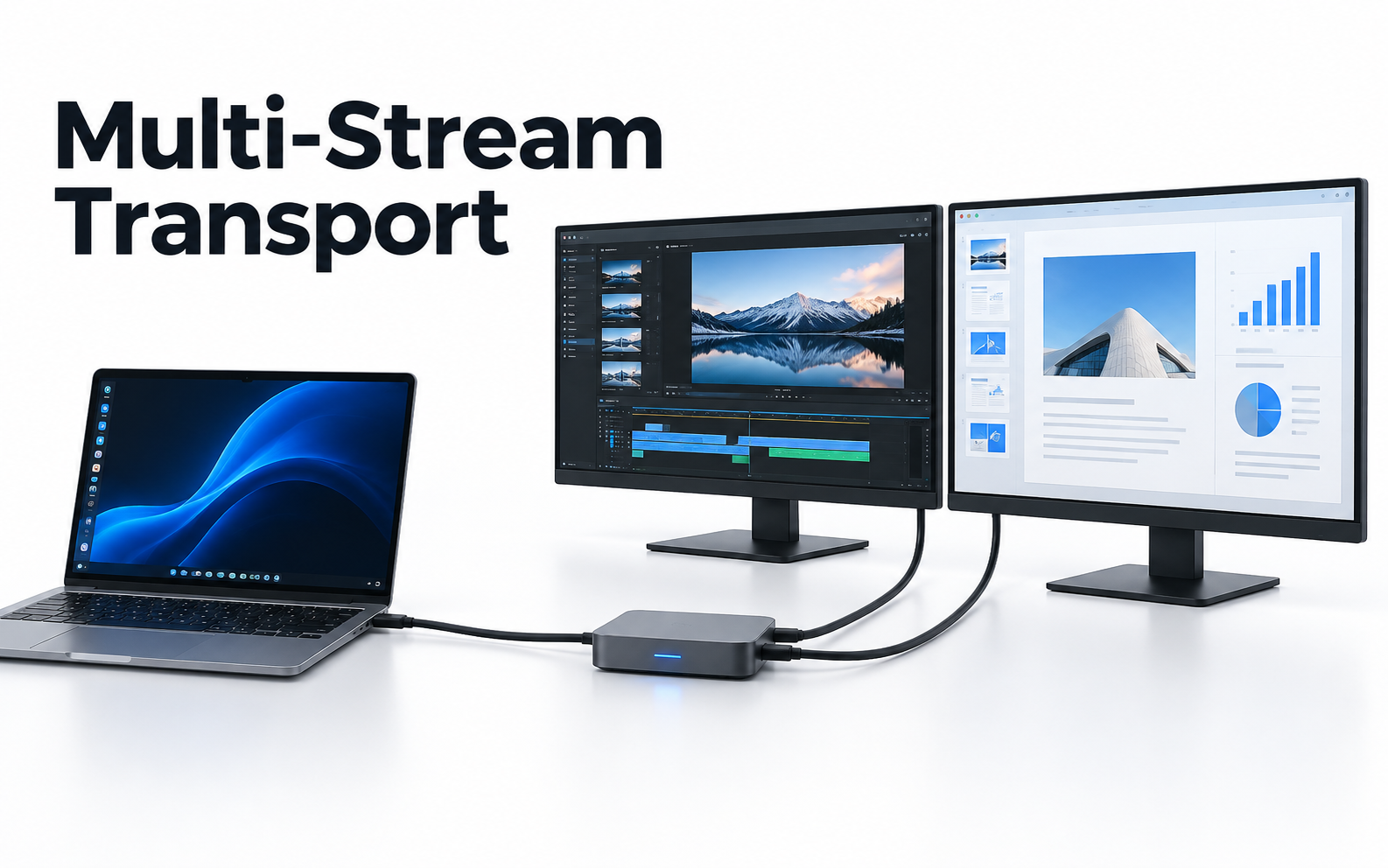
Adding a second monitor does not always require a second video output. If your computer and monitors support DisplayPort Multi-Stream Transport, one DisplayPort connection can carry multiple independent display signals.
This guide explains what MST does, how to choose between an MST hub and a DisplayPort daisy chain, how to connect both setups, and why Mac support works differently from Windows.
Part 1: What Is Multi-Stream Transport?
Multi-Stream Transport, or MST, is a DisplayPort feature that sends multiple independent display signals through one DisplayPort connection. It is commonly used to connect two or more monitors to a compatible computer, docking station, or laptop USB-C port.
MST is available through DisplayPort 1.2 and later. It does not increase your computer's graphics performance. Instead, it divides the available video bandwidth between connected displays.
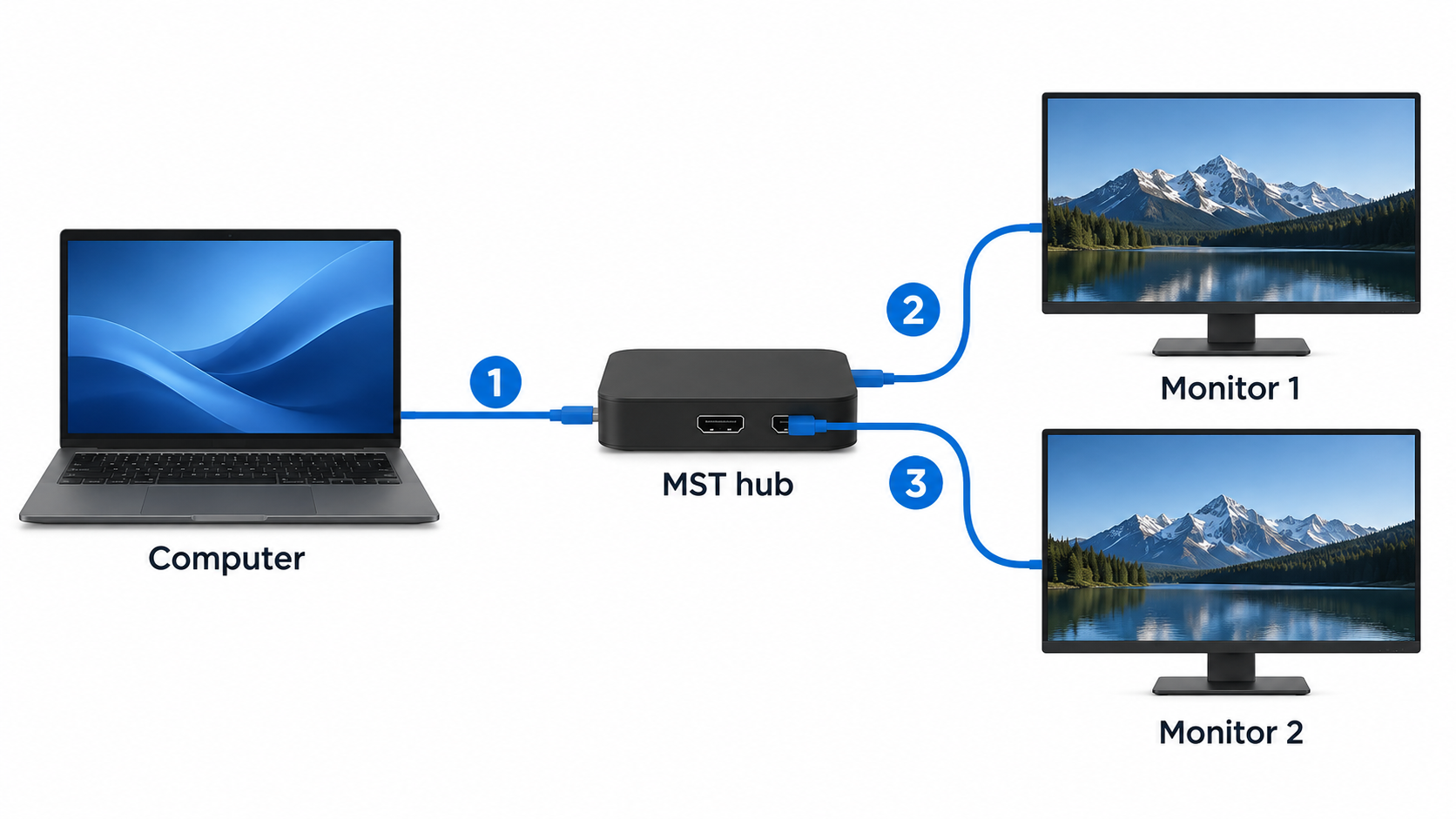
For example, a Windows laptop with one USB-C port that supports DisplayPort Alt Mode may connect to an MST hub. The hub can then send separate video signals to two monitors, allowing each screen to show different content.
MST is different from screen mirroring. With a compatible Windows system, the connected monitors can normally work as an extended desktop, so each display has its own workspace.
Part 2: How Does MST Work?
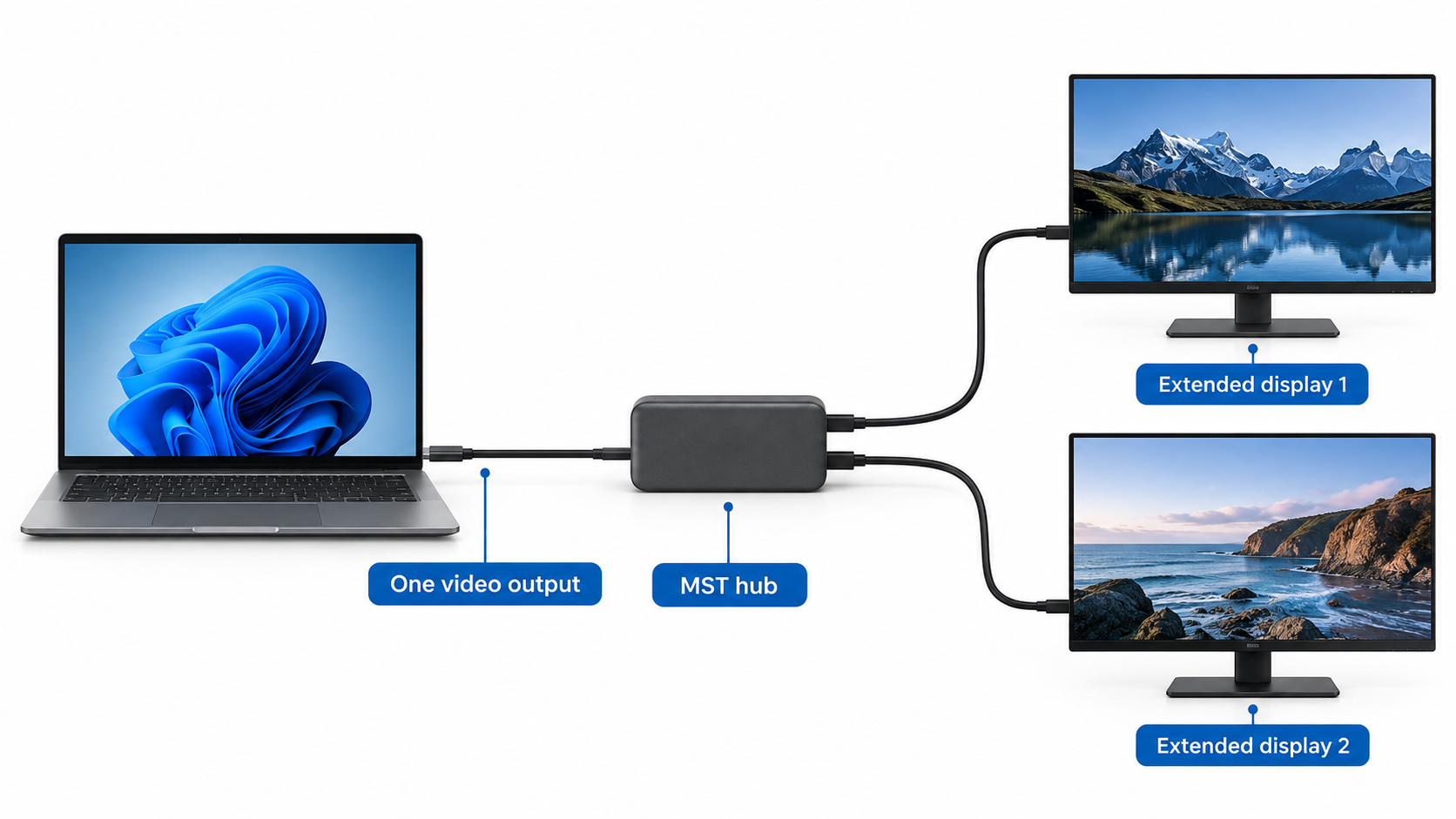
An MST setup begins with one video output from the computer. That output carries multiple display streams, which are separated by an MST hub or by a monitor with a DisplayPort-out connection.
| Part of the Setup | What It Does | What to Check |
|---|---|---|
| Computer or laptop | Sends the video signal to the connected displays. | DisplayPort 1.2 or newer, compatible graphics hardware, and enough display capacity. |
| USB-C port | May carry DisplayPort video through DisplayPort Alt Mode. | The port must support video output, not only charging or data transfer. |
| MST hub | Splits one DisplayPort signal into two or more display outputs. | Output type, supported resolution, refresh rate, and power requirements. |
| MST-compatible monitor | Passes the video signal to another monitor in a daisy-chain setup. | A DisplayPort input and DisplayPort output with MST support. |
| DisplayPort cables | Carry the video signal between the computer, hub, and monitors. | Use cables rated for the resolution and refresh rate you plan to run. |
The total bandwidth is shared across the connected displays. Two 1080p monitors are usually less demanding than two 4K monitors running at a high refresh rate. The computer, graphics processor, cable, hub, and monitors must all support the selected configuration.
Part 3: MST Hub vs. DisplayPort Daisy Chain: Which Setup Should You Use?
Choose the connection method based on your computer's video outputs and your monitors' ports. An MST hub is usually more flexible, while a daisy chain can reduce cable clutter when the monitors are designed for it.
| Setup | Best Fit | Main Requirement |
|---|---|---|
| MST hub | Laptops, docking stations, and monitors without DisplayPort-out. | A compatible DisplayPort or USB-C video output and a suitable hub. |
| Daisy chain | Desktops or workstations with compatible DisplayPort monitors. | The first monitor must support MST and provide DisplayPort-out. |
| Separate video outputs | Gaming, high-refresh-rate, or high-resolution setups. | Each monitor receives a direct connection from the computer. |
MST Hub: Best for Laptops and Incompatible Monitors
An MST hub connects to one DisplayPort or USB-C video output on the computer and provides multiple monitor outputs. It is usually the easier option when your monitors do not have DisplayPort-out ports.
This setup works well when a laptop has one compatible USB-C video output, but the two monitors use separate DisplayPort or HDMI inputs. The hub keeps the connections in one place and avoids relying on the first monitor to pass the signal to the second.
- Check that the computer supports DisplayPort 1.2 or newer.
- If you are using USB-C, confirm that the port supports DisplayPort Alt Mode.
- Connect the MST hub to the computer's DisplayPort or compatible USB-C port.
- Connect each monitor to a separate output on the MST hub.
- Turn on the monitors and select the correct input source.
- Open the operating system's display settings and select the extended desktop option.
- Set the resolution and refresh rate for each monitor.
DisplayPort Daisy Chain: Best for Compatible Monitors
A DisplayPort daisy chain connects the computer to the first monitor and then connects the first monitor to the second one. It can reduce cable clutter, but the first monitor must support MST and include a DisplayPort output.
This setup is useful when both monitors are designed for DisplayPort daisy-chaining. If the first monitor does not have DisplayPort-out or MST support, use an MST hub instead.
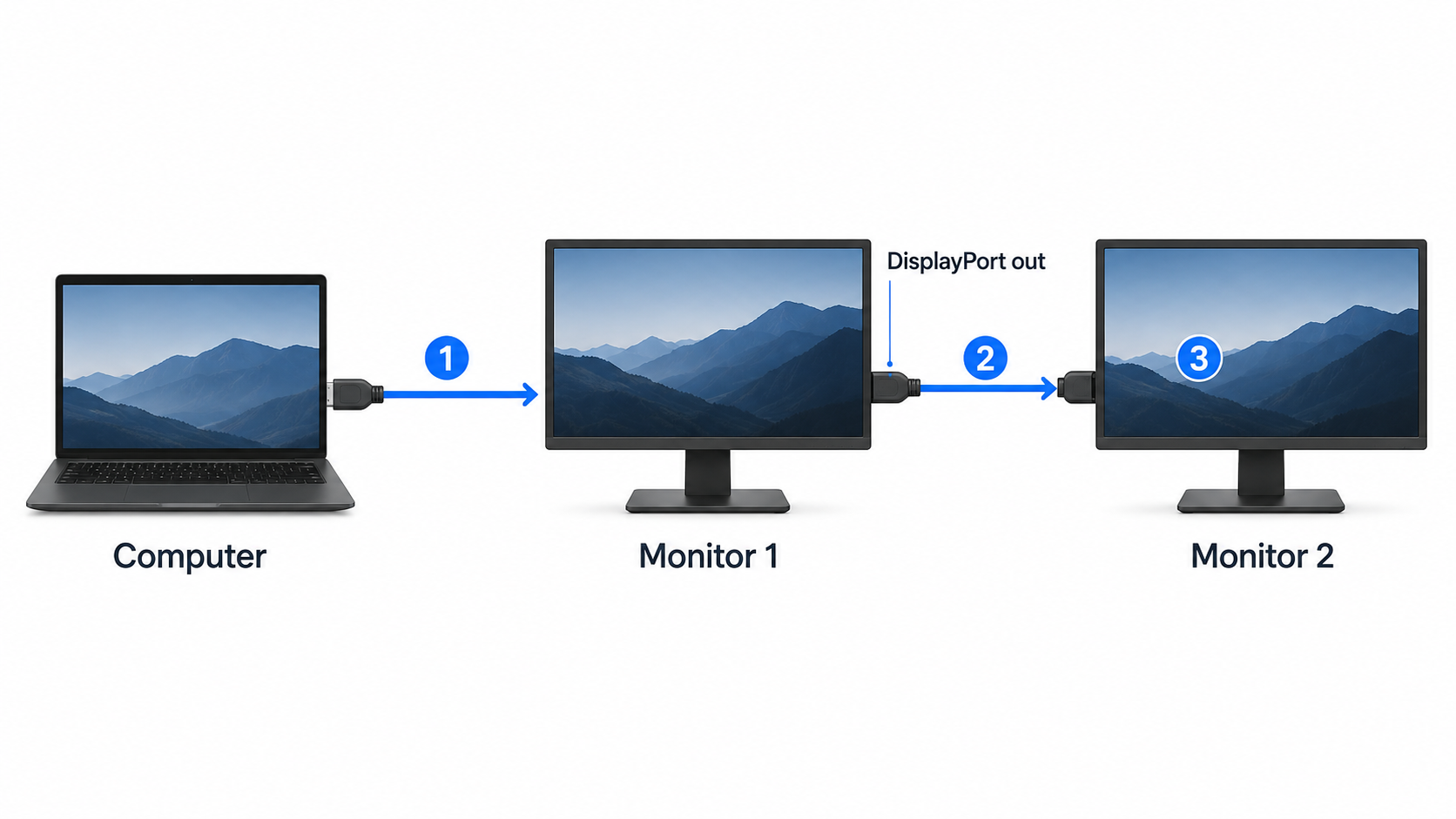
- Connect the computer to the DisplayPort input of the first monitor.
- Open the first monitor's menu and enable its MST or DisplayPort 1.2 setting.
- Connect the first monitor's DisplayPort output to the DisplayPort input of the second monitor.
- Open the computer's display settings and select the extended desktop option.
- Adjust the monitor arrangement so it matches the physical position of the screens.
Bonus: Multi-Screen Live Production Studio - OBSBOT Talent 2
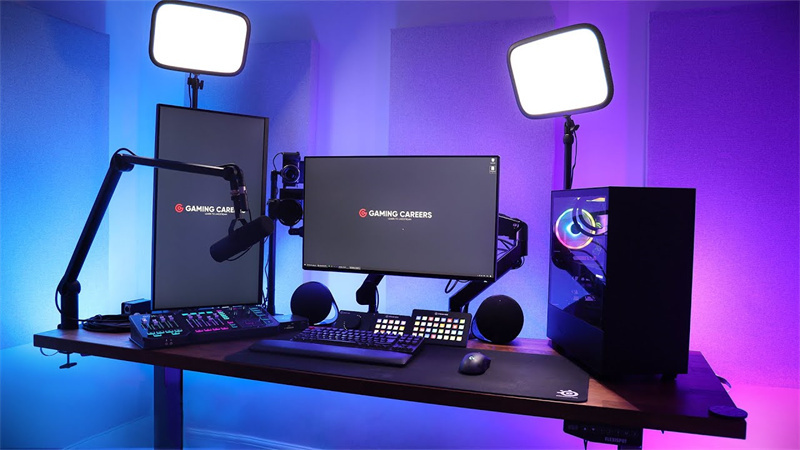
A multi-monitor setup becomes more useful when each screen has a clear production role. One display can show the program output, another can monitor sources, and a third can handle stream controls, graphics, or chat.
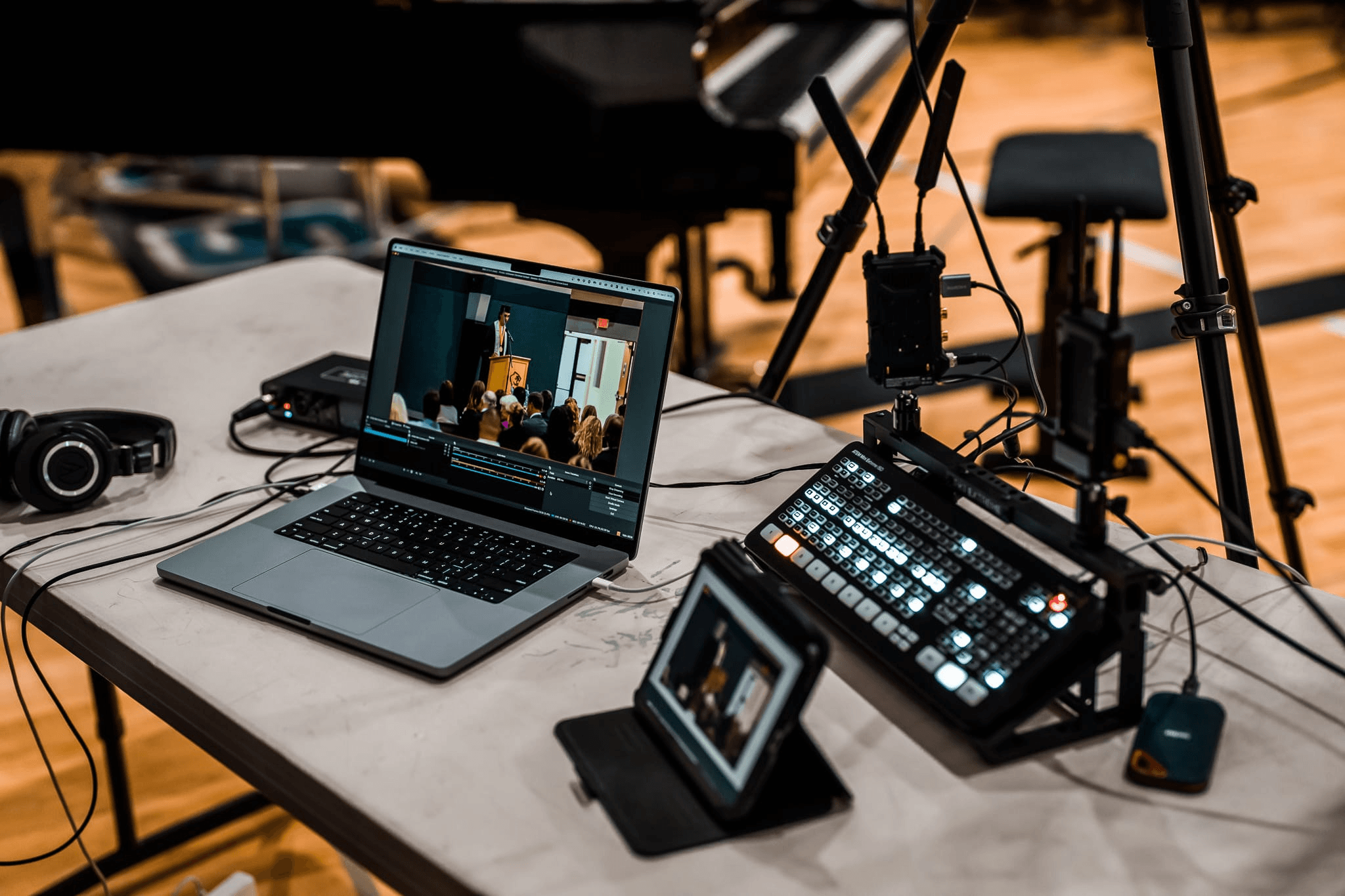
OBSBOT Talent 2 is designed for creators and production teams running multi-camera live workflows. It works alongside an MST hub or DisplayPort daisy-chain setup by giving the production station a central place to manage cameras, sources, switching, and streaming.
- Multi-camera source management: Bring several camera feeds into one production workflow when the operator needs to monitor different angles from separate displays.
- IP-first production support: Fit network-based camera sources into a production environment where the computer and monitors are used for preview, control, and output monitoring.
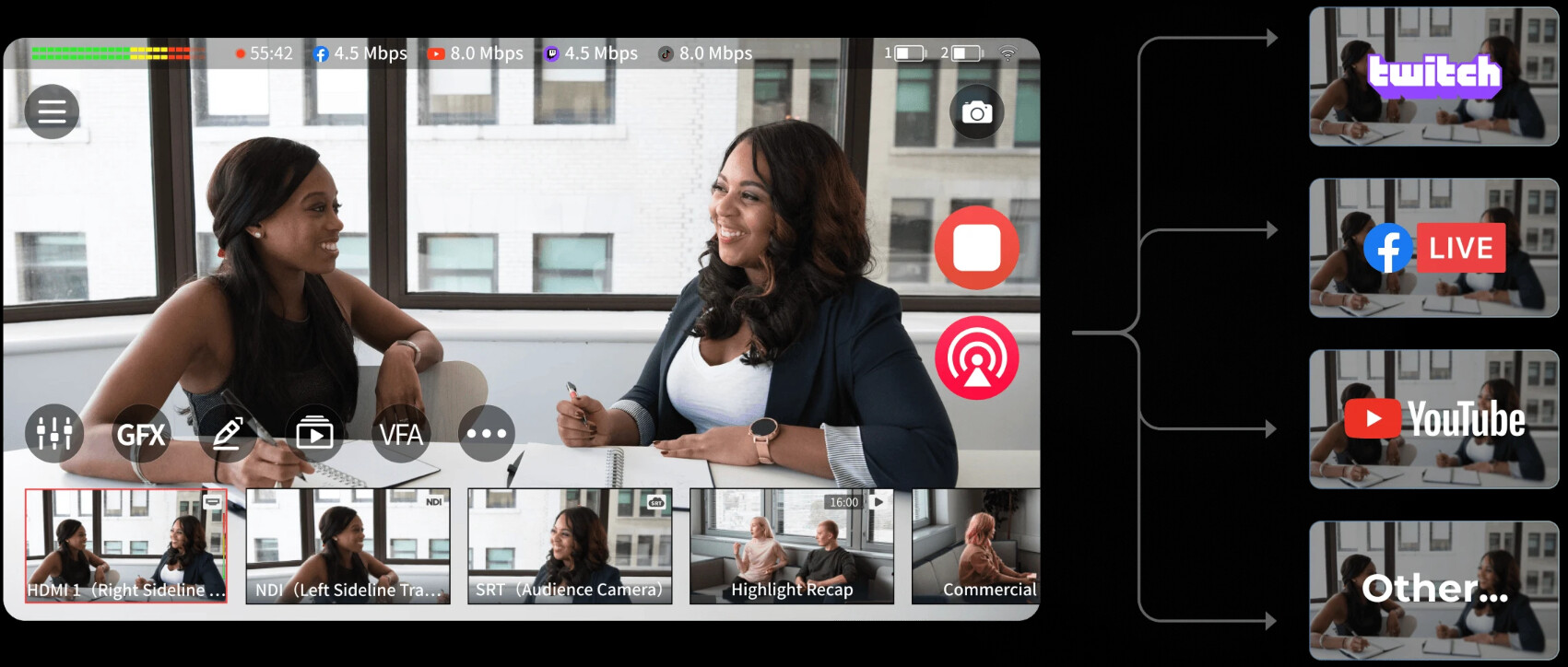
- Multi-platform streaming: Manage a workflow intended for more than one streaming destination without turning each monitor into a separate production system.
- Remote contributor support: Keep remote guests or additional video sources visible while another display remains dedicated to program output or technical monitoring.
- Centralized production control: Use the multi-screen workspace to separate camera preview, switching, recording, and stream management tasks.
Part 4: Does MST Work With Mac and Windows?
Windows
Windows generally supports MST for extended desktop configurations when the computer's graphics hardware and video output support DisplayPort 1.2 or newer.
After connecting the displays, open Settings > System > Display and choose Extend these displays. If the second monitor is not detected, confirm that the USB-C port supports DisplayPort Alt Mode and that the MST hub is compatible with the computer.
Mac
macOS does not generally support DisplayPort MST for multiple independent extended displays through a single connection. Depending on the Mac model and connection method, an MST hub may mirror the same image across both monitors instead of creating two separate desktops.
This is a platform limitation rather than a simple monitor setting. Mac users who need multiple extended displays may need a Thunderbolt dock, a DisplayLink-based dock or adapter, or separate native video outputs supported by the specific Mac model.
Before buying an MST hub for a Mac, check the exact Mac model, the number of supported external displays, the dock's macOS compatibility, and whether the solution requires DisplayLink software.
ChromeOS and Other Systems
ChromeOS devices that support DisplayPort over USB-C may work with MST, but support depends on the device and dock. Linux support can also vary by graphics driver, desktop environment, and hardware configuration.
Part 5: Common MST Problems and Solutions
The Second Monitor Is Not Detected
Confirm that the computer's port supports video output. A USB-C port may support charging and data while lacking DisplayPort Alt Mode. Also check that MST is enabled on the first monitor when using a daisy chain.
The Monitors Only Mirror Each Other
Mirroring can occur when the operating system does not support MST extended displays, when the hub is incompatible, or when the connection is being treated as a single display output. This is especially common with certain Mac setups.
The Resolution or Refresh Rate Is Lower Than Expected
All connected displays share the available bandwidth. A setup with two 4K monitors may need DisplayPort 1.4, Display Stream Compression, a compatible graphics processor, and an MST hub designed for that bandwidth.
The Display Flickers or Disconnects
Use shorter, properly rated cables and connect the MST hub directly to the computer when possible. Bus-powered hubs may also become unstable if the computer cannot supply enough power.
HDMI Does Not Use MST
MST is a DisplayPort feature. An HDMI splitter may duplicate one HDMI signal across multiple screens, but it does not normally create independent extended desktops in the same way as DisplayPort MST.
Part 6: FAQs About Multi-Stream Transport
What Is Multi-Stream Transport?
Multi-Stream Transport is a DisplayPort feature that carries multiple independent display signals through one DisplayPort connection. It can be used through an MST hub or a compatible DisplayPort daisy chain.
Can I Run Two Monitors From One DisplayPort?
Yes, if the computer supports MST and you use a compatible MST hub or a monitor with DisplayPort-out for daisy chaining. The maximum resolution and refresh rate depend on the computer, graphics hardware, cables, hub, and monitors.
Why Do Macs Not Support MST?
macOS generally does not use DisplayPort MST to create multiple independent extended displays from one connection. Depending on the model and adapter, an MST hub may mirror the displays. DisplayLink or Thunderbolt-based solutions are commonly used when a Mac needs additional extended monitors.
Does macOS Support Multi-Stream Transport?
macOS can recognize MST-related hardware in some configurations, but native MST extended-display support is limited. Check the exact Mac model and use a solution specifically confirmed for macOS if you need separate desktops.
What Is an MST Hub?
An MST hub is an adapter that takes one DisplayPort video connection and separates it into multiple display outputs. It is useful when the computer has one compatible video output and the monitors do not support daisy chaining.
Part 6: FAQs About Multi-Stream Transport
Can I Run Two Monitors From One DisplayPort?
Yes, but the computer must support MST. You also need either a compatible MST hub or a first monitor with DisplayPort-out for daisy chaining. If the computer supports only one display through that port, an MST hub cannot create an additional independent signal.
Why Do Macs Not Support MST?
Most macOS systems do not use MST to create multiple independent extended displays through one connection. An MST hub may work for mirrored screens, but separate desktops usually require a Thunderbolt-based setup, DisplayLink hardware, or additional native display outputs.
Does macOS Support Multi-Stream Transport?
Mac support depends on the model, dock, and connection method. Before buying an MST adapter, check the Mac's supported external-display count and confirm that the dock specifically supports extended displays on macOS.
What Is MST in a Dell Monitor?
On a Dell monitor, MST is usually a menu setting that enables the monitor to pass a DisplayPort signal to another monitor. It is relevant only when the monitor has a DisplayPort output and supports daisy chaining.
Can HDMI Be Used for Multi-Stream Transport?
No. MST is a DisplayPort feature. An HDMI splitter can mirror one HDMI signal, but it does not normally create separate extended desktops through DisplayPort MST.
Conclusion
Multi-Stream Transport is a convenient way to connect multiple displays through one DisplayPort connection. An MST hub is usually the simplest choice for laptops and monitors without DisplayPort-out, while a daisy chain can reduce cable clutter when the monitors support MST.
Before purchasing an MST hub, check the computer's DisplayPort or USB-C video support, the operating system, the monitor inputs, and the total resolution and refresh-rate requirements. Windows systems usually offer the most direct MST experience, while Mac users should verify compatibility carefully and consider Thunderbolt or DisplayLink alternatives when extended displays are required.