Troubleshooting for OBS Cannot Stream and Record

OBS Studio is the top live streaming and video recording software. It is an invaluable source that every content creator, gamer, and person involved in media loves to call their own. It possesses wonderful features that will make it an all-around production tool. But as with all software, you may face some trouble streaming and recording at the same time.
This can be due to multiple reasons, like encoding overload, hardware constraints, improper settings, or software bugs. If you have ever encountered such an error, don't worry; you're among the many users facing the same, and a solution is at hand. The article will explain why such an issue arises, the steps to resolve it, and how to make you familiar with one of the best cameras for live streaming that promises to transform your level of production quality.
Part 1: Why OBS Can't Stream and Record
Many things can make OBS not work properly when streaming and recording at the same time. Some of the popular reasons include:
1. Hardware Limitation
OBS requires huge computing power when encoding videos in high resolution or bitrate. This means if it is not supported by a powerful CPU or GPU,it may cause issues similar to during simultaneous streaming and recording.
2. Wrong Encoder Settings
Different encoders are there in OBS, including x264-type CPU-based encoders and also hardware encoders such as NVENC that require an NVIDIA GPU. The error mostly happens in this instance when the selected encoder is incapable of handling both.
3. Overlapping Video Outputs
Streaming and recording settings may be set too high when it comes to resolution or bitrate; thus, not being able to process both simultaneously results in an error or dropped frames.
4. Less Storage Space
Recording requires disk space, especially if it is a high-quality video. Not having enough storage can disrupt the recording process.
5. OBS Bugs or Software Conflicts
Sometimes errors or issues arise from an outdated OS; also, conflicts from and between third-party plugins.
The Best Camera for Live Streaming and Recording: OBSBOT Tail 2 Live Production Camera
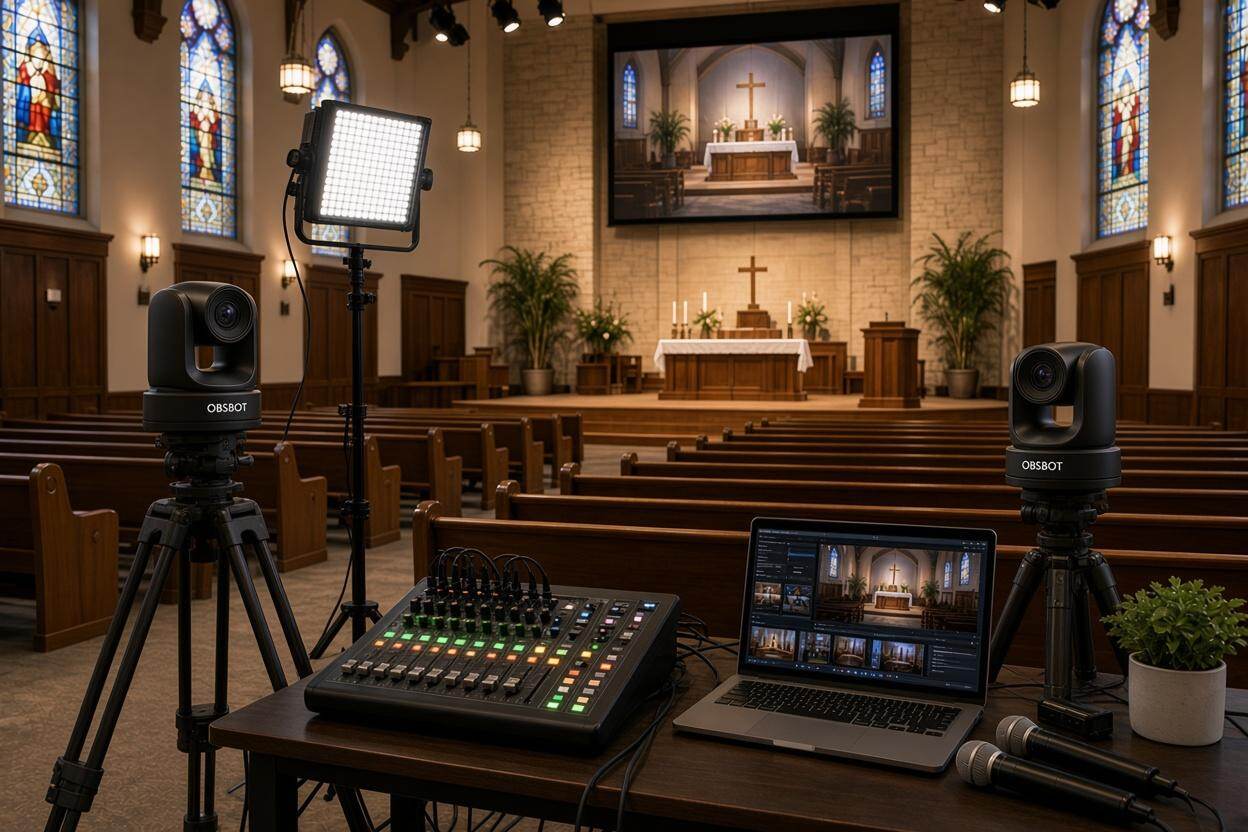
For those of you who want to improve your streaming and recording equipment, the OBSBOT Tail 2 camera features AI technology to improve the process of creating content. This PTZR camera, backed up by Artificial Intelligence, shows professional quality and perfect compatibility with OBS Studio, and it is perfect for OBS streaming and recording.
Key Features:
- AI Tracking 2.0: Automatically tracks performers for consistent focus.
- High Resolution: Records in 4K@60fps and 1080P@120fps for crystal-clear visuals.
- Hands-Free 90° Rotation: Effortlessly adjust angles without interruption.
- 5x Optical and 12x Hybrid Zoom: Offers creative flexibility to highlight details or capture wide shots.
- Flexible Integration Options: The device itself supports USB-C, HDMI, and wireless connection, ensuring compatibility with OBS Studio and other systems.
- Starlight Sensor for Low-Light Performance: Great for creators, streaming, or recording in low lighting, the display delivers bright, clear pictures.
Part 2: 10 Methods to Fix OBS Can't Stream and Record
Method 1: Update OBS Software to the Latest Version
- Open OBS Studio and go to Help> Check for Updates.
- Download and install it if there is any update available.
- Restart the OBS and try streaming and recording simultaneously.
Tip: Update your OBS so that you can enjoy new features and bug fixes attached to it.
Method 2: Change Output Settings
- Go to "Settings" and click on "Output".
- Select "Advanced" by clicking the dropdown menu under "Output mode".
- Set different settings for the streams and recordings. For example: Streaming: 1920x1080, 6000 kbps; Recording: 1280x720, 4000 kbps.
Note: A slight decrease in quality will not burden your system so much.
Method 3: Use Hardware Encoding
- Click "Settings," then "Output" in OBS.
- From under the "Encoder" group, choose a hardware encoder like NVENC or AMF if available.
- Apply the settings, then reboot OBS.
Tip: Hardware Encoding shifts a lot of load from CPU to GPU, improving performance.
Method 4: Enable "Game Mode" in Windows.
- Open Windows Settings using the shortcut Keys "Win + I".
- Navigate to "Gaming" > "Game Mode.
- Toggle on "Game Mode" to prioritize resources for OBS.
Method 5: Keep a Check on the Hardware Usage
- Open Task Manager (Ctrl + Shift + Esc).
- While OBS is running, monitor the CPU and GPU usage.
- Close all unneeded applications to free up space.
Method 6: Allocate More Disk Space
- Ensure your storage drive has at least 10-20 GB of free space.
- Navigate to "Settings" > "Output" > "Recording Path" and choose a drive with sufficient storage for you.
- Delete unnecessary recordings now and then to maintain free space.
Method 7: Use Separate Profiles to Stream and Record
- Hit on Profile > New to create a different profile to record.
- Set up settings related to recording.
- Switch between profiles as needed.
Method 8: Enable OBS Compatibility Mode
- Click right on the OBS shortcut and select "Properties.
- Under the "Compatibility’ tab, check "Run this program in compatibility mode.
- Now select your OS version and click "Apply.
Method 9: Optimize Graphics Settings
- Open your GPU control panel (for example, NVIDIA Control Panel).
- Set OBS to "High Performance" mode.
- Restart your computer and try to stream and record it again.
Method 10: Split Encoder Tasks
- Assign one Encoder (e.g., NVENC) for streaming and another (e.g., x264) for recording.
- Configure this in "Settings" > "Output".
FAQs About OBS Cant Stream and Record
1. Can I Record on OBS While Streaming?
Yes, you can record on OBS while streaming at the same time. However, this requires sufficient computing power from your CPU or GPU to handle both tasks. Configure separate settings for streaming and recording under Settings > Output > Advanced mode. For example, set streaming to 1920x1080 at 6000 kbps and recording to 1280x720 at 4000 kbps to reduce system load and prevent performance issues.
2. Why Is OBS Not Letting Me Stream?
There isn't necessarily a single cause—OBS streaming issues can stem from multiple factors. Common problems include incorrect encoder settings, insufficient hardware resources, outdated software, or an improper stream key configuration. Check your internet connection, ensure you've selected the right encoder (like NVENC for hardware encoding), update OBS to the latest version, and verify your streaming platform's stream key is correctly entered in Settings.
3. Can I Record and Livestream at the Same Time?
Yes, you can record and livestream simultaneously on OBS Studio. Enable hardware encoding (NVENC or AMF) under Settings > Output > Encoder to shift processing from CPU to GPU. Ensure you have enough disk space (10-20 GB minimum), optimize your encoder settings for both outputs, and consider using the OBSBOT Tail 2 camera for professional-quality captures in 4K@60fps while streaming without performance issues.
4. Why Is My Stream Just a Black Screen?
Black screens are often caused by display capture or source configuration issues. Check if Game Mode is enabled in Windows Settings, verify that your video capture device (like OBSBOT Tail 2) is properly connected via USB-C or HDMI, ensure OBS has permission to capture your screen, and run OBS in compatibility mode if needed. Hardware acceleration conflicts can also lead to black screens.
5. How to Fix OBS Stopping Recording?
No single solution works for everyone, but common fixes include allocating more disk space, updating OBS software, and adjusting output settings. Go to Settings > Output > Recording Path and select a drive with sufficient storage. Use hardware encoding to reduce CPU load, close unnecessary applications via Task Manager, and split encoder tasks by assigning different encoders for streaming and recording to prevent overload.
Conclusion
It can be challenging to fix stream and record at the same time, but there are several different ways to approach accessibility. Updating OBS, changing the settings, or making more efficient use of hardware are ways in which one's experience can be enhanced significantly. The OBSBOT Tail 2 camera, being a piece of high-end equipment, raises the quality of your streaming to pro-standard results.
Follow these guidelines and you will garner all that you need to know on how to properly use OBS and fix when it can't stream and record.