


The best way to record a podcast remotely with guests is to save a local, separate track for each person. This protects the master files from unstable internet and lets you edit every speaker independently. The workflow below covers platform choice, setup, recording, and file recovery.
Choose the Right Way to Record a Remote Podcast
Choose by the files you need after the call. A dedicated platform suits edited interviews; Zoom suits a low-stakes backup; a double-ender gives experienced guests maximum control; VDO.Ninja with OBS suits a producer comfortable building a technical workflow.
| Method | Platform or App Example | What You Receive | Choose It When |
|---|---|---|---|
| Dedicated remote recording platform | Riverside, Descript Rooms, Zencastr, StreamYard | Separate local audio and video tracks | You publish interviews regularly and want editing control |
| Meeting app | Zoom | A meeting recording; separate M4A audio files require a setting | Familiarity matters more than master-file quality |
| Manual double-ender | Audacity or GarageBand at each location, then Google Drive | An original file recorded by each participant | Every guest can record, label, and upload correctly |
| DIY browser-to-OBS workflow | VDO.Ninja and OBS Studio | Guest feeds recorded or streamed into a custom OBS project | You can test routing, sync, audio tracks, and backups yourself |
If you searched "recording podcast remotely," focus on the saved files rather than the call interface: each speaker should have a local track. For remote podcasting, start with a dedicated platform because it removes manual file transfer while preserving those tracks.
Dedicated Remote Recording Platform
A dedicated remote podcast recording platform captures each participant on their own device while the internet call carries the conversation. The local files upload during and after the session, so a short network glitch can affect what you hear without entering the master track.
Core advantages:
- Separate tracks let you repair, mute, or level one speaker without changing the others.
- Local capture avoids baking call compression and short connection drops into the master file.
- The host receives synchronized files without asking each guest to operate a recorder.
Riverside
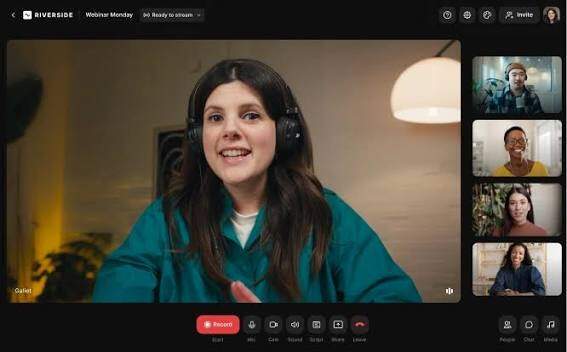
Riverside is the clearest general-purpose option for an edited audio or video interview.
Each participant is recorded locally, and the host receives separate synchronized audio, video, and screen-share tracks. A desktop guest opens the invitation in Chrome or Edge, selects their devices, and joins without creating an account or installing software. A guest using iOS or Android must install the Riverside app.
Choose Riverside when guest onboarding must be simple and the editor wants original files rather than a finished layout. Watch the upload indicators during the call, and tell every guest to leave the browser or app open until "Successfully uploaded" appears.
Riverside is less attractive when the free plan's 720p export, watermark, and two one-off multitrack hours do not cover the planned release.
Descript Rooms
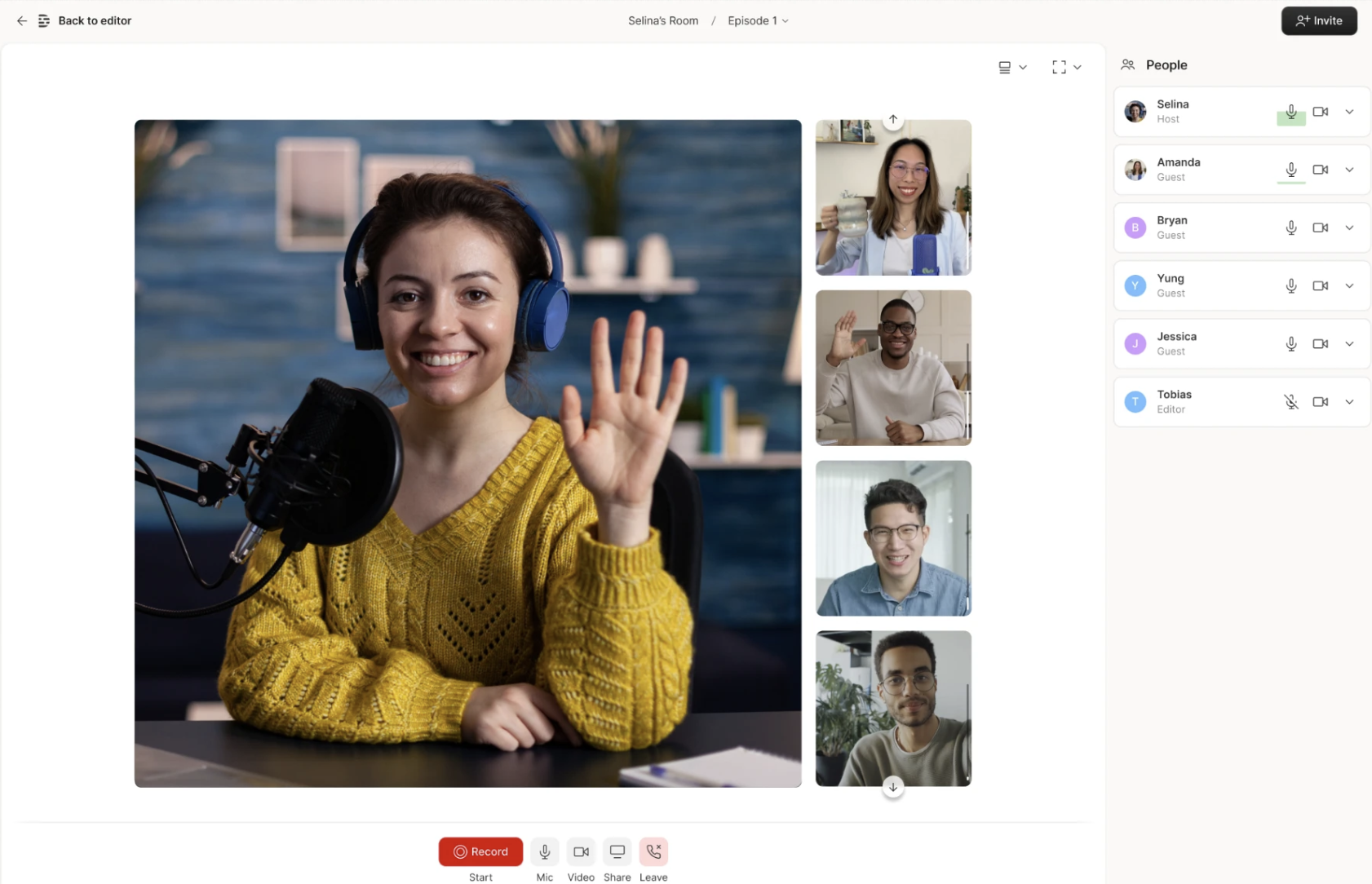
Descript Rooms fits a team that wants recording, transcription, text-based editing, captions, and final assembly in one workspace.
A Rooms session is browser-based, supports up to 10 participants, and sends the recording directly into a Descript project. Media usage is counted by session length rather than multiplying the time by the number of guests, which makes the allowance easier to predict.
Choose Descript when the editor already works in Descript and wants to remove sentences by editing the transcript. Do not choose it for a guest who must join by phone: Descript states that Rooms is not supported on mobile devices and warns that bypassed mobile sessions may not be recoverable. The free plan also limits remote recording to one hour per editor each month, so a weekly interview show will need a paid plan.
Zencastr

Zencastr is the strongest free starting point when separate tracks matter more than built-in live-show controls.
Its current free offer includes local recording, separate audio and video tracks, up to six participants, up to 4K video, and 48 kHz WAV audio. On a computer, guests can join from Chrome, Edge, or Brave through a link without creating an account or downloading software. An iPhone or iPad guest uses the Zencastr app.
Choose Zencastr for an audio-first interview, a video podcast that will be edited elsewhere, or a new show that needs more than a short free trial. Check the guest's device before recording and make a 30-second test. "Up to 4K" describes the platform limit; the camera, computer, lighting, and connection still determine the usable result.
StreamYard
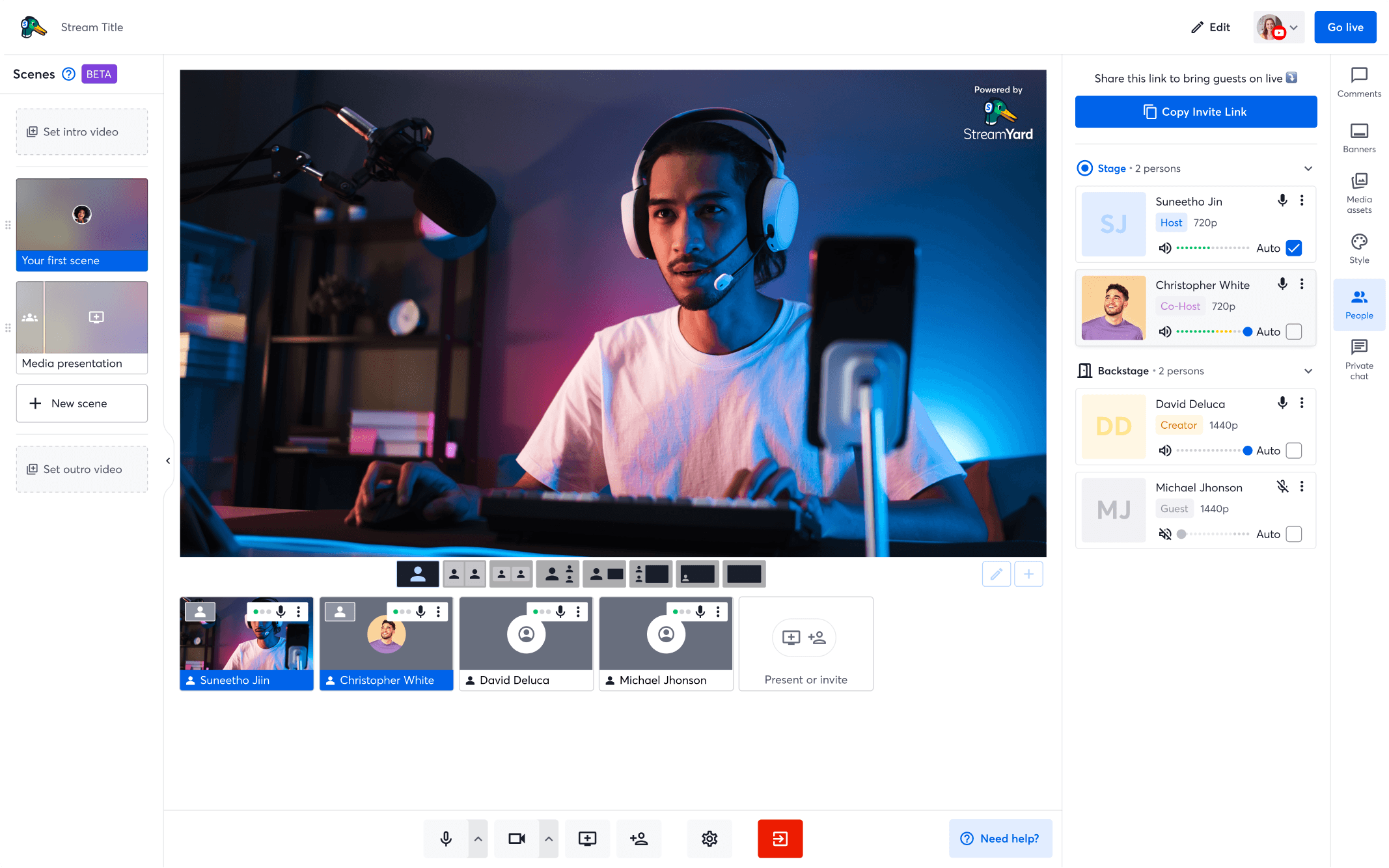
StreamYard is the right fit when the podcast is also livestreamed.
It combines a browser studio, guest links, layouts, comments, branding, streaming destinations, and optional local tracks. Desktop guests can join through a supported browser without an account or software download. StreamYard recommends its guest app for iPhone and iPad, although Safari is also supported; Android guests can use Chrome.
Choose StreamYard when the producer must run a live show and keep cleaner local files for the edited replay. Enable local recording before going live and watch each guest's upload progress. If a guest leaves early, have them reopen the same studio on the same device to resume the upload. For a recorded-only podcast, Riverside, Descript Rooms, or Zencastr provides a more direct workflow with fewer live-production controls.
How to Get a Clean Remote Recording
A local recording platform cannot fix an echoing room, a distant microphone, or the wrong input. Send this checklist before the call and repeat it during the sound test.
Tips for the host and guest:
- Wear headphones. If the guest hears an echo, close duplicate call tabs and confirm that nobody is using speakers.
- Position the microphone correctly. Put it 4–6 inches from the mouth and slightly to one side to reduce room echo and hard "P" sounds.
- Use a soft room. Record near curtains, rugs, a sofa, or a full bookcase. Avoid an empty kitchen or conference room.
- Reduce computer load. Plug in the computer and pause cloud backups, game downloads, VPNs, and file syncing.
- Protect the connection. Use Ethernet when available. On Wi-Fi, sit near the router and stop other large downloads.
- Select devices manually. Choose the microphone, headphones, and camera inside the recording room. Never rely on the browser's automatic choice.
- Test the real file. Record and play back 30 seconds. Check for the wrong microphone, clipping, echo, hum, fan noise, and audio delay.
Set speech peaks near -12 to -6 dB when the platform shows a meter. Keep the microphone position fixed after setting the level.
For a Video Podcast
Place the camera at eye level and face a window or soft light. Use 1080p at 30 fps for a normal remote interview; choose 4K only when the edit needs cropping and the computers can handle the larger files. See this two-person podcast setup guide for shared-room placement and this podcast camera guide for camera options.
If the host stands, demonstrates products, or moves across a wider studio, OBSBOT Tail 2 can replace a fixed host webcam. Its 4K video, PTZR movement, AI Tracking 2.0, and 5× optical zoom let the camera adjust framing without a second operator. It still needs a close external microphone, and it does not replace the remote recording platform.
How to Record a Podcast Remotely with Guests in 8 Steps
Use the same checklist for every episode. It answers how to record a podcast with remote guests without relying on memory during the call.
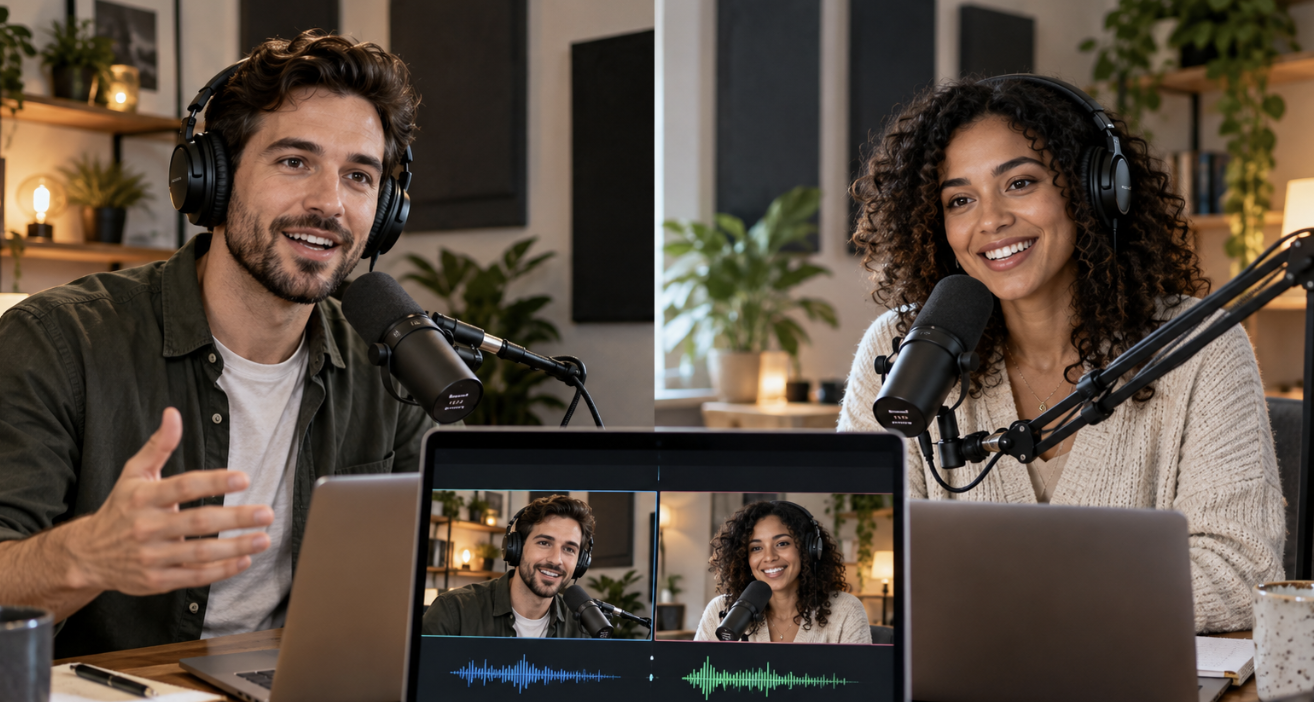
1. Create and Test the Recording Room
Enable separate local tracks and confirm where the original files will appear. Open the invitation in a private browser window or second device to test the guest journey.
2. Send Instructions 24–48 Hours Early
Send the link, time zone, duration, supported browser, and four requests: use a computer, wear headphones, choose a quiet room, and join 10–15 minutes early.
3. Check the Guest's Devices
Confirm recording consent, microphone, headphones, camera, and power. If the voice sounds distant, select the intended microphone and move it closer before adding software processing.
4. Record and Play Back 30 Seconds
Have both speakers talk at normal volume, pause, and overlap briefly. Play the file. A moving meter proves only that an input exists; playback proves it is the correct input.
5. Confirm Separate Tracks and Start a Backup
Verify that every participant shows as locally recording. For an interview that cannot be repeated, record a lower-quality call backup on the host computer.
6. Create a Sync Marker
Clap once or say "three, two, one, mark." Use the waveform spike to align files if automatic synchronization fails.
7. Record the Interview
Leave a short pause after each question. If the call freezes, stop speaking, let it recover, and repeat the last complete sentence. The local file can remain clean even when the live call sounds robotic.
8. Wait for Every Upload
Stop recording but keep each device online until the platform confirms completion. Then download the originals, rename them by episode and speaker, and make a backup copy.
Important: If a guest closes the tab before uploading finishes, ask them to reopen the same invitation on the same device. Do not clear browser data or delete the app before recovery completes.
Edit and Sync the Separate Tracks
- Copy the original files into an episode folder and keep an untouched backup.
- Label each audio and video track with the speaker's name.
- Align the clap or spoken marker. Without a marker, match a sharp word or laugh in the waveforms.
- Mute the compressed call recording and use the local files as the master.
- Remove mistakes and long pauses before applying noise reduction or level changes.
- Lower the inactive speaker's track during crosstalk instead of processing the full mix aggressively.
- For video, use the two-person view for reactions and cut to a close-up when one answer needs emphasis.
- Check synchronization at the beginning, middle, and end before exporting.
Fix Common Remote Podcast Recording Problems
These problems reflect the issues that repeatedly appear in podcasting forums: wrong inputs, unfinished uploads, unclear file ownership, mixed tracks, echo, and audio/video drift.
| Problem | Direct Fix |
|---|---|
| The guest sounds distant even with a USB mic connected | Open the platform's device menu and select the USB mic. Record and play back 30 seconds before continuing. |
| The guest hears an echo | Put both speakers on headphones, mute computer speakers, and close any second tab or device connected to the call. |
| The guest left before the local file uploaded | Send the same studio link and ask the guest to reopen it on the original device. Keep it open until upload completion appears. |
| The host received one mixed track instead of separate speakers | Enable separate or local participant tracks before recording. A mixed file cannot be cleanly separated after the session. |
| The live call sounds robotic or keeps freezing | Stop video temporarily, pause the conversation, and let the connection recover. Check the local track before deciding to rerecord. |
| Audio slowly moves out of sync with video | Align the start by waveform, split the affected track where drift becomes visible, and realign the later section. Use wired headphones next time. |
| The guest cannot access the microphone or camera | Open the browser's site permissions, allow microphone and camera access, refresh the page, and select the devices again. |
| The guest asks who receives the files | Riverside, Zencastr, and StreamYard place completed tracks in the host's session; Descript places them in the host's Rooms project. The host sends copies to the guest if required. |
FAQs About Remote Podcast Recording
Can I Record a Remote Podcast for Free?
Yes, but the limits differ for platforms:
- Zencastr advertises unlimited separate audio and video recording for up to six participants on its free plan, with up to 4K video and 48 kHz WAV audio.
- Riverside Free includes two one-off hours of multitrack recording, 720p video, 44.1 kHz audio, and a Riverside watermark.
- Descript Free includes one remote-recording hour per editor each month and 720p export.
- StreamYard Free lists two local-recording hours per month, five hours of storage, and StreamYard branding. Its official free-plan limits also state that recording downloads are unavailable, so it is better for testing than a finished edited episode.
Check each linked pricing page before recording because plan limits can change.
Is Zoom Suitable for Podcasting?
Not as the main recorder for a podcast you plan to edit professionally. Standard Zoom computer recording saves separate participant audio as compressed M4A files, while the video remains tied to meeting layouts and network delivery. A dropout, robotic voice, or low-resolution guest feed can enter the recording.
Does the Guest Need to Install Software?
It depends on the named platform and device:
- Riverside: Chrome or Edge works without installation on a computer; iOS and Android guests use the Riverside app.
- Descript Rooms: Guests join in a desktop or laptop browser; mobile devices are not supported.
- Zencastr: Chrome, Edge, or Brave works without an account or download on a computer; iPhone and iPad guests use the Zencastr app.
- StreamYard: Desktop guests use a supported browser without an account or download; StreamYard recommends its guest app for iPhone and iPad, while Safari also works.
Who Receives the Separate Recording Files?
Riverside, Zencastr, and StreamYard upload participant files to the host's recording session. Descript Rooms sends them into the host's Descript project. Guests do not need to email their local files in these workflows. In a manual double-ender using Audacity or GarageBand, each guest must export and send their recording to the editor.
Can a Guest Record from a Phone?
Riverside supports guests through its iOS and Android apps. Zencastr directs iPhone and iPad guests to its app. StreamYard supports its iOS guest app, Safari on iOS, and Chrome on Android. Descript Rooms does not support mobile recording. A computer remains the safer choice when the guest needs an external microphone and reliable file recovery.
Conclusion
To record a podcast remotely, use a platform that records separate local tracks, test the guest's actual microphone, keep a backup, and wait for every upload. Those four checks prevent the failures that are hardest to repair after a remote interview.














