Multi-Camera Podcast Production Workflow: Step by Step
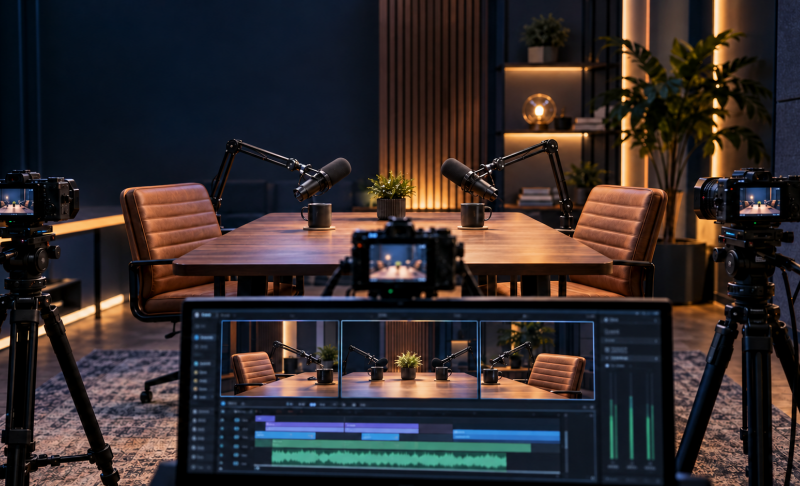
A multi-camera podcast production workflow involves planning your camera angles, recording clear audio and video, synchronizing the sources, and editing them into a finished episode. For a two-person podcast, three cameras and two microphones provide individual speaker shots, a shared wide view, and separate dialogue tracks. This guide follows that setup through preparation, recording, and post-production, with options for both live switching and editing afterward.
Part 1: Plan Your Multi-Camera Podcast Production Workflow
Choose Your Recording Method
Decide how you will record and switch cameras before connecting your equipment. This choice determines how much control you retain afterward.
| Method | What You Record | Main Advantage | Best For |
|---|---|---|---|
| Separate recordings | Individual camera feeds and microphone tracks | Flexible editing | Episodes requiring substantial edits |
| Live switching | A finished program with camera changes | Faster turnaround | Live shows and lightly edited conversations |
| Hybrid | Switched program plus separate sources | Quick delivery with correction options | Recurring productions |
ISO recording means capturing individual sources separately. Check your equipment's capabilities: recording the switched output does not automatically mean each camera is also being saved.
Plan Camera Coverage and Audio Tracks
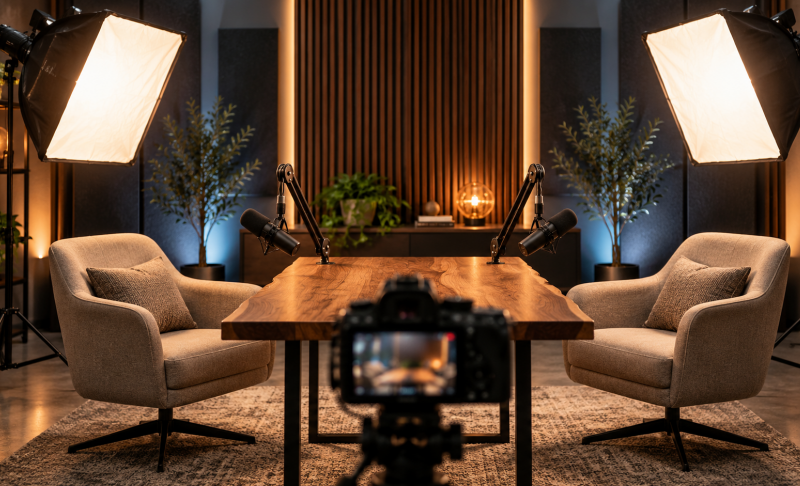
A practical three-camera podcast setup for two people uses:
- Camera A: A medium close-up of the host.
- Camera B: A medium close-up of the guest.
- Camera C: A wide shot showing both speakers.
For a practical example, explore OBSBOT's video podcast setup to see how multiple cameras can support different views of the conversation.
Keep cameras on the same side of the imaginary line between speakers so their screen positions remain consistent. Match headroom and keep microphones from blocking faces.
With two cameras, choose between two individual shots or one wide shot and one close-up, depending on the conversation.
Record each microphone onto a separate track. Camera audio can provide a synchronization reference, while dedicated microphones supply the final dialogue.
Bonus: Best Camera for Podcast Workflows - OBSBOT Tail Air Streaming Camera
Looking for the best camera for podcast production? Consider how easily it fits your recording process, from positioning a host close-up to feeding video into your switching setup. OBSBOT Tail Air is a practical option for small podcast teams that need flexible camera placement and control while keeping their attention on the conversation.
Key Features:
- 4K Video: Record at up to 4K@30fps or 1080p@60fps for detailed speaker shots and shared views.
- AI Human Tracking: Keep a selected speaker in frame as they move, reducing manual framing adjustments during recording.
- PTZ and Preset Control: Adjust camera direction and recall saved positions to prepare consistent framing for recurring episodes.
- Flexible Video Connections: Use Micro HDMI or USB-C to integrate the camera into a compatible recording or live-switching setup.
- Multi-Camera Control: The optional OBSBOT Smart Remote Controller can control up to three Tail Air cameras, making camera adjustments easier for a small production team.
Set Recording Standards and Deliverables
Choose a consistent frame rate across cameras, such as 24, 25, or 30 fps, and use 48 kHz audio where supported. Set white balance manually and match exposure to avoid distracting changes between angles.
Plan your outputs: a horizontal video episode, an audio-only version, and optional vertical clips. Check recording limits, available storage, and continuous power before the session.
Part 2: Record Your Multi-Camera Podcast
Step 1: Test Every Camera and Microphone
Record and review a short test through your complete setup. Include normal speech, laughter, and a brief exchange between speakers.
Check that every camera records, faces remain sharp, and each microphone reaches its intended track. Leave audio headroom for louder moments. Listen through headphones and confirm that recorded speech matches lip movement.
This test is especially useful when cameras feed a switcher or capture system, where audio and video may follow different signal paths.
Step 2: Start Recording and Create a Sync Reference
Start the audio recorder and all cameras, then confirm their recording indicators.
For syncing multiple cameras with external audio, clap once where the cameras can see it and the microphones can hear it. The visible contact and audio spike provide a clear reference during editing. Keep usable reference audio enabled on cameras.
Let sources run through ordinary pauses where practical. If a device stops, restart it, repeat the sync cue, and note the interruption. Timecode is another option when supported, but alignment still needs checking.
Step 3: Monitor the Session and Switching
Monitor dialogue through headphones and periodically check framing, focus, power, and recording status.
For live-switching a video podcast, favor the active speaker and use the wide shot during shared exchanges. Avoid switching for every short acknowledgment; holding an angle often feels more natural.
If available, record isolated sources alongside the program feed. Note retakes and technical problems so the editor can find them quickly.
Part 3: Edit and Deliver Your Multi-Camera Podcast
Step 1: Back Up and Organize Recordings
Create a working copy and a separate verified backup before erasing recording media. Confirm that copied files open and contain the expected recordings.
Organize the episode into folders for camera originals, audio, project files, graphics, and exports. Label sources clearly inside the project, such as "Host Close-Up" and "Guest Mic."
Preserve original media filenames and folder relationships where your recording format requires them. Generate lightweight proxies if playing several camera streams overwhelms your computer.
Step 2: Synchronize Sources and Build a Multicam Sequence
Most multicam podcast editing workflows begin by aligning the original recordings:
- Import every camera clip and microphone recording.
- Synchronize using shared audio waveforms, supported timecode, or the clap.
- Build a multicam clip or source sequence and label the angles.
- Choose the dedicated microphone tracks for final dialogue.
- Check lip sync at the beginning, middle, end, and recording restarts.
Keep audio independent of camera switching so changing the picture does not unexpectedly change the sound.
A fixed offset needs a timing adjustment. Progressive drift requires investigating recording clocks, frame-rate interpretation, or interrupted media before applying corrections.
Step 3: Edit the Conversation and Camera Angles
Synchronize first, then make cuts that change the conversation's duration. Keep related video and audio linked when removing false starts, repeated answers, or excessive pauses.
Once the content flows, refine camera choices. Show the speaker for important points, use genuine listener reactions, and return to the wide shot when both people interact.
Automatic switching can create an initial cut, but review overlapping speech, short interjections, and unsuitable angles. For live-switched episodes, inspect the program and repair mistakes with isolated footage where available.
Step 4: Finish Audio, Color, and Captions
Balance speaker levels, apply restrained noise reduction, and use EQ or compression where needed. Mute camera reference tracks to prevent doubled or echoing dialogue.
Match exposure, white balance, and skin tones across angles. Add essential titles and check captions for names, technical terms, punctuation, and timing.
Step 5: Export, Review, and Archive
Export the video using your destination platform's specifications. Create the audio-only episode from the approved edit so both versions contain the same conversation.
For repurposing video podcasts into vertical clips, reframe deliberately to keep the relevant speaker visible and captions readable.
Before delivery, check the exported file for:
- Lip-sync errors and audio dropouts.
- Black frames, missing footage, or abrupt cuts.
- Incorrect titles and captions.
- Unintended material at the beginning or end.
Archive source recordings, project files, and approved exports together.
Part 4: FAQs About Multi-Camera Podcast Production Workflow
1. How Many Cameras Do You Need for a Two-Person Podcast?
Two cameras can cover both speakers individually; three add a wide shot. The wide angle provides shared coverage and helps conceal edits, but adds recording and storage demands.
2. Should You Edit Podcast Audio Before Syncing the Video?
Synchronize the original audio and video before making duration-changing edits. Otherwise, removed sections can make alignment difficult. Apply conversation cuts across synchronized sources.
3. Do You Need Timecode to Synchronize Podcast Cameras?
No, shared reference audio or a visible and audible clap can support synchronization. Timecode helps organize more complex recordings, but does not remove the need to verify sync.
4. Why Does Podcast Audio Gradually Drift Out of Sync?
Different recording clocks, variable-frame-rate footage, or media interruptions can cause drift. Check alignment throughout the episode and identify the cause before stretching audio or adjusting individual sections.
5. Does Live Switching Eliminate Podcast Editing?
Live switching reduces camera-editing work, but review and finishing remain necessary. You may still need to trim the episode, balance audio, add titles, and correct mistakes using separately recorded sources.
Conclusion
A reliable multi-camera podcast production workflow combines planned coverage, verified recordings, accurate synchronization, and coordinated editing. Test the complete setup before each session and protect your source files before making changes. Once the process works, save your camera settings, recording checklist, folder structure, and editing template. Reusing these foundations makes future episodes faster to produce while leaving camera choices responsive to the conversation.