Webcam vs Camera for Podcast: Which Should You Choose?
A webcam is usually the easiest choice for solo and remote podcasts, while a dedicated camera offers more control over lenses, framing, and recording. The webcam vs camera for podcast decision depends on your recording format, budget, and desired look. A well-lit webcam can deliver polished results; a dedicated camera becomes worthwhile when its extra capabilities solve a specific problem. Here is how to choose the right setup.
Part 1: Webcam vs Camera for Podcast: Key Differences
Here, "camera" means a dedicated mirrorless camera, DSLR, camcorder, or streaming camera. Webcams are cameras too, but they typically prioritize direct computer connection and simple operation.
| Factor | Webcam | Dedicated Camera |
|---|---|---|
| Setup | Usually connects directly through USB | USB, HDMI capture, or internal recording |
| Image control | Varies; some offer manual settings | Often more extensive exposure and lens controls |
| Framing | Usually fixed lens with digital cropping | Lens choice or optical zoom, depending on model |
| Power | Typically USB-powered | Battery or supported continuous power |
| Recording | Usually requires a computer | Computer recording, internal recording, or both |
| Total cost | Usually fewer accessories | May include a lens, capture device, and power accessories |
| Best fit | Desk-based solo and remote shows | Flexible studio placement and greater creative control |
Image Quality, Lighting, and Background Blur
Resolution does not tell the whole story. Two devices recording in 4K can produce different levels of detail, noise, and highlight control. Sensor size, lens quality, processing, and lighting all affect the result.
Many mirrorless cameras offer larger sensors and interchangeable lenses, giving you more flexibility in low light and greater control over background blur. However, a poorly lit camera setup can still look worse than a carefully positioned webcam.
For a webcam for video podcasting, start with soft light in front of the speaker and avoid a bright window directly behind them. Improve lighting before assuming you need another device.
1080p is often sufficient for straightforward episodes. 4K podcast recording is useful when you want to crop closer or create vertical clips without losing as much detail.
Computer Connection and Recording Workflow
A webcam usually follows a simple workflow: connect it through USB, select it in your recording software, and choose a supported resolution and frame rate.
A dedicated camera may provide several routes:
- USB video output: Compatible models connect directly to the computer.
- HDMI capture: A clean HDMI signal passes through a capture device into your recording software.
- Internal recording: Video saves to a memory card for editing and audio synchronization afterward.
Check the specifications for your intended connection. A camera that records 4K internally might provide a different resolution through USB.
For remote podcast recording, confirm that your software supports the device and desired recording quality. Buying a higher-resolution camera will not automatically remove software limitations.
Framing, Focus, and Camera Placement
The right framing depends on where the camera can sit. A wide-angle webcam may work well at arm’s length, but a camera positioned across the room may need a different lens or optical zoom for a tight shot.
Digital zoom crops the image; optical zoom changes framing through the lens. Heavy cropping can reduce usable detail.
For a two-person podcast camera setup, check that both speakers fit comfortably and remain in focus. Very shallow depth of field can become a disadvantage when participants sit at different distances.
Face autofocus is helpful when speakers move. Manual focus can work for fixed seating, while automatic tracking may need to be disabled if it disrupts a stable composition.
Long-Session Reliability and Total Setup Cost
A podcast camera must keep working for the entire conversation. Check continuous power, temperature behavior, sleep settings, recording limits, and storage requirements.
Webcams usually draw power from USB, but their recording reliability still depends on the computer, connection, and software. Dedicated cameras need model-specific checks for sustained operation.
Compare the total podcast camera setup cost, including:
- Camera body and lens, if required
- Tripod, desk mount, or mounting arm
- Capture hardware and cables, where needed
- Compatible continuous-power accessories
- Storage for the expected recording length
Adding another camera also increases demands on computer inputs, bandwidth, and storage. Budget for the complete workflow.
Part 2: Which Option Fits Your Podcast Setup?
Choose around your show's format first. The most useful upgrade solves a visible limitation or makes recording easier.
| Podcast Format | Practical Starting Option | Main Reason to Upgrade |
|---|---|---|
| Solo desk podcast | Webcam | More framing or image control |
| Remote interview | Webcam | Better local video capture |
| Two-person in-person show | One suitable wide camera | Separate close-ups |
| Controlled studio production | Webcam or dedicated camera | Specific lenses and visual style |
| On-location interviews | Camera with standalone recording | Independence from a computer |
Solo and Remote Podcasts: Start with a Webcam
For a solo podcast video setup, a webcam keeps the workflow compact. It can stay mounted above your screen and feed directly into your recording software.
Prioritize suitable framing, dependable focus, software compatibility, and a stable connection. Manual exposure and white balance controls can help keep the image consistent.
Before upgrading, ask what is actually wrong. If your face looks dark, add lighting. If speech sounds distant, improve microphone placement. Neither problem necessarily requires another camera.
Upgrade when you need a different lens perspective, more control over background separation, or placement your webcam cannot accommodate comfortably.
Two-Person and Multi-Camera Podcasts: Choose Around Your Angles
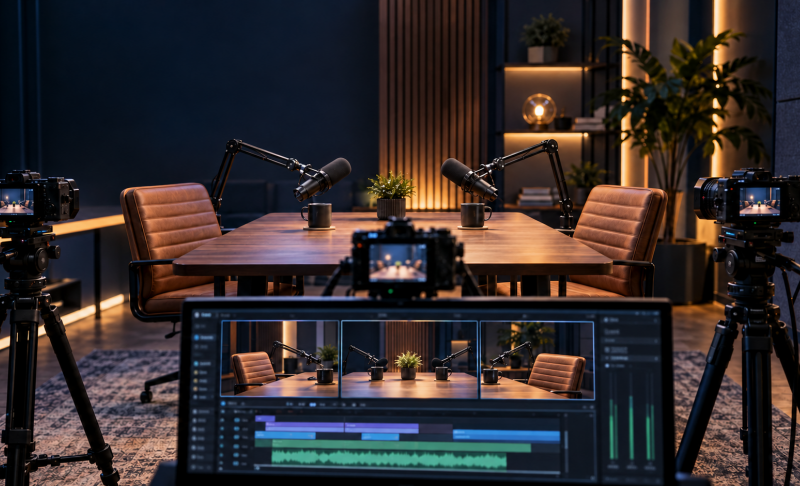
One camera can record a two-person conversation with a wide shot. Separate close-ups provide more editing options, but they also increase equipment and setup requirements.
A multi-camera podcast setup might use two close-ups or combine close-ups with a wide view. Choose the angles you will actually use rather than buying a camera for every possible shot.
Multiple webcams can work when your computer and software support simultaneous feeds. Dedicated cameras may offer more flexibility for distant placement and tighter framing.
For consistent results, match frame rates, set similar exposure, and adjust white balance across cameras. Test every feed together: a setup that works with one device may struggle when several share the same connection bandwidth.
Studio and On-Location Podcasts: Prioritize Control and Workflow
A mirrorless camera for podcasting makes sense when interchangeable lenses and a controlled visual style matter. It also gives you flexibility for recording other content beyond the podcast.
Camcorders and dedicated streaming cameras are alternatives worth evaluating. Depending on the model, they may offer useful zoom ranges, continuous-operation features, or convenient computer outputs.
For location shoots, consider whether you can record without a laptop, monitor the shot, and power everything for the session. Portability includes the entire kit.
If you already own a compatible camera, test it first. Adding the necessary accessories may be more practical than purchasing another device.
Bonus: A Flexible Camera for Video Podcasts - OBSBOT Tail Air Streaming Camera
For podcasters who want more flexible camera placement and control, OBSBOT Tail Air is worth considering. Use one camera for a solo show or a two-person wide shot, then add cameras when you need separate close-ups. Its compact design also makes it easier to position around a podcast table without crowding the conversation.
Key Features:
- 4K Video at 30fps: Capture detailed podcast footage with room to crop closer or reframe for shorter clips during editing. It also supports 1080p at 60fps.
- AI Human Tracking: Keep a solo host in frame when they move or demonstrate something. For seated interviews, use a fixed composition when tracking is unnecessary.
- PTZ Control and Preset Positions: Adjust pan, tilt, and zoom or recall saved framing through supported controls, reducing the need to reposition the camera manually.
- Flexible Connections: Use USB-C webcam mode for computer-based recording or Micro HDMI output with compatible capture hardware for a studio workflow.
- Multi-Camera Support: Build separate host and guest angles using multiple Tail Air cameras with compatible software or switching equipment.
Verify Your Choice Before a Full Episode
Run a full-length trial using your actual setup. A short preview cannot establish whether the system will remain stable throughout an interview.
- Select the intended resolution and frame rate.
- Position every participant at the planned seating distance.
- Check focus and exposure while people speak and move.
- Record for at least the expected episode length.
- Review temperature, power, storage, and any interruptions.
- Check microphone synchronization and all simultaneous camera feeds.
Part 3: FAQs About Webcam vs Camera for Podcast
1. Can a 4K Webcam Look as Good as a Dedicated Camera?
A 4K webcam can produce comparable results in some well-lit podcast setups. However, matching resolution does not guarantee matching image quality. Sensors, lenses, processing, and compression affect the final image.
2. Do You Need a Capture Card to Use a Camera for Podcasting?
You need a capture device when bringing an HDMI camera signal into a computer. Compatible USB video output can avoid that requirement, and internal memory-card recording provides another option.
3. Is 1080p Enough for a Video Podcast?
1080p is enough for many video podcasts, especially when lighting, framing, and focus are good. Choose 4K when you need more room for cropping, reframing, or producing vertical clips.
4. Can You Mix a Webcam and a Mirrorless Camera in One Podcast?
Yes, compatible software and capture hardware can combine both sources. Match frame rates and adjust exposure and white balance. Check latency so video angles remain synchronized with the microphone audio.
5. Can You Use a Webcam's Built-In Microphone for a Podcast?
A built-in microphone can work for testing, but a separate microphone usually gives you better speech capture. Positioning it closer to the speaker helps reduce the influence of room noise.
Conclusion
Choose a webcam for simple computer-based recording, and choose a dedicated camera when its lens options, placement flexibility, or recording capabilities meet a clear need. The webcam vs camera for podcast decision should account for the complete setup, including lighting, audio, power, and accessories. Start with the equipment that supports your current format, then run a full-length recording test before relying on it for an important episode.